
Overview
You will learn
- How do generate your own Custom UI Service based on a C1-released Business Object Interface. For this tutorial we will use the Business Object Interface
I_BankTPwhich is also available in SAP BTP ABAP Environment trial systems. - How to identify which authorization objects are needed to consume a SAP C1-released Business Object Interface.


Prerequisites
Prerequisites
- SAP BTP, ABAP Environment
- SAP S/4HANA, ABAP Environment
- A package (e.g.
ZDEMO_UI_INTERFACE_###) located in the software component ZLOCAL
Steps
In order to make it easier for customers to build custom UI’s on top the aforementioned released business objects SAP has provided a wizard as part of the ABAP Development Tools (ADT). This tutorial shows how you can use this wizard to generate your own custom UI on top of the SAP C1-released Business Object Interface I_BankTP. The same approach can be used for C1-released Business Object Interfaces that have been built by customers and partners.
In the Project Explorer select the Released Objects tree and then the node
USE_IN_CLOUD_DEVELOPMENT. Here you have to open the folder Core Data Services and then the folder Behavior Definitions where you find the C1-released Business Object InterfaceI_BankTP.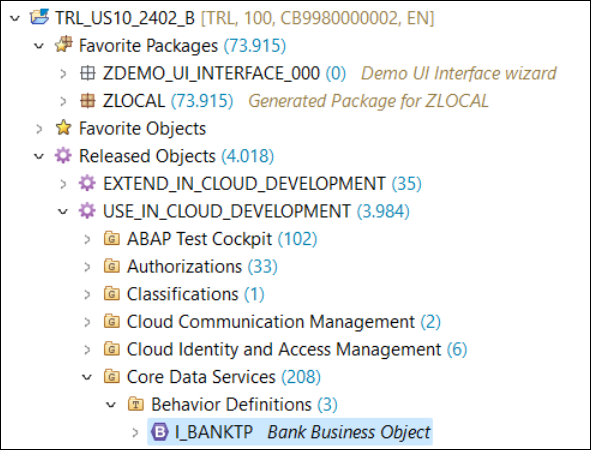
interface Right-click on the interface
I_BankTPand select Generate ABAP Repository Objects
interface Select OData UI Service and then Next

generator Select the package
ZDEMO_UI_INTERFACE_###by pressing the Browse button and press Next.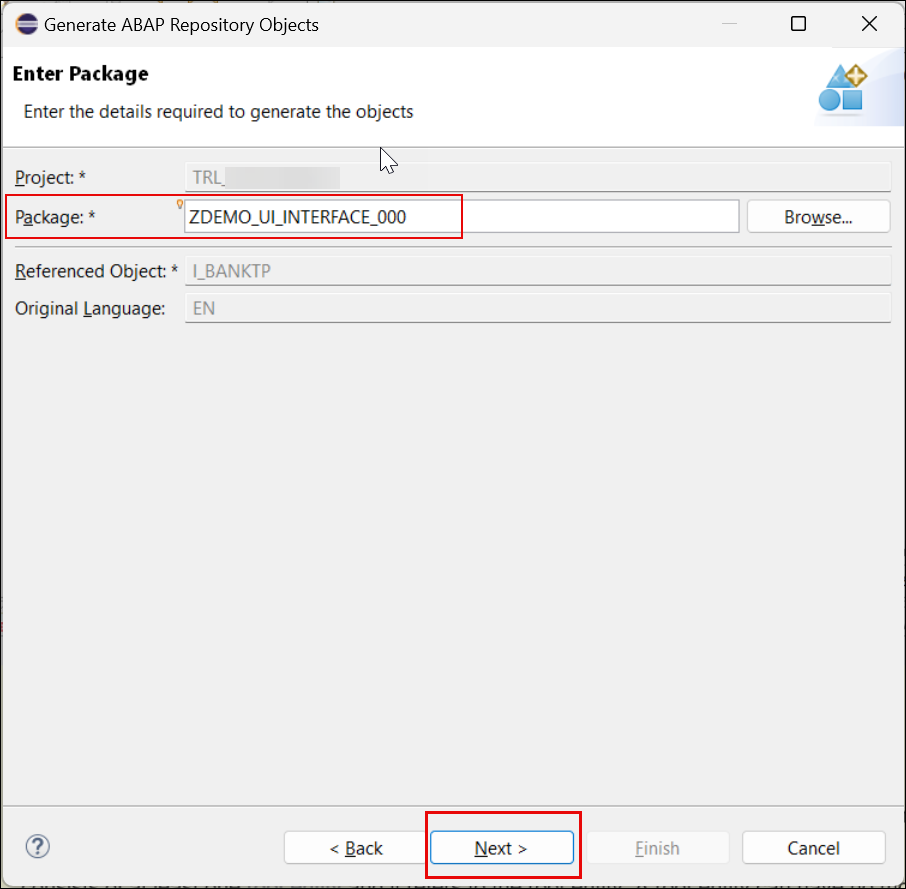
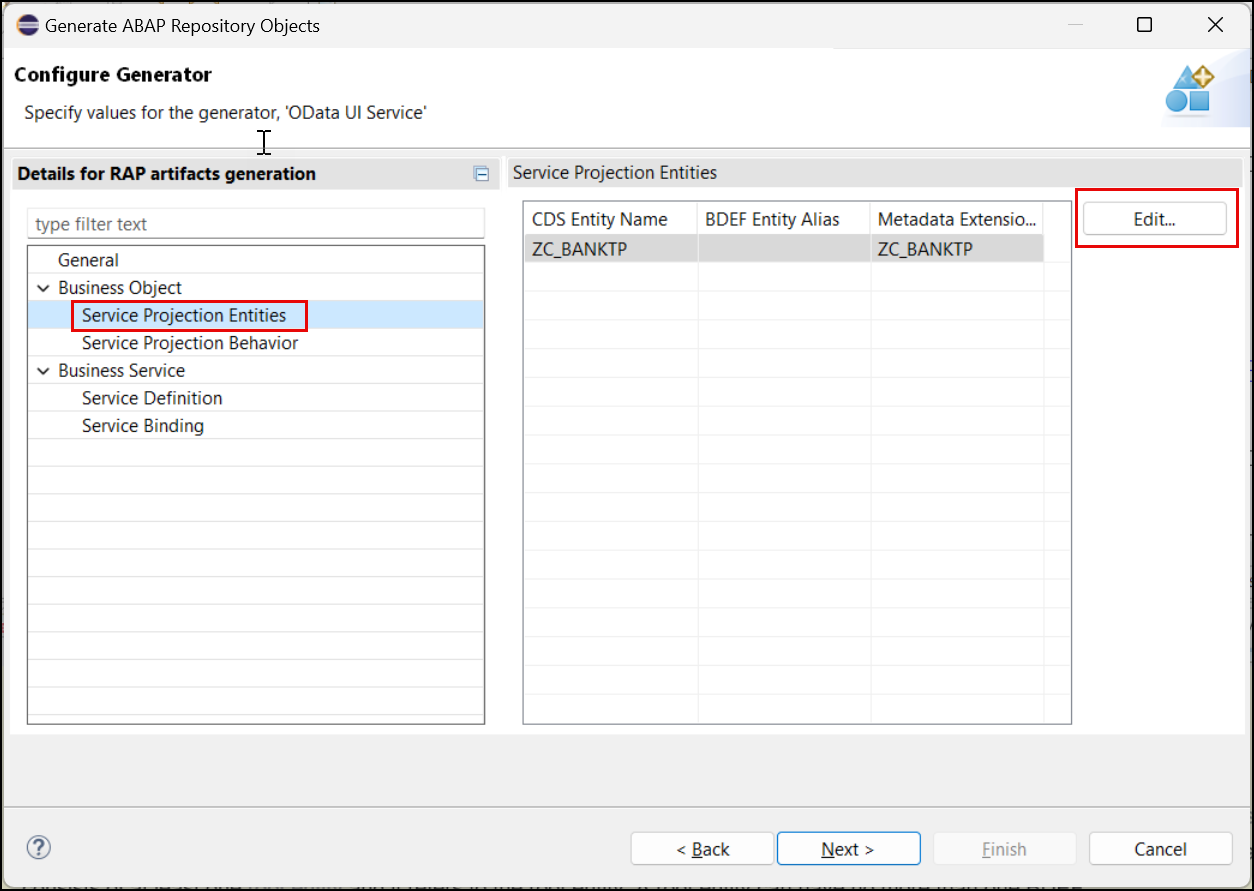
generator The generator finishes with the Configure Generator screen. When you want to change the names of the repository objects that will be generated you can do so by selecting the entries Service Projection Entities, Service Projection Behavior, Service Definition and Service Binding.

generator When selecting Service Projection Entities you can change the suggested name of the CDS projection view(s).
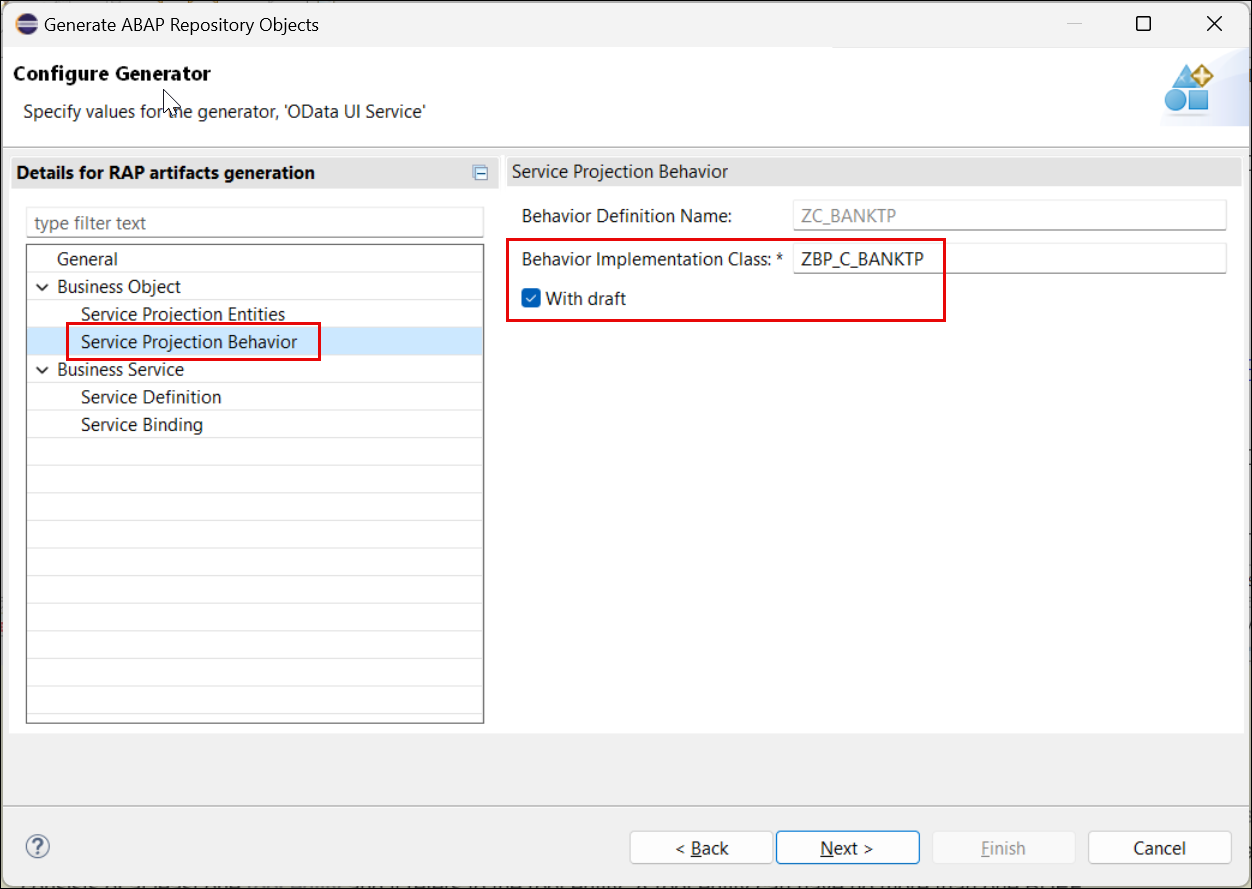
Service Projection Entities When selecting Service Projection Behavior you can change the suggested name of the Behavior Implementation Class. In addition you can decide whether your UI shall support draft as well when the underlying RAP business object provides draft, by checking with draft.
Service Projection Behavior When selecting Service Definition you can change the suggested name of the Service Definition Name.

Service Definition When selecting Service Binding you can change the suggested name of the Service Binding Name. By pressing Next you can start the generation process.

Service Binding The wizard shows an overview of the repository objects that are going to be generated. Press Next.
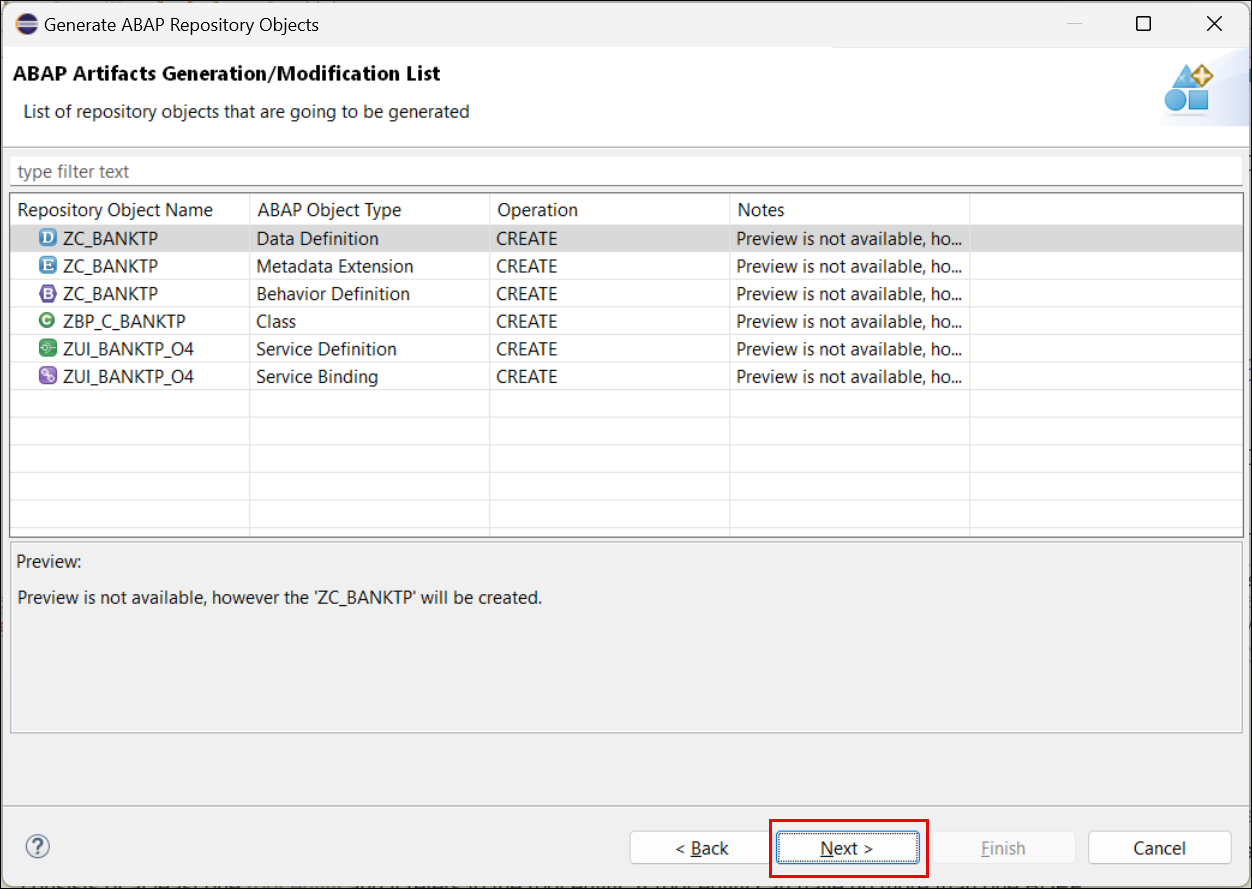
eclipse Select a transport or create a new transport and press Finish to start the generation of the repository objects.

eclipse
When the generation process is finished a new tab with the generated Service Binding will be opened. Click Publish to publish the service binding locally. In the project explorer you can see all objects that have been generated.

result 
result Select the entity set
ZC_BankTPand click Preview or double-click on the entity setZC_BankTP. This will start the SAP Fiori Elements preview.
Fiori Elements Preview In the preview of your app press the button Create to create a new bank.

Fiori Enter values in the fields Bank Country / Region e.g.
CZand Bank Key e.g.1234and press Continue.
Fiori The object page opens and you have to provide data for the remaining mandatory fields such as the Bank Name.

Fiori
When your development user does not have the authorization to create new banks you will receive the following error message: You are not authorized to create bank data for country/region CZ.

result In order to identify the missing authorizations you can check the Knowledge Transfer Document of
I_BANKTP. Either open it using the shortcut Ctrl+Shift+A or navigate to it in the Project Explorer as shown as shown below.
result As you can see the business object
I_BankTPchecks for the authorization objectsF_BNKA_MAOandF_BNKA_INT.
result
When you want to learn how to create authorizations please have a look at the following tutorial Providing Authorization Control for a Business Configuration Maintenance Object.
When you want to trace authorization checks please make use of Display Authorization Trace app.
Resources
Discussion
Share feedback on this tutorial or join the conversation in SAP Community.