
Overview


Prerequisites
Prerequisites
- Proficiency: Beginner
- You have access to SAP HANA on premise or SAP HANA Express – This tutorial will not work with HANA Cloud
- SAP HANA, express edition already comes with a tenant database called
HXE. If you are using a different deployment, you can create a tenant database following this guide - SAP HANA, express edition already comes with a development space. If you want to create a separate one or are using another deployment, you can create a space as explained on this tutorial.
- You have the proper administration rights
Steps
Intro
Note: SAP HANA, express edition, comes with a default first tenant called
HXEand an XS Advanced space calleddevelopment. If you are already using the development space, make sure you re-create the database services to point at the tenant database.
Log in to the XS Advanced CLI as XSA_ADMIN. Use command xs-admin-login from the prompt in the virtual machine as hxeadm
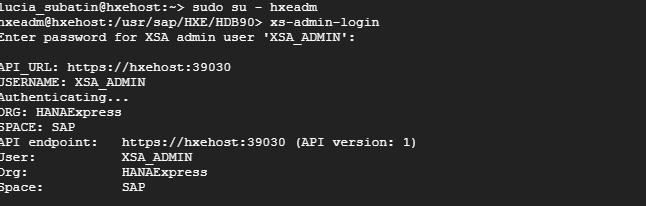
Note: If you are not using the command line from the operating system in the virtual machine, use command
xs login -a <https://hxehost:39030> --skip-ssl-validationor adapt it to your deployment.
Use the following commands to map the HXE tenant to the development space in the organization HANAexpress. Replace the values with the appropriate ones if you are using a different deployment
xs enable-tenant-database HXEOnce you get confirmation of the mapping, use the following command to complete the mapping:
xs map-tenant-database -o HANAExpress -s development HXENote: Unless you have changed them, the passwords for the user SYSTEM in both SYSTEMDB and the tenant are the master password you set during setup.
###Mark the rest of the steps as done and complete the validation in step 5.
Do NOT perform these steps if you performed option 1.
If you are using SAP HANA, express edition, go into https://hxehost:51036 or https://hxehost:39030 to access the xsa-cockpit app.

Click on the button to open and log in to the XSA Cockpit

If you are not using SAP HANA, express edition, or you have changed the ports, you can find out the right URL using command
xs appson the Command Line Interface and look for the URL for applicationxsa-cockpit. You can access the CLI directly from an SSH console on the server or download it using the Download Manager. You can get the Download Manager after registering at the Download site
You need a user with administration rights, such as XSA_ADMIN. Log in to the Administration tool with it
Click on Enable

You will be prompted for the credentials to the tenant database

Wait until you will see the database is enabled. Do not refresh or navigate away from this site. You will see a success message

Click Map

Select the space you want to map to the tenant database and click on Map

Wait until you get a response that the database has been mapped.
You can now use the space mapped to a tenant database in your Multi Target Applications.
What do you see under Mapped spaces for the tenant you have just mapped in the XS Advanced Cockpit (default, https://hxehost:51036/cockpit#/xsa/logicalDatabases )
Resources
Discussion
Share feedback on this tutorial or join the conversation in SAP Community.