
Overview
You will learn
- How to transform a procedure to a table function.


Prerequisites
Prerequisites
- This tutorial is designed for SAP HANA on premise and SAP HANA, express edition. It is not designed for SAP HANA Cloud.
- Tutorials: Creating Scalar User Defined Functions
Steps
Intro
There are application and scenarios where you need a table function instead of procedure to leverage the advantage of direct selects on the output, for example, filtering, sorting and grouping. In the following exercise, we show you how you can easily transform a procedure to a table function.
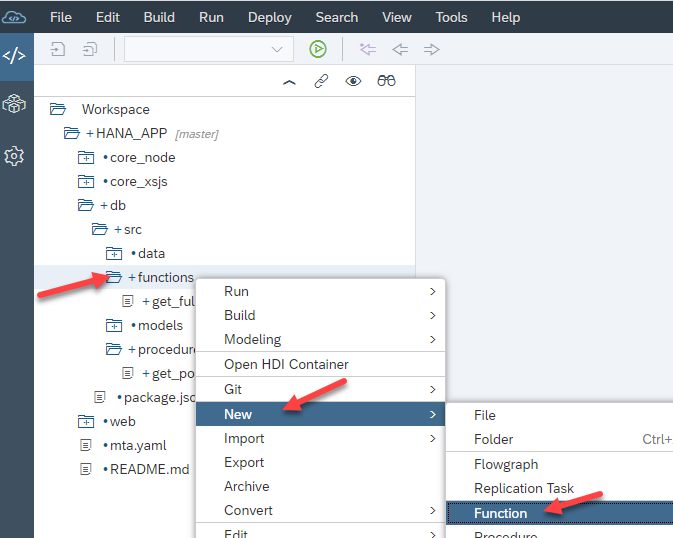
Return to the functions folder, and right click and choose New, then Function.
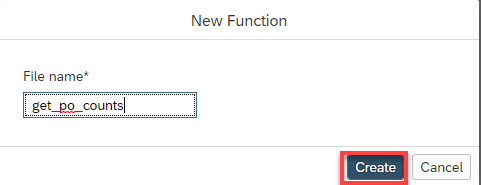
- Enter the name of the file as
get_po_counts. Then click Create.
- The editor will be shown
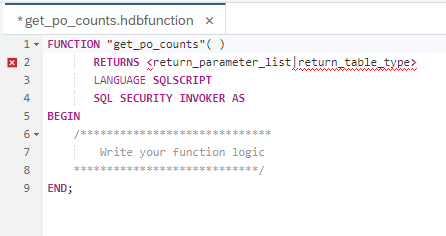
Add the input parameter called IM_FDATE as well as the RETURN Table parameter as shown. Please note the scalar input parameter we will used later on for filtering.
FUNCTION "get_po_counts" ( im_fdate DATE )
RETURNS TABLE (EMPLOYEEID NVARCHAR(10),
	       FULLNAME NVARCHAR(256),
	       CREATE_CNT INTEGER,
	       CHANGE_CNT INTEGER,
	       COMBINED_CNT INTEGER)
AS
BEGIN


END;Copy the logic from the procedure get_po_header_data into the body of the function. Make sure to only copy the code between the BEGIN and END statements
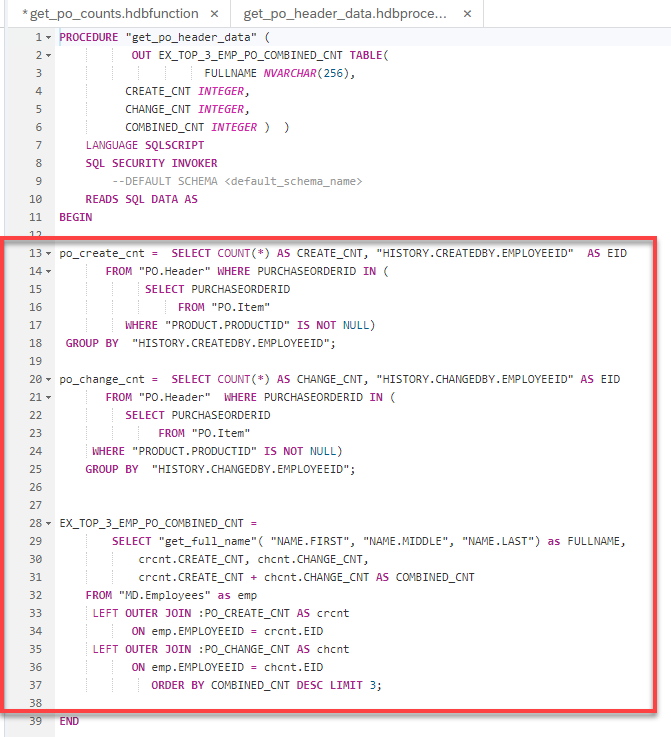
Add to the WHERE clauses in the first two SELECT statements for filtering by month. Month is captured from the input parameter im_fdate.
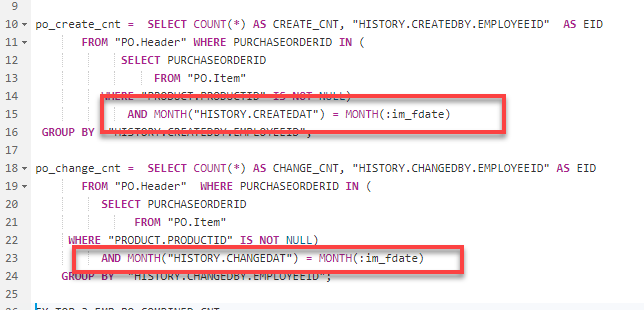
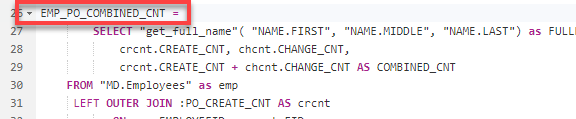
In the third SELECT statement, change the name of the intermediate table variable to EMP_PO_COMBINED_CNT to match the variable name to the semantics of the query
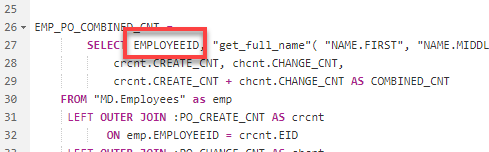
Also add the EMPLOYEEID column to the field list.
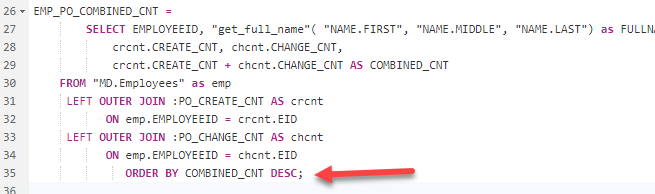
Remove the LIMIT clause at the end.
Finally, add a RETURN SELECT statement at the end to mark the to be returned result set of the function.
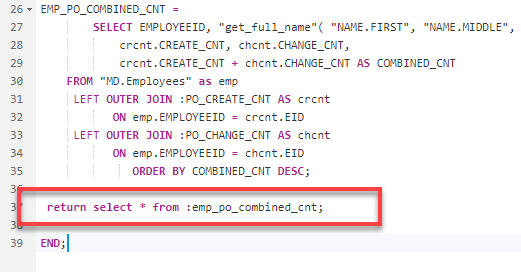
The completed code should be very similar to this.
FUNCTION "get_po_counts" ( im_fdate DATE )
RETURNS TABLE (EMPLOYEEID NVARCHAR(10),
	       FULLNAME NVARCHAR(256),
	       CREATE_CNT INTEGER,
	       CHANGE_CNT INTEGER,
	       COMBINED_CNT INTEGER)
AS
BEGIN

po_create_cnt =  SELECT COUNT(*) AS CREATE_CNT, "HISTORY.CREATEDBY.EMPLOYEEID"  AS EID
       FROM "PO.Header" WHERE PURCHASEORDERID IN (
             SELECT PURCHASEORDERID
                  FROM "PO.Item"
          WHERE "PRODUCT.PRODUCTID" IS NOT NULL)
              AND MONTH("HISTORY.CREATEDAT") = MONTH(:im_fdate)
 GROUP BY  "HISTORY.CREATEDBY.EMPLOYEEID";

po_change_cnt =  SELECT COUNT(*) AS CHANGE_CNT, "HISTORY.CHANGEDBY.EMPLOYEEID" AS EID
       FROM "PO.Header"  WHERE PURCHASEORDERID IN (
          SELECT PURCHASEORDERID
               FROM "PO.Item"
     WHERE "PRODUCT.PRODUCTID" IS NOT NULL)
          AND MONTH("HISTORY.CHANGEDAT") = MONTH(:im_fdate)
	GROUP BY  "HISTORY.CHANGEDBY.EMPLOYEEID";

EMP_PO_COMBINED_CNT =
        SELECT EMPLOYEEID, "get_full_name"( "NAME.FIRST", "NAME.MIDDLE", "NAME.LAST") as FULLNAME,
            crcnt.CREATE_CNT, chcnt.CHANGE_CNT,
            crcnt.CREATE_CNT + chcnt.CHANGE_CNT AS COMBINED_CNT
 	FROM "MD.Employees" as emp
     LEFT OUTER JOIN :PO_CREATE_CNT AS crcnt
           ON emp.EMPLOYEEID = crcnt.EID
     LEFT OUTER JOIN :PO_CHANGE_CNT AS chcnt
           ON emp.EMPLOYEEID = chcnt.EID
              ORDER BY COMBINED_CNT DESC;

 return select * from :emp_po_combined_cnt;

END;Click Save
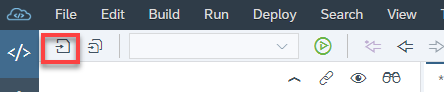
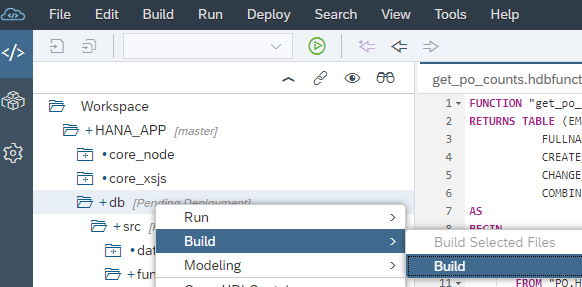
Use what you have learned already and perform a build on your hdb module.
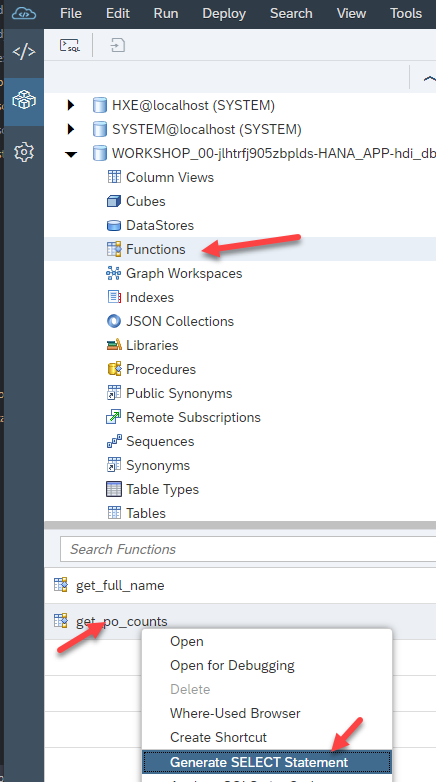
Return to the Database Explorer page. Select the Functions folder. Righ-click on the get_po_counts function and choose Generate SELECT statement.
A new SQL tab will be opened with a SELECT statement. Enter the date 18.12.2014 as the input parameter and add LIMIT 3 at the end of it. Click Run.
SELECT * FROM "get_po_counts"('18.12.2014') LIMIT 3;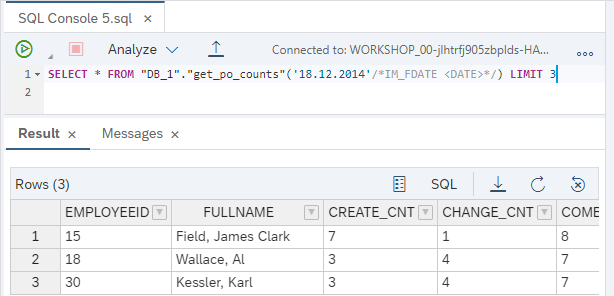
Resources
Discussion
Share feedback on this tutorial or join the conversation in SAP Community.