
Create a Cube Calculation View (XS Advanced)
Create a graphical calculation view with a cube data type.
Overview
You will learn
- How to create a calculation view with a Cube data type
- Use a star join to combine data from a dimension calculation view and a table
- Perform currency conversion


Prerequisites
Prerequisites
- This tutorial is designed for SAP HANA on premise and SAP HANA, express edition. It is not designed for SAP HANA Cloud.
- Tutorials: Create a calculation view of data type Dimension
Steps
Create a new calculation view in your models folder.

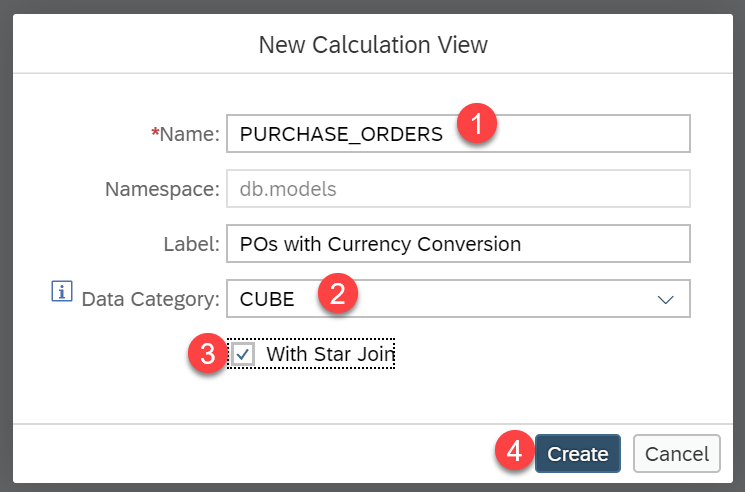
Call it PURCHASE_ORDERS, choose CUBE as a data category and mark the flag for With Star Join
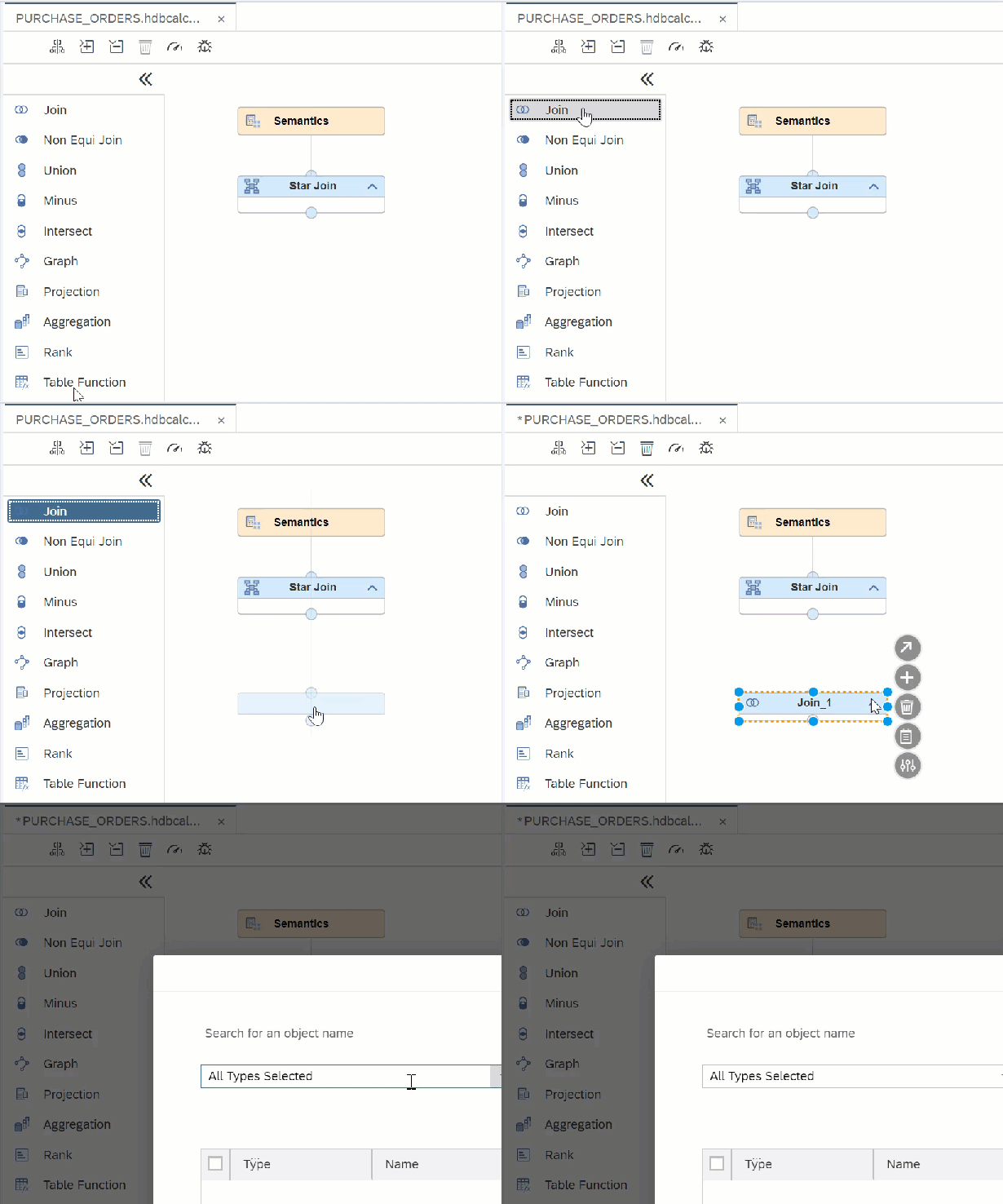
Drag and drop a join node and add click on the + sign to add the data sources
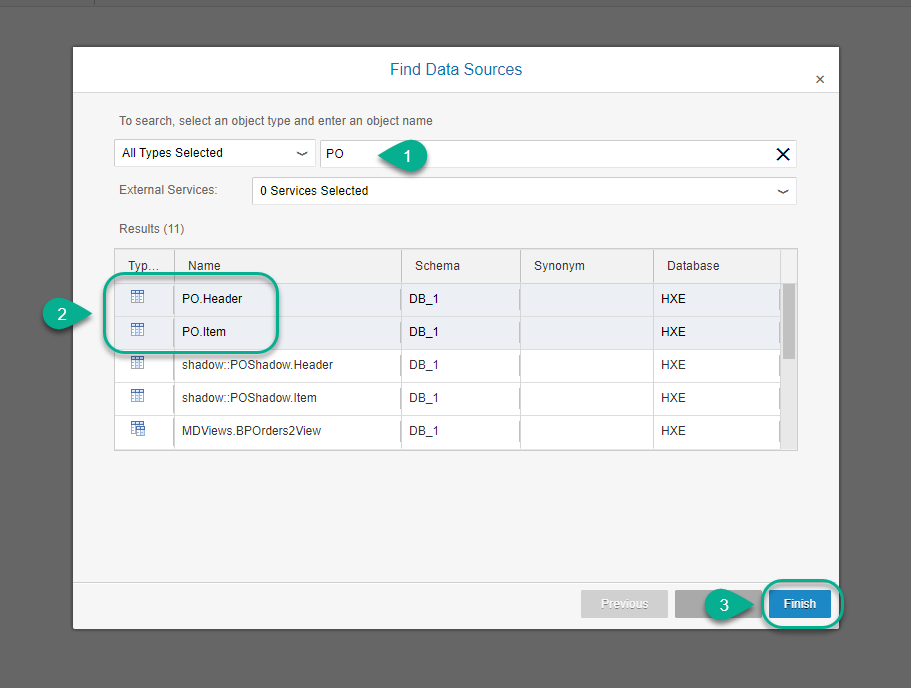
Type PO and choose both PO.Header and PO.Item and click Finish.
Create a inner join using PURCHASEORDERID and set the cardinality as 1..n

In the mapping tab, add the following columns to the output: PURCHASEORDERID, HISTORY.CHANGEDAT, PRODUCT.PRODUCTID, CURRENCY and GROSSAMOUNT.

Finally, rename the node to PO.
Connect the output of the join to the Star Join. Use the + sign to search and select PRODUCTS.

Join the PRODUCTID and PRODUCT.PRODUCTID as an inner join.

In the Parameters tab of the Star Join Node, create an input parameter named IP_O_TARGET_CURRENCY.

Configure it as NVARCHAR, length 3 with a Semantic type of Currency.
Flag it as mandatory and set a default value of USD.

Go into the mapping tab and double click on the PO parent node to add all of the fields to the output. Add the GROSSAMOUNT a second time.

Change the name of the duplicate column to OriginalGrossAmount.

Click the semantics node. Change the Type of the PURCHASEORDERID to be an Attribute.

Assign semantics for GROSSAMOUNT.

Choose Amount with Currency Code and configure as follows:
- Display Currency: column, choose
GROSSAMOUNT_CURRENCY - Check the
ConversionandDecimal shiftboxes

Click on the definition tab and use the following configuration

Save the view.
Build the db module and return to the database explorer

Navigate to the column view, right-click on it and select Open Data.

Resources
Discussion
Share feedback on this tutorial or join the conversation in SAP Community.