
Integrate an SAP Build Apps application into SAP Build Work Zone, advanced edition
Add an SAP Build Apps application to a workpage in your workspace.
Overview
You will learn
- How to add a SAP Build Apps application to your workspace


Prerequisites
Prerequisites
- You’ve already created the
Sales Managementworkspace using SAP Build Work Zone, advanced edition - The SAP Build Apps application called `Sales Order Trigger’ has been deployed to SAP BTP and is available to add to your workspace
Steps
Intro
In this tutorial, you’ll add a SAP Build Apps application to your workspace. Later you will learn how to use the app and create an approval process.
The Channel Manager is used to manage content providers. Once a content provider is configured, it’s added to the Content Explorer - a tab on the Content Manager screen that exposes business content from content providers. This business content can then be integrated into your site.
Access the Administration Console from the user actions dropdown menu under your avatar.

Open the Admin Console Go to the External Integrations section, expand it, and click Business Content.

Open Business Content Click Content Manager.
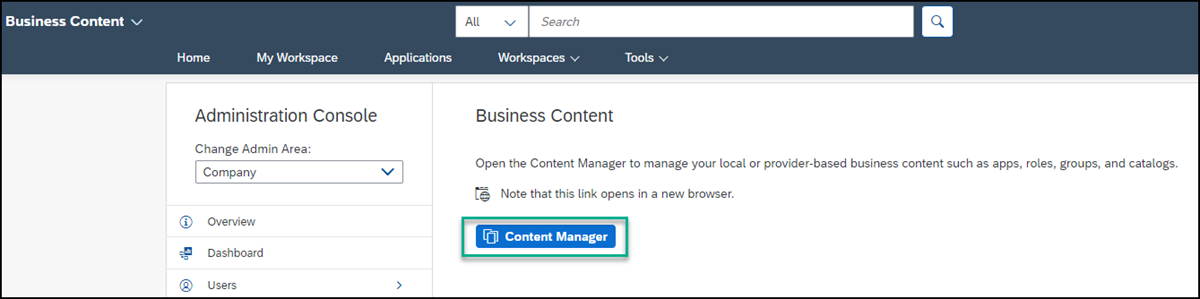
Open Content Manager The Content Manager opens with the My Content tab in focus.
The Content Manager has two tabs: My Content where you can manually configure content items and view any other available content items, and the Content Explorer where you can explore exposed content from available content providers, select the content, and add it to your own content.
From the side navigation panel, click the Channel Manager icon to open it.

Open Channel Manager
In this step, you’re going to fetch updated content from the HTML5 Apps content provider that is located in the Channel Manager. The updated content is then exposed in the Content Explorer. From here you can add it to your content in the Content Manager.
The HTML5 Apps content provider is created automatically. Any app that you deploy to SAP BTP is automatically added as content to this provider.
In the Channel Manager, at the end of the HTML5 Apps content provider row, click the Fetch updated content icon. You’ll see in the Status column that the content of this provider is being updated.

Update content provider Once updated, the HTML5 Apps content provider will expose your newly deployed SAP Build Apps application that you will add to your content.
Click the icon in the side panel to open the Content Manager.

Go to content manager Click the Content Explorer tab to explore content from the available content providers.

Open content explorer Select the HTML5 Apps provider.

Open provider You’ll see that your
Sales Order Triggerapp created in SAP Build Apps, is displayed in this provider. Select it and click + Add to My Content.
Add to my content Click the My Content tab.

Go back to My Content You can see your
Sales Order Triggerapp is now in the list of content items.
View app in My Content
To view the app in runtime, you must assign the app to a role. In this step, you’ll assign the Sales Order Trigger app to the Everyone role. This is a default role - content assigned to the Everyone role is visible to all users.
Open the Content Manager from the side panel.

Open content manager again Click the
Everyonerole to open the role editor.
Select the Everyone role Click Edit.

Click edit Click the search box in the Assignments panel on the right. Any available apps are shown in the list below.
Next to the
Sales Order Triggerapp, click the + icon. You’ll see that the icon changes.Click Save.
To see the app in the Applications page, you can assign it to a new or existing group. This is an optional step and is not required for this tutorial.
Before you add the Sales Order Trigger app to your workspace, first add a header for a section where you will add most frequently used apps.
Open your workspace.
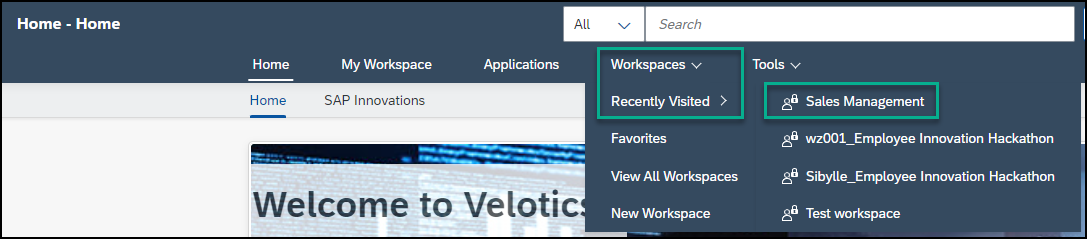
Open your workspace Click the pencil icon to open the Page Designer.

Open the Page Designer Scroll down to the section just before the Feed and click + to add another section.

Add a section Click Add Widget to open the widget gallery.

Add widget Select the Text widget and design it as follows:
| :————- | :————- | Text | Type in the following:
Most Popular Apps. | Font | Select the text and change to Arial 14pt. | Color | With the text still selected, choose the color black from the chart.
Design the widget To increase the spacing between this section and the section above, hover to expose the settings on the right, and click the cog icon to edit the spacing.

Add spacing Under Padding Top add the value
30pixels and click Save.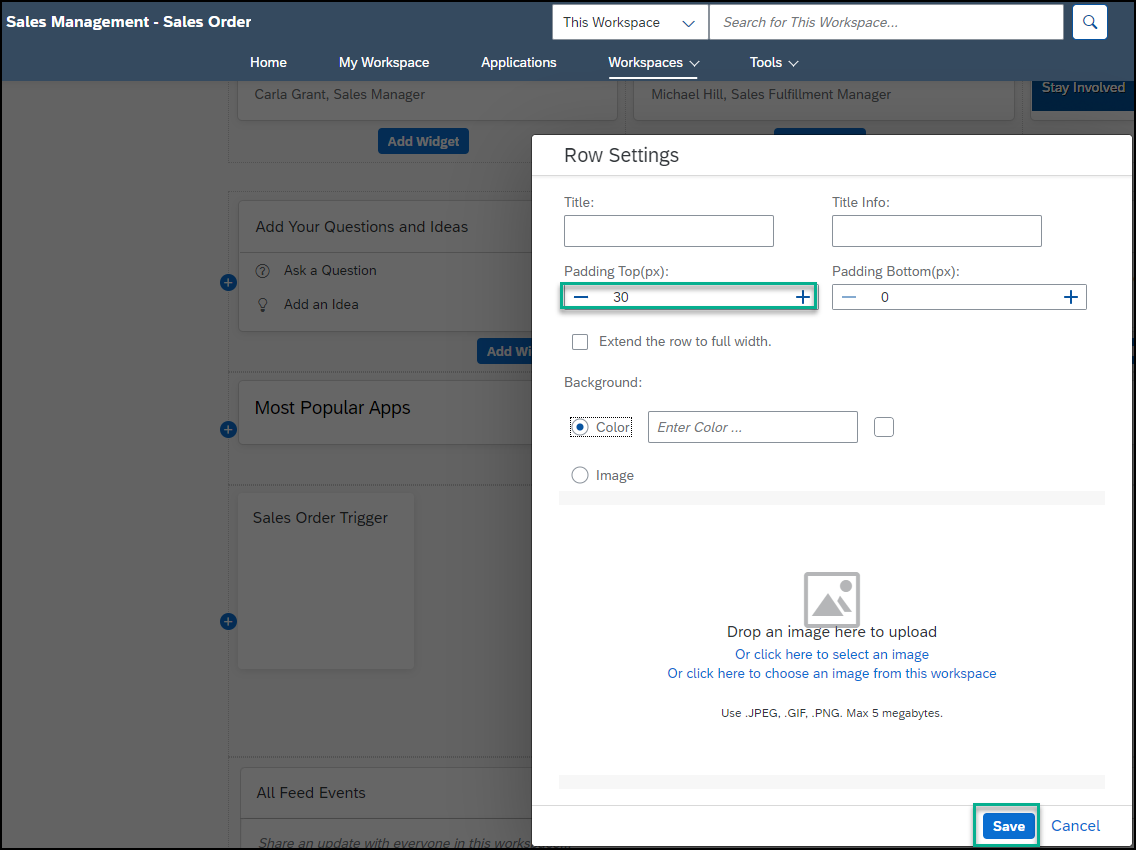
Add pixels
Now you’re going to add your app under this header.
Add another section.

Add another section Click Add Widget.

Add widget Click Tiles in the widget gallery.
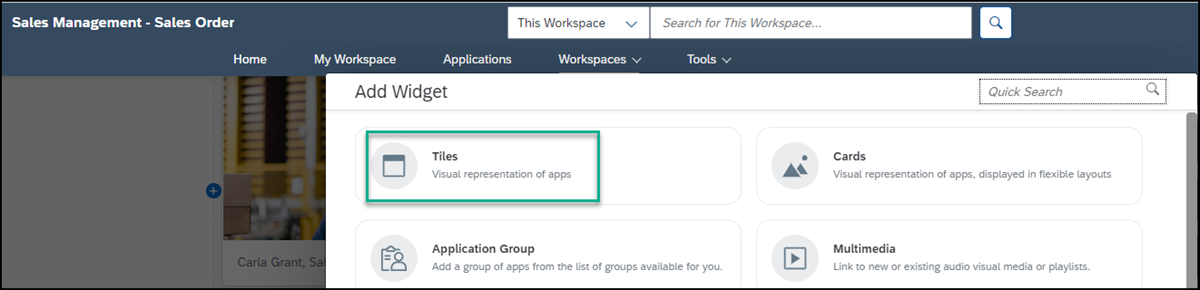
Click Tiles In the search box, start typing the name of your app
Sales, select theSales Order Triggerapp, and then click Add.
Select and add the app Scroll to the top of your page and click Publish.

Publish
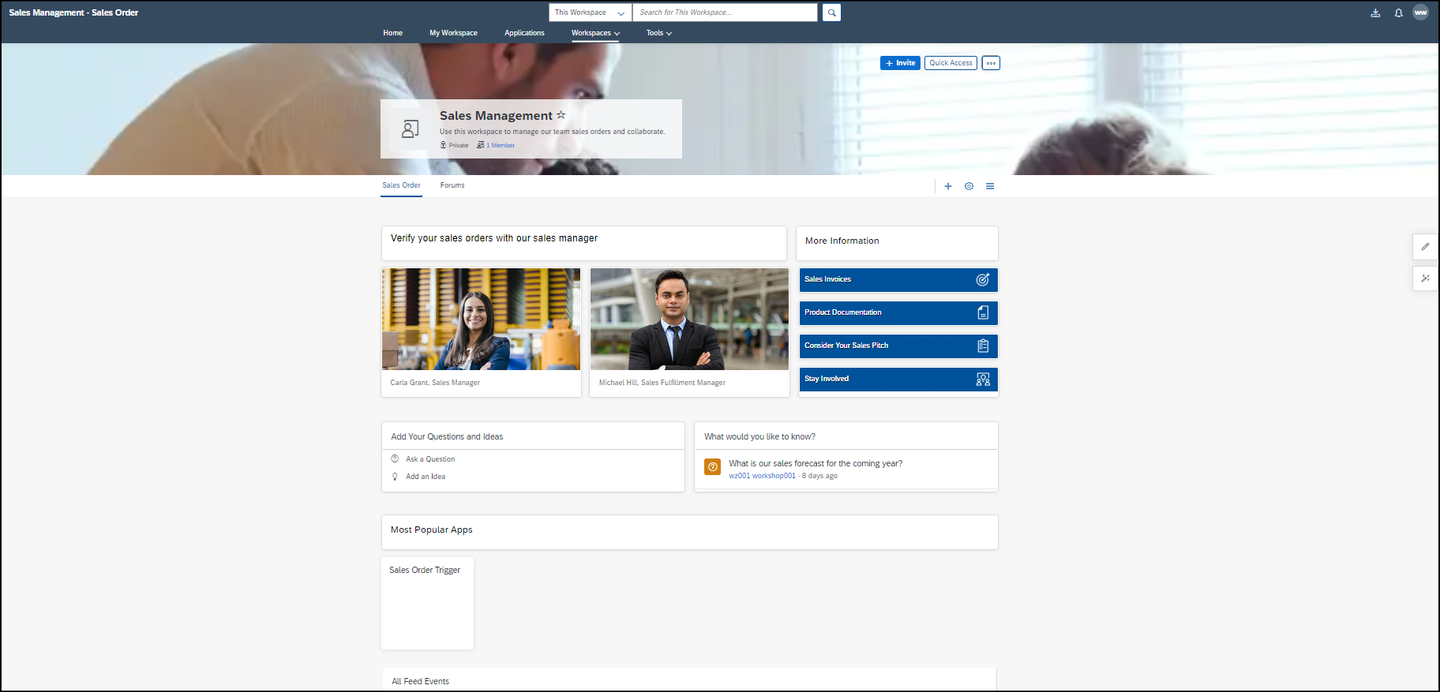
This is how your workspace looks - note that the Sales Order Triggerapp is under the header that you created:
Resources
Discussion
Share feedback on this tutorial or join the conversation in SAP Community.