
Overview
You will learn
- How to add menu items to your site menu In this tutorial you’ll create a workpage and a workspace and add both to the site menu so that you can directly link to them. You will also add an app to your site menu and access it directly from the menu.


Prerequisites
Prerequisites
- The onboarding steps for SAP Build Work Zone, advanced edition have been completed in your subaccount that includes a subscription to the SAP Build Work Zone, advanced edition service. Note that SAP Build Work Zone, advanced edition is not available in a trial account
- You are a company administrator
Steps
Intro
When you open your site for the first time, the menu bar displays a number of predefined menu items, namely Home, My Workspace, Applications, Workspaces, and Tools. In this tutorial, we’re going to design a completely different menu bar using some of these predefined menu items as well as adding our own custom menu items.
Before you start, download this image file so that it’s on your computer ready for you to add to your workpage that you’ll create later in this tutorial. workspace_row2_image1.jpg

Hover over the top default menu bar of your site to expose the edit icon and click it to open the Menu Editor.

Open menu editor On the left of the screen, you’ll see the Menu Editor panel displaying a list of menu items. These are the same menu items displayed in your top menu bar. As you add and remove menu items from the panel, the menu bar updates to reflect your changes.
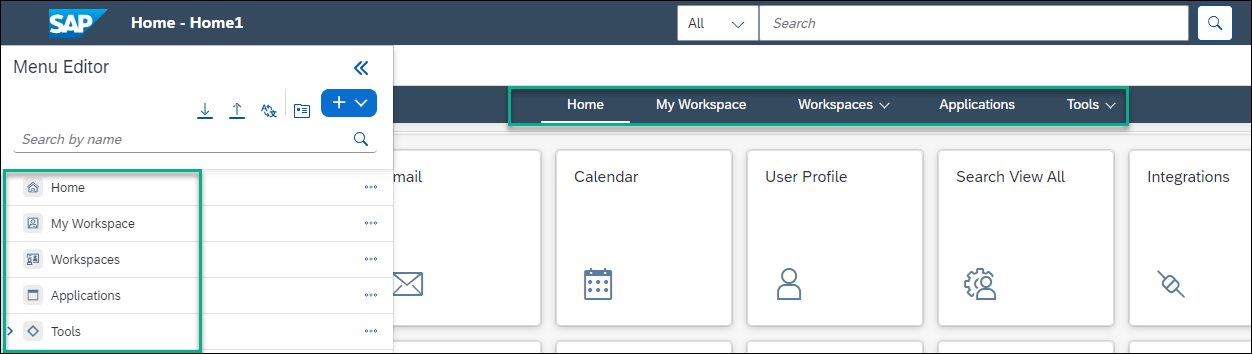
View side panel
In this step, we’ll hide the default menu items that we don’t need.
Next to My Workspace, click the 3 dots to open a list of actions and select Hide.

Hide menu items Do the same for the Applications and Tools menu items.
When you’re done, you’ll see that your menu now only has 2 menu items and the others are grayed out. You can always put them back if you want. You can also delete them if you’re sure you won’t need them again. In the next step, you’re going to add your own menu content.
In this step, you’re going to add a workpage to the site menu that users of your site can access. If the workpage doesn’t already exist in your site, you can create it directly in the Menu Content screen of the Menu Editor and then reference it from the menu.
You can create other types of content in the Menu Content screen too such as blog posts, wiki pages, and much more.
Click the Content icon in the top area of the Menu Editor panel.
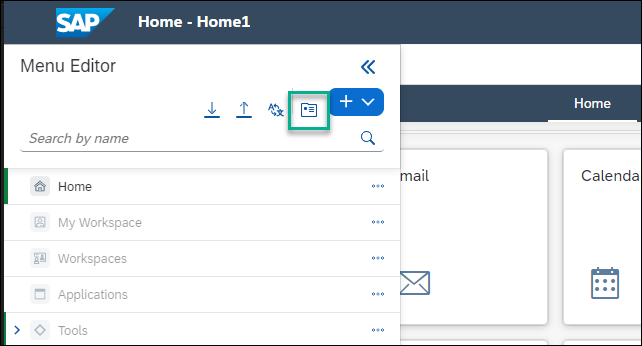
Add content icon In the Menu Content screen, select + Create and select Workpage to open a workpage editor.
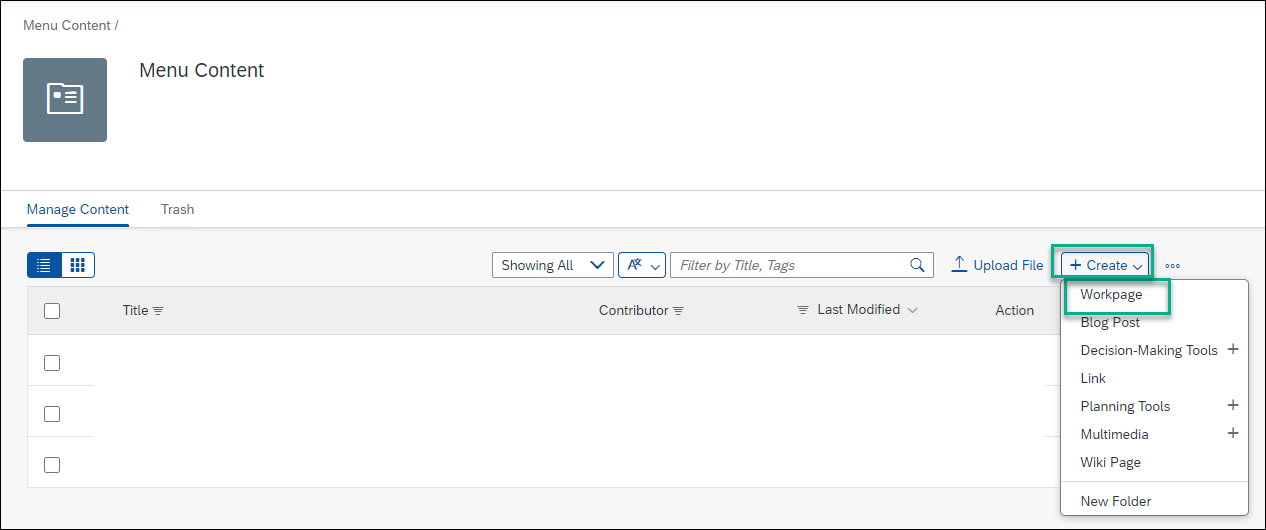
Create a workpage Enter a title for the workpage:
Our Storyand then click + to add a section to the workpage.
Design the workpage In the section, click Add Widget.

Add widget Select the Image widget.

Select image widget Click the link in the widget to browse for the image that you’ve saved on your computer and open it:
workspace_row2_image 1
Add image Hover over the image to expose the settings at the top right and click the cog icon to edit the image widget.
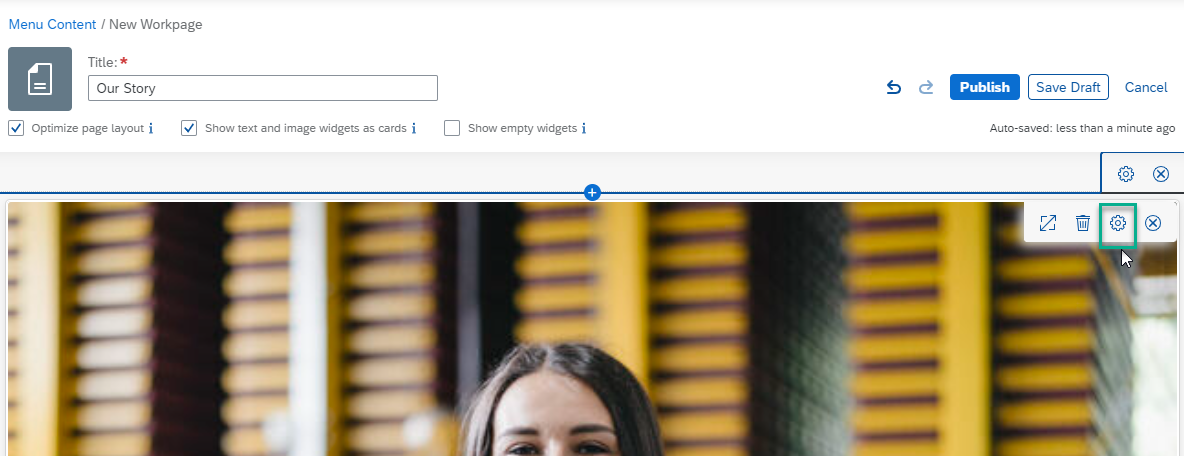
Change settings Add the following settings to the Image widget and then click Save:
| :————- | :————- | Caption |
Carla Grant, Sales Manager| Caption Layout | Inline | Caption Alignment | Left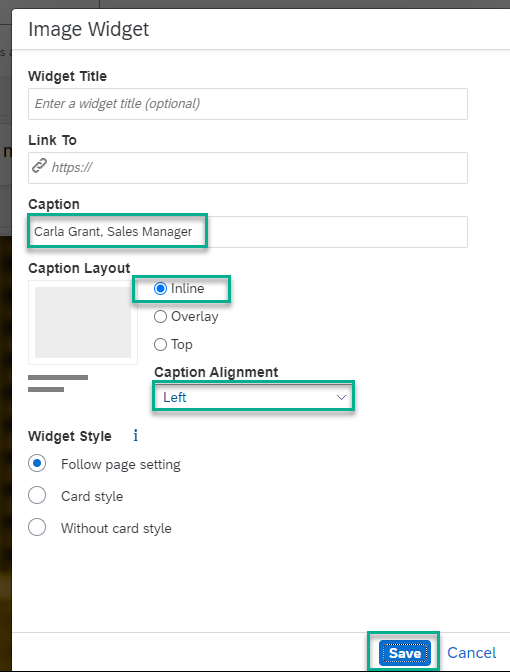
Image settings Now in the same way, add a Text widget under the image widget and add this text using 14pt text size and the Ariel font:
I'm Carla Grant, sales manager of JobCore Enterprises. We've been selling computer accessories for the last 25 years and we have clients stationed all over the world. Our sales teams are active and are ready to show you our good quality and appealing products to help you do your work efficiently.
Add text widget Click Publish to publish your workpage. You’ll get another popup and if you want to publish to your feed, click Publish again - this is optional.

Publish workpage Use the breadcrumbs at the top of your screen to go back to the Menu Content screen, where you can now see the workpage you created.

View workpage
In this step we’re going to reference the new workpage from the site menu:
Click the pencil icon again to open the site menu.
Click + in the top area of the Menu Editor.
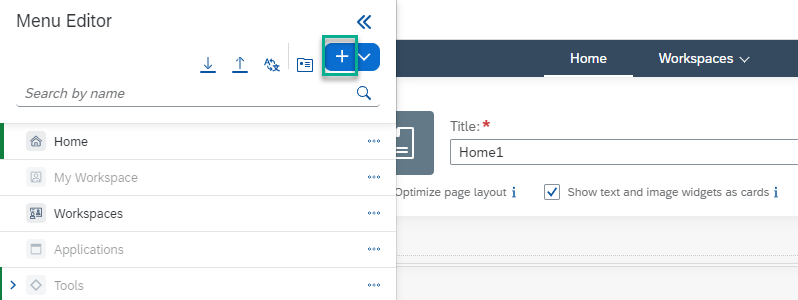
Add menu item You’ll get a dropdown list of possible content that you can add. Select Custom.
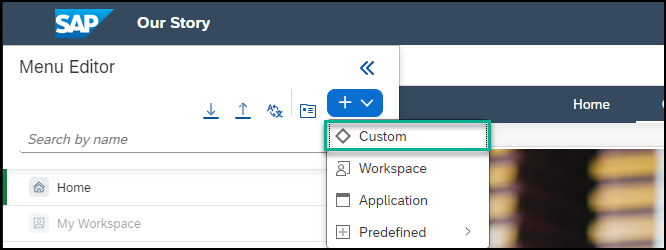
Content list In the Add Menu Item dialog, in the Name field, enter
Our Storyand select Workpage. Select theOur Storyworkpage you just created. Then click OK.
Select workpage See that the workpage is now part of the site menu. Click Save Draft and then you can continue adding other menu items.

Save workpage as draft Note the
Our Storyworkpage also displays in the left menu panel.
In this step, you’ll create a workspace that you can reference from the site menu.
Note that you can add a new workspace or any existing workspace to the site menu, but for the purpose of this tutorial, you’ll create one for our sales department.
From the Workspaces menu item, select New Workspace from the dropdown menu.

Select workpage From the New Workspace dialog, enter the following values and then click Create:
| :————- | :————- | Template |No Template | Title |Sales Department News. | Workspace Permissions |Public

Workspace settings Now add a workpage to the workspace. Click + in the workspace navigation bar and select Workpage. Enter
Sales Summaryas the Title and click Add.
Add workpage Publish the workspace.

Publish workpage You will now add this workspace to the site menu.
Open the Menu Editor again by hovering over the pencil ion on the right.
Click + at the top of the menu editor panel and select Workspace.

Add menu item From the Add Menu Item dialog, enter a name that you want displayed in the site menu. Let’s call it
Sales Department Workspace. Then select theSales Department Newsworkspace from the dropdown list and leave This menu item is clickable selected, and click OK.If a workspace is clickable, when clicking the workspace in the menu the workspace opens. If the workspace isn’t clickable, you’ll only be able to navigate to its sub-pages.

Add workspace to menu Click Save Draft and see that the workspace has been added to the site menu. Note that if you click the workspace in the menu, it opens and you can see the workpage you added in the workspace navigation bar. If you had removed the clickable option, only the workpage would be clickable.

View menu item in site
You can select any application that you have permissions to view and access and launch it directly from the site menu.
Open the Menu Editor and click +.
Select Application.

Add an application Select an application that you want to add to the site menu. Choose the
Calendarand click OK.
Select an application Publish the menu.
Once you’ve published the menu, it will look like this. Note that you can launch the app directly from the site menu.

Launched app
Resources
Discussion
Share feedback on this tutorial or join the conversation in SAP Community.