
Overview
You will learn
- How to create a subscription for SAP Translation Hub
- How to create a service instance and service bindings of SAP Translation Hub
- Which information from the service binding is necessary for the authentication e.g. in SAP Business Accelerator Hub or SAP Enable Now


Prerequisites
Prerequisites
- You have created an account on SAP Business Technology Platform: Get an Account on SAP BTP to Try Out Free Tier Service Plans
- Please make sure that you are using one of the following Amazon Web Services (AWS) regions:
- Europe (Frankfurt) cf-eu10
- or US East (VA) cf-us10 region
- Description how to create a new subaccount is available here
Steps
In your web browser, open the SAP Business Technology Platform cockpit and select your global account.
Navigate from your global account page to the subaccount you created by clicking on the tile as visible on the example screenshot.

Global account Please make sure that you are using one of the following Amazon Web Services (AWS) regions: - Europe (Frankfurt) cf-eu10 - US East (VA) cf-us10 region
If you don’t have any subaccount in those regions, you can create one using the dropdown menu Create and Subaccount, located in the top right corner. When creating a subaccount, please make sure that you are using one of the following Amazon Web Services (AWS) regions: Europe (Frankfurt) cf-eu10 or US East (VA) cf-us10 region.
In your subaccount account, navigate to Entitlements.
Click Edit, then select Add Service Plans. A popover appears with all entitlements available for your directory/subaccount.
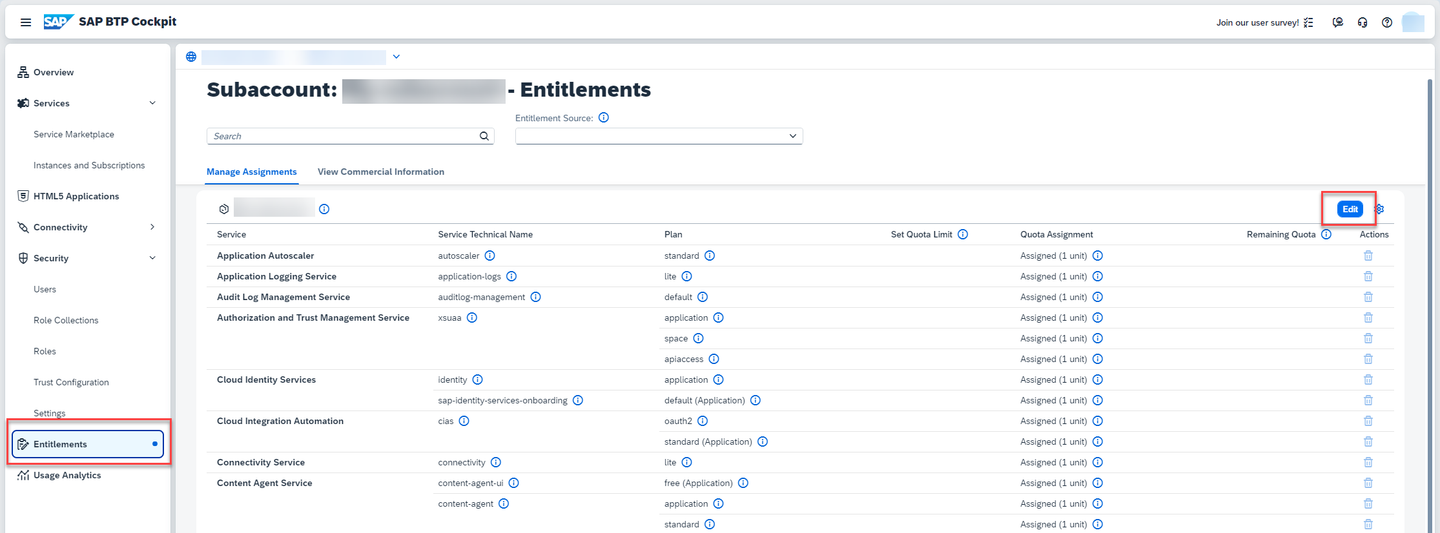
Entitlements Select or search for the
SAP Translation Hubservice and then select the plan you want to entitle. You can test the service using thefreeplan, which entitles you to 500.000 translated characters for Document Translation, and 100.000 translated characters for Software Translation.Recommendation: We recommend setting up entitlements for an instance and subscription plan from the beginning. You need to enable the subscription plan (application) in order to use the instance plan (API credentials), therefore it is more convenient if you enable them at the same time in this step.
Click Add Service Plans to exit the popover.
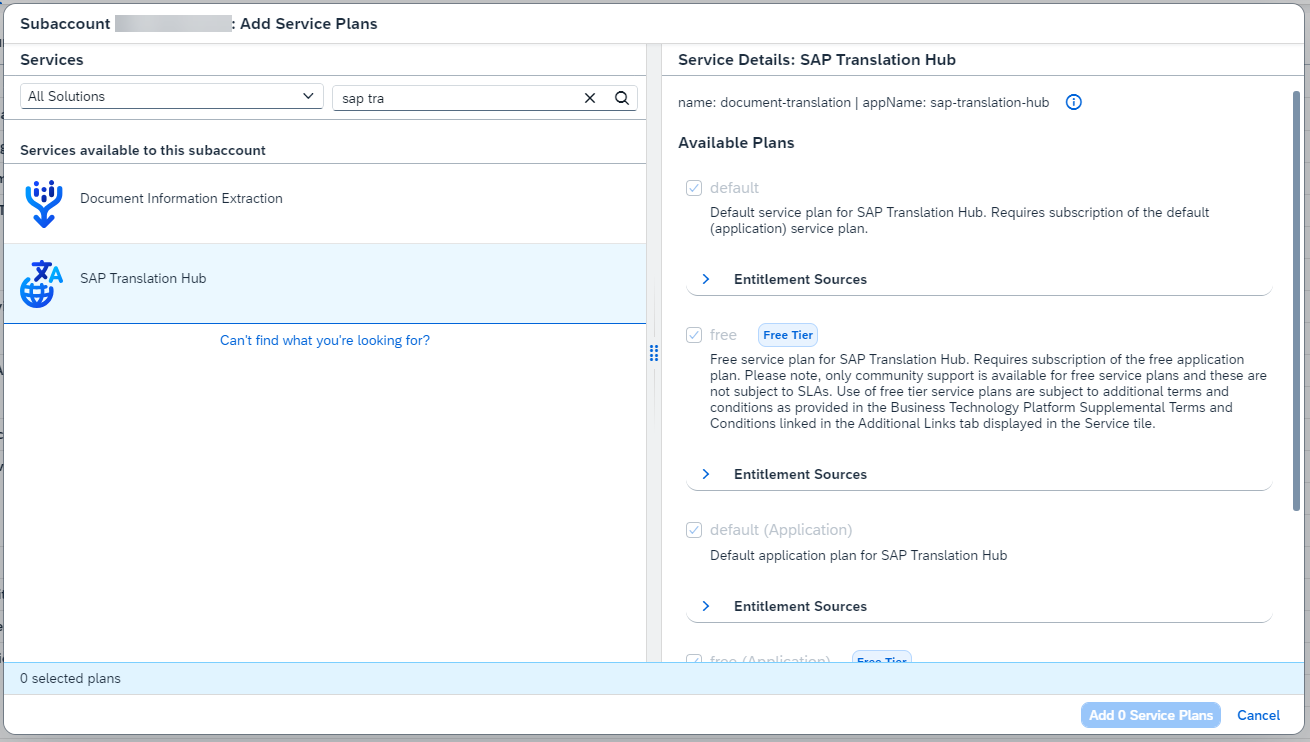
Service plans Click Save.
You have now successfully configured the entitlements for SAP Translation Hub.
The Service Marketplace is where you find the entitled services on SAP BTP. To access it, click Service Marketplace on the navigation sidebar and click the tile named SAP Translation Hub to access the service. If you don’t find it, search for translation.

If you want to consume the service via the user interface, you need to create a subscription to the application.
Select the plan that you want to use (
freeordefault) and choose Create.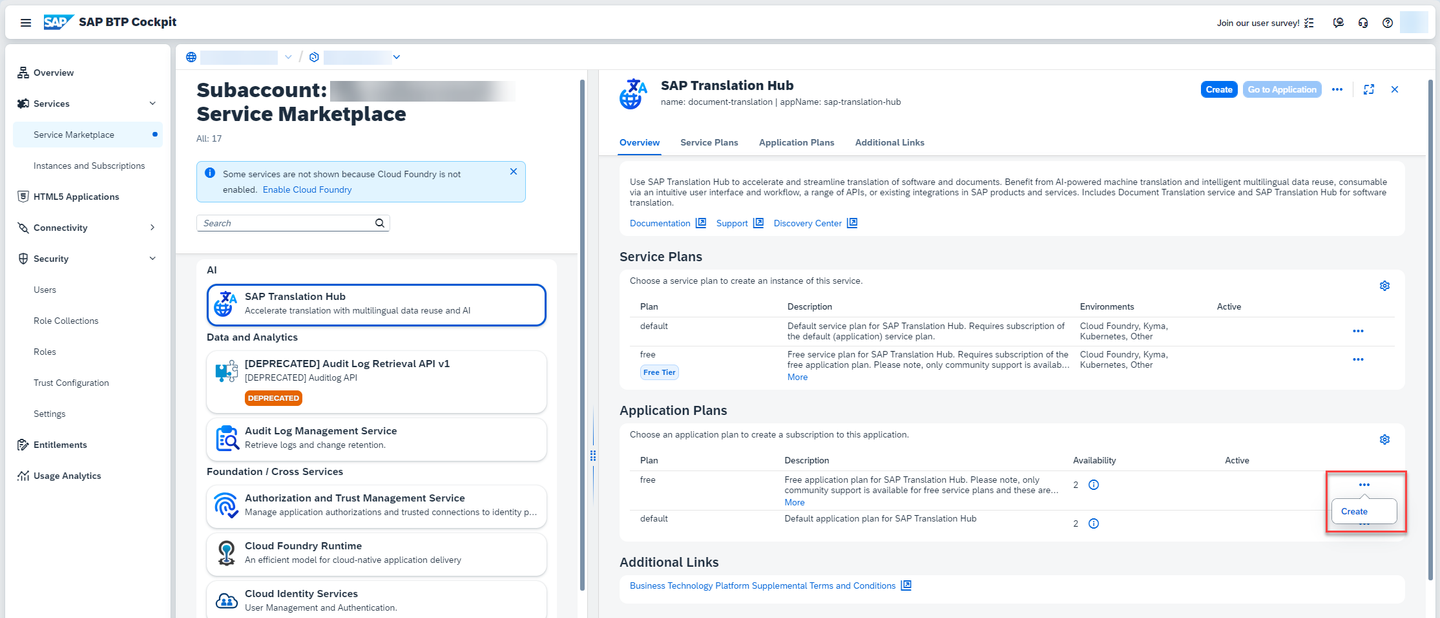
Create a subscription to an application In the dialog, click on Create.
In the following dialog, you can click on View Subscription to see your application access under Instances and Subscriptions. However, before you can use the application, you need to authorize yourself and any user that needs access.
In your subaccount, navigate to Security, and then Role Collections to select the role collection
SAP Translation Hub Document Translation. Here you can configure which users or user groups get access to the application.In order to add users, click on Edit. To add individual users, enter their e-mail addresses under Users. You can use Default identity provider. You can add more users by using the + sign.

Add users to role collection Click on Save.
Navigate back to Instances and Subscriptions. You can go to the application by using the shortcut or the menu option.

Access the application SAP Translation Hub will open in a new browser tab. You can share this link directly with any user that has been authorized to use the application and use the dropdown menu to switch between the different functions available.
If you need API credentials (e.g., to use the service via one of the existing integrations), you need to create an instance.
Access the Service Marketplace and click on the service SAP Translation Hub.
Under Service Plans, select the plan you want to use (
freeordefault) and click on the button to Create a new instance.
Service instance In the dialog, leave the default values and enter a meaningful name for your new instance, for instance:
translation. Click Create Instance (you can ignore the other steps, if you don’t need to configure different instance parameters).
Create instance In the following dialog, click View Instance to go to the list of your service instances, or navigate yourself to Instances and Subscriptions.
You have successfully created a service instance for SAP Translation Hub.
You are now able to create service bindings for your new service instance. Service bindings are used to generate credentials to enable apps to access and communicate with the service instance.
In Instances and Subscriptions, click the dots to open the menu and select Create Service Binding.
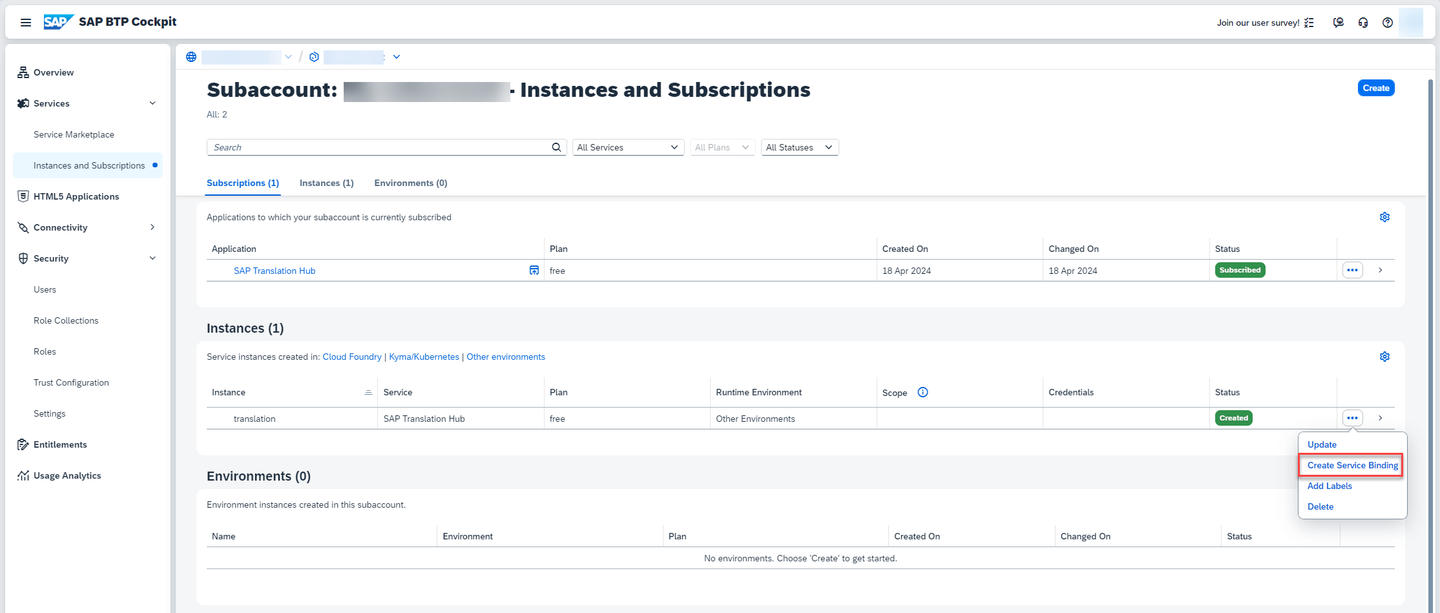
Create service binding In the dialog, enter a binding name, such as
demo-bindingas the name of your service binding. Click Create to create the service binding.
You have successfully created a service binding for your service instance. You can now either view the service binding in the browser or download it.
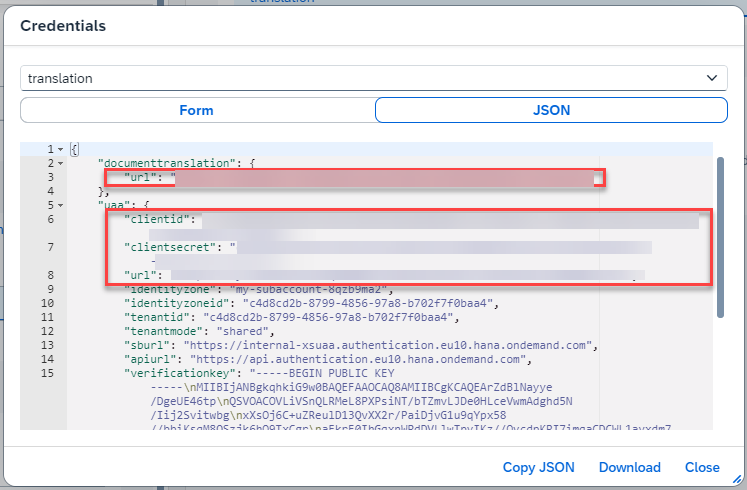
You will need the values of the service bindings, for example, for the following:
Resources
Discussion
Share feedback on this tutorial or join the conversation in SAP Community.