
Overview
You will learn
- How to use Microsoft 365 Cloud SDK activities
- How to check users availability and send a meeting request
- How to update, search for and delete a calendar event


Prerequisites
Prerequisites
- Access to a SAP BTP tenant with SAP Build Process Automation
- Install and Setup the Desktop Agent to run the automation
- Configure Azure Application
Steps
Intro
IMPORTANT: Please refer to sample Manage calendar events with Microsoft Office 365 in the SAP Build Store if you face any issues while following the tutorial. To retrieve the sample refer to step 13 of this tutorial
In this tutorial, you will build an automation that will check availabilities of a candidate and a list of interviewers. Depending on attendees’ availabilities, a meeting request for an interview is sent. You will then update the meeting request sent. Finally, you will search for the meeting request sent and delete it from the calendars.
Once you have successfully configured the Azure application as mentioned in Prerequisites, you are now ready to create an external authentication in SAP Build Process Automation tenant.
Log in to SAP Build Process Automation tenant.
Navigate to Control Tower > External Authentication.

External authentication On the External Authentication page, click Create New Authentication.

Create new authentication On the Create Authentication popup window, select Microsoft 365.
Enter a name in the Name field such as Office 365.
Optional: Enter a short description in the Description field.
Enter the Client ID received at step Configure Azure Application > Find Relevant IDs that Define the Application > Application (client) ID.
Enter the Client Secret received at step Configure Azure Application > Create a Client Credential.
Enter the Tenant ID received at step Configure Azure Application > Find Relevant IDs that Define the Application > Application (tenant) ID.
Select the desired scope in the Scope field.
For this tutorial, you will need Calendars Read/Write scope.
Choose Create.

Create authentication
Once the external authentication is created, it will be visible on your Desktop Agent 3.
Open the Desktop Agent. Once you are connected to the tenant, choose Settings > External Authentication.

External authentication The agent receives and shows a list of registration items defined in SAP Build Process Automation External Authentication settings.
Select Office 365 authentication.

Select office Enter the email address of the identity in the Email field to authenticate the identity.
The authentication of the activities is done with that identity.
Choose save.

Enter email Each registration item can be registered or unregistered given a user email address.
Select Register button.

Register In the newly opened window, consent for agent to use your ID with the activities.
The confirmation of registration will appear.

Registration confirmation
Navigate to the SAP Build lobby. Choose Create button.

Create Select Build an Automated Process.

Build automated process Choose Task Automation.

Task automation Provide a Name for the project such as: Calendar activities for Microsoft 365.
Provide a Short Description for the project such as: This project sends a meeting request for an interview depending on a candidate’s and a list of interviewers’ availability. It will then update the meeting request that was sent and finally delete the meeting from the calendars.
Choose Create.

Name and description project Select the agent version that is registered on your system and choose Confirm.

Configure agent version Provide a name for the automation such as Check attendees availability.
Provide a description for the automation such as Check attendees availability to send meeting request for an interview.
Choose Create.

Create automation
You will be navigated to the automation editor where you can build your automation. In order to use Microsoft 365 activities, you need to add the Microsoft 365 Cloud SDK to your project.
Choose Settings.
In the Project Properties window, select Dependencies > Add dependency > Add a Business Process project dependency.

Add dependency Under Add dependency search for Microsoft 365 Cloud SDK and Add it.

Add microsoft 365 cloud SDK Close the window.
A data type is an artifact describing a data structure that can be used as an input and/or output parameter in automations or processes. In our use case, you will create a data type called Attendee that will include the first name, the last name and the email of the candidate and the interviewer(s).
Navigate back to the Overview tab.

Overview Choose Create > Data Type.

Create Data Type In the Create Data Type pop-up, enter Attendee as name and Contact information of user attending the meeting as description.
A unique identifier is automatically created from the name you entered. If not, you must manually create an identifier.
Choose Create.

Create Data Type A new tab opens in the main panel. You can now add the fields that will be included in your data type.
Choose the New Field button.
In the Field Details on the right, enter as name
firstName, and select String as type.
Create Data Type Repeat the above steps to add three other fields such as:
Field Value Field 2 Field 4 Field 3 Name lastNameemailisCandidateType String String Boolean Choose Save.

Create Data Type You will notice that the last field you created is of type boolean that is to differentiate if it is a candidate or an interviewer.
An input or output parameter is a variable that is passed, received, or sent from one automation, SDK activity or control to another. This variable allows you to manipulate data that you can use in your workflow. Input or output parameters have a name (optionally a description) and data that complies to a type.
Navigate back to your automation, on the right-hand side panel, go the Input/Output section and click Add new input parameter.

Add input parameter Enter a name:
interviewers.Enter a description: Contacts of interviewers.
Start typing attendee in the type field and select Attendee.

Input parameter Check List since this input parameter may contain several interviewers.
Choose Add new input parameter.

Input parameter Enter a name:
candidate.Enter a description: Contacts of the candidate.
Select Attendee as type.

Input parameter Similarly, create the following input parameters as follows:
Field Value Input Parameter 1 Input Parameter 2 Name meetingStartTimemeetingEndTimeDescription Beginning of the meeting End of the meeting Type String String Choose Save.

Input parameters
Under Automation Details panel, under Tools, search for Select 365online Authentication activity and drag and drop it into the workflow.
This activity sets the authentication that will be used for the Microsoft Office 365 activities.

Select 365 online authentication You will now create a list of string variable that will output the email addresses of the candidate and the interviewer(s).
Under Automation Details panel, under Tools, search for String data type. Drag and drop the activity into the workflow.

String Data Type Select the activity and do the following:
Check List as you are creating a list of emails of attendees.
Under Output Parameters, change the name to
emailAddresses.

Create variable list Under Automation Details panel, under Tools, search for For Each control and drag and drop it into the workflow.

For each Select the activity and set the looping list to input parameter interviewers created before.

For each Under Automation Details panel, under Tools, search for Add Item (list).
This will add an item to an existing list. In this use case, for each interviewers’ email you will add them to the the list of emails created above.

Output parameter Select the activity and do the following:
Change the Step name to Add interviewers email.
Under
listinput parameter, selectemailAddresses.Under
itemToAddinput parameter, choose open the expression editor icon.

Add item Select Variables > interviewers > email.

Add item Within [0] of the formula, insert variable index and choose Save Expression.

Add item What is going on?
The automation will loop through each interviewers’ email and will be added to the list of emails.
As another option that would yield the same result, you may select Variables > current Member > email. The expression would hence read
Step3.currentMember.emailUnder Automation Details panel, under Tools, search for Add Item (list) and drag and drop into the workflow outside the For each loop.

Select the activity and do the following:
Change the Step name to Add candidate email.
Under
listinput parameter, selectemailAddresses.Under
itemToAddinput parameter, choose open the expression editor icon.

Add item Select Variables > candidate > email and choose Save Expression.

Add item You have successfully created a list of emails including the emails of the candidate and the interviewers.
Now under Automation Details panel, under Tools, search for Check Users Availability activity and drag and drop it into the workflow.
This activity checks the availability of the attendees (candidate and interviewers).

Check users availability Select the activity and follow the below steps:
Under
emailAddressesinput parameter, selectemailAddresses.Under
startDateTimeinput parameter, select Create Custom Data.

Create custom data Under
dateTimeinput parameter, selectmeetingStartTime.Under
endDateTimeinput parameter, select Create Custom Data.Under
dateTimeinput parameter, selectmeetingEndTime.Save your work.

Input parameters Click on the canvas. Under Automation Details panel, under Tools, search for Boolean data type. Drag and drop the data type into the workflow.
This variable will have two possible values, true or false.

Boolean data type Select the activity and change the name of the Output Parameter to
availabilityResult.
Output parameter Click on the canvas. Under Automation Details panel, under Tools, search for For Each control and drag and drop it into the workflow.

For each Select the activity and under Set looping list parameter, choose
usersAvailabilities.
Set looping list Click on the canvas. Under Automation Details panel, under Tools, search for Any data type and drag and drop it inside the For Each loop.

Any data type Select the data type and change the name to member.
Under value input parameter, select
currentMember.Rename the output parameter to member.
Save your work.

Member Click on the canvas. Under Automation Details panel, under Tools, search for the Condition control and drag and drop it into the workflow below the data type member.

Condition Select the control and choose the three dots next to Condition Expression, then select Edit Formula.

Edit Formula In the expression editor, please copy and paste the following formula:
Step9.member.isAvailableOrTentativeOnTimeSlotChoose Save Expression.

Edit expression Click on the canvas. Under Automation Details panel, under Tools, search for Set Variable Value and drag and drop it into the workflow below the default branch.

Set variable value Select the activity and under variable input parameter, select
availabilityResult.Under value input parameter, choose false.

Set variable value What is going on?
This sets the value of the
availabilityResultvariable to FALSE, meaning that users are NOT available or tentative on the time slot selected.Click on the canvas. Under Automation Details panel, under Tools, search for Log message activity and drag and drop it into the workflow below the Set Variable Value.

Log message Select the activity. Under message input parameter, choose open the expression editor.
Copy and paste the following expression:
'The meeting request could not be sent to' + ' ' + Step0.candidate.firstName + ' ' + Step0.candidate.lastName + ' ' + 'because user ' + Step9.member.emailAddress + ' is unavailable between ' + Step0.meetingStartTime + ' and ' + Step0.meetingEndTimeChoose Save Expression.

Edit expression Click on the canvas. Under Automation Details panel, under Tools, search for End control and drag and drop it below the Log Message activity.

End Now you will create an output parameter. Choose Input/Output tab and do the following:
- Choose Add new output parameter.
- Enter
successfulMeetingRequestas name. - Select Boolean as type.

Output parameter Select the End control.
As
sucessfulMeetingRequestoutput parameter, select false.
End What is going on?
This ends the default condition (if users are unavailable on time slot). The meeting request will not be successful and hence will not be sent.
Now you will define the other option (if users are available or tentative on time slot).
Click on the canvas. Under Automation Details panel, under Tools, search for Send Meeting Request activity and drag and drop it into the workflow outside the For Each loop.

Send meeting request Select the activity and follow the below steps:
- Under
meetingParametersinput parameter, select Create Custom Data.

Input parameter Under
mandatoryEmailAddressesinput parameter, selectemailAddresses.Under subject input parameter, enter: Interview request and select the expression in quotes.
Under body input parameter, enter: Congratulations! You have been selected for an interview and select the expression in quotes.

Input parameters Under start input parameter, select Custom Data.
Under
dateTimeinput parameter, selectmeetingStartTime.Under end input parameter, select Custom Data.
Under
dateTimeinput parameter, selectmeetingEndTime.

Input parameters - Under
Click on the canvas. Under Automation Details panel, under Tools, search for Set Variable Value and drag and drop it into the workflow below Send Meeting Request activity.

Set variable value Select the activity and under variable input parameter, select
availabilityResult.Under value input parameter, choose true.

Set variable value What is going on?
This sets the value of the
availabilityResultvariable to TRUE, meaning that users are available or tentative on the time slot selected.Click on the canvas. Under Automation Details panel, under Tools, search for Log message activity and drag and drop it into the workflow below the Set Variable Value - 2.

Log message Select the activity. Under message input parameter, choose open the expression editor.
Copy and paste the following expression:
'The meeting request was successfully sent to' + ' ' + Step0.candidate.firstName + ' ' + Step0.candidate.lastNameChoose Save Expression.

Edit expression Choose the End control.
Under
successfullMeetingRequestoutput parameter, selectavailabilityResultvariable created above.Save your work.

Now that you are done designing your automation, you may test it. Let’s assume you would like to check the availability of the list of interviewers and the candidate during the time slot 13h00 until 14h00 on September 1st to see if users are available for a meeting.
Choose Test.

Test Now fill in the required input parameters:
interviewers: the first name, last name and email of the interviewer. You can add more interviewers by selecting +candidate: the first name, last name and email of the candidate. Please selectisCandidatemeetingStartTime: the time you would like to start the meeting. The format required is: YYYY-MM-DDTHH:MM:SS such as 2023-09-01T13:00:00meetingEndTime: the time you would like to end the meeting. The format required is: YYYY-MM-DDTHH:MM:SS such as 2023-09-01T14:00:00
Choose Test.

Test 
Test The testing was successful. If you go to the Test Console, you can see the confirmation message appear: The meeting request was successfully sent to Jane Doe.

Test Go to Send Meeting Request, select Tester and under Output Parameters copy the
meetingIdvalue and paste it in notes for example. You will need this value later to update the meeting request.
Test On the other hand, if one or more users are not available during the availability time slot, the bot would respond in this matter:

Test
Now you will create an automation that will update the meeting request you just sent.
Go to Overview tab and select Create > Automation.

Automation In the Create Automation pop-up do the following:
- Enter Update Calendar Event as name.
- Enter Update the interview request with a change of time as description.
- Choose Create.

Create automation You will be directed to the automation editor where you can start building your automation.
Create input parameters. Go to Input/Output tab.
Choose Add new input parameter and add the following inputs:
Field Value Input Parameter 1 Input Parameter 2 Input Parameter 3 Input Parameter 4 Name meetingIdupdateMeetingSubjectupdateMeetingStartTimeupdateMeetingEndTimeDescription Id of the meeting request sent New subject for the meeting New start time for the meeting New end time for the meeting Type String String String String Choose save.

Inputs Under Automation Details panel, under Tools, search for Select 365online Authentication activity and drag and drop it into the workflow.

Select authentication Under Automation Details panel, under Tools, search for Update Event activity and drag and drop it into the workflow.

Update Event Select the activity.
Under
eventIdinput parameter, selectmeetingId.Under
eventUpdateParametersinput parameter, select Create Custom Data.
Update Event Under
subjectinput parameter, selectupdateMeetingSubject.Under
startparameter, select Create Custom Data and selectupdateMeetingStartTimeunderdateTime.Similarly, under
endparameter, select Create Custom Data and selectupdateMeetingEndTimeunderdateTime.Choose Save.

Update Event
Choose test.
You need to fill in the input parameters created with the corresponding values.
For
meetingId, paste the value you copied previously without the brackets and the quotes.For
updateMeetingSubject, enter New interview request.For
updateMeetingStartTime, enter a new start time such as 2023-09-01T13:00:00.For
updateMeetingEndTime, enter a new end time such as 2023-09-01T13:30:00.Choose Test.

Test The testing was successful. A new meeting request is sent with the updated details above.

Test Please note that the
eventIdwill not change its value.
As a last step, you will now delete the meeting request from the calendar.
Navigate to the Overview tab, and choose Create > Automation.

Automation In the Create Automation pop-up do the following:
- Enter Search and delete calendar event as name.
- Enter Search and delete the interview request as description.
- Choose Create.

Automation You will be directed to the automation editor where you can start building your automation.
Create input parameters. Go to Input/Output tab.
Choose Add new input parameter and add the following input:
Field Value Input Parameter Name startDateTimeDescription Beginning time of the meeting Type String Choose save.

Inputs Under Automation Details panel, under Tools, search for Select 365online Authentication activity and drag and drop it into the workflow.

Select authentication Under Automation Details panel, under Tools, search for Search Calendar Events activity and drag and drop it into the workflow.

Search calendar events Select the activity.
Under
calendarSearchCriteriainput parameter, select Create Custom Data.Next to Calendar Search Criterion, choose the +.
Under Calendar Search Criterion, select Create Custom Data.
Under
elementparameter, choosesubject.Under
valueparameter, type Interview request and select the expression under quotes.What is going on?
You are setting the values of the parameters of the automation that will search a specific calendar event. In this case, the subject of the event will have as value Interview request.

Search calendar events Now you will set the value of another parameter
startDateTimeto search for an event that will have a specific beginning.Next to Calendar Search Criterion, choose the + again.
Under Calendar Search Criterion, select Create Custom Data.
Under
elementparameter, selectstartDateTime.Under
valueparameter, selectstartDateTime.
Search calendar events Please note that the output parameter for this activity is
calendarEvents.Under Automation Details panel, under Tools, search for Delete Event activity and drag and drop it into the workflow.

Delete Event Select the activity.
Under
eventIdinput parameter, open the expression editor.Choose Variables > calendar Events > id.
Choose Save Expression.
Choose Save.

Delete Event What is going on?
You are setting the value of the
eventIdto the id of thecalendarEventsoutput parameter from Search Calendar Events activity in step 2.
Choose Test.
You need to fill in the input parameters created with the corresponding values.
For
meetingId, paste the value you copied previously without the brackets and the quotes.For
startDateTime, enter the start time of the meeting such as 2023-09-01T13:00:00.Choose Test.

Test The testing was successful. The bot searches for the calendar event that has Interview request as a subject and a beginning time of September 1st 2023 at 13h00. Then it outputs the corresponding Id of the event found which is called New interview request with a start time of 13h00 and an end time of 13h30 on September 1st 2023. Lastly, it proceeds to delete it from the calendar.

Test 
Test
This sample project can be downloaded from the SAP Build Store.
To retrieve this sample, please follow these steps:
From the SAP Build Lobby, navigate to Store.
Search for the sample project: Manage calendar events with Microsoft Office 365.
Choose Create from Template to retrieve the sample and save it as a new project in your lobby.

Office Choose Create.
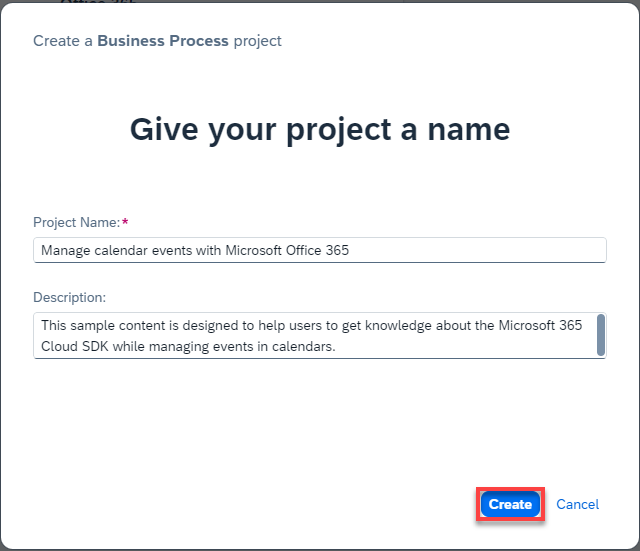
Office Your project gets created in editable version. You may release and deploy it and run the project.
Navigate back to the lobby by clicking on the SAP logo.

Office You can see your project is available in the lobby.

Office
Resources
Discussion
Share feedback on this tutorial or join the conversation in SAP Community.