
Overview
You will learn
- How to activate SAP Build Process Automation in SAP BTP Free Trial or SAP BTP Free Tier account


Prerequisites
Steps
Intro
SAP Build Process Automation in the SAP Business Technology Platform combines the capabilities of SAP Workflow Management and SAP Intelligent RPA in an easy-to-use, no-code AI-powered experience. It increases organizations’ capacity to drive process automation by empowering business experts to become citizen developers. Leveraging the power of no-code, citizen developers can build, adapt, improve, and innovate business processes with minimum assistance from scarce IT resources.
Complete Get a Free Account on SAP BTP Trial tutorial and make sure to create an account in US East (VA) - AWS trial region
After successful creation of SAP BTP account using Free Trial, click on your trial sub account.

Trial Select Services > Service Marketplace. In the search field, type SAP Build Process Automation and select the tile.

Trial Choose Create button.

Trial In the New Instance or Subscription window, as Plan, choose the free subscription and select Create button.

Trial In the Creation in Progress pop-up, select View Subscription.

Trial Check if it is processed and created successfully. The status should be set to Subscribed.

Trial In order to have access, you will have to assign the role collections to your user.
Go to Users tab, under Security, and select your user.
In Role Collections section, choose Assign Role Collection.

Trial In the Assign Role Collection window, in the search bar, type process to find Process Automation Roles.
Select 3 roles:
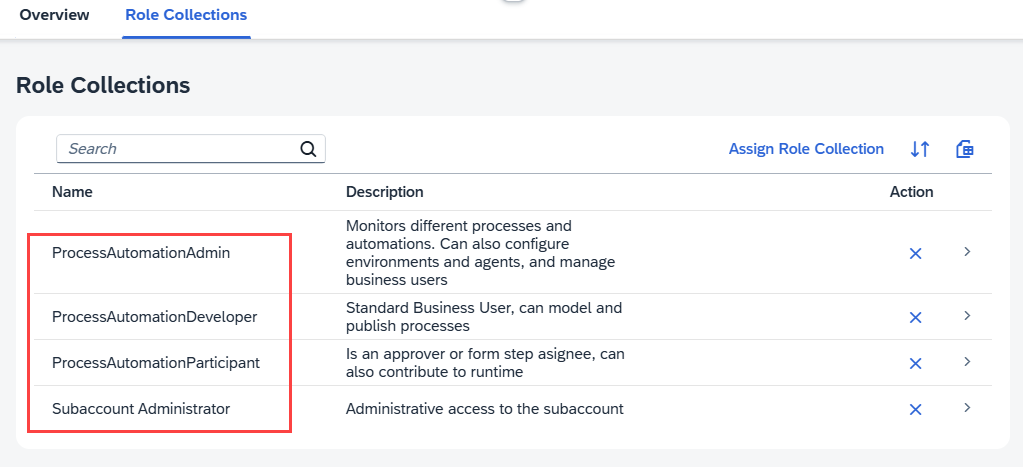
ProcessAutomationAdmin,ProcessAutomationDeveloperandProcessAutomationParticipant.Choose Assign Role Collection button.

Trial After assigning roles, your Role Collections section should look like this:
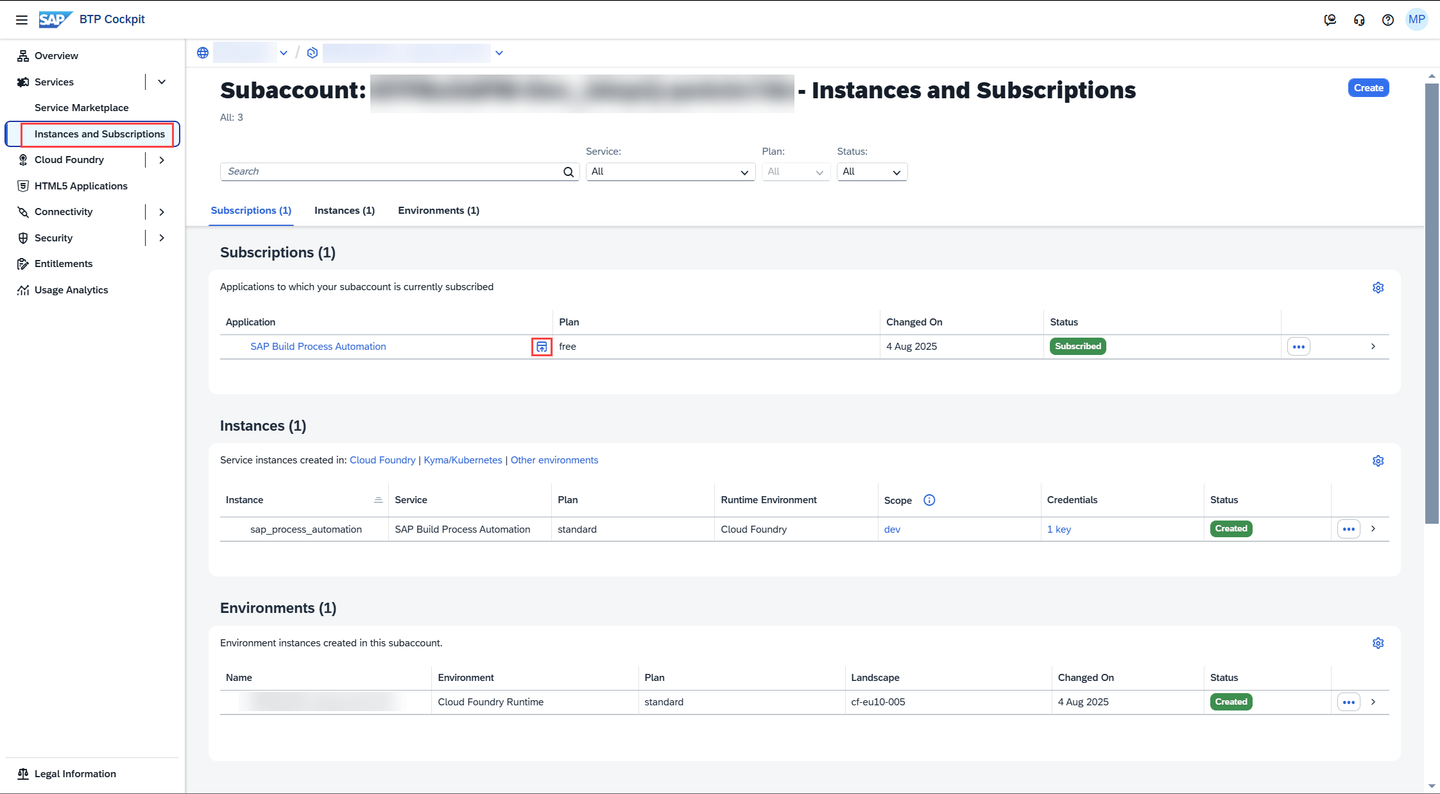
Trial Navigate to Instances and Subscriptions and choose the Go to Application icon.

Trial This will launch your SAP Build Process Automation application.
You have successfully subscribed to SAP Build Process Automation.
Complete Get an Account on SAP BTP to Try Out Free Tier Service Plans.
After successful creation of SAP BTP account using Free Tier, navigate to Boosters and search for SAP Build Process Automation to find the SAP Build Process Automation booster. Once the tile is shown, select the tile.
Booster is a guided set of automatic instructions to achieve a specific goal. SAP Build Process Automation automates the onboarding of SAP Build Process Automation service in your account without the need of any manual configurations. It will configure entitlement, enable SAP Build Process Automation subscription, and will assign all the relevant role collections to the given users for administrator or developer personas.

1.PNG You will be navigated to the overview page of the booster. Choose Start.

2.PNG The booster tests the prerequisites for the service and your credentials. Once the Prerequisites are marked as DONE in green, it indicates that the tests have passed successfully. Choose Next.

3.PNG In this step you can create a new sub-account or use an existing one. Here, you will create a new sub-account scenario and choose Next.
You cannot have SAP Build Process Automation and SAP Intelligent RPA in the same sub-account.

4.PNG System shows you all generated IDs which can be changed or accepted. The most important point here is that you can see the correct service and plan in the box then choose Next.

5.PNG Maintain users that would be added to the SAP Build Process Automation service. The users can be added later too. Choose Next.

6.PNG Summary of the booster is shown in the last page for review. After the review, choose Finish.

7.PNG The booster starts the deployment which can take up to five minutes to get the service ready.

8.PNG A pop-up will inform you that the Booster was successfully executed.
Choose Navigate to Subaccount.

9.PNG Then choose Instances and Subscriptions in the menu.
You now get an overview on the activated services and you can move directly to the SAP Build Process Automation application by selecting the icon.
SAP Build Process Automation Application Development workbench which will be your one-stop studio to develop, test, deploy and monitor your processes with different skills like decision, automation, forms etc.
10.PNG You will have access to SAP Build which is a no-code environment from where you can start your development of the business processes.

Studio You are now ready to use SAP Build Process Automation in SAP BTP Free Tier.
Resources
Discussion
Share feedback on this tutorial or join the conversation in SAP Community.