
Overview
You will learn
- to run and monitor business process with action
- to observe the action logs and outcome of the action execution
- to retrieve sample project from the Store


Prerequisites
Steps
From the deployed version of the project, click Order Processing process from list of Artifacts.
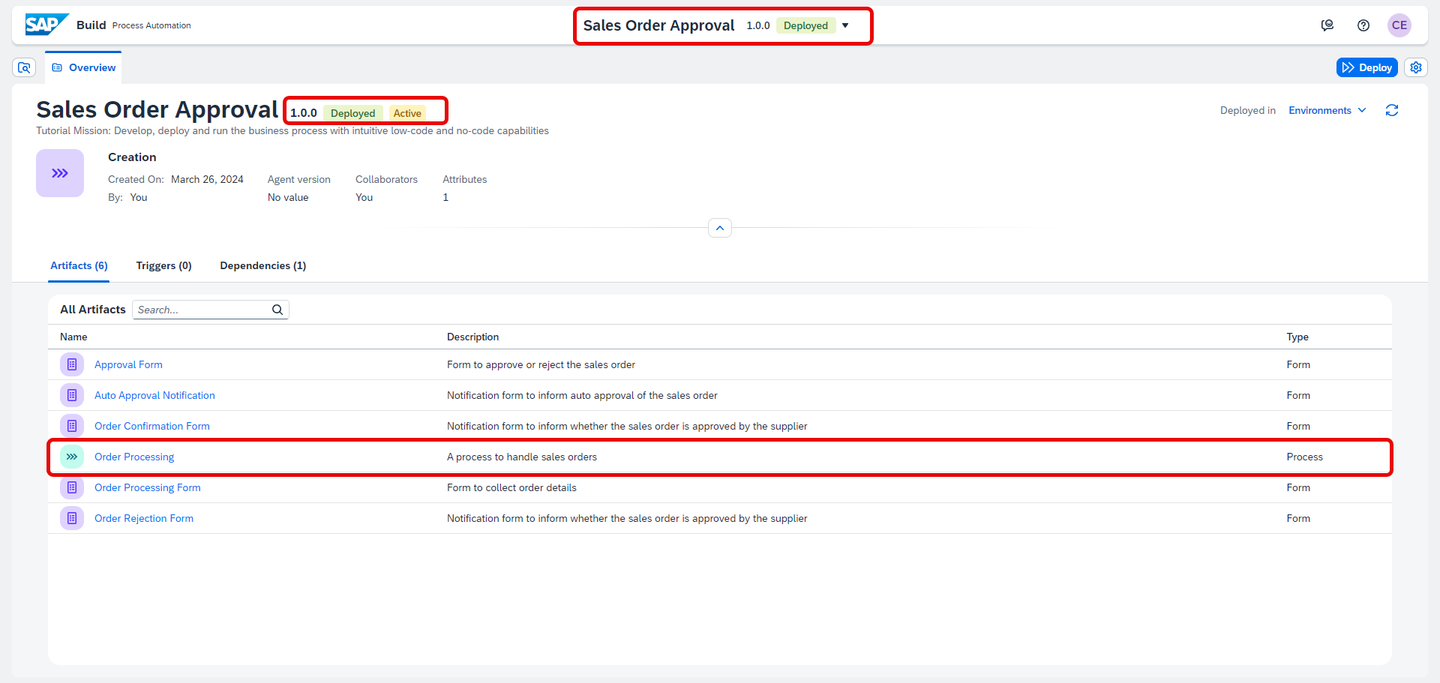
Run Process In the process builder:
- Select Order Processing Form.
- Copy the Form Link.
- Open it in new browser tab/window.
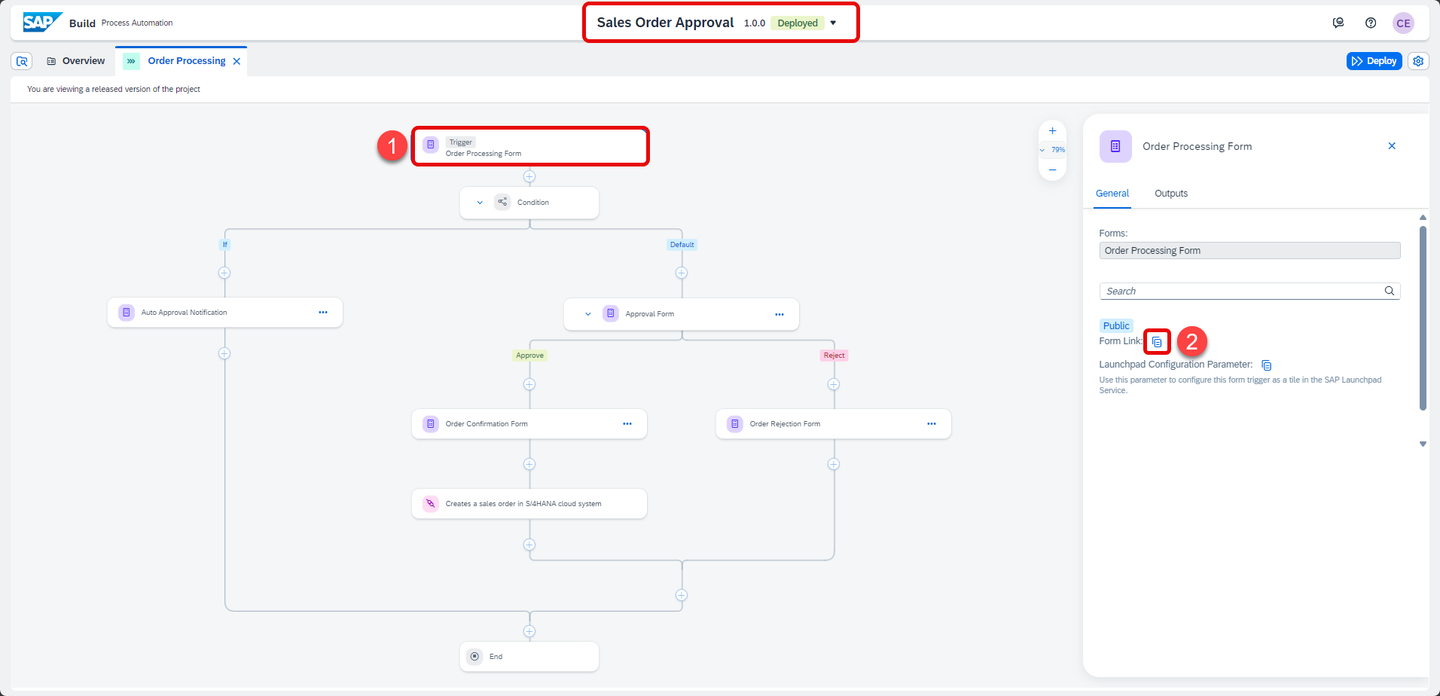
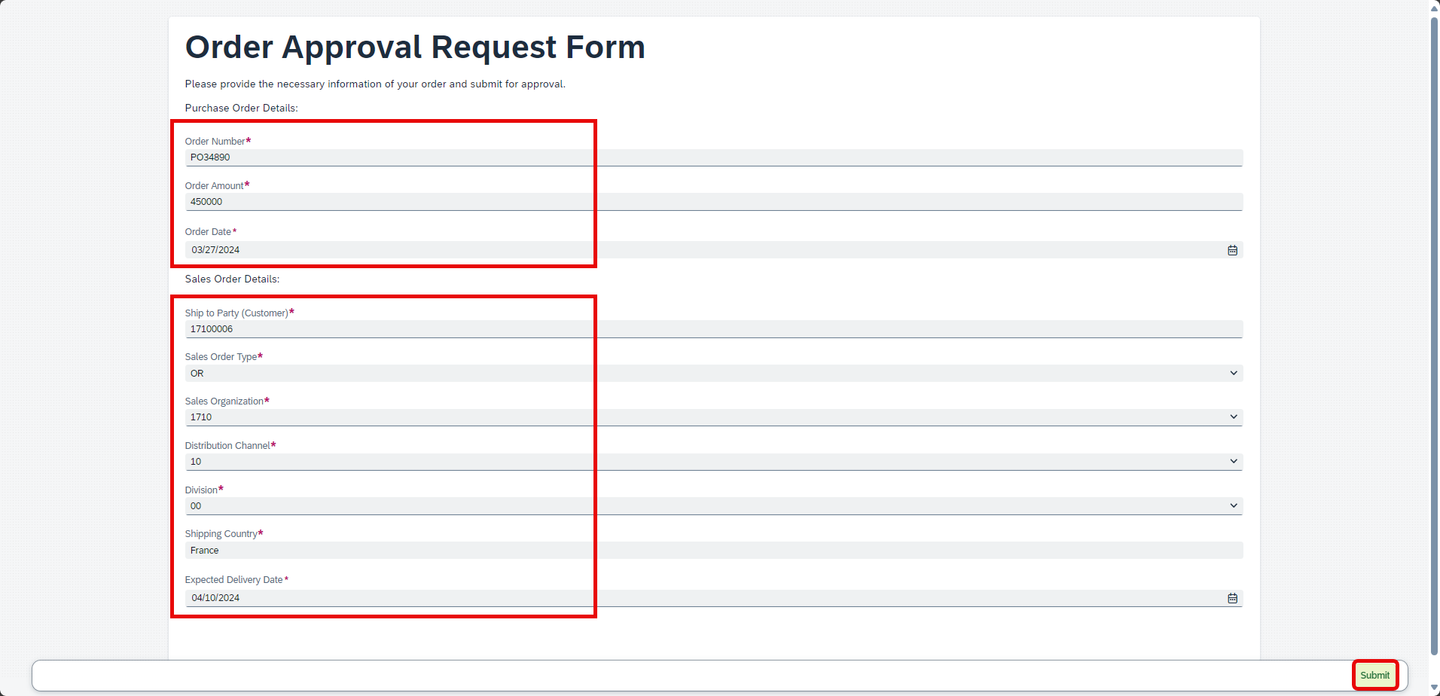
Run Process Fill the form with following details and click Submit.
This will start the business process.
Form Field Name Value Order Number any value like PO34890, 56390 etc. Order Amount any number greater than 100000 Order Date select any previous date from date-selector Ship To Party 17100006
note: this is a customer ID in the
backend S/4HANA SystemSales Order Type OR
note: this stands for Standard Order in the
backend S/4HANA SystemSales Organization 1710
note: this is the organization ID already
existing in the backend S/4HANA SystemDistribution Channel 10
note: this stands for Direct Sales distribution channel
in the backend S/4HANA SystemDivision 00
note: this stands for Product Division
in the backend S/4HANA SystemShipping Country any country name like France, India, Germany etc. Expected Delivery Date select any later date from the date-selector As per the process, if the order amount is > 100000 then it will go for approval or else it will be auto-approved.
The sales order information in the form has to be filled based on the available business object values in the backend system such that the sales order gets created successfully in S/4HANA system.
Run Process
Return to the lobby and select Monitoring then choose Process and Workflow Instances under Monitor to monitor the process execution.
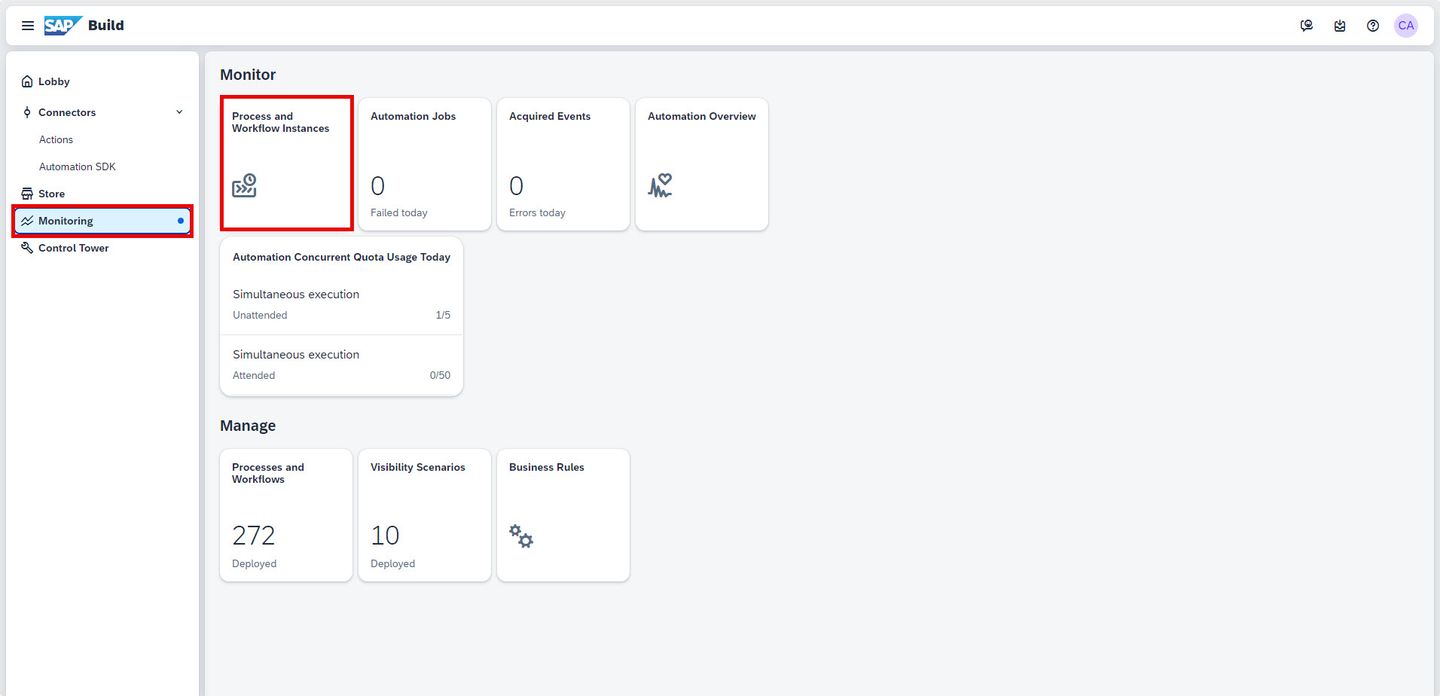
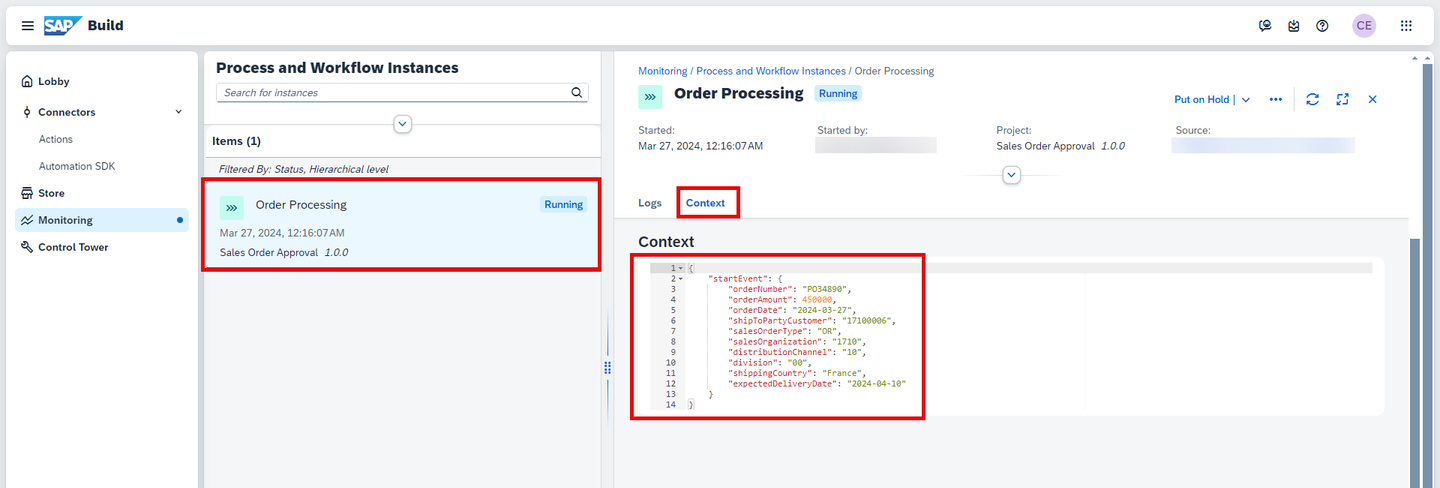
Run Process In process instance detail page, select your process instance to inspect the instance details.
- Look at the Context section. In the context, you will see the order details that you entered in the form.
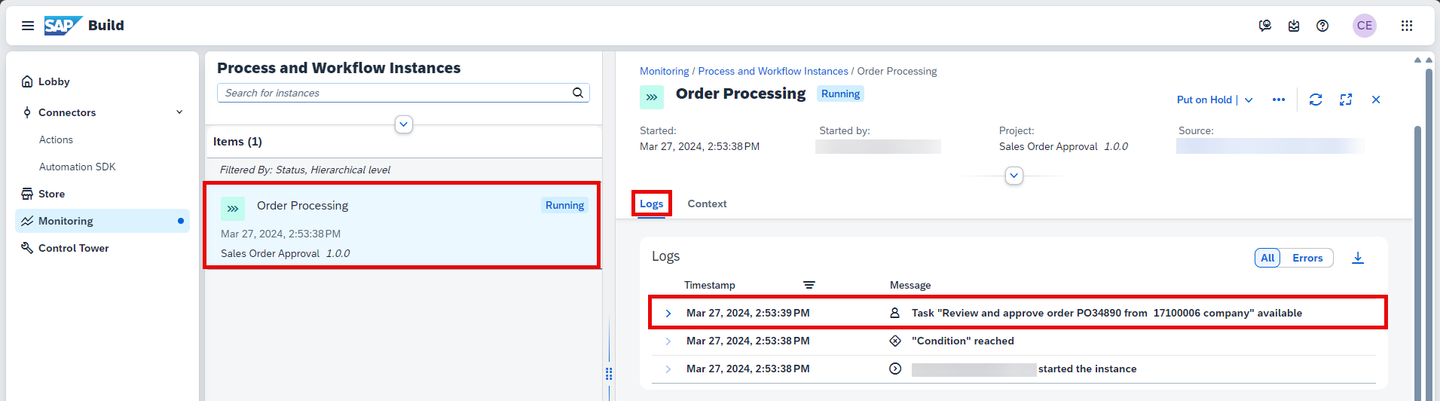
Run Process - Go to Logs and you will see that the user task is waiting to be approved.
Run Process
Open
MyInboxapplication from top-right corner of the screen.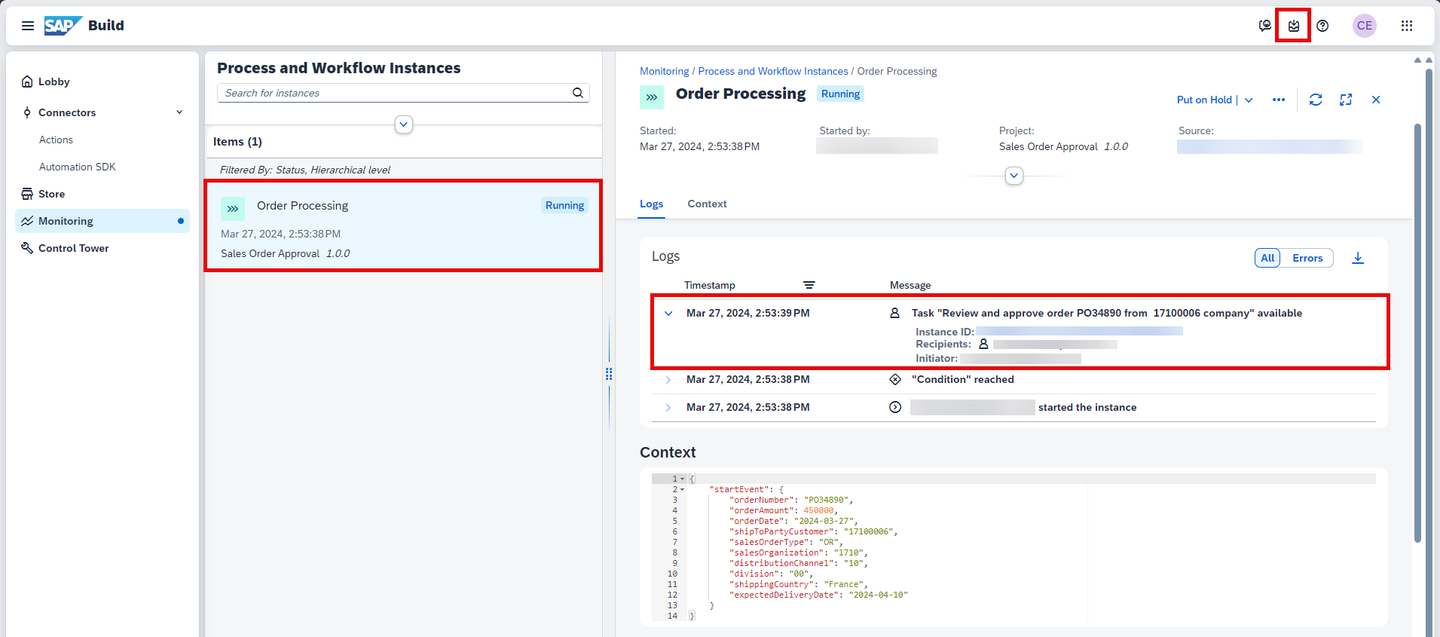
Run Process In
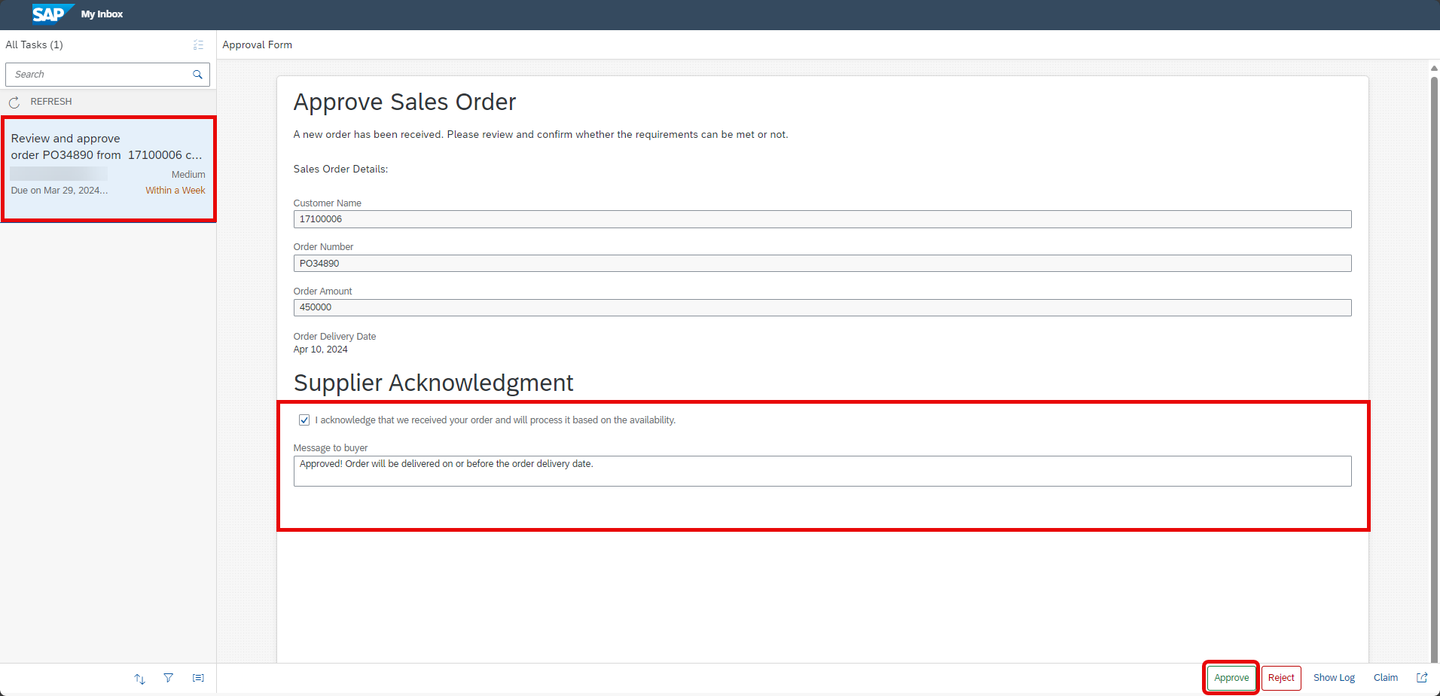
MyInboxapplication, you will see a new task Review and Approve order with the given purchase order number in your inbox.You can also search the inbox items with your purchase order number.
- Select the acknowledgement checkbox.
- Enter any comment of your choice.
This comment will be sent to the requester during final notification.
- Click Approve.
Run Process As per the process, once you approve the sales order - an explicit notification task is sent to the approver to inform him of the approval with the comment from the supplier.
- Choose Refresh to get new tasks.
- Select task with your purchase order number having text Your order PO has been successfully received.
You will see the message from the supplier.
- Click Submit to acknowledge the response from the supplier.

Run Process
Go back to Monitoring > Process and Workflow Instances, select your process instance and observe the Logs.
- Refresh the logs from top-right corner of the screen.
- You will see the log entry for Action execution which informs you that a POST API for Sales Order has been executed, with the given destination configuration.

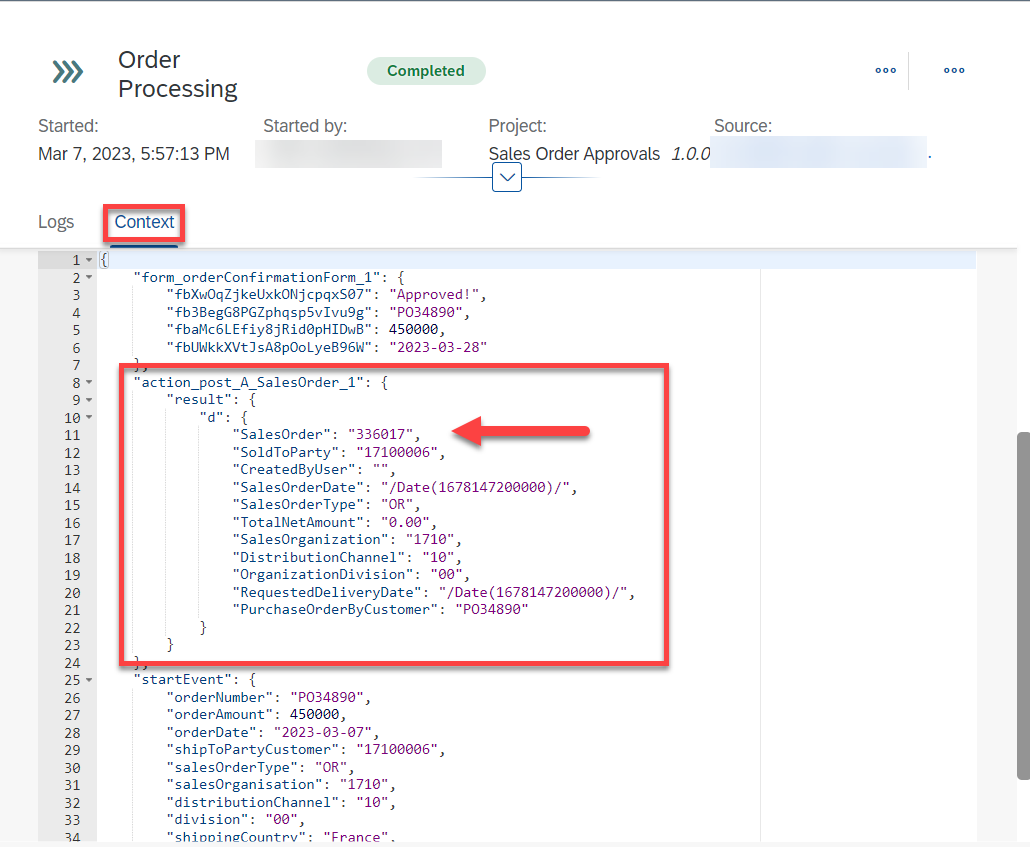
Run Process Now click to open Context tab.
- You can observe the process context as how it has been updated after successful execution of each process step.
- Notice the output after the Action execution.
- Copy this
SalesOrdernumber from the output to validate it in SAP S/4HANA system.
Run Process
You’ve successfully built and executed an automated sales order approval process where the sales order is created in the backend S/4HANA Cloud system once the approval is done.
The entire project is available in the SAP Build Store as a sample and you can follow the below steps to retrieve the project and use it for reference.
This sample project can be downloaded from the SAP Build Store.
To retrieve this sample, please follow these steps:
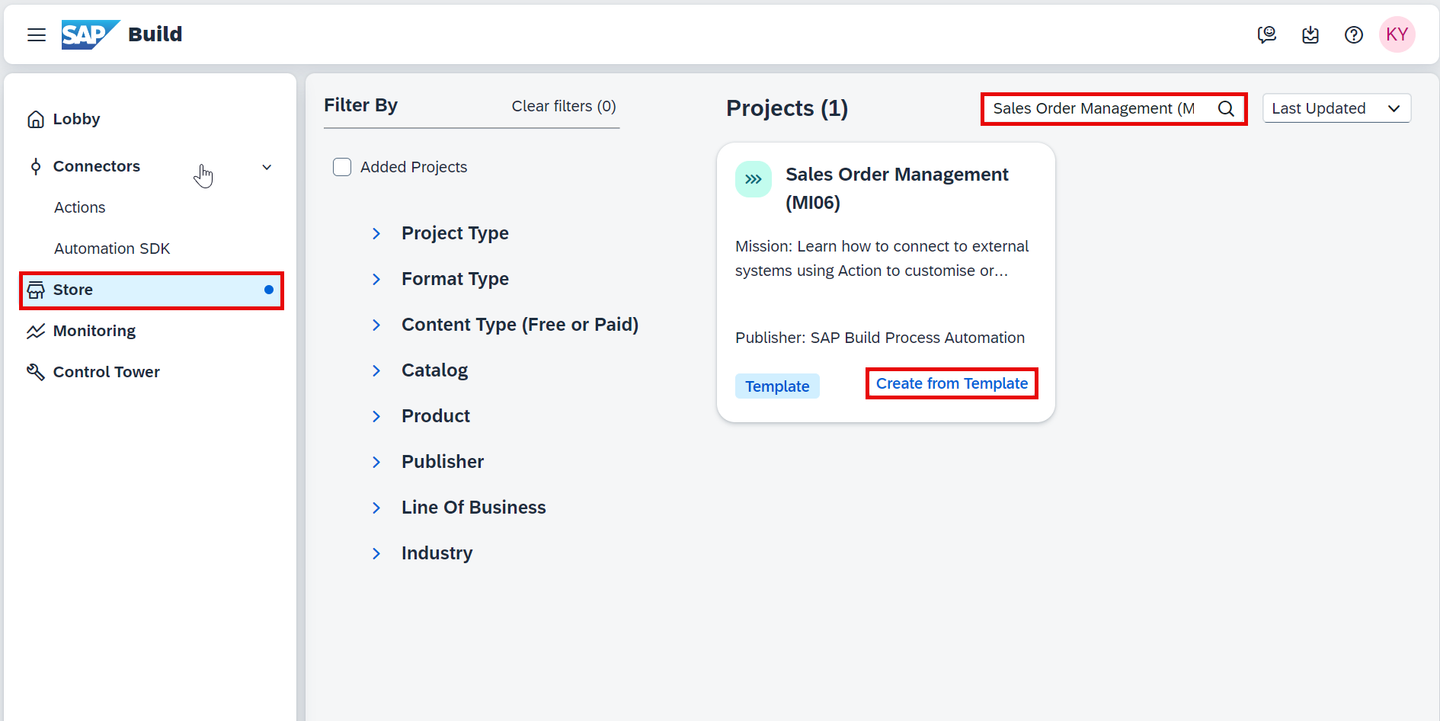
From the SAP Build Lobby, navigate to Store.
Search for the sample project: Sales Order Management (MI06).
Choose Create from Template to retrieve the sample and save it as a new project in your lobby.
Store Choose Create.

Create Your project gets created in editable version. You may release and deploy it and run the project.
Navigate back to the lobby by clicking on the SAP logo.
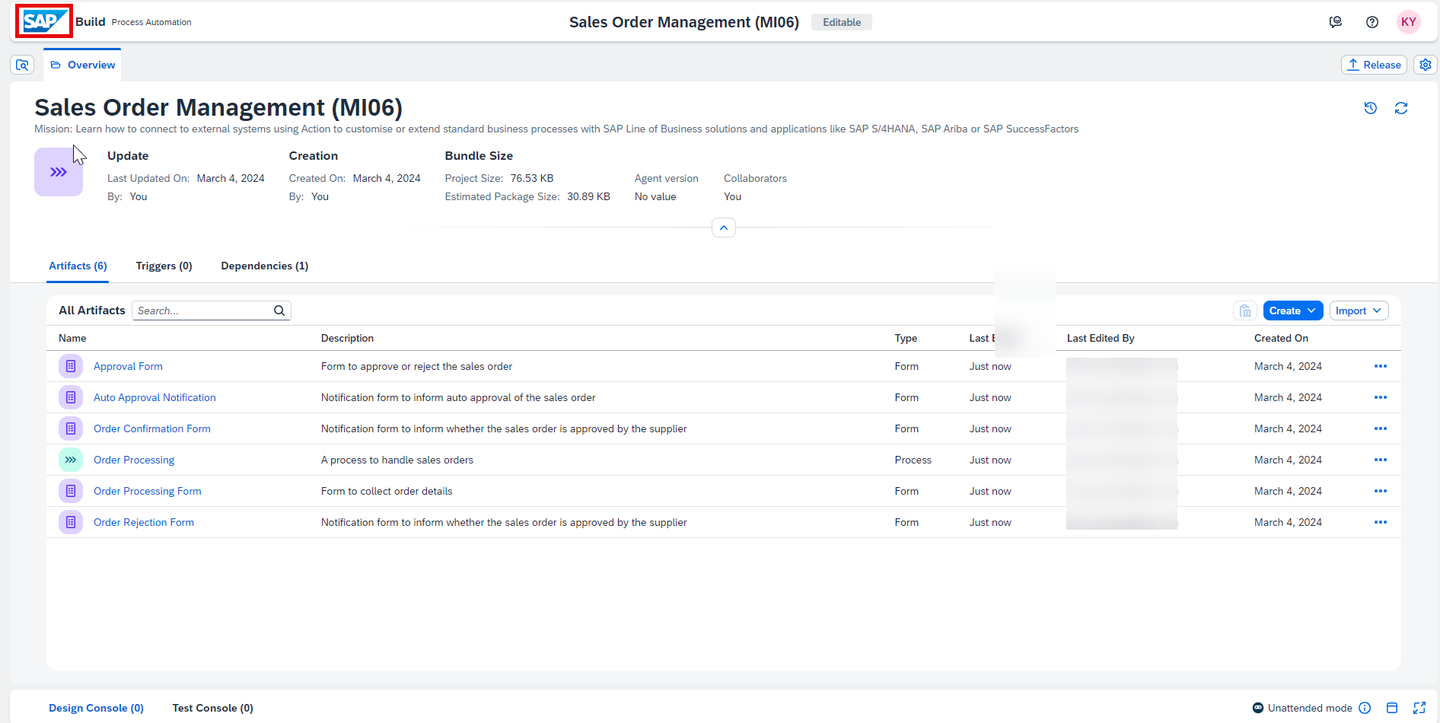
Project You can see your project is available in the lobby.

Lobby
Resources
Discussion
Share feedback on this tutorial or join the conversation in SAP Community.