
Overview
You will learn
- to import sample process
- to discover action from action library
- to add and configure action to the business process
- to map input fields of the action to the actual process content
- to release and deploy business process with actions


Prerequisites
Steps
Intro
Learn how to add the action in the business process to connect to backend system. You can do this by choosing the relevant action from the actions library, and then configuring the action’s parameters.
From the SAP Build Lobby, click on the Store tab.

Import Project On the Store page, search for Sales Order Management (MI01) and once it loads, click Create from Template.

Import Project In the Create a Business Process project pop-up:
- In the Project Name field, enter Sales Order Approval.
You can keep the default description or enter the description of your choice
- Click Create.

Import Project Open Lobby and you will see your project created.

Import Project
Click to open Sales Order Approval business process project from the Lobby.
When you open for the first time then you might get an option to Accept.
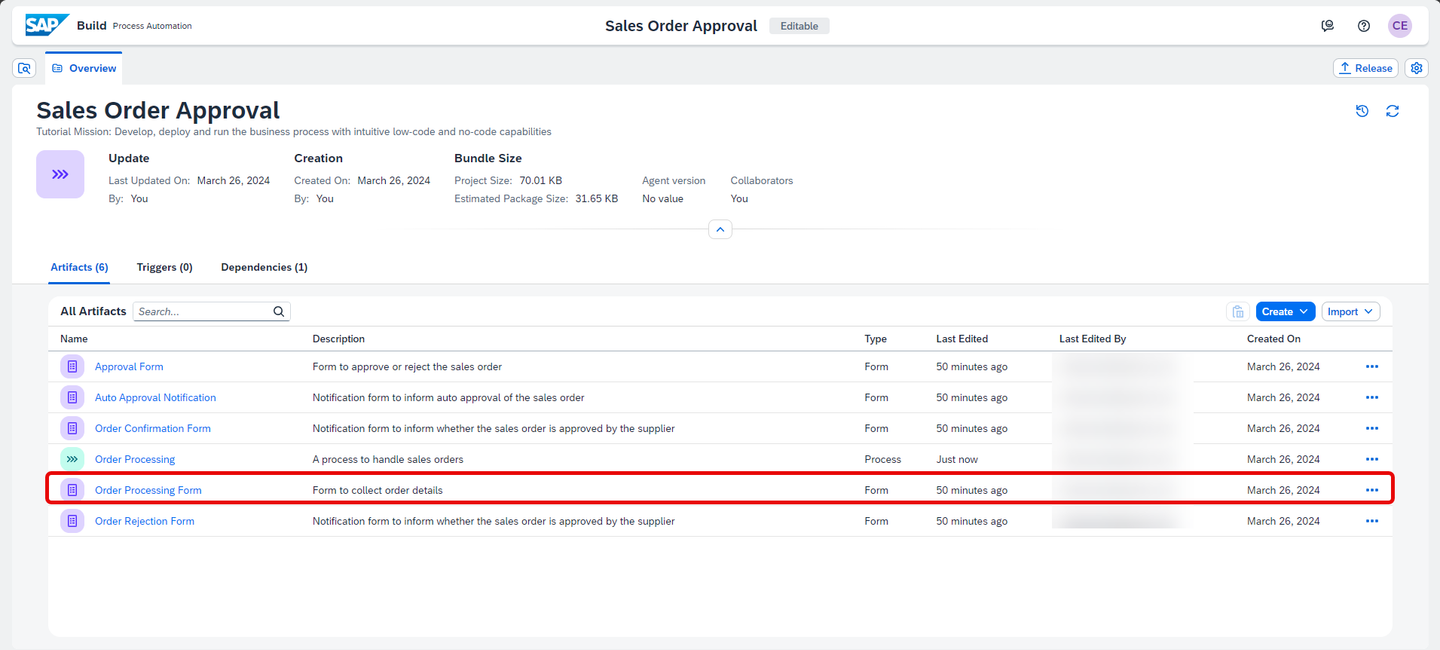
Select the Order Processing Form.
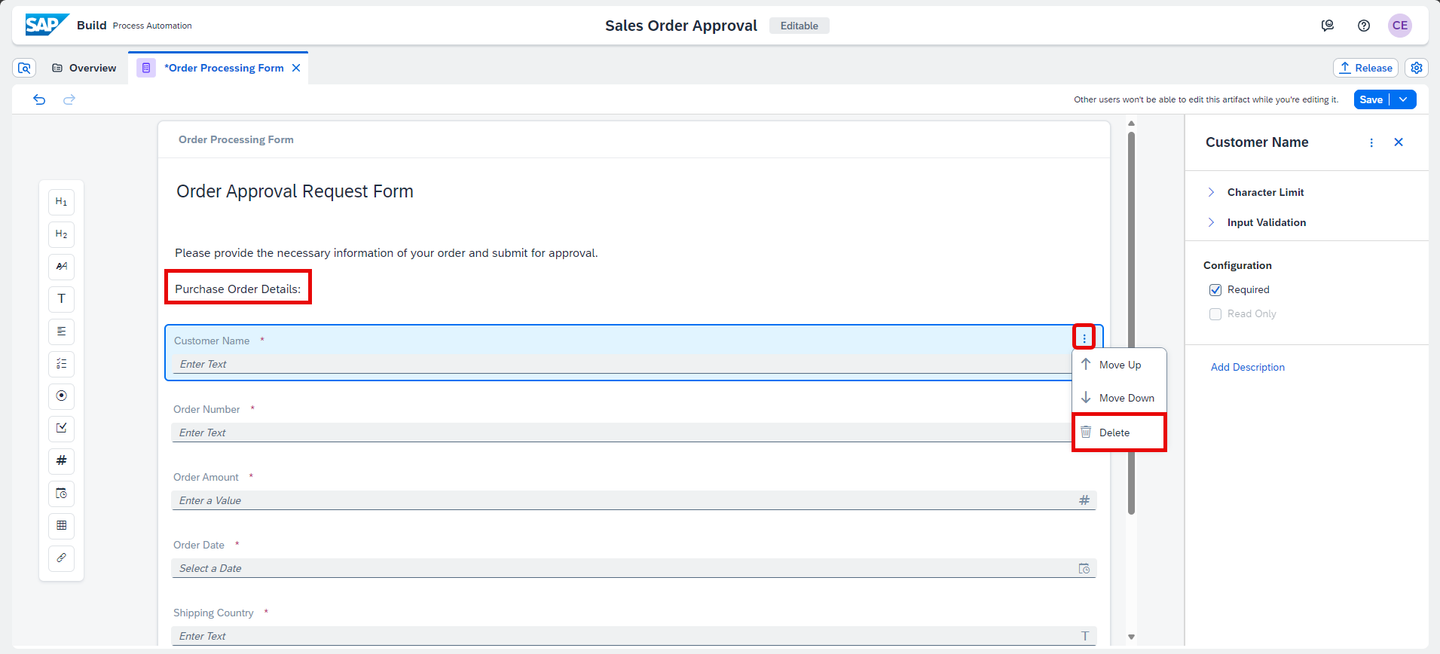
Order Processing Form The form editor opens. Do the following changes:
In the paragraph field, add Purchase Order Details:
Choose the three dots next to Customer Name field and select delete.
Order Processing Form Add a paragraph after Order Date and enter Sales Order Details:
Just below the Sales Order Details paragraph and before Shipping Country and Expected Delivery Date inputs, add the following input fields and enter the labels and select the Required checkbox:
Form Fields Field Settings with Label Text Ship to Party (Customer) Dropdown Sales Order Type Dropdown Sales Organization Dropdown Distribution Channel Dropdown Division 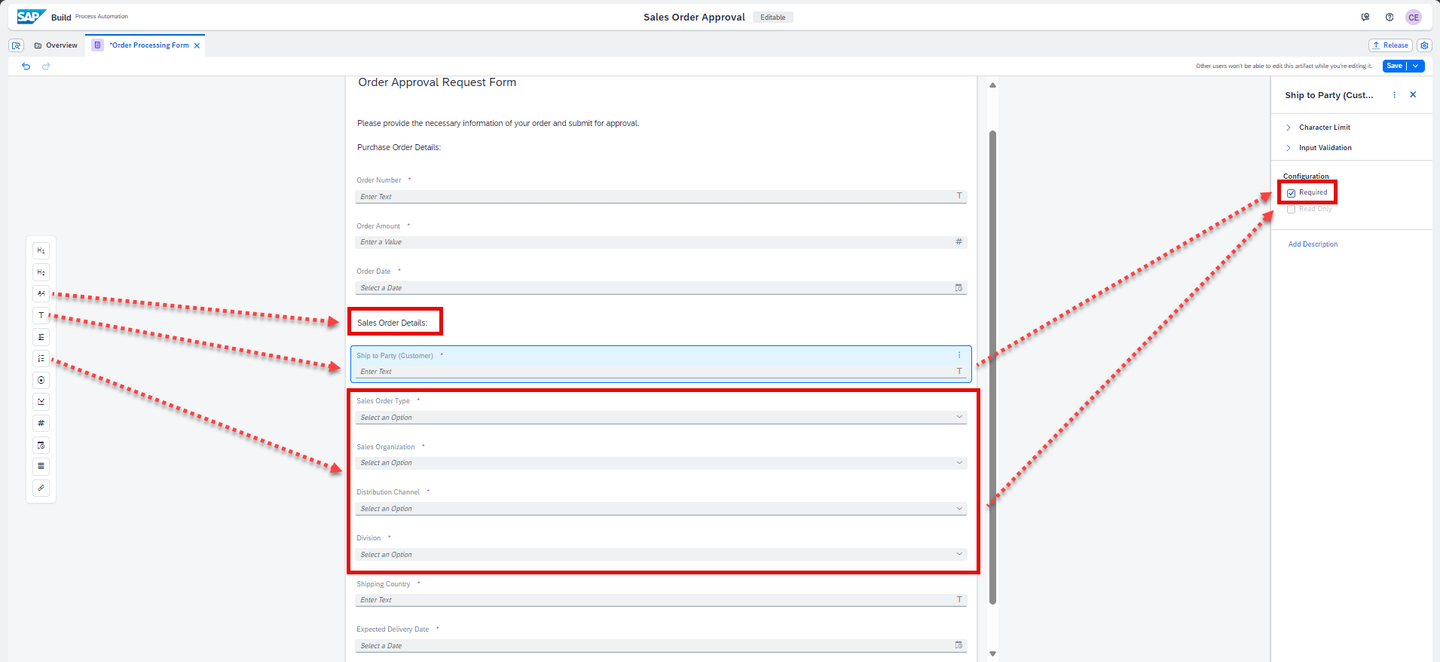
Order Processing Form - Now enter values in the dropdown fields such as:
Dropdowns Option value(s) Sales Order Type OR Sales Organization 1010/1110/1710 Distribution Channel 10 Division 00 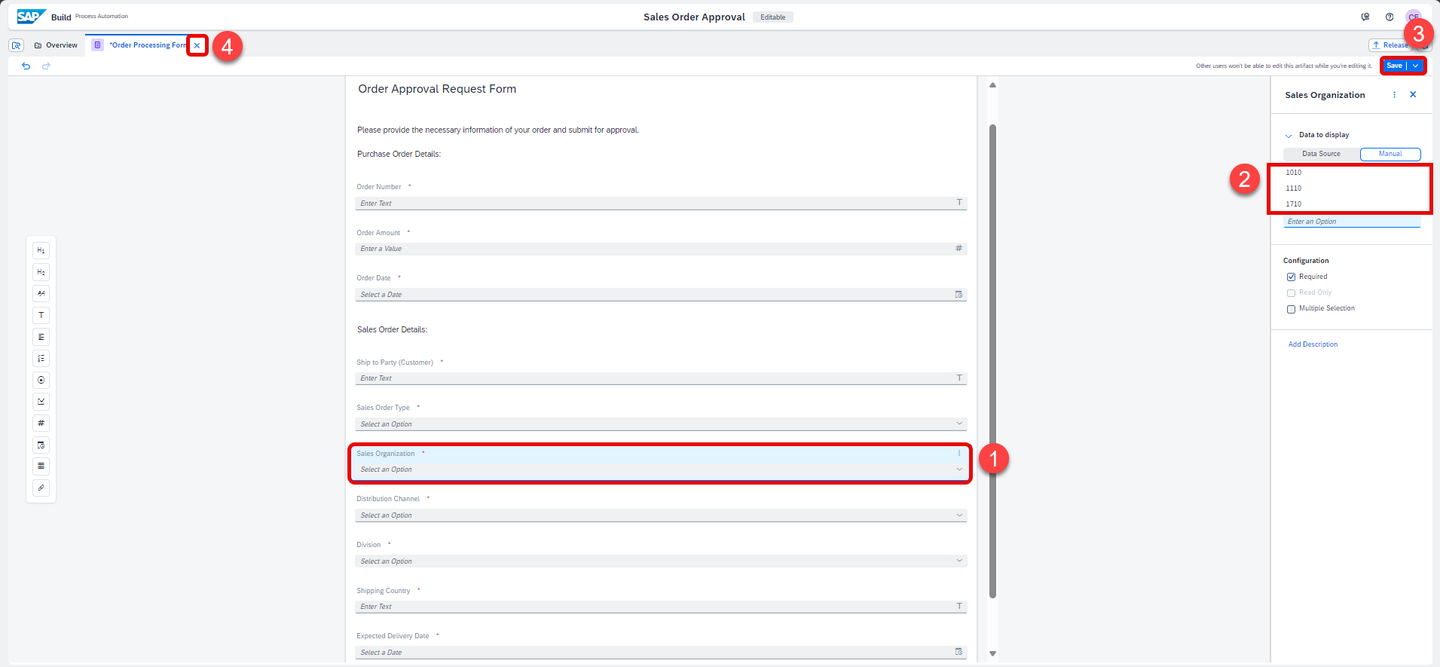
Order Processing Form You may enter any option of your liking depending on your available data set in your
S/4HANA system.Save and close the form.
In the Overview tab, click to open Order Processing process.

Import Project In the process builder, click to open Project Properties from top-right corner of the page.
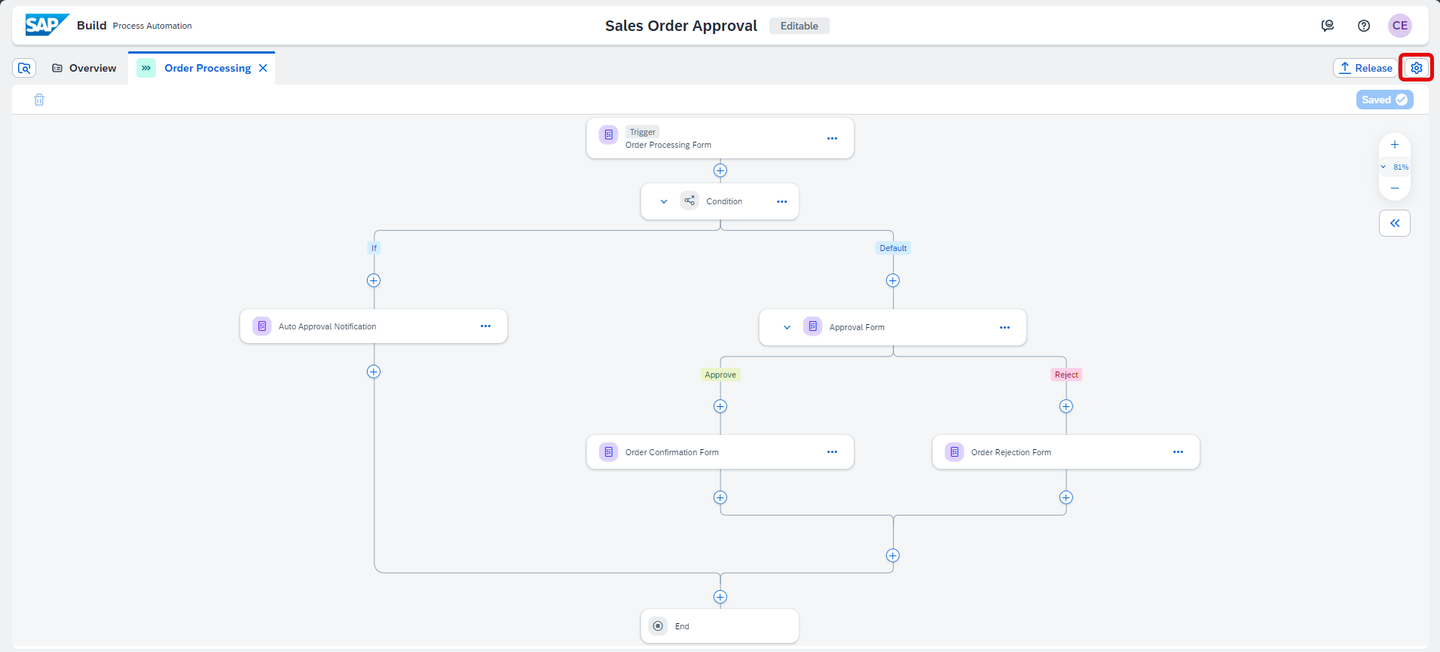
Destination In the Project Properties pop-up, select Environment Variables and choose Create to create an environment variable for this business process.
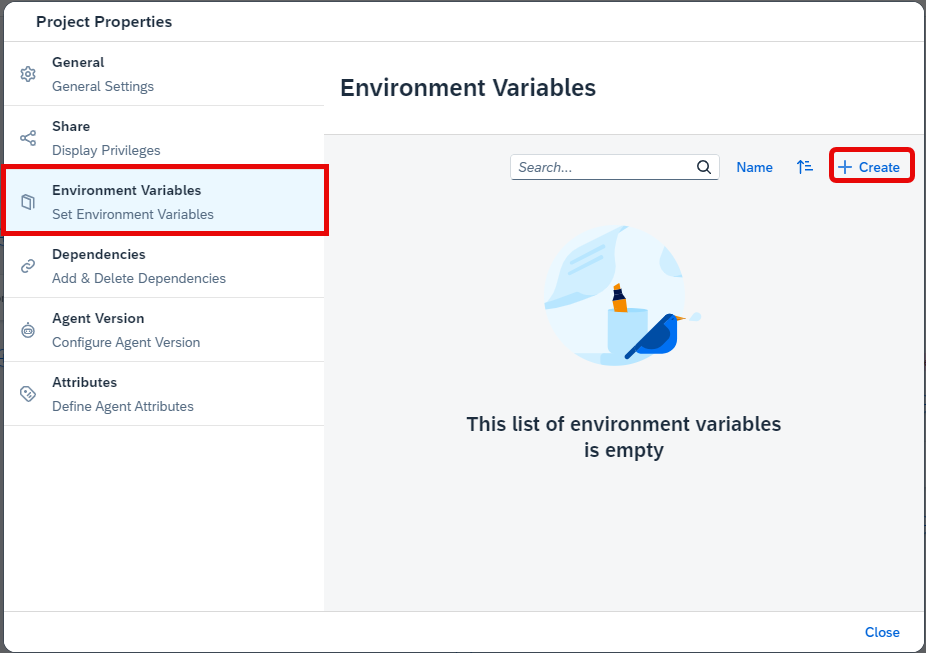
Destination Enter the following to create an environment variable:
- S4HANACloud as Identifier.
- Any Description of your choice.
- Destination as variable type.
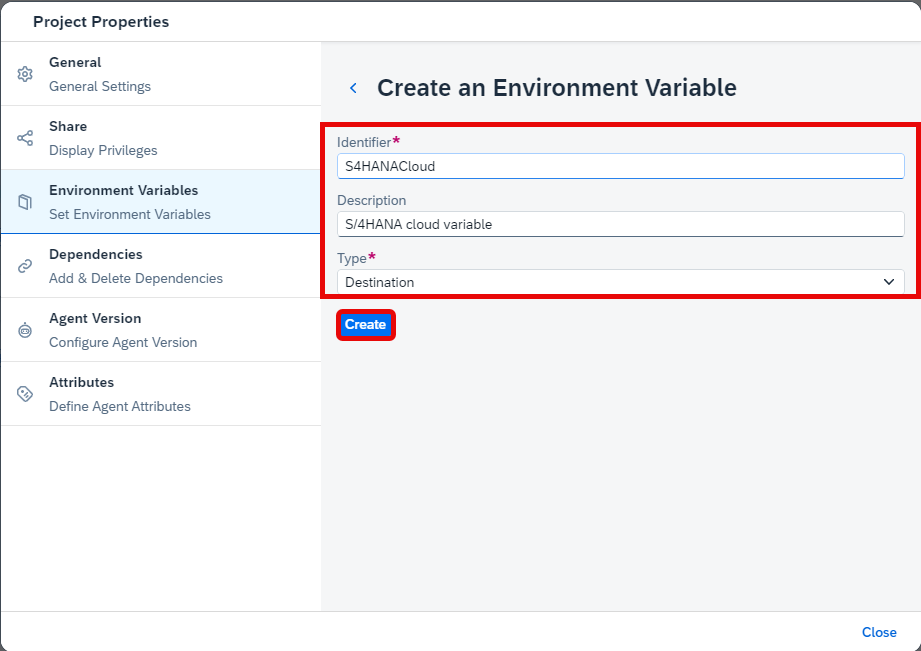
Destination - Click Create.
Once the environment variable is created, Close the project properties’ pop-up.
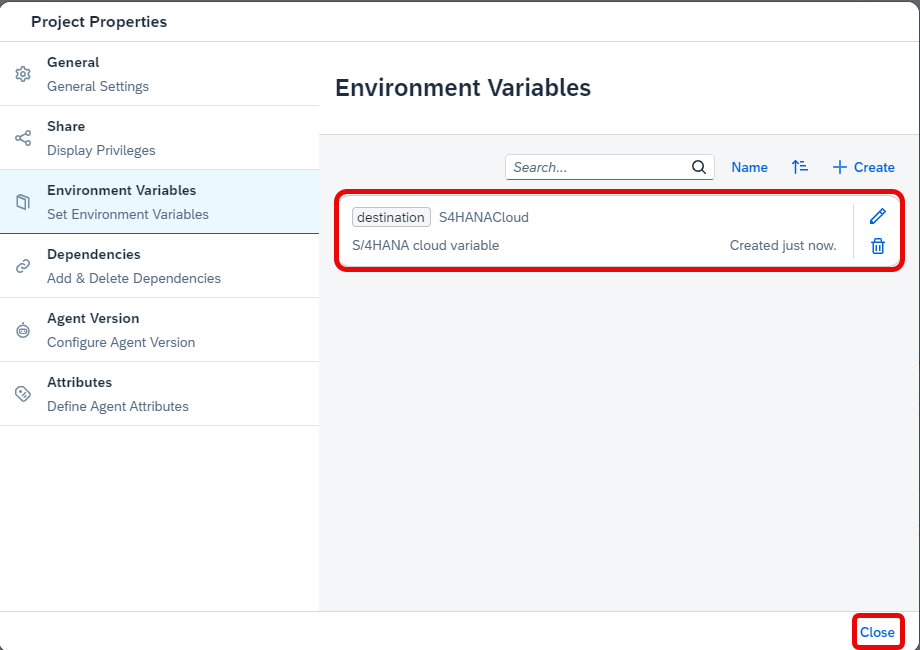
Destination
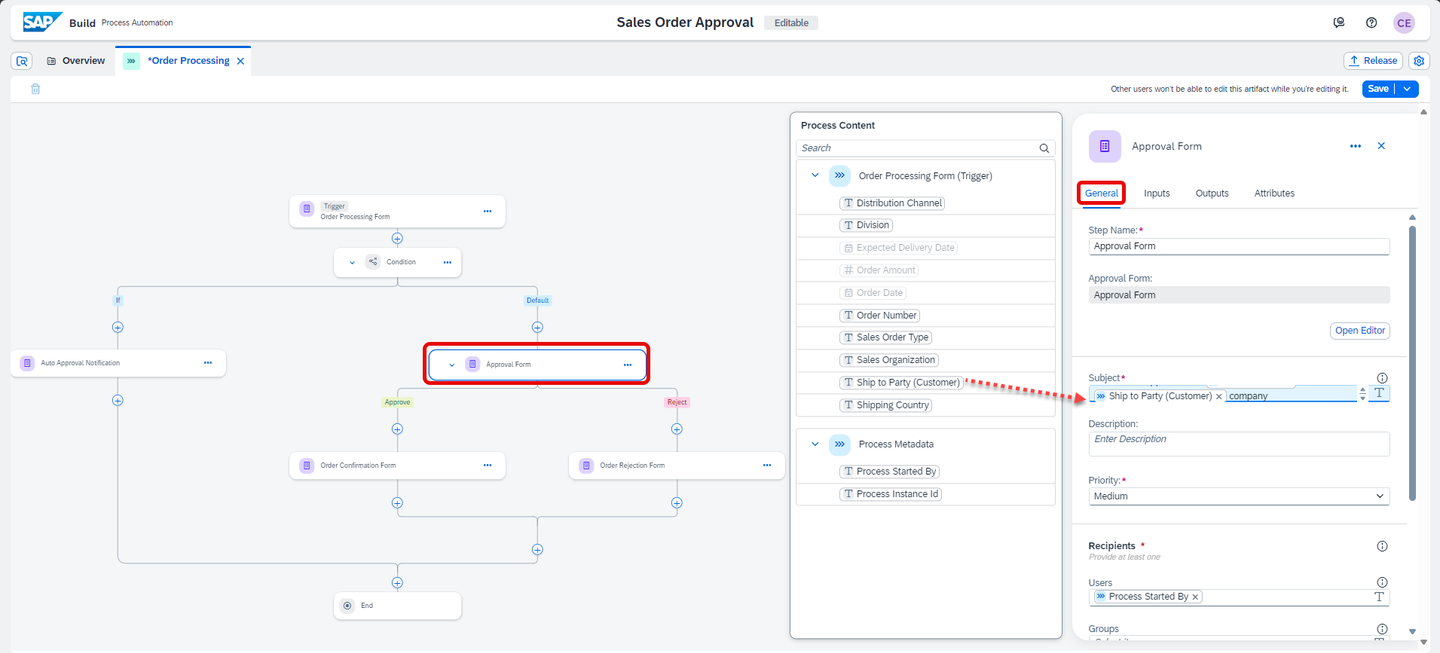
Select the Approval Form.
In the General section, under Subject map the company to Order Processing Form > Ship to Party (Customer).
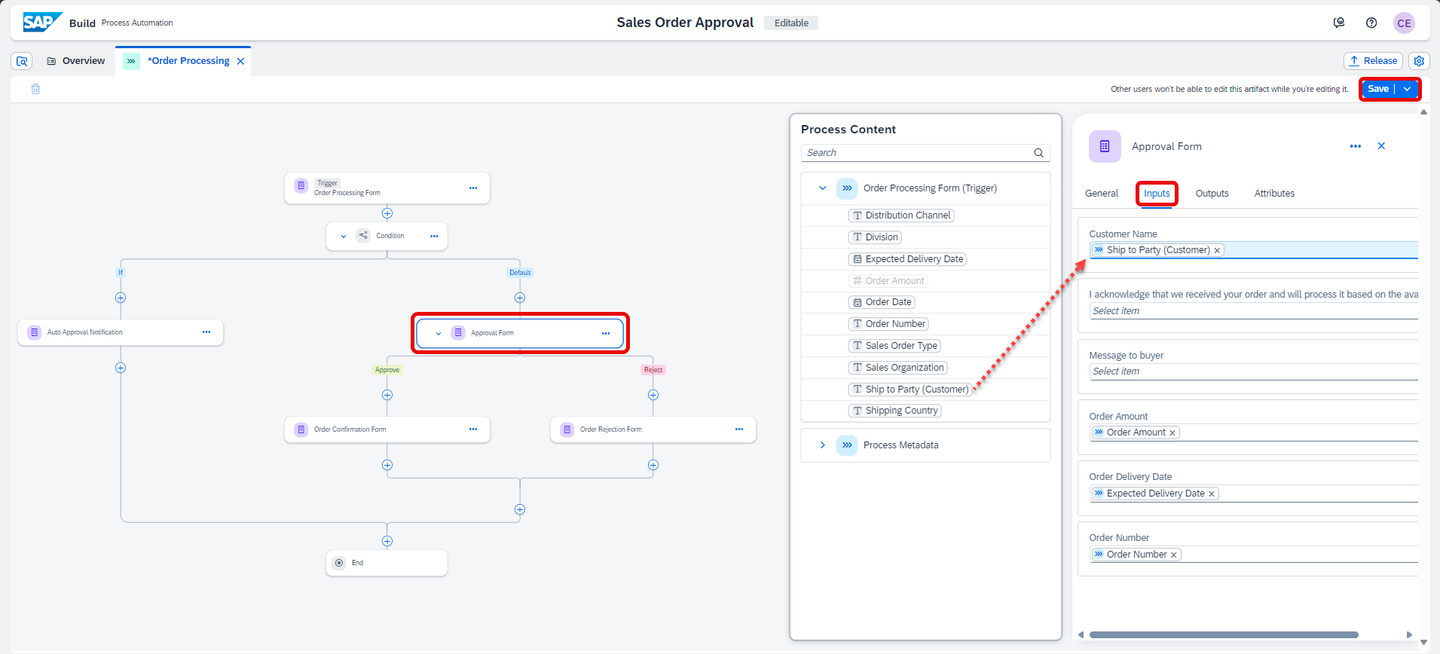
Map input Choose Inputs, map Customer Name input with Order Processing Form > Ship to Party (Customer).
Choose Save.
Map input
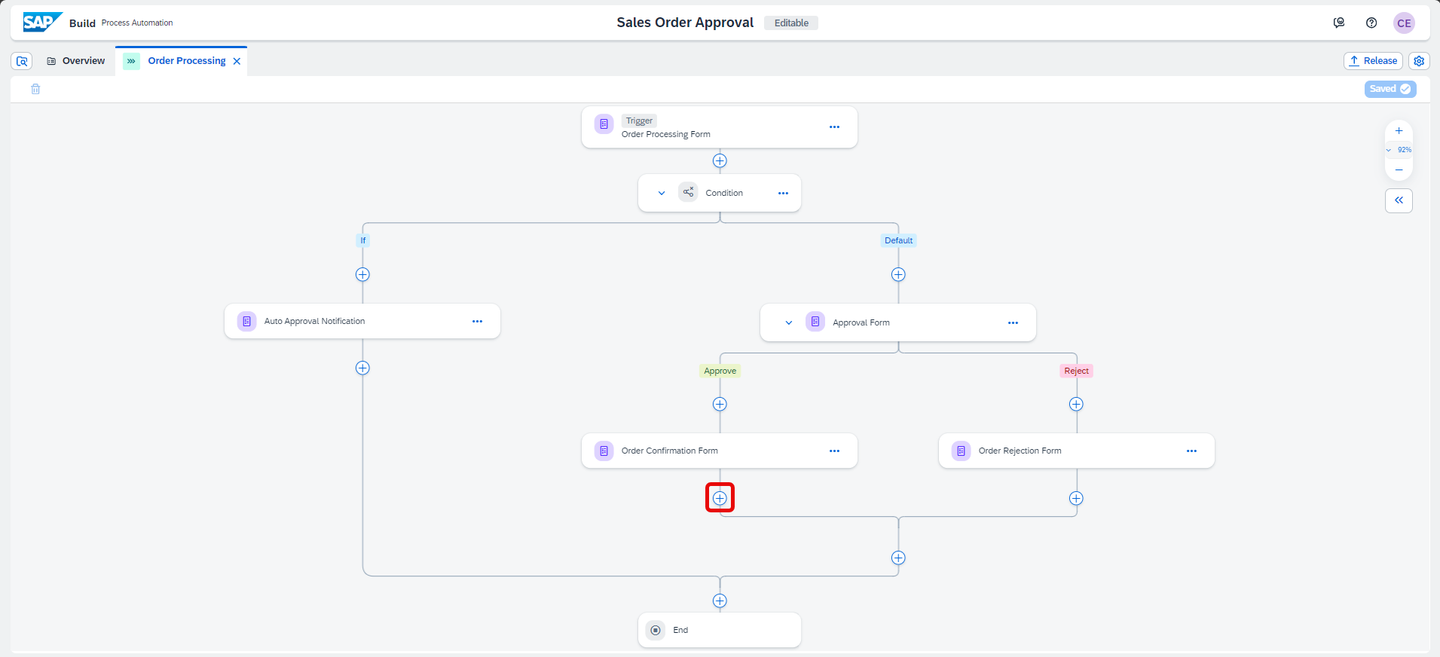
In the Process Builder canvas, click the + in output connector of Order Confirmation Form.
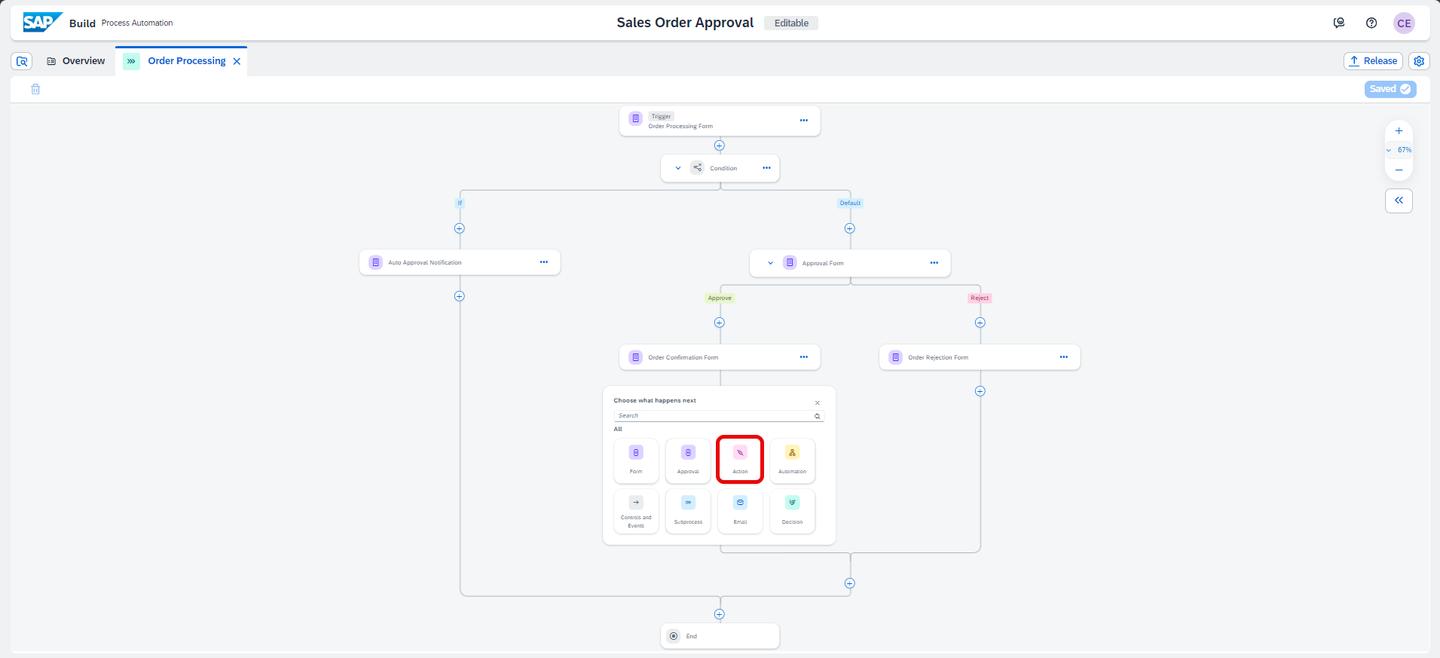
Add Artifact In the list, choose Action.
Browse Action In the Browse library pop up, click Add on the action you just created.
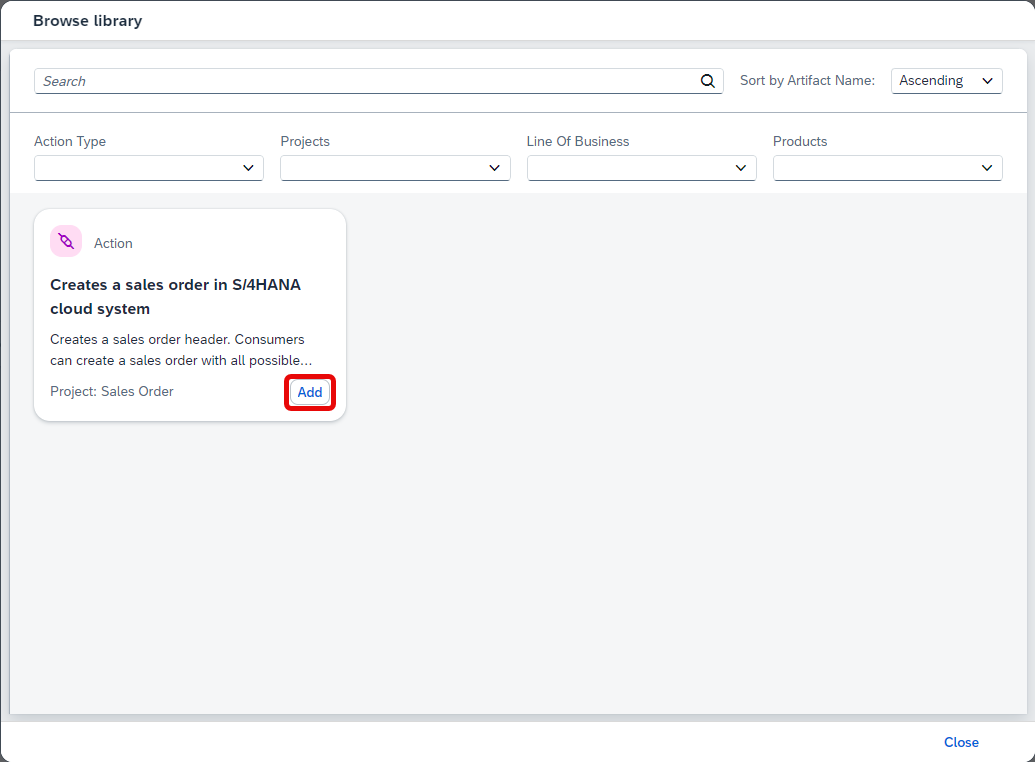
Search Action This will add the action to connect process to the backend system in your business process.
The action gets added to your process.
In General tab of action parameters, choose the corresponding Destination variable that you previously created.
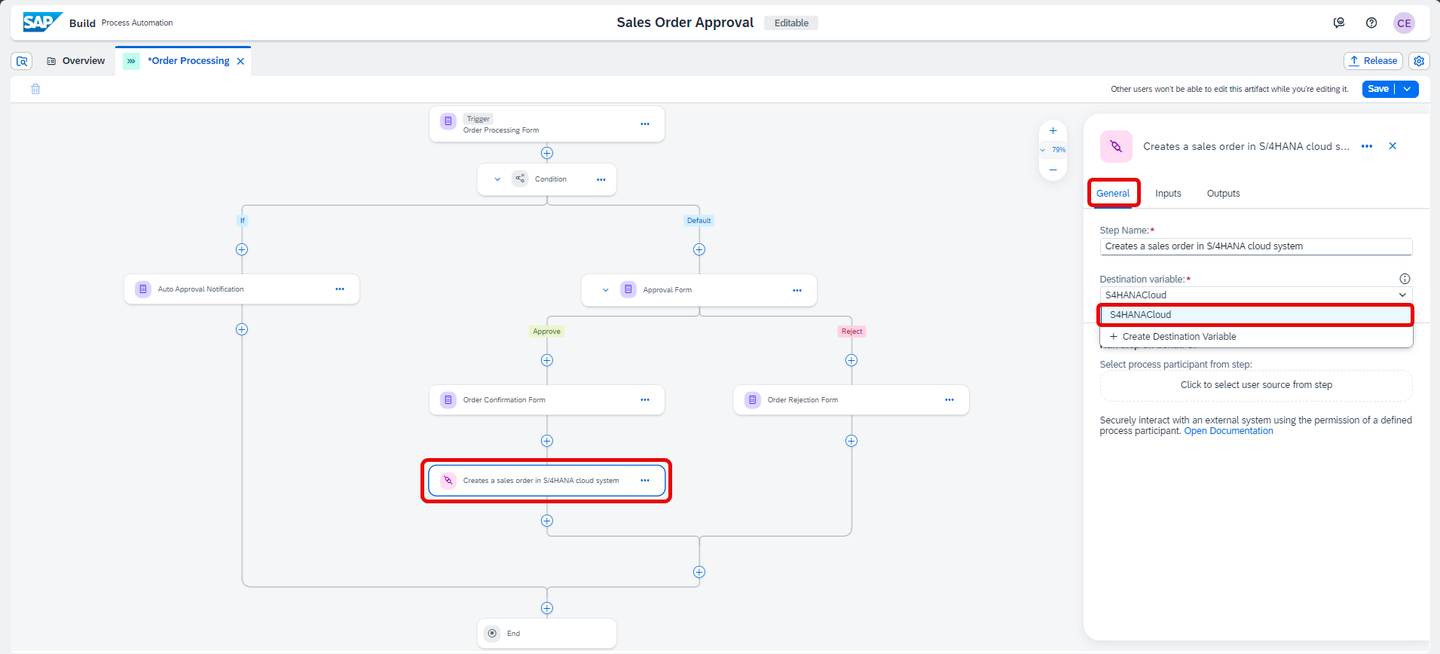
Add Destination Variable Click Inputs tab, and map each input to the actual process content.
Input Field Process Content DistributionChannelOrder Processing Form > Distribution Channel OrganizationDivisionOrder Processing Form > Division PurchaseOrderByCustomerOrder Processing Form > Order Number SalesOrderTypeOrder Processing Form > Sales Order Type SalesOrganizationOrder Processing Form > Sales Organization SoldToPartyOrder Processing Form > Ship To Party (Customer) 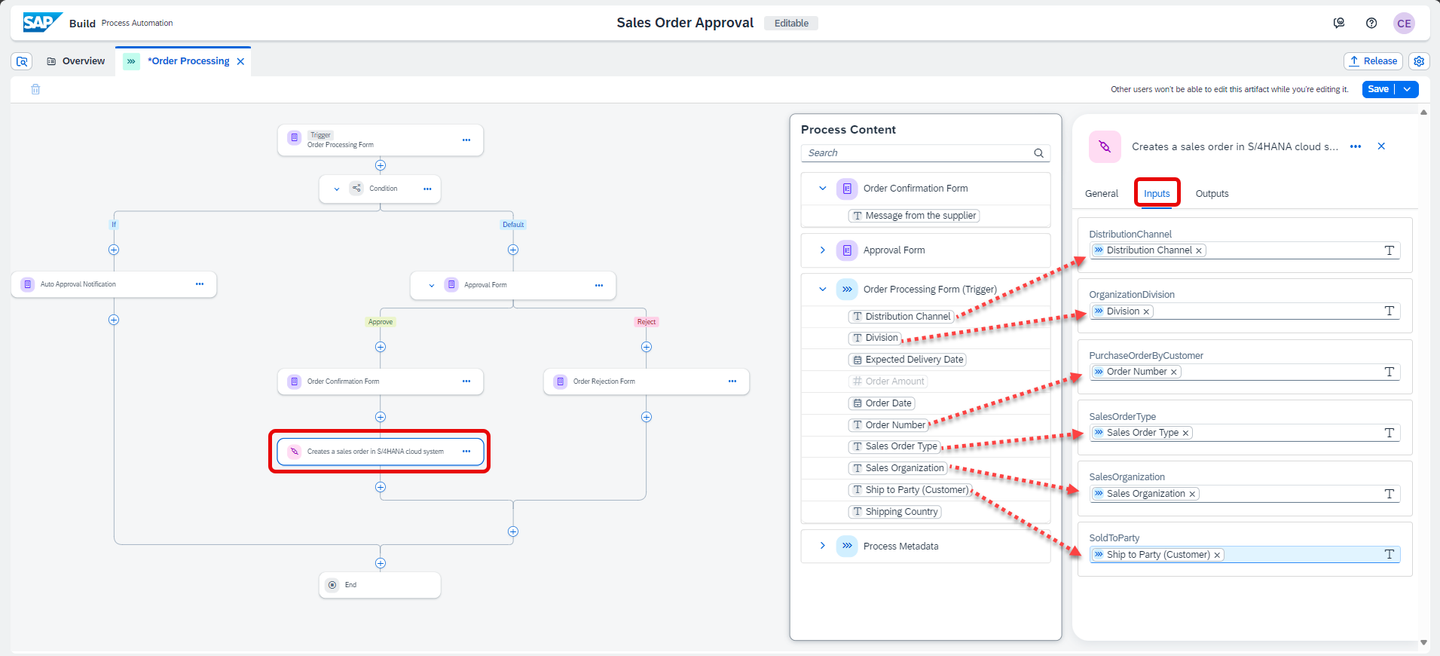
Map Inputs In Outputs tab, check to make sure all outputs are same as defined in the action project.
Save your work.
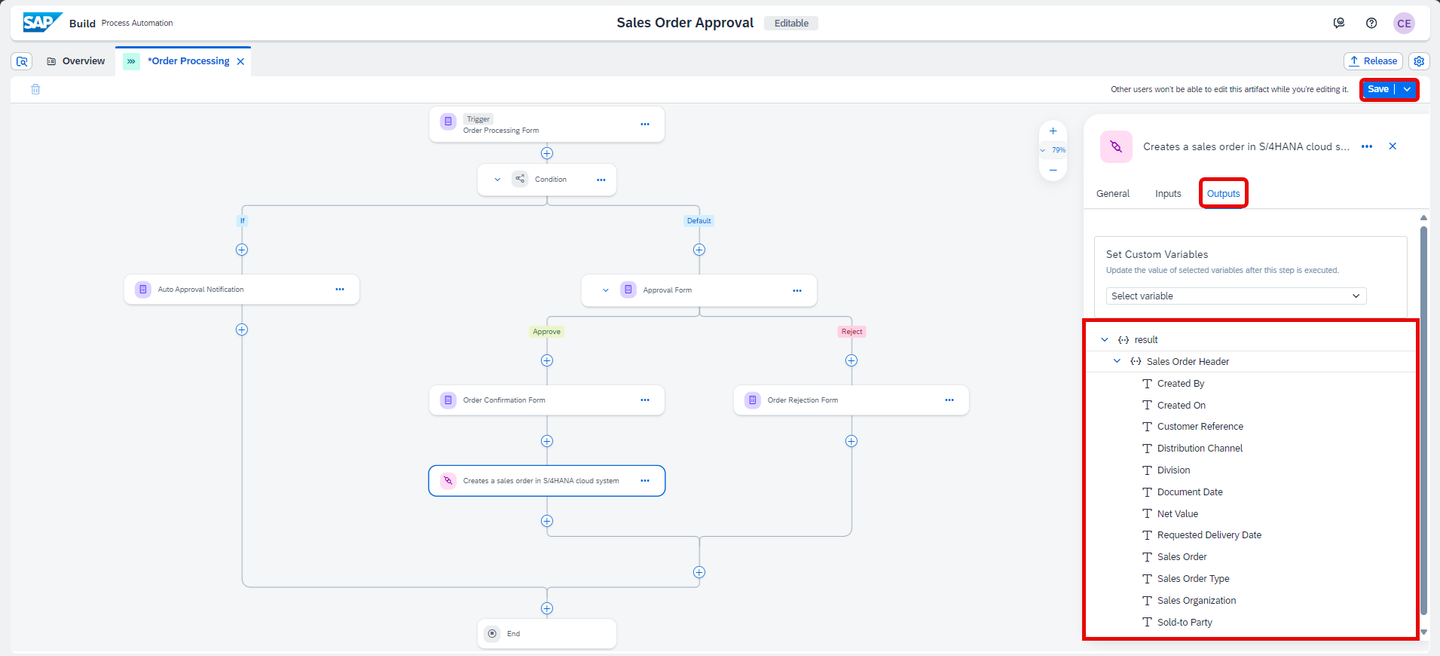
Check Outputs Update the connections of Auto Approval Notification activity in the business process such that once the order is auto approved, the sales order is created in the backend system:
- Select + below Auto Approval Notification.
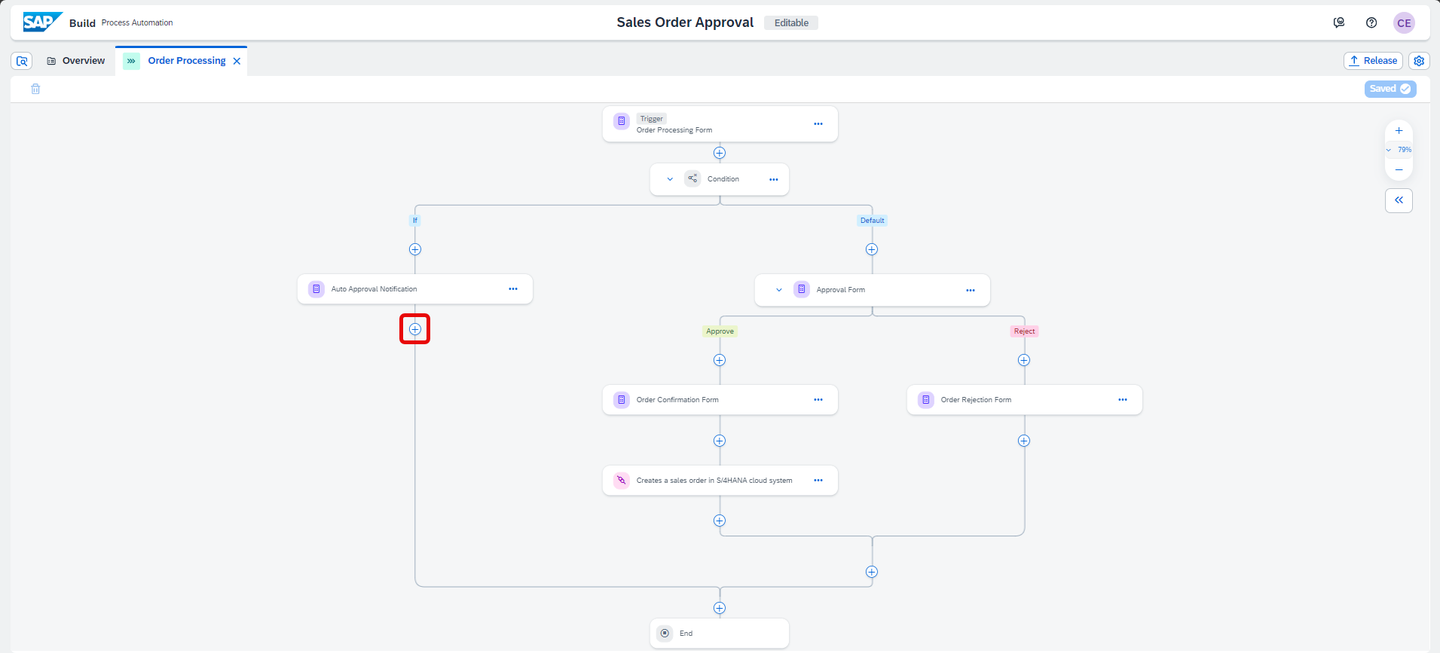
Select and delete connector - Select Controls and Events.
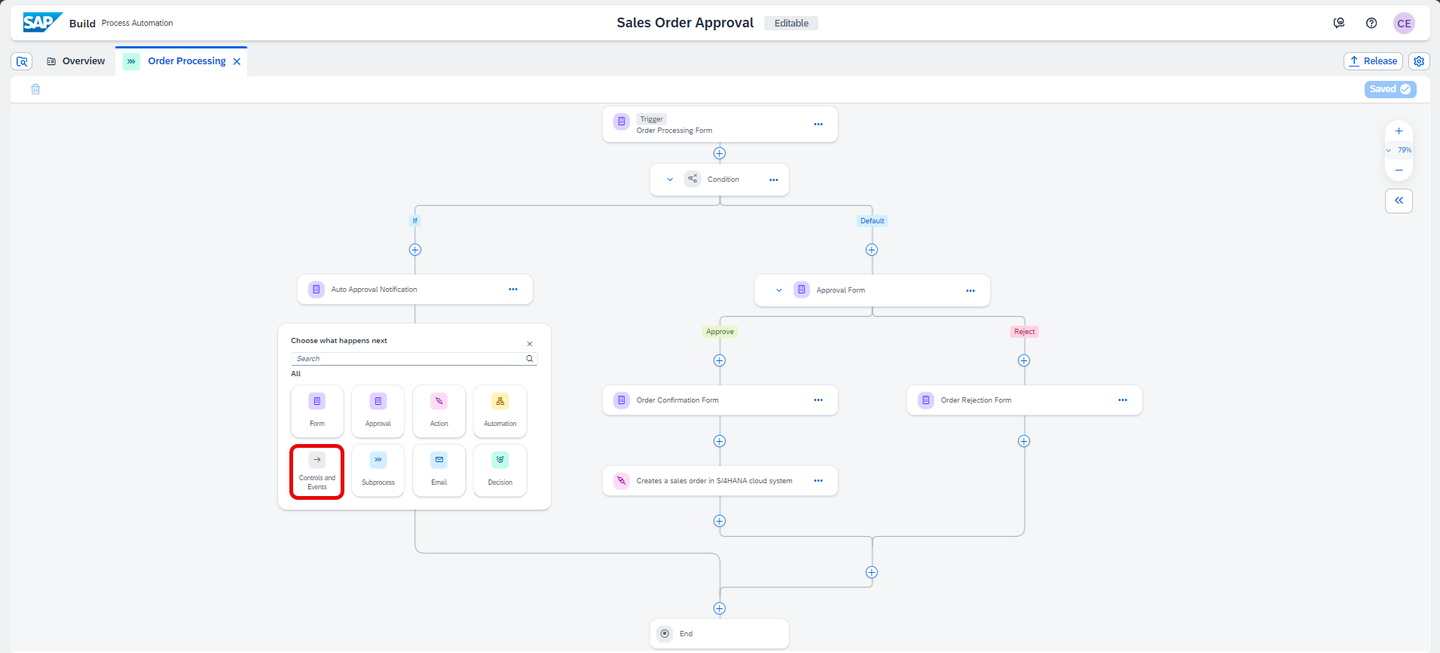
Select and delete connector - Select Go to Step.
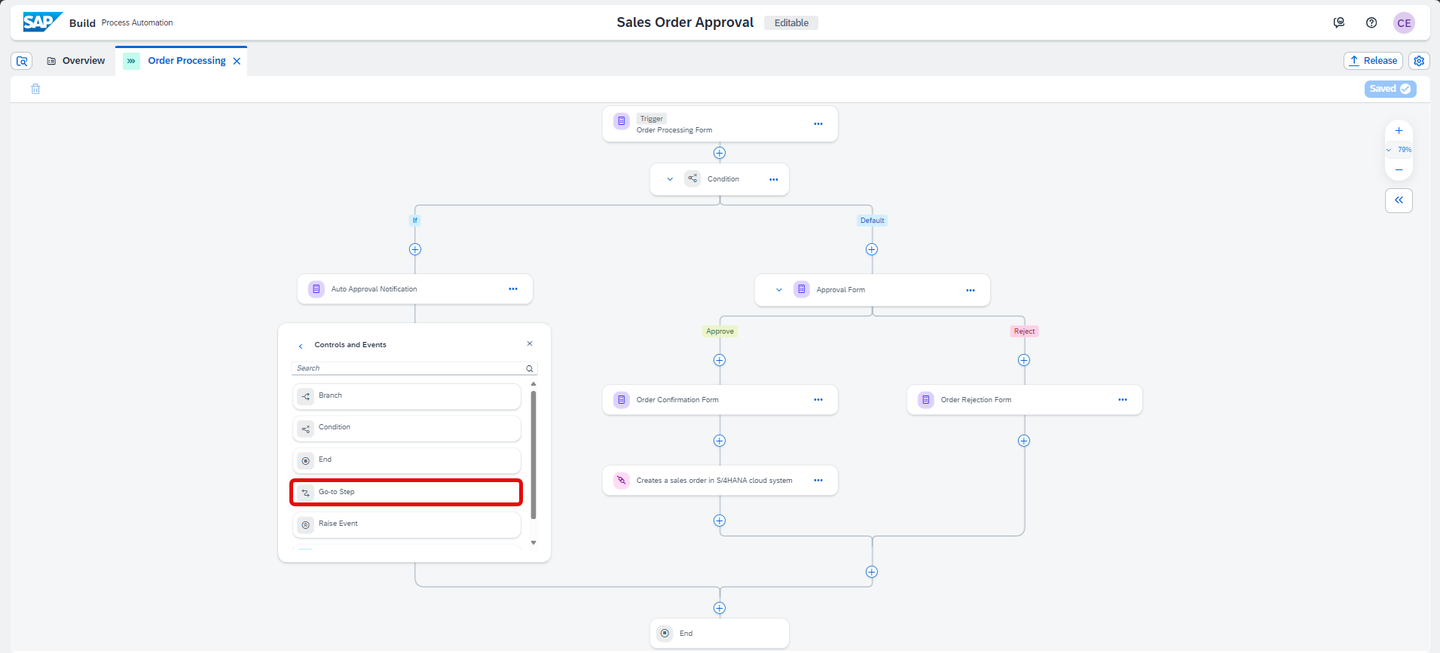
Select and delete connector - Choose Creates a sales order in S/4HANA cloud system.
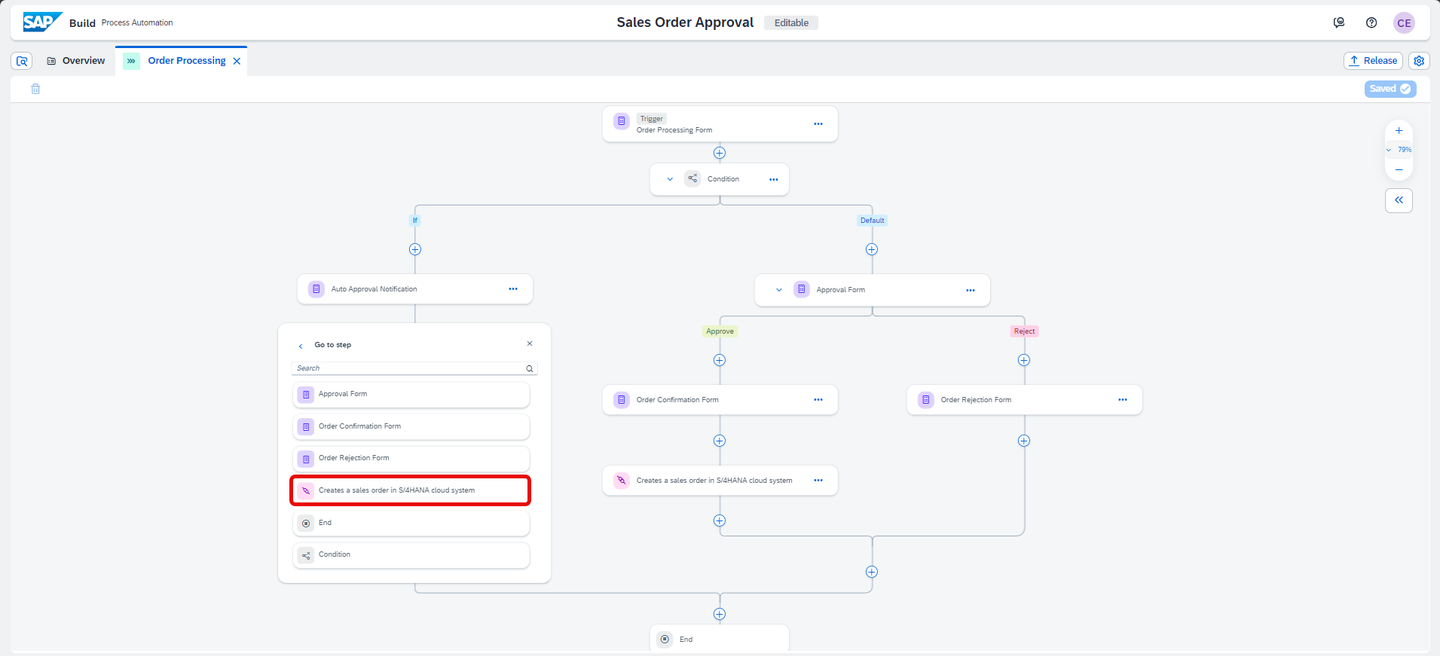
Select and delete connector The final process should be same as shown below. Ensure that you have the right connections such that Auto Approval Notification and Order Confirmation Form connects to Action activity.
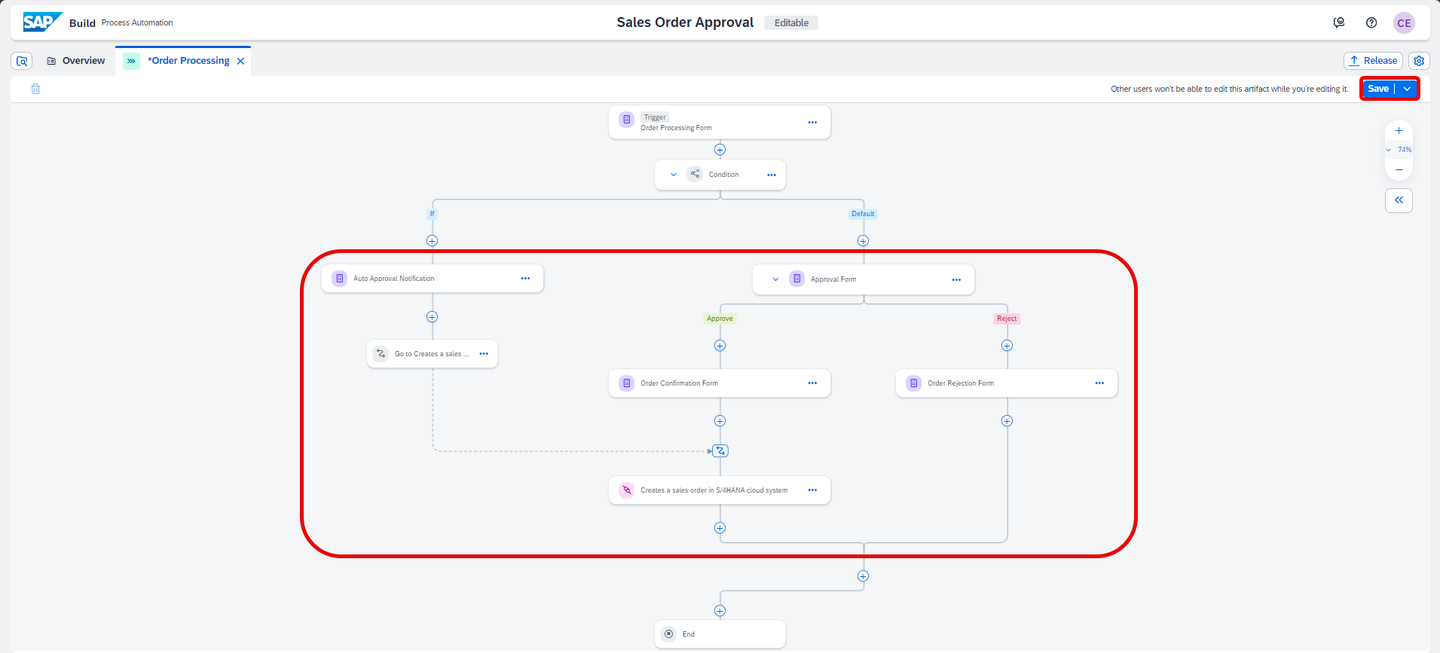
Deployed Click Save to save your work.
You will now release and deploy your project. The release process allows for semantic version control with format X.Y.Z, where you will be able to increment your project release version based on a major version change (X), minor version change (Y), or bug/patch version change (Z). Deploying your project will allow you to set the proper parameters, if necessary, to allow for project execution.
There are two possible situations:
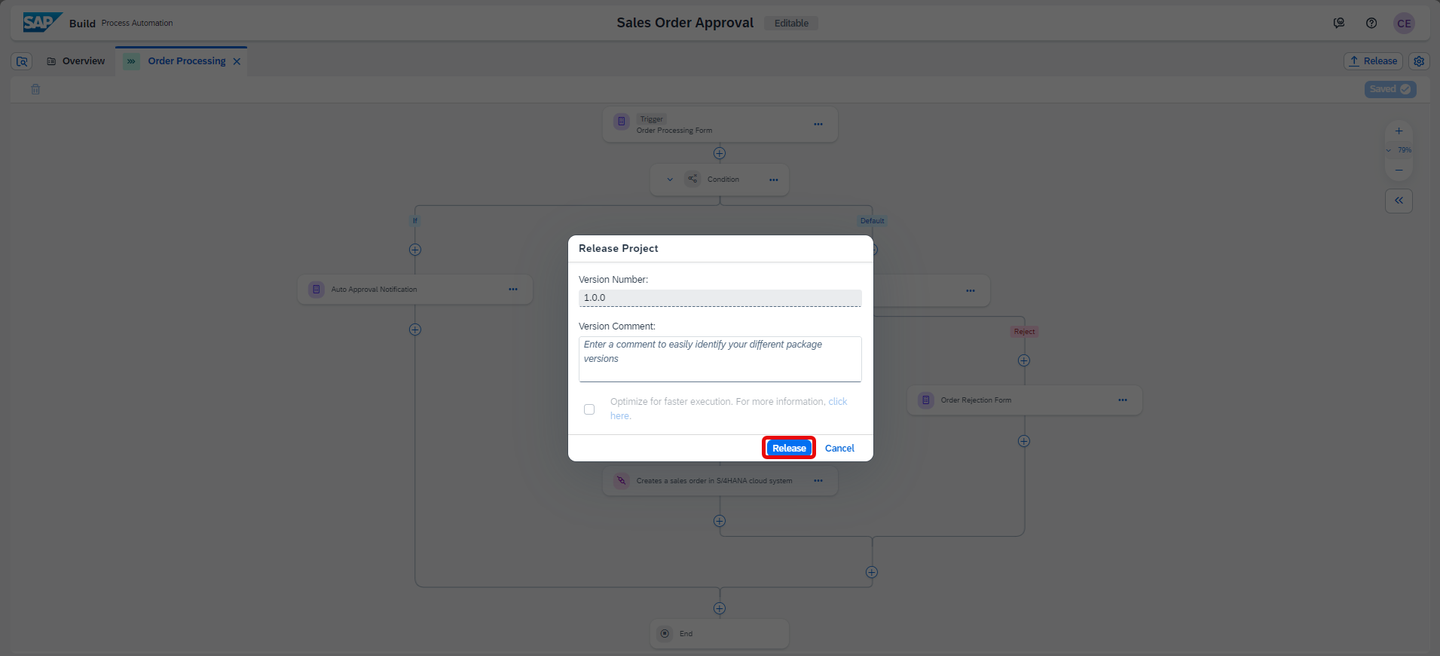
- When you’re releasing a new business process project, enter a brief summary of the changes in the Release Notes (optional) then choose Release.
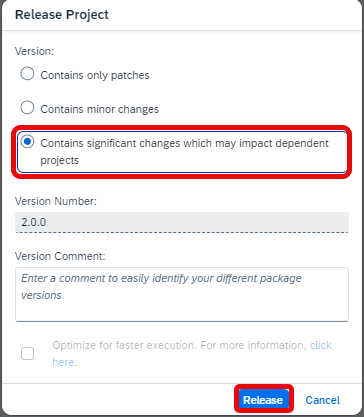
- When you’re releasing a modified version of a business process project that is already released, in the release Version Contains dialogue, select one of the following:
- Select Bug Fix to indicate bug fixes. It updates the third digit of the version number.
- Select Minor Changes to indicate small modifications. It updates the second digit of the version number.
- Select Major Changes to indicate important modifications potentially leading to incompatibility between versions. It updates the first digit of the version number.
In the Process Builder, click Release.
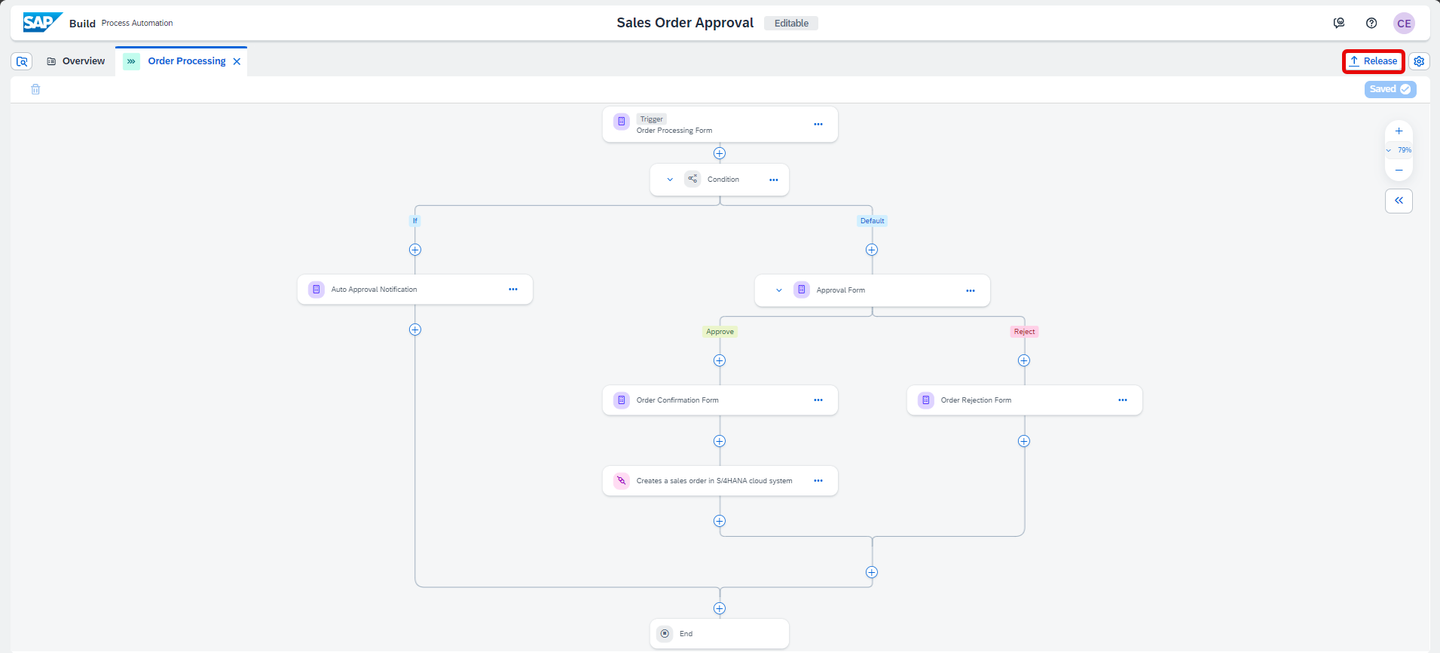
Release For the first version, add a Version Comment if needed and click Release.
Release first - For the additional version, choose the type of version, add a Version Comment if needed and click Release.
Release new The successfully released project is ready to be deployed.
If needed, you can refer to the Documentation.
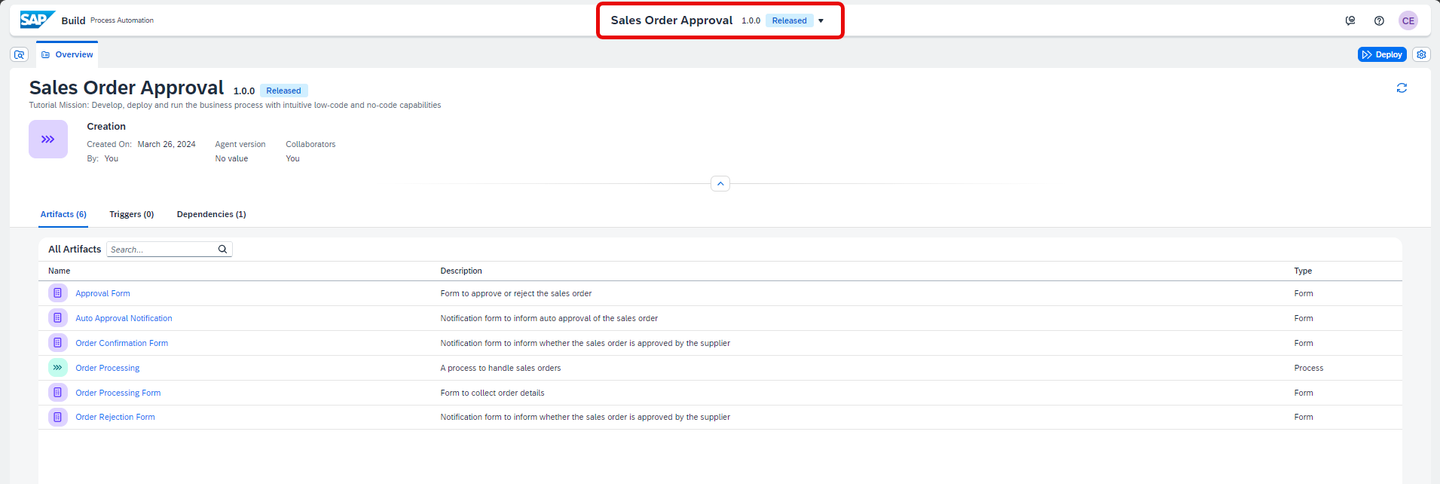
Released
You can deploy business process projects from each released version of the project in the Process Builder.
From the released version of the business process project in the Process Builder, click Deploy.

Start Deploy Choose an environment and select Deploy.
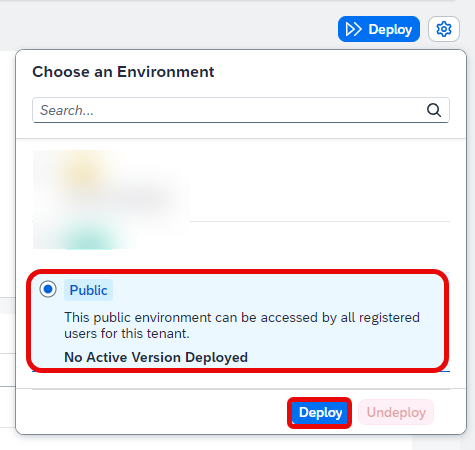
Start Deploy Now you will set the runtime variables. From the drop-down select the destination S4HANACloud and click Deploy.
Variables allow you to reuse certain information for a given business process project deployment.
You use variables to pass parameters to automations. You can create variables in the Process Builder for which you can later set values when deploying the business process project. For example, in the current use case, you have created a Destination variable. Please use the same destination S4HANACloud.

Deploy confirm first The successfully deployed project is ready for running and monitoring.
If needed, you can refer to the Documentation.

Deployed You’ve successfully imported a sample process, added an action to create a sales order and configure the action with the environment variable to get the connection details from destination in SAP BTP cockpit.
Resources
Discussion
Share feedback on this tutorial or join the conversation in SAP Community.