
Overview
You will learn
- How one automation in a project can be embedded into another automation project
- How one automation can call another automation,
- How to pass values from one automation to another
- How you can build an integrated business process using SAP Build Process Automation


Prerequisites
Prerequisites
- Complete the tutorial: Extend Outlook SDK based automation
- Complete the tutorial: Build Your First Automation Using Excel SDK of SAP Build Process Automation
Steps
Intro
SAP Build Process Automation has native integration to several Microsoft Office products including Outlook, Excel SDK. In this tutorial, you will integrate the automations to a single business process. Create a new automation that includes both the Outlook and Excel automations. Use a combination of environment variables and input/output variables to pass information across the project and in this way, processing will be dynamic and can work for any email or Excel file.
In your Outlook Sample project, add
baseFolderPathas an environment variable.
Create Base Folder as Environment Variable Use this new path in Save All Mail Attachments.

Use the environment variable in Save Mail Attachments To reuse this automation, release the Editable project. You can do so in two ways.
- Either you can do so from Lobby by choosing (…)
- From within the project you can do so by clicking the button Release

Release Automation Project from SPA Lobby Another way to release the project.
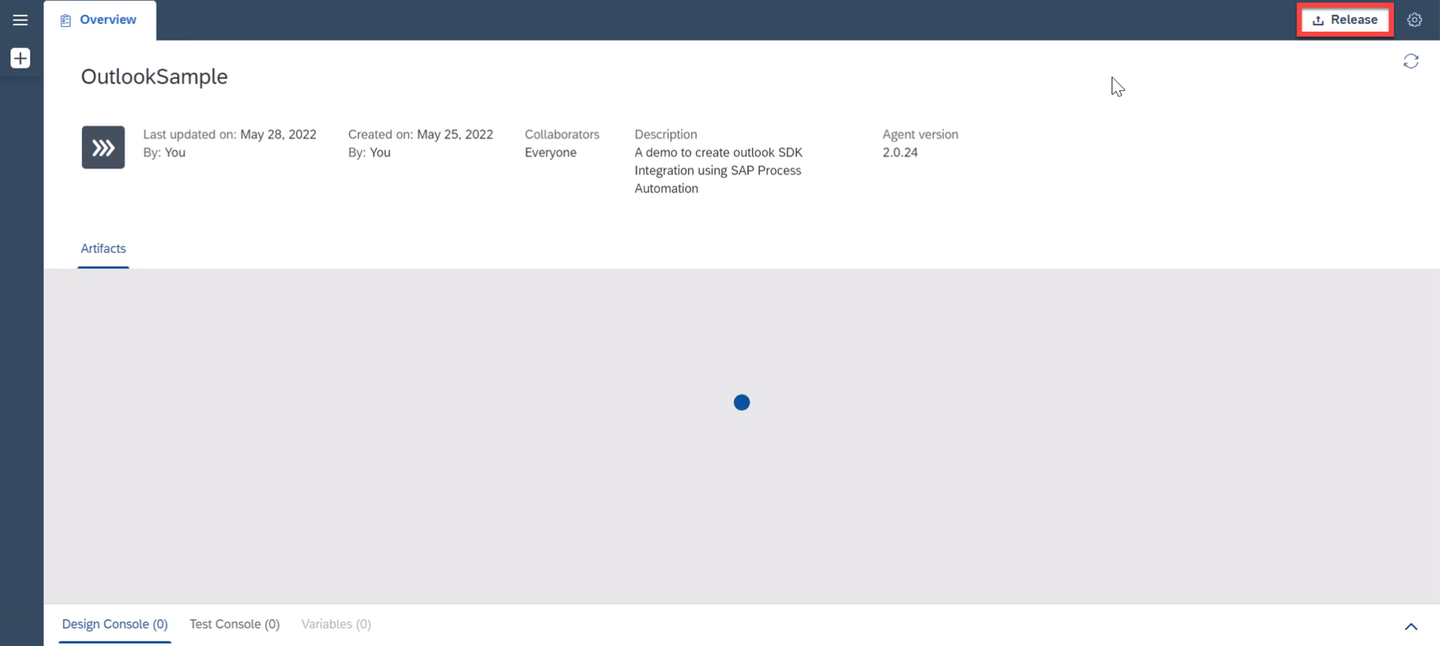
Release Project from within Automation Project At release time, it will ask you to specify a version number, you can accept the default suggestion.

Release Project Dialog Notice the name change from Editable to (version number) Released.

Change in Release status
In your Excel project, add Get Folder Collection to the
baseFolderPathenvironment variable. This step will return all the sub folder names within a given folder. In this case, it will give each timestamp based folders fetched from each email from the Outlook. Rename the output parameter tofolderList.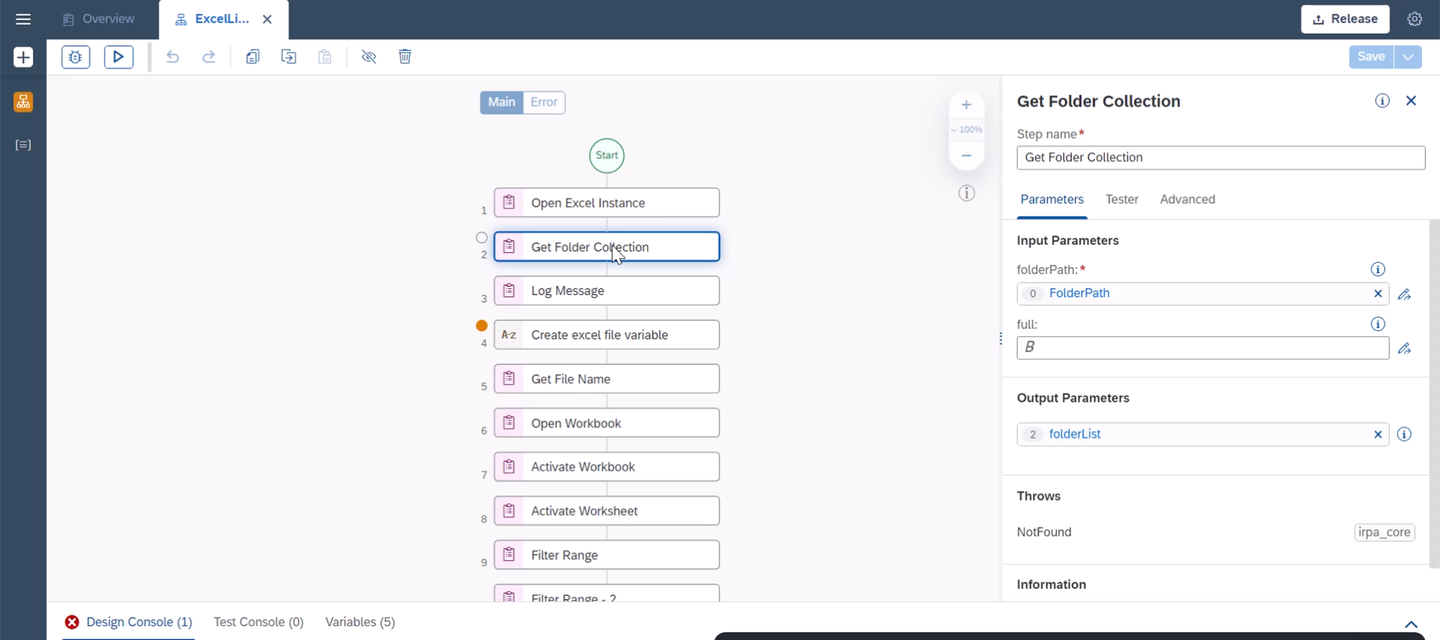
Get Folder Collection You can see the folder name by using a Log Message.

Log result of get folder collection Loop through each folder. For this will add For Each loop to the flow.

Add First For Each on Folder Collection Result Add all the required steps into the folder. The idea is on each file, a certain set of actions needs to be performed.

Move Excel actions inside the loop Within each index of For Each, fetch list of Excel files in each folder. For this, add Get File Collection to the loop.

Add Get File within a folder The value for Get File Collection is as given in the image.
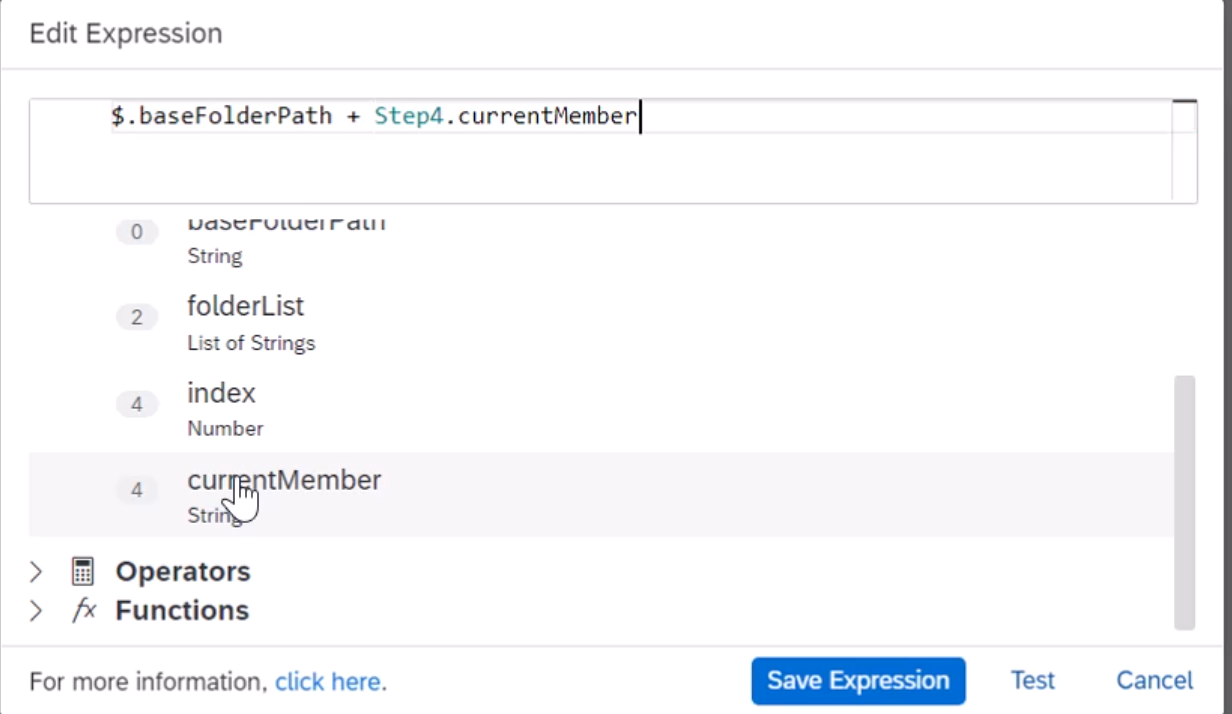
Log output of Get File List Collection Add one more For Each to loop through each Excel file in that sub folder. Here to distinguish both the loop variables, you can rename it appropriately. Also include the required Excel actions within this sub For Each loop.
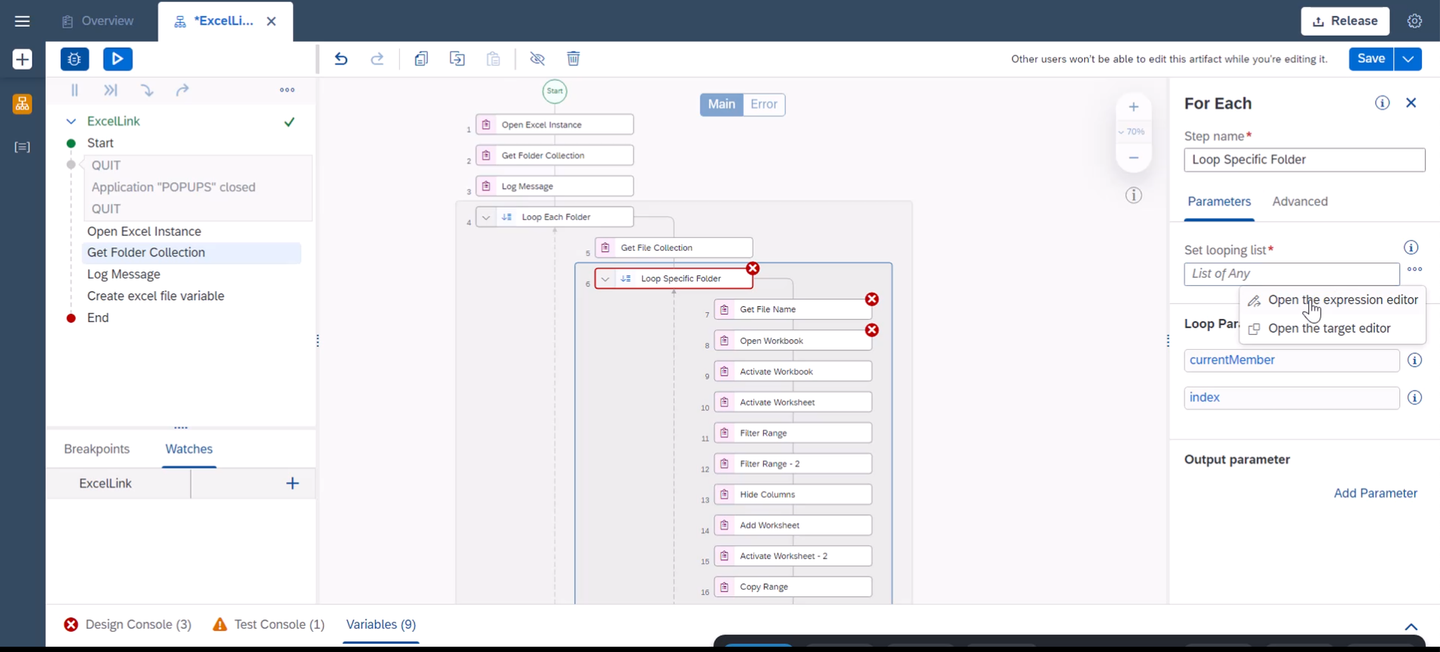
Add a second ForEach First create a string variable and assign the loop variable’s full path to the Excel file.

Add a File Path Variable Adjust the Get File Name to take the output variable.

get the file name based on these changes This tutorial uses hard coded ranges in Filter Range. When you generalize the logic to your needs, you may want to calculate this at run time. For example, add
Get UsedRange Rowand GetUsedRange Columnactivities to find out the start and end cell values.
Amend Filter Range with Dynamic Calculations Now use a Custom script activity to calculate complete range.

Add a custom script to calculate range of Excel
var startColumn = 1;
var startCell = String.fromCharCode(startColumn + 64) + startColumn;
var endCell = String.fromCharCode(columnRange + 64) + rowRange;
return startCell + ":" + endCell;
Just for demonstration purpose, filter against the first column and look for cell values containing a.

Apply Filter Range on First column Use similar approach to find out range of values after filtering to be used with Copy Range.

Similarly use dynamic calculations on Copy Range Append "_new" to the new CSV file name in Save As Workbook.

Use the loop variable for Save as Workbook Like the Outlook sample, you need to release the package and publish to the library. You can do so either from the SAP Build Lobby or from within the project.
Create a brand new Automation project Main Automation.

Create a new Automation Project Include both Excel and Outlook projects as dependency. Here you will add Excel Project. Similarly you have to add Outlook based project.
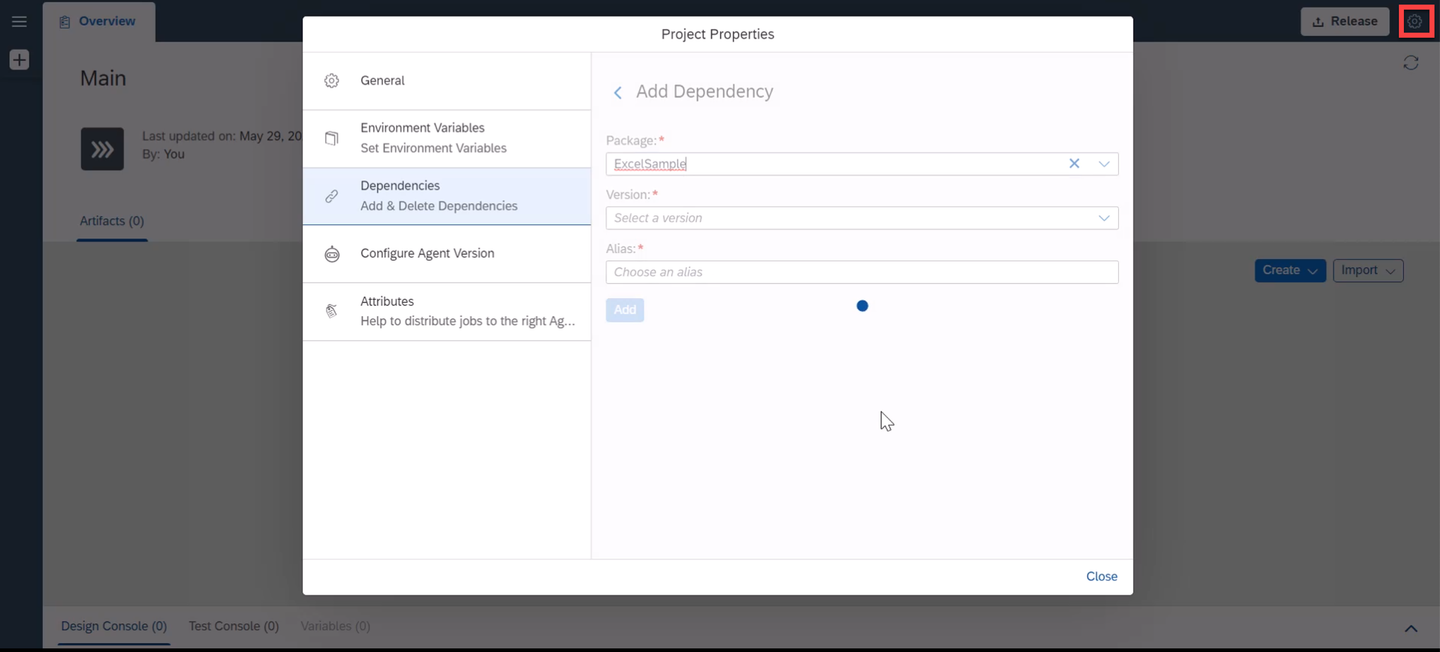
Add Excel and Outlook projects as dependency This is the result after adding both project’s packages as dependency.
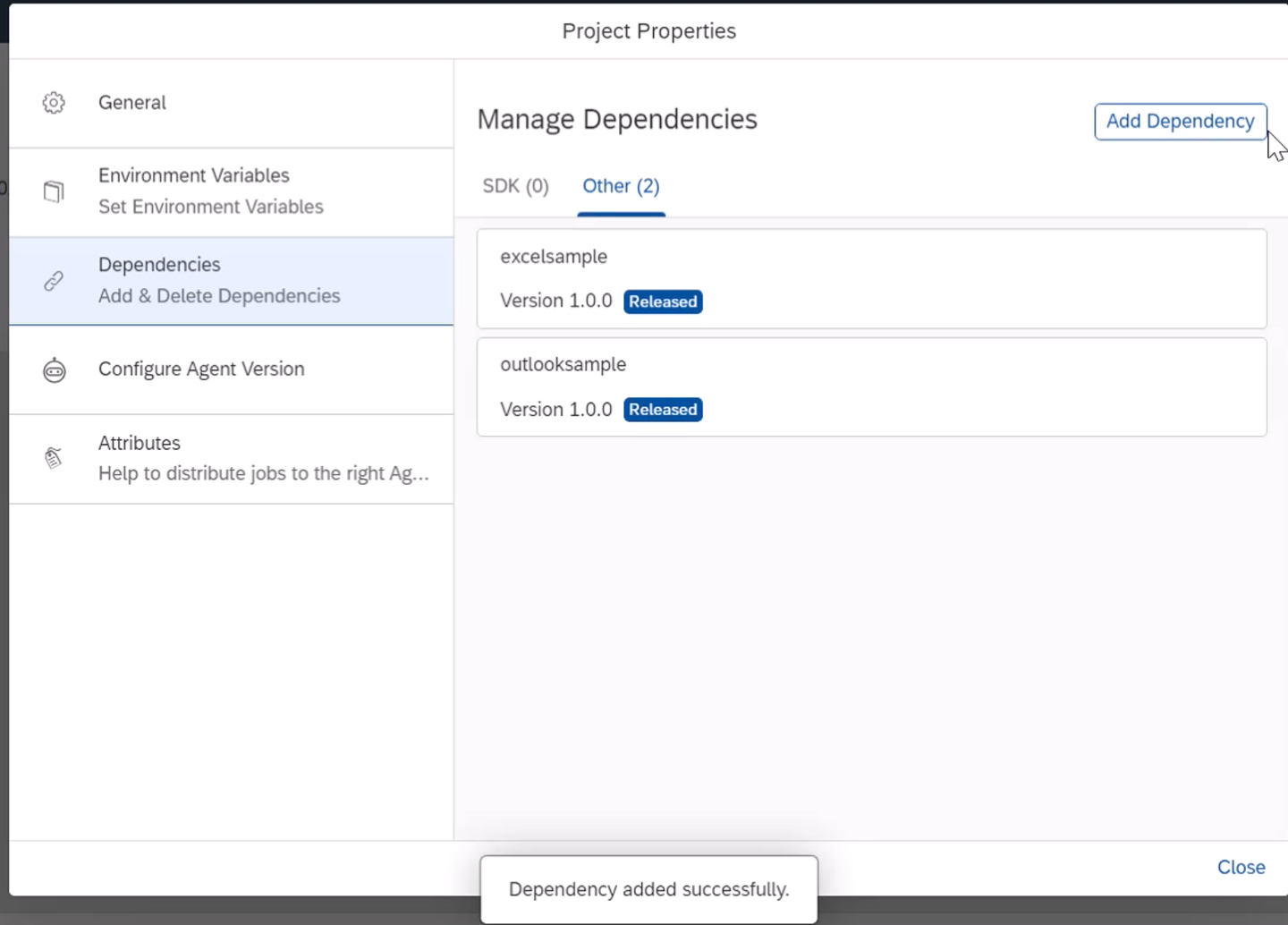
final dependent projects added Call this new project as Main Automation project.

project creation Add automations from both Outlook sample and Excel sample projects to the flow.

add 2 automations to the flow Don’t be confused with the name. There are Package/Project Name(s) and Automation name(s). In this step, you will be using automations
Save and test the project.
At the end, after this tutorial is tested, the below source data was used.

Source Excel Data After the automaton is executed, it has filtered the data (Town starting with a), hidden a column (Column F with title
storey_range) and resultant Excel will look like this:
Final Excel Data
To learn more about Excel and Outlook SDKs of SAP Build Process Automation, refer to the samples available in the store.
To retrieve these samples, please follow these steps:
From the SAP Build Lobby, navigate to Store.
Search for the sample project: Excel Best Practices.
Choose Add > Create from Template to retrieve the sample and save it as a new project in your lobby.

Store Choose Create.
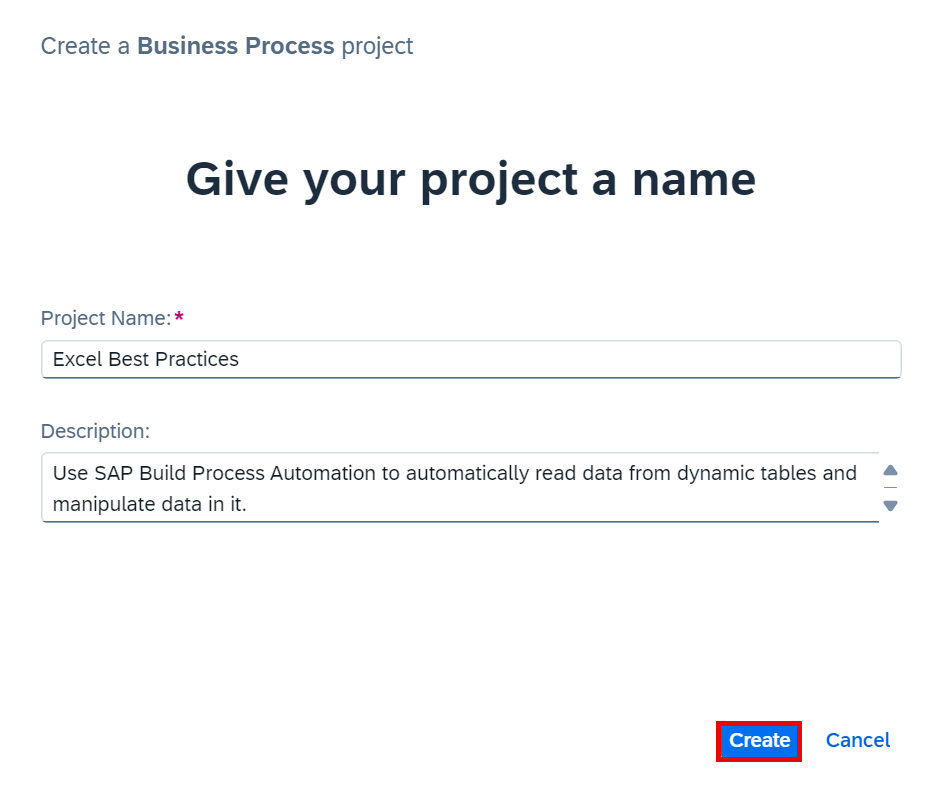
Create Your project gets created in editable version. You may release and deploy it and run the project.
Navigate back to the lobby by clicking on the SAP logo.

Project You can see your project is available in the lobby.

Lobby Similarly, you can add Outlook Best Practices(calendar) and Outlook Best Practices(mail) from the Store to your lobby.

Lobby
Resources
Discussion
Share feedback on this tutorial or join the conversation in SAP Community.