
Overview
You will learn
- How to create and use simple custom variables


Prerequisites
Prerequisites
Steps
Intro
By using custom variables, you can make any information available at the global level at any stage in the process. The outputs of any step that you add to your process can be consumed as inputs for the subsequent steps in a process. In addition, you can create custom variables on a project level that are not bound to a particular step.
For your company, you need to design the process to submit innovation ideas by the employees. The process should by triggered by the employee who fills out the form. Then CFO would like it to be divided into CAPEX and OPEX categories, so two different councils can process the ideas and decide whether to provide an approval. If the innovation idea requires additional information, the council will send it back to the requester. In case the process will be approved by the council, the CFO will receive the case for the final approval. The requester must receive an email with the council or CFO decision.
In the SAP Build Lobby, select Create button.

CGV Select Build an Automated Process.

CGV Select Business Process.

CGV Name the project: Innovation Idea Process, and confirm with Create button.

CGV Create the process by providing the name: Innovation Idea Global Process.

CGV
To create global custom variables for the process, open the Process Details.

CGV Choose the Variables tab and select Configure for the Custom Variables section.

CGV Configure the following variables:
Name Type rework Boolean global cost Number global description String global idea name String global council comments String category String To do that, select Add Variable button and add each variable. Last, select Apply to finish.

CGV Save the process.

CGV
Due to product limitations, you need to add a subprocess. Please note that this step will not be necessary, once the custom variables will be available as output within the Trigger form.
Choose + below the Trigger.

CGV Choose Subprocess.

CGV Choose Blank Subprocess.

CGV Name it Subprocess and choose Create.

CGV In the General section of the Subprocess, choose Open Editor to configure inputs and outputs.

CGV Open the Process Details.

CGV Choose the Variables tab and select Configure for the Process Inputs section.

CGV Select Add Input and add inputs below and select Apply:
Name Type Name Subprocess String Description Subprocess String Number Subprocess Number Category Subprocess String 
CGV Choose Configure for the Process Outputs section.

CGV Select Add Output and add outputs below and select Apply:
Name Type Name Subprocess String Description Subprocess String Number Subprocess Number Category Subprocess String 
CGV Go to the End and map the Process Outputs with the Process Inputs as in the screenshot below:

CGV Save changes in the Subprocess and close the tab.
In the Innovation Idea Global Process, choose Add a Trigger to create a trigger form for the requester.

CGV Choose Submit a Form.

CGV Choose Blank Form.

CGV Name it Innovation Idea Form. Select Create.

CGV Choose Open Editor of the form.

CGV Add form input fields by clicking on the fields or using drag and drop option.
Form Field Value Option Headline 1 Innovation Ideas Form Paragraph Please fill out the form with your innovation ideas. Once the form will be processed, you will be informed about the Council or CFO decision via email. Text Name of the Idea Required Text Area Idea Description Required Number Estimated Cost of the Innovation Required Dropdown Select the Category Required 
CGV For the drop-down field provide two values:
OPEXandCAPEX.
CGV Save the form and close the tab.
In the Innovation Idea Global Process, select Subprocess and go to the Inputs section. Map the following from Trigger Form outputs:
- Category Subprocess with Select the Category
- Description Subprocess with Idea Description
- Name Subprocess with Name of the Idea
- Number Subprocess with Estimated Cost of the Innovation

CGV Go to the Outputs section. Set Custom Variables by choosing them from the list:
- global cost
- global description
- global idea name
- category

CGV Map with Subprocess outputs:
- global cost with Number Subprocess
- global description with Description Subprocess
- global idea name with Name Subprocess
- category with Category Subprocess

CGV Save the process.
Choose + to create an approval form after Subprocess.

CGV Choose Approval.

CGV Choose Blank Approval.

CGV Name it
CAPEX Council Approvaland make sure to mark the checkbox Based on a form and select the trigger form from the list. Choose Create.
CGV Select the Approval Form and choose Open Editor.

CGV Make changes in the form:
- change the Headline to
CAPEX Approval for Innovation Idea

CGV - change the Headline to
At the end of the form add additional input fields:
Form Field Value Option Paragraph In case you need more information from the requester, please check the box below to send the form back to the requester and reject the approval. Checkbox Rework needed! Text Area Council Comment Required 
CGV Save the form, and close the tab.
In the Innovation Idea Global Process, choose
CAPEX Council Approvalform. In the General section:- Under Subject enter:
CAPEX Council Approval - Under Recipients as Users enter: email of the
CAPEXCouncil

CGV - Under Subject enter:
In the Inputs section map the content with Custom Variables:
- Estimated Cost of the Innovation with global cost
- Idea Description with global description
- Name of the Idea with global idea name
- Select the Category with category

CGV In the Outputs section, add the variables:
- rework
- global council comments

CGV Now map the custom variables with the process content from
CAPEX Council Approvalform:- rework with Rework needed!
- global council comments with Council Comment

CGV Choose + above
CAPEX Council Approvalform to add a condition which will distribute the form toCAPEXorOPEXcouncil.
CGV Choose Controls and Events.

CGV Choose Condition.

CGV Define and edit the condition:
- Provide the Step Name:
Condition OPEX/CAPEX - Name the Branch:
If CAPEX - Choose Open Condition Editor

CGV - Provide the Step Name:
Define the Branch Condition: - For Item select custom variable category - For Value type
CAPEX- Select Apply - Save the process

- In the Overview tab, duplicate the
CAPEX Council Approvalform.

Name it
OPEX Council Approval. Choose Duplicate.
CGV Change the Headline to
OPEX Approval for Innovation Ideaand Save. Close the tab.
CGV In the Process tab, move
CAPEX Council Approvalunder If CAPEX Condition.
CGV Choose + under Default branch of the condition

CGV Choose Approval.

CGV Choose the
OPEX Council Approvalform.
CGV In the General section of the
OPEX Council Approvalform:- Under Subject enter:
OPEX Council Approval - Under Recipients as Users enter: email of the
OPEXCouncil

CGV - Under Subject enter:
In the Inputs section map the content with Custom Variables:
- Estimated Cost of the Innovation with global cost
- Idea Description with global description
- Name of the Idea with global idea name
- Select the Category with category

CGV Select the Outputs tab and add the following variables:
- rework
- global council comments

CGV Map the custom variables with the process content from OPEX Council Approval form:
- rework with Rework needed!
- global council comments with Council Comment

CGV Save the process.
You will now create the CFO Approval form after the process would be approved by the CAPEX Council.
Choose + below Approve option of
CAPEX Council Approvalform.
CGV Choose Approval.

CGV Choose Blank Approval.

CGV Name it CFO Approval, and make sure to mark the checkbox Based on a form and select the
CAPEX Council Approvalform from the list. Choose Create.
CGV Select the CFO Approval form and choose Open Editor.

CGV Edit the form as follows:
- Rename the Headline to Final CFO Approval - Innovation Idea
- Remove the Checkbox: Rework needed!
- Add at the end a Paragraph: Please provide your final decision for the innovation idea:
- Add a Text Area named CFO Decision, and mark it as required
Save the form and close the tab.

CGV In the Innovation Idea Global Process, select CFO Approval form and in General section enter:
- Under Subject enter: CFO Approval
- Under Recipients as Users enter: email of the CFO

CGV In the Inputs section map the content with Custom Variables:
- Council Comment with global council comments
- Estimated Cost of the Innovation with global cost
- Idea Description with global description
- Name of the Idea with global idea name
- Select the Category with category
Save the process.

CGV
Now, you will create a form for a requester, in case the changes will be necessary.
In the Overview tab, duplicate the Innovation Idea Form.

CGV Name it Innovation Idea Form - Rework. Choose Duplicate.

CGV Provide changes in the form. At the beginning:
- Change the Headline to: Innovation Ideas Form: Modify your request
- Change the Paragraph to: Please make changes to the form based on the comments from the Council below:
- Add a Text Area, name it Comments from the Approval Council, and select Read only configuration
- Add a Headline 2, name it Data from your initial innovation form
- For the Inputs: Name of the Idea, Idea Description, Estimated Cost of the Innovation, Select the Category, select Read only configuration

CGV Add additional inputs at the end:
Form Field Value Option Paragraph Please modify your request below, based on the comments from the Council and your initial form. After that submit the form. Text Name of the Idea - Edited Required Number Estimated Cost of the Innovation - Edited Required Text Area Idea Description - Edited Required Dropdown Select the Category - Edited Required 
CGV In the dropdown list, add
OPEXandCAPEXas Data to display.Save the form and close the tab.

CGV In the Innovation Idea Global Process, choose + after
CAPEX Council ApprovalReject branch to add a condition.
CGV Choose Controls and Events.

CGV Choose Condition.

CGV Customize the Condition:
- Step Name: Rework
- Branch Name: If Rework Required

CGV Select Open Condition Editor and define the condition:
- For Item select rework from Custom Variables
- For Value choose true
- select Apply

- Choose + after the condition branch If Rework Required.

- Choose Form.

- Add the form Innovation Idea Form - Rework.

- Select Innovation Idea Form - Rework form and in the General section define: - Under Subject enter: Innovation Idea Form - Rework - Under Recipients as Users select: Process Started by

Choose the Inputs tab and map the form Inputs with the custom variables:
- Comments from the Approval Council with global council comments
- Estimated Cost of the Innovation with global cost
- Idea Description with global description
- Name of the Idea with global idea name
- Select the Category with category

CGV Set Custom Variables with the form Outputs:

Choose + after the Default branch.

CGV Choose Controls and Events.

CGV Choose Go to Step.

CGV Choose End from the proposed steps.

CGV Choose + after Innovation Idea Form - Rework.

CGV Choose Controls and Events.

CGV Choose Go to Step.

CGV Choose
Condition OPEX/CAPEXfrom the proposed steps.
CGV Choose + in the Reject branch of
OPEX Council Approval.
CGV Choose Controls and Events.

CGV Choose Go to Step.

CGV Choose Rework Condition from the proposed steps.

CGV Choose + in the Approve branch of
OPEX Council Approval.
CGV Choose Controls and Events.

CGV Choose Go to Step.

CGV Choose CFO Approval form from the proposed steps.

CGV Save the process.
After the CFO Approval form, under the Approve branch, select +.

CGV Choose Email.

CGV Edit the Artifact details:
- Change the Step Name to Approval Email
- Under Mail Header as To select: Process Started by from the Process Content
- Under Mail Header as Subject enter: Innovation Idea was approved
Select Open Mail Body Editor.

CGV In the Edit Mail Body window, enter the following body:
- Enter: Dear
- Select Process Started by from the the Process Metadata
- Enter: Thank you for your idea. We have carefully evaluated it.
- Enter: The CFO decision is to proceed with the idea.
- Enter: Please find the CFO’s comment below:
- Select CFO Decision from the CFO Approval form
Select Apply.

CGV Now, you will add in the same way the rejection email.
After the CFO Approval form, under the Reject branch, select + and Email. Edit the Artifact details:
- Change the Step Name to Rejection Email
- Under Mail Header as To select: Process Started by from the Process Content
- Under Mail Header as Subject enter: Innovation Idea was rejected
Select Open Mail Body Editor.

CGV In the Edit Mail Body window, do the following:
- Enter: Dear
- Select Process Started by from the Process Metadata
- Enter: Thank you for your idea. We have carefully evaluated it.
- Enter: The CFO decision is to not proceed with the idea.
- Enter: Please find the CFO’s comment below:
- Select CFO Decision from the CFO Approval form
Select Apply.

CGV Add CAPEX/OPEX rejection Email. Go to the condition Rework, after default add an email:
- Change the Step Name to
Rejection email OPEX/CAPEX - Under Mail Header as To select: Process Started by from the Process Content
- Under Mail Header as Subject enter: Innovation Idea was rejected
- Change the Step Name to
Select Open Mail Body Editor.

CGV In the Edit Mail Body window, enter the following body:
- Enter: Dear
- Select Process Started by from the Process Metadata
- Enter: Thank you for your idea. We have carefully evaluated it.
- Enter: The Council decision is to not proceed with the idea.
- Enter: Please find the Council’s comment below:
- Select Global council comments from the Custom Variables
Select Apply.

CGV Save the process.
To release the process, choose the Release button

CGV To deploy the process, choose Deploy button.
Choose an Environment and select Deploy.

CGV
From the deployed version of your business process project in the Overview section, open the Innovation Idea Global Process.
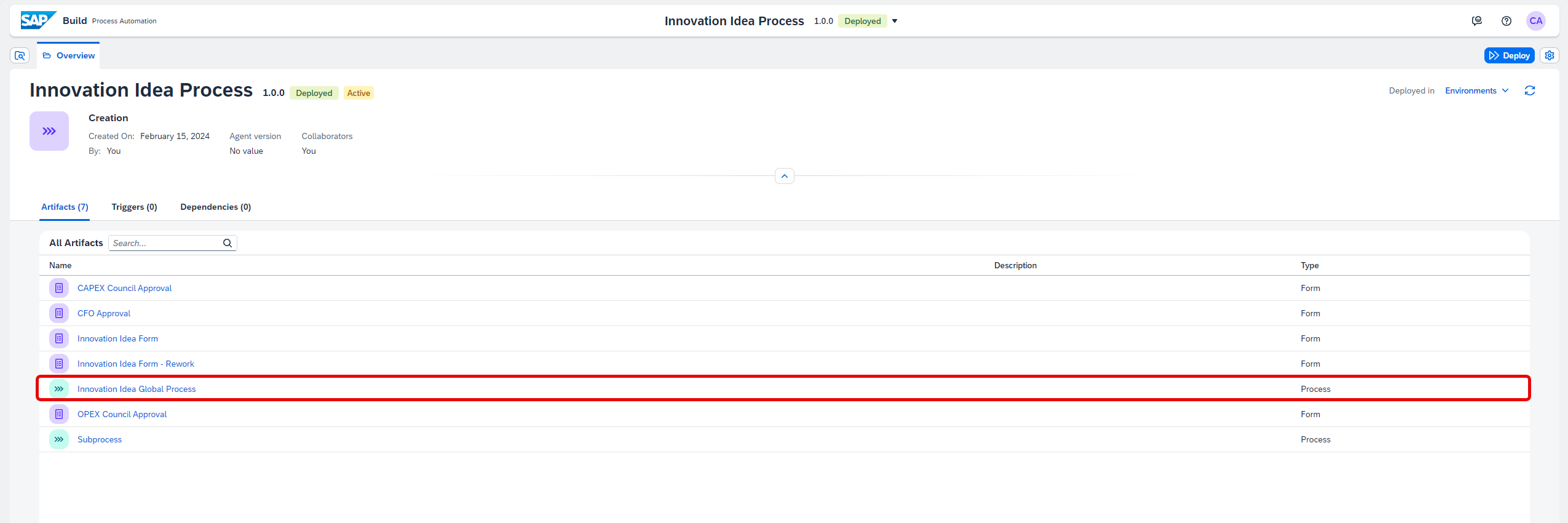Select the Innovation Idea Form.
Choose the Copy icon aside the Form Link.

CGV Open the form pasting the Form Link in a browser window.
Fill in the form by providing values in the Innovation Ideas Form.
Let’s run the process as such:

CGV After you choose the Submit button, you will be notified that the form has been successfully submitted.
The workflow has been triggered and the approval process has started. You can now work on the tasks and monitor the process.
Navigate to the Lobby and open My Inbox.

CGV In this use case, forms will be received in the same inbox since the recipient configured is the same.
After opening the My Inbox application, you will see on the left-hand side all the tasks listed. Choose the
OPEX Council Approvalform, select Rework needed!, add a Council Comment and choose Reject.
CGV Once you have rejected the approval task, refresh the inbox again to get the Innovation Idea Form - Rework.
You can see the Comments from the Approval Council and the data you entered in the Innovation Idea Form.
Now modify your form with a new innovation idea, select
CAPEXas category and choose Submit.
CGV Refresh your inbox. As you selected
CAPEXas category when you filled out your Rework form, you will now receive theCAPEX Council Approvalform.Enter a Council Comment but this time choose Approve.

CGV Refresh the inbox again to receive the CFO Approval form.
Enter a CFO decision and choose Approve.

CGV You will receive the Approval Mail in your inbox. This completes the process.

CGV
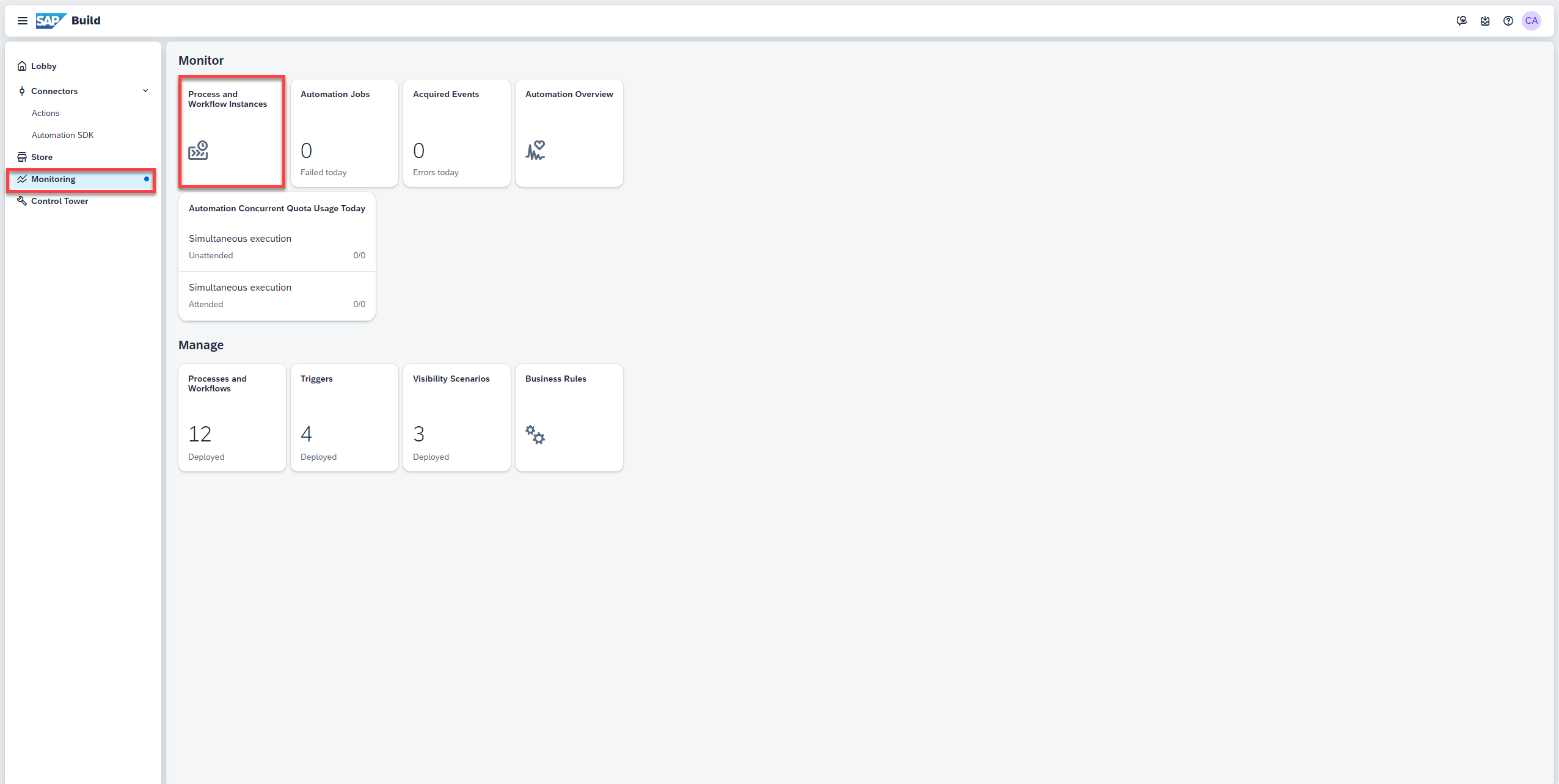
To monitor all the running instances of the process, navigate to Monitoring > Monitor > Process and Workflow Instances.
Under Status, select Completed.

CGV Select the Innovation Idea Global Process instance.
You may check the status of the Logs and Context. The instance has completed successfully.

CGV
Resources
Discussion
Share feedback on this tutorial or join the conversation in SAP Community.