
Add Links to Forms
Learn how to add links in the forms of SAP Build Process Automation.
Overview
You will learn
- How to add interactive forms to the process.
- How to design a form with a layout and add links using a drag-and-drop approach.


Prerequisites
Prerequisites
Steps
Intro
Interactive forms with links can be used as a training and learning tool. These kind of forms offer several benefits, including easy access to relevant training information and the ability to organize links to guide users through various job-related topics, thereby speeding up the training process.
After completing the prerequisites, you will create a project.
In SAP Build lobby, choose Create.

create Pick Build an Automated Process.

Create Select Business Process.

Create In the Create a Business Process project dialog box, do the following:
- Enter a Project Name such as Tutorials Learning Path.
- Choose Create.

create In the Create Process dialog box, provide the following:
- Enter a Name such as Learning Path.
- Choose Create.

create
You will create a trigger form that will start the process. Open your process in the process builder:
Choose Add a Trigger in the Trigger settings.

Form Choose Submit a Form.

Form Choose Blank form.

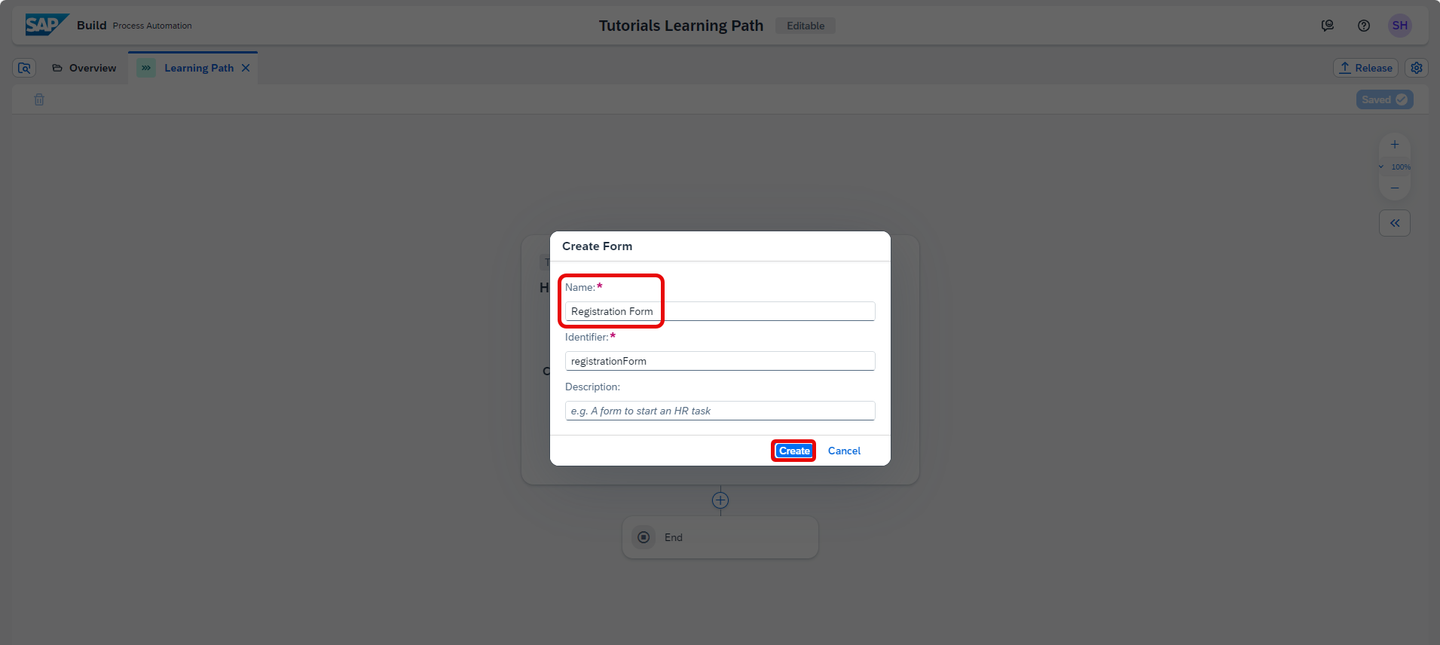
Form In the Create Form pop-up window, enter:
- Name: Registration Form.
- A description to describe the task of the form.
- Choose Create.
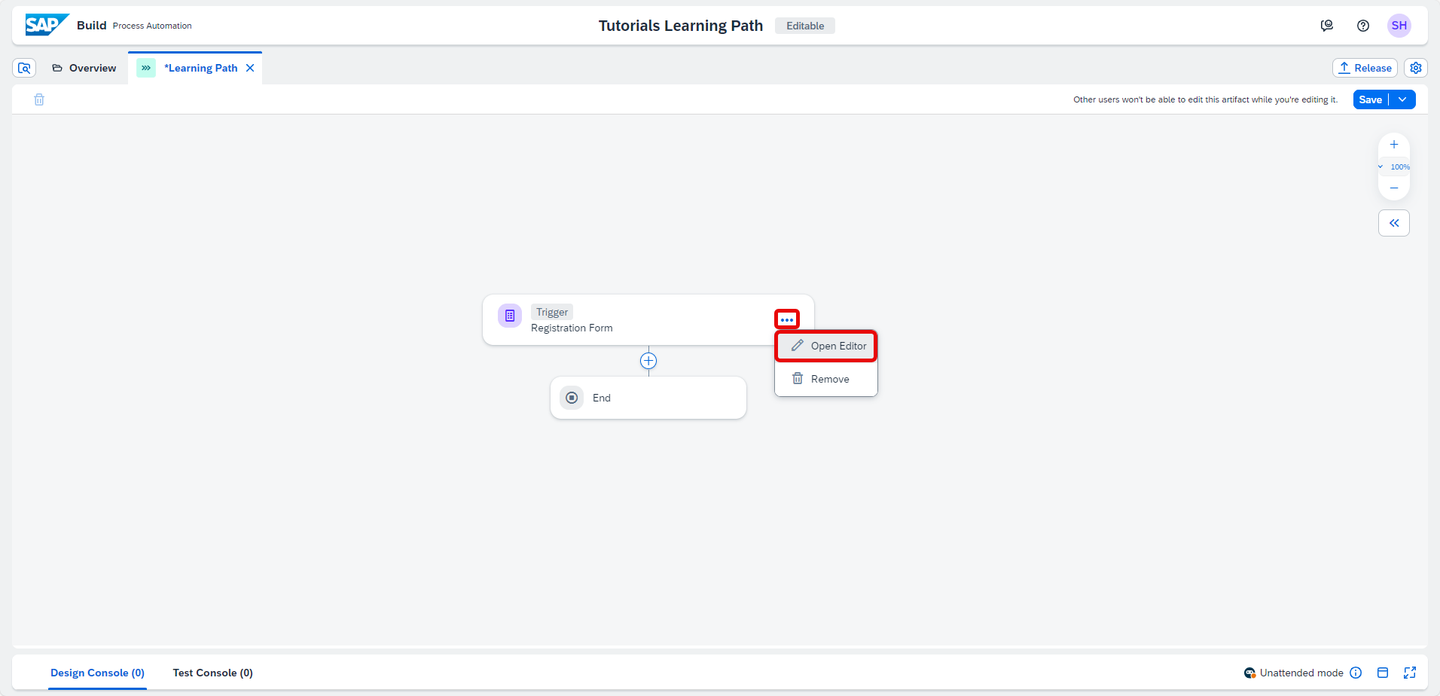
Form Choose the three dots and select Open Editor.
Form Now, you will edit the form by using the available layout and input field options. Start by dragging and dropping the form layout fields, then enter the given names and field settings as shown in the example below:
Form Fields Field Settings with Label Headline 1 Welcome to your SAP Build Process Automation online training Paragraph This training has been designed to assist you in completing specific courses that are necessary for your job. It contains links to online training tutorials that will guide you through the different steps of the automation process using SAP Build Process Automation. We hope that this training will be useful for you in understanding the benefits of SAP Build Process Automation and how to use it to improve the efficiency of our company. 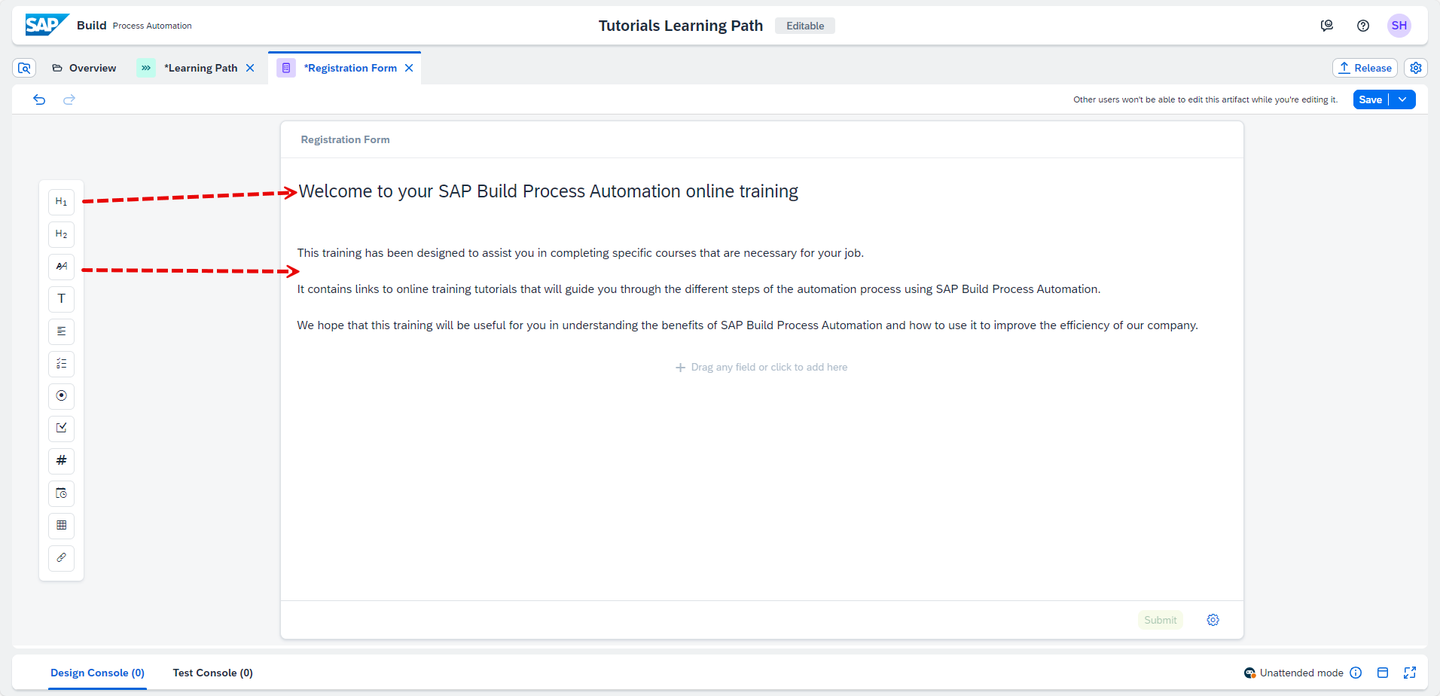
Form Customize the Submit button.
To configure the form buttons, you can follow the tutorial Customize the Titles of Buttons in Forms.
For example, here the button of the trigger form has been set to Start.

Form Save the form using the Save button on the top-right corner of the screen.
Go to your Learning Path process. Select + next to the Trigger.

Form Choose Form.

Form Choose Blank Form.

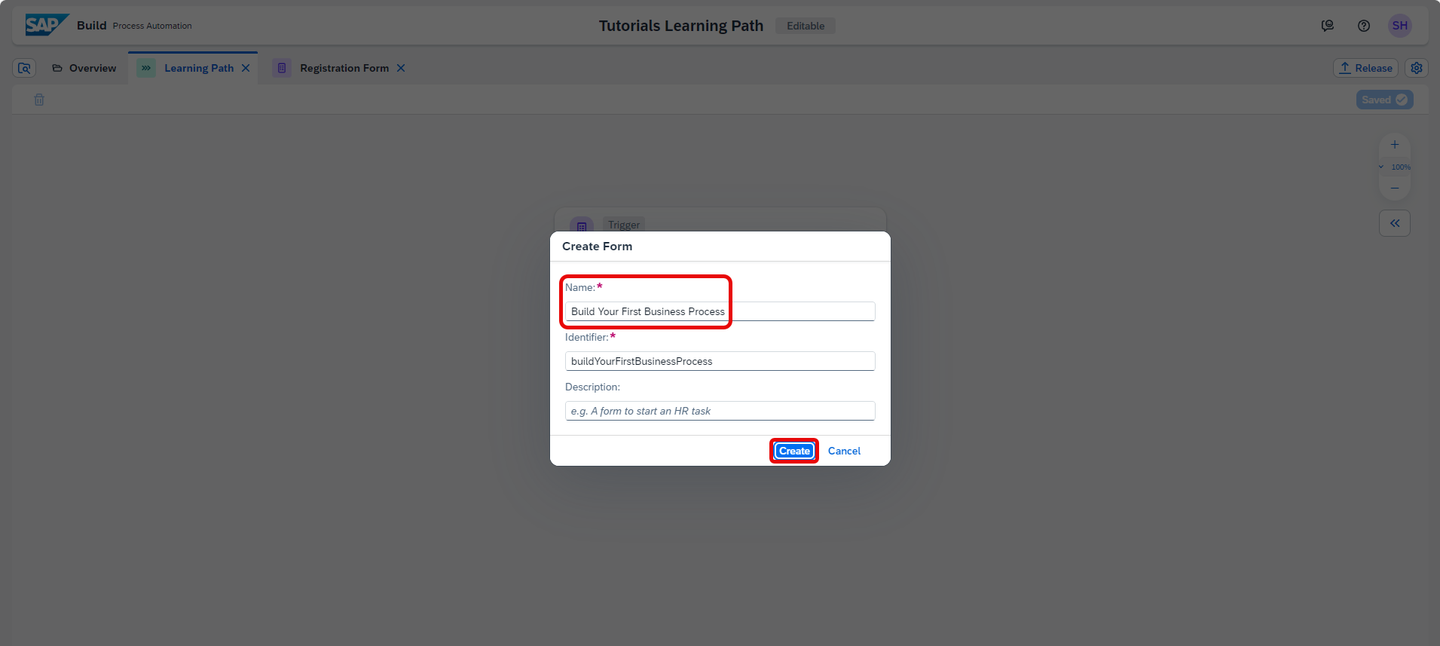
Form In the pop-up window for Create form:
- Enter the name of your mission: Build Your First Business Process.
- Enter a description to describe the task of the form.
- Choose Create.
Form A new form is added to the process. Choose Open Editor.
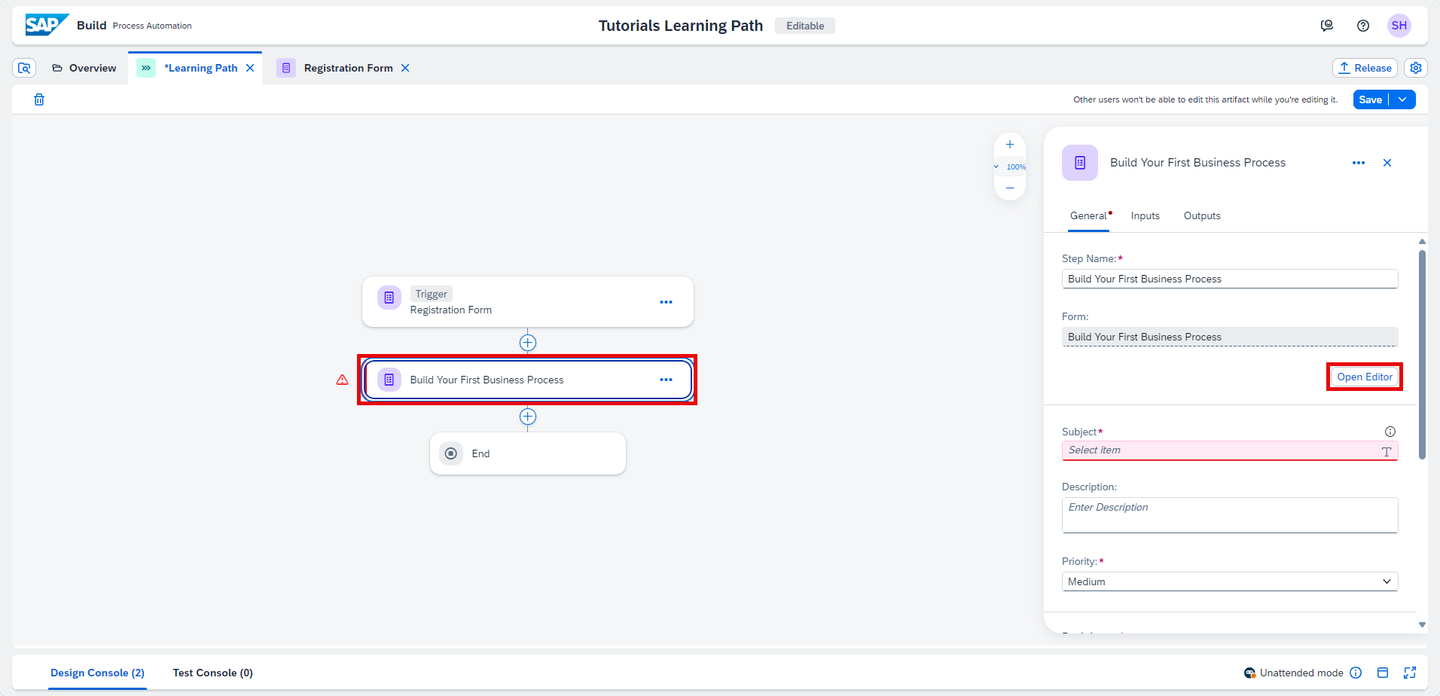
Form Design the Build Your First Business Process form in the form builder by dragging-and-dropping fields into the form editor and configuring respective field settings, as shown in the example below:
Form Fields Field Settings with Label Configuration Headline 1 First Mission: Build your First Business Process X Headline 2 Time: 1 hr. 15 min X Paragraph Enter the description of your mission here. X Checkbox I have completed the first mission! Required For the purpose of this tutorial, you may use as a description:
In this training, you will learn how to use SAP Build Process Automation’s intuitive low-code and no-code capabilities to create, develop, deploy, and run your first business process. You will discover how this tool can help you build the apps you need at the speed demanded by your business, using visual drag-and-drop tools for application development.
You will also learn:
- How to enable SAP Build Process Automation in SAP BTP Free Tier account.
- How to create interactive forms that can be used as triggers for processes or as approval steps within a business process.

Form Now insert a Link field before the Checkbox field and configure the field settings. For example, in this tutorial, you will link the form to the Build Your First Business Process with SAP Build Process Automation mission.
| :————- | :————- | Link | https://developers.sap.com/mission.sap-process-automation.html | Link Text | Start First Mission

Form You can choose any link and put it here, depending on your project.
Customize the Submit button.
To configure the form buttons, you can follow the tutorial Customize the Titles of Buttons in Forms.
Here, the button has been set to Next.

Form Save the form.
Go back to the process builder to map the process content with the form input fields. Select the Build Your First Business Process form.
Configure the General information section:
- In the Subject section, enter First Learning Mission.
- In the Recipients section, under Users, select Process Started By from Process Metadata.

Form The subject configuration will be displayed when the form appears as a task in the recipient’s
MyInbox.In the Due Date section:
- Select Static Duration as type of due date.
- Enter 3 Days as the duration.

Form Save the process.
To add the second mission form to the process, select + next to the Build Your First Business Process form.

Form Choose Form.

Form Choose Blank Form.

Form In the Create Form dialog box, do the following.
- Enter the name of your mission: Boost Your Business Process with Automation.
- Enter a description to describe the task of the form.
- Choose Create.

Form Choose the three dots of the new form and select Open Editor.

Form Design the Boost Your Business Process with Automation form in the form builder.
Form Fields Field Settings with Label Configuration Headline 1 Second Mission: Boost your Business Process with Automation, Decision and Process Visibility X Headline 2 Time: 2 hr. 5 min X Paragraph Enter the description of your second mission here. X Checkbox I have completed the second mission! Required For the purpose of this tutorial, you may use as a description:
In this training, you will learn how to automate repetitive processes by integrating decision logic with business rules and configuring SAP Process Visibility. You will go through several stages of learning, which include:
- Creating an automation to extract and read sales order details from an Excel file “25min”
- Creating a decision to determine authorized approvers. “20 min”
- Creating a visibility scenario for your business process. “15 min”
- Configuring SAP Build Work Zone, standard edition for the visibility scenario. “30min”
- Configuring a form trigger in the SAP Business Site to run a business process. “35min”

Form Now insert a Link field before the Checkbox field and configure the field settings. For example, in this tutorial, you will link the form to the Boost your Business Process with Automation, Decision and Process Visibility mission.
| :————- | :————- | Link | https://developers.sap.com/mission.sap-process-automation-boost.html | Link Text | Start Second Mission

Form Customize the Submit button.
To configure the form buttons, you can follow the tutorial Customize the Titles of Buttons in Forms.
Similarly, here for the second mission, the button has been set to Next.

Form Save the form.
Go back to the process builder to map the process content with the form input fields. Select the Boost Your Business Process with Automation form.
Configure the General information section:
- In the Subject section, enter Second Learning Mission.
- In the Recipients section, under Users, select Process Started By from Process Metadata.

Form In the Due Date section:
- Select Static Duration as type of due date.
- Enter 3 Days as the duration.

Form Save the process.
Similarly, select + next to the Boost Your Business Process with Automation form.

Form Choose Form.

Form Choose Blank Form.

Form In the Create Form dialog box, do the following:
- Enter the name of your mission: Create Tables in the Form.
- Enter a description to describe the task of the form.
- Choose Create.

Form Choose the three dots of the new form and select Open Editor.

Form Design the Create Tables in the Form form in the form builder.
Form Fields Field Settings with Label Configuration Headline 1 Third Mission: Create Tables in the Form X Headline 2 Time: 25 min X Paragraph Enter the description of your third mission here. X Checkbox I have completed the third mission! Required For the purpose of this tutorial, you may use as a description:
In this training, you will learn how to create a table in a form, validate the order details extracted from the automation, and display any error details in the table.

Form Similarly insert a Link field before the Checkbox field and configure the field settings. For example, in this tutorial, you will link the form to the Create Tables in the Form tutorial.
| :————- | :————- | Link | https://developers.sap.com/tutorials/spa-forms-table.html | Link Text | Start Third Mission

Form Customize the Submit button.
To configure the form buttons, you can follow the tutorial Customize the Titles of Buttons in Forms.
Here for the last mission, the button has been set to Done.

Form Save the form.
Go back to the process builder to map the process content with the form input fields. Select the Create Tables in the Form form.
Configure the General information section:
- In the Subject section, enter Third Learning Mission.
- In the Recipients section, under Users, select Process Started By from Process Metadata.
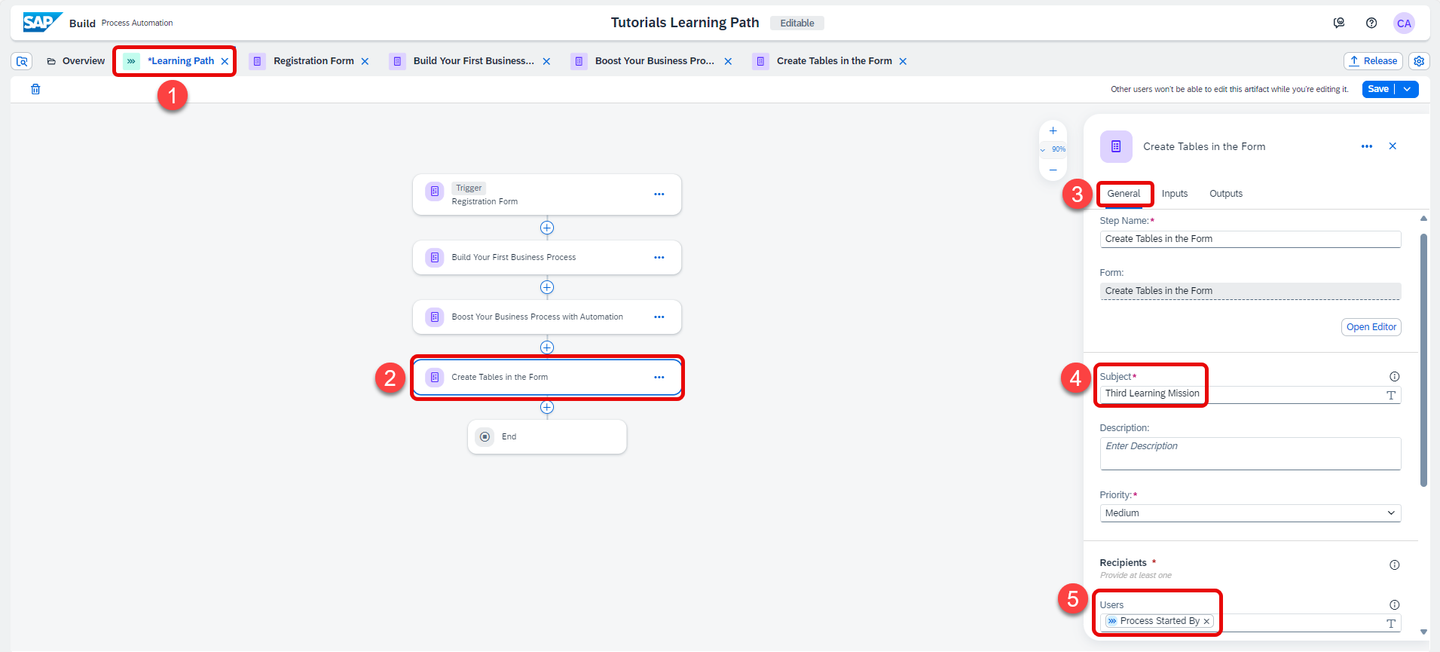
Form In the Due Date section:
- Select Static Duration as type of due date.
- Enter 3 Days as the duration.

Form Save the process.
- Please refer to step 1 and 2 of the tutorial on how to release and deploy a process Run the Business Process.
Open the process builder of the deployed version and choose Registration Form, select the Copy Link icon next to Form Link.

Form When you open the form in the browser, you will have the course presentation fields that you defined in the process trigger form. Click on Start.

Form In the SAP Build lobby, choose My Inbox icon.

Form You will see the first task First Learning Mission appear in the My Inbox application that ships with SAP Build. The task will have the description of the training to be followed and the link to the tutorial. After finishing the mission, click on Next.

Form Refresh the inbox again to get the second notification for the second mission. Now you can see task Second Learning Mission appear in My Inbox. After finishing the mission, click on Next.

Form Similarly, refresh the inbox again to get the third mission. Once the mission is completed, click on Done.

Form
Resources
Discussion
Share feedback on this tutorial or join the conversation in SAP Community.