
Overview
You will learn
- How to create and send Mail notification
- How to retrieve the sample project from the Store Mail feature allows you to add mail notifications to your business process via the process builder, allowing you to send preconfigured emails to recipients while a process is running.


Prerequisites
Prerequisites
Steps
Intro
In this tutorial, you will learn how to use Mail in a business process to inform the user when the sales order is approved manually.
Now that you have designed the process with forms, you can define the mail notifications to send when the sales order is approved manually. We intend to replace the existing Order Confirmation Form with the Mail.
The current process looks like the following:
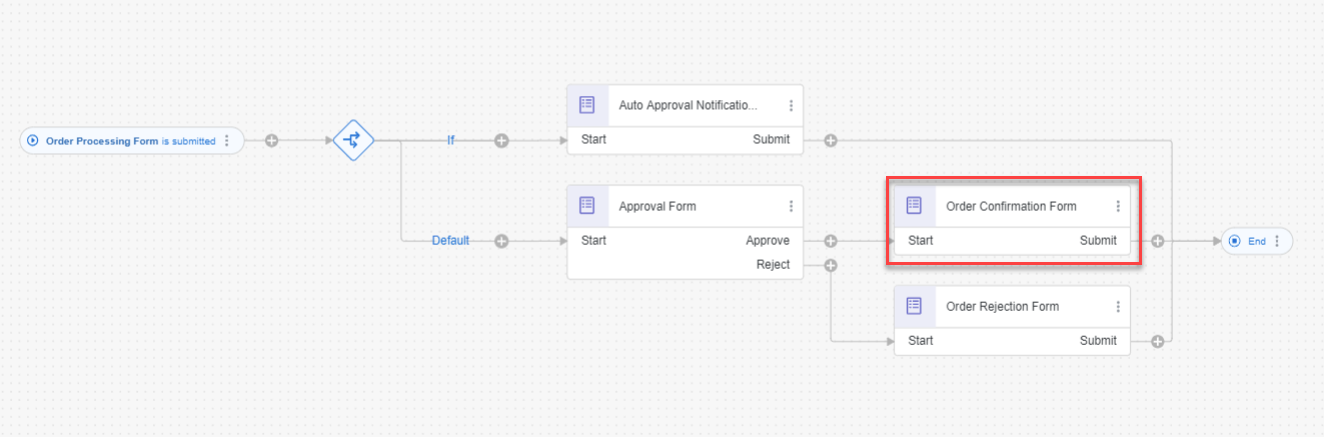
The Sales Order Process First, remove the Order Confirmation Form.
- Open the Process Builder.
- Select Order Confirmation Form.
- Choose Remove.

Remove Order Confirmation Form Now add Mail for approval flow. To add a Mail do the following:
- Select + corresponding to Approve of the Approval Form.
- Choose Mail.
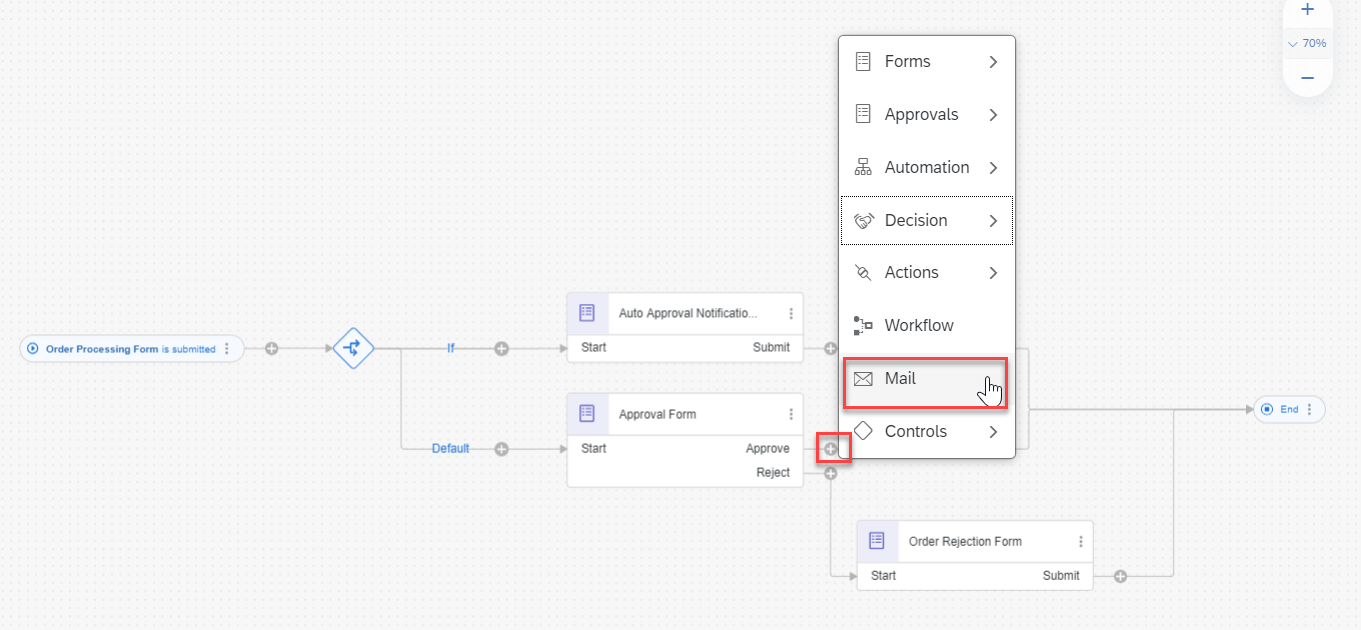
Add mail for approval The mail notification is added to the process and the settings are displayed in the side panel.

Mail Added Click Open Mail Body Editor and configure the mail body.

Click Open Mail Body Editor The mail body can include the following:
- Text
- Process context information (such as the Form fields in the example)
- Process metadata (such as the ‘Process Started By’ information)

Add mail Body Editor - Click Apply
Configure the Mail Header fields
- To : The recipient of the mail notifications. Either add specific mail addresses or use information taken from process metadata or context.
- Subject :The subject of the mail itself. Either add specific text here or use information taken from process metadata or context.
- CC : The copied recipient of the mail notifications. Either add specific mail addresses or use information taken from process metadata or context.
- BCC : The blind copied recipient of the mail notifications. Either add specific mail addresses or use information taken from process metadata or context.

Approval Mail Details The mail notification is added to the process, with mails sent to recipients when a process is running. You might need to drag the components after the artifacts are deleted in the process builder
Save your work.
The process should now look like the following:
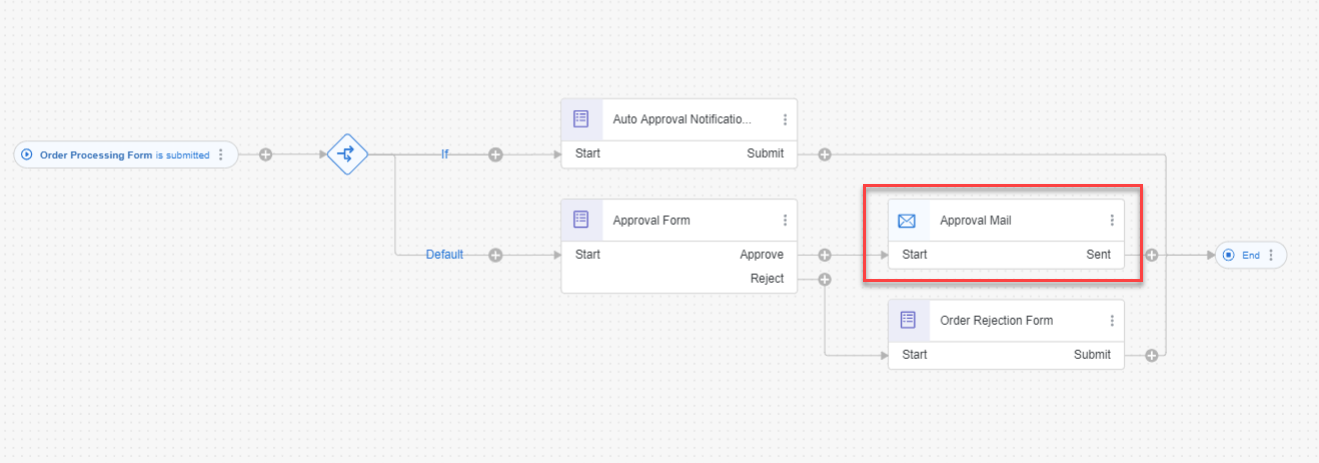
Sales Order with Mail Notifications
Run the business process.
Release, deploy and run the business process with the Order Processing Form details as below:

Add inputs to Approval Form Fill the form and choose Submit.
After you select the submit button, a notification will inform you that the form has been successfully submitted. This means that the workflow has been triggered and the approval process has been started.

Submit The Form
You will receive the below mail in your inbox after the workflow is successfully approved by the approver:

This completes the Mail notification addition to the business process for manual approval flow.
This sample project can be downloaded from the SAP Build Store.
To retrieve this sample, please follow these steps:
From the SAP Build Lobby, navigate to Store.
Search for the sample project: Sales Order Management (TU02).
Choose Create from Template to retrieve the sample and save it as a new project in your lobby.

Store Choose Create.

Create Your project gets created in editable version. You may release and deploy it and run the project.
Navigate back to the lobby by clicking on the SAP logo.

Project You can see your project is available in the lobby.

Lobby
Resources
Discussion
Share feedback on this tutorial or join the conversation in SAP Community.