
Overview
You will learn
- How to configure SAP BTP for push
- How to configure Mobile Services for push
- Foreground notifications
- Background notifications


Prerequisites
Prerequisites
- You completed Try Out the SAP BTP SDK Wizard for Android.
Steps
Go to SAP Mobile Services Cockpit, navigate to Mobile Applications > Native/MDK and select the btp.sdk.wizapp application.
Select Push Notification.
If you don’t see the option, follow the screenshots to add this feature:

Add assigned features 
Add push notification
The Push Notification screen requires information from Firebase.

Push notification In the Firebase console, select project Wiz App, and then go to Project settings.

Project settings Select the Service accounts tab and click Generate new private key button. Then click Generate key in the pop-up window and store the downloaded private key file securely because the key cannot be recovered if lost.

Generate private key In the SAP Mobile Services Push Notification settings screen, click Browse… to load the downloaded private key file. After that, click Save to save changes.
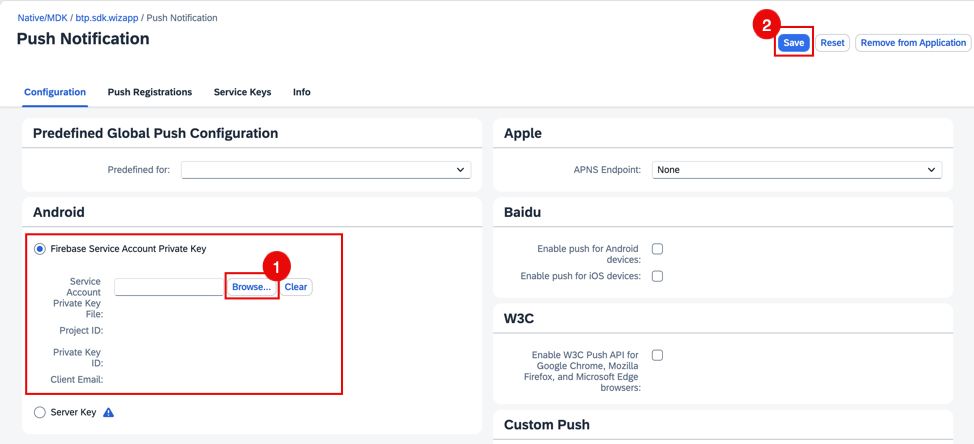
Push notification android
Switch to Push Registrations on the Mobile Push Notification settings page.

Push registrations page Select certain registration to send notifications.

Send notification It may be difficult to tell which registration to choose. The last field on the page shows the last time a given registration made a request. If you are unsure which registration to choose, navigate through a few screens in the application and then press the GO button to refresh the display, or select all of them and send a greeting to all the registrations.
If you don’t see the Send Notifications button, try logging out and back into the management cockpit.
Specify the notification text to send to the app.

Send notification
Notice that the notification displayed at the top of the screen.
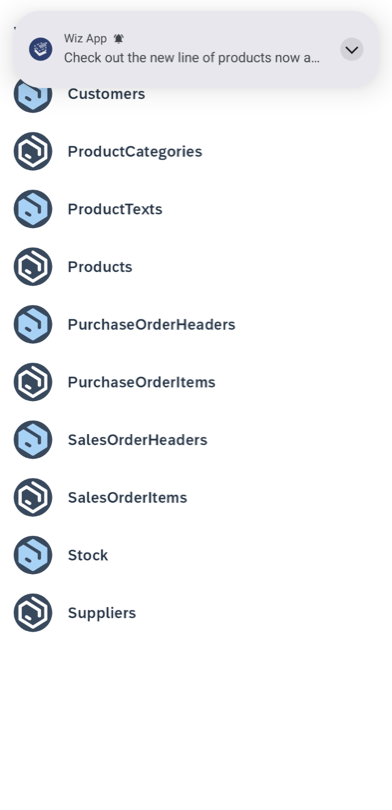
Tap the notification and you can see the app displays the notification.

Notice that the notification displayed at the top of the screen.

Tap the notification and you can see the app displays the notification.

On an emulator or mobile device, open another app, such as Chrome, which will cause the Wiz App to no longer be the foreground app.
If you now send another notification, you will notice that because the app is in the background, or not running, a notification is placed in the notification drawer.

Receive Notification Background Tapping the notification will bring the app to the foreground or open the app.
Receive Notification from Background If the app was not running when the notification was tapped, due to a change made in the previous tutorial, you can view it by pressing Back and navigating from the Categories screen to the Entity list screen.
Currently, the message is displayed in a dialog with cancel action.
You can add custom logic to the app to decide on the action to take, such as displaying the new Office Furniture category by modifying the showMessageDialog method in the class FCMPushCallbackListener.
private fun showMessageDialog(activity: Activity, message: PushRemoteMessage) {
    activity.addContentView(
        ComposeView(activity).apply {
            setContent {
                var showDialog by remember { mutableStateOf(true) }
                if (showDialog) {
                    val textMessage = message.alert ?: activity.getString(R.string.push_text)
                    val notificationTitle = message.title?: activity.getString(R.string.push_message)
                    AlertDialogComponent(title = notificationTitle, text = textMessage, onPositiveButtonClick = {
                        message.notificationID?.let {
                            BasePushService.setPushMessageStatus(it, PushRemoteMessage.NotificationStatus.CONSUMED)
                        }
                        showDialog = false
                    })
                }
            }
        },

        ... ...
    )
}
On an emulator or mobile device, open another app, such as Chrome, which will cause the Wiz App to no longer be the foreground app.
If you now send another notification, you will notice that because the app is in the background, or not running, a notification is placed in the notification drawer.

Receive Notification Background Tapping the notification will bring the app to the foreground or open the app.
Receive Notification from Background If the app was not running when the notification was tapped, due to a change made in the previous tutorial, you can view it by pressing Back and navigating from the Categories screen to the Entity list screen.
Currently, the message is displayed in a dialog with cancel action.
You can add custom logic to the app to decide on the action to take, such as displaying the new Office Furniture category by modifying the showMessageDialog method in the class FCMPushCallbackListener.
private fun showMessageDialog(activity: FragmentActivity, message: PushRemoteMessage) {
    var textMessage = message.alert ?: activity.getString(R.string.push_text)
    var notificationTitle = message.title?: activity.getString(R.string.push_message)

    DialogHelper(activity).showDialogWithCancelAction(
            fragmentManager = activity.supportFragmentManager,
            message = textMessage,
            negativeAction = {},
            title = notificationTitle,
            positiveAction = {
                message.notificationID?.let {
                    BasePushService.setPushMessageStatus(it, PushRemoteMessage.NotificationStatus.CONSUMED)
                }
            }
    )
}
For further information on push, see Push Notifications, Push API Notification Scenarios, and About FCM Messages.
Congratulations! You have seen how an app can make use of foreground and background notifications.
Resources
Discussion
Share feedback on this tutorial or join the conversation in SAP Community.