
Overview
You will learn
- How the offline feature works, through demonstration
- How the synchronization code works
- How to handle errors that occur while syncing


Prerequisites
Steps
Follow the instructions at Try Out the SAP BTP SDK Wizard for Android to create a new application using the SAP BTP SDK Wizard for Android and select Offline for the OData option on the Project Features tab. The push feature is not needed for this application.

Choose Offline OData Run the app. After the login process, a screen is displayed explaining that the offline store is opening. As the screen suggests, opening the offline store for the first time can take up to a few minutes. One technique to decrease this initial time is to only download data that is relevant to the user, such as customers that belong in their sales region.

Offline store opening When you get to the app’s home page, turn on Airplane mode on your device, or disable Wi-Fi and data.

Turn on Airplane mode The entity list screen is populated based on the
metadata.xmlfile retrieved when the application was created. Tap the Products list item.
Entity list screen The Products screen makes a data request to display the available products. Notice that it succeeds without a working network connection. The data request is fulfilled from the offline store that was previously created and populated on the device. Tap the Accessories item to display the detail screen.

Select the first product On the detail screen, tap the edit toolbar icon.
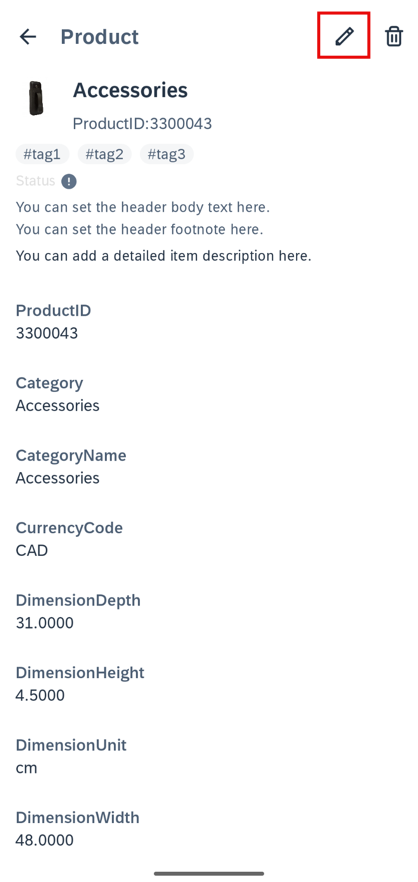
Select product edit button Make a change to the currency code and tap the save toolbar icon.

Change currency code Navigate back to the app’s Home screen and tap Synchronize using the three-dot-menu in the top right of the title bar.

Attempt a sync The sync should fail because you haven’t turned airplane mode off yet.

Sync fails Turn off airplane mode or re-enable Wi-Fi/data and attempt a sync again. You will see a notification that describes the sync action.

Syncing notification When the sync completes, the change you made will have been applied to the back end.
To protect the data in offline store, you must enable offline store encryption by supplying an encryption key.
In Android Studio, on Windows, press
Ctrl+N, or on a Mac, presscommand+O, and typeOfflineWorkerUtil, to openOfflineWorkerUtil.kt.On Windows, press
Ctrl+F12, or on a Mac, presscommand+F12, and typeinitializeOffline, to move to theinitializeOfflinemethod. Call the setter ofstoreEncryptionKeymethod of theOfflineODataParametersinstance to encrypt the offline store. In single user mode, before you can get the encryption key usingUserSecureStoreDelegate, you must generate and save an encryption key toUserSecureStorefirst.
val encryptionKey = if (runtimeMultipleUserMode) {
    UserSecureStoreDelegate.getInstance().getOfflineEncryptionKey()
} else { //If is single user mode, create and save a key into user secure store for accessing offline DB
    if (UserSecureStoreDelegate.getInstance().getData<String>(OFFLINE_DATASTORE_ENCRYPTION_KEY) == null) {
        val bytes = ByteArray(32)
        val random = SecureRandom()
        random.nextBytes(bytes)
        val key = Base64.encodeToString(bytes, Base64.NO_WRAP)
        UserSecureStoreDelegate.getInstance().saveData(OFFLINE_DATASTORE_ENCRYPTION_KEY, key)
        Arrays.fill(bytes, 0.toByte())
        key
    } else {
        UserSecureStoreDelegate.getInstance().getData<String>(OFFLINE_DATASTORE_ENCRYPTION_KEY)
    }
}
storeEncryptionKey = encryptionKey
For additional information about multiple user mode, see Enable Multi-User Mode for Your Android Application.
The offline store is populated based on objects called in using OfflineODataDefiningQuery. The defining queries are located in OfflineWorkerUtil.kt, in the buildOfflineODataProvider method.
The offline store is populated based on objects called in using OfflineODataDefiningQuery. The defining queries are located in OfflineWorkerUtil.kt, in the initializeOffline method.
val customersQuery = OfflineODataDefiningQuery("Customers", "Customers", false)
val productsQuery = OfflineODataDefiningQuery("Products", "Products", true)
Defining queries tell the OfflineODataProvider (the class that manages the offline store) which entity sets to store on the device. In the case of the wizard-generated application, there is a defining query for each available entity by default, meaning that each entity is stored offline and available if the user doesn’t have an internet connection. For more information, see Defining Queries.
With an offline-enabled app, requests made against the entity sets that are included in the defining requests will always be fulfilled from the local offline store.
The application allows users to make changes against a local offline store and synchronize manually at any time. The sync operation is performed by a worker. There are three operations that must be implemented in order to use the offline store functionality: open, download, and upload. As their names suggest, the operations open the offline store, download server changes, and upload user changes, respectively. In the wizard-generated application, OfflineOpenWorker implements open during initialization and OfflineSyncWorker implements a sync operation, which requires upload first, and then download.
- In Android Studio, on Windows, press
Ctrl+N, or on a Mac, presscommand+O, and typeOfflineOpenWorkerto openOfflineOpenWorker.ktand examine theopenmethod.
override suspend fun doWork(): Result = withContext(IO) {
    ... ...
    try {
        result = suspendOpen()
        ... ...
    } finally {
        ... ...
    }
    ... ...
}

private suspend fun suspendOpen(): Result {
    try {
        OfflineWorkerUtil.offlineODataProvider?.open()
        return Result.success()
    } catch (exception: OfflineODataException) {
        ... ...
    }
}
The worker’s work is to call the open method of the OfflineODataProvider class to perform the open operation and pass the given callbacks through.
The OfflineOpenWorker class is called by the open method in OfflineWorkerUtil.kt, which is called by OfflineOpenViewModel when the user logs in to the application.
// In OfflineWorkerUtil.kt
fun open(context: Context): UUID {
    ... ...
    val openRequest = OneTimeWorkRequestBuilder<OfflineOpenWorker>()
        .setConstraints(constraints)
        .build()
    ... ...
}// In OfflineOpenViewModel.kt
fun startOpenOffline() {
OfflineWorkerUtil.addProgressListener(progressListener)
_uiState.update { SyncUIState() } //reset ui state for relaunch
val openRequestId = OfflineWorkerUtil.open(getApplication())
... ...
}- In Android Studio, on Windows, press
Ctrl+N, or on a Mac, presscommand+O, and typeOfflineSyncWorkerto openOfflineSyncWorker.ktand examine thedownloadanduploadmethods.
override suspend fun doWork(): Result = withContext(IO) {
    ... ...

    OfflineWorkerUtil.offlineODataProvider?.let { provider ->
        ... ...
        try {
            OfflineWorkerUtil.addProgressListener(progressListener)
            logger.info("Start uploading data...")
            provider.upload()
            logger.info("Start downloading data...")
            startPointForSync = progressListener.totalStepsForTwoProgresses / 2
            provider.download()
        } catch (exception: OfflineODataException) {
            ... ...
        } finally {
            ... ...
        }
    }

    ... ...
}
The worker’s work is to call the download and upload method of the OfflineODataProvider class to perform the sync operation.
The OfflineSyncWorker class is called by the sync method in OfflineWorkerUtil.kt, which is called by EntitySetViewModel when the user wants to perform a sync. When an entity is created locally in the offline store, its primary key is left unset. This is because when the user performs an upload, the server will set the primary key for the client. An upload and a download are normally performed together because the download may return updated values from the server, such as a newly-created primary key.
// In OfflineWorkerUtil.kt
fun sync(context: Context): UUID {
    ... ...

    val syncRequest = OneTimeWorkRequestBuilder<OfflineSyncWorker>()
        .setConstraints(constraints)
        .build()

    ... ...
}// In EntitySetViewModel.kt
fun startSync() {
val requestId = OfflineWorkerUtil.sync(getApplication())
... ...
}- In Android Studio, on Windows, press
Ctrl+N, or on a Mac, presscommand+O, and typeOfflineOpenWorkerto openOfflineOpenWorker.ktand examine theopenmethod.
override suspend fun doWork(): Result = withContext(IO) {
    ... ...
    OfflineWorkerUtil.offlineODataProvider?.also { provider ->
        provider.open({
            ... ...
        }, { exception ->
            ... ...
        })
    }
    ... ...
}
The worker’s work is to call the open method of the OfflineODataProvider class to perform the open operation and pass the given callbacks through.
The OfflineOpenWorker class is called by the open method in OfflineWorkerUtil.kt, which is called by MainBusinessActivity when the user logs in to the application.
// In OfflineWorkerUtil.kt
@JvmStatic
fun open(context: Context) {
    ... ...
    openRequest = OneTimeWorkRequestBuilder<OfflineOpenWorker>()
        .setConstraints(constraints)
        .build()
    ... ...
}// In MainBusinessActivity.kt
override fun onResume() {
... ...
spforLockAndWipe.getString(SAPWizardApplication.LOCK_WIPE_INVOKING_FLAG, null)?.let {
... ...
} ?: run {
... ...
OfflineWorkerUtil.open(application)
... ...
}
}- In Android Studio, on Windows, press
Ctrl+N, or on a Mac, presscommand+O, and typeOfflineSyncWorkerto openOfflineSyncWorker.ktand examine thedownloadanduploadmethods.
override suspend fun doWork(): Result = withContext(IO) {
    ... ...

    OfflineWorkerUtil.offlineODataProvider?.also { provider ->
        ... ...
        provider.upload({
            ... ...
            provider.download({
                ... ...
            }, {
                ... ...
            })
        }, {
            ... ...
        })
    }

    ... ...
}
The worker’s work is to call the download and upload method of the OfflineODataProvider class to perform the sync operation and pass the given callbacks through.
The OfflineSyncWorker class is called by the sync method in OfflineWorkerUtil.kt, which is called by EntitySetListActivity when the user wants to perform a sync. When an entity is created locally in the offline store, its primary key is left unset. This is because when the user performs an upload, the server will set the primary key for the client. An upload and a download are normally performed together because the download may return updated values from the server, such as a newly-created primary key.
// In OfflineWorkerUtil.kt
@JvmStatic
fun sync(context: Context) {
    ... ...

    syncRequest = OneTimeWorkRequestBuilder<OfflineSyncWorker>()
        .setConstraints(constraints)
        .build()

    ... ...
}// In EntitySetListActivity.kt
private fun synchronize() {
OfflineWorkerUtil.sync(application)
... ...
}For more information about how the offline store works, see the Working With Offline Stores.
When syncing changes made while offline, conflicts can occur. One example might be if two people attempted to update a description field for the same product. Another might be updating a record that was deleted by another user. The ErrorArchive provides a way to see details of any of the conflicts that may have occurred. The following instructions demonstrate how to use ErrorArchive.
Update a SalesOrderItem and change its quantity to be zero and save it. Update a second item and change its quantity to a different non-zero number and save it.

Select first SalesOrderItem 
Edit SalesOrderItem Button 
Create with zero quantity Notice that the items are now marked with a yellow indicator to indicate that an item has been locally modified but not yet synced.

Modified but not yet synced Attempt a sync, and you’ll notice that the sync completes, but if you examine the SalesOrderItems list, one item has a red mark beside it, indicating it is in an error state. This is because the back end has a check that SalesOrderItems cannot have zero for their quantity. This check does not exist in the local offline store, so the update succeeds locally but fails when the offline store is synced.

Sync Error
Update a SalesOrderItem and change its quantity to be zero and save it. Update a second item and change its quantity to a different non-zero number and save it.

Select first SalesOrderItem 
Edit SalesOrderItem Button 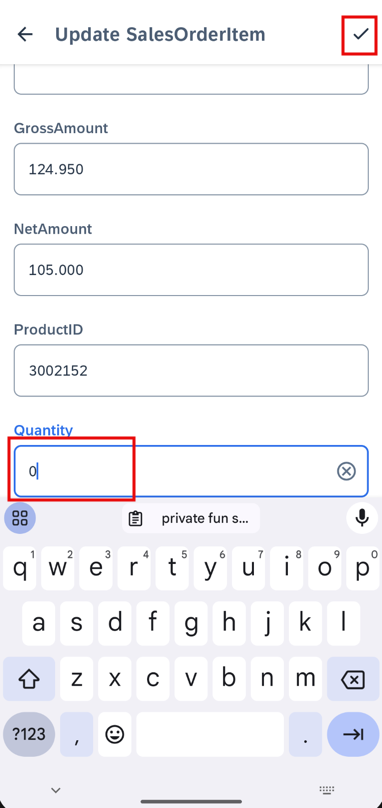
Create with zero quantity Notice that the items are now marked with a yellow indicator to indicate that an item has been locally modified but not yet synced.

Modified but not yet synced Attempt a sync, and you’ll notice that the sync completes, but if you examine the SalesOrderItems list, one item has a red mark beside it, indicating it is in an error state. This is because the back end has a check that SalesOrderItems cannot have zero for their quantity. This check does not exist in the local offline store, so the update succeeds locally but fails when the offline store is synced.

Sync Error
In this section we will create an Error Information screen that displays the details from the ErrorArchive.
Press
Shifttwice and typestrings.xmlto openres\values\strings.xml.Add the following values.
<string name="error_header">Error Information</string>
<string name="request_method">Request Method</string>
<string name="request_status">Request Status</string>
<string name="request_message">Request Message</string>
<string name="request_body">Request Body</string>
<string name="request_url">Request URL</string>
Create a new screen in the
app/kotlin+java/com.sap.wizapp/ui/odata/screensfolder by right-clicking, then selecting New > Kotlin Class/File > File. Name the new fileErrorScreen.Replace the
ErrorScreen.ktgenerated code with the following code.In the package statement and the import, if needed, replace
com.sap.wizappwith the package name of your project.
package com.sap.wizapp.ui.odata.screens

import androidx.compose.foundation.layout.padding
import androidx.compose.foundation.lazy.LazyColumn
import androidx.compose.material3.Text
import androidx.compose.runtime.Composable
import androidx.compose.ui.Modifier
import androidx.compose.ui.res.stringResource
import androidx.compose.ui.unit.dp
import androidx.lifecycle.viewmodel.compose.viewModel
import com.sap.cloud.mobile.fiori.compose.common.FioriDivider
import com.sap.cloud.mobile.fiori.compose.navigation.ui.HeadlineText
import com.sap.cloud.mobile.fiori.compose.theme.FioriTextStyleOverline
import com.sap.cloud.mobile.fiori.compose.theme.TextAppearanceFioriSubtitle1
import com.sap.wizapp.R
import org.json.JSONObject

const val ERROR_URL = "requestURL"
const val ERROR_CODE = "statusCode"
const val ERROR_METHOD = "method"
const val ERROR_BODY = "body"
const val ERROR_MESSAGE = "message"

@Composable
fun ErrorScreen(navigateUp: () -> Unit, errorInfo: String?) {
    // Display the error information

    val errorInfoJson = errorInfo?.let{ JSONObject(errorInfo) }
    val errorUrl = errorInfoJson?.getString(ERROR_URL)
    val errorCode = errorInfoJson?.getInt(ERROR_CODE)
    val errorMethod = errorInfoJson?.getString(ERROR_METHOD)
    val errorBody = errorInfoJson?.getString(ERROR_BODY)
    val errorMessage = errorInfoJson?.getString(ERROR_MESSAGE)

    OperationScreen(
        screenSettings = OperationScreenSettings(
            title = stringResource(id = R.string.application_name),
            navigateUp = navigateUp,
        ),
        modifier = Modifier,
        viewModel = viewModel()
    ) {
        LazyColumn {
            item {
                HeadlineText(
                    text = stringResource(id = R.string.error_header),
                    modifier = Modifier.padding(16.dp)
                )
                FioriDivider()
                Text(
                    text = stringResource(id = R.string.request_message).uppercase(),
                    modifier = Modifier.padding(16.dp),
                    style = FioriTextStyleOverline
                )
                Text(
                    text = errorMessage ?: stringResource(id = R.string.request_message),
                    modifier = Modifier.padding(start = 16.dp, end = 16.dp, bottom = 16.dp),
                    style = TextAppearanceFioriSubtitle1
                )
                FioriDivider()
                Text(
                    text = stringResource(id = R.string.request_body).uppercase(),
                    modifier = Modifier.padding(16.dp),
                    style = FioriTextStyleOverline
                )
                Text(
                    text = errorBody ?: stringResource(id = R.string.request_body),
                    modifier = Modifier.padding(start = 16.dp, end = 16.dp, bottom = 16.dp),
                    style = TextAppearanceFioriSubtitle1
                )
                FioriDivider()
                Text(
                    text = stringResource(id = R.string.request_url).uppercase(),
                    modifier = Modifier.padding(16.dp),
                    style = FioriTextStyleOverline
                )
                Text(
                    text = errorUrl ?: stringResource(id = R.string.request_url),
                    modifier = Modifier.padding(start = 16.dp, end = 16.dp, bottom = 16.dp),
                    style = TextAppearanceFioriSubtitle1
                )
                FioriDivider()
                Text(
                    text = stringResource(id = R.string.request_status).uppercase(),
                    modifier = Modifier.padding(16.dp),
                    style = FioriTextStyleOverline
                )
                Text(
                    text = (errorCode ?: 0).toString(),
                    modifier = Modifier.padding(start = 16.dp, bottom = 16.dp),
                    style = TextAppearanceFioriSubtitle1
                )
                FioriDivider()
                Text(
                    text = stringResource(id = R.string.request_method).uppercase(),
                    modifier = Modifier.padding(16.dp),
                    style = FioriTextStyleOverline
                )
                Text(
                    text = errorMethod ?: stringResource(id = R.string.request_method),
                    modifier = Modifier.padding(start = 16.dp, bottom = 16.dp),
                    style = TextAppearanceFioriSubtitle1
                )
                FioriDivider()
            }
        }
    }
}On Windows, press
Ctrl+Shift+N, or on a Mac, presscommand+shift+O, and typeEntitySetsScreento openEntitySetsScreen.kt.Add a parameter after
navigateToSettingsin theEntitySetScreenfunction:
@Composable
fun EntitySetScreen(
    list: List<EntityScreenInfo>,
    onRowClick: (EntityType) -> Unit,
    modifier: Modifier = Modifier,
    navigateToSettings: () -> Unit,
    navigateToErrorScreen: (String) -> Unit
) {- Add the following imports:
import android.util.Log
import com.sap.cloud.mobile.kotlin.odata.offline.OfflineODataException
import org.json.JSONException
import org.json.JSONObject- Modify the
EntitySetScreenin theEntitySetScreenPreviewfunction correspondingly.
@Preview
@Composable
fun EntitySetScreenPreview() {
    val entityTypeNames = EntityScreenInfo.entries
    EntitySetScreen(entityTypeNames, { println("click $it row") }, navigateToSettings = {}, navigateToErrorScreen = {})
}- In the action tiems list of the
OperationScreen, modify the action ofActionItemsynchronizefromviewModel::startSyncto the following, which queries the error archive and displays information to the user about the first error encountered after sync finished:
viewModel.startSync()
val provider = OfflineWorkerUtil.offlineODataProvider

try {
    val errorArchive = provider!!.getErrorArchive()

    for (errorEntity in errorArchive) {
        val requestURL = errorEntity.requestURL
        val method = errorEntity.requestMethod
        val message = errorEntity.message
        val statusCode = errorEntity.httpStatusCode ?: 0
        val body = errorEntity.requestBody

        Log.e("ErrorArchive", "RequestURL: $requestURL")
        Log.e("ErrorArchive", "HTTP Status Code: $statusCode")
        Log.e("ErrorArchive", "Method: $method")
        Log.e("ErrorArchive", "Message: $message")
        Log.e("ErrorArchive", "Body: $body")

        val finalMessage = try {
            val jsonObj = message?.let { JSONObject(it) }
            jsonObj?.let {
                jsonObj.getJSONObject("error").getString("message")
            }
        } catch (e: JSONException) {
            e.printStackTrace()
            message
        }

        val errorInfo = JSONObject().apply {
                            put(ERROR_URL, requestURL)
                            put(ERROR_METHOD, method)
                            put(ERROR_MESSAGE, finalMessage)
                            put(ERROR_CODE, statusCode)
                            put(ERROR_BODY, body)
                        }

        // Reverts all failing entities to the previous state or set
        // offlineODataParameters.setEnableIndividualErrorArchiveDeletion(true);
        // to cause the deleteEntity call to only revert the specified entity
        // https://help.sap.com/doc/f53c64b93e5140918d676b927a3cd65b/Cloud/en-US/docs-en/guides/features/offline/common/handling-failed-requests/reverting-error-state.html
        // provider.deleteEntity(errorEntity, null, null);
        navigateToErrorScreen(errorInfo.toString())
        break //For simplicity, only show the first error encountered
    }
} catch (e: OfflineODataException) {
    e.printStackTrace()
}After modification, the ActionItem of synchronize should look like this:
ActionItem(
    nameRes = R.string.synchronize_action,
    overflowMode = OverflowMode.ALWAYS_OVERFLOW,
    doAction = {
        viewModel.startSync()
        val provider = OfflineWorkerUtil.offlineODataProvider

        try {
            val errorArchive = provider!!.getErrorArchive()

            for (errorEntity in errorArchive) {
                val requestURL = errorEntity.requestURL
                val method = errorEntity.requestMethod
                val message = errorEntity.message
                val statusCode = errorEntity.httpStatusCode ?: 0
                val body = errorEntity.requestBody

                Log.e("ErrorArchive", "RequestURL: $requestURL")
                Log.e("ErrorArchive", "HTTP Status Code: $statusCode")
                Log.e("ErrorArchive", "Method: $method")
                Log.e("ErrorArchive", "Message: $message")
                Log.e("ErrorArchive", "Body: $body")

                val finalMessage = try {
                    val jsonObj = message?.let { JSONObject(it) }
                    jsonObj?.let {
                        jsonObj.getJSONObject("error").getString("message")
                    }
                } catch (e: JSONException) {
                    e.printStackTrace()
                    message
                }

                val errorInfo = JSONObject().apply {
                                    put(ERROR_URL, requestURL)
                                    put(ERROR_METHOD, method)
                                    put(ERROR_MESSAGE, finalMessage)
                                    put(ERROR_CODE, statusCode)
                                    put(ERROR_BODY, body)
                                }

                // Reverts all failing entities to the previous state or set
                // offlineODataParameters.setEnableIndividualErrorArchiveDeletion(true);
                // to cause the deleteEntity call to only revert the specified entity
                // https://help.sap.com/doc/f53c64b93e5140918d676b927a3cd65b/Cloud/en-US/docs-en/guides/features/offline/common/handling-failed-requests/reverting-error-state.html
                // provider.deleteEntity(errorEntity, null, null);
                navigateToErrorScreen(errorInfo.toString())
                break //For simplicity, only show the first error encountered
            }
        } catch (e: OfflineODataException) {
            e.printStackTrace()
        }
    }
),On Windows, press
Ctrl+Shift+N, or on a Mac, presscommand+shift+O, and typeODataNavHostto openODataNavHost.kt.Add the following imports:
import androidx.navigation.NavType
import androidx.navigation.navArgument- Add a composable component right after
composable(route = EntitySetsDest.route) {}block:
composable(
    route = "error/{errorInfo}",
    arguments = listOf(
        navArgument("errorInfo") { type = NavType.StringType }
    )
) { backStackEntry ->
    val errorInfo = backStackEntry.arguments?.getString("errorInfo")
    ErrorScreen(navController::navigateUp, errorInfo)
}- Replace the
composable(route = EntitySetsDest.route) {}block with the following:
composable(route = EntitySetsDest.route) {
    EntitySetScreen(
        getEntitySetScreenInfoList(),
        navController::navigateToEntityList,
        navigateToSettings = { navController.navigate(SETTINGS_SCREEN_ROUTE) },
        navigateToErrorScreen = { errorInfo ->
            navController.navigate("error/${errorInfo}")
        }
    )
}
Run the app again, and re-attempt the sync. When the sync fails, you should see the following error screen.
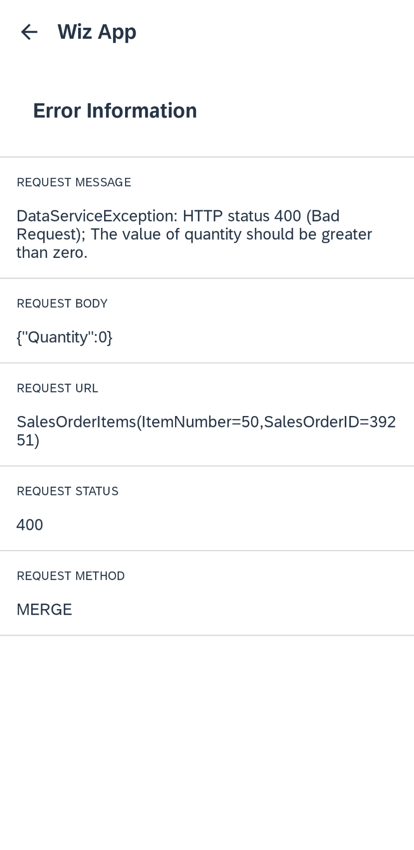
Error screen You can see that the HTTP status code, method, and message are included. When the application attempted a sync, the entity being updated didn’t pass the backend checks and produced a
DataServiceExceptionand is now in the error state. All entities that did not produce errors are successfully synced. One way to correct the exception would be to change the quantity from 0 to a valid positive number. Another would be to delete theErrorArchiveentry, reverting the entity to its previous state. For more information on error handling, see Handling Errors and Conflicts and Handling Failed Requests.
Press
Shifttwice and typestrings.xmlto openres\values\strings.xml.Add the following values.
<string name="error_header">Error Information</string>
<string name="request_method">Request Method</string>
<string name="request_status">Request Status</string>
<string name="request_message">Request Message</string>
<string name="request_body">Request Body</string>
<string name="request_url">Request URL</string>
Create a new activity in the
app/kotlin+java/com.sap.wizapp/mduifolder by right-clicking, then selecting New > Activity > Empty Views Activity. Name the new activityErrorActivity.Press
Shifttwice and typeactivity_errorto openres/layout/activity_error.xml.Replace its contents with the following XML.
<?xml version="1.0" encoding="utf-8"?>
<LinearLayout xmlns:android="http://schemas.android.com/apk/res/android"
    xmlns:app="http://schemas.android.com/apk/res-auto"
    xmlns:tools="http://schemas.android.com/tools"
    android:layout_width="match_parent"
    android:layout_height="match_parent"
    android:fitsSystemWindows="true"
    tools:context=".mdui.ErrorActivity"
    android:orientation="vertical">

    <com.google.android.material.appbar.AppBarLayout
        android:id="@+id/app_bar"
        android:layout_width="match_parent"
        android:layout_height="wrap_content">

        <androidx.appcompat.widget.Toolbar
            android:id="@+id/toolbar"
            android:layout_width="match_parent"
            android:layout_height="?attr/actionBarSize"
            app:popupTheme="@style/AppTheme.PopupOverlay"
            app:titleTextColor="@color/colorBlack" />

    </com.google.android.material.appbar.AppBarLayout>

    <ScrollView
        android:layout_height="wrap_content"
        android:layout_width="match_parent">

        <LinearLayout
            android:layout_height="wrap_content"
            android:layout_width="match_parent"
            android:orientation="vertical">

            <TextView
                android:layout_width="match_parent"
                android:layout_height="wrap_content"
                android:padding="@dimen/key_line_16dp"
                style="@style/Test.ObjectCell.Headline"
                android:text="@string/error_header"/>

            <View
                android:layout_width="match_parent"
                android:layout_marginTop="@dimen/key_line_16dp"
                android:layout_height="1dp"
                android:background="?android:attr/listDivider" />

            <TextView
                android:layout_width="match_parent"
                android:layout_height="wrap_content"
                android:padding="@dimen/key_line_16dp"
                style="@style/FioriTextStyle.OVERLINE"
                android:text="@string/request_message"/>

            <TextView
                android:id="@+id/requestMessageTextView"
                android:layout_width="match_parent"
                android:layout_height="wrap_content"
                android:paddingLeft="@dimen/key_line_16dp"
                android:paddingRight="@dimen/key_line_16dp"
                style="@style/TextAppearance.Fiori.Subtitle1"
                android:singleLine="false"
                android:text="@string/request_message"/>

            <View
                android:layout_width="match_parent"
                android:layout_marginTop="@dimen/key_line_16dp"
                android:layout_height="1dp"
                android:background="?android:attr/listDivider" />

            <TextView
                android:layout_width="match_parent"
                android:layout_height="wrap_content"
                android:padding="@dimen/key_line_16dp"
                style="@style/FioriTextStyle.OVERLINE"
                android:text="@string/request_body"/>

            <TextView
                android:id="@+id/requestBodyTextView"
                android:layout_width="match_parent"
                android:layout_height="wrap_content"
                android:paddingLeft="@dimen/key_line_16dp"
                android:paddingRight="@dimen/key_line_16dp"
                style="@style/TextAppearance.Fiori.Subtitle1"
                android:singleLine="false"
                android:text="@string/request_body"/>

            <View
                android:layout_width="match_parent"
                android:layout_marginTop="@dimen/key_line_16dp"
                android:layout_height="1dp"
                android:background="?android:attr/listDivider" />

            <TextView
                android:layout_width="match_parent"
                android:layout_height="wrap_content"
                android:padding="@dimen/key_line_16dp"
                style="@style/FioriTextStyle.OVERLINE"
                android:text="@string/request_url"/>

            <TextView
                android:id="@+id/requestURLTextView"
                android:layout_width="match_parent"
                android:layout_height="wrap_content"
                android:paddingLeft="@dimen/key_line_16dp"
                android:paddingRight="@dimen/key_line_16dp"
                style="@style/TextAppearance.Fiori.Subtitle1"
                android:singleLine="false"
                android:text="@string/request_url"/>

            <View
                android:layout_width="match_parent"
                android:layout_marginTop="@dimen/key_line_16dp"
                android:layout_height="1dp"
                android:background="?android:attr/listDivider" />

            <TextView
                android:layout_width="match_parent"
                android:layout_height="wrap_content"
                android:padding="@dimen/key_line_16dp"
                style="@style/FioriTextStyle.OVERLINE"
                android:text="@string/request_status"/>

            <TextView
                android:id="@+id/requestStatusTextView"
                android:layout_width="match_parent"
                android:layout_height="wrap_content"
                android:paddingLeft="@dimen/key_line_16dp"
                style="@style/TextAppearance.Fiori.Subtitle1"
                android:text="@string/request_status"/>

            <View
                android:layout_width="match_parent"
                android:layout_marginTop="@dimen/key_line_16dp"
                android:layout_height="1dp"
                android:background="?android:attr/listDivider" />

            <TextView
                android:layout_width="match_parent"
                android:layout_height="wrap_content"
                android:padding="@dimen/key_line_16dp"
                style="@style/FioriTextStyle.OVERLINE"
                android:text="@string/request_method"/>

            <TextView
                android:id="@+id/requestMethodTextView"
                android:layout_width="match_parent"
                android:layout_height="wrap_content"
                android:paddingLeft="@dimen/key_line_16dp"
                style="@style/TextAppearance.Fiori.Subtitle1"
                android:text="@string/request_method"/>

            <View
                android:layout_width="match_parent"
                android:layout_marginTop="@dimen/key_line_16dp"
                android:layout_height="1dp"
                android:background="?android:attr/listDivider" />
        </LinearLayout>
    </ScrollView>
</LinearLayout>Replace the
ErrorActivity.ktgenerated activity code with the following code.In the package statement and the import, if needed, replace
com.sap.wizappwith the package name of your project.
package com.sap.wizapp.mdui

import androidx.appcompat.app.AppCompatActivity
import android.os.Bundle
import android.view.MenuItem
import android.view.View
import android.widget.TextView

import com.sap.wizapp.R

class ErrorActivity : AppCompatActivity() {

    override fun onCreate(savedInstanceState: Bundle?) {
        super.onCreate(savedInstanceState)
        setContentView(R.layout.activity_error)
        setSupportActionBar(findViewById(R.id.toolbar))
        supportActionBar!!.setDisplayHomeAsUpEnabled(true)
        val errorCode = intent.getIntExtra("ERROR_CODE", 0)
        val errorMethod = intent.getStringExtra("ERROR_METHOD")
        val requestURL = intent.getStringExtra("ERROR_URL")
        val errorMessage = intent.getStringExtra("ERROR_MESSAGE")
        val body = intent.getStringExtra("ERROR_BODY")
        (findViewById<View>(R.id.requestStatusTextView) as TextView).text = "".plus(errorCode)

        errorMethod?.let {
            (findViewById<View>(R.id.requestMethodTextView) as TextView).text = it
        }
        requestURL?.let {
            (findViewById<View>(R.id.requestURLTextView) as TextView).text = it
        }
        errorMessage?.let {
            (findViewById<View>(R.id.requestMessageTextView) as TextView).text = it
        }
        body?.let {
            (findViewById<View>(R.id.requestBodyTextView) as TextView).text = it
        }
    }

    override fun onOptionsItemSelected(item: MenuItem): Boolean {
        finish()
        return super.onOptionsItemSelected(item)
    }
}On Windows, press
Ctrl+N, or, on a Mac, presscommand+O, and typeEntitySetListActivityto openEntitySetListActivity.kt.In the
updateProgressForSyncmethod, in theWorkInfo.State.SUCCEEDEDblock, add the following code, which queries the error archive and displays information to the user about the first error encountered:
val provider = OfflineWorkerUtil.offlineODataProvider

try {
    val errorArchive = provider!!.errorArchive

    for (errorEntity in errorArchive) {
        val requestURL = errorEntity.requestURL
        val method = errorEntity.requestMethod
        val message = errorEntity.message
        val statusCode = errorEntity.httpStatusCode ?: 0
        val body = errorEntity.requestBody

        LOGGER.error("RequestURL: $requestURL")
        LOGGER.error("HTTP Status Code: $statusCode")
        LOGGER.error("Method: $method")
        LOGGER.error("Message: $message")
        LOGGER.error("Body: $body")

        val errorIntent = Intent(this@EntitySetListActivity, ErrorActivity::class.java)

        errorIntent.putExtra("ERROR_URL", requestURL)
        errorIntent.putExtra("ERROR_CODE", statusCode)
        errorIntent.putExtra("ERROR_METHOD", method)
        errorIntent.putExtra("ERROR_BODY", body)

        try {
            val jsonObj = message?.let { JSONObject(it) }
            jsonObj?.let {
                errorIntent.putExtra(
                    "ERROR_MESSAGE",
                    jsonObj.getJSONObject("error").getString("message")
                )
            }
        } catch (e: JSONException) {
            e.printStackTrace()
        }

        // Reverts all failing entities to the previous state or set
        // offlineODataParameters.setEnableIndividualErrorArchiveDeletion(true);
        // to cause the deleteEntity call to only revert the specified entity
        // https://help.sap.com/doc/f53c64b93e5140918d676b927a3cd65b/Cloud/en-US/docs-en/guides/features/offline/common/handling-failed-requests/reverting-error-state.html
        // provider.deleteEntity(errorEntity, null, null);
        startActivity(errorIntent)
        break //For simplicity, only show the first error encountered
    }
} catch (e: OfflineODataException) {
    e.printStackTrace()
}After modification, the WorkInfo.State.SUCCEEDED block should look like this:
WorkInfo.State.SUCCEEDED -> {
    LOGGER.info("Offline sync done.")
    val provider = OfflineWorkerUtil.offlineODataProvider

    try {
        val errorArchive = provider!!.errorArchive

        for (errorEntity in errorArchive) {
            val requestURL = errorEntity.requestURL
            val method = errorEntity.requestMethod
            val message = errorEntity.message
            val statusCode = errorEntity.httpStatusCode ?: 0
            val body = errorEntity.requestBody

            LOGGER.error("RequestURL: $requestURL")
            LOGGER.error("HTTP Status Code: $statusCode")
            LOGGER.error("Method: $method")
            LOGGER.error("Message: $message")
            LOGGER.error("Body: $body")

            val errorIntent = Intent(this@EntitySetListActivity, ErrorActivity::class.java)

            errorIntent.putExtra("ERROR_URL", requestURL)
            errorIntent.putExtra("ERROR_CODE", statusCode)
            errorIntent.putExtra("ERROR_METHOD", method)
            errorIntent.putExtra("ERROR_BODY", body)

            try {
                val jsonObj = message?.let { JSONObject(it) }
                jsonObj?.let {
                    errorIntent.putExtra(
                        "ERROR_MESSAGE",
                        jsonObj.getJSONObject("error").getString("message")
                    )
                }
            } catch (e: JSONException) {
                e.printStackTrace()
            }

            // Reverts all failing entities to the previous state or set
            // offlineODataParameters.setEnableIndividualErrorArchiveDeletion(true);
            // to cause the deleteEntity call to only revert the specified entity
            // https://help.sap.com/doc/f53c64b93e5140918d676b927a3cd65b/Cloud/en-US/docs-en/guides/features/offline/common/handling-failed-requests/reverting-error-state.html
            // provider.deleteEntity(errorEntity, null, null);
            startActivity(errorIntent)
            break //For simplicity, only show the first error encountered
        }
    } catch (e: OfflineODataException) {
        e.printStackTrace()
    }
}Run the app again, and re-attempt the sync. When the sync fails, you should see the following error screen.

Error screen You can see that the HTTP status code, method, and message are included. When the application attempted a sync, the entity being updated didn’t pass the backend checks and produced a
DataServiceExceptionand is now in the error state. All entities that did not produce errors are successfully synced. One way to correct the exception would be to change the quantity from 0 to a valid positive number. Another would be to delete theErrorArchiveentry, reverting the entity to its previous state. For more information on error handling, see Handling Errors and Conflicts and Handling Failed Requests.
Further information on using the offline feature can be found at Step by Step with the SAP BTP SDK for Android — Part 6 — Offline OData.
Congratulations! You have created an offline-enabled app using the SAP BTP SDK Wizard for Android and examined how the ErrorArchive can be used to view synchronization errors!
Resources
Discussion
Share feedback on this tutorial or join the conversation in SAP Community.