
Overview
You will learn
- How to customize the UI screens for the Jetpack Compose onboarding flow
- How to add your own logic by listening to the flow states
- How to insert your own logic using the action handler [ACCORDION-BEGIN [Step 1: ](Customize the UI screens for the Jetpack Compose onboarding flow)] The onboarding flow is comprised of the following UI components:
- End user license agreement (EULA) screen
- Activation screen
- Authentication screen
- Set passcode and verify passcode screens
- Usage consent screen and crash report consent screens. The visibility and the content of each screen will vary depending on the different application configurations and client code customization. 1. By default, the first screen of the onboarding flow is the EULA screen. This screen allows users to review and agree to the end user license agreement. To exclude this screen, set the value of
useDefaultEulaScreenparameter tofalsefor theFlowOptionsinstance and set thisFlowOptionsinstance for theFlowContextinstance to start the onboarding flow.Kotlin val flowContext = FlowContext( appConfig = appConfig, flowOptions = FlowOptions( useDefaultEulaScreen = false ) FlowUtil.startFlow(activity, flowContext)Notice that if the EULA screen is excluded, it will be the responsibility of the client code to handle the end user license agreement. 2. If theAppConfiginstance inFlowContextdoes not provide the authentication info or host for the mobile application, the activation screen will be displayed to get the completeAppConfigfrom either theDiscovery Service,QR code scanningorMDM. By default, the QR code scanning screen will be displayed. The client code can customize the screen to display other activation screens. Create aFlowOptionsinstance and set the value foractivationOptionparameter,ActivationOption.DS_ONLYvalue to display theDiscovery Servicemethod only,ActivationOption.MDM_ONLYvalue to display theMDMmethod only andActivationOption.DS_OR_QRvalue to display the activation screen for selecting from both methods. Using the code snippet below, the activation screen will only display the option for Discovery Service.Kotlin val flowContext = FlowContext( appConfig = appConfig, flowOptions = FlowOptions( activationOption = ActivationOption.DS_ONLY ) FlowUtil.startFlow(activity, flowContext)Notice that if theAppConfiginstance contains complete information, the onboarding flow will skip the activation screen and go directly to the authentication step. 3. After getting the complete application configuration, the onboarding flow will display different authentication screens based on the authentication type defined for the application. For example, a screen with user input forUser NameandPasswordproperties will be displayed if the authentication type isBasic. If the authentication type isSAML, the screen will redirect to a web page for user login. The logic to decide which authentication screen to display is built into the onboarding flow and the client code cannot change it. 4. The set passcode and verify passcode screen will be skipped if a passcode policy is not enabled on the server side. Notice that in multi-user mode, the passcode step cannot be skipped and a default passcode policy will be created if it’s not enabled on the server. Also, the usage consent screen will be skipped if usage reporting is not enabled and the crash report screen will be skipped if crash reporting is not enabled. Otherwise, the screens will be displayed in the onboarding flow, and the client code cannot alter this fact. To enable the usage reporting and crash reporting services, the client code needs start them using theSDKInitializerclass.Kotlin val services = mutableListOf<MobileService>() services.add(UsageService()) services.add(CrashService()) SDKInitializer.start(this, * services.toTypedArray())5. Besides the options to include or exclude a step, you can set the client code to customize screens using itsScreenSettings, including the title, description, and button text for all screens. For some specific screens, such as the EULA screen, the client code can specify its own URL for the EULA file. See Onboarding Compose Screens in the help documentation for information on the detailed settings for each screen in the onboarding process. To have the customized screen settings take effect in the onboarding flow, set the list ofScreenSettingsfor theFlowContextinstance.Kotlin val customScreenSettings = CustomScreenSettings( eulaSettings = EulaScreenSettings( eulaUrl = "file:///android_asset/my_eula.html"), setPasscodeScreenSettings = SetPasscodeScreenSettings( description = R.string.set_passcode_screen_desc) ) val flowContext = FlowContext( appConfig = appConfig, flowOptions = FlowOptions( screenSettings = customScreenSettings ) FlowUtil.startFlow(activity, flowContext)[ACCORDION-END] [ACCORDION-BEGIN [Step 2: ](Listen to the flow states)] In this section, we explain the onboarding-related callbacks inFlowStateListenerbased on theWizardFlowStateListenerclass generated by the SAP BTP SDK Wizard for Android. 1. Open the project you previously created using the SAP BTP SDK Wizard for Android. 2. In Android Studio, on Windows, pressCtrl+N, or, on a Mac, presscommand+O, and typeWizardFlowStateListenerto openWizardFlowStateListener.kt. 3. On Windows, pressCtrl+F12, or, on a Mac, presscommand+F12, and typeonAppConfigRetrievedto move to theonAppConfigRetrievedmethod. The event is notified when theAppConfiginstance is retrieved from either the Discovery Service or QR code scan. Client code can perform the initialization when theAppConfigis ready. !
App Ready Kotlin override suspend fun onAppConfigRetrieved(appConfig: AppConfig) { logger.debug("onAppConfigRetrieved: {}", appConfig) SAPServiceManager.initSAPServiceManager(appConfig) }4. On Windows, pressCtrl+F12, or, on a Mac, presscommand+F12, and typeonApplicationResetto move to theonApplicationResetmethod. The event is notified when reset the application by starting theresetflow. !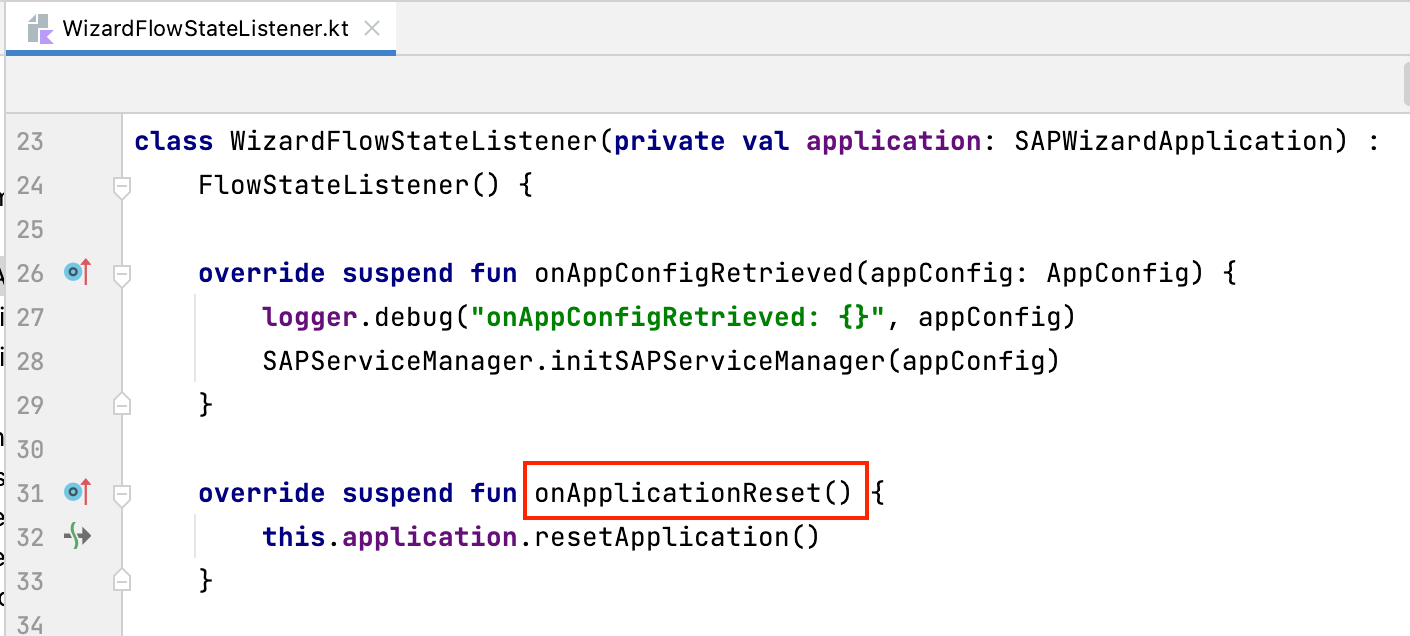
App Ready Kotlin override suspend fun onApplicationReset() { this.application.resetApplication() }5. On Windows, pressCtrl+F12, or, on a Mac, presscommand+F12, and typeonClientPolicyRetrievedto move to theonClientPolicyRetrievedmethod. After authentication is completed, the onboarding flow will get the client policies from the mobile server and then notify this event. The client code can then create the UI to display the settings. !
Policy Ready Kotlin override suspend fun onClientPolicyRetrieved(policies: ClientPolicies) { policies.logPolicy?.also { logSettings -> val preferenceRepository = SharedPreferenceRepository(application) val currentSettings = preferenceRepository.userPreferencesFlow.first().logSetting if (currentSettings.logLevel != logSettings.logLevel) { preferenceRepository.updateLogLevel(LogPolicy.getLogLevel(logSettings)) val logString = when (LogPolicy.getLogLevel(logSettings)) { Level.ALL -> application.getString(R.string.log_level_path) Level.INFO -> application.getString(R.string.log_level_info) Level.WARN -> application.getString(R.string.log_level_warning) Level.ERROR -> application.getString(R.string.log_level_error) Level.OFF -> application.getString(R.string.log_level_none) else -> application.getString(R.string.log_level_debug) } logger.info( String.format( application.getString(R.string.log_level_changed), logString ) ) MainScope().launch { Toast.makeText( application, String.format( application.getString(R.string.log_level_changed), logString ), Toast.LENGTH_SHORT ).show() } } } }6. On Windows, pressCtrl+F12, or, on a Mac, presscommand+F12, and typeonFlowFinishedWithDatato move to theonFlowFinishedWithDatamethod. The flows framework will send this event to the client code when a flow finishes successfully and the flow activity is removed from the back stack. Notice that this callback will only be invoked when the flow is successfully completed. If at any time the flow is canceled, this callback will not be invoked. !
Flow Finish Kotlin override suspend fun onFlowFinishedWithData(flowName: String?, data: Intent?) { when (flowName) { FlowType.Reset.name, FlowType.Logout.name -> launchWelcomeActivity(application) FlowType.DeleteRegistration.name -> { launchWelcomeActivity(application) } } }7. Besides the callbacks implemented in theWizardFlowStateListenerclass, theOkHttpClientReadymethod is also useful if you want to add an HTTP header into theonOkHttpClientinstance. Before authentication, theOkHttpClientinstance will be ready and sent to the client code usingonOkHttpClientReady. To add your own HTTP header, override theOkHttpClientReadymethod in your flow state listener.Kotlin override fun onOkHttpClientReady(httpClient: OkHttpClient) { httpClient.addUniqueInterceptor( object: Interceptor { override fun intercept(chain: Interceptor.Chain): Response { val request: Request = chain.request() val newRequest = request.newBuilder() .header("my_header", "my_header_value") .build() return chain.proceed(newRequest) } }) }>Please see Flows Extension Point andFlowStateListenerin the Flows Component of SAP BTP SDK for Android for detailed information on all of the flow states and callbacks.FlowStateListenerhas the same purpose as that in the view-based flows component and the sequence of the callback functions is also the same. The difference is that every callback function is marked as suspend, so it’s easier for the client code to call other suspend functions. [ACCORDION-END] [ACCORDION-BEGIN [Step 3: ](Insert your own logic using action handler)] TheFlowActionHandlerclass allows you to insert your own logic at certain points in the onboarding flow, such as adding your own passcode validation or barcode validation after the default rules are executed, adding an algorithm for user name or email obfuscation when displaying the user information, or adding a parser for barcode content when scanning QR codes, etc. Similar to theFlowStateListener, you need to extend theFlowActionHandlerclass to implement the corresponding methods and set your ownFlowActionHandlerinstance for theFlowContextinstance using theFlowContext.setFlowStateListener(listener: FlowStateListener)method. This section provides some sample implementations for the methods in theFlowActionHandlerclass. 1. TheFlowActionHandlerprovides three methods related to passcode validation:open fun isPasscodeDigitOnly(): Booleanopen fun isLocalizingPasscodeDigitsToLatin(): Booleanopen fun validatePasscode(code: CharArray): BooleanThe first two methods allow you to add additional rules for passcode policy and the last method is for you to add your own validation logic in addition to the rules defined in the passcode policy. For example, when the passcode policy allows special characters, you can still add the logic to disable certain special characters. For instance, the sample code below prevents the user from being able to use “@” as one of the possible special characters:Kotlin override fun validatePasscode(code: CharArray): Boolean { if(code.contains('@')) { return false } return super.validatePasscode(code) }2. TheFlowActionHandlerprovides two methods related to the QR code:open fun validateBarcode(barcode: String): ServiceResult<Boolean>open fun parsingBarcode(barcode: String): AppConfig?The first method allows you to add customized validation logic and the second method allows the client code to parse the QR code and construct theAppConfiginstance using its own logic. For example, you can specify that the QR code must contain some particular properties:Kotlin override fun validateBarcode(barcode: String): ServiceResult<Boolean> { return if (barcode != null && barcode.contains("AppId") && barcode.contains("ClientId") && barcode.contains("AuthorizationEndpointUrl") && barcode.contains("ServerUrl") && barcode.contains("RedirectUrl") && barcode.contains("TokenUrl")) { ServiceResult.SUCCESS(true) } else { ServiceResult.FAILURE("") } }3. TheFlowActionHandlerprovides two methods related to handling the certificate:open fun getCertificateProvider(): CertificateProvideronCertificateSslClientAuthPrepared(): SslClientAuth?The first method allows you to provide a customizedCertificateProviderfor a certificate challenge and the second method allows you to provide your ownSslClientAuthfor certificate authentication. For example, you can create aSslClientAuthinstance using aChooseCertificateProviderinstance to pop up a dialog for user to choose a certificate:Kotlin override fun onCertificateSslClientAuthPrepared(): SslClientAuth { val chooseCertificateProvider = ChooseCertificateProvider() return SslClientAuth(chooseCertificateProvider) }4. TheFlowActionHandlerprovides two methods for user name and email obfuscation when displaying the information on the sign-in screen:open fun obfuscateUserName(name: String): Stringopen fun obfuscateEmail(email: String): StringFor example, you can choose to not obfuscate the email but obfuscate the user name by keeping the first two characters and replacing the other characters with several “_” characters:Kotlin override fun obfuscateEmail(email: String): String { return email } override fun obfuscateUserName(name: String): String { if (name.isEmpty()) { return name } return if (name.length > 2) { name.substring(0, 2) + "____" } else { name.substring(0, 1) + "_____" } }5. TheFlowActionHandlerprovides a method for the client code to add “back button press” logic when a web view is displayed for authentication. For some authentication types, the onboarding flow will open a web view for authentication. You can add your own logic to specify what action is taken when theBackbutton of the web view is pressed.open fun webViewBackPressHandler(): IBackPress? = nullThe following sample code implements a warning dialog when theBackbutton is pressed:Kotlin override fun webViewBackPressHandler() = IBackPress { val activity = AppLifecycleCallbackHandler.getInstance().activity activity?.let { AlertDialog.Builder(activity) .setMessage("Are you sure you want to exit onboarding flow?") .setPositiveButton("OK") { dialog, _ -> activity.finish() dialog.dismiss() }.setNegativeButton("Cancel") { dialog, _ -> dialog.dismiss() }.show() } }6. TheFlowActionHandlerprovides a method for the client code to add custom steps for the onboarding flow. The client code can add its own steps to the supported insert points.open fun getFlowCustomizationSteps(flow: BaseFlow, insertionPoint: CustomStepInsertionPoint)Currently, the following insertion points are supported:Kotlin sealed class CustomStepInsertionPoint { object BeforeEula : CustomStepInsertionPoint() object BeforeActivation : CustomStepInsertionPoint() object BeforeAuthentication : CustomStepInsertionPoint() object BeforeSetPasscode : CustomStepInsertionPoint() object BeforeConsents : CustomStepInsertionPoint() object BeforeOnboardingFinish : CustomStepInsertionPoint() }The following sample code adds a welcome step before the EULA step for the onboarding flow:Kotlin override fun getFlowCustomizationSteps( flow: BaseFlow, insertionPoint: CustomStepInsertionPoint ) { if (flow.flowName == FlowType.Onboarding.name) { when (insertionPoint) { CustomStepInsertionPoint.BeforeEula -> { flow.addSingleStep(step_welcome, secure = false) { LaunchScreen( primaryViewClickListener = { flow.flowDone(step_welcome) }, secondaryViewClickListener = { flow.terminateFlow(Activity.RESULT_OK) } ) } } else -> Unit } } }Congratulations! You have learned how to customize a Jetpack Compose onboarding flow! [ACCORDION-END]


Prerequisites
Prerequisites
- You have Set Up a BTP Account for Tutorials. Follow the instructions to get an account, and then to set up entitlements and service instances for the following BTP services.
- SAP Mobile Services
- You completed Try Out the SAP BTP SDK Wizard for Android.
- You completed Offline-Enable Your Android Application.
- You completed Get Familiar with Jetpack Compose Flows Component by a Wizard-Generated Application.
Steps
Details
You will learn
- How to customize the UI screens for the Jetpack Compose onboarding flow
- How to add your own logic by listening to the flow states
- How to insert your own logic using the action handler
The onboarding flow is comprised of the following UI components:
- End user license agreement (EULA) screen
- Activation screen
- Authentication screen
- Set passcode and verify passcode screens
- Usage consent screen and crash report consent screens.
The visibility and the content of each screen will vary depending on the different application configurations and client code customization.
- By default, the first screen of the onboarding flow is the EULA screen. This screen allows users to review and agree to the end user license agreement. To exclude this screen, set the value of
useDefaultEulaScreenparameter tofalsefor theFlowOptionsinstance and set thisFlowOptionsinstance for theFlowContextinstance to start the onboarding flow.
val flowContext = FlowContext(
    appConfig = appConfig,
    flowOptions = FlowOptions(
        useDefaultEulaScreen = false
)
FlowUtil.startFlow(activity, flowContext)
Notice that if the EULA screen is excluded, it will be the responsibility of the client code to handle the end user license agreement.
If the
AppConfiginstance inFlowContextdoes not provide the authentication info or host for the mobile application, the activation screen will be displayed to get the completeAppConfigfrom either theDiscovery Service,QR code scanningorMDM. By default, the QR code scanning screen will be displayed. The client code can customize the screen to display other activation screens.Create a
FlowOptionsinstance and set the value foractivationOptionparameter,ActivationOption.DS_ONLYvalue to display theDiscovery Servicemethod only,ActivationOption.MDM_ONLYvalue to display theMDMmethod only andActivationOption.DS_OR_QRvalue to display the activation screen for selecting from both methods. Using the code snippet below, the activation screen will only display the option for Discovery Service.
val flowContext = FlowContext(
    appConfig = appConfig,
    flowOptions = FlowOptions(
        activationOption = ActivationOption.DS_ONLY
)
FlowUtil.startFlow(activity, flowContext)
Notice that if the AppConfig instance contains complete information, the onboarding flow will skip the activation screen and go directly to the authentication step.
After getting the complete application configuration, the onboarding flow will display different authentication screens based on the authentication type defined for the application. For example, a screen with user input for
User NameandPasswordproperties will be displayed if the authentication type isBasic. If the authentication type isSAML, the screen will redirect to a web page for user login. The logic to decide which authentication screen to display is built into the onboarding flow and the client code cannot change it.The set passcode and verify passcode screen will be skipped if a passcode policy is not enabled on the server side. Notice that in multi-user mode, the passcode step cannot be skipped and a default passcode policy will be created if it’s not enabled on the server.
Also, the usage consent screen will be skipped if usage reporting is not enabled and the crash report screen will be skipped if crash reporting is not enabled. Otherwise, the screens will be displayed in the onboarding flow, and the client code cannot alter this fact. To enable the usage reporting and crash reporting services, the client code needs start them using the
SDKInitializerclass.
val services = mutableListOf<MobileService>()
services.add(UsageService())
services.add(CrashService())

SDKInitializer.start(this, * services.toTypedArray())
Besides the options to include or exclude a step, you can set the client code to customize screens using its
ScreenSettings, including the title, description, and button text for all screens. For some specific screens, such as the EULA screen, the client code can specify its own URL for the EULA file. See Onboarding Compose Screens in the help documentation for information on the detailed settings for each screen in the onboarding process.To have the customized screen settings take effect in the onboarding flow, set the list of
ScreenSettingsfor theFlowContextinstance.
val customScreenSettings = CustomScreenSettings(
    eulaSettings = EulaScreenSettings(
        eulaUrl = "file:///android_asset/my_eula.html"),
    setPasscodeScreenSettings = SetPasscodeScreenSettings(
        description = R.string.set_passcode_screen_desc)
)
val flowContext = FlowContext(
    appConfig = appConfig,
    flowOptions = FlowOptions(
        screenSettings =  customScreenSettings
)
FlowUtil.startFlow(activity, flowContext)In this section, we explain the onboarding-related callbacks in FlowStateListener based on the WizardFlowStateListener class generated by the SAP BTP SDK Wizard for Android.
Open the project you previously created using the SAP BTP SDK Wizard for Android.
In Android Studio, on Windows, press
Ctrl+N, or, on a Mac, presscommand+O, and typeWizardFlowStateListenerto openWizardFlowStateListener.kt.On Windows, press
Ctrl+F12, or, on a Mac, presscommand+F12, and typeonAppConfigRetrievedto move to theonAppConfigRetrievedmethod. The event is notified when theAppConfiginstance is retrieved from either the Discovery Service or QR code scan. Client code can perform the initialization when theAppConfigis ready.!
App Ready
override suspend fun onAppConfigRetrieved(appConfig: AppConfig) {
    logger.debug("onAppConfigRetrieved: {}", appConfig)
    SAPServiceManager.initSAPServiceManager(appConfig)
}
On Windows, press
Ctrl+F12, or, on a Mac, presscommand+F12, and typeonApplicationResetto move to theonApplicationResetmethod. The event is notified when reset the application by starting theresetflow.!
App Ready
override suspend fun onApplicationReset() {
    this.application.resetApplication()
}
On Windows, press
Ctrl+F12, or, on a Mac, presscommand+F12, and typeonClientPolicyRetrievedto move to theonClientPolicyRetrievedmethod. After authentication is completed, the onboarding flow will get the client policies from the mobile server and then notify this event. The client code can then create the UI to display the settings.!
Policy Ready
override suspend fun onClientPolicyRetrieved(policies: ClientPolicies) {
    policies.logPolicy?.also { logSettings ->
        val preferenceRepository = SharedPreferenceRepository(application)
        val currentSettings =
            preferenceRepository.userPreferencesFlow.first().logSetting

        if (currentSettings.logLevel != logSettings.logLevel) {
            preferenceRepository.updateLogLevel(LogPolicy.getLogLevel(logSettings))

            val logString = when (LogPolicy.getLogLevel(logSettings)) {
                Level.ALL -> application.getString(R.string.log_level_path)
                Level.INFO -> application.getString(R.string.log_level_info)
                Level.WARN -> application.getString(R.string.log_level_warning)
                Level.ERROR -> application.getString(R.string.log_level_error)
                Level.OFF -> application.getString(R.string.log_level_none)
                else -> application.getString(R.string.log_level_debug)
            }

            logger.info(
                String.format(
                    application.getString(R.string.log_level_changed),
                    logString
                )
            )

            MainScope().launch {
                Toast.makeText(
                    application,
                    String.format(
                        application.getString(R.string.log_level_changed),
                        logString
                    ),
                    Toast.LENGTH_SHORT
                ).show()
            }
        }
    }
}On Windows, press
Ctrl+F12, or, on a Mac, presscommand+F12, and typeonFlowFinishedWithDatato move to theonFlowFinishedWithDatamethod. The flows framework will send this event to the client code when a flow finishes successfully and the flow activity is removed from the back stack. Notice that this callback will only be invoked when the flow is successfully completed. If at any time the flow is canceled, this callback will not be invoked.!
Flow Finish
override suspend fun onFlowFinishedWithData(flowName: String?, data: Intent?) {
    when (flowName) {
        FlowType.Reset.name, FlowType.Logout.name -> launchWelcomeActivity(application)
        FlowType.DeleteRegistration.name -> {
            launchWelcomeActivity(application)
        }
    }
}- Besides the callbacks implemented in the
WizardFlowStateListenerclass, theOkHttpClientReadymethod is also useful if you want to add an HTTP header into theonOkHttpClientinstance. Before authentication, theOkHttpClientinstance will be ready and sent to the client code usingonOkHttpClientReady. To add your own HTTP header, override theOkHttpClientReadymethod in your flow state listener.
override fun onOkHttpClientReady(httpClient: OkHttpClient) {
    httpClient.addUniqueInterceptor( object: Interceptor {
        override fun intercept(chain: Interceptor.Chain): Response {
            val request: Request = chain.request()
            val newRequest = request.newBuilder()
                .header("my_header", "my_header_value")
                .build()
            return chain.proceed(newRequest)
        }
    })
}
Please see Flows Extension Point and
FlowStateListenerin the Flows Component of SAP BTP SDK for Android for detailed information on all of the flow states and callbacks.FlowStateListenerhas the same purpose as that in the view-based flows component and the sequence of the callback functions is also the same. The difference is that every callback function is marked as suspend, so it’s easier for the client code to call other suspend functions.
The FlowActionHandler class allows you to insert your own logic at certain points in the onboarding flow, such as adding your own passcode validation or barcode validation after the default rules are executed, adding an algorithm for user name or email obfuscation when displaying the user information, or adding a parser for barcode content when scanning QR codes, etc.
Similar to the FlowStateListener, you need to extend the FlowActionHandler class to implement the corresponding methods and set your own FlowActionHandler instance for the FlowContext instance using the FlowContext.setFlowStateListener(listener: FlowStateListener) method.
This section provides some sample implementations for the methods in the FlowActionHandler class.
The
FlowActionHandlerprovides three methods related to passcode validation:open fun isPasscodeDigitOnly(): Booleanopen fun isLocalizingPasscodeDigitsToLatin(): Booleanopen fun validatePasscode(code: CharArray): BooleanThe first two methods allow you to add additional rules for passcode policy and the last method is for you to add your own validation logic in addition to the rules defined in the passcode policy. For example, when the passcode policy allows special characters, you can still add the logic to disable certain special characters. For instance, the sample code below prevents the user from being able to use “@” as one of the possible special characters:
override fun validatePasscode(code: CharArray): Boolean {
    if(code.contains('@')) {
        return false
    }
    return super.validatePasscode(code)
}
The
FlowActionHandlerprovides two methods related to the QR code:open fun validateBarcode(barcode: String): ServiceResult<Boolean>open fun parsingBarcode(barcode: String): AppConfig?The first method allows you to add customized validation logic and the second method allows the client code to parse the QR code and construct the
AppConfiginstance using its own logic.For example, you can specify that the QR code must contain some particular properties:
override fun validateBarcode(barcode: String): ServiceResult<Boolean> {
    return if (barcode != null && barcode.contains("AppId") && barcode.contains("ClientId")
            && barcode.contains("AuthorizationEndpointUrl")
            && barcode.contains("ServerUrl") && barcode.contains("RedirectUrl")
            && barcode.contains("TokenUrl")) {
        ServiceResult.SUCCESS(true)
    } else {
        ServiceResult.FAILURE("")
    }
}
The
FlowActionHandlerprovides two methods related to handling the certificate:open fun getCertificateProvider(): CertificateProvideronCertificateSslClientAuthPrepared(): SslClientAuth?The first method allows you to provide a customized
CertificateProviderfor a certificate challenge and the second method allows you to provide your ownSslClientAuthfor certificate authentication.For example, you can create a
SslClientAuthinstance using aChooseCertificateProviderinstance to pop up a dialog for user to choose a certificate:
override fun onCertificateSslClientAuthPrepared(): SslClientAuth {
    val chooseCertificateProvider = ChooseCertificateProvider()
    return SslClientAuth(chooseCertificateProvider)
}
The
FlowActionHandlerprovides two methods for user name and email obfuscation when displaying the information on the sign-in screen:open fun obfuscateUserName(name: String): Stringopen fun obfuscateEmail(email: String): StringFor example, you can choose to not obfuscate the email but obfuscate the user name by keeping the first two characters and replacing the other characters with several “_” characters:
override fun obfuscateEmail(email: String): String {
    return email
}

override fun obfuscateUserName(name: String): String {
    if (name.isEmpty()) {
        return name
    }
    return if (name.length > 2) {
        name.substring(0, 2) + "____"
    } else {
        name.substring(0, 1) + "_____"
    }
}
The
FlowActionHandlerprovides a method for the client code to add “back button press” logic when a web view is displayed for authentication. For some authentication types, the onboarding flow will open a web view for authentication. You can add your own logic to specify what action is taken when theBackbutton of the web view is pressed.open fun webViewBackPressHandler(): IBackPress? = nullThe following sample code implements a warning dialog when the
Backbutton is pressed:
 override fun webViewBackPressHandler() = IBackPress {
    val activity = AppLifecycleCallbackHandler.getInstance().activity
    activity?.let {
        AlertDialog.Builder(activity)
            .setMessage("Are you sure you want to exit onboarding flow?")
            .setPositiveButton("OK") { dialog, _ ->
                activity.finish()
                dialog.dismiss()
            }.setNegativeButton("Cancel") { dialog, _ ->
                dialog.dismiss()
            }.show()
    }
}
The
FlowActionHandlerprovides a method for the client code to add custom steps for the onboarding flow. The client code can add its own steps to the supported insert points.open fun getFlowCustomizationSteps(flow: BaseFlow, insertionPoint: CustomStepInsertionPoint)Currently, the following insertion points are supported:
sealed class CustomStepInsertionPoint {
    object BeforeEula : CustomStepInsertionPoint()
    object BeforeActivation : CustomStepInsertionPoint()
    object BeforeAuthentication : CustomStepInsertionPoint()
    object BeforeSetPasscode : CustomStepInsertionPoint()
    object BeforeConsents : CustomStepInsertionPoint()
    object BeforeOnboardingFinish : CustomStepInsertionPoint()
}
The following sample code adds a welcome step before the EULA step for the onboarding flow:
override fun getFlowCustomizationSteps(
    flow: BaseFlow,
    insertionPoint: CustomStepInsertionPoint
) {
    if (flow.flowName == FlowType.Onboarding.name) {
        when (insertionPoint) {
            CustomStepInsertionPoint.BeforeEula -> {
                flow.addSingleStep(step_welcome, secure = false) {
                    LaunchScreen(
                        primaryViewClickListener = {
                            flow.flowDone(step_welcome)
                        },
                        secondaryViewClickListener = {
                            flow.terminateFlow(Activity.RESULT_OK)
                        }
                    )
                }
            }
            else -> Unit
        }
    }
}
Congratulations! You have learned how to customize a Jetpack Compose onboarding flow!
Resources
Discussion
Share feedback on this tutorial or join the conversation in SAP Community.