
Overview
You will learn
- How to use a subgenerator to add an OData model to the SAPUI5 application.
- How to navigate between SAPUI5 views.
- How to configure UI5 Tooling middlewares.


Prerequisites
Prerequisites
- You have previously created an SAPUI5 application.
Steps
The easy-ui5 generator creates projects with UI5 applications that contain two views out of the box: The App.view.xml, which is the outer container of the application, and the MainView.view.xml, where you can start developing your application content right away. At this point, it makes sense to rename the MainView.view.xml to something more meaningful.
- Rename the file
MainView.view.xmltoProducts.view.xml. - In the
Products.view.xmlfile, replace all references toMainViewwithProducts. - Rename the file
MainView.controller.jstoProducts.controller.js. - In the
Products.controller.jsfile, replace all references toMainViewwithProducts. - In the
manifest.jsonfile, replace all references toMainViewwithProducts.
Replace the current content of the Products.view.xml with the following content: A page that contains a list and uses aggregation binding (also called “list binding”):
<mvc:View
  controllerName="myui5app.controller.Products"
  displayBlock="true"
  xmlns="sap.m"
  xmlns:mvc="sap.ui.core.mvc">
  <Page id="Products" title="Available Products">
    <content>
      <List items="{/Products}">
        <StandardListItem type="Active" title="{ProductName}" />
      </List>
    </content>
  </Page>
</mvc:View>
If you check your app in the browser, you’ll immediately be able to see that the App.view.xml embeds the Products.view.xml and displays an empty list. The list is still empty, because there is no data source bound to the application yet.
In case you still have the breakpoint set up from the previous tutorial (in the
myui5app/webapp/controller/Products.controller.js), feel free to delete it now.
To populate the list with items, you have to bind a data source to the application. For this, you can use an easy-ui5 subgenerator:
You can find a list of all available subgenerators on GitHub.
yo easy-ui5 project model| Parameter | Value |
|---|---|
| How do you want to name your new model? (Press enter for default model.) | keep blank |
| Which type of model do you want to add? | OData v2 |
| Which binding mode do you want to use? | TwoWay |
| What is the data source url of your service? | https://services.odata.org/V2/Northwind/Northwind.svc/ |
| Do you want to set up a proxy for the new model? | Yes |
| Do you want to set up a route (xs-app.json) and destination for your new model? | No |
Please accept the modifications to existing files.
After restarting the server (ctrl+C, then npm run start:myui5app), you should see the list of products in your SAPUI5 application.
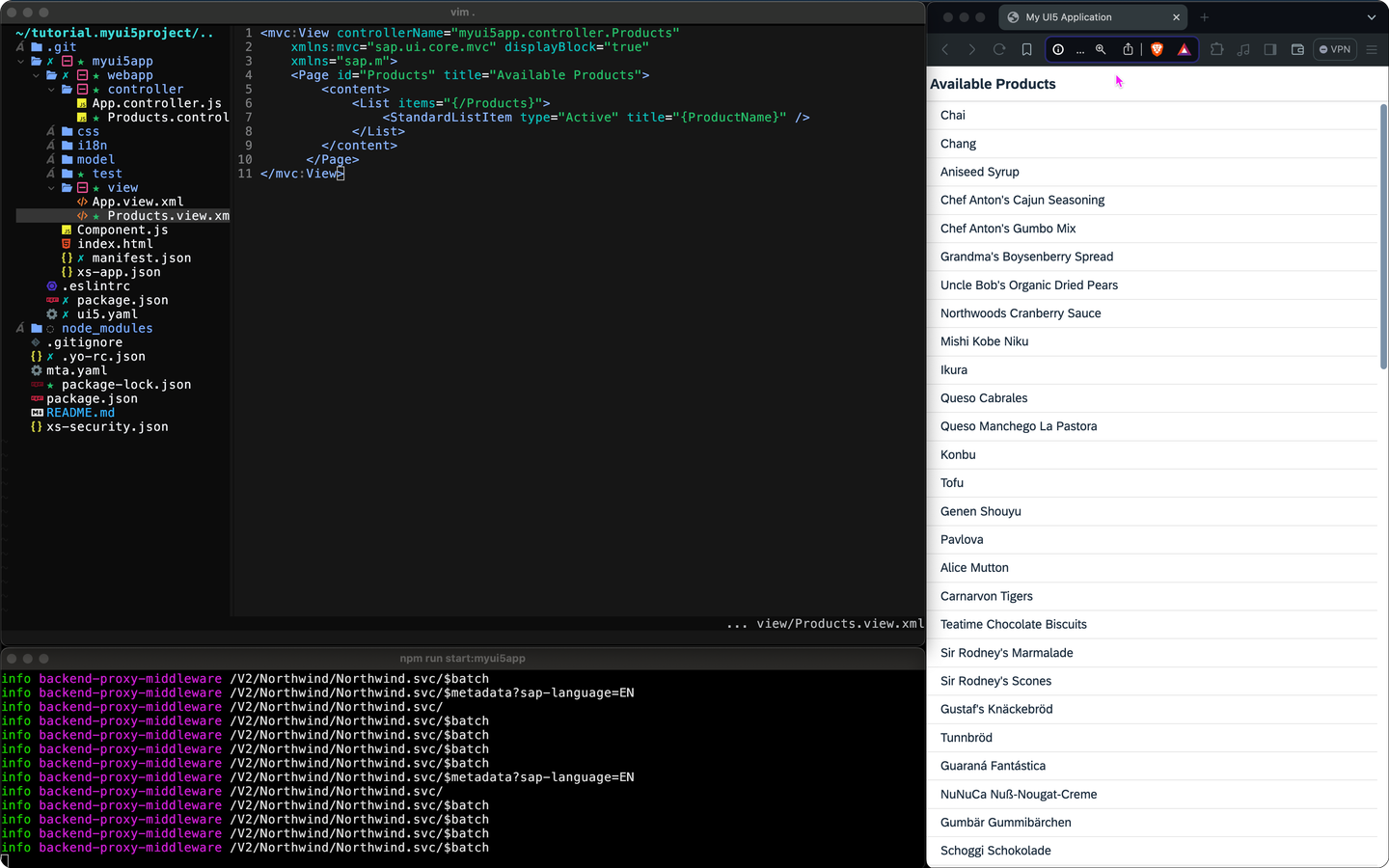
The subgenerator already added a proxy (to redirect traffic to the data source) to the ui5.yaml of the application. This proxy however only works during development. Once the application runs productively, the xs-app.json configuration file (as part of the SAP Application Router) takes effect.
Replace the content of the myui5app/webapp/xs-app.json file with the following code:
{
	"welcomeFile": "/index.html",
	"authenticationMethod": "route",
	"routes": [
		{
			"source": "/user-api/currentUser$",
			"target": "/currentUser",
			"service": "sap-approuter-userapi"
		},
		{
			"source": "^/V2/(.*)$",
			"authenticationType": "none",
			"destination": "Northwind",
			"csrfProtection": false
		},
		{
			"source": "^(.*)$",
			"target": "$1",
			"service": "html5-apps-repo-rt",
			"authenticationType": "xsuaa"
		}
	]
}
Caution: The order of routes in the
xs-app.jsonfile does matter, as they will be checked for from top to bottom, so make sure you keep the same order as in the code above.
With this code you added a new route to the SAP Application Router, which redirects traffic to the Northwind destination, which was configured in a previous tutorial.
In this step, you will add a detail page that shows some additional information. You will use another easy-ui5 subgenerator to create a new view.
- Run another subgenerator using the following command:
yo easy-ui5 project view| Parameter | Value |
|---|---|
| How do you want to name your new view? | ProductDetail |
| Do you want to set up a JavaScript controller for your new view? | Yes |
| Do you want to set up a route and target for your new view? | Yes |
Again, accept that the generator can overwrite existing files.
- Open the
myui5app/webapp/manifest.jsonfile and add theproductIDto the pattern of the newly created routeRouteProductDetail:
{
  "name": "RouteProductDetail",
  "pattern": "productdetail/{productId}",
  "target": [
    "TargetProductDetail"
  ]
}- Change the type of the list items and add an event listener in the
myui5app/webapp/view/Products.view.xmlfile:
<StandardListItem type="Navigation" press=".handleListItemPress" title="{ProductName}" />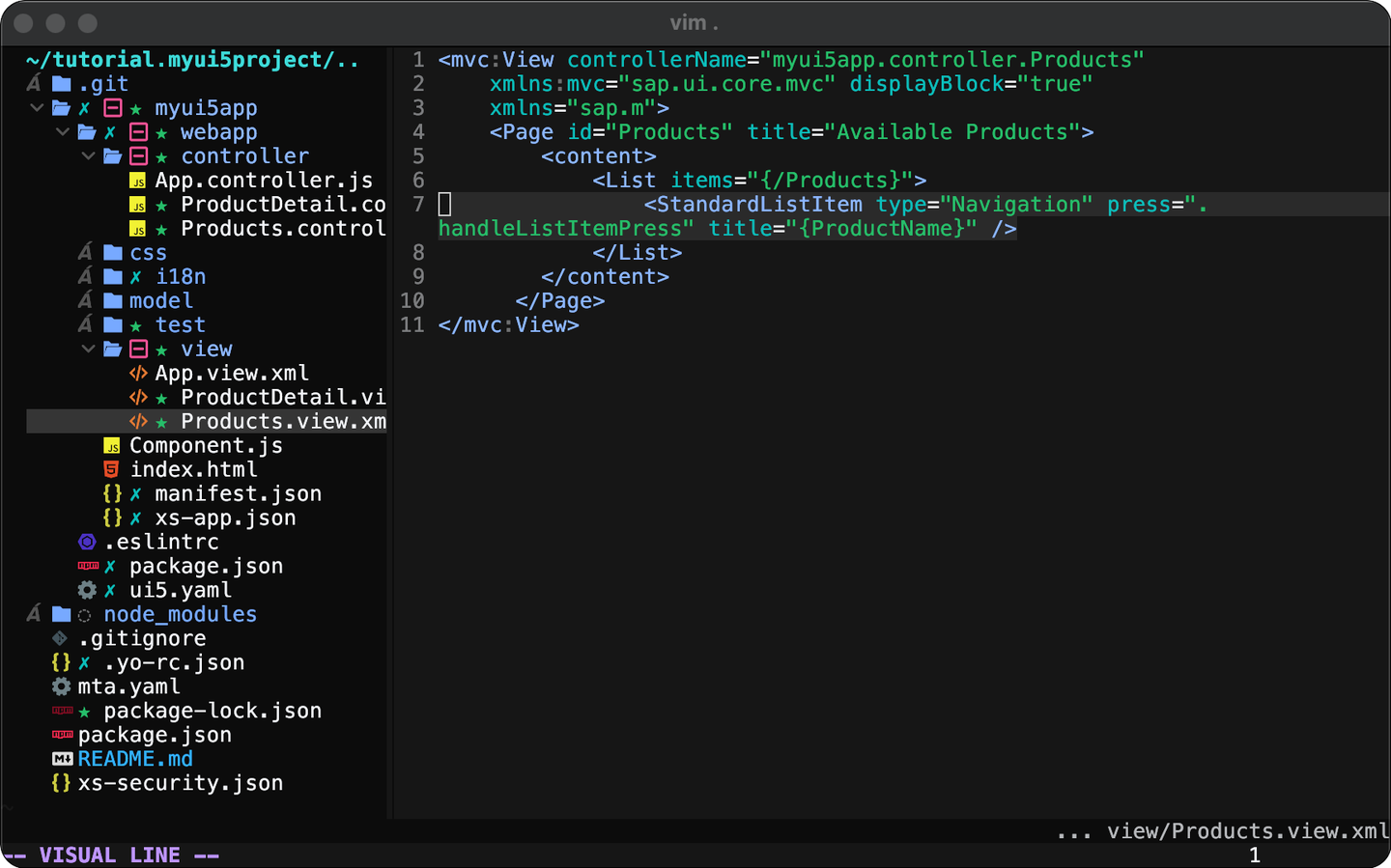
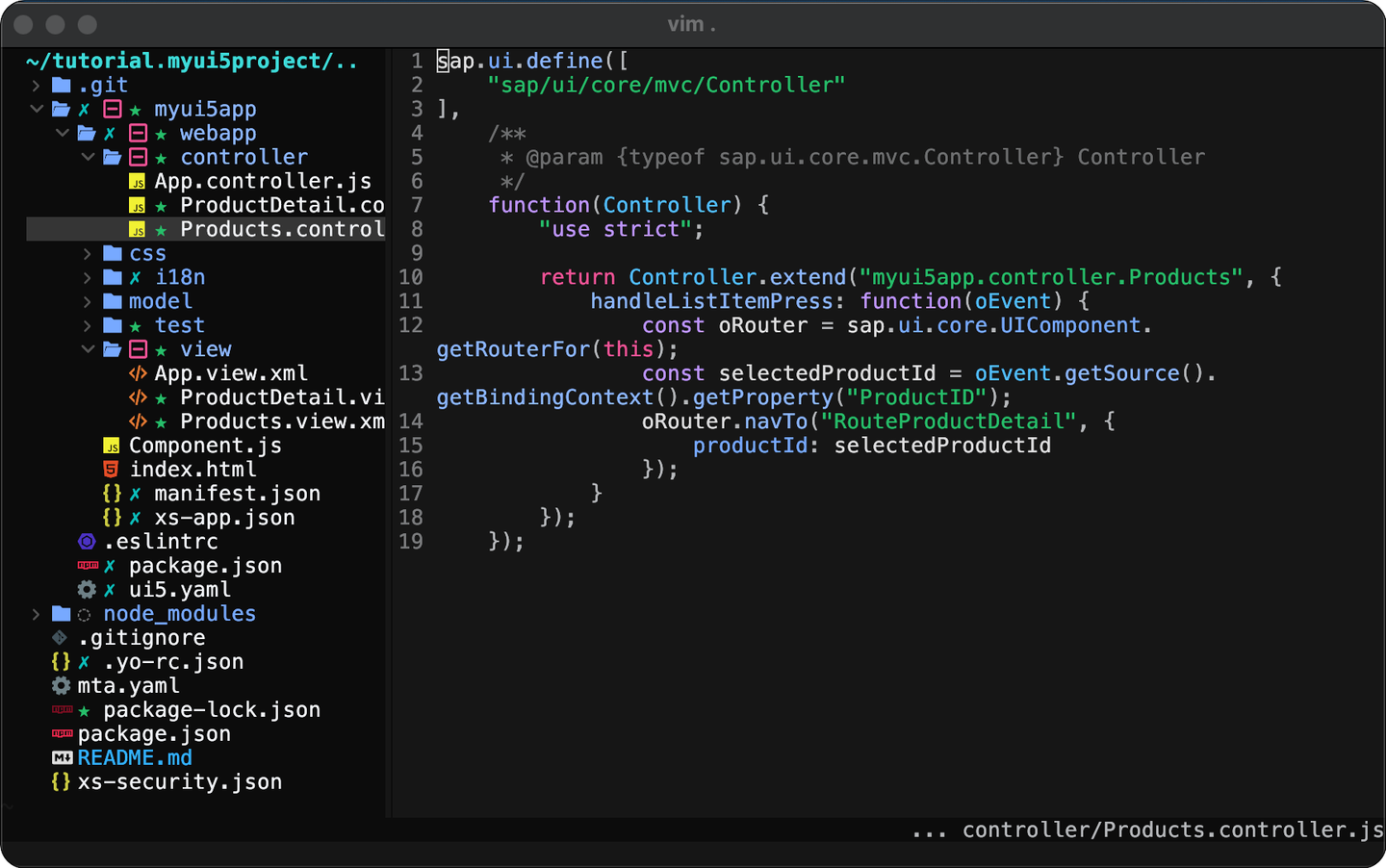
- Add navigation logic to the
myui5app/webapp/controller/Products.controller.jsto handle the press event. This press event gets the UI5 router, gets the selectedProductID, and then passes this id to the navigation method of the router (documentation):
sap.ui.define([
	"sap/ui/core/mvc/Controller"
],
	/**
	 * @param {typeof sap.ui.core.mvc.Controller} Controller
	 */
	function(Controller) {
		"use strict";

		return Controller.extend("myui5app.controller.Products", {
			handleListItemPress: function(oEvent) {
				const oRouter = sap.ui.core.UIComponent.getRouterFor(this);
				const selectedProductId = oEvent.getSource().getBindingContext().getProperty("ProductID");
				oRouter.navTo("RouteProductDetail", {
					productId: selectedProductId
				});
			}
		});
	});
- Back in the app in the browser, click on any list item. This should trigger the navigation to the new page.
- Add controller logic to
myui5app/webapp/controller/ProductDetail.controller.jsto parse the selected product from the routing arguments and to bind the product to the view (documentation).
sap.ui.define([
    "sap/ui/core/mvc/Controller"
],
    /**
     * @param {typeof sap.ui.core.mvc.Controller} Controller
     */
    function(Controller) {
        "use strict";

        return Controller.extend("myui5app.controller.ProductDetail", {

            onInit: function() {
                const oRouter = sap.ui.core.UIComponent.getRouterFor(this);
                oRouter.getRoute("RouteProductDetail").attachMatched(this._onRouteMatched, this);
            },

            _onRouteMatched: function(oEvent) {
                const iProductId = oEvent.getParameter("arguments").productId;
                const oView = this.getView();
                oView.bindElement({
                    path: "/Products(" + iProductId + ")",
                    events: {
                        dataRequested: function() {
                            oView.setBusy(true);
                        },
                        dataReceived: function() {
                            oView.setBusy(false);
                        }
                    }
                });
            },
        });
});- Add the required declarations to the
myui5app/webapp/view/ProductDetail.view.xmlview to to consume the newly bound model and display some properties.
<mvc:View
    controllerName="myui5app.controller.ProductDetail"
    xmlns:mvc="sap.ui.core.mvc"
    xmlns="sap.m"
    displayBlock="true">
	<Page id="ProductDetail" title="Detail Page">
		<VBox>
			<Text text="{ProductName}"/>
			<Text text="{UnitPrice}"/>
			<Text text="{QuantityPerUnit}"/>
			<Text text="{UnitsInStock}"/>
		</VBox>
	</Page>
</mvc:View>- Once you save the view, the web app should update automatically and display a view similar to this one. We will enrich this UI with more controls in the next tutorial.

Resources
Discussion
Share feedback on this tutorial or join the conversation in SAP Community.