
Overview


Prerequisites
Steps
In order to deploy applications to SAP Business Technology Platform Cloud Foundry, you need to create a free trial account.
You can create your account by following this tutorial.
After creating your account and activating it via email, you can log in to your personal Cloud Cockpit. For your first visit, it should look like this:

After selecting your region, your account will be automatically set up for development with Cloud Foundry.
Clicking on “Enter Your Trial Account” will lead you to your account overview:

Now that your account is activated and configured, you will need the Cloud Foundry command line interface (CF CLI) to deploy and manage your Cloud Foundry applications.
To install the CLI, you can grab the latest release on the official release page.
In order to deploy applications on SAP Cloud Foundry you need to provide the CF CLI with an API endpoint. The API endpoint depends on the region you chose for your account:
- for EU:
https://api.cf.eu10.hana.ondemand.com - for US EAST:
https://api.cf.us10-001.hana.ondemand.com - for US CENTRAL:
https://api.cf.us20.hana.ondemand.com
Now enter the following commands (in this case for the US region):
cf api https://api.cf.us10-001.hana.ondemand.com
cf login
The CLI will ask you for your mail and your password. After entering these, you should be successfully logged in.
Note: The CF CLI stores the information locally in a ~/.cf/config.json file. Further authentication relies on a JWT that expires after some time, so you don’t have to login every time you want to push your app to the cloud.
To generate your first project from the Maven archetype, run the following command:
mvn archetype:generate "-DarchetypeGroupId=com.sap.cloud.sdk.archetypes" "-DarchetypeArtifactId=spring-boot3" "-DarchetypeVersion=RELEASE"mvn archetype:generate -DarchetypeGroupId=com.sap.cloud.sdk.archetypes -DarchetypeArtifactId=spring-boot3 -DarchetypeVersion=RELEASEDuring the generation process, Maven will require additional parameters to form your project:
artifactId- An identifier for your application (e.g.firstapp)groupId- An identifier representing your group, company or organization (e.g.com.sap.cloud.sdk.tutorial)version- The version of your application (e.g.1.0-SNAPSHOT)package- The name of the top-level package your source code will reside in (typically equal to yourgroupId, e.g.com.sap.cloud.sdk.tutorial). Please pay attention to package and directory names in any upcoming source code when using a different package name than suggested here.
After providing these values, Maven will generate your project from the archetype.

Note: Here you have created an application which is based on Spring Boot.
Now you can open your favorite IDE and import the project as Maven Project. After importing the project into your IDE, the project structure should look like this:
firstapp
│   .gitignore
│   manifest.yml
│   pom.xml
└───application [firstapp-application]
The first thing you will notice is the sub-directory application [firstapp-application]. This project will contain the source code of your application, as well as the tests and the configuration. The separation between the parent directory and the sub-directory allows you to add further modules as a multi-module project while defining shared dependencies centrally in the parent pom.xml.
Additionally, manifest.yml is the deployment descriptor for Cloud Foundry. This file will be covered in more detail later in this tutorial.
Multiple modules project
The advantage of operating a multiple modules project for your application becomes apparent as soon as the software complexity rises. Then it gets convenient to dedicate code distribution and responsibility to developers for either application or test environment. In terms of reliability and continuance, you will see that front-end testing and test automation are as important as classic back-end testing of your project. These fields of expertise require different programming paradigms, as well as different kinds of development life cycles. To ensure the overall software stability and reliability, a multiple modules setup is the best practice solution. To get you started, lets take a look into the conventional application project, as well as the classic unit tests. Then the integration tests follow, used for code tests with external servers and resources.
application contains the source code, unit tests, and configuration of your actual web application.
application [firstapp-application]
│   pom.xml
│
└───src
    ├───main
    │   ├───java
    │   │   └───com.sap.cloud.sdk.tutorial
    │   │       │   Application.java
    │   │       │   AsynchronousConfiguration.java
    │   │       │   SecurityConfiguration.java
    │   │       │
    │   │       ├───controllers
    │   │       │       HelloWorldController.java
    │   │       │
    │   │       └───models
    │   │               HelloWorldResponse.java
    │   │
    │   └───resources
    │       │   application.yml
    │       │   logback-spring.xml
    │       │
    │       └───static
    │               index.html
    │
    └───test
        └───java
        │   └───com.sap.cloud.sdk.tutorial
        │           UnitTest.java
        │           HelloWorldControllerTest.java
        └───resources
expected.json pom.xml- This is your project management file for Maven where you can maintain other open source dependencies or use plugins that simplify your build environment.src/main/java- Here goes your production code, nothing else. As you can see, there’s already theHelloWorldController, which will be look at in more detail soon.src/main/resources- Anything that you require in your production code but is not compilable code goes here (typically things like API definition files forOData,OpenAPIorLogback).src/test/java- Contains the tests for your application. The purpose of classes in here is to test and validate the data flow and computational operations of your application project.src/test/resources- Here are all the resources needed for the tests to run or validate.
Unit tests and integration tests
This separation of test modules makes it possible to just run unit tests and integrations test without deploying, as well as deploying the application without running time consuming tests. Unit tests can either be kept publicly inside the application module application/src/test, or in a separate unit-tests module that is not part of the archetype. For that topic you can also refer to the articles and educational videos by Martin Fowler. His post about Unit Tests is a good starting point.
During development it becomes important to test the code newly implemented to external services, i.e. logic running in a distributed environment. This is where the integration tests are an important tool to ensure correctness and stability over the whole internal and external deployment.
Now that you understand the structure of the project, let’s take a closer look at the HelloWorldController.
@RestController
@RequestMapping( "/hello" )
public class HelloWorldController
{
    private static final Logger logger = LoggerFactory.getLogger(HelloWorldController.class);

    @RequestMapping( method = RequestMethod.GET )
    public ResponseEntity<HelloWorldResponse> getHello( @RequestParam( name = "name", defaultValue = "world" ) final String name )
    {
        logger.info("I am running!");
        return ResponseEntity.ok(new HelloWorldResponse(name));
    }
}
The HelloWorldController is a web endpoint that customers can visit. It is mapped to the /hello route using @RequestMapping("/hello"). By using @RequestMapping(method=RequestMethod.GET), you define what happens when a client performs an HTTP GET request on the /hello route. In this case the endpoint simply writes a response containing {"hello":"world"}
In order to deploy the application, you first need to assemble your project into a deployable artifact – a jar file. Open your command line and change into the firstapp directory, the root directory of your project and run the following command:
cd /path/to/firstapp
mvn clean package
This tells Maven to remove any files from previous assemblies (clean) and to assemble your project (package). The project is set up so that Maven automatically runs your unit and integration tests for you. After running the command, there should be a directory target inside of the application directory, containing a file called firstapp-application.jar. This is the file that you will deploy to Cloud Foundry (or locally).
Deploy to Cloud Foundry
Now the previously mentioned manifest.yml comes into play – it’s the deployment descriptor used by Cloud Foundry.
---
applications:

- name: firstapp
  memory: 1500M
  timeout: 300
  random-route: true
  path: application/target/firstapp-application.jar
  buildpacks:
    - sap_java_buildpack
  env:
    TARGET_RUNTIME: main
    SPRING_PROFILES_ACTIVE: 'cloud'
    JBP_CONFIG_SAPJVM_MEMORY_SIZES: 'metaspace:128m..'
    JBP_CONFIG_COMPONENTS: 'jres: [''com.sap.xs.java.buildpack.jre.SAPMachineJRE'']'
    JBP_CONFIG_SAP_MACHINE_JRE: '{ use_offline_repository: false, version: 17.+ }'
The manifest contains a list of applications that will be deployed to Cloud Foundry. In this example, there is only one application, firstapp, with the following parameters:
name- This is the identifier of your application within your organization and your space inSAP Business Technology Platform Cloud Foundry.memory- The amount of memory allocated for your application.random-route- Determines the URLs of your application after deploying it, where it will be publicly reachable. Thus it needs to be unique across yourCloud Foundryregion. For now, you can let the SAP BTP generate a random route for your application by leaving this option unchanged.path- The relative path to the artifact to be deployed.buildpack- Abuildpackis whatCloud Foundryuses to build and deploy your application. Since this is a Java application,sap_java_buildpackis used.env- Here you can provide additional application specific environment variables. By default, for example, your application is configured to use Java 17 as its target runtime.
Now you can deploy the application by entering the following command:
cf pushcf push is the command used to deploy applications. The -f flag provides the CLI with the deployment descriptor.
Hint: If you omit the -f flag, the CLI will check whether there is a file named manifest.yml in the current directory. If so, it will use this file as deployment descriptor. Else, it will fail.
After the deployment is finished, the output should look like this:
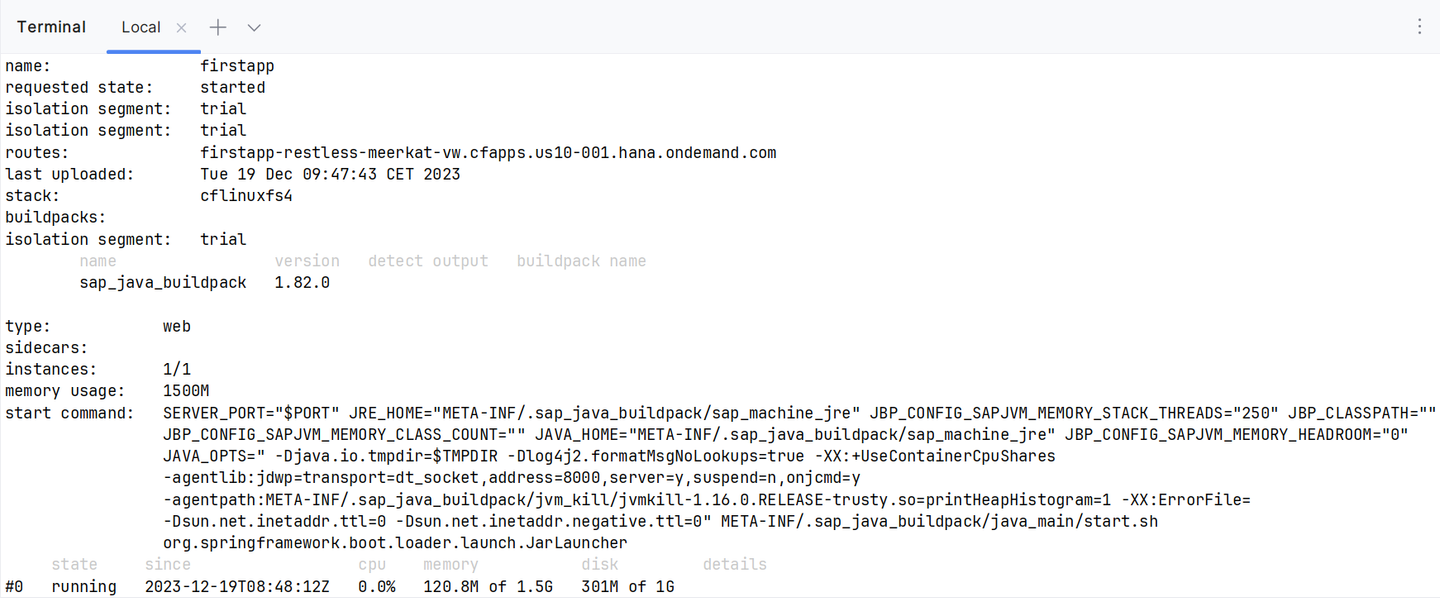
Now you can visit the application under its corresponding URL. Take the value from the CLI’s urls: ... and append the hello path:

{“hello”:“world”}
That’s it.
Run the Application on a Local Server
Generated projects can also be run locally out-of-the-box. To do so, first assemble the project using the mvn clean package command (see above).
Then, run the following commands to start the local server:
cd application/
mvn spring-boot:run -D"spring-boot.run.profiles"=local
Visit http://localhost:8080/hello on your local machine to view the response of your application. You can stop the server by pressing Ctrl + C.
Now you have a strong basis for developing your own cloud application for SAP Business Technology Platform Cloud Foundry using the SAP Cloud SDK. In the following tutorials you will learn about more advanced uses of the SAP Cloud SDK.
Resources
Discussion
Share feedback on this tutorial or join the conversation in SAP Community.