
Overview
You will learn
- How to access your SAP Screen Personas flavor on a mobile device


Prerequisites
Steps
Intro
The focus of this tutorial is on testing your adaptive flavor(s) on a mobile device. The screenshots used will feature a mobile phone, but the same process applies to a tablet.
On the desktop version of the training system, navigate to transaction IW51 and open the flavor manager. Click on your flavor tile, select Direct Access Link and then click Generate QR Code.
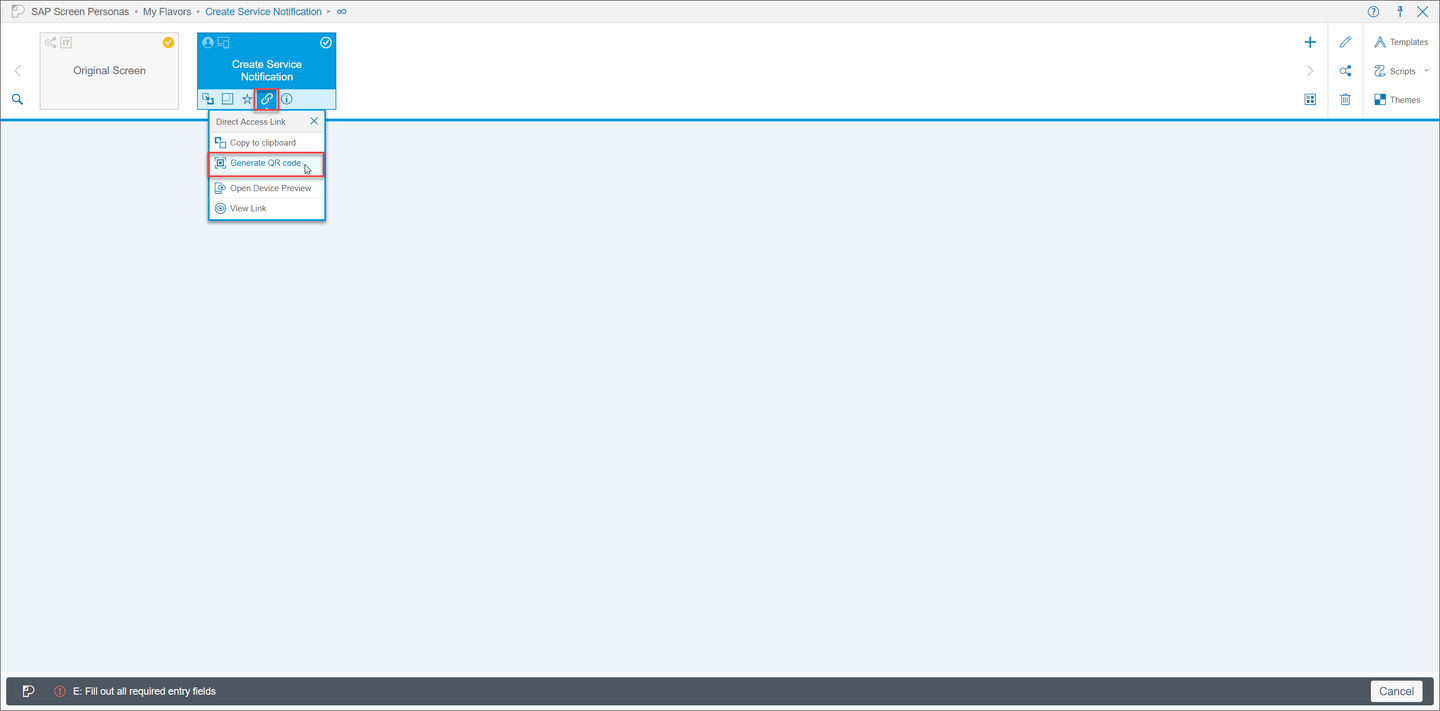
This will open a QR code that you can scan with your mobile device.

Next, scan the QR code with your device and launch the resulting URL. You will be presented with the login screen for the training system.

Enter your credentials and tap Log On to begin testing your flavor.

The adaptive flavor for your device will then open. Click Create Notification to navigate to the main screen of your flavor.
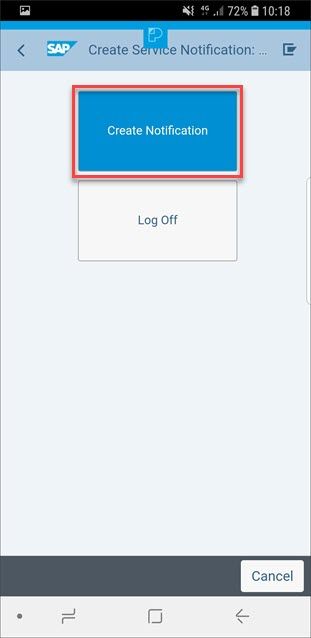
You should then seen the simplified screen for your mobile device. If you have built different flavors to account for device orientation, you can test them by rotating your device. The flavor will automatically switch to account for the different screen size.
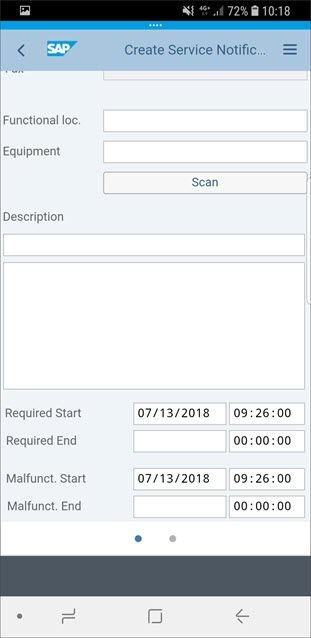
If desired, you can also test the barcode scanner within you flavor. You will need to generate a QR code that represents a valid equipment number in your system. If you are using the training system provided by the SAP Screen Personas team, you can use the following 210100019, 210100024, or 210100013.
You can use https://www.the-qrcode-generator.com to generate a QR code. Select Free Text and enter your equipment number.
Tap Scan Equipment on your flavor and then scan your QR code.

Your Functional Location and Equipment fields should then automatically be filled in.

Congratulations, you have a built a working mobile flavor with SAP Screen Personas!
Resources
Discussion
Share feedback on this tutorial or join the conversation in SAP Community.