
Set Up SAP Omnichannel Promotion Pricing
Learn how to set up a fully-functional trial for SAP Omnichannel Promotion Pricing and how to create roles for your users.
Overview
You will learn
- How to subscribe to SAP Omnichannel Promotion Pricing trial on SAP BTP
- How to set up roles and authorizations
- How to create service instances and service keys In this tutorial, you will learn how to set up SAP Omnichannel Promotion Pricing including its services. With SAP Omnichannel Promotion Pricing, you can calculate effective sales prices in your sales channel applications by applying promotional rules. You drive a seamless buying experience because you provide the same calculation based on the same promotion and price data across all sales channels.


Prerequisites
Prerequisites
- You have registered for a trial account on SAP BTP in the Singapore - Azure region.
- You should be familiar with the SAP BTP trial landscape and terminology (see Take a Tour of SAP BTP Trial).
- You have a subaccount in the Cloud Foundry environment, with Microsoft Azure as provider and the Singapore region (AP21).
Steps
In the SAP BTP trial, enter your trial account. You trial account must be in the Singapore - Azure region.
Navigate to your subaccount. It is usually named
trial.
If you plan to use the trial subaccount that was initially created when setting up your SAP BTP trial account, please proceed with the following steps:
In the navigation pane, open Services > Service Marketplace.
Search for SAP Omnichannel Promotion Pricing (Trial) and click on the tile.
Choose Create.
In the popup, the service and plan are preselected for you. Choose Create to subscribe to the application.
In order to use the apps provided with SAP Omnichannel Promotion Pricing, you must create a role collection and assign users to it. With the Configure Omnichannel Promotion Pricing app, you can maintain various parameters to influence the behavior of the Calculation service. With the Maintain Promotions app, you can create promotional rules and define, for example, eligibilities and rewards. Using the apps is optional and currently not described in the tutorials for the SAP Omnichannel Promotion Pricing trial.
Navigate back to your subaccount.
In the navigation pane, choose Security > Role Collections.
Choose Create to create a new role collection.
Enter a name and description and choose Create.
Select the role collection you’ve just created from the list and choose Edit.
Under Role Name, select
Configure_OPPSandMaintain_OPPS_Promotionsfrom the dropdown list.Assign yourself as a User or assign a User Groups to your role collection and choose Save.
Optional: Once you have set up the roles and authorizations, you can check out our apps as follows:
Navigate back to your subaccount.
Choose Services > Instances and Subscriptions.
In Application, next to SAP Omnichannel Promotion Pricing, choose the three dot symbol °°° and Go to Application.
In the Application Plans section you can make configuration settings in the Configure Omnichannel Promotion Pricing app and you can maintain promotions in the Maintain Promotions app.
- Navigate to your subaccount and the space in which you want to create the service instances.
To save you some clicks, do the following steps in your space. You can also do this in your subaccount but then you have to provide further information.
In the navigation pane, choose Services > Service Marketplace.
Search for
promotion. This will display all Promotion Pricing services. The following services are offered with SAP Omnichannel Promotion Pricing:
Promotion Pricing Services Choose the tile of the Promotion Pricing, Calculation service.
Choose Create.
In the popup, most options are already preselected for you. Just enter a name for your instance and choose Create.
Repeat substeps 3 - 6 with the Promotion Pricing, Data Access, Promotion Pricing, Data Upload and Promotion Pricing, Coupon Management services.
You can skip the Promotion Pricing, Administration service. It is not needed in a trial scenario.
Navigate to the space in which you have created your service instances.
In the navigation pane, choose Services > Instances.
Select the instance you have just created.
Choose the three dot symbol °°° and Create Service Key.

Create service key In the popup, enter a name for the service key.
Choose Create.
Repeat the above substeps for the remaining Promotion Pricing services.
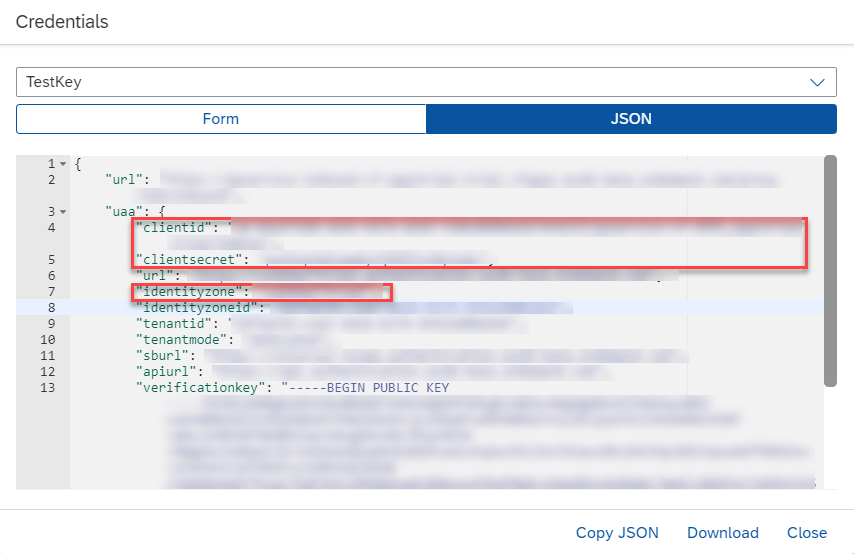
After you have created the service key, click the three dot symbol °°° next to the name of your service key and choose View. This displays the parameters of the service key, which you need to configure the SAP Business Accelerator Hub to fill the solution with your data (see highlighted areas in the screenshot). This step is part of the basic tutorial.
Service keys contain authentication- and authorization-related content and have to be handled securely.
Your service key will look something like this:
You have now successfully set up your SAP Omnichannel Promotion Pricing trial on SAP BTP. You can proceed with the basic tutorial to apply a simple promotion with SAP Omnichannel Promotion Pricing to calculate the effective sales price.
Resources
Discussion
Share feedback on this tutorial or join the conversation in SAP Community.