
Overview


Prerequisites
Prerequisites
Steps
Next Steps
Intro
The full source for custom_c_adapter.cpp is available in the Appendix section of this tutorial.
Remember how we created a Makefile in the root directory (/home/pi) in the previous tutorial Introduction to Custom C/C++ Adapters for Freezer Monitoring Lite. Now inside of the same folder, create another new blank file called "custom_c_adapter.cpp".
Save the file, and close the window. (You may need to type something and then delete it in order to save the blank file).
Reopen it using a C/C++ editor from your own computer. To do this, right click the file, go to Edit With > Edit With..., and point to the location of the editor executable on your local machine. We will be using Notepad++.

Your blank "custom_c_adapter.cpp" file should now be open in Notepad++. The first thing to do is add all the include statements needed for our program.
Paste the following:
#include <string>
#include <iostream>
#include <stdlib.h>
#include <time.h>
#include <stdio.h>

#include "sdk/esp_sdk.h"
#include "sdk/esp_error.h"
#include "sdk/esp_credentials.h"
#include "sdk/esp_project.h"
#include "sdk/esp_publisher.h"

using namespace std;
The first block of include statements are standard C and C++ libraries. The second block of include statements are Streaming Analytics specific SDK header files, located in the directory $STREAMING_HOME/lib/sdk. The SDK’s shared object libraries are located in $STREAMING_HOME/lib, and will be linked at build-time. These paths are defined in our Makefile.
We will be using two global variables, which can be used by any function in our .cpp file. We will declare a "g_error" of type EspError, and a "g_creds" of type EspCredentials. This declaration must be made ahead of all function declarations.
Add the following:
EspError *g_error = NULL;
EspCredentials *g_creds = NULL;
g_error will be used to hold any error data in case one of the SDK calls fail. g_creds will contain the user credentials needed to connect to the streaming project.
Our Custom C/C++ Adapter will contain three functions. Parameters omitted, they are print_error_and_exit(), exec(), and main().
The print_error_and_exit() function is called whenever a SDK call does not return 0, which indicates failure. It prints the error description along with what line it was called on, releases our global instances, and exits the program. The function itself takes two parameters: EspError *streamingError, and int line. It returns nothing. This function is optional to the functionality of our adapter, but will make debugging the program a lot easier.
Add the following after declaring global variables:
void print_error_and_exit(EspError * streamingError, int line) {
 printf("An error was encountered on line %d\n", line);
 printf("%s", esp_error_get_message(streamingError));
 printf("\nExiting\n");

 //EspCredentials freed
 if (g_creds) esp_credentials_free(g_creds, g_error);
 //stop SDK call
 esp_sdk_stop(g_error);
 //EspError freed
 if (g_error) esp_error_free(g_error);
 exit(1);
}
You are required to call esp_sdk_stop() in order to cleanly shut down the adapter. This is an SDK call.
This function takes one parameter, char const *cmd, and returns a string. It is used to output the value printed by whatever command is given in input. This function is useful because various scripts can be executed to poll external hardware sensors on our Raspberry Pi (or other remote device).
Add the following after the print_error_and_exit() function:
string exec(char const* cmd)
{
 FILE* pipe = popen(cmd, "r");
 if (!pipe) return "ERROR";
 char buffer[128];
 string result = "";
 while(!feof(pipe)) {
 if(fgets(buffer, 128, pipe) != NULL)
 result += buffer;
 }
 pclose(pipe);
 return result;
}
For example, if cmd = "echo 90" is passed in, the function will return "90". Additionally, if we had a python script called SensorPoll.py, we can pass in cmd = "sudo python SensorPoll.py". This will return the output of the sensor being polled.
The main() function is where a connection will be established between our code and the streaming lite project, and where the values are sent to the stream.
In pseudo code, it has the following functionality:
- Declare variables containing necessary values including
hostname,stream,rowvalues to be sent - Calls to start the
SDK - Sets up previously instanced error object and credentials object
- Creates
project,stream,publisher,message writer, andrelative row writerobjects - Connects to project and publisher
- Releases credentials object
- Starts a
do/whileloop
- Creates new row definition with the relative row writer
- Define row operation as insert
- Inserts row fields one by one
- Ends row definition
- Publishes and commits row
- Calls to stop
SDK - Releases error object
This document will explain step -by-step which SDK calls to use for each function, and how to construct a row for any schema. Further details will be provided in chart form for calls with less straight-forward parameters.
Start by setting up the main() function:
int main(){
  //Code will go here
}- Declare Adapter variables
We are now coding the main() function, and the first thing to do is declare adapter variables. The adapter variables can be split into two groups. The first group is used to connect to our Streaming Lite project, and control the quantity and rate of rows sent. The second group is a direct reflection of the stream we are writing to, with one variable for each column.
- Declare and Define Variables in the First Group
First group of variables are hostname, port, stream, username, password, repeat, and interval. These variables can be named whatever you wish; they are either passed into the various SDK calls, or used for loop logic.
| Variable | Explanation |
|---|---|
| hostname | String value containing the FQDN of your remote device |
| port | Integer value of the port your Streaming Lite project is running on |
| stream | String value of the stream name you wish to write to |
| username | String value of username you started Streaming Lite with. If you didn’t start Streaming Lite with credentials, leave blank |
| password | String value of password you started Streaming Lite with. If you didn’t start Streaming Lite with credentials, leave blank |
| repeat | Integer value of many times you want to send a row of data into Streaming Lite. A value of -1 will cause the program to repeat infinitely |
| interval | Integer value of the number of seconds in-between sending rows |
The implementation is shown here:
string val_host = "SAPraspberrypi2-B3";
int val_port = 9230;
string val_stream = "isFreezerTemperatureReading";
string val_username ="";
string val_password ="";
int val_repeat = -1;
int val_interval = 1;
When this C/C++ Adapter executes, it will connect with the project running on port 9230, and write to the stream "isFreezerTemperatureReading". There are no credentials, and the program will continuously send one row every second.
- Declare and Define Column Variables in the Second Group
Recall that the schema of the stream we are writing to is:
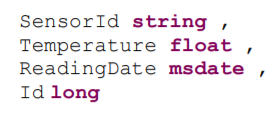
This means we will be using four variables. Once again, naming does not matter. In this document they will be:
string val_sensorId = "RaspberryPi";
string val_Temperature_Command = "echo 90";
int64_t val_readingDate; //generated right before column is set
int64_4 val_id = 0; //generated in streaming lite
string val_sensorIdis the name of our sensorstring val_temperatureholds the command to run in order to obtain the value for our Temperature columnint64_t val_readingDateis a timestamp, and is only initialized here. A value will be assigned to it later in the code, directly before it is usedint64_t val_idis our primary key, but will be auto-generated inside the streaming project. Although we still declare it, the value ofval_idis arbitrary and will be overwritten once inside the streaming project. The reason we need it in our CustomC/C++Adapter is because the entire row must be constructed before it is sent into Streaming Lite.Set Up a Flag
The majority of SDK calls will return 0 upon successful completion. We will also set up a flag variable to detect any failures.
int errorflag = 0;- Create the Error Object
This error object is passed into almost every subsequent SDK call as an argument. It works hand in hand with our flag variable: If we check that errorflag != 0 (meaning the SDK call has failed), our error object will contain the relevant error information.
We have previously declared a global variable called g_error. Now we must instantiate the object. This is done using:
g_error = esp_error_create();We will need to remember to free the g_error object before the program exits.
- Starting the
SDK
We must now start the SDK. This is done by calling esp_sdk_start(). We will need to remember to send a stop call to the SDK before the program exits.
Additionally, we will pass the return value into errorflag, and check if it was successful. If it fails, g_error and __LINE__ are passed into print_error_and_exit() to output a description of the error. __LINE__ is a predefined macro that defines the current line number.
You will see this error-detection structure throughout our Custom C/C++ Adapter code:
errorflag = esp_sdk_start(g_error);
if (errorflag != 0) print_error_and_exit(g_error, __LINE__);- Create the Credentials object
We have previously declared a global variable called g_creds. Now we must instantiate the object using esp_credentials_create(). It returns NULL if unsuccessful, which we must check for.
g_creds = esp_credentials_create(ESP_CREDENTIALS_USER_PASSWORD, g_error);
if (NULL == g_creds) print_error_and_exit(g_error, __LINE__);
ESP_CREDENTIALS_USER_PASSWORD is an enum of type ESP_CREDENTIALS_T. Other values can be found in the header file esp_credentials.h. The credentials object will need to be freed after we are done with it.

We will now set the user and password for our credentials object as well, even though both values are blank. Make sure to convert our val_username and val_password variables into cstrings using c_str():
esp_credentials_set_user(g_creds, val_username.c_str(), g_error);
esp_credentials_set_password(g_creds, val_password.c_str(), g_error);

- Create and Connect to Project Object
Create the project object. Since Streaming Lite only runs one project at a time, we will use esp_project_get_standalone(). Its parameters include our host and port name, our credentials object, the error object, and an EspProjectOptions type. Set the EspProjectOptions parameter as NULL for default values.
EspProject * project = esp_project_get_standalone(val_host.c_str(), val_port, g_creds, NULL, g_error);
if (NULL == project) print_error_and_exit(g_error, __LINE__);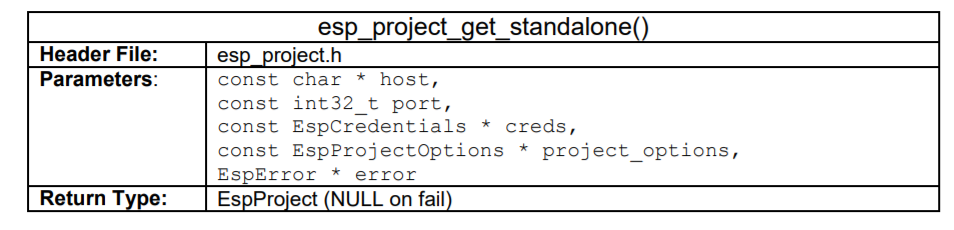
Connect to the project by passing our project object into esp_project_connect(). Check for failure.
errorflag = esp_project_connect(project, g_error);
if (errorflag != 0) print_error_and_exit(g_error, __LINE__);- Free Credentials Object
After the project object has been created, we are done with the credentials object. Free it using esp_credentials_free(). Check for failure.
errorflag = esp_credentials_free(g_creds, g_error);
if (errorflag != 0) print_error_and_exit(g_error, __LINE__);
g_creds = NULL;- Retrieve the Stream Object
After we have connected to the project object, we can now retrieve the project stream we want to write to. This is done by passing our project object, and stream name into esp_project_get_stream(). Make sure to convert val_stream into a c-string using c_str().
const EspStream * stream = esp_project_get_stream(project,
val_stream.c_str(), g_error);
if (NULL == stream) print_error_and_exit(g_error, __LINE__);
- Create and Connect to the Publisher Object
We now create the publisher object using esp_project_create_publisher(). Its lifetime is managed by the SDK, and does not require to be freed. We pass in our project object, the error object, and an EspPublisherOptions type. Set the EspPublisherOptions parameter as NULL for default values.
EspPublisher * publisher = esp_project_create_publisher(project, NULL, g_error);
if (NULL == publisher) print_error_and_exit(g_error, __LINE__);
Connect to the publisher you just created, by passing the publisher object into esp_publisher_connect():
errorflag = esp_publisher_connect(publisher, g_error);
if (errorflag != 0) print_error_and_exit(g_error, __LINE__);- Retrieve the Message Writer Object
The message writer object builds a single row to be sent into the specific project and stream it was created for.
We now retrieve the EspMessageWriter object, using our publisher and stream objects. This is achieved by calling esp_publisher_get_writer():
EspMessageWriter * message = esp_publisher_get_writer(publisher, stream, g_error);
if (NULL == message) print_error_and_exit(g_error, __LINE__);- Retrieve the Relative Row Writer Object
The relative row writer formats a row of data for the stream the EspMessageWriter writes to.
Retrieve the relative row writer by passing our message writer object into esp_message_writer_get_relative_rowwriter():
EspRelativeRowWriter * row = esp_message_writer_get_relative_rowwriter(message, g_error);
if (NULL == row) print_error_and_exit(g_error, __LINE__);
Loop After setting up all required objects, we will now be able to construct and send our row. This will be done inside a loop, governed by our
val_repeatandval_intervalvariables. This loop runs insidemain()and is what controls the quantity and frequency of data the CustomC/C++Adapter sends.Set Up the Loop
Since our loop has to run at least once, we will use a
do/whileloop. Copy this into yourmain():C++do { if ( val_repeat != -1) val_repeat --; //***more code here*** if ((val_repeat == -1 || val_repeat > 0) && val_interval > 0) sleep( val_interval); } } while ((val_repeat == -1 || val_repeat > 0) && val_interval > 0);There are two
ifstatements inside the loop. The firstifstatement checks for our infinity condition. If the value ofval_repeatis-1, no decrement occurs and the loop runs forever.The second
ifstatement pauses execution using thesleep()function for aval_intervalnumber of seconds. This controls the frequency of loop execution.The code to construct and send a row will be written in between these two
ifstatements.Starting a New Row Definition and Setting the Operation
We will now start a new row definition by passing our
EspRelativeRowWriterobject intoesp_relative_rowwriter_start_row(). This is the first call to do when starting a row. Insert this after the firstifstatement.C++errorflag = esp_relative_rowwriter_start_row(row, g_error); if (errorflag != 0) print_error_and_exit(g_error, __LINE__);We now need to set the operation for the row. This is done using
esp_relative_rowwriter_set_operation(). Once again, we pass in ourEspRelativeRowWriterobject.C++errorflag = esp_relative_rowwriter_set_operation(row, ESP_STREAM_OP_INSERT, g_error); if (errorflag != 0) print_error_and_exit(g_error, __LINE__);ESP_STREAM_OP_INSERTis anenumof typeESP_STREAM_TYPE_T, located inside the header fileesp_stream.h.
ESP Row Writer Set Operation Constructing One Row
The
C/C++ SDKprovides a series of functions which set one field of your row at a time. Every function will set a field with a specific data type, and these functions cannot search by field name. Therefore, calling one will set the next available matching field of that data type, without regard for field names. A full list of the functions for each data type is listed below. Parameters have been omitted; you can find all their declarations inside the header fileesp_publisher.h. Each function generally has three parameters: ourrelative row writerobject, thevaluewe are writing, and ourerrorobject.
Constructing One Row Column 1:
SensorIdFollowing the schema of the stream we are writing to, we will now set the first field, called
SensorId. The field is a type string, and the value we wish to write is in our variableval_sensorId. To set the field, we useesp_relative_rowwriter_set_string(). Make sure to convert fromstringtocstringusingc_str().C++errorflag = esp_relative_rowwriter_set_string(row, val_sensorId.c_str(), g_error); if (errorflag != 0) print_error_and_exit(g_error, __LINE__);
ESP Relative Row Writer Set String Column 2:
TemperatureThe second field is called
Temperature, and will contain our temperature sensor data. This is where the functionexec()must be called, to run the command in our string variableval_Temperature_Command. We will start by initializing a new variable called stringtemperature_s, usingexec()’s return value. Since our command is"echo 90",temperature_swill get a value of90.C++string temperature_s = exec(val_Temperature_Command.c_str());Next, we will set the
Temperaturefield by callingesp_relative_rowwriter_set_float(). We use the functionsc_str()andatof()to casttemperature_sinto adouble.C++errorflag = esp_relative_rowwriter_set_float(row, atof(temperature_s.c_str()), g_error); if (errorflag != 0) print_error_and_exit(g_error, __LINE__);
ESP Relative Row Writer Set Float Column 3:
Reading DateThe next field is
ReadingDate, a timestamp for the row. Earlier, we only declared the variableval_readingdate. We will now give it a value, using thetime(0)function. This is the number of seconds sinceepoch.C++val_readingDate = time(0);To set the column, we use
esp_relative_rowwriter_set_msdate(). We pass inval_readingdate, multiplied by1000. This is becauseesp_relative_rowwriter_set_msdate()reads values as milliseconds, not seconds.C++errorflag = esp_relative_rowwriter_set_msdate(row, val_readingDate * 1000, g_error); if (errorflag != 0) print_error_and_exit(g_error, __LINE__);
ESP Relative Row Writer Set MSDate Column 4:
IdThe last field is
Id. Recall that this is automatically generated in our Streaming Lite project. Therefore, we are arbitrarily sending a value of0, from ourval_idvariable. To set the column, we useesp_relative_rowwriter_set_long():C++errorflag = esp_relative_rowwriter_set_long(row, val_id, g_error); if (errorflag!=0) print_error_and_exit(g_error, __LINE__);
ESP Relative Row Writer Set Long
Ending the Row Definition
After every field in our row has been populated, we can now end the row definition. This is done by passing our
relative row writerobject intoesp_relative_rowwriter_end_row().C++errorflag = esp_relative_rowwriter_end_row(row, g_error); if (errorflag != 0) print_error_and_exit(g_error, __LINE__);
- Publishing and Committing Data
We now publish the data we have packaged inside our `message writer` object. This is done by passing our message writer object and publisher object into `esp_publisher_publish()`
```C++
esp_publisher_publish() errorflag = esp_publisher_publish(publisher, message, g_error);
if (errorflag != 0) print_error_and_exit(g_error, __LINE__);We now issue a commit call to the publisher, which causes it to process all its input queues and commit the data
errorflag = esp_publisher_commit(publisher, g_error);
if (errorflag != 0) print_error_and_exit(g_error, __LINE__);Since no errors were detected, at this point we can print a line to notify the user that the row has published correctly:
printf("Messages published successfully\n");- Stopping the
SDK
We have finished coding the loop. Jumping out of the loop now, we have to do two things before our program ends. After the loop, we will need to send a stop call to the SDK, and release our error object.
Similar to how we started it, we will now call esp_sdk_stop() to stop the SDK. Insert this line after our loop body:
errorflag = esp_sdk_stop(g_error);
if (errorflag != 0) print_error_and_exit(g_error, __LINE__);- Releasing the
ErrorObject
The last line in our main() function is a call to release our error object:
esp_error_free(g_error);Save and close your .cpp file. You should now have two files inside of your "custom_c_adapter" folder, named "custom_c_adapter.cpp" and "Makefile".
For the question below, select all of the correct answers, and click Validate.
custom_c_adapter.cpp
#include <string>
#include <iostream>
#include <stdlib.h>
#include <time.h>
#include <stdio.h>
#include "sdk/esp_sdk.h"
#include "sdk/esp_error.h"
#include "sdk/esp_credentials.h"
#include "sdk/esp_project.h"
#include "sdk/esp_publisher.h"
using namespace std;
EspError * g_error = NULL;
EspCredentials * g_creds = NULL;
void print_error_and_exit(EspError * streamingError, int line) {
printf("An error was encountered on line %d\n", line);
printf("%s", esp_error_get_message(streamingError));
printf("\nExiting\n");
//free EspCredentials object if it was created
if (g_creds) esp_credentials_free(g_creds, g_error);
//stop SDK
esp_sdk_stop(g_error);
//free EspError object if it was created
if (g_error) esp_error_free(g_error);
exit(1);
}
// Execute a command and return result as string.
// In this example the command should only generate one number.
string exec(char const * cmd) {
FILE * pipe = popen(cmd, "r");
if (!pipe) return "ERROR";
char buffer[128];
string result = "";
while (!feof(pipe)) {
if (fgets(buffer, 128, pipe) != NULL)
result += buffer;
}
pclose(pipe);
return result;
}
int main() {
string val_host = "SAPraspberrypi2-B3";
int val_port = 9230;
string val_stream = "isFreezerTemperatureReading";
string val_username = "";
string val_password = "";
int val_repeat = -1;
int val_interval = 1;
string val_sensorId = "RaspberryPi";
string val_Temperature_Command = "echo 90";
int64_t val_readingDate; //will be generated right before row is
sent
int64_t val_id = 0; //generated in streaming lite
int errorflag = 0;
//creates error object. Must be freed after use
g_error = esp_error_create();
//esp_sdk_start initializes the sdk, must matched with same number of stop calls
errorflag = esp_sdk_start(g_error);
if (errorflag != 0) print_error_and_exit(g_error, __LINE__);
//sets up credentials with authentication using digest and signature verification
//other types are available as well
g_creds = esp_credentials_create(ESP_CREDENTIALS_USER_PASSWORD, g_error);
if (NULL == g_creds) print_error_and_exit(g_error, __LINE__);
esp_credentials_set_user(g_creds, val_username.c_str(), g_error);
esp_credentials_set_password(g_creds, val_password.c_str(), g_error);
//retrieves standalone project (Streaming Lite) object to connect to
EspProject * project = esp_project_get_standalone(val_host.c_str(), val_port, g_creds, NULL, g_error);
if (NULL == project) print_error_and_exit(g_error, __LINE__);
//connect to project
errorflag = esp_project_connect(project, g_error);
if (errorflag != 0) print_error_and_exit(g_error, __LINE__);
// Once we have retrieved the project we do not need the EspCredentials object
// Since we are not going to reuse them, need to free them
errorflag = esp_credentials_free(g_creds, g_error);
if (errorflag != 0) print_error_and_exit(g_error, __LINE__);
g_creds = NULL;
//Retrieves the stream object
const EspStream * stream = esp_project_get_stream(project, val_stream.c_str(), g_error);
if (NULL == stream) print_error_and_exit(g_error, __LINE__);
//Creates a publisher for this project. Lifetime is managed by SDK
EspPublisher * publisher = esp_project_create_publisher(project, NULL, g_error);
if (NULL == publisher) print_error_and_exit(g_error, __LINE__);
//Connects to publisher
errorflag = esp_publisher_connect(publisher, g_error);
if (errorflag != 0) print_error_and_exit(g_error, __LINE__);
//retrieve an EspMessageWriter to build a single row
EspMessageWriter * message = esp_publisher_get_writer(publisher, stream, g_error);
if (NULL == message) print_error_and_exit(g_error, __LINE__);
//formats data for the stream the EspMessageWriter writes to
EspRelativeRowWriter * row = esp_message_writer_get_relative_rowwriter(message, g_error);
if (NULL == row) print_error_and_exit(g_error, __LINE__);
do {
if (val_repeat != -1) val_repeat--;
//starts new row definition. First call when starting a row
errorflag = esp_relative_rowwriter_start_row(row, g_error);
if (errorflag != 0) print_error_and_exit(g_error, __LINE__);
//sets operation for row
errorflag = esp_relative_rowwriter_set_operation(row, ESP_STREAM_OP_INSERT, g_error);
if (errorflag != 0) print_error_and_exit(g_error, __LINE__);
// column 1 a string (SensorID)
errorflag = esp_relative_rowwriter_set_string(row, val_sensorId.c_str(), g_error);
if (errorflag != 0) print_error_and_exit(g_error, __LINE__);
// column 2 a float (Temperature)
string temperature_s = exec(val_Temperature_Command.c_str());
errorflag = esp_relative_rowwriter_set_float(row, atof(temperature_s.c_str()), g_error);
if (errorflag != 0) print_error_and_exit(g_error, __LINE__);
//column 3 a msdate (ReadingDate)
val_readingDate = time(0);
errorflag = esp_relative_rowwriter_set_msdate(row, val_readingDate * 1000, g_error);
if (errorflag != 0) print_error_and_exit(g_error, __LINE__);
//column 4 a long (Id)
errorflag = esp_relative_rowwriter_set_long(row, val_id, g_error);
if (errorflag != 0) print_error_and_exit(g_error, __LINE__);
//ends row definition
errorflag = esp_relative_rowwriter_end_row(row, g_error);
if (errorflag != 0) print_error_and_exit(g_error, __LINE__);
//Publishes data currently in EspMessageWriter. On successful completion data in EspMessageWriter is cleared
errorflag = esp_publisher_publish(publisher, message, g_error);
if (errorflag != 0) print_error_and_exit(g_error, __LINE__);
//causes publisher to process all its input queues and commit the data to its log stores
errorflag = esp_publisher_commit(publisher, g_error);
if (errorflag != 0) print_error_and_exit(g_error, __LINE__);
printf("Messages published successfully\n");
// wait for interval..
if ((val_repeat == -1 || val_repeat > 0) && val_interval > 0)
sleep(val_interval);
}
while ((val_repeat == -1 || val_repeat > 0) && val_interval > 0);
//stopping the sdk
errorflag = esp_sdk_stop(g_error);
if (errorflag != 0) print_error_and_exit(g_error, __LINE__);
//release error object
esp_error_free(g_error);
}Resources
Discussion
Share feedback on this tutorial or join the conversation in SAP Community.