
Tour the SAP Business Accelerator Hub
Explore the various features of the SAP SAP Business Accelerator Hub, and learn how to find and test APIs.
Overview
You will learn
- How to get started with SAP Business Accelerator Hub


Prerequisites
Steps
Intro
SAP Business Accelerator Hub is a website to discover, explore, and test APIs from various SAP products such as SAP S/4HANA, SAP SuccessFactors, SAP Customer Experience, SAP BTP, and selected partners. Apart from various product APIs, you can find detailed information on business processes and partner assets. The new workspace feature also enables you to consume integration and workflow content.
Want to learn more about the new SAP SAP Business Accelerator Hub? Not sure where to get started? Go to [api.sap.com] (https://api.sap.com), and begin your journey.
In your browser, open SAP Business Accelerator Hub.

You can explore products, business processes as well as different categories of assets, along with partner and featured content. Choose Explore (top right) for quick access to the various sections of the SAP Business Accelerator Hub.
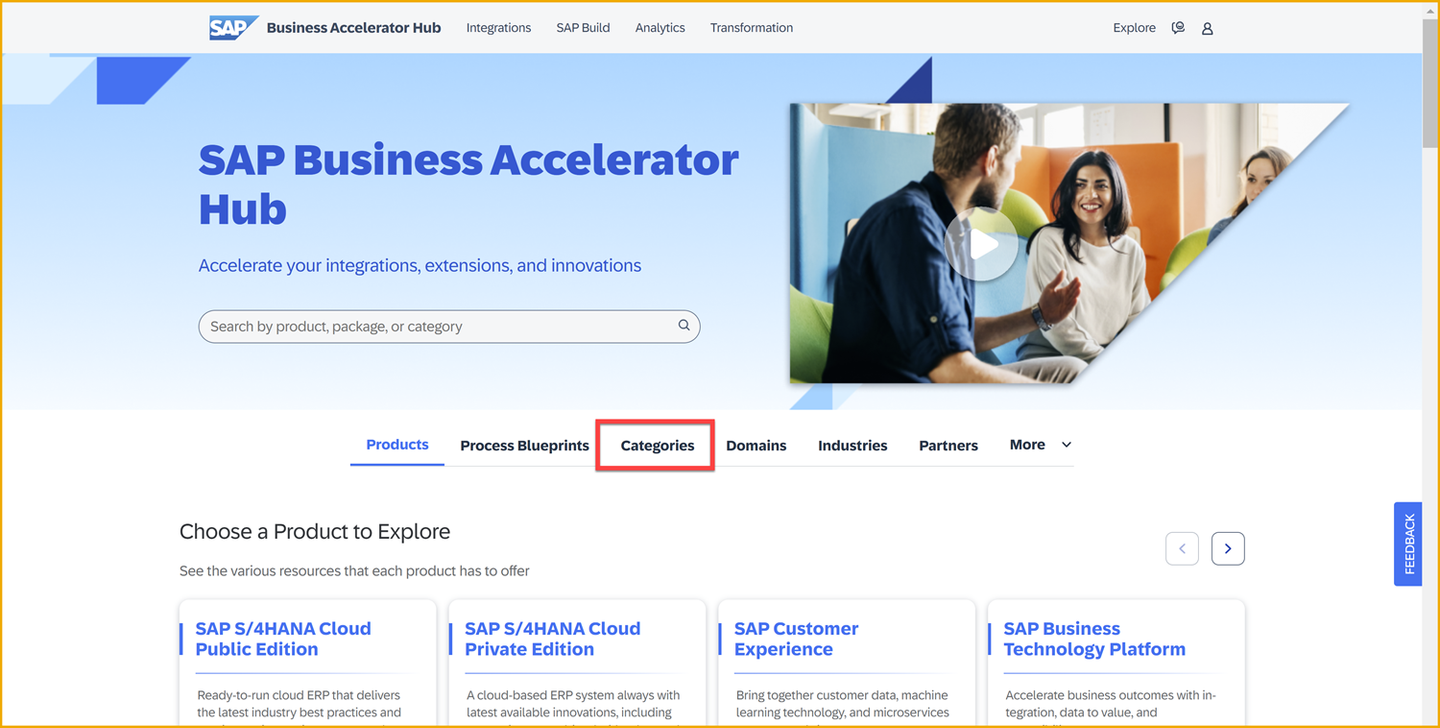
On the SAP Business Accelerator Hub homepage, choose Categories.
Choose APIs from the different categories available.

Different APIs, policy templates, and API packages are available under the API category. An API package contains one or more APIs. You can browse through different types of APIs such as REST, OData, and SOAP APIs.
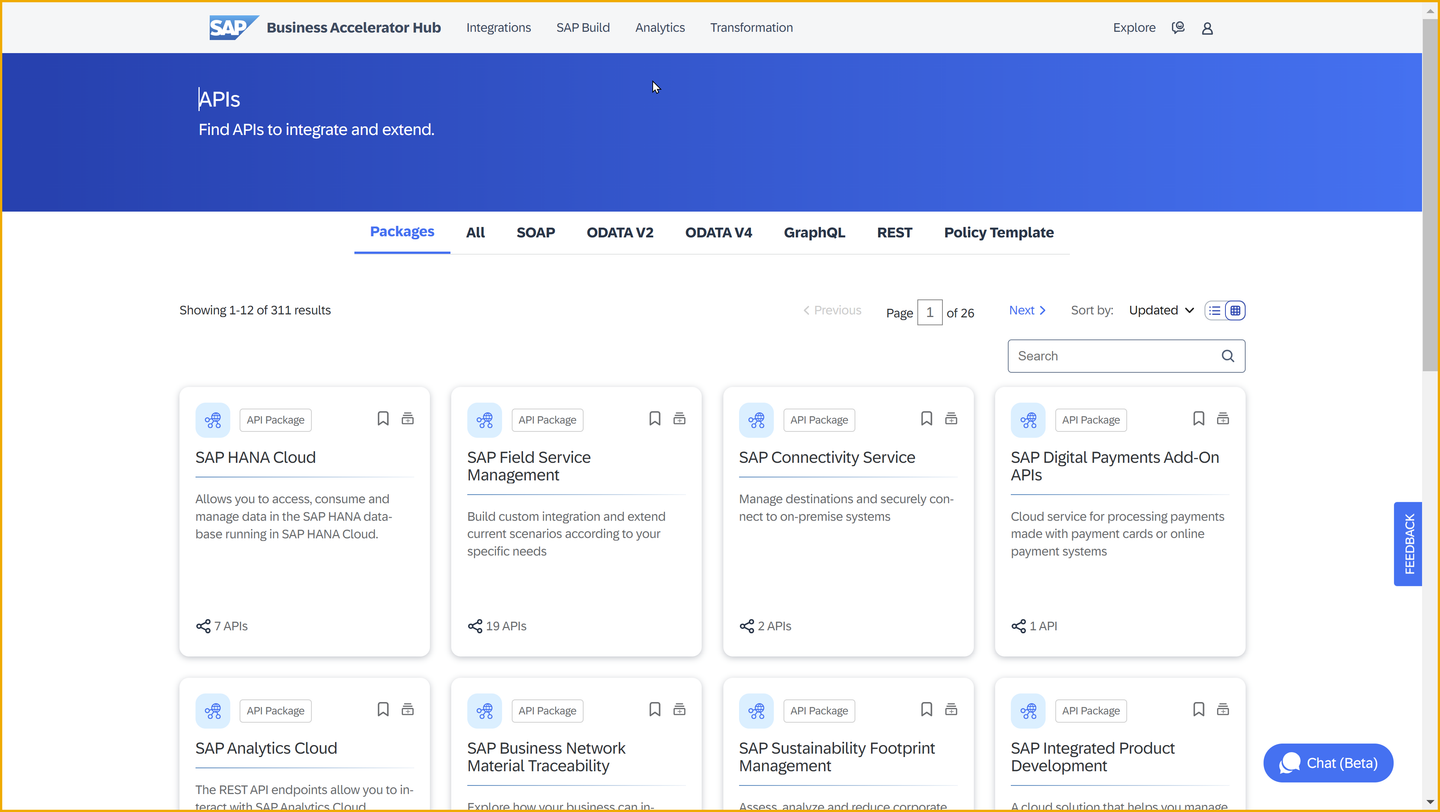
You can explore APIs either by selecting a type of an API or by selecting an API package. Navigate to the Packages tab. You can choose any package for testing.

For the purpose of this tutorial, we are going to choose the SAP Cloud for Customer package (find it using the search facility).

On choosing the SAP Cloud for Customer package, you can view the available APIs in the package. Select the Campaign API to explore it in detail.

The Overview section briefs you about the API. From here you can download the API reference file, view the documentation available, and check for the API version.
The API Reference section provides information and functions that are offered to consume the API.

The API can contain one or more endpoints which are organized into groups. On the left-hand side of selected API – Campaign – you can see six groups of endpoints.

Various HTTP methods of API are used to address the functionality of endpoints. While exploring the endpoints, you may wish to collapse the information by selecting the GET operation row. You can explore the available endpoints for the API to understand it in detail.
The SAP Business Accelerator Hub allows you to test APIs. A sandbox environment is provided to test the Campaign API. To take advantage of this, ensure you are logged on.
Select Login icon at the top right of the page.

Once logged on, go to the Overview section and click Try Out.

Make sure GET /CampaignCollection is selected. You will use that call for testing.

Calling the GET operation on the /CampaignCollection endpoint will return a list of entities from Campaign Collection. The $top parameter can be used to retrieve only the first n results once all the other filtering is done. Specify a value of 20 for this parameter.

You can also select the $orderby to sort the display order based on Object ID, Object ID description, Campaign Type, and so on.
Once the required inputs are entered, scroll back to the top of the page and click Run at the top-right corner.
The response section displays various entities fetched calling the GET method.

Feel free to explore other endpoints in this Campaign API.
Congratulations, you have just taken your first steps with the SAP Business Accelerator Hub and should now be able to navigate it and the content within, confidently.
Resources
Discussion
Share feedback on this tutorial or join the conversation in SAP Community.