
Overview
You will learn
- How a schema filter can be used in the database browser
- How to explore and examine objects in an SAP HANA database


Prerequisites
Prerequisites
- An SAP HANA database such as SAP HANA Cloud free tier or the SAP HANA, express edition that includes the SAP HANA database explorer
- You have completed the first 3 tutorials in this group
Steps
Many objects within an SAP HANA database belong to a schema. A schema allows objects, like tables, views, functions, and stored procedures, to be grouped together. The current schema in the SQL console is shown at the top of the SQL console.

Current Schema The schema can be changed by executing the SQL statement below:
SQLSET SCHEMA HOTELS;When performing a select against an object in the currently set schema, the schema name can be omitted.
SQLSET SCHEMA USER1; SELECT * FROM HOTELS.CUSTOMER; --succeeds SELECT * FROM CUSTOMER; --fails SET SCHEMA HOTELS; SELECT * FROM CUSTOMER; --succeedsWhen browsing objects in the database browser, the schema name is shown for each object if a schema filter is not set.
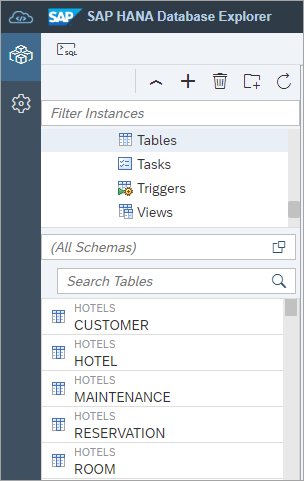
schemas A schema filter can be applied.

Schemas In Catalog Tree The schema filter persists between reloads of the SAP HANA database explorer.
Right-click Tables in the catalog tree and choose Show Tables.
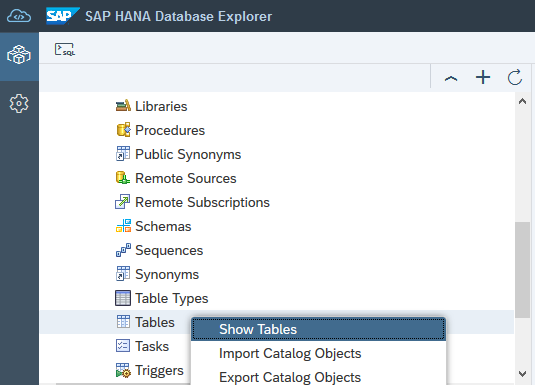
Show Tables A list of all the tables appears along with additional metadata.
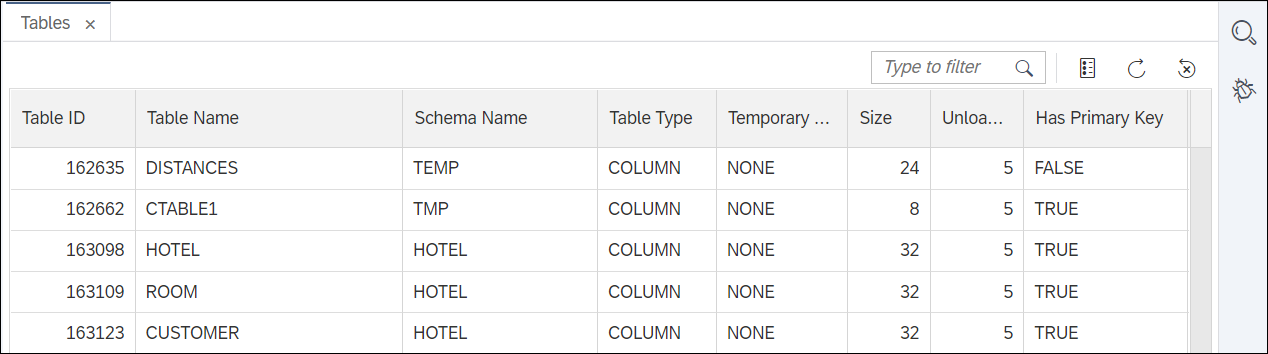
All Tables Filters can be applied to the columns. The filter is applied to the data that is already fetched.

column filter The set of columns to be displayed can be set.
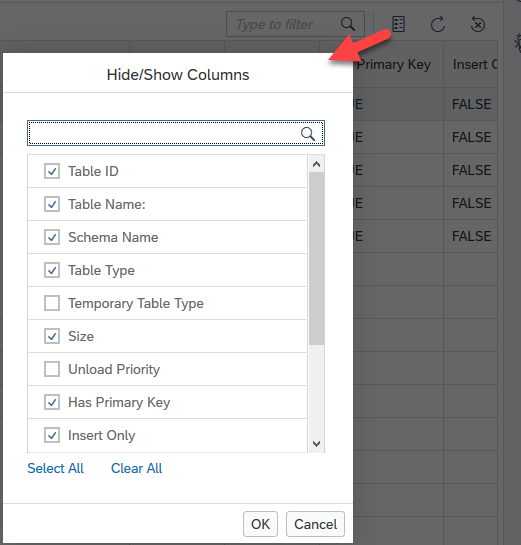
select columns to show Right-click the name of a table in the tree and select Open. The editor for the table opens in a new tab.
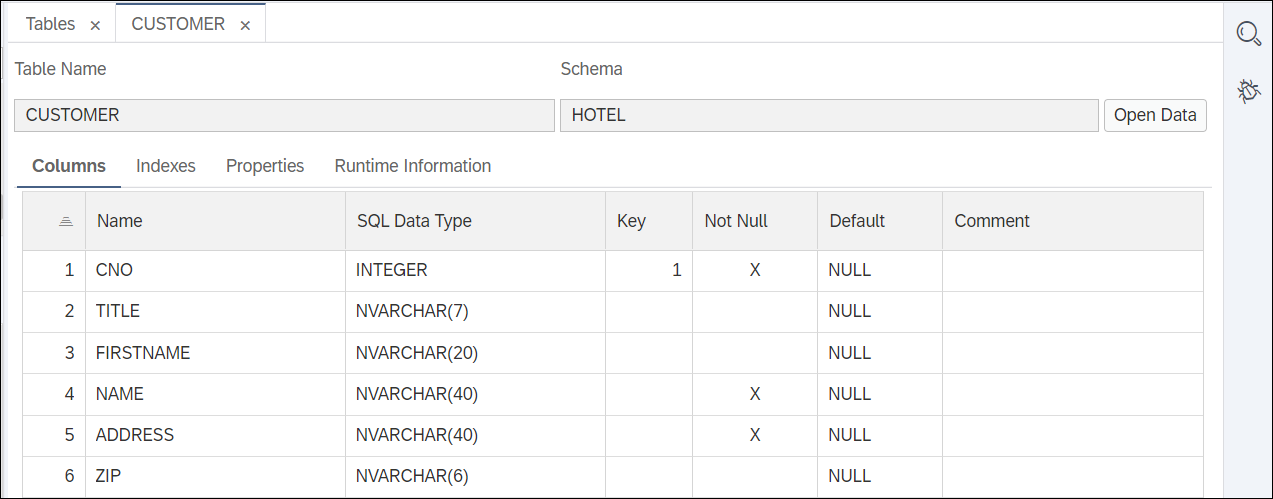
Table Details Examine the other tabs, such as Runtime Information, where further information about the table can be found. This information includes the total number of rows, disk size, and memory consumption for the table, as well as individual columns.

Table Runtime Information Click the button Open Data. The table’s rows are shown.

Table Editor Values can be edited by selecting a cell, pressing enter, and typing in a new value. New rows can be added by selecting the + button. Changes must be saved by pressing the save button to commit them to the table.

Add Row To Table The results can be saved to a comma-separated values (CSV) file.
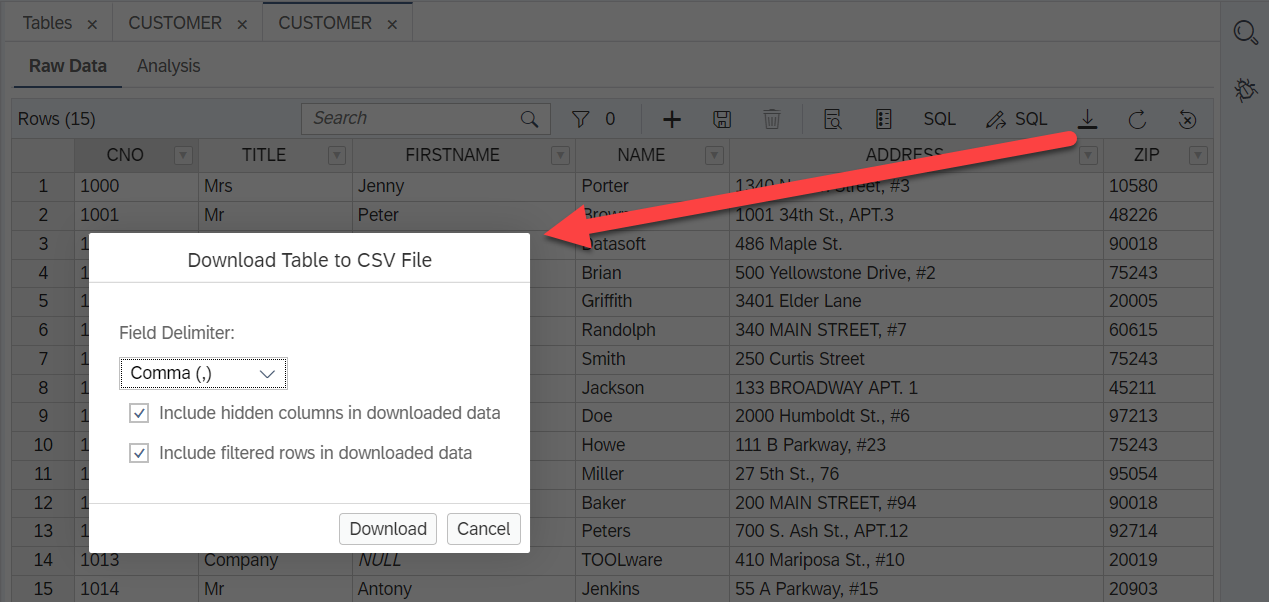
Download table Filters can be applied to the table using a set of dropdowns that build up a WHERE clause, which can select a subset of the data.

Table filter button The following filter searches for customer numbers
cnoless than or equal to 1005.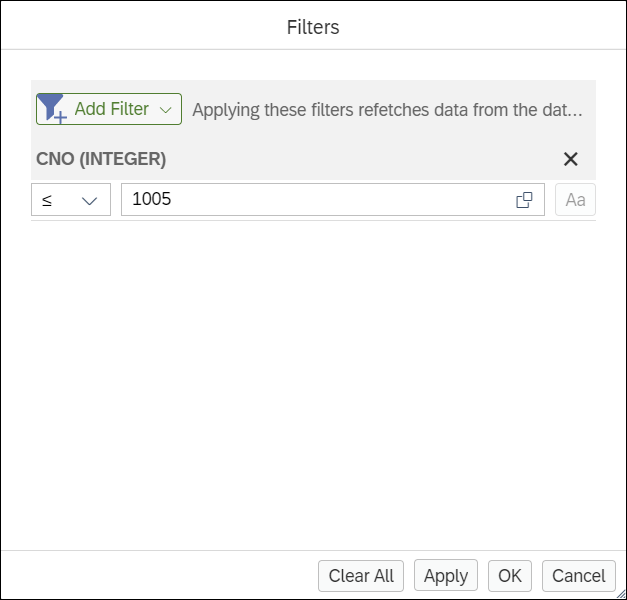
Create And Apply Filters Select the SQL button to see the generated query.

SQL Query
An analysis view is provided to help get quick insights into the data of a table.
Right-click on the ROOM table and choose Open Data.
Click on the Analysis tab.

room data Create a chart showing how many reservations of each room type have been made.
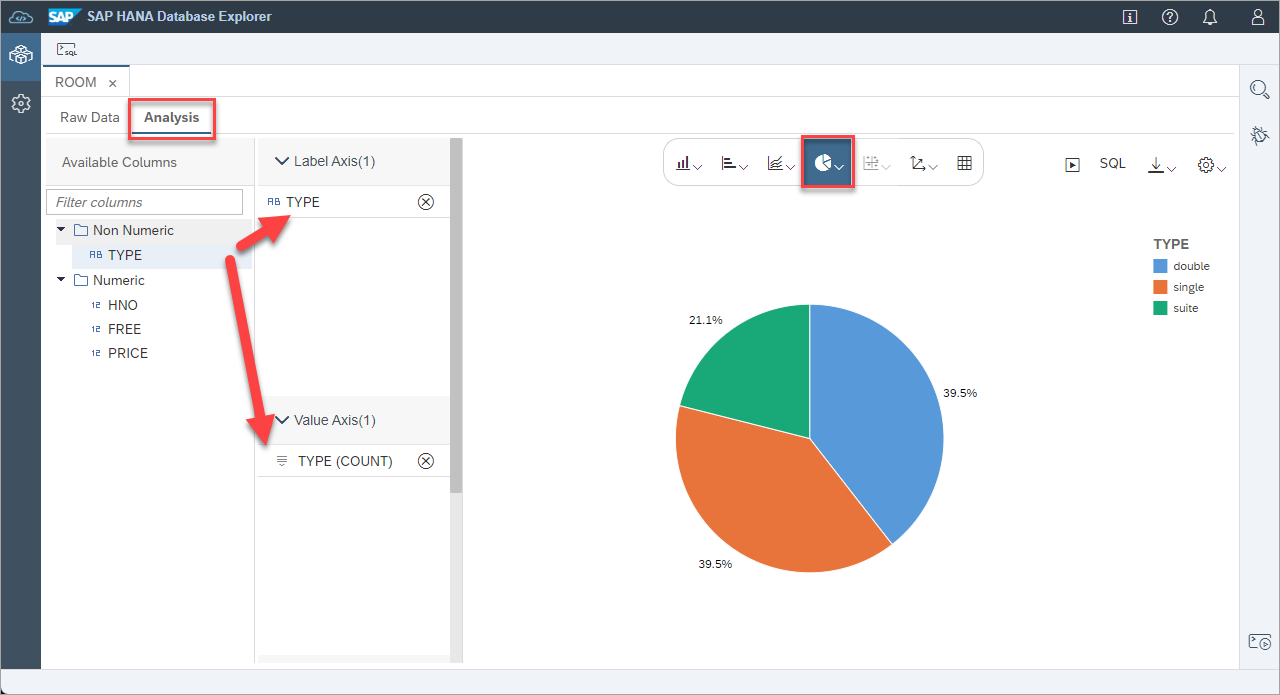
room count by type Create a chart showing the overall value of the bookings by room type.

sum of the booking by room type
We can see that reservations for suites only make up a small part of the overall bookings but account for the largest share of the total revenue.
Right-click the tab of an open object such as CUSTOMER and choose Display In Database Browser to reveal the object in the database browser.

Display In Database Browser The database browser then updates to display the selected object.

Object Displayed In Catalog A list of objects that make use of a selected object can be found using the Find Dependencies menu item.
Right-click the ROOM table and choose Find Dependencies.
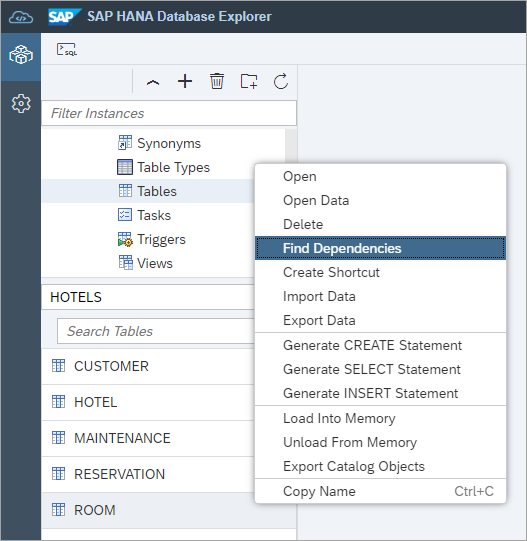
where used browser As seen in the screenshot below, the ROOM table is used by the
AVERAGE_PRICEfunction and theHOTEL_ROOMS_VIEWas well as triggers related to the foreign key between the ROOM and HOTEL tables.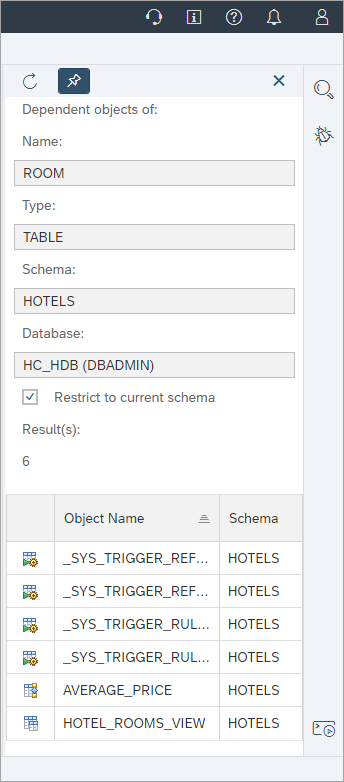
where used browser The SAP HANA database explorer can search for an object in one or more databases.
Click the magnifying glass in the top right.
Enter HOTEL in the search field.
Select the database to search against.
Select Function, View, Procedure, and Schema names.

Global Search At this stage, the above search will return 4 results that include a function, view, stored procedure, and another view.
Congratulations! You have now used the database browser to view details of objects within an SAP HANA database and have become familiar with some of the features it provides.
Resources
Discussion
Share feedback on this tutorial or join the conversation in SAP Community.