
Overview
You will learn
- How to create a remote source in SAP HANA Cloud, SAP HANA database to Google BigQuery
- How to virtualise data from Google BigQuery to SAP HANA Cloud, SAP HANA database


Prerequisites
Prerequisites
- A running SAP HANA Cloud, SAP HANA database instance in a trial or production environment.
- A Google BigQuery service account, project and dataset containing at least one table.
- Completion of the previous tutorial in this group is recommended.
Steps
Intro
In this tutorial, you will learn how to add another non-SAP cloud data source to your multi-source data landscape in SAP HANA Cloud, SAP HANA database. If you have data in Google BigQuery, you can create a remote source connection after some initial preparations in Google BigQuery and then access it in SAP HANA Cloud, SAP HANA database via a virtual table.
In addition to the instructions below, you may also watch this video to follow along:
Open the Google Cloud Platform and sign in with your account. You need to have an existing service account with a project and a dataset containing at least one table for the steps in this tutorial.
In Google BigQuery, go to IAM & Admin and click on IAM.

GBQ_IAM Create a Member or use an existing one and assign either the
BigQuery Adminrole to this member or the rolesBigQuery Data ViewerandBig Query User.Go to service accounts and click on the three dots under Actions in the row of the service account you want to use. Then click on Create Key.

GBQ service accounts A dialogue will open where you need to specify the key type. Select JSON and click on Create.

GBQ create key Open the file that is created (e.g. using Visual Studio Code or a simple text editor). There you will see all the information of the project and client including the credential information you will need in the next steps to create the connection.
Copy this information from the
JSONfile:project_idprivate_keyclient_email
Regarding the SQL code
Please keep in mind that since Google BigQuery is using lower case characters, all object names you refer to in the SQL statements need to be put in
""double quotes.
Open the SAP HANA Database Explorer of your SAP HANA Cloud instance and open a SQL console connected to your database.
Set the schema you want to work in.
Open https://www.google.com and copy the Global Sign root certificate to a text editor.

GBQ Certificate Create a certificate store, also called PSE (personal security environment), if you have not done so already.
CREATE PSE <certificate store name>;- Create a certificate for Google BigQuery and name it
GBQusing this SQL statement, paste the certificate you retrieved in the previous step as a single line without any line-breaks (already included in this statement):
-- create certificate
CREATE CERTIFICATE FROM
'-----BEGIN CERTIFICATE-----
MIIDujCCAqKgAwIBAgILBAAAAAABD4Ym5g0wDQYJKoZIhvcNAQEFBQAwTDEgMB4GA1UECxMXR2xvYmFsU2lnbiBSb290IENBIC0gUjIxEzARBgNVBAoTCkdsb2JhbFNpZ24xEzARBgNVBAMTCkdsb2JhbFNpZ24wHhcNMDYxMjE1MDgwMDAwWhcNMjExMjE1MDgwMDAwWjBMMSAwHgYDVQQLExdHbG9iYWxTaWduIFJvb3QgQ0EgLSBSMjETMBEGA1UEChMKR2xvYmFsU2lnbjETMBEGA1UEAxMKR2xvYmFsU2lnbjCCASIwDQYJKoZIhvcNAQEBBQADggEPADCCAQoCggEBAKbPJA6+Lm8omUVCxKs+IVSbC9N/hHD6ErPLv4dfxn+G07IwXNb9rfF73OX4YJYJkhD10FPe+3t+c4isUoh7SqbKSaZeqKeMWhG8eoLrvozps6yWJQeXSpkqBy+0Hne/ig+1AnwblrjFuTosvNYSuetZfeLQBoZfXklqtTleiDTsvHgMCJiEbKjNS7SgfQx5TfC4LcshytVsW33hoCmEofnTlEnLJGKRILzdC9XZzPnqJworc5HGnRusyMvo4KD0L5CLTfuwNhv2GXqF4G3yYROIXJ/gkwpRl4pazq+r1feqCapgvdzZX99yqWATXgAByUr6P6TqBwMhAo6CygPCm48CAwEAAaOBnDCBmTAOBgNVHQ8BAf8EBAMCAQYwDwYDVR0TAQH/BAUwAwEB/zAdBgNVHQ4EFgQUm+IHV2ccHsBqBt5ZtJot39wZhi4wNgYDVR0fBC8wLTAroCmgJ4YlaHR0cDovL2NybC5nbG9iYWxzaWduLm5ldC9yb290LXIyLmNybDAfBgNVHSMEGDAWgBSb4gdXZxwewGoG3lm0mi3f3BmGLjANBgkqhkiG9w0BAQUFAAOCAQEAmYFThxxol4aR7OBKuEQLq4GsJ0/WwbgcQ3izDJr86iw8bmEbTUsp9Z8FHSbBuOmDAGJFtqkIk7mpM0sYmsL4h4hO291xNBrBVNpGP+DTKqttVCL1OmLNIG+6KYnX3ZHu01yiPqFbQfXf5WRDLenVOavSot+3i9DAgBkcRcAtjOj4LaR0VknFBbVPFd5uRHg5h6h+u/N5GJG79G+dwfCMNYxdAfvDbbnvRG15RjF+Cv6pgsH/76tuIMRQyV+dTZsXjAzlAcmgQWpzU/qlULRuJQ/7TBj0/VLZjmmx6BEP3ojY+x1J96relc8geMJgEtslQIxq/H5COEBkEveegeGTLg==-----END CERTIFICATE-----'
COMMENT 'GBQ';- Next, get the certificate ID of this certificate by running this SQL statement:
SELECT CERTIFICATE_ID FROM CERTIFICATES WHERE COMMENT = 'GBQ';- Add this certificate to the certificate store by inserting the certificate ID into the SQL statement:
ALTER PSE SSL ADD CERTIFICATE <certificate_id>;- Now set the PSE purpose as remote source. This way, all remote sources you create will use the certificates stored in the PSE. Please note, that only one PSE can be set as remote source purpose.
SET PSE SSL PURPOSE REMOTE SOURCE;- To now create a remote source to Google BigQuery, insert the information from the JSON file you downloaded from the Google BigQuery service account (i.e. client-email and private key) into the next SQL statement. In this example, we will name the remote source
BIGQUERY.
-- create a remote source
CREATE REMOTE SOURCE BIGQUERY ADAPTER bigqueryrest
CONFIGURATION 'server=www.googleapis.com'
WITH CREDENTIAL TYPE 'OAUTH' USING 'user=<INSERT CLIENT EMAIL>;password=-----BEGIN PRIVATE KEY-----<INSERT PRIVATE KEY>-----END PRIVATE KEY-----\n';
Once that is done, you should see now the new remote source named
BIGQUERYby selecting remote sources in your catalog in SAP HANA Database Explorer.If you click on the remote source, a new window will open and, by clicking on Search, you can see all the tables listed as remote objects in the remote source.
- To create a virtual table, you can use the statement below. Make sure to insert the name of the virtual table you want to create followed by the name of the remote source (
BIGQUERYin this example) as well as the information from the source side in Google BigQuery:- project id (found in the JSON file)
- dataset
- and table name
-- create a virtual table
create virtual table <TARGET_VIRTUAL_TABLE> at "<REMOTE_SOURCE_NAME>"."<GBQ_PROJECT_ID>"."<GBQ_DATASET>"."<GBQ_SOURCE_TABLE> ";
Your virtual table is now created, as you can see under tables in your catalog.
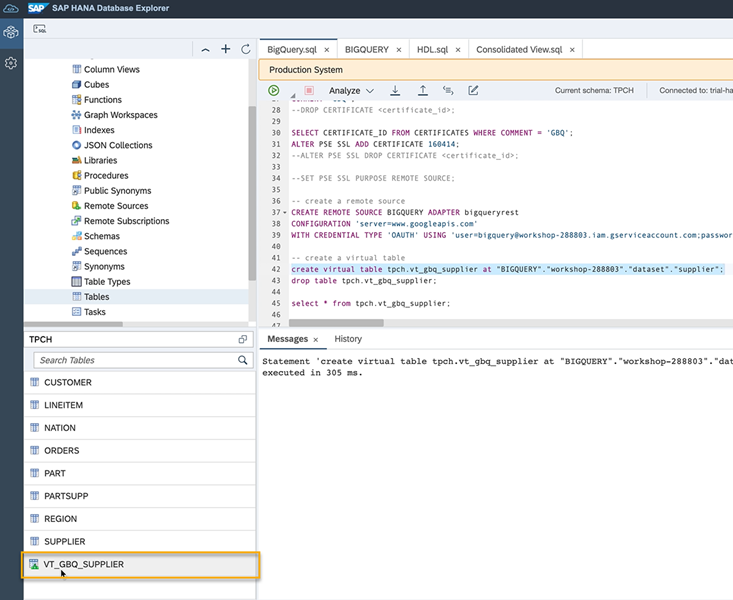
DBX VT To check, if the virtual table is working, you can use this statement:
select * from tpch.vt_gbq_supplier;Remember, that if you want to query the data in Google BigQuery, all columns included in the query that are located in the virtual table pointing to Google BigQuery need to be written in “double quotation marks” since Google BigQuery has lower case characters set as default.
More resources on working with Google BigQuery
- SAP HANA Cloud Smart Data Access for Google BigQuery Blog Post
- Technical documentation on how to Create a Remote Source to Google BigQuery
Well done!
You have completed the second tutorial of this group! Now you know how to create a connection from Google BigQuery to SAP HANA Cloud and how to create a virtual table accessing the data stored in Google BigQuery in SAP HANA Cloud.
Learn in the next tutorial how to virtualise data from a managed SAP HANA Cloud, data lake to your SAP HANA Cloud instance.
Resources
Discussion
Share feedback on this tutorial or join the conversation in SAP Community.