🎓intermediate⏱45 min.SAP HANA CloudIntermediateSAP HANA Cloud SAP HANA Database
You will learn
✔How to create and delete an ECN
✔How to create a workload class and map its workload to an ECN
✔How to view additional details about ECNs An Elastic Compute Node (ECN) can be added when it is known that additional queries will be run that take significant CPU or memory resources such as at the end of the month or quarter. Once the queries complete, the node can be removed. ECNs incur additional costs while running but can improve performance or could lower the total cost of ownership if their usage can reduce the instance size by covering known peak loads. In the screenshot below, if the timing of the darker blue peaks are known and are read only, an ECN node can be started and the workloads directed to the ECN enabling the overall size of the SAP HANA instance to be reduced. The SAP HANA Cloud Capacity Unit Estimator can be used to estimate the additional cost of adding ECNs. ECNs are not available in trial or free tier. Further details on Elastic Compute Nodes can be also found at Harnessing Dynamic Elasticity (Elastic Compute Node) for Smarter Scaling in SAP HANA Cloud.workloadECNs can be used to address compute intensive OLAP or read-only queries and as such, only temporary tables or replica tables can be stored on ECN instances. Queries can be routed to ECN nodes using client-side statement routing or workload classes. The following steps attempt to demonstrate an example of adding an ECN to cover known peaks in workload.
Step 1Identify tasks to be run on an Elastic Compute Node (ECN)
—
Read only CPU or memory intensive tasks that occur at a set frequency are suitable candidates to consider redirecting to an ECN. The CPU and memory used by your instance can be viewed in the usage monitor app in SAP HANA Cloud Central as shown below.
instance details
Click on the memory, compute, network, or storage cards to open the Usage Monitor app. Below, notice that the compute is spiking at a set frequency which is every morning at 7 am.
Usage Monitor
The following examples are used for simulation purposes and can create a memory and CPU spike that will be moved to an ECN node. They are intended to be run on a test or trial instance and not a production instance. The size of the spike can be adjusted by increasing or decreasing the number of rows in the table.
SQL
SELECTAVG(CPU)AS"CPU Usage %"FROMM_LOAD_HISTORY_HOSTWHERETIME>ADD_SECONDS(CURRENT_TIMESTAMP,-60);--avg of the past 1 minute
SELECTAVG(MEMORY_USED/1024/1024/1024)AS"Memory Used GB"FROMM_LOAD_HISTORY_HOSTWHERETIME>ADD_SECONDS(CURRENT_TIMESTAMP,-60);SELECTMEMORY_SIZE/1024/1024/1024ASMEM_GB,DURATION_MICROSEC/1000000/60ASDUR_MIN,CPU_TIME/1000000ASCPU_TIME_SECS,STATEMENT_STRING,STATEMENT_START_TIME,*FROMM_EXPENSIVE_STATEMENTSORDERBYMEMORY_SIZEDESC;--requires expensive tracing to be enabled
CREATEUSERUSER4PASSWORD"Password4"NOFORCE_FIRST_PASSWORD_CHANGESETUSERGROUPDEFAULT;GRANTCATALOGREADTOUSER4;GRANTSELECTONSCHEMA_SYS_STATISTICSTOUSER4;--Used by the Elastic Compute Node tab
GRANTWORKLOADADMINTOUSER4;CONNECTUSER4PASSWORDPassword4;GRANTALLPRIVILEGESONSCHEMAUSER4TODBADMIN;CREATETABLEMYTABLE(VAL1DOUBLE);--Demonstrates how an expensive query is made using cross joins
INSERTINTOMYTABLEVALUES(1);INSERTINTOMYTABLEVALUES(2);INSERTINTOMYTABLEVALUES(3);SELECT*FROMMYTABLET1,MYTABLET2,MYTABLET3;CREATEORREPLACEPROCEDUREPOPULATE_MYTABLE(NUMOFROWSINT)LANGUAGESQLSCRIPTASBEGINUSINGSQLSCRIPT_PRINTASPRTLIB;DECLAREiINT;TRUNCATETABLEUSER4.MYTABLE;FORiIN1..:NUMOFROWSDOINSERTINTOMYTABLEVALUES(RAND_SECURE());ENDFOR;END;CREATEORREPLACEPROCEDURECPU_SPIKE()LANGUAGESQLSCRIPTASBEGINUSINGSQLSCRIPT_PRINTASPRTLIB;SELECTSUM(T1.VAL1+T2.VAL1+T3.VAL1)FROMUSER4.MYTABLET1,USER4.MYTABLET2,USER4.MYTABLET3;END;CALLPOPULATE_MYTABLE(2000);--9 seconds and 32 seconds of CPU time each call
CALLCPU_SPIKE();CALLCPU_SPIKE();CALLCPU_SPIKE();CALLCPU_SPIKE();CALLCPU_SPIKE();CALLCPU_SPIKE();CREATEORREPLACEPROCEDURECPU_AND_MEMORY_SPIKE()LANGUAGESQLSCRIPTASBEGINUSINGSQLSCRIPT_PRINTASPRTLIB;WITHAAS(SELECTDISTINCTVAL1ASA1FROMUSER4.MYTABLEORDERBYVAL1DESC),BAS(SELECTDISTINCTVAL1ASB1FROMUSER4.MYTABLEORDERBYVAL1ASC),CAS(SELECTDISTINCTVAL1ASC1FROMUSER4.MYTABLEORDERBYVAL1DESC)SELECTTOP1DISTINCTA1+B1+C1FROMA,B,C;END;CALLPOPULATE_MYTABLE(750);--8 seconds, 30 sec CPU time, 9 GB of memory each call
CALLCPU_AND_MEMORY_SPIKE();CALLCPU_AND_MEMORY_SPIKE();CALLCPU_AND_MEMORY_SPIKE();CALLCPU_AND_MEMORY_SPIKE();CALLCPU_AND_MEMORY_SPIKE();CALLCPU_AND_MEMORY_SPIKE();SELECTAVG(CPU)AS"CPU Usage"FROMM_LOAD_HISTORY_HOSTWHERETIME>ADD_SECONDS(CURRENT_TIMESTAMP,-60);--avg of the past 1 minute
SELECTAVG(MEMORY_USED)AS"Memory Used"FROMM_LOAD_HISTORY_HOSTWHERETIME>ADD_SECONDS(CURRENT_TIMESTAMP,-60);
After calling the stored procedure CPU_SPIKE and CPU_AND_MEMORY_SPIKE, you can see that the CPU and memory usage has spiked, and you may also see an alert. Note that the metrics shown are polled once a minute, so the procedures are run multiple times.
spike shown
The following SQL statement can also be used if expensive statement tracing is enabled.
An ECN can be created in multiple ways. Further details on the options and limitations when creating an ECN node can be found at ECN Scope and Limitations.
Examine the options for creating an ECN. Create an ECN using one of the methods shown below.
An ECN can be added using the manage configuration wizard in SAP HANA Cloud Central.
Add ECN
An ECN can be created or deleted using a CLI. The BTP CLI is shown below but the CF CLI can also be used.
Create a file named ecn1.json with the contents below which can be used to create an ECN.
An ECN can be created using a REST API. Further details are available at REST API for the ECN and Business Accelerator Hub. The below file is a Python notebook that illustrates the REST API. Follow the steps below if you wish to try out the REST API.
Create a file named ecn_rest.ipynb, copy the contents below into the file and open it in Visual Studio Code.
IPYNB
{
    "cells": [
    {
    "cell_type": "code",
    "execution_count": null,
    "id": "38ad79f4-0ae3-4f3c-8248-6bebc03188b7",
    "metadata": {},
    "outputs": [],
    "source": [
        "######################################\n",
        "##### Import Python dependencies #####\n",
        "######################################\n",
        "\n",
        "import requests\n",
        "import datetime as dt\n",
        "#import pytz\n",
        "\n",
        "############################\n",
        "##### Global variables #####\n",
        "############################\n",
        "\n",
        "# global variable for JWT\n",
        "hc_jwt = None\n",
        "\n",
        "# global variable for JWT expiration timestamp\n",
        "hc_jwt_exp = None\n",
        "\n",
        "# global variable that defines the timezone for JWT refresh handling\n",
        "#timezone = pytz.timezone('UTC')\n",
        "timezone = dt.timezone.utc\n",
        "\n",
        "#############################################################################\n",
        "##### MODIFICATION SECTION (Must be adjusted to match your environment) #####\n",
        "#############################################################################\n",
        "\n",
        "# Retrieve 'clientid' and 'clientsecret' from the /uaa/clientid and /uaa/clientsecret keys in the service binding JSON\n",
        "client_id = ''\n",
        "client_secret = ''\n",
        "\n",
        "# uaa_url is from the /uaa/url key provided in the service binding JSON\n",
        "uaa_url = 'https://dan-van-leeuwen.authentication.ca10.hana.ondemand.com'\n",
        "\n",
        "# Replace 'canary-eu21' with the landscape where your HANA Cloud instance exists\n",
        "ecn_rest_api_url = 'https://api.gateway.orchestration.prod-ca10.hanacloud.ondemand.com'\n",
        "\n",
        "# HANA Cloud instance ID\n",
        "hc_instance_id = 'e73809d6-196a-4dda-b2d2-25a8e307285a'\n",
        "\n",
        "####################################################################\n",
        "##### Retrieve JWT from UAA for the target HANA Cloud instance #####\n",
        "####################################################################\n",
        "\n",
        "# The following method makes the POST request for a JWT and (re)initializes the corresponding global variables\n",
        "def request_jwt():\n",
        "    global hc_jwt\n",
        "    global hc_jwt_exp\n",
        "\n",
        "    # To retrieve an outh token, we must GET or POST to the /oauth/token path\n",
        "    oauth_path = '/oauth/token'\n",
        "\n",
        "    # params defines the URL parameters we would like to use; the full URL with the below params would be: \n",
        "    # https://ps-hc-shared.authentication.eu21.hana.ondemand.com/oauth/token?grant_type=client_credentials\n",
        "    params = {'grant_type':'client_credentials'}\n",
        "    headers = {'accept':'application/json','content-type':'application/x-www-form-urlencoded'}\n",
        "    data = 'client_id='+client_id+'&client_secret='+client_secret\n",
        "\n",
        "    # HTTP request\n",
        "    uaa_response = requests.post(uaa_url+oauth_path, params=params, headers=headers, data=data)\n",
        "\n",
        "    # Decode JSON response into a Python dictionary object\n",
        "    uaa_response_json = uaa_response.json()\n",
        "\n",
        "    # Extract the JWT from the response (this will be used to authenticate each of our ECN API calls via the Authorization header)\n",
        "    hc_jwt = uaa_response_json[\"access_token\"]\n",
        "\n",
        "    # Extract expiration time in seconds (this can be used to proactively request a new JWT)\n",
        "    expires_in = uaa_response_json[\"expires_in\"]\n",
        "\n",
        "    # Calculate expiration timestamp\n",
        "    current_timestamp = dt.datetime.now(timezone)\n",
        "    #print('expires in', expires_in, 's') \n",
        "    hc_jwt_exp = current_timestamp + dt.timedelta(seconds=expires_in)\n",
        "\n",
        "# The following method checks if the JWT is expired; if the token is expired, it calls request_jwt()\n",
        "def refresh_jwt_check():\n",
        "    global hc_jwt_exp\n",
        "    \n",
        "    current_timestamp = dt.datetime.now(timezone)\n",
        "\n",
        "    # Refresh JWT 30 seconds before it expires\n",
        "    if (current_timestamp + dt.timedelta(seconds=30)) >= hc_jwt_exp:\n",
        "        print('New JWT requested')\n",
        "        request_jwt()\n",
        "    else:\n",
        "        print('JWT still valid')\n",
        "\n",
        "# Initialize access_token variable with a valid JWT and token_exp with token expiration timestamp\n",
        "request_jwt()\n",
        "print('JWT expires at:', hc_jwt_exp, '(UTC)')\n",
        "print(hc_jwt)"
    ]
    },
    {
    "cell_type": "code",
    "execution_count": null,
    "id": "396346d3-df2a-4868-893b-a1aaaba3a04a",
    "metadata": {},
    "outputs": [],
    "source": [
        "#################################\n",
        "##### GET /compute/v1/plans #####\n",
        "#################################\n",
        "# List of supported elastic compute node sizes\n",
        "\n",
        "# Check JWT and refresh if required\n",
        "refresh_jwt_check()\n",
        "\n",
        "# Define endpoint and headers\n",
        "request_url = ecn_rest_api_url + '/compute/v1/plans'\n",
        "headers = {'authorization':'bearer '+hc_jwt}\n",
        "\n",
        "# HTTP request\n",
        "response = requests.get(request_url, headers=headers)\n",
        "print(response.text)"
    ]
    },
    {
    "cell_type": "code",
    "execution_count": null,
    "id": "8b4300de-ae53-434b-bdd8-52be2b3265aa",
    "metadata": {},
    "outputs": [],
    "source": [
        "######################################################################\n",
        "##### GET /compute/v1/serviceInstances/{serviceInstanceID}/nodes #####\n",
        "######################################################################\n",
        "# List of elastic compute nodes attached to HANA service instance\n",
        "\n",
        "# Check JWT and refresh if required\n",
        "refresh_jwt_check()\n",
        "\n",
        "# Define endpoint, parameters, and headers\n",
        "request_url = ecn_rest_api_url + '/compute/v1/serviceInstances/' + hc_instance_id + '/nodes'\n",
        "params = {'serviceInstanceID':hc_instance_id}\n",
        "headers = {'authorization':'bearer '+hc_jwt}\n",
        "\n",
        "# HTTP request\n",
        "response = requests.get(request_url, params=params, headers=headers)\n",
        "print(response.text)\n",
        "print(response.headers)"
    ]
    },
    {
    "cell_type": "code",
    "execution_count": null,
    "id": "8cbb6f85-bef0-4979-a129-a55d65d9088c",
    "metadata": {},
    "outputs": [],
    "source": [
        "#######################################################################\n",
        "##### POST /compute/v1/serviceInstances/{serviceInstanceID}/nodes #####\n",
        "#######################################################################\n",
        "# Provisions new elastic compute node with given plan\n",
        "\n",
        "# Check JWT and refresh if required\n",
        "refresh_jwt_check()\n",
        "\n",
        "# Define endpoint, parameters, headers, and data\n",
        "request_url = ecn_rest_api_url + '/compute/v1/serviceInstances/' + hc_instance_id + '/nodes'\n",
        "params = {'serviceInstanceID':hc_instance_id}\n",
        "headers = {'authorization':'bearer '+hc_jwt, 'content-type':'application/json'}\n",
        "json = {'name':'ecn1', \n",
        "        'plan':{\n",
        "            'memorySizeGiB':32,\n",
        "            'storageSizeGiB':120,\n",
        "            'vCPUs':8\n",
        "        }\n",
        "       }\n",
        "\n",
        "# HTTP request\n",
        "response = requests.post(request_url, params=params, headers=headers, json=json)\n",
        "print(response.text)\n",
        "print(response.headers)"
    ]
    },
    {
    "cell_type": "code",
    "execution_count": null,
    "id": "7b513505-31c1-4a25-9763-42e73074072c",
    "metadata": {},
    "outputs": [],
    "source": [
        "#############################################################################\n",
        "##### GET /compute/v1/serviceInstances/{serviceInstanceID}/nodes/{name} #####\n",
        "#############################################################################\n",
        "# Get plan and status of the elastic compute node\n",
        "\n",
        "# Check JWT and refresh if required\n",
        "refresh_jwt_check()\n",
        "\n",
        "# Define endpoint, parameters, and headers\n",
        "request_url = ecn_rest_api_url + '/compute/v1/serviceInstances/' + hc_instance_id + '/nodes/' + json['name']\n",
        "params = {'serviceInstanceID':hc_instance_id, 'name':json['name']}\n",
        "headers = {'authorization':'bearer '+hc_jwt}\n",
        "\n",
        "# HTTP request\n",
        "response = requests.get(request_url, params=params, headers=headers)\n",
        "print(response.text)"
    ]
    },
    {
    "cell_type": "code",
    "execution_count": null,
    "id": "51011b85-3e3a-4252-9c36-7da1f0ce360e",
    "metadata": {},
    "outputs": [],
    "source": [
        "################################################################################\n",
        "##### DELETE /compute/v1/serviceInstances/{serviceInstanceID}/nodes/{name} #####\n",
        "################################################################################\n",
        "# Deprovision elastic compute node\n",
        "\n",
        "# Check JWT and refresh if required\n",
        "refresh_jwt_check()\n",
        "\n",
        "# Define endpoint, parameters, and headers\n",
        "request_url = ecn_rest_api_url + '/compute/v1/serviceInstances/' + hc_instance_id + '/nodes/' + json['name']\n",
        "params = {'serviceInstanceID':hc_instance_id, 'name':json['name']}\n",
        "headers = {'authorization':'bearer '+hc_jwt}\n",
        "\n",
        "# HTTP request\n",
        "response = requests.delete(request_url, params=params, headers=headers)\n",
        "print(response.text)\n",
        "print(response.headers)"
    ]
    }
    ],
    "metadata": {
    "kernelspec": {
    "display_name": "Python 3",
    "language": "python",
    "name": "python3"
    },
    "language_info": {
    "codemirror_mode": {
        "name": "ipython",
        "version": 3
    },
    "file_extension": ".py",
    "mimetype": "text/x-python",
    "name": "python",
    "nbconvert_exporter": "python",
    "pygments_lexer": "ipython3",
    "version": "3.13.3"
    }
    },
    "nbformat": 4,
    "nbformat_minor": 5
}
The modification section requires values from a service key (Cloud Foundry), or a service binding (subaccount/other environment) that can be added to an SAP HANA Cloud instance.
Create a service key.
service key
Copy the values from the service key into the modification section.
modification section
Try out the notebook by executing each cell and viewing its output.
get ECN node details
Visual Studio Code may ask you to enter extensions related to Jupyter and Python such as the ones shown below if they are not already installed.
extensions
You may need to install a library such as requests if it is missing.
Shell
pip list
pip install requests
You can choose to which Python environment to run by selecting the area shown below.
python environments
Once the ECN has been created, its details can be viewed.
Run the query again and verify that the query was run on the ECN node.
SQL
CALLCPU_AND_MEMORY_SPIKE();SELECTHOST,STATEMENT_STRING,ACCESSED_TABLE_NAMES,TABLE_LOCATIONS,USER_NAME,LAST_EXECUTION_TIMESTAMPFROMM_SQL_PLAN_CACHEWHERESTATEMENT_STRINGLIKE'CALL CPU_AND_MEMORY_SPIKE()'ORDERBYLAST_EXECUTION_TIMESTAMPDESC;--ALTER SYSTEM CLEAR SQL PLAN CACHE;
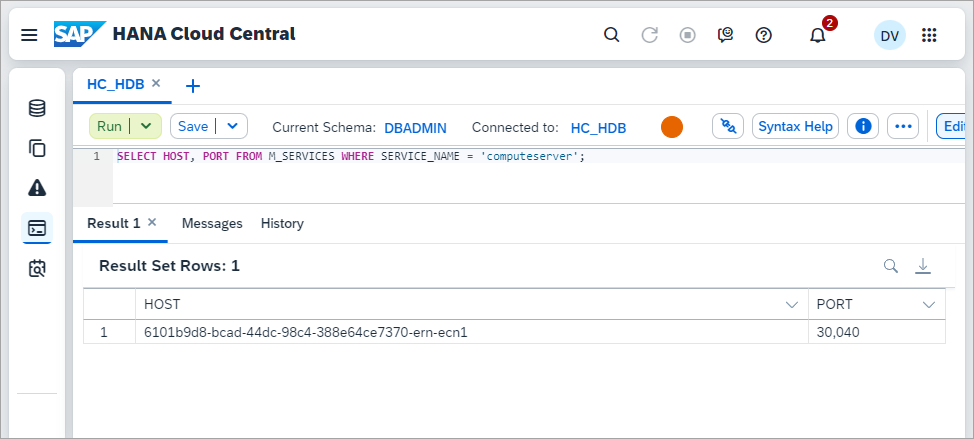
SELECT*FROMM_SERVICE_STATISTICSWHERESERVICE_NAME='computeserver';
ECN verification
Notice that the last time the query was run, it was executed on the ECN as the HOST value ends in ecn1. Notice also that the table location is not on the ECN.
It is also possible to direct a query to a workload class through a hint as shown below.
It may also be of interest to compare the execution time between this run and after the table is replicated onto the ECN node in a subsequent step.
Step 4Route to ECN with a hint
+
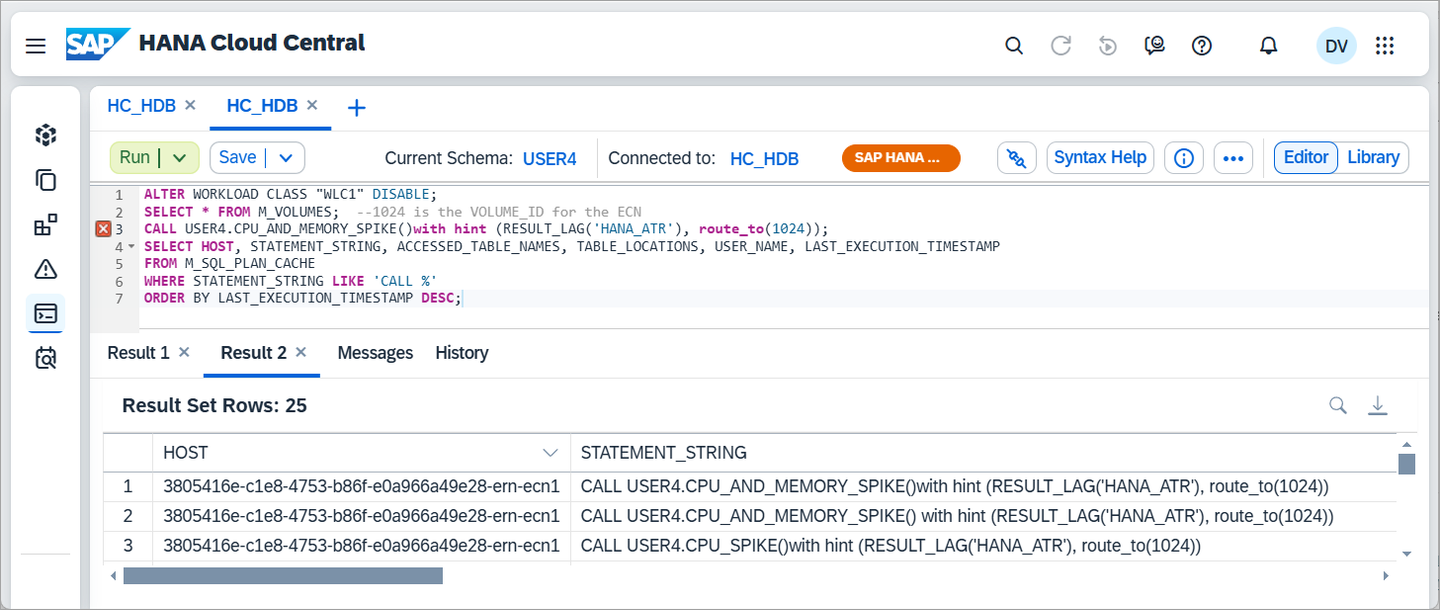
An alternate approach without using a workload class is to use a hint.
Execute the below SQL.
SQL
ALTERWORKLOADCLASS"WLC1"DISABLE;SELECT*FROMM_VOLUMES;--1024 is the VOLUME_ID for the ECN
CALLUSER4.CPU_AND_MEMORY_SPIKE()withhint(RESULT_LAG('HANA_ATR'),route_to(1024));SELECTHOST,STATEMENT_STRING,ACCESSED_TABLE_NAMES,TABLE_LOCATIONS,USER_NAME,LAST_EXECUTION_TIMESTAMPFROMM_SQL_PLAN_CACHEWHERESTATEMENT_STRINGLIKE'CALL %'ORDERBYLAST_EXECUTION_TIMESTAMPDESC;
using a hint
Step 5Replicate a table to the ECN
+
A replica table can be stored on an ECN. This may lead to lower resource consumption on the coordinator and reduced latency. For additional details see Advantages and Disadvantages of Table Replication. The following steps demonstrate replicating a table to the ECN and using it in a query.
Run the below in the SQL Console after replacing the host name with the value from the previous query against the M_VOLUMES table view.
SQL
ALTERWORKLOADCLASS"WLC1"ENABLE;ALTERTABLEUSER4.MYTABLEADDASYNCHRONOUSREPLICAAT'6101b9d8-bcad-44dc-98c4-388e64ce7370-ern-ecn1:30040';ALTERTABLEUSER4.MYTABLEENABLEASYNCHRONOUSREPLICA;--ALTER TABLE USER4.MYTABLE DISABLE ASYNCHRONOUS REPLICA;
--ALTER TABLE USER4.MYTABLE DROP REPLICA AT '6101b9d8-bcad-44dc-98c4-388e64ce7370-ern-ecn1:30040';
SELECT*FROMM_TABLE_LOCATIONSWHERETABLE_NAMELIKE'%MYTABLE%';SELECT*FROMM_TABLE_REPLICAS;
replica table
Run the below SQL to indicate that the workload class should use async replica tables.
SQL
ALTERWORKLOADCLASS"WLC1"SET'RESULT LAG HINT'='HANA_ATR';--use the replica
--ALTER WORKLOAD CLASS "WLC1" UNSET 'RESULT LAG HINT';
Notice that this time the table is also located on the ECN.
Step 6Remove the workload class and ECN
+
Before removing the ECN node, disable the workload class so that new queries are no longer directed to the ECN node.
Execute the below SQL
SQL
ALTERWORKLOADCLASS"WLC1"DISABLE;
If the ECN is removed and the workload class is still enabled, workloads directed to the ECN will fail with an error message “Client failed to reroute after a server change in workload class routing: Invalid routing location”. This behavior can be changed using the force_reroute setting.
Try running the below app and adjust the prepare and routeDirectExecute variables.
JavaScript
'use strict';varutil=require('util');varhana=require('@sap/hana-client');//Used to specify if prepare should be called before executing a query
varprepare=false;varconnOptions={//default value is false. If a statement is not prepared before executed, it is not routed to the ECN. Setting this value to true ensures a prepare.
//Further details at https://help.sap.com/docs/SAP_HANA_CLIENT/f1b440ded6144a54ada97ff95dac7adf/4fe9978ebac44f35b9369ef5a4a26f4c.html
//requires the presence of an ECN node. See above documentation
routeDirectExecute:'false',//Specify the connection parameters
serverNode:'host:port',UID:'USER4',PWD:'Password4',};console.log('routeDirectExecute: '+connOptions.routeDirectExecute);varconnection=hana.createConnection();connection.connect(connOptions);varsql='SELECT SUM(VAL1) FROM MYTABLE;';varresult;if(prepare){//Prepare before execute
console.log('prepare: '+prepare);conststatement=connection.prepare(sql);varresults=statement.execQuery();if(results.next()){result=results.getValues();};}else{//Direct execute,
//Unless routeDirectExecute is set to true, this is not routed to ECN
console.log('prepare: '+prepare);result=connection.exec(sql);}console.log(util.inspect(result,{colors:false}));//By looking at the host value, it can be determined if the previous query was run on the ECN node or not.
sql="SELECT HOST, STATEMENT_STRING, ACCESSED_TABLE_NAMES, TABLE_LOCATIONS, USER_NAME, LAST_EXECUTION_TIMESTAMP FROM M_SQL_PLAN_CACHE WHERE STATEMENT_STRING LIKE 'SELECT SUM(VAL1) FROM MYTABLE;' ORDER BY LAST_EXECUTION_TIMESTAMP DESC;"result=connection.exec(sql);console.log(util.inspect(result[0],{colors:false}));connection.disconnect();
Output when the variable prepare is false.
prepare is false
Output when the variable prepare is true.
prepare is true
Output when the variable prepare is false but routeDirectExecute is true.
routedirectexecute
For further details on the methods of the connection class used above consult prepare and execute.
Step 8Procedure to check if the ECN is started
+
The following procedure can be used to check if the ECN is available and then when it is to run a workload.
Execute the below SQL
SQL
DROPWORKLOADMAPPING"WLM1";CREATEWORKLOADMAPPING"WLM3"WORKLOADCLASS"WLC1"SET'SCHEMA NAME'='USER4','OBJECT NAME'='CPU_AND_MEMORY_SPIKE';CREATEORREPLACEPROCEDUREWAIT_FOR_ECN()LANGUAGESQLSCRIPTASBEGINUSINGSQLSCRIPT_PRINTASPRTLIB;USINGSQLSCRIPT_SYNCASSYNCLIB;--Check if the ECN is running, pause if not
DECLAREstateSTRING:='';SELECTTOP1SERVICE_ACTIVEINTOstateDEFAULTNULLFROMM_SYSTEM_AVAILABILITYWHEREHOSTLIKE'%-ern-%'ORDERBYEVENT_TIMEDESC;PRTLIB:PRINT_LINE(state);WHILE:state!='YES'DOCALLSYNCLIB:SLEEP_SECONDS(10);SELECTTOP1SERVICE_ACTIVEINTOstateDEFAULTNULLFROMM_SYSTEM_AVAILABILITYWHEREHOSTLIKE'%-ern-%'ORDERBYEVENT_TIMEDESC;PRTLIB:PRINT_LINE(state);ENDWHILE;END;CALLWAIT_FOR_ECN();CALLCPU_AND_MEMORY_SPIKE();
Step 9ECN sample script
+
The following steps demonstrate an approach to automating the creation, running a workload, and deletion of an ECN.
Step 10Use SAP Automation Pilot to schedule the provisioning of an ECN
+
The SAP Automation Pilot can be used to perform and schedule operations on services running in the SAP BTP. The tutorial Automating SAP HANA Cloud Tasks with the SAP Automation Pilot Service can be used to started with the SAP Automation Pilot. The following step demonstrates how commands can be scheduled which will start and stop an ECN node and also execute SQL to enable or disable a workload class.
Import the catalog below into the SAP Automation Pilot.
import catalog
JSON
{"id":"CFECN-<<<TENANT_ID>>>","technicalName":"CFECN","name":"Elastic Compute Node Provisioning","description":"Example commands for creating and deleting an SAP HANA Cloud Elastic Compute Node (ECN)","owner":"<<<TENANT_ID>>>","inputs":[{"id":"CFECN-<<<TENANT_ID>>>:NonSensitive:1","name":"NonSensitive","description":"Required parameters to connect to an SAP HANA Cloud database instance in the Cloud Foundry runtime environment.","catalog":"CFECN-<<<TENANT_ID>>>","owner":null,"version":1,"keys":{"db-user":{"type":"string","sensitive":false,"description":"The SQL database user that has privileges to enable or disable a workload class and execute SQL queries"},"cf-region":{"type":"string","sensitive":false,"description":"Examine CF API Endpoint in the subaccount overview page. Example values: cf-us10, cf-us10-001"},"instance-id":{"type":"string","sensitive":false,"description":"A HANA Cloud Instance ID"},"instance-name":{"type":"string","sensitive":false,"description":"Instance name of the SAP HANA Cloud database."},"disable-workload-class":{"type":"string","sensitive":false,"description":null},"cf-org-id":{"type":"string","sensitive":false,"description":"CF Org name or Org ID from subaccount overview page"},"param-delete":{"type":"object","sensitive":false,"description":"JSON string removing all ECN nodes"},"enable-workload-class":{"type":"string","sensitive":false,"description":null},"param-create":{"type":"object","sensitive":false,"description":"JSON string describing the ECN node to create"},"cf-user":{"type":"string","sensitive":false,"description":"A Cloud Foundry user that has permissions to update the configuration of an SAP HANA Cloud instance running in the Cloud Foundry runtime."},"cf-space":{"type":"string","sensitive":false,"description":"Cloud Foundry space. Value can be seen in the cloud foundry spaces page. Example value: dev"},"sql-endpoint":{"type":"string","sensitive":false,"description":"The endpoint of the SAP HANA Cloud instance"}},"values":{"db-user":"DBADMIN","cf-region":"cf-ca10","instance-id":"e73809d6-196a-4dda-b2d2-25a8e307285a","instance-name":"HC_HDB","disable-workload-class":"ALTER WORKLOAD CLASS \"WLC1\" DISABLE;","cf-org-id":"8a254868-6949-45f4-9005-e198a15e6839","param-delete":"{\"data\":{\"elasticreadnodes\":[]}}","enable-workload-class":"ALTER WORKLOAD CLASS \"WLC1\" ENABLE;","param-create":"{\"data\":{\"elasticreadnodes\":[{\"name\":\"ecn1\",\"vcpu\":2,\"memory\":32,\"storage\":120}]}}","cf-user":"dan@hotmail.com","cf-space":"dev","sql-endpoint":"e73809d6-196a-4dda-b2d2-25a8e307285a.hana.prod-ca10.hanacloud.ondemand.com:443"},"tags":{}},{"id":"CFECN-<<<TENANT_ID>>>:Sensitive:1","name":"Sensitive","description":null,"catalog":"CFECN-<<<TENANT_ID>>>","owner":null,"version":1,"keys":{"cf-password":{"type":"string","sensitive":true,"description":"The password to a Cloud Foundry user that has permissions to update the SAP HANA Cloud instance running in a Cloud Foundry runtime"},"service-manager-binding":{"type":"string","sensitive":false,"description":"Required for updating HANA Cloud instances provisioned to the subaccount. Further details at https://developers.sap.com/tutorials/hana-cloud-automation-rest.html"},"db-password":{"type":"string","sensitive":true,"description":"The SQL database password that has privileges to enable or disable a workload class and execute SQL queries"}},"values":{"service-manager-binding":"{\n \"clientid\": \"sb-a6bfefa2-5ce6-46b5-ad3f-5e2e5801a395!b7113|service-manager!b16\",\n \"clientsecret\": \"ab2f6ae1-34b3-4b0a-ba84-dfc397675edf$9uEmOt958OsnHnY_mVvNSZHRntaoLVgLgMmf5ZBOEkw=\",\n \"url\": \"https://dan-van-leeuwen.authentication.ca10.hana.ondemand.com\",\n \"xsappname\": \"a6bfefa2-5ce6-46b5-ad3f-5e2e5801a395!b7113|service-manager!b16\",\n \"sm_url\": \"https://service-manager.cfapps.ca10.hana.ondemand.com\"\n}","cf-password":"","db-password":""},"tags":{}}],"commands":[{"configuration":{"values":[{"alias":"NonSensitiveAlias","valueFrom":{"inputReference":"CFECN-<<<TENANT_ID>>>:NonSensitive:1","inputKey":null}},{"alias":"SensitiveAlias","valueFrom":{"inputReference":"CFECN-<<<TENANT_ID>>>:Sensitive:1","inputKey":null}}],"output":{"OutputKey1":"$(.test.output.result)","OutputKey2":"$(.test.output.result | toArray[0][0].CONDITION_TEST)","OutputKey3":"$(.addECN.executed)"},"executors":[{"execute":"sql-sapcp:ExecuteHanaCloudSqlStatement:1","input":{"password":"$(.SensitiveAlias.db-password)","statement":"--Optional query can be written here which checks the state of the instance to ensure the ECN should be added. As an example, on a public holiday, the memory use is low and an ECN may not be needed.\nSELECT '1' AS \"CONDITION_TEST\" FROM DUMMY;\n\n--SELECT * FROM M_LOAD_HISTORY_HOST WHERE TIME > ADD_SECONDS(CURRENT_TIMESTAMP, -600) ORDER BY TIME DESC;\n\n--SELECT AVG(CPU) AS \"CONDITION_TEST\" FROM M_LOAD_HISTORY_HOST WHERE TIME > ADD_SECONDS(CURRENT_TIMESTAMP, -600);","connectionUrl":"jdbc:sap://$(.NonSensitiveAlias.sql-endpoint)","resultRowFormat":"OBJECT","user":"$(.NonSensitiveAlias.db-user)"},"alias":"test","description":"A test to confirm that the ECN node should be started","progressMessage":null,"initialDelay":null,"pause":null,"when":null,"validate":null,"autoRetry":null,"repeat":null,"errorMessages":[],"dryRun":null},{"execute":"sm-sapcp:UpdateServiceInstance:1","input":{"instanceId":"$(.NonSensitiveAlias.instance-id)","serviceKey":"$(.SensitiveAlias.service-manager-binding)","parameters":"$(.NonSensitiveAlias.param-create)"},"alias":"addECN","description":null,"progressMessage":null,"initialDelay":null,"pause":null,"when":{"semantic":"OR","conditions":[{"semantic":"OR","cases":[{"expression":"$(.test.output.result | toArray[0][0])","operator":"EQUALS","semantic":"OR","values":["{\"CONDITION_TEST\":\"1\"}"]}]}]},"validate":null,"autoRetry":null,"repeat":null,"errorMessages":[],"dryRun":null},{"execute":"sql-sapcp:ExecuteHanaCloudSqlStatement:1","input":{"password":"$(.SensitiveAlias.db-password)","statement":"$(.NonSensitiveAlias.enable-workload-class)","connectionUrl":"jdbc:sap://$(.NonSensitiveAlias.sql-endpoint)","user":"$(.NonSensitiveAlias.db-user)"},"alias":"enableWorkloadClass","description":null,"progressMessage":null,"initialDelay":null,"pause":null,"when":{"semantic":"OR","conditions":[{"semantic":"OR","cases":[{"expression":"{\"CONDITION_TEST\":\"1\"}","operator":"EQUALS","semantic":"OR","values":["{\"CONDITION_TEST\":\"1\"}"]}]}]},"validate":null,"autoRetry":null,"repeat":null,"errorMessages":[],"dryRun":null}],"listeners":[]},"id":"CFECN-<<<TENANT_ID>>>:AddECN:1","name":"AddECN","description":null,"catalog":"CFECN-<<<TENANT_ID>>>","version":1,"inputKeys":{},"outputKeys":{"OutputKey1":{"type":"string","sensitive":false,"description":""},"OutputKey2":{"type":"string","sensitive":false,"description":""},"OutputKey3":{"type":"string","sensitive":false,"description":""}},"tags":{},"issues":[]},{"configuration":{"values":[{"alias":"NonSensitiveAlias","valueFrom":{"inputReference":"CFECN-<<<TENANT_ID>>>:NonSensitive:1","inputKey":null}},{"alias":"SensitiveAlias","valueFrom":{"inputReference":"CFECN-<<<TENANT_ID>>>:Sensitive:1","inputKey":null}}],"output":{"OutputKey1":"$(.test.output.result)","OutputKey2":"$(.test.output.result | toArray[0][0].CONDITION_TEST)","OutputKey3":"$(.addECN.executed)"},"executors":[{"execute":"sql-sapcp:ExecuteHanaCloudSqlStatement:1","input":{"password":"$(.SensitiveAlias.db-password)","statement":"--Optional query can be written here which checks the state of the instance to ensure the ECN should be added. As an example, on a public holiday, the memory use is low and an ECN may not be needed.\nSELECT '1' AS \"CONDITION_TEST\" FROM DUMMY;\n\n--SELECT * FROM M_LOAD_HISTORY_HOST WHERE TIME > ADD_SECONDS(CURRENT_TIMESTAMP, -600) ORDER BY TIME DESC;\n\n--SELECT AVG(CPU) AS \"CONDITION_TEST\" FROM M_LOAD_HISTORY_HOST WHERE TIME > ADD_SECONDS(CURRENT_TIMESTAMP, -600);","connectionUrl":"jdbc:sap://$(.NonSensitiveAlias.sql-endpoint)","resultRowFormat":"OBJECT","user":"$(.NonSensitiveAlias.db-user)"},"alias":"test","description":"A test to confirm that the ECN node should be started","progressMessage":null,"initialDelay":null,"pause":null,"when":null,"validate":null,"autoRetry":null,"repeat":null,"errorMessages":[],"dryRun":null},{"execute":"cf-sapcp:UpdateCfServiceInstance:1","input":{"password":"$(.SensitiveAlias.cf-password)","org":"$(.NonSensitiveAlias.cf-org-id)","serviceInstance":"$(.NonSensitiveAlias.instance-name)","region":"$(.NonSensitiveAlias.cf-region)","user":"$(.NonSensitiveAlias.cf-user)","parameters":"$(.NonSensitiveAlias.param-create)","space":"$(.NonSensitiveAlias.cf-space)"},"alias":"addECN","description":null,"progressMessage":null,"initialDelay":null,"pause":null,"when":{"semantic":"OR","conditions":[{"semantic":"OR","cases":[{"expression":"$(.test.output.result | toArray[0][0])","operator":"EQUALS","semantic":"OR","values":["{\"CONDITION_TEST\":\"1\"}"]}]}]},"validate":null,"autoRetry":null,"repeat":null,"errorMessages":[],"dryRun":null},{"execute":"sql-sapcp:ExecuteHanaCloudSqlStatement:1","input":{"password":"$(.SensitiveAlias.db-password)","statement":"$(.NonSensitiveAlias.enable-workload-class)","connectionUrl":"jdbc:sap://$(.NonSensitiveAlias.sql-endpoint)","user":"$(.NonSensitiveAlias.db-user)"},"alias":"enableWorkloadClass","description":null,"progressMessage":null,"initialDelay":null,"pause":null,"when":{"semantic":"OR","conditions":[{"semantic":"OR","cases":[{"expression":"{\"CONDITION_TEST\":\"1\"}","operator":"EQUALS","semantic":"OR","values":["{\"CONDITION_TEST\":\"1\"}"]}]}]},"validate":null,"autoRetry":null,"repeat":null,"errorMessages":[],"dryRun":null}],"listeners":[]},"id":"CFECN-<<<TENANT_ID>>>:CFAddECN:1","name":"CFAddECN","description":null,"catalog":"CFECN-<<<TENANT_ID>>>","version":1,"inputKeys":{},"outputKeys":{"OutputKey1":{"type":"string","sensitive":false,"description":""},"OutputKey2":{"type":"string","sensitive":false,"description":""},"OutputKey3":{"type":"string","sensitive":false,"description":""}},"tags":{},"issues":[]},{"configuration":{"values":[{"alias":"SensitiveAlias","valueFrom":{"inputReference":"CFECN-<<<TENANT_ID>>>:Sensitive:1","inputKey":null}},{"alias":"NonSensitiveAlias","valueFrom":{"inputReference":"CFECN-<<<TENANT_ID>>>:NonSensitive:1","inputKey":null}}],"output":{"OutputKey1":"$(.test.output.result)","OutputKey2":"$(.test.output.result | toArray[0][0].CONDITION_TEST)","OutputKey3":"$(.deleteECN.executed)"},"executors":[{"execute":"sql-sapcp:ExecuteHanaCloudSqlStatement:1","input":{"password":"$(.SensitiveAlias.db-password)","statement":"$(.NonSensitiveAlias.disable-workload-class)","connectionUrl":"jdbc:sap://$(.NonSensitiveAlias.sql-endpoint)","user":"$(.NonSensitiveAlias.db-user)"},"alias":"disableWorkloadClass","description":null,"progressMessage":null,"initialDelay":null,"pause":null,"when":null,"validate":null,"autoRetry":null,"repeat":null,"errorMessages":[],"dryRun":null},{"execute":"sql-sapcp:ExecuteHanaCloudSqlStatement:1","input":{"password":"$(.SensitiveAlias.db-password)","statement":"--Write a query that confirms that workloads running on the ECN have completed.\nSELECT '1' AS \"CONDITION_TEST\" FROM DUMMY;\n--A simpler approach may be to set an initial delay on this executor and perhaps the deleteECN executor. Max delay is 3 minutes.\n--A longer delay can be added by adding an new executor that uses the delay command\n","connectionUrl":"jdbc:sap://$(.NonSensitiveAlias.sql-endpoint)","resultRowFormat":"OBJECT","user":"$(.NonSensitiveAlias.db-user)","timeout":"4"},"alias":"test","description":null,"progressMessage":null,"initialDelay":{"interval":"5s","when":null},"pause":null,"when":null,"validate":null,"autoRetry":null,"repeat":null,"errorMessages":[],"dryRun":null},{"execute":"cf-sapcp:UpdateCfServiceInstance:1","input":{"password":"$(.SensitiveAlias.cf-password)","org":"$(.NonSensitiveAlias.cf-org-id)","serviceInstance":"$(.NonSensitiveAlias.instance-name)","region":"$(.NonSensitiveAlias.cf-region)","user":"$(.NonSensitiveAlias.cf-user)","parameters":"$(.NonSensitiveAlias.param-delete)","space":"$(.NonSensitiveAlias.cf-space)"},"alias":"deleteECN","description":null,"progressMessage":null,"initialDelay":{"interval":"5s","when":null},"pause":null,"when":null,"validate":null,"autoRetry":null,"repeat":null,"errorMessages":[],"dryRun":null}],"listeners":[]},"id":"CFECN-<<<TENANT_ID>>>:CFDeleteECN:1","name":"CFDeleteECN","description":null,"catalog":"CFECN-<<<TENANT_ID>>>","version":1,"inputKeys":{},"outputKeys":{"OutputKey1":{"type":"string","sensitive":false,"description":""},"OutputKey2":{"type":"string","sensitive":false,"description":""},"OutputKey3":{"type":"string","sensitive":false,"description":""}},"tags":{},"issues":[]},{"configuration":{"values":[{"alias":"SensitiveAlias","valueFrom":{"inputReference":"CFECN-<<<TENANT_ID>>>:Sensitive:1","inputKey":null}},{"alias":"NonSensitiveAlias","valueFrom":{"inputReference":"CFECN-<<<TENANT_ID>>>:NonSensitive:1","inputKey":null}}],"output":{"OutputKey1":"$(.test.output.result)","OutputKey2":"$(.test.output.result | toArray[0][0].CONDITION_TEST)","OutputKey3":"$(.deleteECN.executed)"},"executors":[{"execute":"sql-sapcp:ExecuteHanaCloudSqlStatement:1","input":{"password":"$(.SensitiveAlias.db-password)","statement":"$(.NonSensitiveAlias.disable-workload-class)","connectionUrl":"jdbc:sap://$(.NonSensitiveAlias.sql-endpoint)","user":"$(.NonSensitiveAlias.db-user)"},"alias":"disableWorkloadClass","description":null,"progressMessage":null,"initialDelay":null,"pause":null,"when":null,"validate":null,"autoRetry":null,"repeat":null,"errorMessages":[],"dryRun":null},{"execute":"sql-sapcp:ExecuteHanaCloudSqlStatement:1","input":{"password":"$(.SensitiveAlias.db-password)","statement":"--Write a query that confirms that workloads running on the ECN have completed.\nSELECT '1' AS \"CONDITION_TEST\" FROM DUMMY;\n--A simpler approach may be to set an initial delay on this executor and perhaps the deleteECN executor. Max delay is 3 minutes.\n--A longer delay can be added by adding an new executor that uses the delay command\n","connectionUrl":"jdbc:sap://$(.NonSensitiveAlias.sql-endpoint)","resultRowFormat":"OBJECT","user":"$(.NonSensitiveAlias.db-user)","timeout":"4"},"alias":"test","description":null,"progressMessage":null,"initialDelay":{"interval":"5s","when":null},"pause":null,"when":null,"validate":null,"autoRetry":null,"repeat":null,"errorMessages":[],"dryRun":null},{"execute":"sm-sapcp:UpdateServiceInstance:1","input":{"instanceId":"$(.NonSensitiveAlias.instance-id)","serviceKey":"$(.SensitiveAlias.service-manager-binding)","parameters":"$(.NonSensitiveAlias.param-delete)"},"alias":"deleteECN","description":null,"progressMessage":null,"initialDelay":{"interval":"5s","when":null},"pause":null,"when":null,"validate":null,"autoRetry":null,"repeat":null,"errorMessages":[],"dryRun":null}],"listeners":[]},"id":"CFECN-<<<TENANT_ID>>>:DeleteECN:1","name":"DeleteECN","description":null,"catalog":"CFECN-<<<TENANT_ID>>>","version":1,"inputKeys":{},"outputKeys":{"OutputKey1":{"type":"string","sensitive":false,"description":""},"OutputKey2":{"type":"string","sensitive":false,"description":""},"OutputKey3":{"type":"string","sensitive":false,"description":""}},"tags":{},"issues":[]}]}
The catalog will appear under My Catalogs and is named Elastic Compute Node Provisioning
catalog imported
Examine the imported commands and inputs. The list of commands are shown below. Notice that there is a set of commands for SAP HANA Cloud instances provisioned to the Cloud Foundry environment and another set for instances provisioned to a subaccount.
commands
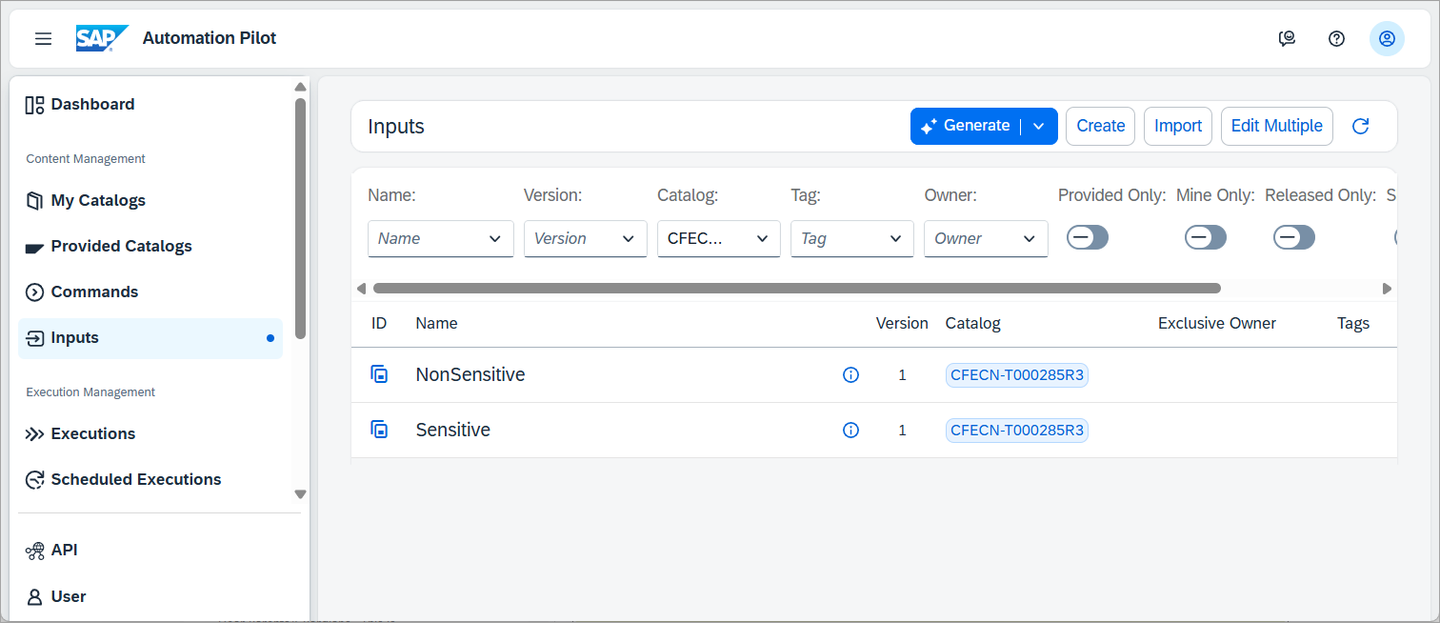
The two inputs are shown below. They provide a location where the details are specified to update the SAP HANA Cloud database instance. Credentials are needed for a Cloud Foundry user that has permissions to update the SAP HANA Cloud database instance and for a SQL user that can enable or disable a workload class and run SQL queries in the database.
If you have an instance deployed to the subaccount, the cf- values are not needed/used. Instructions on how to create the Sensitive input service-manager-binding can be found at Create a Service Manager instance.
A separate input named NonSensitive was created so that the input values that are not specified as sensitive can be displayed in the execution viewer.
input
Open the inputs and edit their values to match the SAP HANA Cloud instance that you wish to work with.
edit input values
Open the CFAddECN command. Notice that it takes NonSensitive and Sensitive inputs as an additional value to the input.
additional value
It contains a test executor that can be used to optionally perform an additional check such as checking the memory or CPU use.
add check
The addECN and enableWorkloadClass executors check the output of the test executor to see if they should run or not.
check condition
The addECN executor uses the built in command cf-sapcp:UpdateCfServiceInstance that will request the ECN node to be created. Notice that the parameter values are being set using the inputs.
add ECN executor
The enableWorkloadClass executor executes a SQL statement to enable a workload class which is used to direct a workload to the just started ECN node.
enable workload class
Open the CFDeleteECN command. Notice that a test can also be performed before the ECN is deleted. Depending on your workloads, you may wish to increase this delay or add a more involved check.
wait added before delete ECN
Try out the commands by pressing the Trigger button.
trigger AddECN
Under Additional Features, select Execution Log to see details on the test condition.
enable execution log
The non sensitive input values can be seen as shown below.
Step Input
The test condition check result can be seen in the step logs.
condition check
The status of the execution can be seen in the Executions section.
If an error is shown authenticating with the BTP user, ensure that it is a technical user and does not have two factor authentication enabled. The SAP Note 3085908 may also help with authentication issues.
Schedule the AddECN and DeleteECN commands.
Schedule
Step 11ECN advisor
+
SAP HANA Cloud Central includes an ECN advisor that provides recommendations for workloads that may be applicable to be run on an ECN.
advisor card
enable advisor
set the threshold
recommendation
There are a few requirements with the advisor:
The instance must have 5 vCPUs
A workload class is required
The timeframe duration must not exceed 24 hours
The timeframe cannot be less than 30 minutes.
The timeframe must be within the last 14 days
The timeframe must be 20 minutes later than the current timestamp.
Step 12Knowledge check
+
You have now explored Elastic Compute Nodes and how they can be used to address peaks in scheduled workloads.
Share feedback on this tutorial or join the conversation in SAP Community.
Submit detailed feedbackDiscuss in Community
Steps
Step 1 of 12
1. Identify tasks to be run on an Elastic Compute Node (ECN)2. Create an ECN3. Create a workload class4. Route to ECN with a hint5. Replicate a table to the ECN6. Remove the workload class and ECN7. Node.js app demonstrating prepared statements and the option routeDirectExecute on statement routing8. Procedure to check if the ECN is started9. ECN sample script10. Use SAP Automation Pilot to schedule the provisioning of an ECN11. ECN advisor12. Knowledge check
Joule
AI Notice
Joule is an AI assistant. Generative AI may produce inaccurate, incomplete, or biased information. Always verify important details before acting on them.
Conversations are sent to SAP-hosted large language models for processing. Do not include personal data, credentials, or confidential information in your messages.
Joule's responses are based on the SAP tutorial catalog and may not reflect the latest product changes. For authoritative guidance, consult the linked tutorials and official SAP documentation.