
Connect to Data Lake Relational Engine Using the ODBC Driver
Configure a data source to connect to the previously created data lake Relational Engine and then use the data source in unixODBC and Microsoft Excel.
Overview
You will learn
- How to create an ODBC data source for a data lake Relational Engine connection
- How to use the configured data source with other applications


Prerequisites
Prerequisites
- You have completed the first tutorial in this group.
Steps
Intro
Open Database Connectivity (ODBC) provides an API for accessing databases. Database vendors provide ODBC drivers for their database products. An application written to the ODBC standard can be ported to other databases that also provide an ODBC interface.
On SUSE Linux, unixODBC can be installed using Zypper or YaST.
Shellsudo zypper install unixODBC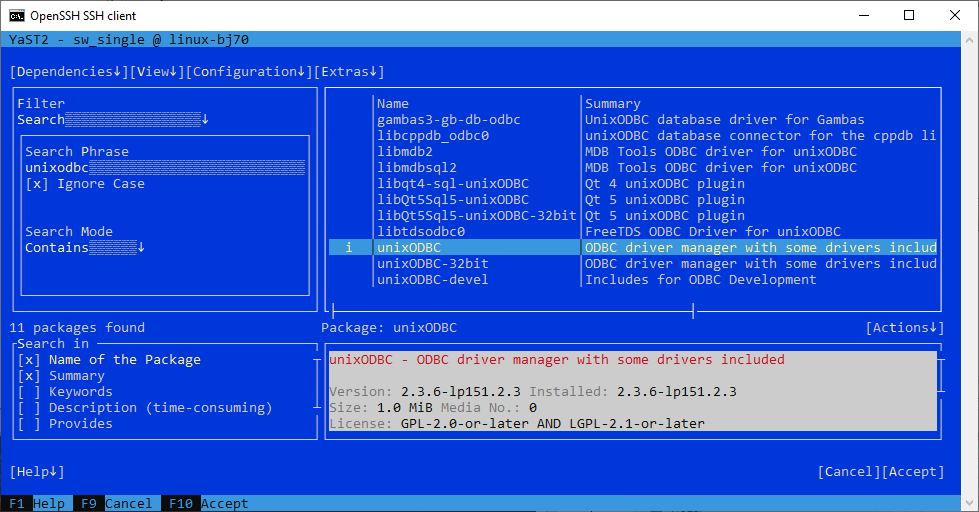
unixODBC install For more details on how to accomplish this, please follow the second step of this tutorial.
The following commands can be used to confirm that unixODBC is installed and determine the location of the .odbc.ini file (if it exists).
Shellcd /etc/unixODBC odbcinst -j
odbcinst -j Navigate to the directory where the
.odbc.inifile is located, similar to the one highlighted in the screenshot above. Open or create the.odbc.inifile with the following command:Shellpico .odbc.iniConfigure the values of
driverandhostso that they conform with your setup. Note that with the developer licensed version of the data lake client, the driver path below is slightly different..odbc.ini[HC_DL] driver=/home/XXXXX/sap/dlclient/IQ-17_1/lib64/libdbodbc17.so driver=/home/dan/sap/hdlclient/lib64/libdbodbc17.so encryption=TLS(trusted_certificates=*;direct=yes) host=XXXXXXXX-XXXX-XXXX-XXXX-XXXXXXXXXXXX.iq.hdl.XXXX-XXXX.hanacloud.ondemand.com:443 integrated=NO log=/tmp/hdlclientlog.txtHere the driver path is the path to your libdodbc17.so file.
DBISQL or
isql, which is a tool provided by unixODBC can be used to try out the data source. Ensure you are using the correct username and password.Shelldbisql -hdl -c "uid=USER1;pwd=Password1;dsn=HC_DL" -nogui isql -v HC_DL USER1 Password1dsn is the name set in the odbc.ini file in the previous step.
DBISQL
Some example queries you can run are listed below.
SQLSELECT * FROM HOTELS.CUSTOMER;SQLSELECT * FROM HOTELS.ROOM;
ODBC example with dbisql isql
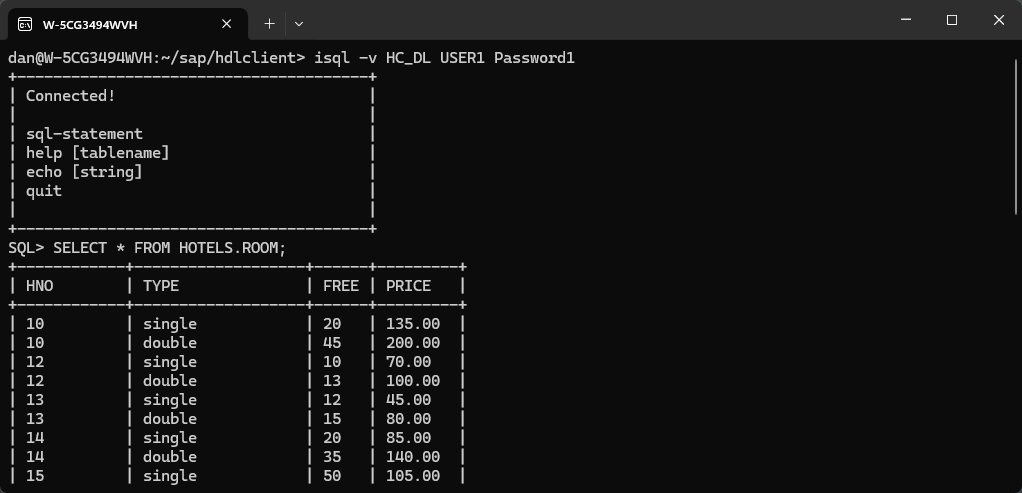
isql query To exit dbisql or isql type
quit.The column width when displaying results in isql can be set using the -m parameter.
Shellisql -v HC_DL USER1 Password1 -m6
Code
The ODBC Data Source Administrator can be used to view the installed ODBC drivers and to create data sources for an installed driver.
Open the administrator by entering ODBC after clicking on the Microsoft Windows start icon.
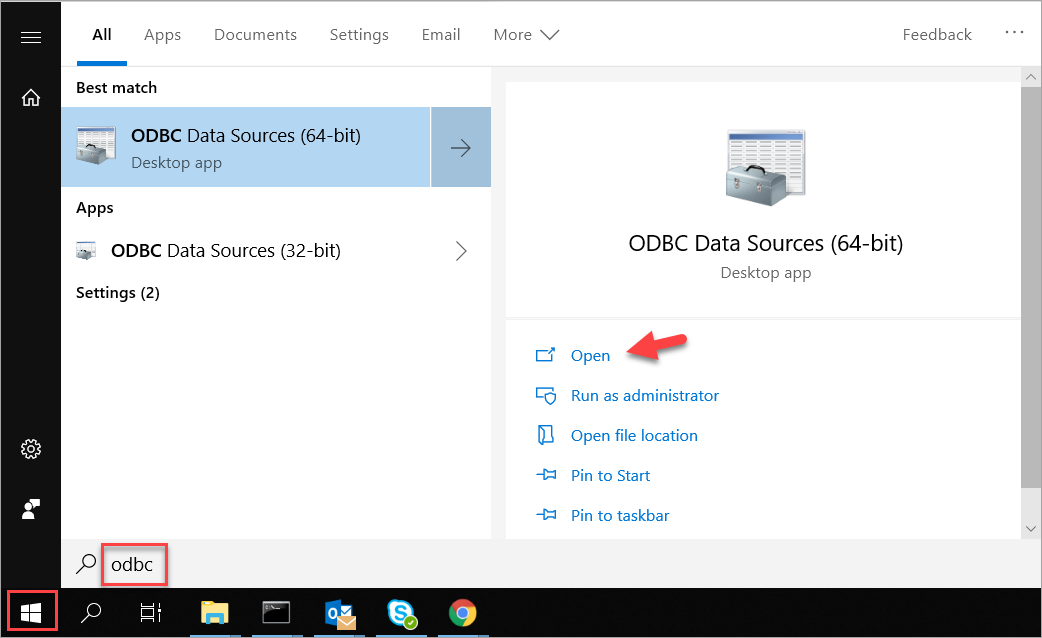
start ODBC Administrator Click the Drivers tab and view the installed drivers. The SAP HANA Cloud, data lake Relational Engine driver is visible.
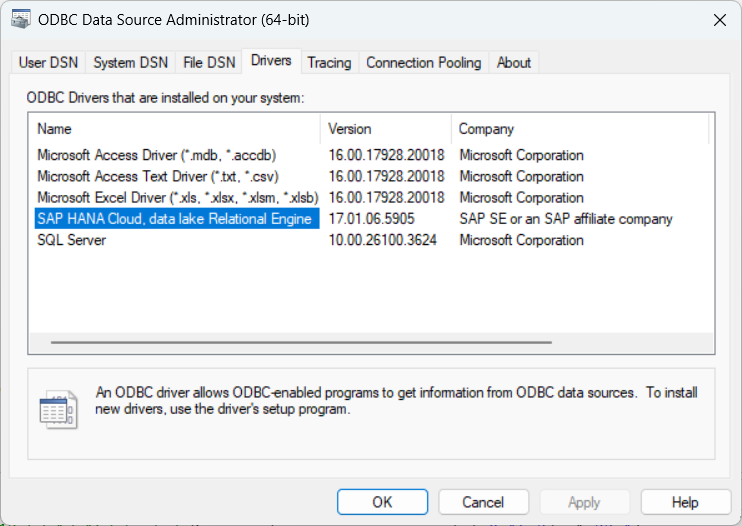
odbc admin drivers Click the User DSN tab to view the data sources.
Click Add to create a new data source to connect to a data lake Relational Engine database.

Add ODBC user data source Select SAP HANA Cloud, data lake Relational Engine and click Finish.

New data source Configure the data source.
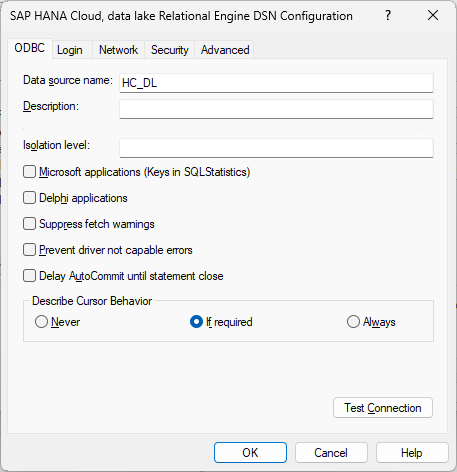
specify the data source name In the ODBC tab of the configuration window, fill in the Data source name.
Switch to the Login tab and enter in the USER1 credentials.
Retrieve the SQL Endpoint for your data lake instance. You can find this via the SAP BTP Cockpit or by using the Copy SQL Endpoint menu option in SAP HANA Cloud Central and input into Host field.

SQL Endpoint Select the Connect to SAP HANA CLOUD, data lake Relational Engine action.

specify the credentials, host and port Verify the connection by clicking on Test Connection in the ODBC tab.

test connection If the test fails, try pressing the OK button to save the data source, then try the test again.
Press OK to save the data source.
The saved values can also be viewed using the Microsoft Windows registry editor under the key
Computer\HKEY_CURRENT_USER\Software\ODBC\ODBC.INI.
For additional details see Connection Properties.
An application that supports ODBC can now make use of the created data source. One example on Windows is Microsoft Excel.
The following steps demonstrate how to use Microsoft Excel to query data in data lake Relational Engine using the ODBC connector.
Open Microsoft Excel.
In the Data tab, select Get Data | From Other Sources | From ODBC.

Excel ODBC Select the previously created data source that contains the connection information to data lake Relational Engine.

Excel DSN Select Database, enter the credentials, and press Connect.

Credential Screen Select a schema and table, then press Load.

Browse Schema The selected data is now imported into a Microsoft Excel spreadsheet.

Browse Schema Note, if an error occurs that mentions, you do not have permission to select from SYSINDEX, a newer version of the driver may be needed.
For further information on programming an application to use the ODBC client driver, see ODBC CLI.
Congratulations! You have configured an ODBC data source to contain connection information for a SAP HANA Cloud, data lake Relational Engine database and used that data source from unixODBC and Microsoft Excel.
Resources
Discussion
Share feedback on this tutorial or join the conversation in SAP Community.