
Overview
You will learn
- How to install Go
- How to create and debug a Go application that queries a data lake Relational Engine


Prerequisites
Prerequisites
- You have completed the first tutorial in this group.
Steps
Intro
Go is an open-source programming language developed by Google to increase productivity among programmers. For more information, see the Go Documentation.
The first step is to check if Go is installed, and if so, which version. To do so, enter the following command:
go version
If Go is installed, then it will return the currently installed version, such as 1.26.1.
If it is not installed, download it from Download Go, run the installer, follow the provided instructions, and ensure that Go is in your path.
On Linux, follow the instructions for the appropriate Linux version: Installing Go for openSUSE.
Note: A new shell window must be opened for the system to recognize the Go installation and for executing any future Go commands.
The data lake Relational Engine Client interface for Go, like the other data lake Relational Engine client interfaces (except JDBC), makes use of a C library named SQLDBC.
The Go driver loads the SQLDBC library named libdbcapiHDB using cgo. For further information on the following steps, consult Go (golang) Driver in the SAP HANA Cloud, Data Lake Client Interfaces Reference Guide. In order to use the Go Driver, a 64-bit gcc compiler is required.
To check if a 64-bit
gcccompiler is installed, run the following command:Shellgcc --versionOn Windows (if needed), download the compiler from MinGW. Under WinLibs.com, follow the link to winlibs.com. Navigate to the Release versions section. Find the latest release version of the Zip archive (UCRT runtime) for Win64 – x86_64. Then extract the folder.
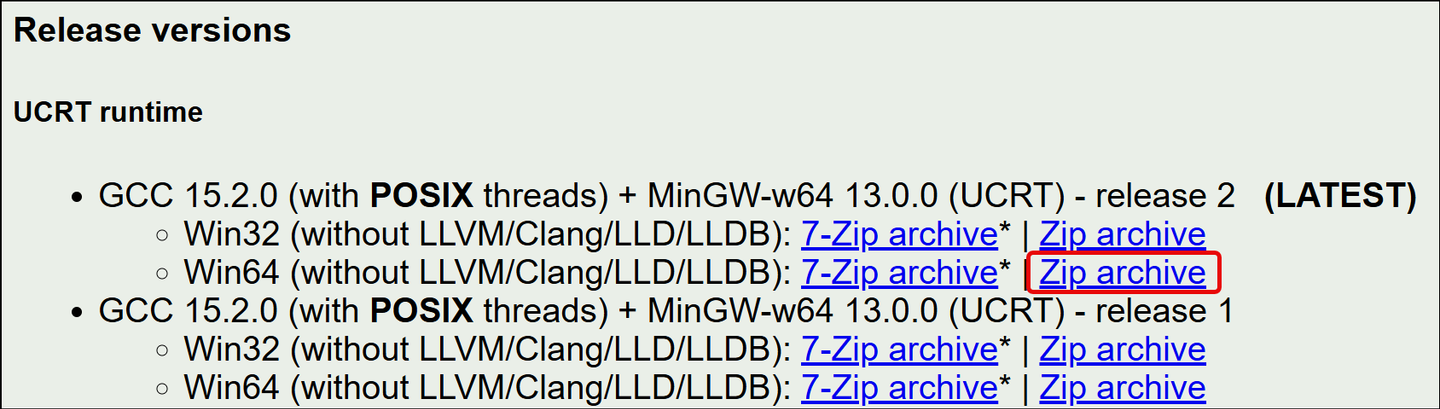
Download minGW from WinLibs If command prompt isn’t displaying the installed version after running the version check command, manually add the
binfolder to your path by setting it in your System environment variables.On Windows, search Edit the System Environment Variables and click on Environment Variables….

Edit environment variables Look for the
Pathenvironment variable within User variables and double click to edit. Select Browse and manually browse through your File Explorer to find the bin folder. Click “OK” on all environment variable windows to update.
Add bin to path On Windows, to ensure the gcc compiler is installed, open a new Command prompt window and run the following command:
Shellgcc --versionOn Linux (if needed), install the System GNU C compiler for your version of Linux. Note that if you are using openSUSE, minGW is included in the installation for Go through YaST.

gcc 64-bit Examine the Go environment by running the below command:
Shellgo envNotice that GOROOT is set to a location such as
C:\goor/usr/lib64/go/1.23. This is the location that the Go SDK is installed to.GOPATH is set to a location such as
C:\Users\user\goor$HOME/goand defines the root of your workspace which stores your codebase.Set the
CGO_LDFLAGSenvironment variable to point to the location of the HDLRE client library as shown below.On Windows, search Edit the System Environment Variables and click on Environment Variables. Add a NEW user variable. Set the variable name to CGO_LDFLAGS and the value as the location of
dbcapilibrary:C:\SAP\hdlclient\bin64\dbcapi.dll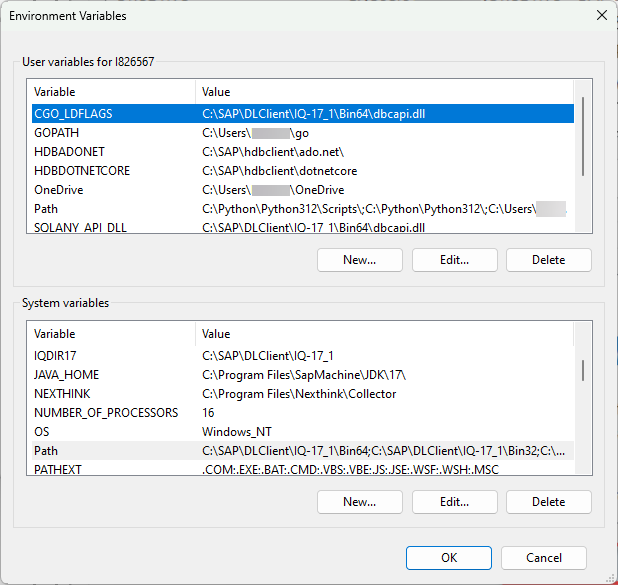
Set environment variables It is also possible on Microsoft Windows to set this using the SETX command from a shell.
On Linux, check if the following variable are defined.
Shellecho $CGO_LDFLAGS echo $LD_LIBRARY_PATHIf needed, open the ‘.bashrc’ or ‘.bash_profile’ and add the following lines. Note that the path may be different depending on the data lake client install used.
Shellpico .bashrc export CGO_LDFLAGS=$HDL_CLIENT_HOME/lib64/libdbcapi_r.so export LD_LIBRARY_PATH=$HDL_CLIENT_HOME/lib64
.bash_profile contents Navigate to the driver folder and create a Go module. Note that the path may be different depending on the data lake client install used.
Shellcd %HDL_CLIENT_HOME%\sdk\golang\SAP\go-hdlre\driver go mod init "SAP/go-hdlre/driver" go mod tidyShellcd $HDL_CLIENT_HOME/sdk/golang/SAP/go-hdlre/driver/ go mod init "SAP/go-hdlre/driver" go mod tidy
Create a module The contents of the data lake Client folder is not writeable so you may need to change the permissions on the driver folder or copy files to a new location.
In a shell, create a folder named
go, enter the newly created directory, and open a file namedgoQuery.goin an editor.Shellmkdir %HOMEPATH%\DataLakeClientsTutorial\go cd %HOMEPATH%\DataLakeClientsTutorial\go notepad goQuery.goShellmkdir -p ~/DataLakeClientsTutorial/go cd ~/DataLakeClientsTutorial/go pico goQuery.goAdd the code below to
goQuery.goand then modify the connectString variable.Gopackage main import ( "fmt" "database/sql" "log" _ "SAP/go-hdlre/driver" ) func main() { //specify the connection parameters connectString := "hdlre://User1:Password1@xxxxxxxx-xxxx-xxxx-xxxx-xxxxxxxxxxxx.iq.hdl.prod-xxxx.hanacloud.ondemand.com:443?enc='TLS{tls_type=rsa;direct=yes}'" fmt.Println("Connect String is " + connectString) db, err := sql.Open("hdlre", connectString) if err != nil { log.Fatal(err) return } defer db.Close() rows, err := db.Query("SELECT NAME, ADDRESS from HOTELS.CUSTOMER") if err != nil { log.Fatal(err) } defer rows.Close() var lastName string var address string for rows.Next() { err = rows.Scan(&lastName, &address) if err != nil { log.Fatal(err) } fmt.Println(lastName + ": " + address) } err = rows.Err() if err != nil { log.Fatal(err) } }Once the
goQuery.gofile has been updated, save and close the file.Create another go module and modify its contents:
Shellgo mod init "go/goQuery" go mod tidy notepad go.modShellgo mod init "go/goQuery" go mod tidy pico go.modAdd the code below to
go.modunder the go 1.26.1 (version) line:Ensure you have the correct path to the driver folder. The path depends on your installation. Note that two example locations are provided. Choose the one that’s closest to your installation and edit it if necessary.
Codereplace SAP/go-hdlre/driver v0.1.0 => C:\SAP\hdlclient\sdk\golang\SAP\go-hdlre\driver require SAP/go-hdlre/driver v0.1.0Codereplace SAP/go-hdlre/driver v0.1.0 => /home/name/sap/hdlclient/sdk/golang/SAP/go-hdlre/driver require SAP/go-hdlre/driver v0.1.0
go.mod contents Run the application or build and run the application:
Shellgo run goQuery.goShellgo build goQuery.go goQuery.exe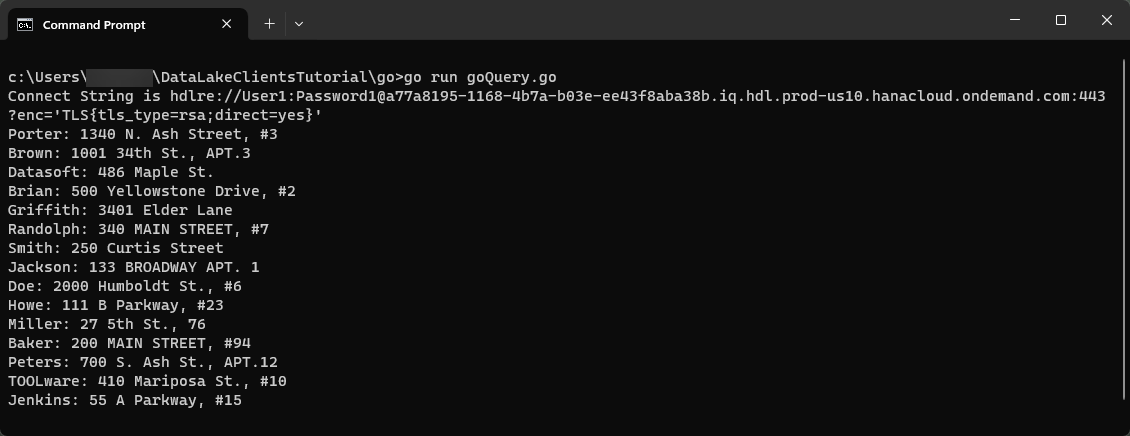
Result
For more information on the API’s used, consult the SAP HANA Cloud, data lake connection specific properties at Connect from Go to Data Lake Relational Engine, Go Database/SQL Tutorial, and Package SQL
Visual Studio Code provides plugins for Go and can be used to debug an application.
If you have not already done so, download Visual Studio Code.
If you have not already done so, in Visual Studio Code, choose File | Add Folder to Workspace, and then add the
DataLakeClientsTutorialfolder.
Open workspace Open the file
goQuery.go.
Go extension Visual Studio Code will recognize the
gofile extension and will suggest installing the Go for Visual Studio Code extension. Click Install.Place a breakpoint.
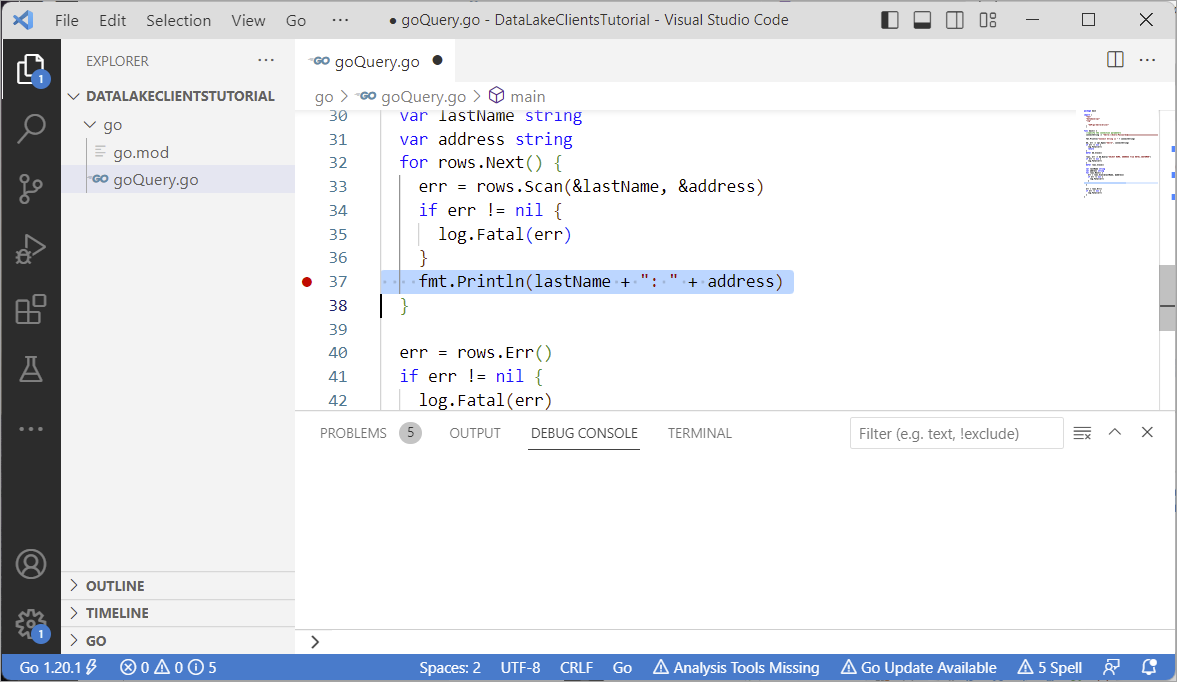
Set a breakpoint Select Run | Start Debugging.
Notice that the program stops running at the breakpoint that was set.
Observe the variable values in the leftmost pane. Step through the code.

Stopped at a breakpoint Note that debugging can also be performed from the command line using Delve.
Congratulations! You have now created and debugged a Go application that connects to and queries a data lake Relational Engine.
Resources
Discussion
Share feedback on this tutorial or join the conversation in SAP Community.