
Overview
You will learn
- How to install the .NET SDK
- How to create and debug a .NET application that queries a data lake Relational Engine


Prerequisites
Prerequisites
- You have completed the first tutorial in this group.
Steps
Intro
.NET is a free and open-source software framework for Microsoft Windows, Linux and Mac operating systems and is the successor to the .NET Framework. .NET was previously known as .NET Core.
The first step is to check if you have the .NET SDK installed and what version it is. Enter the following command:
dotnet --version If the dotnet command is not recognized, it means that the .NET SDK has not been installed. If the SDK is installed, the command returns the currently installed version, such as 9.0.101.
If the .NET SDK is not installed, download it from Download .NET and run the installer on Microsoft Windows.
Note: Select the ‘Download .NET SDK x64’ option.
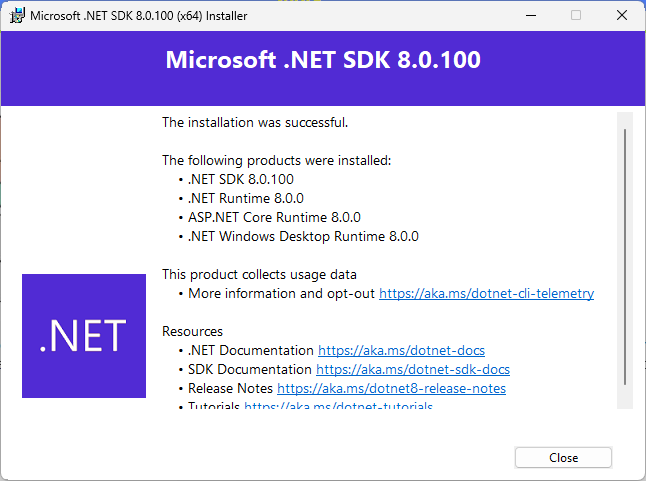
On Linux, follow the instructions for the appropriate Linux version such as Install the .NET SDK or the .NET Runtime on openSUSE.
In order for the shell to recognize that the .NET SDK is installed and for any dotnet commands in future steps to be recognized, a new shell window needs to be opened.
Create a new console app with the below commands:
Shellcd %HOMEPATH%/DataLakeClientsTutorial dotnet new console -o dotNETShellcd $HOME/DataLakeClientsTutorial dotnet new console -o dotNETOpen the
dotNET.csprojfile:Shellcd dotNET notepad dotNET.csprojShellcd dotNET pico dotNET.csprojAdd the following below the
PropertyGroupsection (within theProjectsection) to indicate where to load the data lake Relational Engine Client .NET driver from. Modify theHintPathsection with the information about where the Sap.Data.SQLAnywhere.Core.v2.1.dll is located on your machine.Shell<ItemGroup> <Reference Include="Sap.Data.SQLAnywhere.Core.v2.1"> <HintPath>C:\SAP\hdlclient\sdk\dotnet\Sap.Data.SQLAnywhere.Core.v2.1.dll</HintPath> </Reference> </ItemGroup>Shell<ItemGroup> <Reference Include="Sap.Data.SQLAnywhere.Core.v2.1"> <HintPath>/home/dan/sap/hdlclient/sdk/dotnet/Sap.Data.SQLAnywhere.Core.v2.1.dll</HintPath> </Reference> </ItemGroup>
dotNET.csproj updates Once the
dotNet.csprojfile has been updated, save and close the file.Run the app to validate that data lake driver can be loaded:
Shelldotnet runIf an error occurs, double check that the hintpath is correct and on Linux that the script hdlclienv.sh to set the variables has been run.

Result of running the app Open an editor to edit the file
Program.cs.Shellnotepad Program.csShellpico Program.csReplace the entire contents of
Program.cswith the code below. Update the host value in the connection string.C#using System; using Sap.Data.SQLAnywhere; namespace dotNETQuery { class Program { static void Main(string[] args) { try { var connStr = "host=XXXX.iq.hdl.prod-XXXX.hanacloud.ondemand.com:443;UID=USER1;PWD=Password1;ENC=TLS(tls_type=rsa;direct=yes)"; using (var conn = new SAConnection(connStr)) { conn.Open(); var query = "SELECT TITLE, FIRSTNAME, NAME FROM HOTELS.CUSTOMER"; using (var cmd = new SACommand(query, conn)) { using (var reader = cmd.ExecuteReader()) { Console.WriteLine("Query result:"); // Print column names var sbCol = new System.Text.StringBuilder(); for (var i = 0; i < reader.FieldCount; i++) { sbCol.Append(reader.GetName(i).PadRight(20)); } Console.WriteLine(sbCol.ToString()); // Print rows while (reader.Read()) { var sbRow = new System.Text.StringBuilder(); for (var i = 0; i < reader.FieldCount; i++) { var value = reader[i].ToString(); if (value != null) { sbRow.Append(value.PadRight(20)); } } Console.WriteLine(sbRow.ToString()); } conn.Close(); } } } } catch (Exception ex) { Console.WriteLine("Error - " + ex.Message); Console.WriteLine(ex.ToString()); } } } }Save and close the
Program.csfile after replacing the code.The above app makes use of some of the data lake Relational Engine .NET driver methods, such as SAConnection. Connection details for this class can be found at Connection Properties. See also the .NET Driver in the SAP HANA Cloud, data Lake client interfaces guide. Further .NET API details can be found in the .NET API browser.
Run the app.
Shelldotnet run
Result of running the app
If you have not already done so, download Visual Studio Code.
If you have not already done so, in Visual Studio Code, choose File | Add Folder to Workspace, and then add the
DataLakeClientsTutorialfolder.
Explorer with the workspace opened Open the file
Program.cs.
C# Extension Visual Studio Code will recognize the
csfile extension and will suggest installing the C# for Visual Studio Code extension. Click Install.Place a breakpoint on the line sbRow.Append line. Select Run | Start Debugging | .NET Core. A configuration will be added. Choose Run | Start Debugging.
Notice that the debug view becomes active and that the RUN option is .NET Launch.
Notice that the program stops running at the breakpoint that was set.
Observe the variable values in the leftmost pane. Step through code.

Visual Studio Code Debugger For further information on debugging .NET apps consult Tutorial: Debug a .NET Core console application using Visual Studio Code and Instructions for setting up the .NET Core debugger.
Congratulations! You have now created and debugged a .NET application that connects to and queries an SAP HANA database.
Resources
Discussion
Share feedback on this tutorial or join the conversation in SAP Community.