
Overview
You will learn
- How to create a multi-target application with a database module via SAP HANA database project in the SAP Business Application Studio
- How to create a columnar table using declarative SQL
- How to load data for testing into a columnar table from a CSV file
- How to access the Database Explorer to browse your tables, data and use SQL statements


Prerequisites
Prerequisites
- You have created a BTP, SAP HANA Cloud instance – see Deploy SAP HANA Cloud trial.
- You are logged into SAP Business Application Studio and it’s configured Configure the Development Environment.
Steps
Intro
A video version of this tutorial is also available:
From the SAP Business Application Studio Welcome tab, click Start from template Create a new project.

New project from template Choose SAP HANA Database Project and click Start.

New project from template Call the project DM and click Next.

New project from template Keep the module name at the default of db and press Next.

New project from template Clear the Namespace and Schema Name blank. Choose version HANA Cloud and click Next

New project from template Leave all values of the Bind to HDI Container service at their default values and press Finish
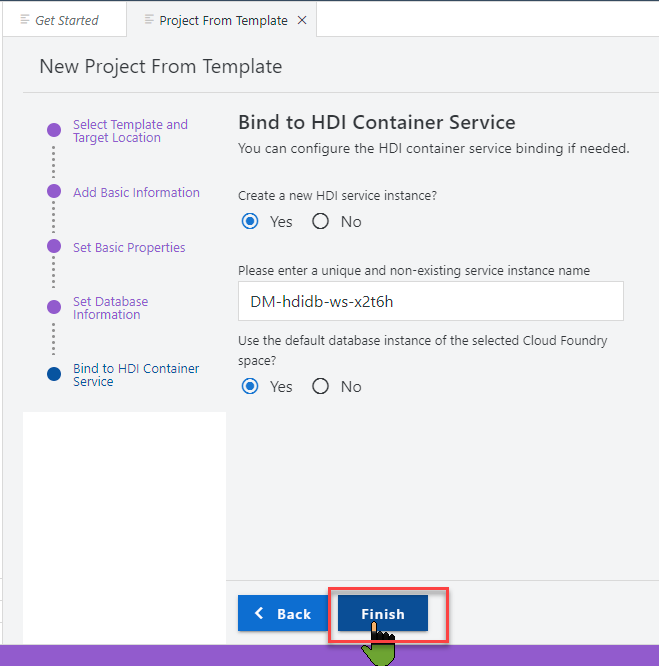
New project from template You should see a Generating SAP HANA Database Project message which will remain for a minute or two as the HDI container instance is being created.

New project from template Upon completion of the project generation, you will see a message and the new project is opened in the workspace of the Business Application Studio.

New project from template
This project will combine artifacts from an HDI container and a classic, replicated schema.
You will first create a table to hold data from performance evaluations received by employees and the rating they give the company in terms of satisfaction.
These are sample records that will be stored in this table:

Right-click on the
srcfolder, chooseNew File
New DB artifact Use the following name
Textdata/performance.hdbtable
New DB artifact This will create both a folder and a file. Paste the following content into the
hdbtablefile to define a new table:SQLcolumn table "PERFORMANCE" ( "ID" INTEGER unique not null COMMENT 'Employee ID', "EVALUATION_RATING" DOUBLE COMMENT 'Evaluation results', "REPORTS_TO" INTEGER not null COMMENT 'Reports to Manager', "FEEDBACK_COMMENT" NVARCHAR(512) COMMENT 'Feedback comment', "SATISFACTION_INDEX" DOUBLE COMMENT 'Employee given rating', PRIMARY KEY ("ID") ) COMMENT 'Performance evaluation record'
What is going on? You have created a database module and a design time artifact representing a table. When this module is deployed, SAP Business Application Studio will automatically create the runtime object (a physical table) in the schema associated to the HDI container. This approach allows you to modify the structure of the table without worrying about underlying adaptation operations.
The table you have just defined will have a large text field with comments from the employees. You want to enable an index to enhance text search.
Create a new database artifact under the data folder

New DB artifact 
New DB artifact Use the following name
Textcomment_textAnd choose Artifact Type of
hdbindex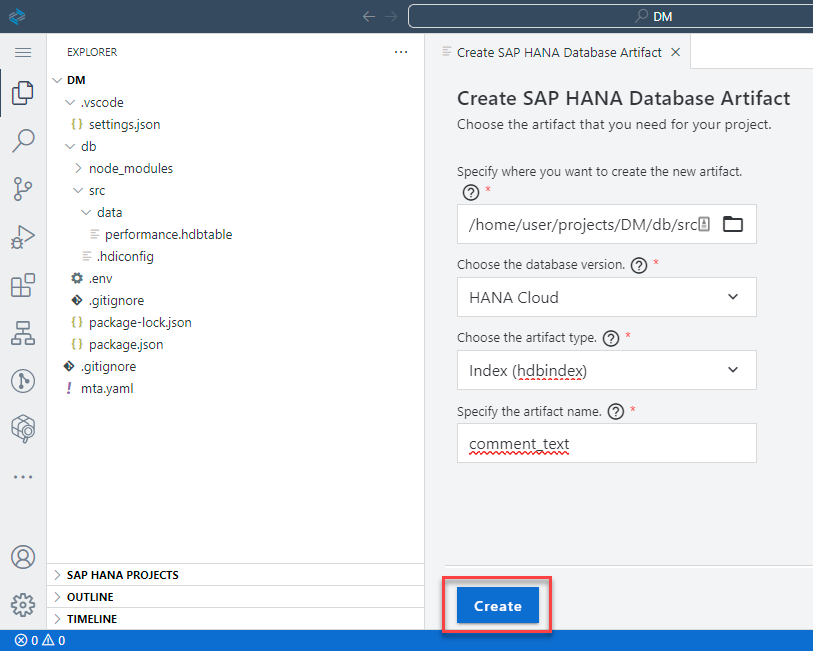
New DB artifact Paste the following code into it:
SQLINDEX "COMMENT_TEXT" on "PERFORMANCE"("FEEDBACK_COMMENT")
Expand the SAP HANA PROJECTS View
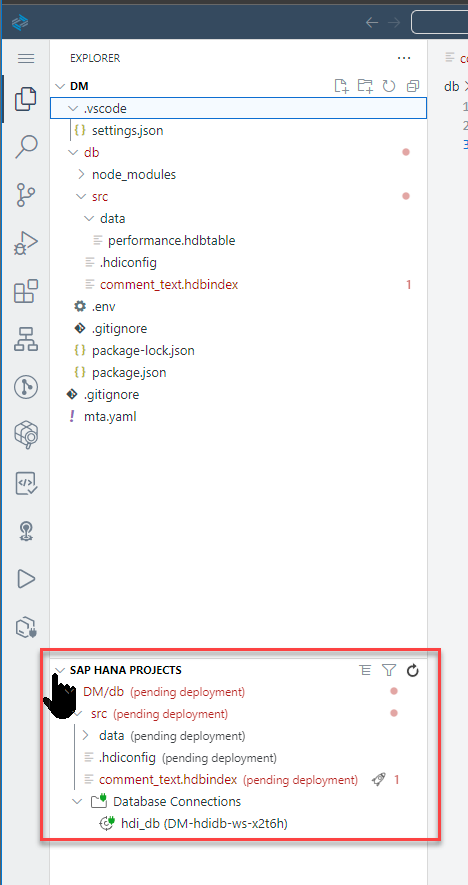
Deploy DB Click the Deploy icon (which looks like a rocket).
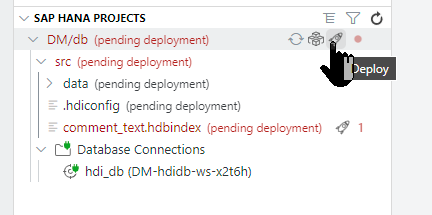
Deploy DB
> **What is going on?** > > > The console on the bottom will show the progress. First, an HDI container will be created and bound. Scroll up the log to see it in your screen: > > 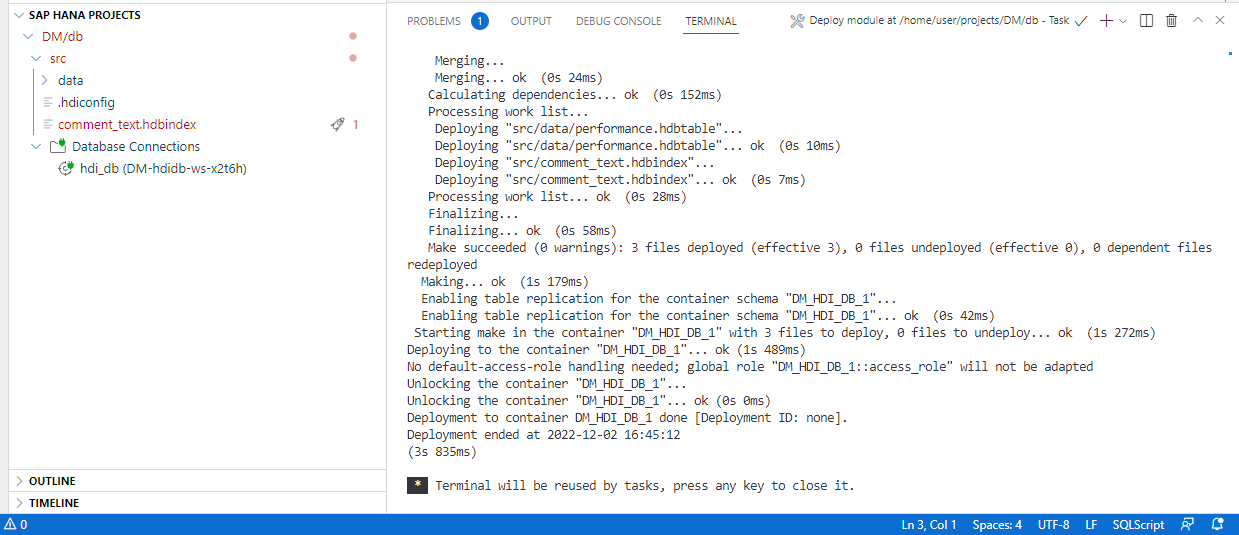 > > The container is called `hdi_db`, which is the name you specified in the deployment configuration file, `mta.yaml`. > If you continue to scroll down, you will see how the table and text index you have created using design-time artifacts are prepared for deployment. A physical schema called `DM_HDI_DB_1` has been created. Finally, you will see a success message: > > > > 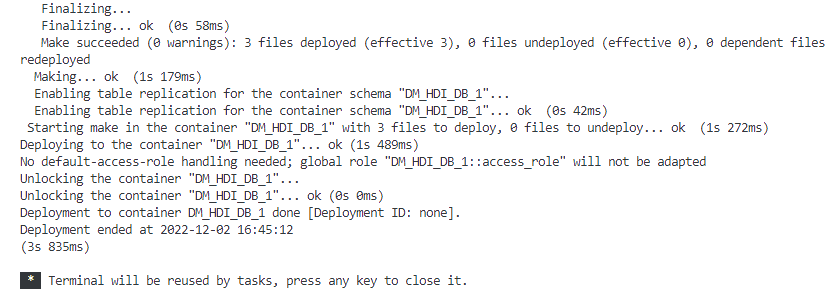 >
For testing and development purposes, you can use a local file to load data into an HDI container.
Create the configuration for the upload first. In the
datafolder, create a file called:Textloads/dataload.hdbtabledata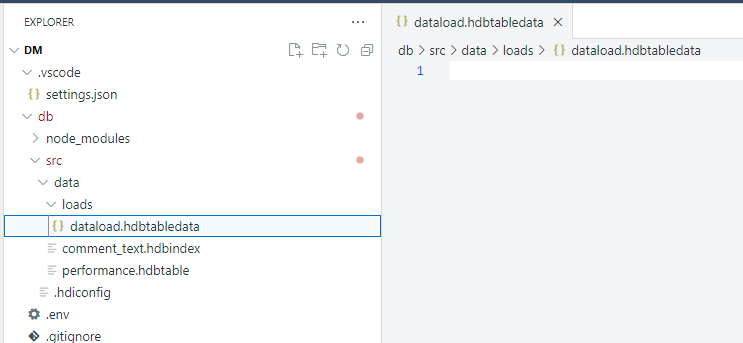
Data load Paste the following content into it:
JSON{ "format_version": 1, "imports": [{ "target_table": "PERFORMANCE", "source_data": { "data_type": "CSV", "file_name": "performance.csv", "has_header": true, "dialect": "HANA", "type_config": { "delimiter": "," } } }] }Download this
csvfile –https://github.com/SAPDocuments/Tutorials/blob/master/tutorials/hana-cloud-create-db-project/performance.csvinto your computer. Upload it into the loads folder using the Upload option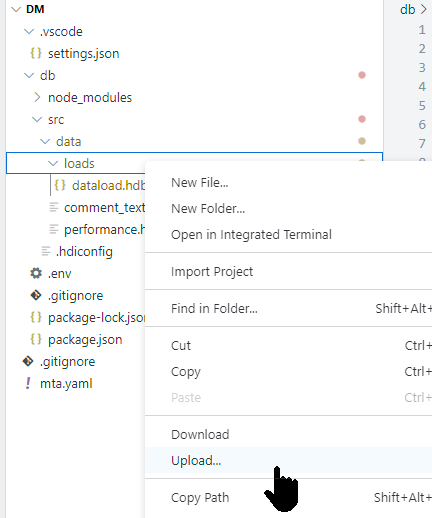
Data load Deploy the loads folder

Data load
Press the Open HDI Container icon

Explore data The Database Explorer will open in a new browser tab with your HDI container already selected. Select Tables

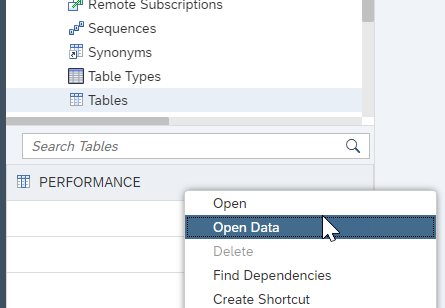
Explore data Right-click on the table PERFORMANCE and choose Open Data
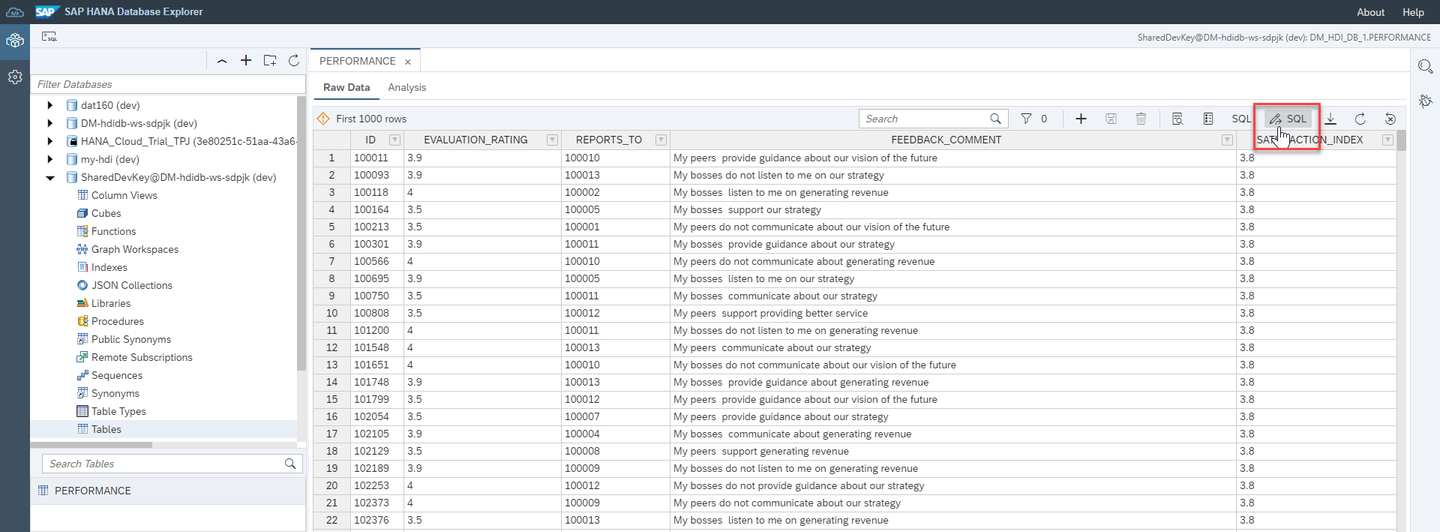
Explore data Open the SQL editor for this query
Explore data Execute the following SQL statement to complete the validation below:
SQLSELECT ROUND(AVG("SATISFACTION_INDEX"),1) FROM "PERFORMANCE";
Resources
Discussion
Share feedback on this tutorial or join the conversation in SAP Community.