
Overview
You will learn
- How to access SAP Business Application Studio and create a Dev Space
- How to configure credentials to perform a deployment in the SAP Business Technology Platform, Cloud Foundry environment


Prerequisites
Prerequisites
- You have created an instance of the SAP HANA Cloud trial – see Deploy SAP HANA Cloud trial.
- You have set up SAP Business Application Studio for development – see Set Up SAP Business Application Studio for Development.
Steps
Dev spaces are like isolated virtual machines in the cloud that can be quickly spun-up. Each dev space type contains tailored tools and pre-installed run-times for a target scenario such as SAP Fiori or mobile development. This simplifies and saves time in setting up the development environment as there’s no need to install anything or upgrade; letting developers focus on their business domain, anytime, anywhere.
Go to your SAP Business Technology Platform trial subaccount and click the Services -> Instances and Subscriptions option.

Subscriptions Locate the SAP Business Application Studio entry and click Go to Application

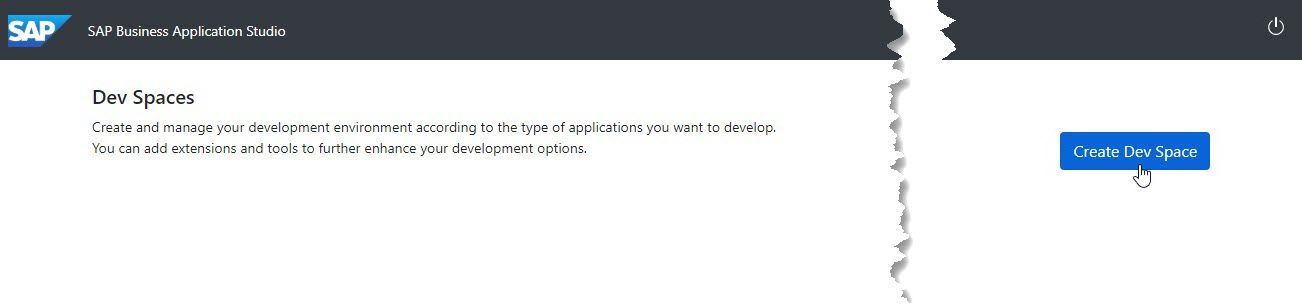
Go To Application Choose Create Dev Space. Please NOTE: In the SAP BTP trial you are limited to only two Dev Spaces and only one can be active at a time. If you have performed other workshops, you might already have reached your maximum. In that case you might have to delete one of the other dev spaces in order to continue with this workshop.
Create Dev Space Enter HANA for your dev space name and choose SAP HANA Native Application as the kind of application you are creating.
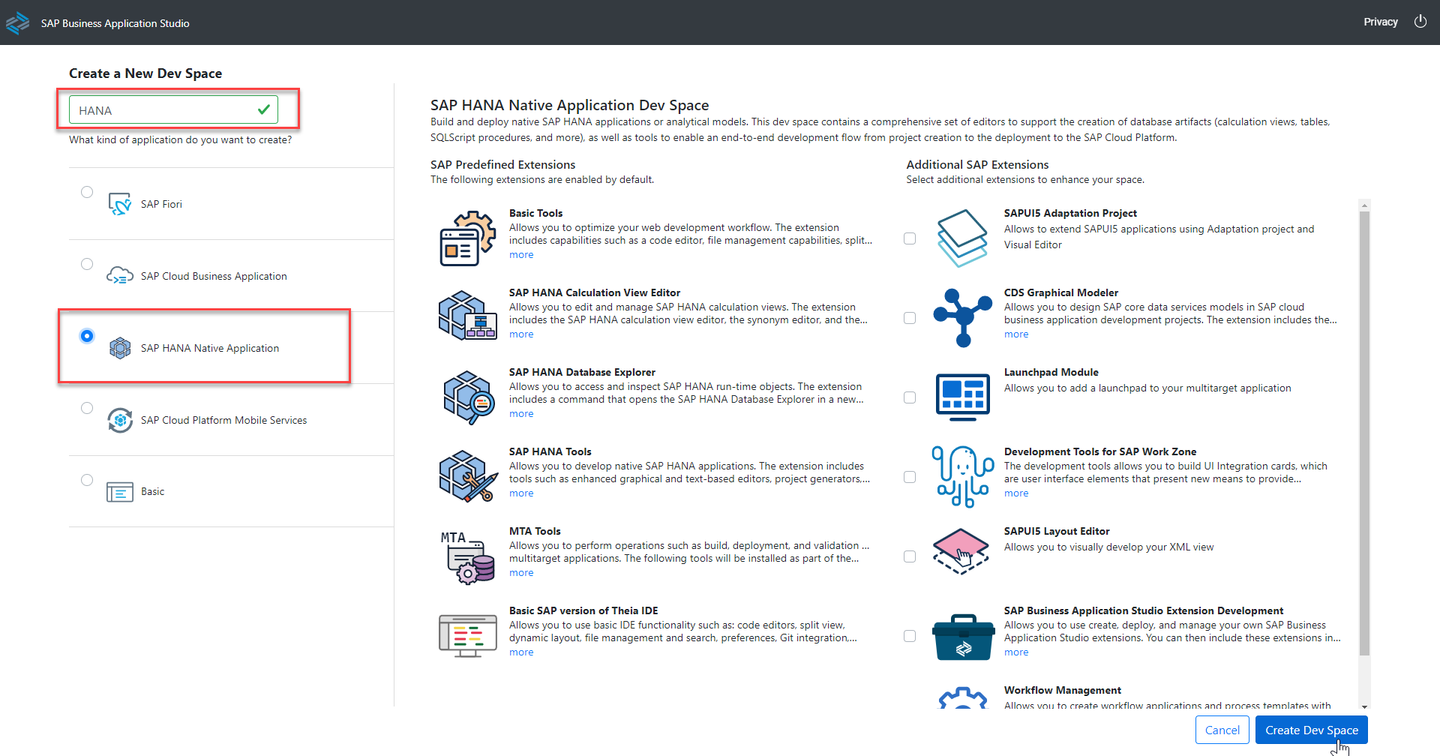
Create Dev Space The Dev space will automatically be configured with the most common tools you need for the type of application you choose. However you can also choose additional, optional extensions.
Once all selections are completed, press Create Dev Space

Press Create Dev Space The Dev Space will then begin starting and the process will take a minute or so as your cloud environment is being created

Staring Dev Space Once the Dev Space reaches the green status of RUNNING, you can click on the name of the Dev Space and it will load into the editor within your browser

Dev Space is Running You’ll be redirected to your newly created SAP Business Application Studio Dev Space. We recommend you bookmark this URL so it’s easier for you to access this dev space of your SAP Business Application Studio in the future
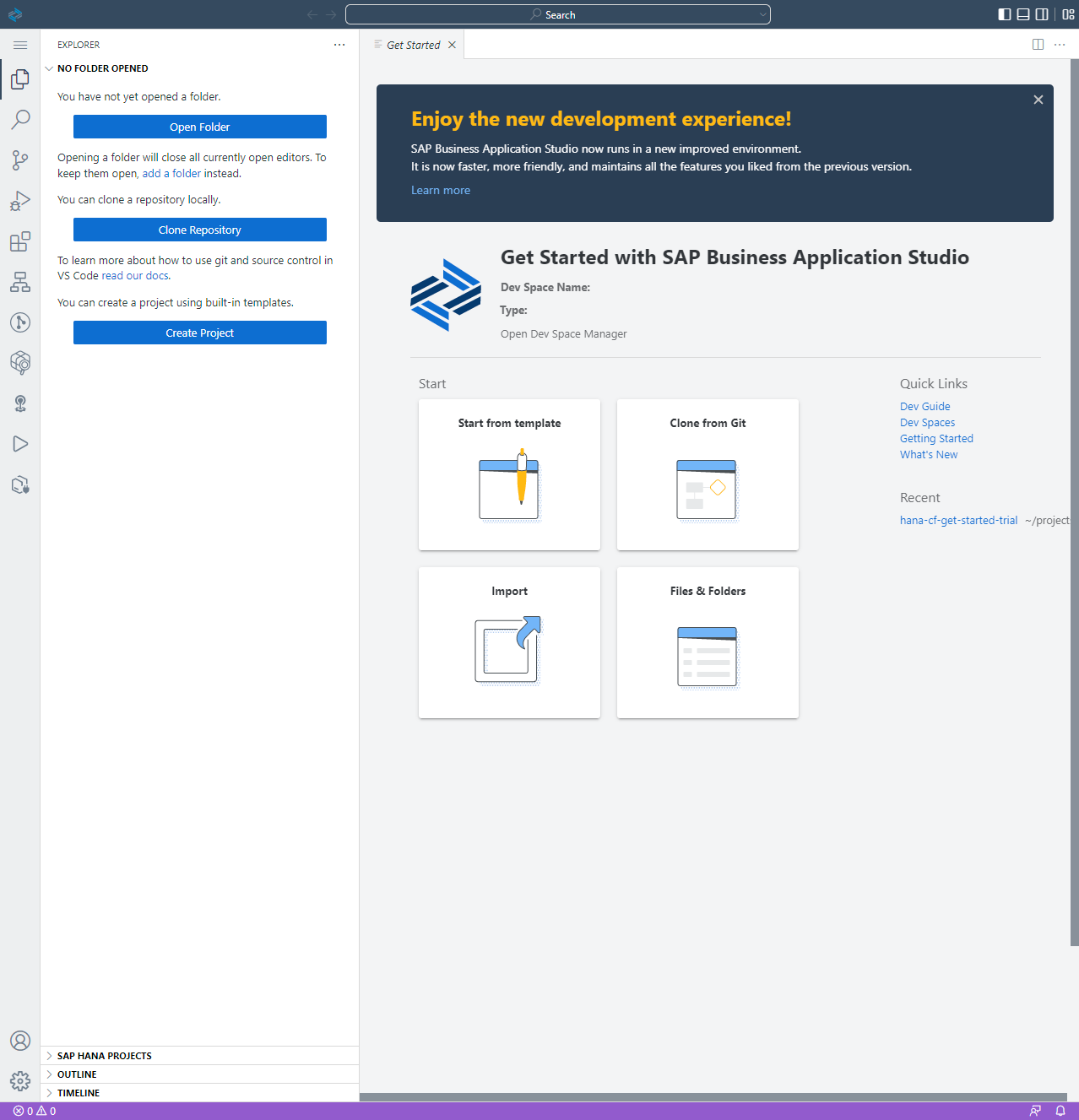
Business Application Studio is running
Before we create our SAP HANA project, we want to do a few more one-time configuration steps to prepare the Dev Space
In the left side of the Business Application Studio click on the Cloud Foundry targets icon

CF Not Set Now in the Cloud Foundry Targets window you can expand either Service or Applications and then click on the Logon icon to continue the configuration process
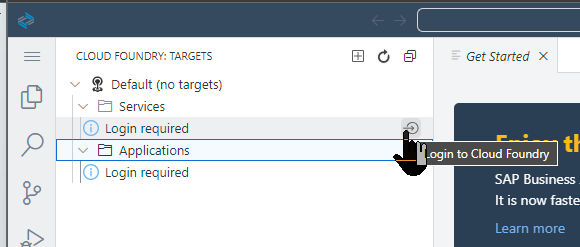
Login Required The Cloud Foundry Sign In window will then open at the left of the SAP Business Application Studio. The first input will prompt you for the API endpoint

API Endpoint The default value proposed may not be the correct value, please confirm; the value can be found in the SAP BTP cockpit at the Subaccount level

Finding the API Endpoint The next input field will ask you for the email address you used to create your SAP BTP account
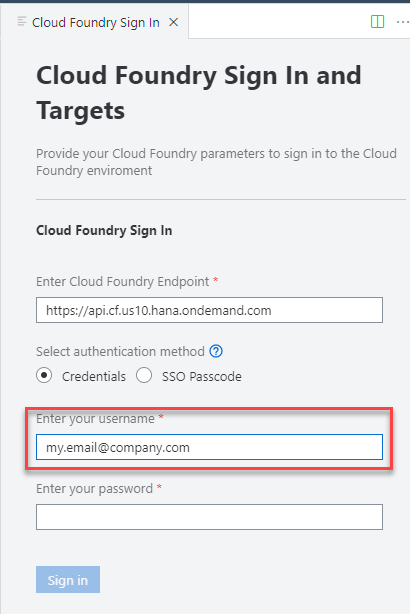
Email The next input will ask you for your SAP BTP account password. After entering you can press the Sign in button to continue

Password The next input will ask you for your Organization. In most situations you will have a single choice. But like the API endpoint earlier, if you need to confirm the correct value it will be displayed in the top navigation of the SAP BTP cockpit

Organization The final input will ask you for your Space. Then you can press the Apply button.

Space Upon completion of all the inputs, you should see that the Organization and Space have been set and you will see any service instances or application instances from the target space. You will normally have less and different services in your system than those shown in this screen shot.

Org and Space Set Correctly
Your HANA instance should be running and you’ve created a Dev Space and configured it for your needs in the Business Application Studio. You are now ready to begin development.
Resources
Discussion
Share feedback on this tutorial or join the conversation in SAP Community.