🎓intermediate⏱20 min.SAP HANA CloudIntermediateSAP HANA Cloud SAP HANA DatabaseSAP HANA Cloud Data Lake
You will learn
✔How to execute SQL commands against an SAP HANA Cloud instance using hdbsql or dbisql from the command line
✔An overview of two different runtimes that SAP HANA Cloud can be provisioned into
✔How to use the BTP, CF, and service manager command line interfaces (CLIs) with an SAP HANA Cloud instance SAP HANA Cloud Central can be used to perform many administrative tasks for SAP HANA Cloud instances within a graphical interface such as creating, deleting, starting, stopping, updating, upgrading, cloning, or running diagnostic checks.SAP HANA Cloud CentralA text-based interface can be faster, more efficient, and less error prone when performing repetitive tasks. This tutorial will provide examples of performing administrative tasks using the command line.running and scheduling tasks> Access help from the SAP community or provide feedback on this tutorial by navigating to the “Feedback” link located on the top right of this page.
The example shown below uses HANA_Configuration_Overview_SHC which is one of the many queries included in the SAP Note: 1969700 - SQL Statement Collection for SAP HANA. Note that the entries with the suffix _SHC are for SAP HANA Cloud, SAP HANA databases.
Open the SAP Note, download the zip file, and unzip its contents. It contains many diagnostic queries for an SAP HANA database. The download section shown below is near the bottom of the SAP Note.
download attachment
The HANA_Configuration_Overview_SHC.txt diagnostic query will be used.
hana configuration overview
Create a hdbuserstore key that contains the SQL endpoint (host:port), user, and password needed to connect to the SAP HANA database instance.
Shell
hdbuserstore Set AdminUserKey <SQL ENDPOINT> DBADMIN <PASSWORD>
The list of keys can be seen with the command below.
Shell
hdbuserstore List
Run the command.
Shell
hdbsql -A -o results.txt -U AdminUserKey -I HANA_Configuration_Overview_SHC.txt
type results.txt
An example of the result is shown below.
Executing SQL from a command line using hdbsql
Review the options used.
-A provides an aligned output
-o results.txt writes the output to a file named results.txt
-U AdminUserKey instructs hdbsql to retrieve the host, port, user name and password from the user store. This is helpful when running scripts as the credentials are not included in the command line
-I HANA_Configuration_Overview_SHC.txt specifies the SQL to be executed
Should you wish to run a diagnostic script against an SAP HANA Cloud, data lake Relational Engine use dbisql.
The SAP Business Technology Platform (SAP BTP) provides multiple runtimes in which services can be run. This becomes important when attempting to interact with the service from a command line interface (CLI) as there are different CLIs for each runtime environment.
SAP HANA Cloud instances can be deployed to either the subaccount (other environment) or to a Cloud Foundry space. The screenshot below shows an instance deployed to each location.
Runtimes for SAP HANA Cloud
When a service is created, if it supports multiple runtime environments, the runtime environment can be specified as shown below.
Create service
When creating an instance using the multi-environment edition of SAP HANA Cloud Central, the instance is provisioned into the subaccount (Other).
When creating an instance using the Cloud Foundry edition of SAP HANA Cloud Central, the instance is provisioned in the Cloud Foundry environment.
You can also choose to copy the JSON parameters that the multi-environment edition wizard generates and then use the SAP BTP wizard (or one of the CLIs shown in the next section) to provision the instance in your environment of choice.
copy configuration
Considerations when provisioning to the subaccount (Other):
SAP HANA Cloud Central, multi-environment edition (introduced in 2022 QRC 3) provisions to the subaccount (Other) in the Create Instance wizard
SAP HANA Cloud Central, multi-environment edition uses the BTP subaccount role collections for security
Instances can be managed using the SAP BTP CLI or SAP Service Manager
Considerations when provisioning to a Cloud Foundry space:
SAP HANA native development in the SAP Business Application Studio currently deploys to HDI containers in Cloud Foundry spaces
HDI containers provisioned into Cloud Foundry can be mapped to SAP HANA Cloud databases provisioned to the subaccount (Other)
If you already have instances deployed to Cloud Foundry spaces, you may wish to have all of your instances in the same runtime environment
SAP HANA Cloud Central, Cloud Foundry edition, uses the Cloud Foundry space roles for security
Instances can be managed using the Cloud Foundry CLI
SAP HANA Cloud Central, multi-environment edition cannot currently (as of Q3 2023) create or delete instances provisioned in Cloud Foundry. Instances can be created or deleted using the SAP BTP Cockpit or the Cloud Foundry CLI
Step 3Overview of the CLIs
+
A command line interface (CLI) is a text-based interface. There are three different CLIs that can be used with an SAP HANA Cloud instance to perform administrative tasks such as start, stop, create, delete, update, or upgrade.
The CLI used depends on whether the SAP HANA Cloud instances were provisioned to the subaccount (Other) or to a Cloud Foundry space. Details on the three CLIs can be found at Create and Manage SAP HANA Cloud Instances Using the CLI.
SAP BTP CLI can create, read, update, and delete an instance provisioned in a subaccount (Other). It can also be used to read the configuration of an instance deployed in a Cloud Foundry space. More details can be found in the btp CLI Command Reference. Details on how to install the CF CLI can be found in the tutorial Get Started with the SAP BTP Command Line Interface. Additionally, the SAP BTP CLI can be used to create and configure subaccounts.
SAP Service Manager can create, read, update, and delete an instance provisioned in a subaccount (Other). It can also be used to read the configuration of an instance deployed in a Cloud Foundry space. The service manager also provides a REST API that can be accessed programmatically in applications such as a Node.js application. Details on how install the service manager can be found at Installing the Service Manager Control (SMCTL) Command-Line Tool.
The following steps will provide examples of each CLI as well as accessing the SAP Service Manager REST API. Please install one or more of the CLIs before proceeding.
When using a CLI to perform an update to an instance, the update operation will take an input parameter in JSON format that describes the change being requested. The parameters are common across the three CLIs. Details on the SAP HANA Cloud service specific parameters can be found at Parameter Reference.
Step 4Examples using the BTP CLI
+
Before proceeding ensure that your user has the subaccount service administrator role collection.
The commands below were executed in a Microsoft Windows PowerShell. This shell offers code completion by pressing the tab key. To try out the autocompletion, enter btp, a space, and press the tab key. If needed, you can enable autocompletion as described at Enable Command Autocompletion.
Auto complete
Select an action and press tab again to view the available operations for that action.
After a successful login, details can be seen using the info command.
btp info
Specify the subaccount
If the subaccount is specified, then it does not need to be specified in each subsequent command.
Shell
btp target
The above command lists the available subaccounts.
selecting a subaccount
Alternatively, the subaccount can be specified using its ID.
Shell
btp target --subaccount <SubaccountID>
The subaccount ID can be obtained on the BTP Cockpit Overview page for the subaccount.
subaccount ID
Create an instance
In order to create an instance, JSON describing the instance is required as well as a plan ID.
Create a JSON file named create.json that specifies the parameters of the instance to be created. The JSON can be generated in the SAP HANA Cloud Central instance creation wizard or can come from an existing instance.
Copy configuration
JSON create parameters
Edit create.json and provide a value for systempassword. This is the password for the DBADMIN user.
specify password
Identify the plan ID for the SAP HANA database. Notice that the name is either hana for the paid service, hana-free for the free-tier service, or hana-trial for the trial service, the service_offering_name is hana-cloud-trial. The list of all available offerings can be found using services/offering.
Shell
btp list services/plan --fields-filter "name contains 'hana'"
Free tier and production service plans
view available service plans
Trial service plans
view available service plans on trial
or
Shell
btp list services/plan --fields-filter "name contains 'lake'"
This adds a label that can be seen both in the SAP BTP Cockpit as well as when viewing the instance details with the CLI as shown in the next example.
update label
View instance details
The details of an instance can be viewed.
Execute the command below.
Shell
btp get services/instance --name HC_HDB
or
Shell
btp --format json get services/instance --name HC_HDB
Get Service Instance
Execute the command below to see the parameters of an instance.
Shell
btp --format json get services/instance --name HC_HDB --show-parameters
Get Service Instance JSON
Update parameters of an instance
This step will be used to update the description of the instance. The existing instance parameters can be obtained from the output of the previous example or from the Copy Configuration menu item in an SAP HANA Cloud Central actions menu for an instance.
Create a file named description.json with the contents below.
JSON
{"metadata":{"ui.hc.sap.com/description":"Created as part of Automation Tutorial"}}
Check in SAP HANA Cloud Central to see that the upgrade is occurring.
after upgrade
Step 5Additional Examples using the BTP CLI (Optional)
+
The following examples require a non trial or free tier SAP HANA Cloud instance.
Clone an instance
An SAP HANA Cloud database instance may be cloned. As an example, you may wish to periodically replace a QA instance with a new instance that has a copy of the latest data from a production instance. The subaccounts can be in different hyperscalers and the configuration settings such as storage size of the target instance can be different than the source. Additional details can be found at Clone an SAP HANA Database Instance.
Select an instance to clone. It cannot have an attached data lake. To verify that it does not have an attached data lake, confirm that it has the option Add Data Lake and that it has the option Create Template to Clone Instance.
add data lake
Create a file named clone-template.json with the contents below and modify it as appropriate.
The contents after requestedOperation are the same as the create.json covered previously.
create clone json example
After the template has been created, it can be used to create the clone.
Shell
btp create services/instance --name <instance name to create> --offering-name hana-cloud --plan-name hana --parameters clone.json
create the clone
After the command completes, a new SAP HANA Cloud instance named Clone is created that will have the same schema and data as the instance Clone_Source. The data is stored in the files created when the template was created so the data in the clone reflects the data that was captured during the template creation.
creating clone
Perform a takeover
A takeover from an SAP HANA instance to a replica can performed. This can happen automatically or can be triggered from the SAP HANA Cloud Central actions menu or using the CLI command illustrated below. Additional details on the topic of replicas can be found at Increasing System Availability.
Find an instance to perform a takeover on. It will have a replica, and its action menu will have an option to start a takeover.
instance with a replica
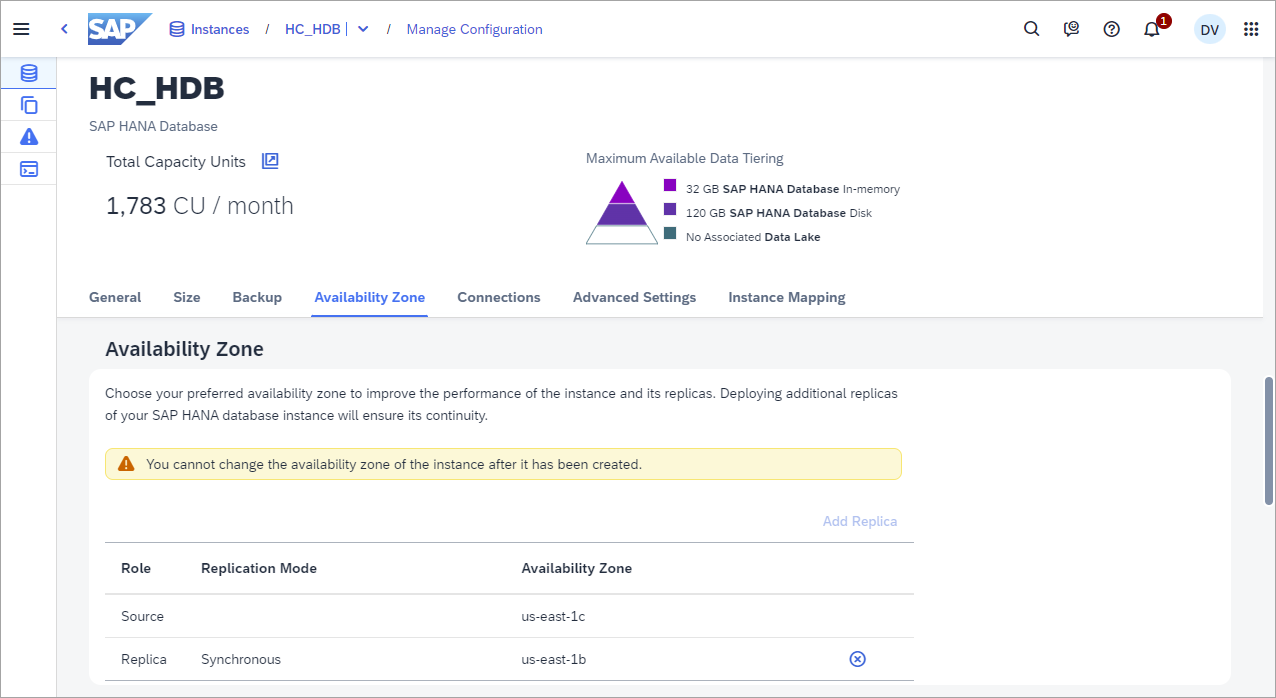
The details of the replica can be seen when after selecting Manage Configuration from the actions menu.
manage configuration
Create a file named takeover.json with the contents below and modify it as appropriate.
The instance will briefly show a starting status and when it is back to running, the source database will now be in the new availability zone.
after takeover
Step 6Examples using the CF CLI
+
Before proceeding ensure that your user has the space developer privilege which is required to perform actions such as create-service or update-service.
Before proceeding ensure that your user has the proper permissions. The Service Manager uses the same role collection Subaccount Service Administrator that was assigned with the BTP CLI previously. Further details can be found at Assign Subaccount Service Administrator Collection.
Version and help
Shell
smctl version
smctl help
sm help
Log on
Shell
smctl info
smctl login --url https://service-manager.cfapps.<REGION>.hana.ondemand.com --param subdomain=<SUBDOMAIN>
service manager login
The region and subdomain can be obtained from the subaccount overview page within the SAP BTP Cockpit. Additional details are available at Logging in to SAP Service Manager. Provide your SAP BTP credentials for the user and password.
service manager login required values
List instances
Shell
smctl list-instances --output json
Viewing the instance list
The commands are very similar to the BTP CLI and are not repeated here. The BTP CLI additionally provides commands for working with global accounts.
You have now executed diagnostic SQL statements from the command line, are aware of the different runtimes in the SAP BTP platform that an SAP HANA Cloud instance can be provisioned to, and have used one or more of the CLIs to manage an SAP HANA Cloud instance.
Share feedback on this tutorial or join the conversation in SAP Community.
Submit detailed feedbackDiscuss in Community
Steps
Step 1 of 8
1. Executing SQL Statements from a shell2. SAP HANA Cloud runtimes3. Overview of the CLIs4. Examples using the BTP CLI5. Additional Examples using the BTP CLI (Optional)6. Examples using the CF CLI7. Examples using the Service Manager CLI8. Knowledge check
Joule
AI Notice
Joule is an AI assistant. Generative AI may produce inaccurate, incomplete, or biased information. Always verify important details before acting on them.
Conversations are sent to SAP-hosted large language models for processing. Do not include personal data, credentials, or confidential information in your messages.
Joule's responses are based on the SAP tutorial catalog and may not reflect the latest product changes. For authoritative guidance, consult the linked tutorials and official SAP documentation.