
Execute SQL Commands and Create Custom Notifications with SAP Automation Pilot and SAP Alert Notification Service
Learn an approach to schedule SQL statements which are run against an SAP HANA Cloud database and send an email based on the results of the execution.
Overview
You will learn
- How to create a command in SAP Automation Pilot which connects to and queries an SAP HANA Cloud database instance
- How to perform queries using the provided
ExecuteHanaCloudSqlStatement - How to perform queries using
hdbcli, the SAP HANA client driver for Python - How to conditionally send a notification (email) with the results of the query using the SAP Alert Notification Service
- How to schedule an SAP Automation Pilot command


Prerequisites
Prerequisites
- Access to the SAP Business Technology Platform (BTP) that includes SAP HANA Cloud, SAP Alert Notification Service, and SAP Automation Pilot. These services are available in the SAP BTP free tier.
Steps
Intro
SAP HANA Cloud provides built-in alerts for items such as long running statements, table row counts, expiring database passwords, or low disk space. This tutorial will demonstrate an approach that can be used to create a notification for use cases not covered by the built-in alerts. The hotels dataset described in the tutorial Create Database Objects with SAP HANA Database Explorer contains a maintenance table where work items are described.

An SAP Automation Pilot command will be created to check if any maintenance items are unassigned, and if so, an email will be generated. The final step in the tutorial will demonstrate how to schedule the command to run once a week.

If you do not already have the
HOTELS.MAINTENANCEtable in an SAP HANA Cloud database, please create it now by following the first 2 steps in the Create Database Objects with SAP HANA Database Explorer tutorial.If you do not have a subscription to the SAP Automation Pilot service, step 1 of the tutorial Take Action Following a SAP HANA Cloud Database Alert with SAP Automation Pilot provides details on how to so.
If you do not have an instance of the SAP Alert Notification service, see step 5 of the tutorial Alerts in SAP HANA Database and Data Lake.
This step will create a catalog, an input, and a command in the SAP Automation Pilot. The command in subsequent steps will execute SQL against the database to determine if there are any unassigned maintenance items.
In the SAP Automation Pilot, create a new catalog.

create a catalog Specify the values below.
Label Value Name CustNotifDisplay name Custom NotificationsDescription A user catalog which will hold inputs and commands demonstrating how to perform a custom notificationCreate an input to store the connection details for an SAP HANA Cloud database.

create input Specify the values below.
Label Value Catalog Custom NotificationsName SAPHANADBDescription Contains the details to connect to a specific SAP HANA Cloud databaseAdd the following keys to the input.

input with keys Key Name Type Sensitive Description Value host String no Host value for a SAP HANA Cloud database Copy the SQL Endpoint from SAP HANA Cloud Central and remove :443 port Number no Port value for a SAP HANA Cloud database 443user String no The user ID to connect the database USER1password String yes The password to connect the database Password1Storing values in an input enables the values to be reused across different commands. If a value needs to be updated, it only has to be updated in one place.
Create a command.
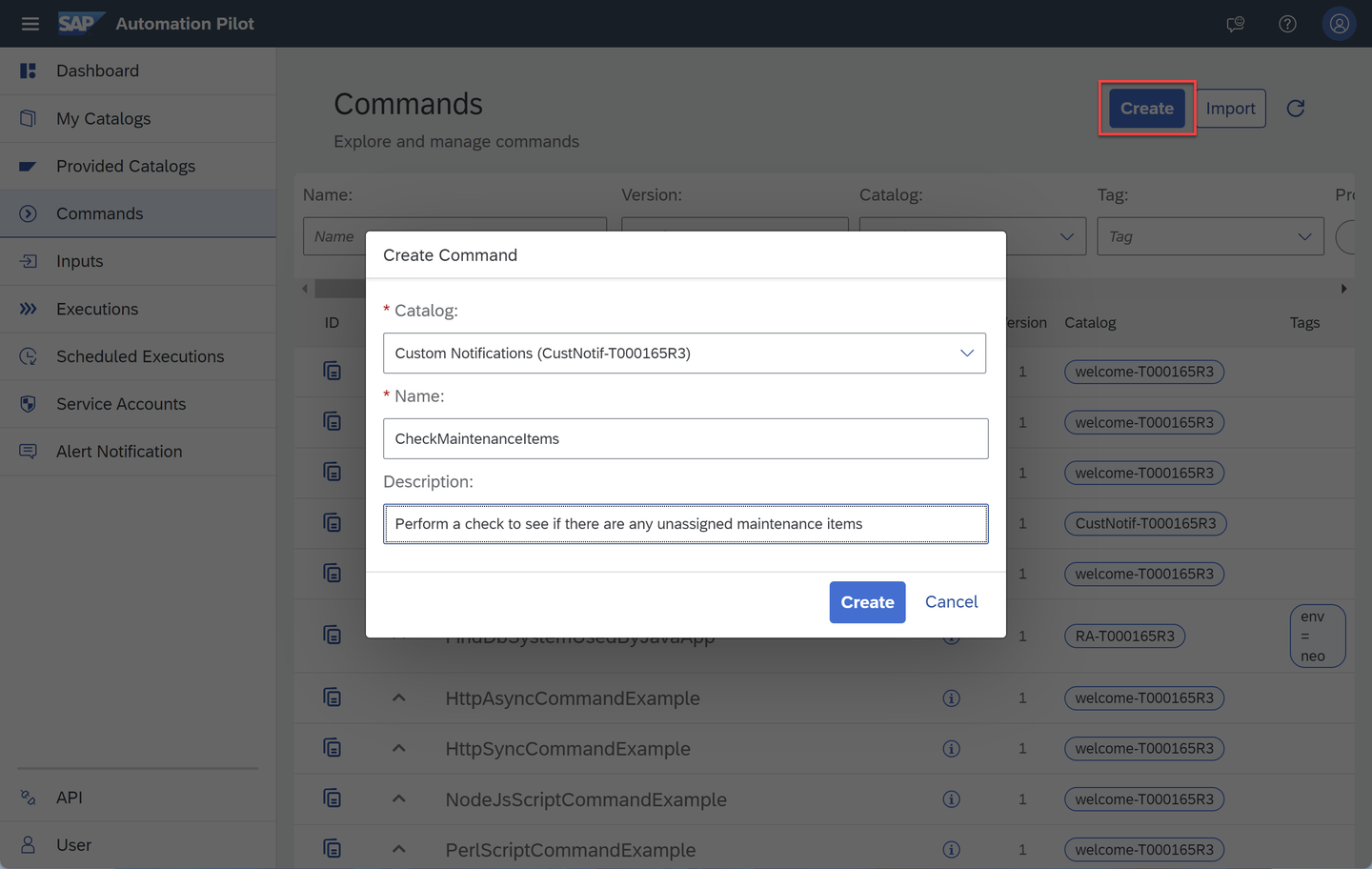
create command Specify the values below.
Label Value Catalog Custom NotificationsName CheckMaintenanceItemsDescription Perform a check to see if there are any unassigned maintenance itemsIn the newly created command, select input and add an additional value which is the
SAPHANADBinput.
add additional values Specify the values below.
Label Value Alias scriptInputValue Type InputInput SAPHANADBAn alternative method of passing parameters to the command uses the input keys in the contract section. This is shown in step 4.
Add an output key.

output key Specify the values below.
Label Value Name checkResultType stringSensitive NoDescription JSON string of the resultUnder Configuration, add an executor.

Add executor Click on Here and specify the values below.

Add an executor Label Value Alias QueryDBCommand ExecuteScript (Version: 2)Automap Parameters true:2 indicates that this is version 2 of the command.
Automap parametersis not used in this tutorial, so its value can be enabled or disabled.Select
QueryDBand then press the edit parameters button.
parameters Paste in the following code for the script parameter.
Python#!/usr/bin/env python3 print("Hello from QueryDB!")Select the output and choose Edit.

edit output Label Value checkResult $(.QueryDB.output.output[0])This will take the result printed in the
QueryDBexecutor and set it to the output of the command.For additional details on the use of the
$(...)used above, see Dynamic Expression.Trigger the execution.

trigger the command Additional inputs are not needed.

trigger command dialog After a few seconds, the output can be seen.

execution output 
Output value A quick way to return to the command after executing it is to click on the link shown below.

Return to command
At this point, a command has been created and executed. In the next two steps, two different techniques of executing SQL against an SAP HANA Cloud database will be shown.
This step will add an additional executor to the command that can connect to a SAP HANA Cloud database and execute a query.
Under Configuration, add an executor.
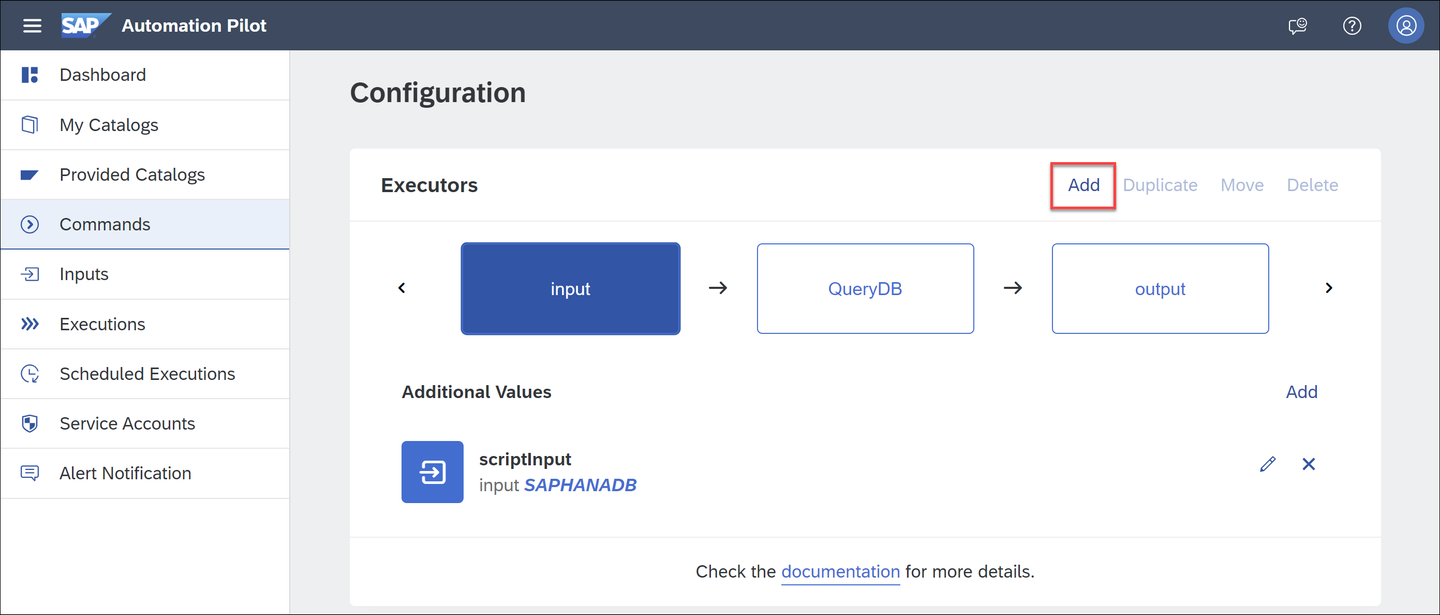
Add executor Click on Here and specify the values below.
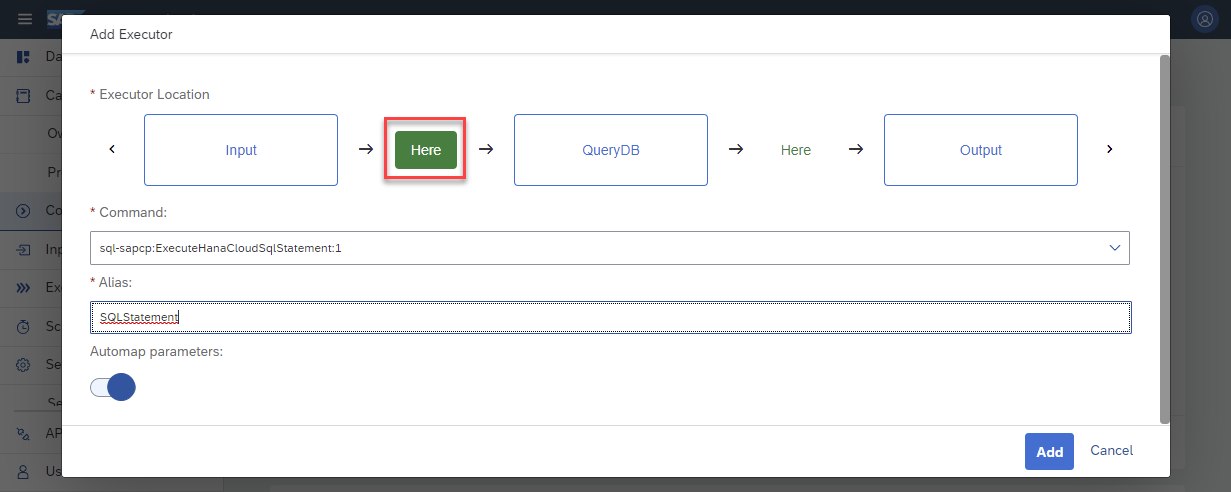
Add an executor Label Value Alias SQLStatementCommand ExecuteHanaCloudSqlStatementAutomap Parameters trueSelect
SQLStatementand then press the edit parameters button.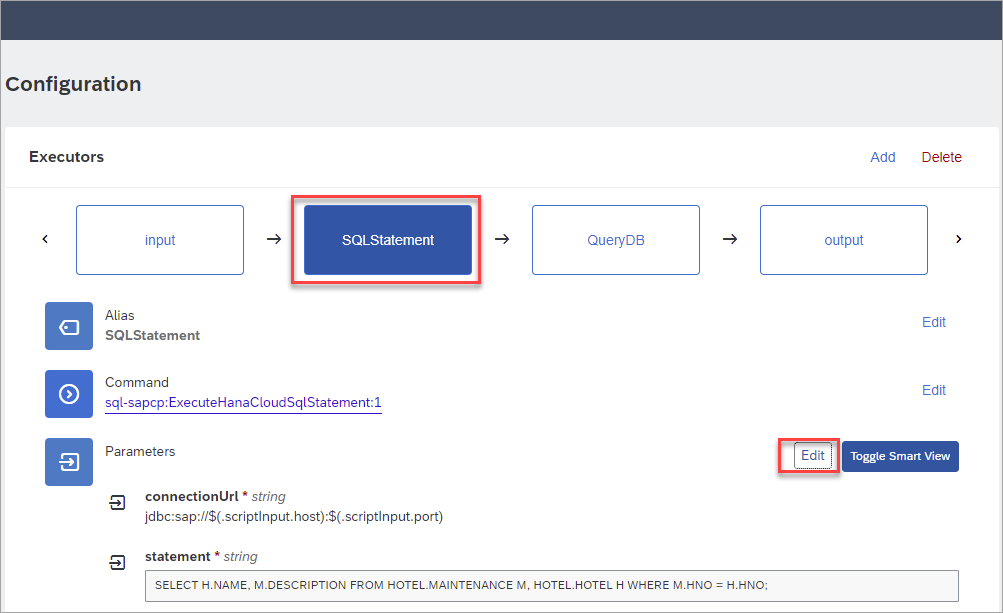
parameters Set the Connection URL to be
jdbc:sap://$(.scriptInput.host):$(.scriptInput.port).Under Statement, specify the SQL below.
SQLSELECT H.NAME, M.DESCRIPTION FROM HOTELS.MAINTENANCE M, HOTELS.HOTEL H WHERE M.HNO = H.HNO;
statement Under Authentication specify the values below.

authentication Key Value Type Basic AuthenticationUser $(.scriptInput.user)Password $(.scriptInput.password)Notice that the user or password inputs provide autocompletion after
$(.is entered.
auto complete Under Advanced specify the values below.

advanced Key Value Result Row Format: ObjectResult Transformer toArray[0]Select
QueryDB. Then press the edit parameters button.
edit QueryDB Paste in the following code for the script parameter replacing the previous content.
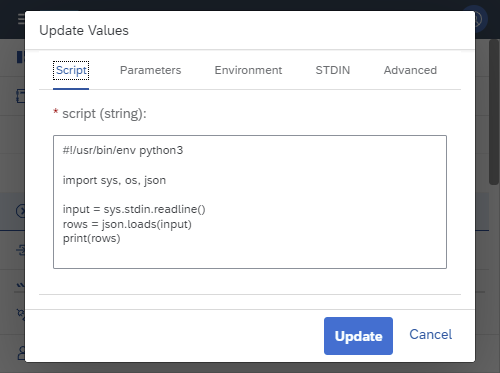
script Python#!/usr/bin/env python3 import sys, json input = sys.stdin.readline() rows = json.loads(input) print(rows)Under STDIN, specify
$(.SQLStatement.output.result)so that the output of the previous step can be accessed in the Python code.
STDIN Trigger the execution. Additional inputs are not needed.
trigger the command The output can be seen below.
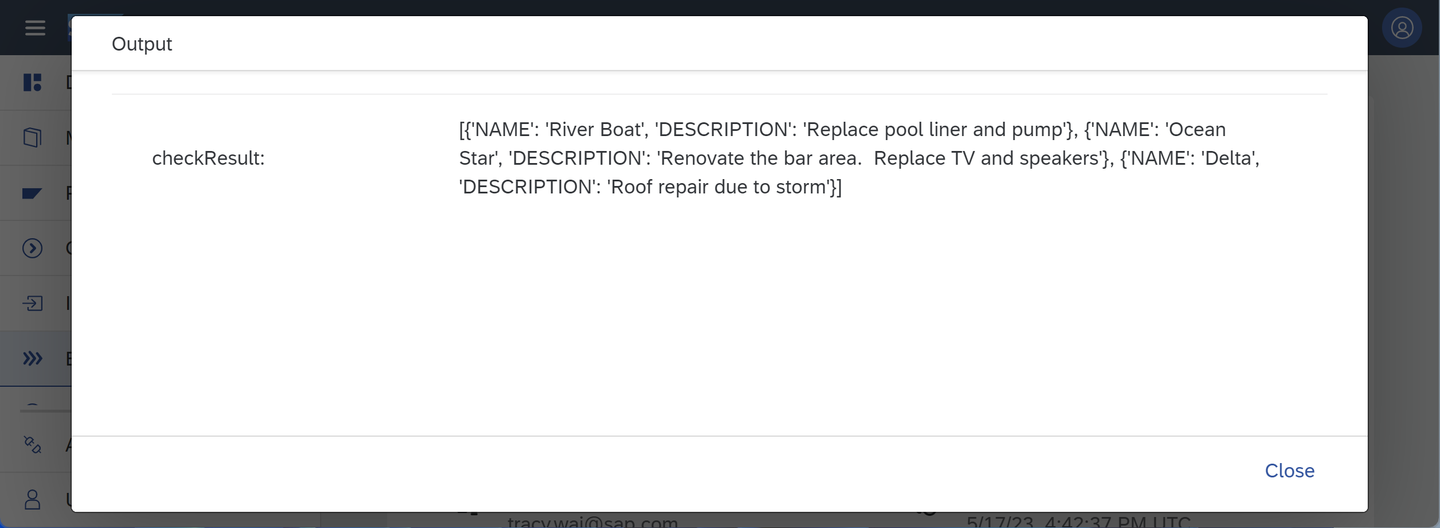
Output value
The above step demonstrates how the provided SQL Statement command can be used. Its output was passed into a Python command, where the result could be further processed. The next step is an example to execute SQL statements directly in the Python command.
This step will demonstrate how SQL queries can be made directly in Python rather than using a separate executor.
Optionally delete the executor
SQLStatement.Select
QueryDBand then press the edit parameters button.parameters Paste in the following code for the script parameter replacing the previous content.
Python#!/usr/bin/env python3 import sys, os from hdbcli import dbapi #Note: We cannot directly access input keys such as $(.execution.input.user) or additional parameter values $(.scriptInput.user) in a Python script host = os.environ.get("host") port = os.environ.get("port") user = os.environ.get("user") password = sys.stdin.readline() conn = dbapi.connect( address=host, port=port, user=user, password=password ) cursor = conn.cursor() cursor.execute("SELECT count(*) AS UNASSIGNED_ITEMS FROM HOTELS.MAINTENANCE WHERE PERFORMED_BY IS NULL;") rows = cursor.fetchall() numOfUnassignedItems = 0 severity = "INFO" for row in rows: numOfUnassignedItems = row[0] severity = "WARNING" cursor.close() print("There are " + str(numOfUnassignedItems) + " unassigned maintenance items.") print(severity)The provided executor ExecuteScript supports various languages and when Python is used, it includes the
hdbcliwhich is the Python driver for SAP HANA which is used to connect to and query an SAP HANA Cloud database.In the next two sub-steps, connection details for the SAP HANA Cloud instance will be passed into the executor. Under environment, specify the values below.
Key Value host $(.scriptInput.host)port $(.scriptInput.port)user $(.scriptInput.user)
environment Additional value keys or input keys cannot be directly referenced in a Python script and hence they need to be passed in through alternative means such as environment variables or
stdin. Step 3 makes use of input keys.Under STDIN, replace the previous value with
$(.scriptInput.password)
standard in Passing the password through STDIN is more secure.
Trigger the execution. Additional inputs are not needed.
trigger the command The output can be seen below.

Output value A command has now been successfully created that can execute SQL against an SAP HANA Cloud database using the Python SAP HANA Client. With this method, the query and the logic to process the result can be done in one executor.
A second executer will be added in this step. It will take the output returned from QueryDB and forward it to the SAP Alert Notification Service which will then send the details via email.
In the SAP Alert Notification Service, create a basic service key named
BasicANSServiceKey. The service key will provide the URL and credentials for the SAP Automation Pilot to send notifications to the SAP Alert Notification Service.
Create an ANS service key JSON{ "type": "BASIC" }In the SAP Automation Pilot, create an input named ‘ServiceKeyANS’.

create input Specify the values below.
Label Value Catalog Custom NotificationsName ServiceKeyANSDescription Basic credentials (client_id and secret_key) used to access the SAP Automation PilotAdd a key named
JSONKeyof type object marked as sensitive and paste in the JSON generated in step1.
Add ANS Key In the command, under Executors, select the input and choose Add.

Add ANS Key Specify the values below.
Label Value Alias ANSKeyValue Type InputInput ServiceKeyANSAdd a second executor.

add a second executor Place the executor between
QueryDBand output. This executor will send notifications to the SAP Automation Pilot.
Add a notification executor Specify the values below.
Label Value Alias SendNotificationCommand SendAnsEventAutomap Parameters trueEdit the parameters of the just added executor.

edit parameters 
ANS event parameters Specify the values below.
Label Value body Reminder that there are $(.QueryDB.output.output[0]) unassigned maintenance itemscategory NOTIFICATIONeventType Unassigned_Maint_EVENTresourceName unknownresourceType unknownserviceKey $(.ANSKey.JSONKey)severity $(.QueryDB.output.output[1])subject $(.QueryDB.output.output[1]) Unassigned_Maint_EVENTThe SAP Alert Notification Service is expecting the input data to be a JSON document. Additional details can be found at Producing Custom Events and Cloud Foundry Producer API (Model View).
Trigger the command.

successful request The next step will create a subscription in the SAP Alert Notification Service that will be triggered by the just sent JSON and can then perform an action such as send an email.
The following instructions use the SAP Alert Notification Service to send an email when there are unassigned maintenance items.
In the SAP Alert Notification Service, create a condition.

create condition Specify the values below.
Label Value Name Unassigned-Maintenance-ItemsCondition eventTypeis Equal ToUnassigned_Maint_EVENTDescription There are items in the table HOTELS.MAINTENANCE that are not assigned.
create condition details A further condition could be added to send an email only when the severity equals WARNING. When the severity is INFO, there were no unassigned maintenance items.
An additional approach would be to apply a condition on
SendNotificationto indicate that it should only execute if the number of unassigned maintenance items does not equal to 0.
Add a condition Create an action.

create an action Specify the type of action to be Email.

email action See also Managing Actions for details on other available action types.
Provide the Name
email-manager.
email action details Scroll to the Additional Properties section.

advanced action details Specify the values below.
Label Value Email Address your email address Subject Template {subject}Payload Template {body}A confirmation token will be sent to the email address. Click on the provided link or copy confirmation token and use it to confirm the action as shown in the next sub-step.

email with confirmation token Click on
email-managerto open it.
confirm email address Press the Confirm Action button.

confirm email address Enter the confirmation token and notice that the action is now enabled.

email action enabled Create a subscription.

subscriptions Provide a value for the name and press the Create button.

Add a subscription Assign the condition and action to the subscription.

assigned condition and action In the SAP Automation Pilot, trigger the command and notice that an email is now sent.

email notification
In this step, the command will be scheduled to run once a week.
In the SAP Automation Pilot, select Scheduled Executions and press the Schedule button.

schedule Specify the values below.
Label Value Command CheckMaintenanceItemsSchedule WeeklyWeekdays MondayHours 12Minutes 0
scheduled Additional details can be found at Scheduled Execution.
Provided commands such as
StopHanaCloudInstanceandStartHanaCloudIntancecan also be scheduled perhaps to shut down and restart a development SAP HANA Cloud instance on weekends. TheStopHanaCloudInstancecommand is shown below.
stop HANA Cloud command
Congratulations! You have now used the SAP Automation Pilot to schedule a query against an SAP HANA Cloud database and to send a notification that reflects the result of the query.
Resources
Discussion
Share feedback on this tutorial or join the conversation in SAP Community.