
Connect Using the SAP HANA JDBC Driver
Create and debug a Java application that connects to SAP HANA using the SAP HANA client.
Overview
You will learn
- How to install Java
- How to create and debug a Java application that queries an SAP HANA database
- How to connect to SAP HANA in
DBeaverusing the SAP HANA JDBC driver


Prerequisites
Prerequisites
- You have completed the first 3 tutorials in this mission.
Steps
Intro
Java Database Connectivity (JDBC) provides an API for accessing databases from Java. An application written to the JDBC standard can be ported to other databases. Database vendors provide JDBC drivers for their database products.
Ensure that you have a Java Development Kit (JDK) installed and ensure that it is accessible from your path. Details on supported versions can be found at SAP Note 3165810 - SAP HANA Client Supported Platforms.
An OpenJDK from SAP is available at SapMachine. If you don’t already have a JDK installed, please install it from SapMachine.
To verify that the JDK is correctly set up, run the following:
java -version
javac -version
If these commands fail, ensure that the folder they are located in, is included in your path.
The following command will install Java on openSUSE Leap 15.5.
sudo zypper install java-11-openjdk-develOn macOS, you can install Java 11 using Homebrew with the following command:
brew install openjdk@11To make it visible to system tools and IDEs, you may need to run the following command:
sudo ln -sfn /opt/homebrew/opt/openjdk@11/libexec/openjdk.jdk /Library/Java/JavaVirtualMachines/openjdk-11.jdkThe SAP HANA driver for JDBC is a Multi-Release JAR file and as such supports multiple versions of Java. It is available in the client installation folder at C:\SAP\hdbclient\ngdbc.jar and in the maven repository at MVN Repository - ngdbc.
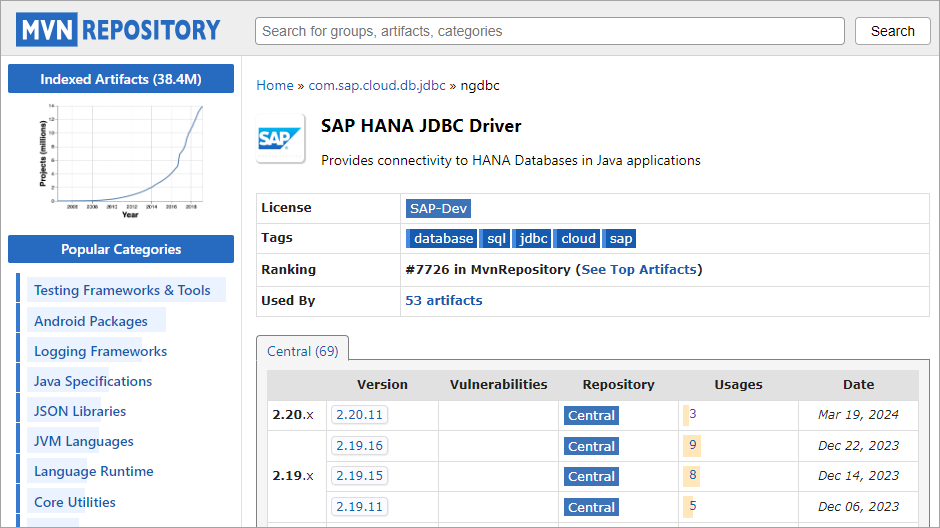
Run the following command for version information. If needed, adjust the path to match the installation location on your machine.
Shelljava -jar C:\SAP\hdbclient\ngdbc.jar -vShelljava -jar ~/sap/hdbclient/ngdbc.jar -vRun the command again without the
-vto open the configuration window, which provides driver information and the ability to set trace information:
JDBC-Driver-Trace-Config The JDBC driver has a different version number than the rest of the SAP HANA client interfaces.
The trace options are further described at JDBC Tracing and Trace Options.
Run the following and use either connection details stored in the user store or specify the connection details. Details on where to find host, port, and credentials. are covered in the third and fifth steps of the first tutorial in this mission.
Shelljava -jar C:\SAP\hdbclient\ngdbc.jar -k USER1UserKey -o encrypt=True -o validatecertificate=false -c "SELECT * FROM HOTELS.CUSTOMER"Alternatively, you may run
Shelljava -jar C:\SAP\hdbclient\ngdbc.jar -u USER1,Password1 -n your_host:your_port -o encrypt=True -o validatecertificate=false -c "SELECT * FROM HOTELS.CUSTOMER"Shelljava -jar ~/sap/hdbclient/ngdbc.jar -u USER1,Password1 -n your_host:your_port -o encrypt=True -o validatecertificate=false -c "SELECT * FROM HOTELS.CUSTOMER"
Link text e.g., Destination screen
See JDBC Command-Line Connection Options for additional details on parameters of ngdbc.jar.
The following commands create a folder named
java, enter the newly created directory, create a file namedJavaQuery.java, and open the file in the Notepad text editor.Shellmkdir %HOMEPATH%\HANAClientsTutorial\java cd %HOMEPATH%\HANAClientsTutorial\java notepad JavaQuery.javaSubstitute
picobelow for your preferred text editor.Shellmkdir -p $HOME/HANAClientsTutorial/java cd $HOME/HANAClientsTutorial/java pico JavaQuery.javaCopy the following code into
JavaQuery.java. Then save and exit the file.Javaimport java.sql.*; import com.sap.db.jdbc.Driver; public class JavaQuery { public static void main(String[] argv) { System.out.println("Java version: " + com.sap.db.jdbc.Driver.getJavaVersion()); System.out.println("SAP driver details: " + com.sap.db.jdbc.Driver.getVersionInfo() + "\n"); Connection connection = null; try { connection = DriverManager.getConnection( //Option 1, retrieve the connection parameters from the hdbuserstore //The below URL gets the host, port and credentials from the hdbuserstore. "jdbc:sap://dummy_host:0/?KEY=USER1UserKey&encrypt=true&validateCertificate=false"); //Option2, specify the connection parameters //"jdbc:sap://10.11.123.134:39015/?encrypt=true&validateCertificate=false", "User1", "Password1"); //As of SAP HANA Client 2.6, connections on port 443 enable encryption by default //validateCertificate should be set to false when connecting //to an SAP HANA, express edition instance that uses a self-signed certificate. //As of SAP HANA Client 2.7, it is possible to direct trace info to stdout or stderr //"jdbc:sap://10.11.123.134:39015/?encrypt=true&validateCertificate=false&traceFile=stdout&traceOptions=CONNECTIONS", "User1", "Password1"); } catch (SQLException e) { System.err.println("Connection Failed:"); System.err.println(e); return; } if (connection != null) { try { System.out.println("Connection to HANA successful!"); Statement stmt = connection.createStatement(); ResultSet resultSet = stmt.executeQuery("SELECT TITLE, FIRSTNAME, NAME FROM HOTELS.CUSTOMER;"); while (resultSet.next()) { String title = resultSet.getString(1); String firstName = resultSet.getString(2); String lastName = resultSet.getString(3); System.out.println(title + " " + firstName + " " + lastName); } } catch (SQLException e) { System.err.println("Query failed!"); } } } }Compile the
.javafile into a.classfile using the following command:Commandjavac -cp C:\SAP\hdbclient\ngdbc.jar;. JavaQuery.javaPowerShelljavac -cp "C:\SAP\hdbclient\ngdbc.jar;." JavaQuery.javaShelljavac -cp ~/sap/hdbclient/ngdbc.jar:. JavaQuery.javaRun
JavaQuery.classand indicate where the SAP HANA JDBC driver is located. Note that the host, port, UID and PWD will be retrieved from thehdbuserstore.Commandjava -classpath C:\SAP\hdbclient\ngdbc.jar;. JavaQueryPowerShelljava -classpath "C:\SAP\hdbclient\ngdbc.jar;." JavaQueryShelljava -classpath ~/sap/hdbclient/ngdbc.jar:. JavaQuery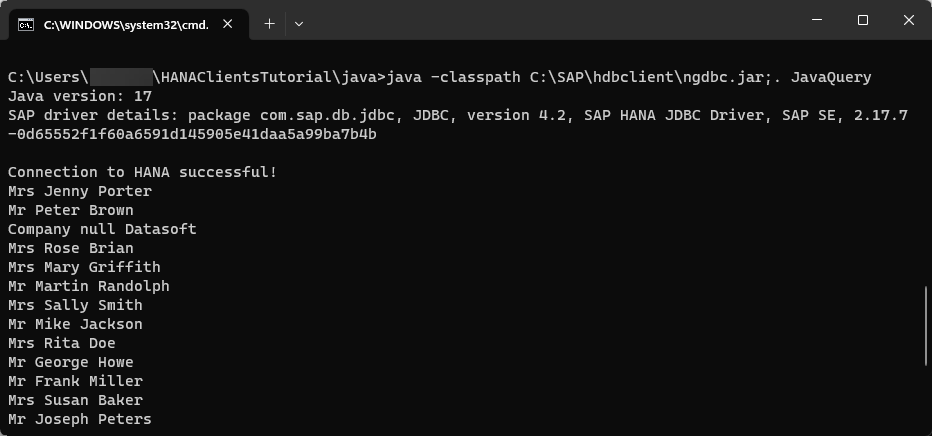
Java Query
See JDBC Connection Options in Java Code for additional details on the getConnection method of the DriverManager.
See Connect to SAP HANA Cloud via JDBC for additional details on the certificate used during the connection.
Visual Studio Code provides plugins for Java and can be used to debug an application.
If you have not already done so, download Visual Studio Code.
If you have not already done so, in Visual Studio Code, choose File | Open Folder, and then select the
HANAClientsTutorialfolder.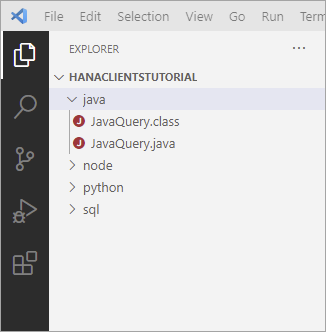
Workspace Open the file
JavaQuery.java, and if asked, install the recommended extensions.
Java extensions Once the Java Extension Pack has been installed, expand the Java Project Explorer, and click on the + icon to add the JDBC driver as a referenced library.

referenced libraries The JDBC driver is located at
C:\SAP\hdbclient\ngdbc.jar.Place a breakpoint and then select Run | Start Debugging.
Notice that the debug view becomes active.
Notice that the program stops running at the breakpoint that was set. Step through the code by pressing F10 and observe the variable values in the variables pane.

VS Code Debugging
DBeaver is a free and open-source database tool and can be used with the SAP HANA JDBC driver.
The following steps demonstrate how to configure DBeaver to connect to SAP HANA Cloud or SAP HANA, express edition using the JDBC driver.
Download, install or unzip, and run the community edition of
DBeaver.
Install DBeaver Create a new SAP HANA database connection.
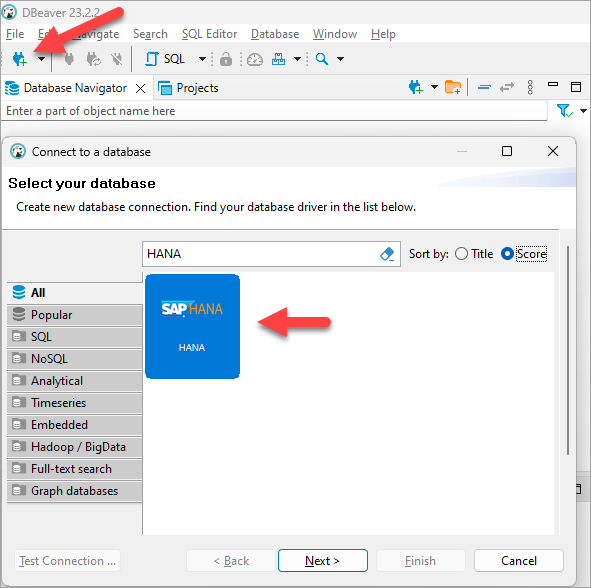
New Connection Specify the connection type and fill in the Host and Port. Then press Test Connection. You may be asked to download the required SAP HANA client JDBC driver. The driver can also be updated under the Driver Settings.
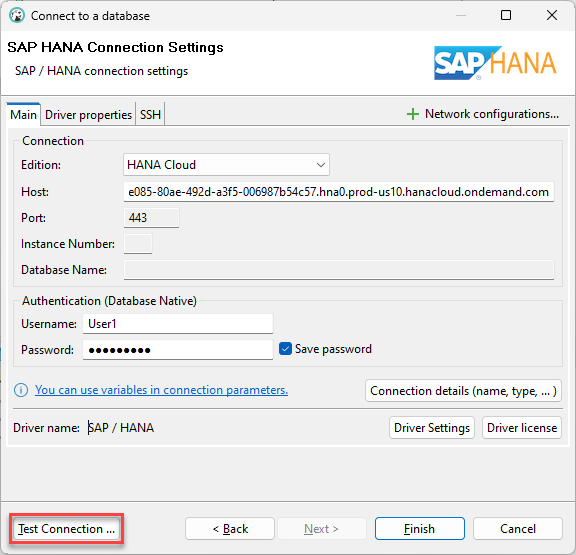
Connection Settings Click on Connection details to specify the connection name.
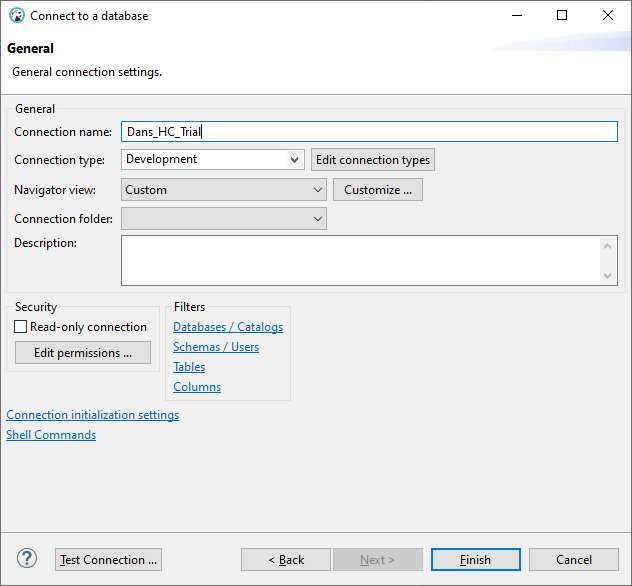
Connection Details After finishing the wizard, the catalog of the database can be viewed, and SQL statements can be executed.
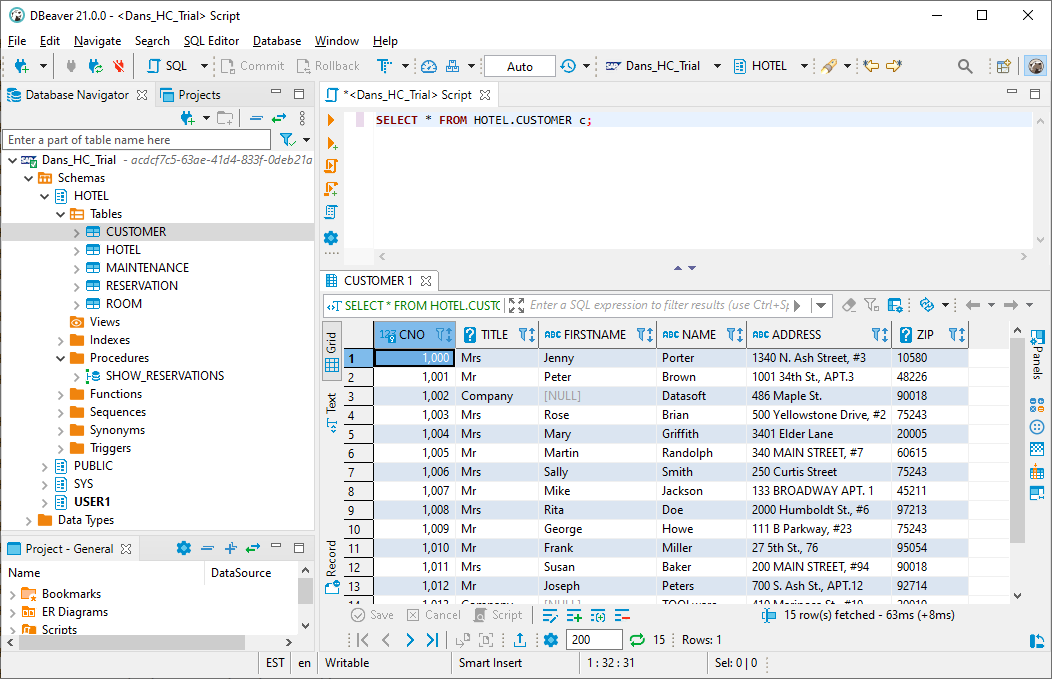
Query DBeavercan also be used to create an entity relationship (ER) diagram, perform a comparison of two selected objects, execute import and export operations, view spatial data on a map, and perform data analysis with its grouping andcalcpanels.
Congratulations! You have now created and debugged a Java application that connects to and queries an SAP HANA database and used the JDBC driver in DBeaver.
Resources
Discussion
Share feedback on this tutorial or join the conversation in SAP Community.