
Overview
You will learn
- Converting between an in-memory and an extended table using SAP HANA Studio.
- Converting between an in-memory and an extended table using SQL scripts.


Prerequisites
Prerequisites
- Proficiency: Beginner
- Tutorials: Create Tables and Import Data
Steps
Next Steps
Time to Complete
15 Min.
In SAP HANA Administration Console perspective, go to the System view on the left side. By clicking the drop down arrow, expand Catalog > TPCH > Tables. Right click on the table NATION_DT and select Do Not Use Extended Storage to convert the table into an in-memory table.

When prompted to confirm the action, click Yes.

Once the conversion is complete, a pop up window will appear verifying that the change has been made, click OK to close the window.

Verify the table has been correctly converted. You should see that the NATION_DT table no longer has the “EXTENDED” attribute and is now an in-memory table.

Right click on the table NATION_DT, which is now an in-memory table, and select Use Extended Storage.

In the “Use Extended Storage” pop up window, keep all the options as default. Click the Move button to proceed.
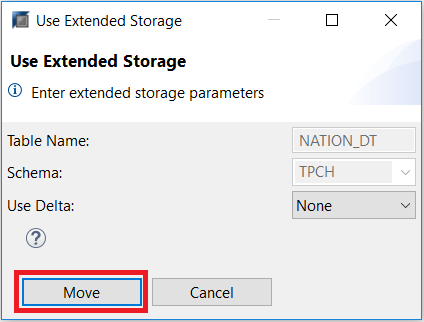
Once the conversion is complete, a pop up window will appear verifying that the change has been made, click OK to close the window.

Verify the table has been correctly converted. You should see that the NATION_DT table has the “EXTENDED” attribute and is now an extended table.

Right click on your system and select Open SQL Console to open a new SQL console.

Copy and paste the script below into the console. Then press the Execute button to run the script.
ALTER TABLE "TPCH"."NATION_DT" NOT USING EXTENDED STORAGE
Refresh the Tables folder by right clicking on it and then selecting Refresh. You can also press F5.

After the refresh is completed, you should see that the NATION_DT table no longer has the “EXTENDED” attribute and is now an in-memory table.
Open a new SQL console and paste the script below into the console. Then press the Execute button to run.
ALTER TABLE "TPCH"."NATION_DT" USING EXTENDED STORAGENotice that the difference between the “ALTER TABLE” statement here and the previous section is the removal of “NOT”.

Refresh the Tables folder and you should see that the NATION_DT table has the “EXTENDED” attribute and is now an extended table.

In SAP HANA 2.0, Dynamic Tiering tables do not support foreign keys between two extended tables or between an extended table and an in-memory table. This means that if an in-memory table is part of a foreign key relationship, then it cannot be converted to an extended table in Dynamic Tiering until the foreign key relationship has been dropped.
Since Dynamic Tiering tables do not support foreign keys yet, the change from an extended table to in-memory is always possible (because extended tables would not have any foreign key attached to them), but in-memory to extended storage might be restricted due to foreign key constraints.
You can verify which tables in the TPCH schema are part of a foreign key constraint by executing the following statement in a SQL Console:
SELECT * FROM "SYS"."REFERENTIAL_CONSTRAINTS"
  WHERE SCHEMA_NAME='TPCH'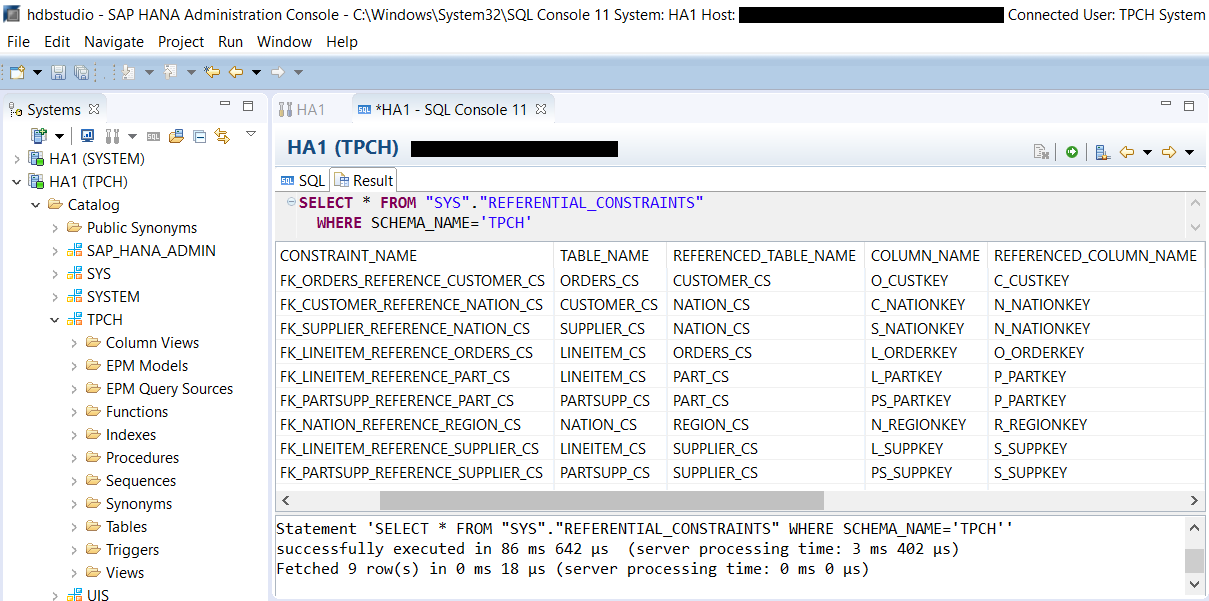
You can look at the columns: TABLE_NAME, REFERENCED_TABLE_NAME and CONSTRAINT_NAME to identify which tables have the foreign key constraint on them and what the constraint is. Examples of tables that hold a foreign key constraint in this schema are ORDERS_CS, CUSTOMER_CS, SUPPLIER_CS, LINEITEM_CS, NATION_CS and REGION_CS. Therefore, these tables cannot be converted to extended tables, unless the foreign key is dropped.
Resources
Discussion
Share feedback on this tutorial or join the conversation in SAP Community.