
Overview
You will learn
- How to build Application to OCI Image
- How to push OCI image to Docker Hub
- How to deploy applications into Kyma runtime


Prerequisites
Prerequisites
- You have a Kyma runtime environment on SAP Business Technology Platform (BTP) and the relevant command line tools. If not, please follow the tutorials Enable SAP BTP, Kyma runtime and Install the Kubernetes Command Line Tool.
- You have installed Docker.
- You have Docker Hub account.
- You have finished the tutorial Register a Multitenant Application to the SAP SaaS Provisioning Service.
Steps
Open your subaccount in SAP BTP cockpit. Make sure you’ve already enabled SAP BTP, Kyma runtime on your cluster.
- Install tool
For example (macOS):
brew install buildpacks/tap/pack- Build image for applications
pack build <docker-hub-account>/multitenant-approuter:v1 --builder paketobuildpacks/builder-jammy-fullpack build <docker-hub-account>/multitenant-kyma-backend:v2 --builder paketobuildpacks/builder-jammy-full1. Log in to Docker using this command:
docker login -u <docker-id> -p <password>2. Push the local images into the Docker Hub:
docker push <docker-hub-account>/multitenant-approuter:v1
docker push <docker-hub-account>/multitenant-kyma-backend:v2
For more details, see the Kubernetes documentation.
If you followed the tutorials Create a Basic Node.js Application with Express Generator and Deploy a Node.js Application in the Kyma Runtime, you have created a namespace in Kyma dashboard called multitenancy-ns. If not, create a new namespace multitenancy-ns through Kyma dashboard or kubectl CLI:
1. Select the Link to dashboard to open Kyma dashboard.

2. Create a new namespace through Kyma dashboard or kubectl CLI, for example, called multitenancy-ns:

3. Enable Istio Sidecar Proxy Injection
Enabling Istio sidecar proxy injection for a namespace allows istiod to watch all Pod creation operations in this namespace and automatically inject newly created Pods with an Istio sidecar proxy.
Switch the toggle to enable Istio sidecar proxy injection. Click Create to finish namespace creation.
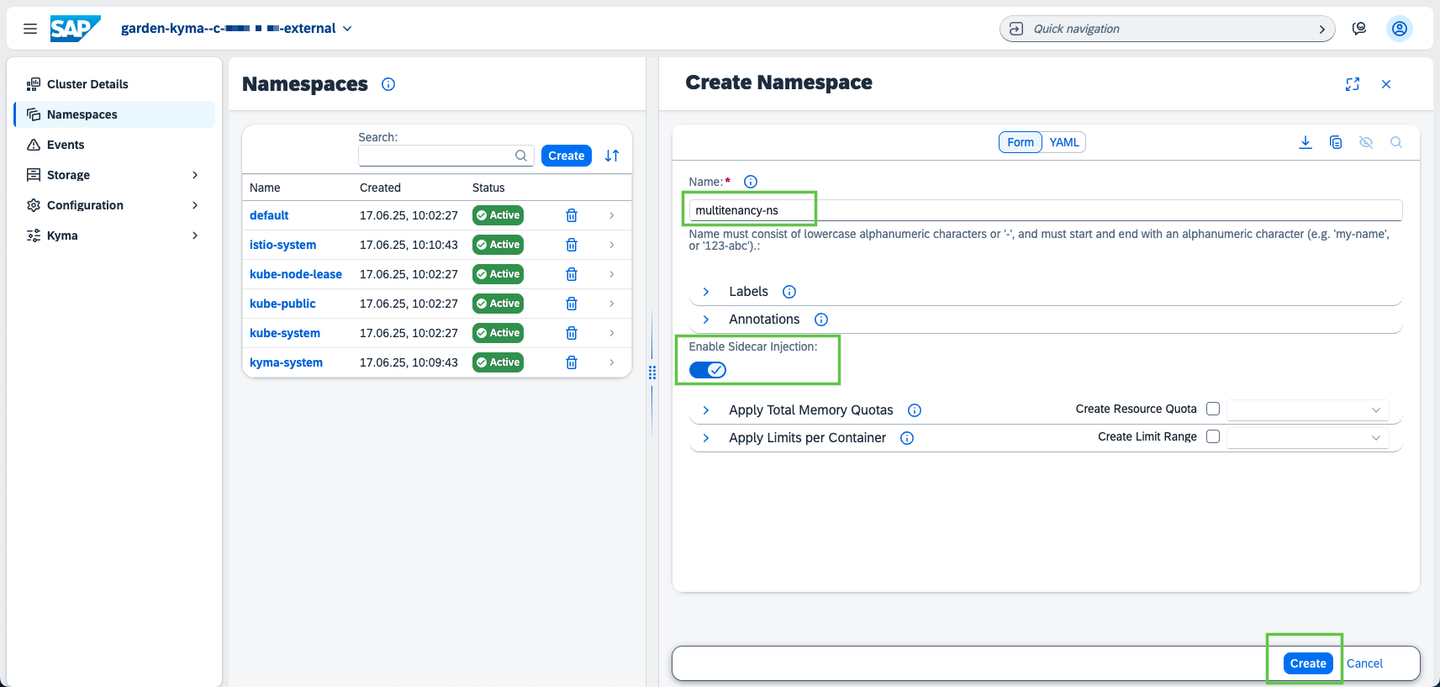
For more details, refer to the Enable Istio Sidecar Proxy Injection
Since the OCI image is stored in your Docker hub, you need to provide the access information to your Kyma cluster that you can pull the images from those repositories.
If you followed the tutorials Create a Basic Node.js Application with Express Generator and Deploy a Node.js Application in SAP BTP, Kyma runtime, you have configured the credential of your Docker Hub as a Secret. If not, create a new Secret with the following command, replace the placeholder values according to your account:
kubectl -n multitenancy-ns create secret docker-registry registry-secret --docker-server=https://index.docker.io/v1/ --docker-username=<docker-id> --docker-password=<password> --docker-email=<email>Therefore, all deployment files contain an imagePullSecret entry, which should be set to registry-secret.
imagePullSecrets:
- name: registry-secret # replace with your own registry secret1. Deploy consumed services by executing this command:
kubectl -n multitenancy-ns apply -f k8s-deployment-services.yaml2. Deploy the approuter applications by executing this command:
kubectl -n multitenancy-ns apply -f k8s-deployment-approuter.yaml3. Deploy the backend applications by executing this command:
kubectl -n multitenancy-ns apply -f k8s-deployment-backend.yamlLaunch Kyma dashboard from SAP BTP cockpit, then navigate to the multitenancy-ns namespace.
Go to Workloads, and then select Deployments. You will see deployments of kyma-multitenant-approuter-multitenancy and kyma-multitenant-node-multitenancy displayed, with their Pods statuses shown in green. At this point, your multitenant application has been deployed successfully.

Resources
Discussion
Share feedback on this tutorial or join the conversation in SAP Community.