
Overview
You will learn
- How to import and manage rules using Business Rules
- How to import, build and deploy a sample workflow from SAP Business Application Studio
- How to create and activate a visibility scenario using Process Visibility


Prerequisites
Steps
Intro
Workflow helps to digitalize workflows and quickly orchestrate tasks that span people, applications, and organizations. You can enhance productivity by automating and tracking coordinated, account-able tasks – including approvals, order fulfillment, or time-sensitive partner collaboration.
Business Rules enables business users and application developers to automate their decisions and enhance their decision-making experience. It offers a simplified Fiori-based rule authoring tool and a central rule repository with various deployment options to different platforms.
Process Visibility provides visibility into processes that run in the cloud, on-premise, or in hybrid environments. Process visibility works on events. SAP or non-SAP applications (cloud or on-premise) push events into Process Visibility. These events are persisted, processed and enhanced to form end-to-end process instances with insights, which are visualized by business users in their process workspace. The insights enable business users to identify process bottlenecks, track process performance, and operational issues and act on them.
In this section, you will set up business rules to identify the list of equipment to be provisioned for the newly hired employee based on their role and work location using Business Rules capability of SAP Workflow Management.
The sample business rule used in this scenario is published in API Business Hub. BUSINESSRULES_APIHUB destination is used in Manage Rule Projects application to import business rules from API Business Hub. This destination is already created in the previous set up tutorial, and now you will configure the destination for the password.
From your global account page, choose the
trialtile to access your subaccount.
Enter Trial Subaccount Click Connectivity | Destinations from the left-hand navigation and search for the destination with name
BUSINESSRULES_APIHUB
Create Destination In Destination Configuration section, click Edit and enter your cloud platform trial user password:
Ensure that the user whose credentials (username and password) are entered in the destination does not have Two Factor Authentication enabled.

Create Destination - Save the destination.
To import the business rules project from API Business Hub, you need to configure a system which points to the API Hub destination and then use this system to import the project.
In your web browser, open the Workflow Management application and click the Manage Rule Projects tile..
You got the workflow management application link in the last step of the set up tutorial. The link would be like:
https://<subdomain>.cockpit.workflowmanagement.cfapps.<eu10 or us10>.hana.ondemand.com/cp.portal/site#Shell-home
Rule Editor Open Configure Systems.
Click + to add a system.

Create System Enter the following details:
Field Name Value Name APIHubDestination BUSINESSRULES_APIHUBor the name of the destination you created in the set up tutorialSave the system configuration.
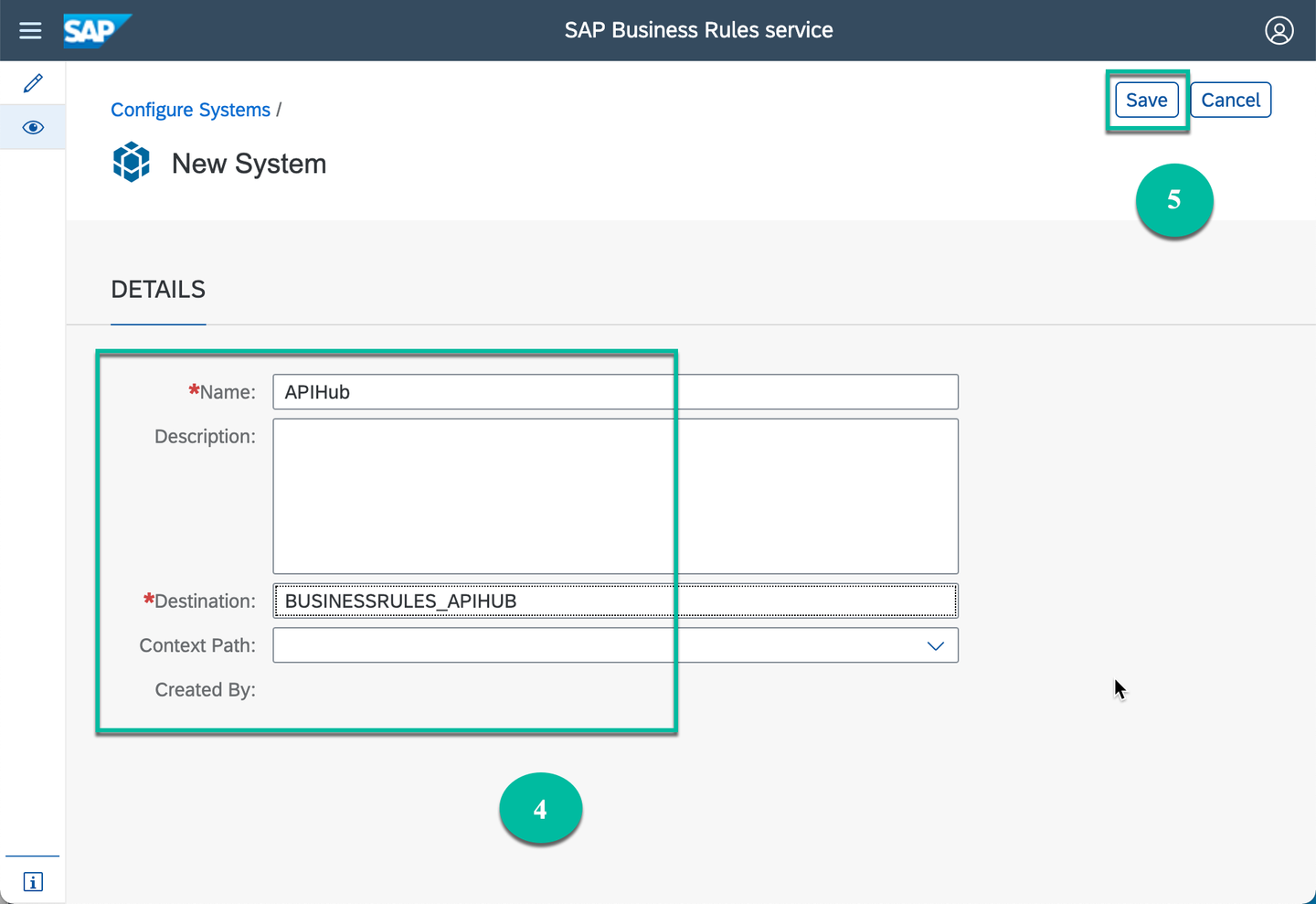
Create System
Click Design icon, click Import to select Import Project from API Business Hub.

Import Business Rules In the popup, do the following:
- In the System field, select
APIHubor the name you entered while configuring the system. - From the options shown in the Content Package Name dropdown, choose
Equipment Determination Business Rules. - Choose Go.
- Select the latest version of the project named
Equipment Determination Rules. - Choose Import.

Import Business Rules If you get Bad Gateway Error error, then check the username and password you have used in
BUSINESSRULES_APIHUBdestination. If your user is 2-Factor-Authentication enabled, then the password will be password+passcode. This passcode will expire in a minute. If you do not have 2-Factor-Authentication enabled and still get this error, then check if you are member of SAP API Business Hub. Log in to api.sap.com and try importing again.- In the System field, select
You will see the business rules project imported and in Active status.

Import Business Rules
Select the business rules project to navigate into the project.

Deploy Business Rules Switch to the Rule Services tab.
Click Deploy to deploy rule services
DetermineEquipmentRuleserviceandEquipmentApprovalRuleservice.
Deploy Business Rules Select the Cloud Runtime option.

Deploy Business Rules Wait for the deployment to complete. You will get a popup message once the deployment is successful.
Only deployed business rules can be consumed via APIs published in API Business Hub.
In this section, you will use SAP Business Application Studio to import, configure, build and deploy workflow to get workplace approval from manager for newly hired employee.
Download cf-onboarding-sample.zip project from GitHub in your local file system and extract the files.

Download Sample Workflow Open SAP BTP Trial Homepage and choose SAP Business Application Studio.

Launch Studio If you get the privacy statement screen, then click
Okto accept it.Click on the Dev Space to go into the workspace and from File menu choose Open Workspace
- If you do not have any dev-space, then click Create Dev Space. In the New Dev Space page, enter any dev space name, select SAP Fiori kind and Workflow Management extension. Finally click Create Dev Space to create a space in your business application studio.

Create Dev Spave
- If you have a dev-space but Workflow Management extension is not added then click on Edit button, select Workflow Management and Save Changes.

Add Extension 
Add Extension
- If you have the dev-space with Workflow Management extension added, and the dev-space status is STOPPED then click on the run button to start the space.

Start Workspace

Open Workspace Some File menu options might not appear as they are not relevant if you are opening the workspace for the first time without any projects.
- If you do not have any dev-space, then click Create Dev Space. In the New Dev Space page, enter any dev space name, select SAP Fiori kind and Workflow Management extension. Finally click Create Dev Space to create a space in your business application studio.
Drag and drop the extracted cf-onboarding-sample project in the dialog and click Open.

Import Sample MTA 1 
Import Sample MTA 2 You will see that the cf-onboarding-sample project is imported into your workspace.

Workflow Added This sample workflow has:
- Business Rules integrated into it. You can find the integration as part of service task with name
Determine Equipment.
- User Tasks for confirmation of the equipment selected via business rules and for the approval of equipment. You can find these user tasks with the names
Confirm and Change Equipment,Approve EquipmentandAccept Workplacerespectively. The user interface associated with these user tasks has been built using Workflow Form and you can find these under forms folder in the same multi target application.
- Business Rules integrated into it. You can find the integration as part of service task with name
Right-click the mta.yml file inside the cf-onboarding-sample project, and choose the Build MTA option.

Build mta File Once the build is completed successfully, right-click on the
mta_archives|sample-onboarding.mta_0.0.1.mtarfile and choose Deploy MTA Archives.
Deploy Workflow The deployment will fail if you have not logged in to the trial account. Click Function F1 to open the login wizard and follow the wizard to log in to your trial account.

Login A successful deployment message will be shown in the terminal once the deployment has completed successfully.

View Success Messages
In this section, you will create and activate a process visibility scenario to provide an out-of-box visibility into workflow using Process Visibility capability of SAP Workflow Management. The resulting insight helps you to track the process and focus on key business milestones so that you can actively improve the processes.
In your web browser, open the Workflow Management application and choose Configure Visibility Scenarios.
You should have gotten the workflow management application link in the last step of the set up tutorial. The link should be like this:
https://<subdomain>.cockpit.workflowmanagement.cfapps.<eu10 or us10>.hana.ondemand.com/cp.portal/site#Shell-home
Open Scenarios To create a new visibility scenario, choose +.

Create Scenarios Enter Name as
Employee Onboarding, any Description of your choice, and click Create.
Configure Scenario Name The business scenario will be created with Draft status.

Scenario Created
Navigate into the newly created scenario and click the Processes tab, choose + and select Add Workflow to add workflow to business scenario.

Add Workflow Select the
onboardworkflow from the choices.
Select Workflow onboard is the sample workflow that you have deployed in the previous tutorial.
The workflow is added and all the needed Events and Context are imported as well.

Workflow Added
Switch to the General tab.
In the Instances Label field, enter
Onboardingsand in the Instance Label field enterOnboarding.
Scenario Props Switch to the Status tab.
In the Sub-Status section, select At Risk and choose +.

Add Risk Status In the Name field for the risk status, enter
Approval Pendingor anything of your choice and clickOk.
Add Risk Status Name In the properties, enter the following:
Field Name Value Expression Type Event A occurred and not Event BEvent A Approve Equipment CreatedEvent B Approve Equipment Completed
Add Risk Status Props
To activate the business scenario, choose Activate.
Activate operation saves and activates the scenario. Only an activated business scenario can be consumed.

Resources
Discussion
Share feedback on this tutorial or join the conversation in SAP Community.