
Overview
You will learn
- How to register and consume an Extension control in MDK Metadata
- How to implement an extension by writing Native Code in TypeScript via Marshalling


Prerequisites
Prerequisites
- Tutorial: Set Up for the Mobile Development Kit (MDK)
- Install SAP Mobile Services Client on your Android or iOS device.
 Android |  iOS |
(If you are connecting to AliCloud accounts, you will need to brand your custom MDK client by allowing custom domains.)
Steps
Intro
You may clone an existing metadata project from the MDK Tutorial GitHub repository and start directly with step 6 in this tutorial.
To extend the functionality, or customize the look and feel, and behavior of your client app, you can create extension controls other than the already existing MDK built-in controls by writing Native Code in TypeScript via Marshalling. NativeScript provide the ability to access platform-specific objects, class, and types in TypeScript / JavaScript via marshalling. NativeScript handles the conversion between JavaScript and native data types implicitly.
In this tutorial, you will create a Slider extension via NativeScript (in TypeScript language) which will be common for both device platforms.

This step includes creating a mobile project in SAP Build Lobby.
In the SAP Build Lobby, click Create > Create to start the creation process.

SAP Build Lobby Create Button Click the Application tile and choose Next.

Application Tile Selection Select the Mobile category and choose Next.

Mobile Category Selection Select the Mobile Application to develop your mobile project in SAP Business Application Studio and choose Next.

Mobile Application Option Selection Enter the project name
mdk_slider(used for this tutorial) , add a description (optional), and click Create.
Project Name And Description Entry SAP Build recommends the dev space it deems most suitable, and it will automatically create a new one for you if you don’t already have one. If you have other dev spaces of the Mobile Application type, you can select between them. If you want to create a different dev space, go to the Dev Space Manager. See Working in the Dev Space Manager.
Review the inputs under the Summary tab. If everything looks correct, click Create to proceed with creating your project.

Project Summary Review Screen Your project is being created in the Project table of the lobby. The creation of the project may take a few moments. After the project has been created successfully, click the project to open it.

Project Created In Lobby Table The project opens in SAP Business Application Studio.

SAP BAS Workspace Opened When you open the SAP Business Application Studio for the first time, a consent window may appear asking for permission to track your usage. Please review and provide your consent accordingly before proceeding.

SAP BAS Usage Consent Window
The Storyboard provides a graphical view of the application’s runtime resources, external resources, UI of the application, and the connections between them. This allows for a quick understanding of the application’s structure and components.
- Runtime Resources: In the Runtime Resources section, you can see the mobile services application and mobile destination used in the project, with a dotted-line connected to the External Resources.
- External Resources: In the External Resources section, you can see the external services used in the project, with a dotted-line connection to the Runtime Resource or the UI app.
- UI Application: In the UI Applications section, you can see the mobile applications.
Click on + button in the Runtime Resources column to add a mobile services app to your project.

Runtime Resources Add Button This screen will only show up when your CF login session has expired. Use either
CredentialsORSSO Passcodeoption for authentication. After successful signed in to Cloud Foundry, select your Cloud Foundry Organization and Space where you have set up the initial configuration for your MDK app and click Apply.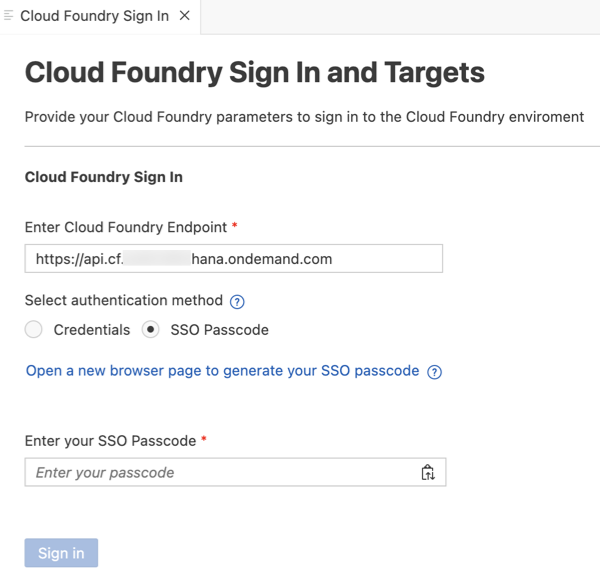
CF Login Credentials Dialog Choose
myapp.mdk.demofrom the applications list in the Mobile Application Services editor and click Add App to Project. You do not require to add a destination for this tutorial.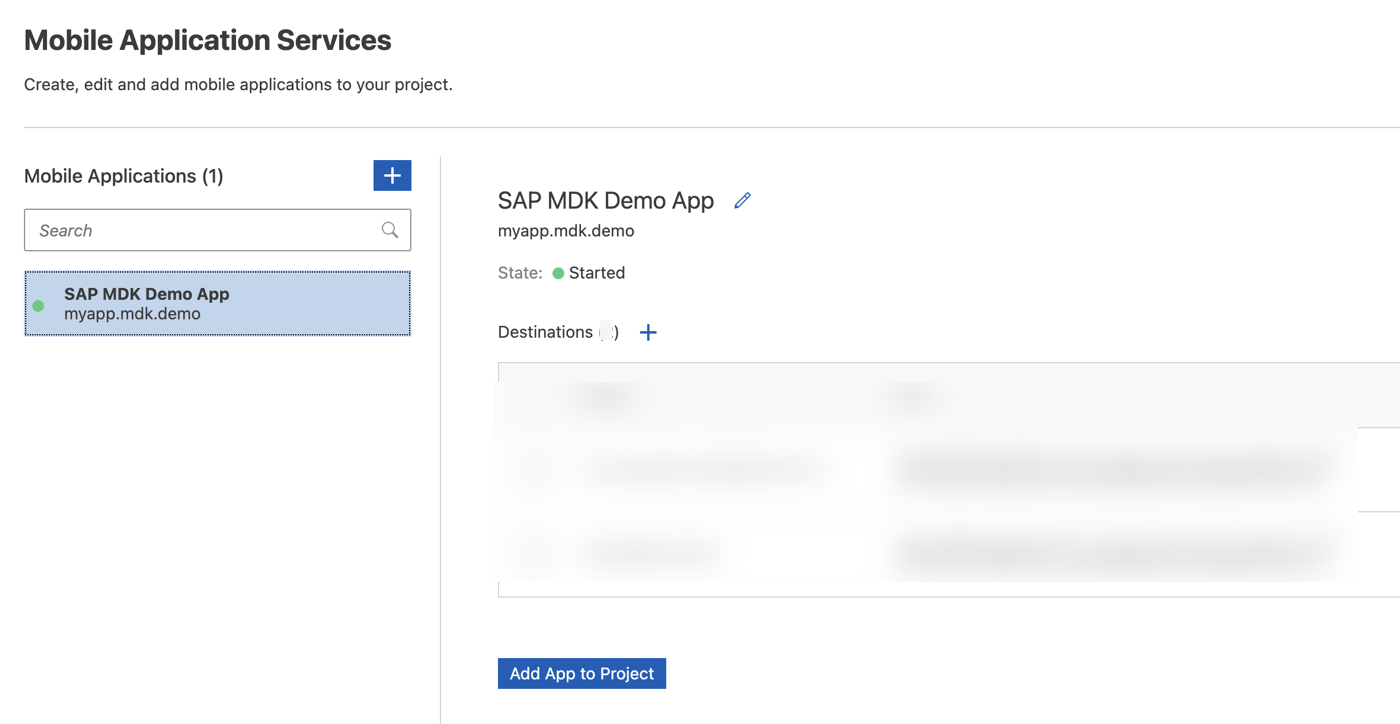
Mobile Services App Selection You can access the mobile services admin UI by clicking on the Mobile Services option on the right hand side.
In the storyboard window, the app will be added under the Runtime Resources column.

Storyboard Runtime Resources Updated Click the + button in the UI application column header to add mobile UI for your project.

UI Application Column Add Button In the Basic Information step, select No for the Enable Auto-Deployment to Mobile Services After Project Creation property, and click Finish. You will modify the generated project in next step and will deploy it later.
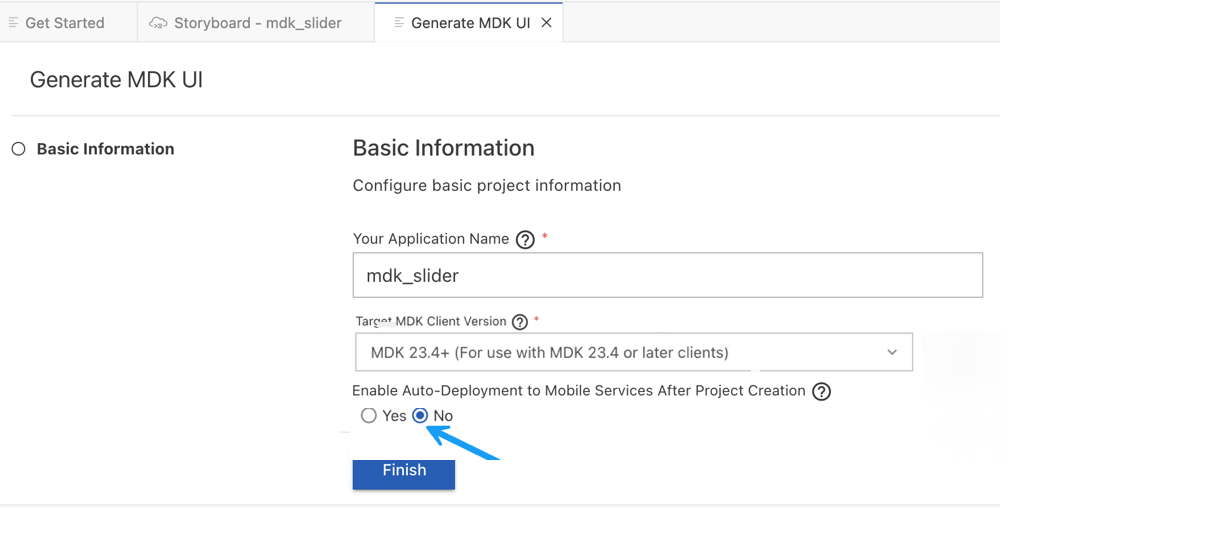
Auto-Deployment Disabled Basic Information After clicking Finish, the storyboard is updated displaying the UI component. The MDK project is generated in the project explorer based on your selections.

Storyboard Updated With UI Component
The extension control that you will be creating to extend the functionality of your app can be used as base controls by registering it using the MDK editor.
Download Slider image and save it locally. This image will be used as a display image on the page editor to represent the extension control.
Drag & drop
slider.pngfile on Images folders.
Slider Image Dropped On Images Folder Right-click Extensions | select MDK: Register Extension Control.

Extensions Register Extension Control Menu In the
Template Selectionstep, select New Metadata Extension Control. Click Next.
Template Selection New Metadata Extension In the Base Information step, provide the below information and click Next.
Field Value Control Namemdk_sliderModuleMySliderModuleControlMySliderExtensionClassMySliderClassDisplayclick on the link icon and bind it to slider.pngfileHere is the basic definition for properties you defined above:
Module: It is used to identify the extension control. The path to the extension module under
<MetadataProject>/Extensions/.Control: The name of the file under the
<MetadataProject>/Extensions/<Module>/controlsthat contains the extension class. If not specified, module name would be used as the value for this property.Class: The class name of your custom extension class. The client will check for this class at runtime and if it’s found, your extension will be instantiated. Otherwise, a stub with an error message will be shown.
Display: This property is used for the image to be displayed on the page editor to represent the extension control.

Extension Control Base Information Form In the Extension Properties step, fill schema details in Schema column and click Finish.
JSON{ "type": "object", "BindType": "", "properties": { "MaxValue": { "type": "number", "BindType": "" }, "MinValue": { "type": "number", "BindType": "" }, "Title": { "type": "string", "BindType": "" } } }
Extension Properties Schema Details Above schema will add these predefined properties (
MaxValue,MinValueandTitle) in the map extension control. You will provide values for these properties in next step.Some additional files and folders are added to the Extensions folder. You will learn more about it in following steps.

Extensions Folder With New Files You can find more details about registering extension control in this guide.

You will add this registered control as a Form Cell control in a section page.
In the
Main.page, expand the Controls | Static Container group, Form Cell onto the Page area.
Form Cell Dragged To Main Page Expand the Form Cell Registered Extension Control group, drag and drop the
mdk_slideronto the Page area.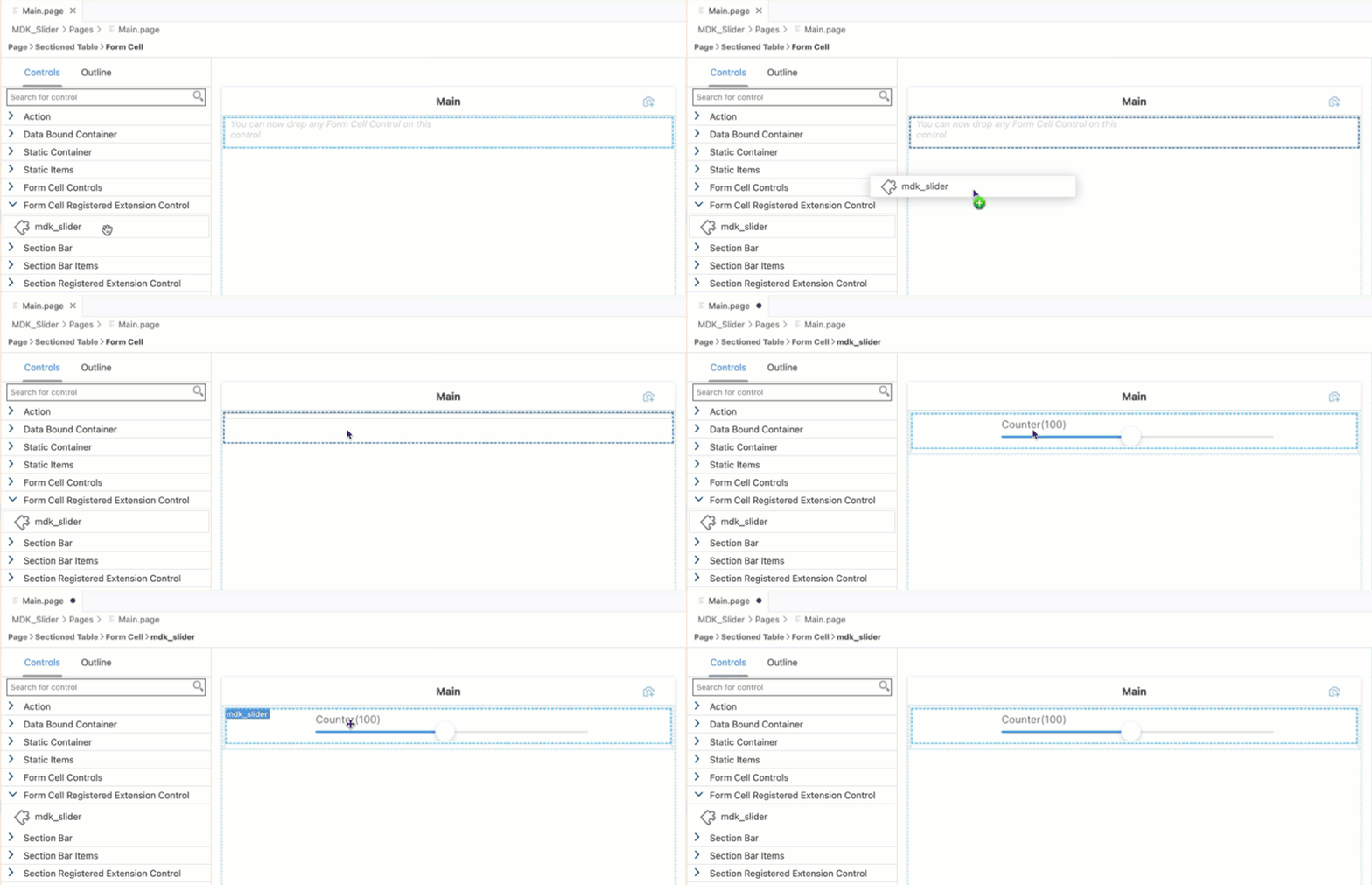
Slider Extension Control Dropped On Page You can find more details about the
FormCell Extensionin this guide.In the Properties section, provide the below value:
Field Value NameMyExtensionControlNameHeight72 MaxValue200 MinValue10 TitleCounter 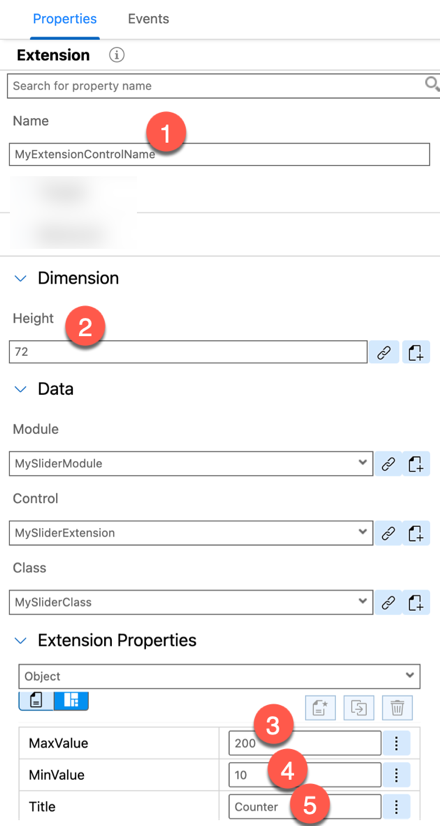
Extension Control Properties Configuration You will add an item on action bar in
SliderExtension.pageand set an action on itsonPressevent.In
SliderExtension.page, drag and drop an Action Bar Item to the upper right corner of the action bar.
Action Bar Item Added To Slider Page Click the link icon to open the object browser for the System Item property.
Double click the Save type and click OK.

System Item Save Type Selected Switch to the Events tab and click the dotted icon for the
OnPressproperty to create a new action.
Events Tab OnPress Property Keep the default selection for Object Type (as Action) and Folders path. Click OK.

Object Type Action Default Selection In the template selection, choose Message in Category | click Message | Next.

Message Action Template Selection Provide the below information:
Property Value NameShowMessageTypekeep the default selection as MessageMessage#Control:MyExtensionControlName/#ValueTitleValue of the Slider is:OKCaptionOKOnOK--None--CancelCaptionleave it blank OnCancel--None--
ShowMessage Action Properties Form Here
MyExtensionControlNameis the name of the control that you renamed in code editor.Click Finish. This way a new action
ShowMessage.actionhas been created on the fly and has been bound to an UI control event.You can also add an input field where you can provide a manual entry for the slider value and set an event on it’s value change so that the counter will adapt accordingly.
In
Main.page, drag and drop a Simple Property control below the slider control.
Simple Property Control Added To Page Provide the following information:
| Property | Value |
|---|---|
Caption | Manual Entry |
placeholder | Enter number to set the slider ext's value |

When you input a value to the Simple Property control, an event will be triggered reflecting the slider value.
You will create a new rule binding it to the
OnValueChangeevent of the above control.Navigate to Events tab, click the dotted icon for the
OnValueChangeproperty to create a new rule.
Events Tab OnValueChange Property For this, first you will write a business logic to set the extension value and then bind it to the input field.
Choose the Object Type as Rule and Folders path as it is. Click OK.

Object Type Rule Selection In the Base Information step, enter the Rule Name
SetExtensionValueand click Finish.
Rule Name SetExtensionValue Entry Replace the generated snippet with below code.
/**
* Describe this function...
* @param {IClientAPI} context
*/
export default function SetExtensionValue(context) {
    console.log("In SetExtensionValue");
    let srcValue = context.getValue();
    let targetCtrl = context.evaluateTargetPath("#Page:Main/#Control:MyExtensionControlName");
    targetCtrl.setValue(srcValue);
}In Extensions folder, create additional files & folders. You will write individual implementation for Android and iOS platform. Final structure should look like as per below.

Extensions Folder Final Structure ├── Extensions ├── MySliderModule │ └── controls │ ├── MySliderExtension.ts │ └── MySliderPlugin │ ├── MySlider.ts │ ├── android │ │ └── MySlider.ts │ └── ios │ └── MySlider.ts └── mdk_slider.extensionIn
MySliderPlugin/android/MySlider.tsfile, copy and paste the following code.JavaScriptimport { Observable } from '@nativescript/core/data/observable'; import { Device, View, Utils } from'@nativescript/core'; /* This is a way to keep iOS and Android implementation of your extension separate We will encapsulate the MySlider class definition inside a function called GetMySliderClass This is so that the class definition won't be executed when you load this javascript via require function. The class definition will only be executed when you execute GetMySliderClass */ declare var com: any; declare var android: any; export function GetMySliderClass() { /** * IMPLEMENT THE ANDROID VERSION OF YOUR PLUGIN HERE * In this sample you have 2 controls a label and a seekbar (slider) * You extends this control with Observable (View) class so that you can accept listeners * and notify them when UI interaction is triggered */ function getPadding() { // Return left & right padding in dp // For tablet you want 24dp, for other type you use 16dp return Device.deviceType === 'Tablet' ? 24 : 16; } class MySlider extends View { private _androidcontext; private _label; private _labelText = ""; private _seekbar; private _layout; private _value = 0; private _min = 0; //Used to track min for API 25 or lower private updateText() { this._label.setText(this._labelText + "(" + this._value + ")") } public constructor(context: any) { super(); this._androidcontext = context; this.createNativeView(); } /** * Creates new native controls. */ public createNativeView(): Object { //Create an Android label this._label = new android.widget.TextView(this._androidcontext); const labelBottomPaddingInPx = Utils.layout.round(Utils.layout.toDevicePixels(8)); // For top & bottom padding, always 16dp this._label.setPadding(0, 0, 0, labelBottomPaddingInPx); this._label.setLayoutParams(new android.view.ViewGroup.LayoutParams(-1, -2)); //Create an Android seekbar this._seekbar = new android.widget.SeekBar(this._androidcontext); this._seekbar.setLayoutParams(new android.view.ViewGroup.LayoutParams(-1, -2)); //Create a LinearLayout container to contain the label and seekbar this._layout = new android.widget.LinearLayout(this._androidcontext); this._layout.setOrientation(android.widget.LinearLayout.VERTICAL); this._layout.setLayoutParams(new android.view.ViewGroup.LayoutParams(-1, -1)); const hortPaddingInPx = Utils.layout.round(Utils.layout.toDevicePixels(getPadding())); const vertPaddingInPx = Utils.layout.round(Utils.layout.toDevicePixels(16)); // For top & bottom padding, always 16dp this._layout.setPadding(hortPaddingInPx, vertPaddingInPx, hortPaddingInPx, vertPaddingInPx); this._layout.addView(this._label); this._layout.addView(this._seekbar); this.setNativeView(this._layout); return this._layout; } /** * Initializes properties/listeners of the native view. */ initNativeView(): void { console.log("initNativeView called"); // Attach the owner to nativeView. // When nativeView is tapped you get the owning JS object through this field. (<any>this._seekbar).owner = this; (<any>this._layout).owner = this; super.initNativeView(); //Attach a listener to be notified whenever the native Seekbar is changed so that you can notify the MDK Extension this._seekbar.setOnSeekBarChangeListener(new android.widget.SeekBar.OnSeekBarChangeListener({ onStartTrackingTouch(seekBar: any) { // You do not have any use for this event, so do nothing here }, //This handler function will be called when user let go of the handle // This is where you will trigger an event called "OnSliderValueChanged" to the MDK Extension Class onStopTrackingTouch(seekBar: any) { var eventData = { eventName: "OnSliderValueChanged", object: seekBar.owner, value: seekBar.owner._value }; seekBar.owner.notify(eventData); }, //This handler function will be called whenever the slider's value is changed // i.e. whenever user drag the slider's handle onProgressChanged(seekBar: any, progress: number, fromUser: boolean) { seekBar.owner._value = progress; seekBar.owner.updateText(); } })); } /** * Clean up references to the native view and resets nativeView to its original state. * If you have changed nativeView in some other way except through setNative callbacks * you have a chance here to revert it back to its original state * so that it could be reused later. */ disposeNativeView(): void { // Remove reference from native view to this instance. (<any>this._seekbar).owner = null; (<any>this._layout).owner = null; // If you want to recycle nativeView and have modified the nativeView // without using Property or CssProperty (e.g. outside our property system - 'setNative' callbacks) // you have to reset it to its initial state here. } //Must return the native view of the control for MDK FormCell and Section Extension public getView(): any { return this._layout; } public setText(newText: string): void { if (newText != null && newText != undefined) { this._labelText = newText; this._label.setText(newText); } } public setValue(newVal: number): void { if (newVal != null && newVal != undefined) { this._value = newVal; this.updateText(); if (this._seekbar.getProgress() < this._min) { this._seekbar.setProgress(this._min); } else { this._seekbar.setProgress(newVal); } } } public setMinValue(newMin: number): void { if (newMin != null && newMin != undefined) { if (Device.sdkVersion >= 26) { //setMin is only available in set API Level 26 or newer this._seekbar.setMin(newMin); } else { this._min = newMin; if (this._seekbar.getProgress() < this._min) { this._seekbar.setProgress(this._min); } } } } public setMaxValue(newMax: number): void { if (newMax != null && newMax != undefined) { this._seekbar.setMax(newMax); } } } return MySlider; }In your import function, if you see errors related to
@nativescript/core, you can ignore them. There is currently no reference of such libraries in the MDK editor.In
MySliderPlugin/iOS/MySlider.tsfile, copy and paste the following code.JavaScriptimport {View} from'@nativescript/core'; /* This is a way to keep iOS and Android implementation of your extension separate You will encapsulate the MySlider class definition inside a function called GetMySliderClass This is so that the class definition won't be executed when you load this javascript via require function. The class definition will only be executed when you execute GetMySliderClass */ export function GetMySliderClass() { /** * IMPLEMENT THE IOS VERSION OF YOUR PLUGIN HERE */ // This is a class that handles the native event callbacks @NativeClass() class SliderHandler extends NSObject { //This handler function will be called whenever the slider's value is changed // i.e. whenever user drag the slider's handle public valueChanged(nativeSlider: UISlider, nativeEvent: _UIEvent) { nativeSlider.value = Math.round(nativeSlider.value); const owner: MySlider = (<any>nativeSlider).owner; if (owner) { owner.setValue(nativeSlider.value); } } //This handler function will be called when user let go of the handle // This is where you will trigger an event called "OnSliderValueChanged" to the MDK Extension Class public afterValueChanged(nativeSlider: UISlider, nativeEvent: _UIEvent) { nativeSlider.value = Math.round(nativeSlider.value); const owner: MySlider = (<any>nativeSlider).owner; if (owner) { owner.setValue(nativeSlider.value); var eventData = { eventName: "OnSliderValueChanged", object: owner, value: nativeSlider.value }; owner.notify(eventData); } } public static ObjCExposedMethods = { "valueChanged": { returns: interop.types.void, params: [interop.types.id, interop.types.id] }, "afterValueChanged": { returns: interop.types.void, params: [interop.types.id, interop.types.id] } }; } const handler = SliderHandler.new(); class MySlider extends View { private _label; private _labelText = ""; private _slider; private _layout; private _value = 0; private updateText() { this._label.text = this._labelText + "(" + this._value + ")"; } public constructor(context: any) { super(); this.createNativeView(); } /** * Creates new native controls. */ public createNativeView(): Object { //Create the Stack view - this is the main view of this extension this._layout = UIStackView.new(); //Configuring the paddings around the stack view this._layout.autoresizingMask = [UIViewAutoresizing.FlexibleHeight, UIViewAutoresizing.FlexibleWidth]; this._layout.layoutMarginsRelativeArrangement = true; let inset = new NSDirectionalEdgeInsets(); inset.top = 8; inset.leading = 16; inset.bottom = 8; inset.trailing = 16; this._layout.directionalLayoutMargins = inset; // Set the layout stacking to be vertical this._layout.axis = UILayoutConstraintAxis.Vertical; //Create the label view this._label = UILabel.new(); this._label.font = this._label.font.fontWithSize(15); //Set font size this._label.textColor = UIColor.colorWithRedGreenBlueAlpha(106 / 255, 109 / 255, 112 / 255, 1.0); //Set text color this._layout.setCustomSpacingAfterView(4, this._label); //Set the bottom margin of label //Create the slider control this._slider = UISlider.new(); //Assign a handler for whenever value changed i.e. when user is dragging the slider handle this._slider.addTargetActionForControlEvents(handler, "valueChanged", UIControlEvents.ValueChanged); //Assign a handler for when user let go of the handle this._slider.addTargetActionForControlEvents(handler, "afterValueChanged", UIControlEvents.TouchUpInside | UIControlEvents.TouchUpOutside); //Add the label and slider to the stack view this._layout.addArrangedSubview(this._label); this._layout.addArrangedSubview(this._slider); //store the native view this.setNativeView(this._layout); //return the stack view return this._layout; } /** * Initializes properties/listeners of the native view. */ initNativeView(): void { // Attach the owner to nativeViews. // When nativeViews are tapped you get the owning JS object through this field. (<any>this._slider).owner = this; (<any>this._layout).owner = this; super.initNativeView(); } /** * Clean up references to the native view and resets nativeView to its original state. * If you have changed nativeView in some other way except through setNative callbacks * you have a chance here to revert it back to its original state * so that it could be reused later. */ disposeNativeView(): void { // Remove reference from native view to this instance. (<any>this._slider).owner = null; (<any>this._layout).owner = null; // If you want to recycle nativeView and have modified the nativeView // without using Property or CssProperty (e.g. outside our property system - 'setNative' callbacks) // you have to reset it to its initial state here. } //Must return the native view of the control for MDK FormCell and Section Extension public getView(): any { return this._layout; } public setText(newText: string): void { if (newText != null && newText != undefined) { this._labelText = newText; this._label.text = newText; } } public setValue(newVal: number): void { if (newVal != null && newVal != undefined) { this._value = newVal; this.updateText(); this._slider.value = newVal; } } public setMinValue(newMin: number): void { if (newMin != null && newMin != undefined) { this._slider.minimumValue = newMin; } } public setMaxValue(newMax: number): void { if (newMax != null && newMax != undefined) { this._slider.maximumValue = newMax; } } } return MySlider; }In
MySliderPlugin/MySlider.tsfile, copy and paste the following code.JavaScriptimport * as application from '@nativescript/core/application'; export let MySlider; let MySliderModule; /* This is a sample of how to implement iOS and Android codes separately in a metadata extension. Because all ts files in metadata Extensions folder will be bundled together using webpack, if you execute any iOS codes in Android vice versa, it will likely cause issue such as crash. By splitting the implementation into different files and encapsulate them in a function, it allows us to load only the required module for the platform at runtime. */ if (!MySlider) { //Here you will check what platform the app is in at runtime. if (application.ios) { //if app is in iOS platform, load the MySlider module from ios folder MySliderModule = require('./ios/MySlider'); } else { //otherise, assume app is in Android platform, load the MySlider module from android folder MySliderModule = require('./android/MySlider'); } // calling GetMySliderClass() will return MySlider class for the correct platform. // See the MySlider.ts in ios/andrid folder for details MySlider = MySliderModule.GetMySliderClass(); }In
MySliderExtension.tsfile, replace the generated code with the following.JavaScriptimport { BaseControl } from 'mdk-core/controls/BaseControl'; import { MySlider } from './MySliderPlugin/MySlider' export class MySliderClass extends BaseControl { private _slider: MySlider; private _minVal: number = 0; private _maxVal: number = 10000; public initialize(props) { super.initialize(props); //Create the Slider plugin control this.createSlider(); //Assign the slider's native view as the main view of this extension this.setView(this._slider.getView()); } private createSlider() { //Create MySlider and initialize its native view this._slider = new MySlider(this.androidContext()); this._slider.initNativeView(); this._slider.setMinValue(this._minVal); this._slider.setMaxValue(this._maxVal); //Set the slider's properties if "ExtensionProperties" is defined let extProps = this.definition().data.ExtensionProperties; if (extProps) { //In here you will use ValueResolver to resolve binding/rules for the properties // This will allow the app to use binding/rules to set the properties' value // Resolve title's value this.valueResolver().resolveValue(extProps.Title, this.context, true).then(function (title) { this._slider.setText(title); }.bind(this)); // Resolve min value this.valueResolver().resolveValue(extProps.MinValue, this.context, true).then(function (minVal) { if (minVal !== null && minVal !== undefined) { this._minVal = minVal; this._slider.setMinValue(this._minVal); } }.bind(this)); // Resolve max value this.valueResolver().resolveValue(extProps.MaxValue, this.context, true).then(function (maxVal) { if (maxVal !== null && maxVal !== undefined) { this._maxVal = maxVal; this._slider.setMaxValue(this._maxVal); } }.bind(this)); // Resolve value this.valueResolver().resolveValue(extProps.Value, this.context, true).then(function (value) { this.setValue(value, false, false); }.bind(this)); } //Set up listener for MySlider's OnSliderValueChanged event that will be triggered when user let of the slider's handle // It's eventData object contain a property 'value' that will contain the value of the slider this._slider.on("OnSliderValueChanged", function (eventData) { //We will call the setValue this.setValue(eventData.value, true, false); }.bind(this)); } // Override protected createObservable() { let extProps = this.definition().data.ExtensionProperties; //Pass ExtensionProperties.OnValueChange to BaseControl's OnValueChange if (extProps && extProps.OnValueChange) { this.definition().data.OnValueChange = extProps.OnValueChange; } return super.createObservable(); } public setValue(value: any, notify: boolean, isTextValue?: boolean): Promise<any> { //Check the value if (value != null && value != undefined && !isNaN(value)) { if (typeof value == "string" && value.trim() == "") { return Promise.reject("Error: Value is not a number"); } let val = Number.parseInt(value); //Don't let value go lower than permitted minimum or higher than permitted maximum val = val < this._minVal ? this._minVal : val; val = val > this._maxVal ? this._maxVal : val; if (this._slider) { //Set the slider's value this._slider.setValue(val); } //Store the value. The observable will trigger "OnValueChange" to the MDK app // MDK app can register to this event in the metadata with property "OnValueChange" return this.observable().setValue(val, notify, isTextValue); } else if (isNaN(value)) { return Promise.reject("Error: Value is not a number"); } return Promise.resolve(); } public viewIsNative() { return true; } }
So far, you have learned how to build an MDK application in the SAP Business Application Studio editor. Now, you will Deploy the Project definitions to Mobile Services to use in the Mobile client.
Open any editor file or switch to the
Main.pagetab, click the Deploy option in the editor’s header area.
Deploy Option In Editor Header Select deploy target as Mobile Services.

Mobile Services Deploy Target Selection Select Mobile Services Landscape as Standard.

Mobile Services Landscape Standard If you want to enable source for debugging the deployed bundle, then choose Yes.

Enable Source For Debugging Option You should see Deploy to Mobile Services successfully! message.

Successful Deployment Confirmation Message
SAP Business Application Studio includes a feature that displays a QR code for onboarding in the mobile client. To view the onboarding QR code, click the Application QR Code icon in the editor’s header area.

The On-boarding QR code is now displayed.
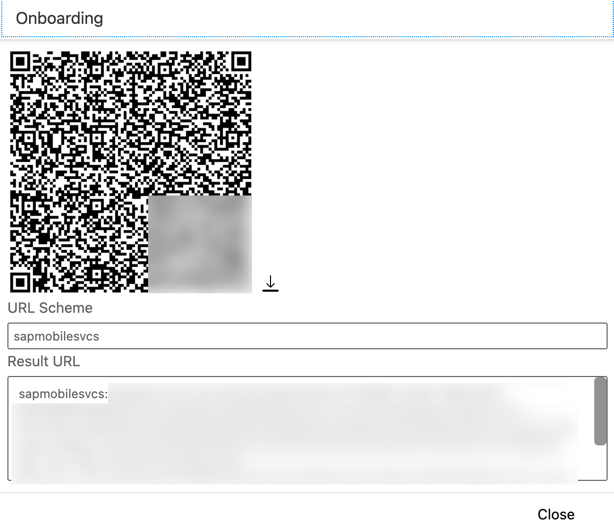
Leave the Onboarding dialog box open for the next step.
Ensure that you choose the correct device platform tab above. Once you have scanned and onboarded using the onboarding URL, it will be remembered. If you log out and onboard again, you will be prompted to either continue using the current application or scan a new QR code.
Follow these steps to successfully on-board the MDK client on your Android device.
Once you accept app update, you see Slider control.
Follow these steps to successfully on-board the MDK client on your iOS device.
Once you accept app update, you see Slider control.

Resources
Discussion
Share feedback on this tutorial or join the conversation in SAP Community.