
Overview
You will learn
- How to use
Python,Jupyter Notebook,Numpy, andPandas - How to build a text classification model using
Scikit-Learn - How to analyze model accuracy


Prerequisites
Prerequisites
- General understanding of Python helpful, but not required
Steps
Building Blocks
The development environment used here is Jupyter Notebook and steps are included to be able to run it on the cloud based service Binder; however, you can also install and run it locally if desired. Local installation is out of the scope of this tutorial, but you can find more information at jupyter.org
For this tutorial, there are two different notebook files to choose from. Both are available on GitHub at https://github.com/SAP-samples/cloud-ml-basic-intro
cp-ml-primer.ipynb- preferred notebook with descriptions, but little to no code. Code must be copied and pasted from tutorial directly.cp-ml-primer-solution.ipynb- notebook with both descriptions and code if you are in a hurry or get stuck
Binder is a cloud based service that allows you to pull a notebook from a GitHub repository and launch it in a cloud based Jupyter notebook server.
- Launch the notebook by either:
- Directly using URL https://mybinder.org/v2/gh/SAP-samples/cloud-ml-basic-intro/HEAD?filepath=cp-ml-primer.ipynb
- Or by going to https://mybinder.org and entering the GitHub repository and notebook info
- GitHub repository name or URL
https://github.com/SAP-samples/cloud-ml-basic-intro - Path to a notebook file
cp-ml-primer.ipynb - Press the launch button
- GitHub repository name or URL
- The server will launch and open in your browser.

IMPORTANT
Binder will timeout and disconnect if left idle for too long, so it is important to frequently use the option to save and load your changes using browser storage.
You can also download your notebook .ipynb file and save it locally, which can be used on any Jupyter Notebook server later using menu option File->Download as>Notebook
You will find a lot of the tutorial information and steps both here and in your recently opened Jupyter notebook; feel free to follow along on either.
Jupyter Notebook is one of the most popular development environments for data scientists. As the name implies, it’s meant to be a notebook of sorts where you can quickly jot down ideas, experiment, and see results. It’s not typically used for production; although, there are projects available that aim to make notebooks accessible in production environments.
A notebook contains individual cells which can be used either for an executable block of code or markdown enabled text for notes. Each cell can be toggled between Code and Markdown from the menu. To view in Markdown mode or execute the code in a cell:
- Highlight the cell by clicking anywhere in the margin directly left of the cell
- Click “Run” on the top menu or by using SHIFT+RETURN on your keyboard.
- Double click anywhere in the cell to toggle back to edit mode.
Highlighted Cell Type Indicator

Change Highlighted Cell Type
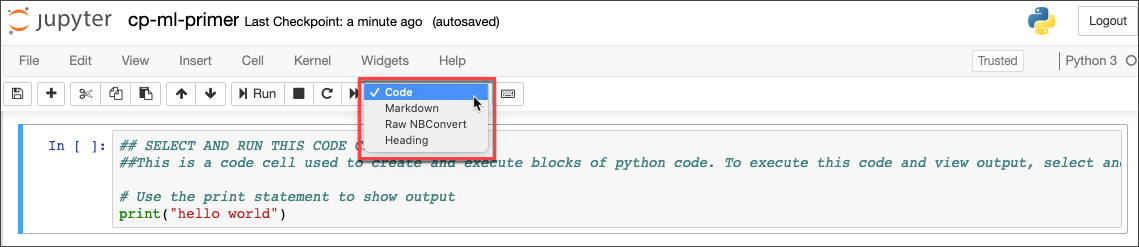
Markdown Cell Before Execution

Markdown Cell After Execution

Code Cell Before Execution

Code Cell After Execution

- You can change the code and rerun it to see any changed output.
- You can also clear output from menu by highlighting cell and then from menu using
Cell->Current Outputs->Clear - There are a few more code cells to play around with and execute in the notebook Jupyter section.
A python package is a module that can be installed and used in your environment. Since we are running this tutorial in a Jupyter server in the cloud, some of the packages we will be using will need to be installed.
Run notebook code to install & import numpy package
%pip install numpy
import numpy as npNumPy is heavily used in python when dealing with data science and machine learning projects. It’s a super efficient tool for creating and processing multi dimensional arrays.
Simple Array
- Find code cell for simple array and enter code:
simple_array = np.array([5, 10])
print(f'simple array contents: {simple_array}')
print(f'simple array shape: {simple_array.shape}')
print(f'simple array cell content by index: {simple_array[0]}')- Run code cell
- Analyze output
The output shows that you now have a simple 1 dimensional array with a shape/length of 2. You can access an item in the array by index.

Multi dimensional Array
- Insert new code cell with code:
import string
multi_array = np.array([list(string.ascii_lowercase), list(range(26))], dtype=object)
print(f'multi array contents: {multi_array}')
print(f'multi array shape: {multi_array.shape}')
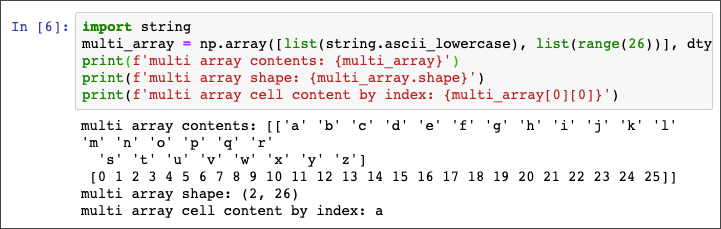
print(f'multi array cell content by index: {multi_array[0][0]}')- Run code cell
- Analyze output
The output shows that you now have a 2 dimensional array containing both letters and numbers with a shape of 2 rows X 26 items. You can still access an item in the array by it’s index.
NumPyarrays are optimized for memory usage and size is defined up at declaration. If you want to append an unknown amount of items dynamically, a native Python structure may be a better fitNumPyhas many powerful mathematical functions that can be performed on arrays- Find more info https://numpy.org/doc/stable/user/quickstart.html#the-basics
Pandas is like a small, in-memory date store that allows for processing data. Internally, it utilizes numpy, but adds some convenient query and data access. One very common usage is to import and export CSV files to and from a Pandas DataFrame.
Install Pandas package by creating and running new code cell:
%pip install pandas
import pandas as pd
The two main Pandas data structures are Series and DataFrame.
A Series is a one-dimensional array that also contains an index which serves as a label for each item
- Create series from a list:
egeeks = ['Thomas','Rich','Craig','Dan','Ed']
ring_srs = pd.Series([12,8,10,8,13],index=egeeks, name='Ring Size')
print("Series type:", type(ring_srs))
print("Series name:", ring_srs.name)
print(f"Rich's ring size is {ring_srs['Rich']}")
ring_srs- Analyze output

- Create series from a dictionary:
state_srs = pd.Series({"Thomas": "Indiana", "Rich": "Pennsylvania", "Craig": "North Rhine-Westphalia", "Dan": "New York", "Ed":"Indiana"}, name="State")
print("Series name:", state_srs.name)
print("Series type:", type(state_srs))
print(f"Thomas lives in {state_srs['Thomas']}")
state_srs- Analyze - the output should look similar to the output above from the series you created from a list
A DataFrame is a two-dimensional array with rows, columns, and labels. All individual rows and columns of a DataFrame are made up of individual Series.
- Create new DataFrame from your two previously created series:
egeeks_df = pd.concat([ring_srs, state_srs], axis=1)
print(type(egeeks_df))
print(f"Rich lives in {egeeks_df.loc['Rich']['State']}")
egeeks_df- Analyze output - DataFrame is made up of an index, 2 columns, and 5 rows of data. An individual data can be accessed by an index and column name lookup.

Pandas DataFrame Output - Run and analyze the remaining cells in the notebook for the Pandas section to explore more DataFrame characteristics and capabilities.
Machine Learning
Now that you are familiar with some of the basic tools, it’s time to dive into machine learning. In the following steps, you will build a machine learning model that will predict if a line of text is more likely a quote from a Star Wars character or Elon Musk. May the force be with you.
- Most of the steps below require you to enter and run the code in a cell in Jupyter.
- The data files are located both in the GitHub repository and your local notebook.
- To view available files within Jupyter, use menu option File->Open
For this tutorial, you will use scikit-learn, a popular machine learning library for python.
%pip install sklearnThe dataset used contains tweets from Elon Musk, but we will need to do some preprocessing to optimize the text for our model.
- Load data
elon_df = pd.read_csv('data_elonmusk.csv', encoding='latin1')- Preview data
print('Elon Tweets and Retweets:', len(elon_df))
elon_df.head(20) #show first 20 lines- Create new DataFrame with no
retweets
elon_clean_df = pd.DataFrame(elon_df.loc[elon_df['Retweet from'].isnull()]['Tweet'].tolist(), columns=['text',])- Clean up the data for processing
#create new column for cleaned up dialogue
elon_clean_df['dialogue'] = elon_clean_df['text']
#remove URLs using regex
elon_clean_df['dialogue'] = elon_clean_df['dialogue'].str.replace(r"http\S+", "")
elon_clean_df['dialogue'] = elon_clean_df['dialogue'].str.replace(r"http", "")
#remove @ mentions using regex
elon_clean_df['dialogue'] = elon_clean_df['dialogue'].str.replace(r"@\S+", "")
#replace any line breaks with spaces
elon_clean_df['dialogue'] = elon_clean_df['dialogue'].str.replace(r"\n", " ")- Preview your preprocessed data
print('Elon Tweets', len(elon_clean_df))
elon_clean_df.head(20)- Load data from all three movies in the original trilogy
hope_df = pd.read_csv('SW_EpisodeIV.txt', delim_whitespace=True, names=["id","character","dialogue"], index_col="id", skiprows=[0,])
emp_df = pd.read_csv('SW_EpisodeV.txt', delim_whitespace=True, names=["id","character","dialogue"], index_col="id", skiprows=[0,])
jedi_df = pd.read_csv('SW_EpisodeVI.txt', delim_whitespace=True, names=["id","character","dialogue"], index_col="id", skiprows=[0,])- Create new DataFrame combining all movie lines
sw_df = pd.concat([hope_df, emp_df, jedi_df])
print('Total Star Wars movie lines: ', len(sw_df))
sw_df.head(20)- Add column to each dataset to indicate the source
elon_clean_df['who said it'] = 'Elon Musk'
sw_df['who said it'] = 'Star Wars'- Combine data into a single DataFrame using only the needed columns
all_df = pd.concat([elon_clean_df[['dialogue', 'who said it']], sw_df[['dialogue', 'who said it']]])- Preview data
print("Total lines of dialogue:", len(all_df))
all_df.head(10).append(all_df.tail(10)) #show a preview
Many of the following steps use Scikit-Learn, a common python package for machine learning.
Machines like numbers, not text. In order to perform machine learning on text documents, we first need to turn the text content into numerical feature vectors. There are many different methods and theories for vectorization and some options are better depending on the use case. For this tutorial, we will use TF-IDF (Term Frequency times Inverse Document Frequency). TF-IDF is a way of adjusting the importance or weight of individual terms in relation to all of the terms and frequencies of the entire dataset.
For the context of this tutorial, the term fit is used interchangeably with the term train.
from sklearn.feature_extraction.text import TfidfVectorizer
tfidf_vectorizer = TfidfVectorizer(stop_words="english")
tfidf_vectorizer.fit(all_df['dialogue'])It is important to hold back some data to test the model’s accuracy.
from sklearn.model_selection import train_test_split
all_df_train, all_df_test = train_test_split(all_df, test_size=0.20) #split 20% for testing
print("All data:", len(all_df))
print("Train data:", len(all_df_train))
print("Test data:", len(all_df_test))
all_df_test.head(20)In the previous vectorization step, the vectorizer object was fit with the entire dataset to create a map of terms. Now you will transform each individual line of text from the training data into a vector for fitting the text classifier model.
dialogue_tfidf_train = tfidf_vectorizer.transform(all_df_train['dialogue'])
dialogue_tfidf_trainNow that the training data has been vectorized, it’s time to train/fit the model. The input for the following fit method is 2 iterable arrays, one for the vectorized representation of the text and the other for the target value of Star Wars or Elon Musk. It is expected that the arrays are the same size and order.
#train our classifier model
from sklearn.naive_bayes import MultinomialNB
sw_elon_clf = MultinomialNB().fit(dialogue_tfidf_train, all_df_train['who said it'])After the model has been trained, it can be used to predict the target values of other data.
#vectorize test data
dialogue_tfidf_test = tfidf_vectorizer.transform(all_df_test['dialogue'])
#run predictions for our test data
all_df_test['who said it prediction'] = sw_elon_clf.predict(dialogue_tfidf_test)
#preview predictions
all_df_test.head(20)
You trained a machine learning model and generated predictions!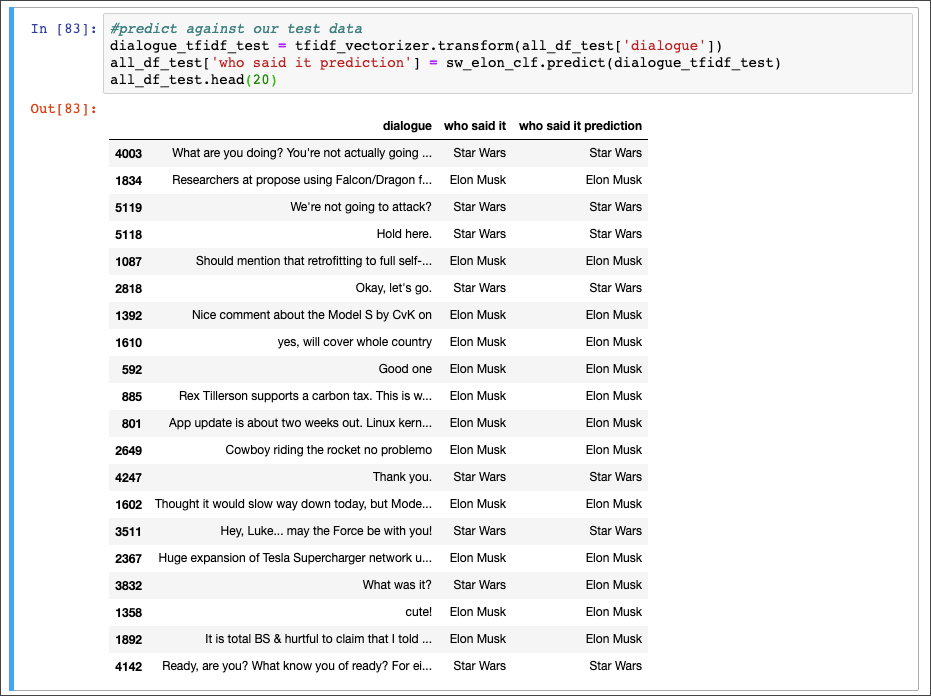
To measure accuracy, use the test predictions and analyze results.
- Measure accuracy by comparing target and predicted values
from sklearn import metrics
print("Accuracy score:", metrics.accuracy_score(all_df_test['who said it'], all_df_test['who said it prediction']) * 100)- View confusion matrix to see where our model was most and least accurate
cm = metrics.confusion_matrix(all_df_test['who said it'], all_df_test['who said it prediction'], labels=['Elon Musk', 'Star Wars'])
print(cm)
Don’t be alarmed if your accuracy doesn’t match what you see below. Because of the difference of the split data, results will vary, but it should be fairly close.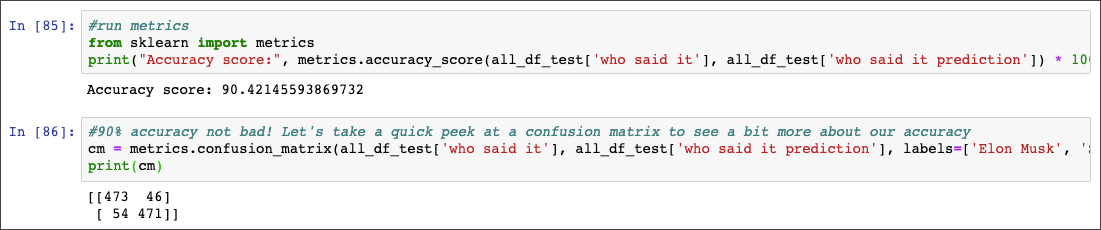
The confusion matrix shows our agreements and disagreements for both target values. To make it more clear, we can use matplotlib to generate a more user friendly version of the confusion matrix.
- Install
matplotlibpackage
%pip install matplotlib- Build chart
import matplotlib.pyplot as plt
from itertools import product
#
plt.figure(figsize=(8, 8))
plt.imshow(cm, interpolation='nearest', cmap="RdYlGn")
plt.tight_layout()
plt.colorbar()
#
plt.title('Who Said It Confusion Matrix', fontsize=20)
plt.xlabel('Predicted', fontsize=20)
plt.ylabel('Actual', fontsize=20)
#
classes = ['Elon Musk', 'Star Wars']
tick_marks = np.arange(len(classes))
plt.xticks(tick_marks, classes, fontsize=20, rotation=45)
plt.yticks(tick_marks, classes, fontsize=20)
#
#iterate through matrix and plot values
for i, j in product(range(cm.shape[0]), range(cm.shape[1])):
  plt.text(j, i, cm[i, j], horizontalalignment="center", color="white", fontsize=40)
#
plt.show
You should see a chart similar to this. If not, try to rerun code cell.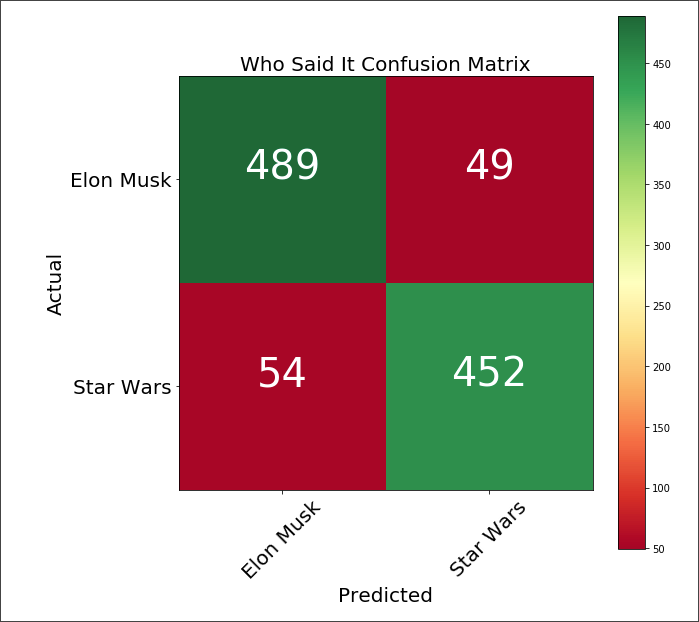
- Top left: # of predictions where the actual and predicted value was Musk
- Top right: # of predictions where the actual value was Musk but the predicted value was Star Wars
- Bottom left: # of predictions where the actual value was Star Wars but the predicted value was Musk
- Bottom right: # of predictions where both the actual and predicted value was Star Wars
Once the model is built, you will most likely want to use it to predict and classify future lines of dialogue. It’s important that you preprocess and vectorize any future data the same way in which it was built before feeding it in for classification. Scikit-Learn provides the concept of pipelines that are objects that can store all the necessary steps to process data.
- Build pipeline
from sklearn.pipeline import Pipeline
sw_elon_clf_pipe = Pipeline([
    ('vect', tfidf_vectorizer),
    ('clf', sw_elon_clf),
])- Test a prediction
test_line = "may the force be with you"
sw_elon_clf_pipe.predict([test_line,])- Save pipeline object for later use
import joblib
joblib.dump(sw_elon_clf_pipe, 'sw_elon_model.pkl')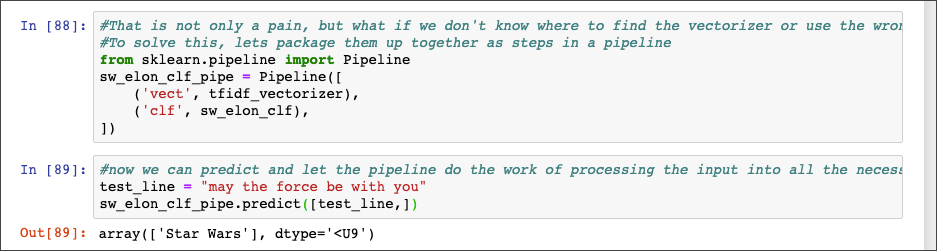
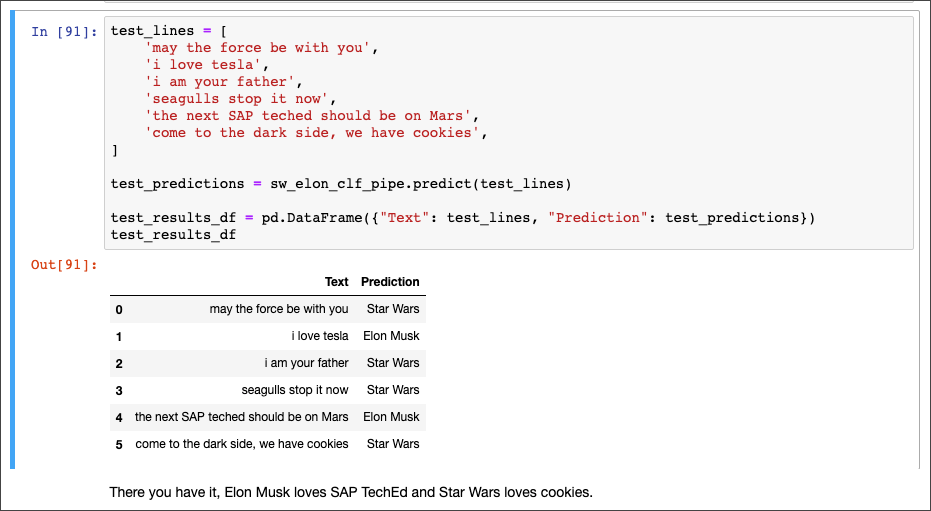
Now that the pipeline has been built, use it to run some ad hoc predictions. Have fun with it!
sw_elon_clf_pipe = joblib.load('sw_elon_model.pkl') #load pipeline object
test_lines = [
    'may the force be with you',
    'i love tesla',
    'i am your father',
    'seagulls stop it now',
    'the next SAP teched should be on Mars',
    'come to the dark side, we have cookies',
]
#
test_predictions = sw_elon_clf_pipe.predict(test_lines)
#
test_results_df = pd.DataFrame({"Text": test_lines, "Prediction": test_predictions})
test_results_df
How did your model do?
As a fun bonus, create a quick UI in Jupyter notebook that will allow you to input some text, hit enter, and show the prediction
from ipywidgets import widgets
from IPython.display import display
#
text_box = widgets.Text()
#
print("Who is most likely to say:")
display(text_box)
#
def handle_submit(sender):
    print(f"'{text_box.value}':", sw_elon_clf_pipe.predict([text_box.value,])[0])
#
text_box.on_submit(handle_submit)
Type in some text and hit enter to see who was more likely to say it.

Wow, a fully functional, production like machine learning toy app! Hopefully you are now equipped with the necessary knowledge to begin your own adventure in Data Science and Machine Learning.
Resources
Discussion
Share feedback on this tutorial or join the conversation in SAP Community.