
Integrate Your SAPUI5 App into Your Site
Add an SAPUI5 app to a site in SAP Build Work Zone, standard edition.
Overview
You will learn
- How to add a deployed, custom-developed, SAPUI5 app to your site Once you’ve deployed your SAPUI5 app to SAP BTP, it becomes available to add to your site.


Prerequisites
Prerequisites
- You’ve already created the
JobCoresite - You’ve created a custom SAPUI5 application and deployed it to SAP BTP, Cloud Foundry environment
- You’ve created a space and a page and assigned the space to a role, as described in this tutorial: Create a Space and a Page and Add Apps
Steps
In this step, you will find your custom developed app that you deployed to your subaccount in SAP BTP.
In the side navigation panel of your subaccount, click Instances and Subscriptions and then next to SAP Build Work Zone, standard edition, click the Go to Application icon.

Open launchpad service Click the Channel Manager icon to view any available content providers.

Open Provider Manager Select the HTML5 Apps content provider.
The HTML5 Apps content provider is created automatically. Any app that you deploy to SAP BTP is automatically added as content to this provider.

Select the HTML5 Provider Click the Fetch updated content icon.

Fetch updated content
The HTML5 Apps content provider should now expose any newly deployed app for integration.
Click the icon in the side panel to open the Content Manager.

Open Content Editor Click the Content Explorer button to explore content from the available content providers.

Open Content Explorer Select the HTML5 Apps provider.

Select the HTML5 tile You’ll see that your
Suppliersapp that you’ve just created in SAP Business Application Studio, already exists in this provider. Select it and click + Add to My Content.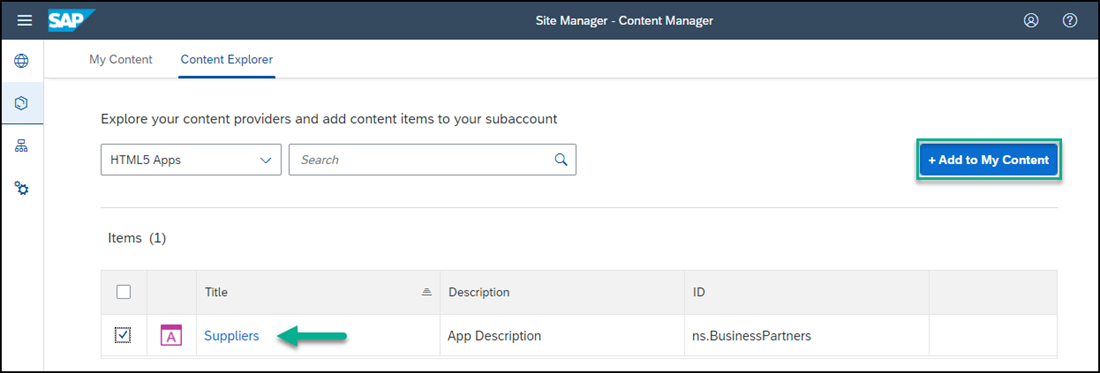
Add app to My Content Select the
Suppliersapp and click Add.
Select app Using the breadcrumbs, go back to the Content Manager.

Select app Note that your
Suppliersapp is in the list of content items.
View app
In this step, you’ll assign the Suppliers app to the Everyone role. This is a default role - content assigned to the Everyone role is visible to all users.
In the Content Manager, click the
Everyonerole.
Everyone role Click Edit.

Edit role In the Assignment Status column, toggle the switch to assign the app to the
Everyonerole.
Assign role Click Save.
Using the breadcrumbs, go back to the Content Manager.
Select the
Overviewpage.
Select page When the page opens you’ll see other apps and a card that you added in the previous tutorials. Click Edit.

Edit page Hover in the section where your other apps are displayed, click the + icon.

Add app Select the
Suppliersapp and click Add.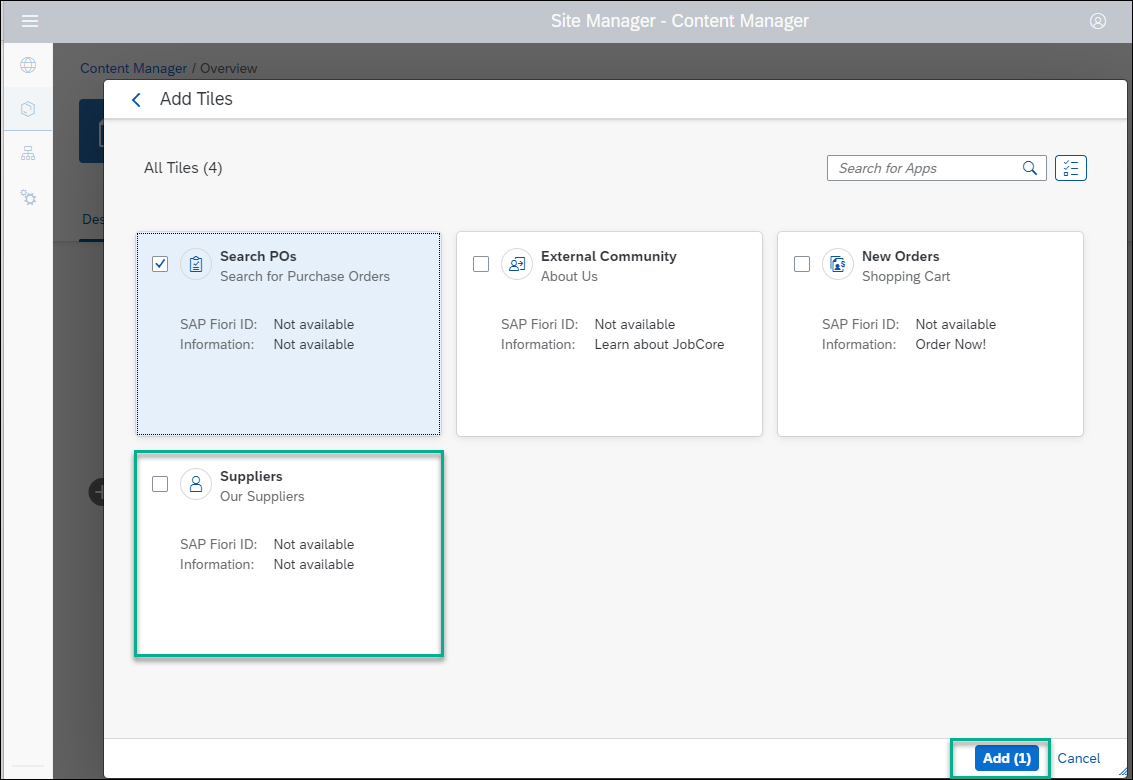
Add Suppliers app Click Save.
Click the Site Directory icon to open the Site Directory.

Open site directory Click Go to site on the site tile.
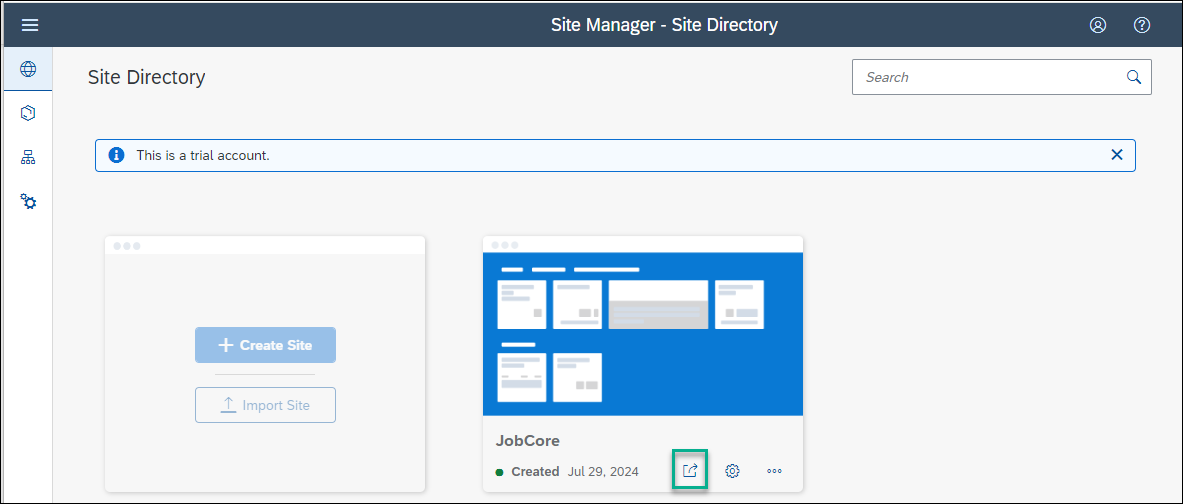
Open site You’ll see all the apps that you have added to your site as well as the UI integration card.

See all apps Go ahead and click the apps to launch them.
Resources
Discussion
Share feedback on this tutorial or join the conversation in SAP Community.