
Overview
You will learn
- How to setup connectivity on SAP Cloud Connector
- How to create runtime and design time destinations for content federation


Prerequisites
Prerequisites
- You have an SAP BTP trial account.
- You have access to both an SAP Cloud Connector and an SAP S/4HANA demo/test system that you want to connect to your SAP BTP trial account. These systems might be provided to you by the instructor in a workshop or you might have set them up from the SAP Cloud Appliance Library yourself. Please make sure that you have the server names, ports and a user and password available. The screenshots in this tutorial were taken from an SAP S/4HANA 2023 FPS01 system, but an older system, e.g. 2020, would work mostly in the same way.
Steps
Open the URL of your SAP Cloud Connector in Chrome.
In your SAP S/4HANA trial CAL system, you can access it by connecting via Remote Desktop Connection. You can find the link to the SAP Cloud Connector and the initial password in the Welcome page that can be accessed via the Welcome Chrome icon on the desktop.
Enter your
user nameandpasswordand click Login.
SAP Cloud Connector Login If required, enter a new password.
If this is the first time SAP Cloud Connector is started, you will see the Define Subaccount page. Otherwise, the Connector Overview page opens.
If you see the Connector Overview Page, click Add Subaccount to add your SAP BTP trial account.

Connector Overview Otherwise, you can directly start entering the details of your SAP BTP trial on the Define Subaccount page.

Define subaccount To find the right information to enter into SAP Cloud Connector, access your SAP BTP trial in a second browser tab at https://account.hanatrial.ondemand.com/trial/#/home/trial.
Click Go To Your Trial Account, then click the trial tile.

Trial subaccount You can find the required information to enter in the SAP Cloud Connector form on this Overview page. You can identify the region, the provider and the subaccount ID in the General section.
Copy the region, e.g. US East (VA).

BTP Cockpit Overview Go back to the SAP Cloud Connector tab. In the form, click the Select icon in the Region field.

Select icon Paste the region of your trial account and select the right entry in the list. Make sure you select the right provider (hyperscaler).

Select region Go back to the BTP Cockpit Overview page and copy the
subaccount IDinto the Subaccount field.Enter an easily identifiable display name, e.g. your SAP BTP trial’s subdomain into Display Name.
Enter the
email addressandpasswordthat you use to login to your SAP BTP trial into Login E-Mail and Password.If you have attached another SAP Cloud Connector to your SAP BTP trial account already, enter any unique Location ID here to distinguish this SAP Cloud Connector from the existing one. Otherwise, you can leave this field empty.
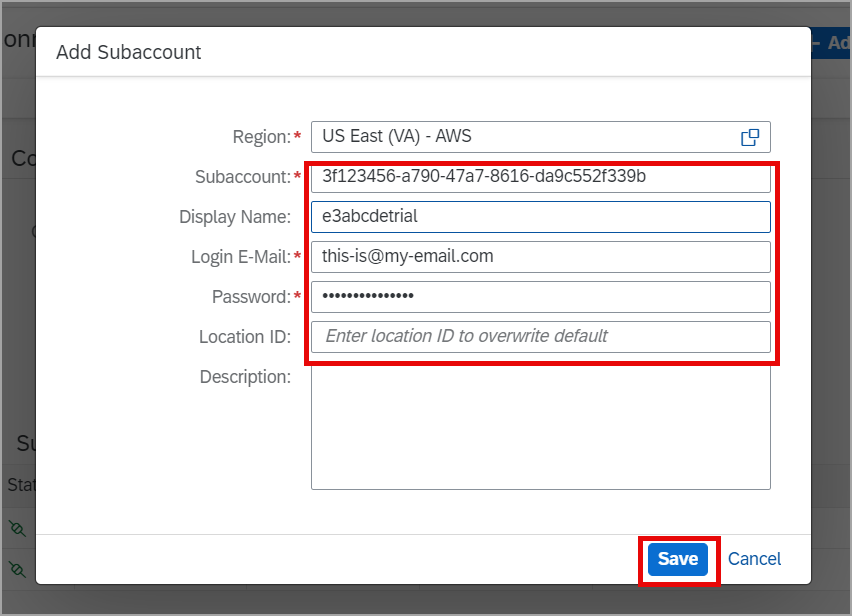
Add Subaccount dialogue Click Save.
You have connected your trial subaccount and can now see it in the subaccount dashboard. The status is still yellow, as backend access has not been configured yet.

In this step, you configure the SAP Cloud Connector to trust all backend systems. This configuration ignoring the allowList is considered less secure, since all server certificates are trusted and the issuing CA is not checked.
As a result, certain attacks on the hop between Cloud Connector and internal systems can be performed more easily. Therefore, we strongly recommend that you don’t do this in productive installations.
From the left panel, choose Configuration in the Connector section.

Click Configuration Go to the tab On Premise.

Tab On-Premise Scroll down to the Backend Trust Store section and change the switch next to Determining Trust Through Allowlist to Off.
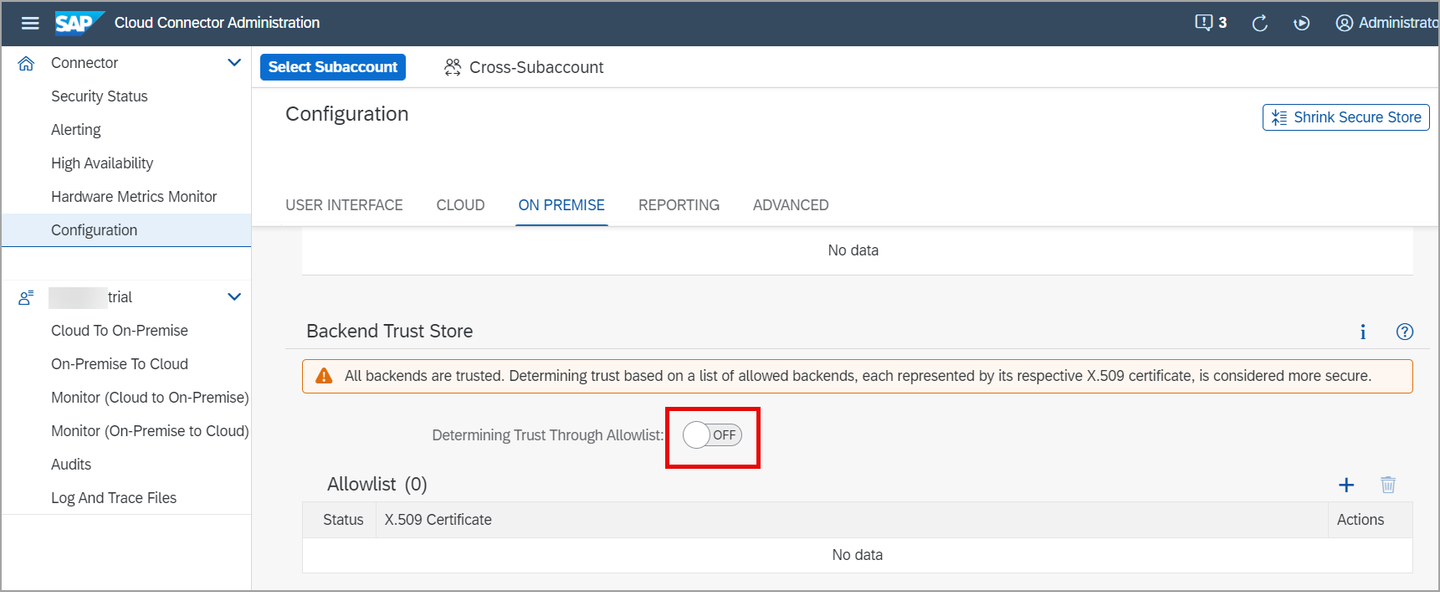
Tab On-Premise
Now, you will specify the on-premise backend system that your trial should be able to access.
You can see that the newly connected subaccount is already selected in the lower part of the menu on the left side of the screen. Click Cloud To On-Premise below the name of your subaccount.
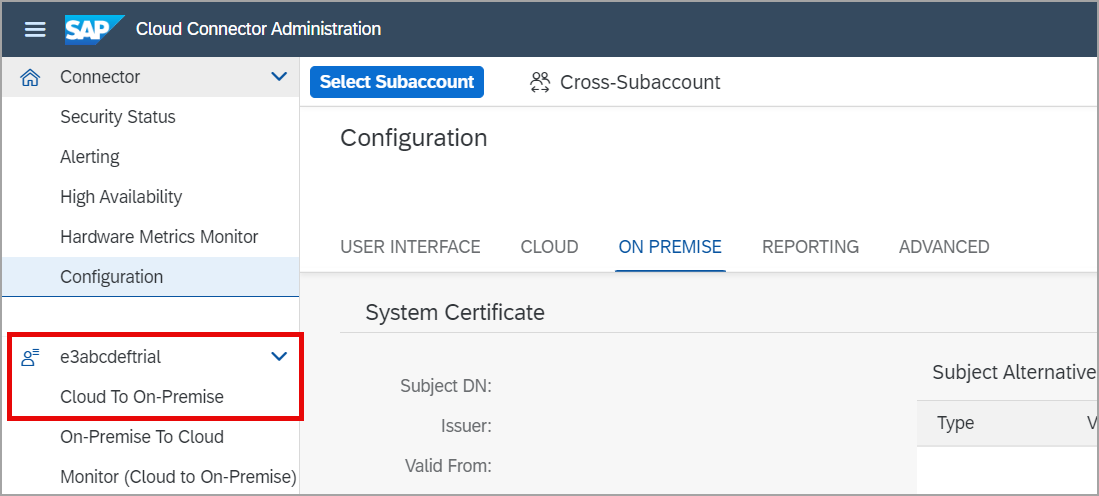
Cloud-to-On-Premise Click the plus icon on the Access Control tab to add your on-premise system.

Add System Keep the default
ABAP Systemand click Next.
Select backend type Select
HTTPSas protocol for communication with your on-premise system and click Next.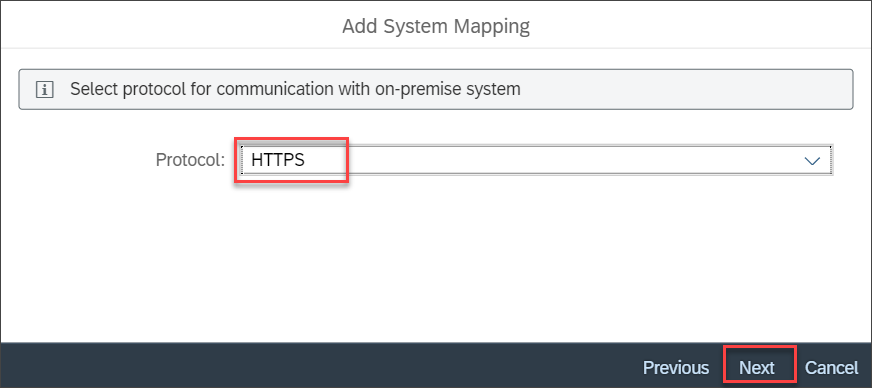
Select protocol Enter the internal host name of your SAP S/4HANA system and the internal port. If you are using a system from the SAP Cloud Appliance Library (CAL), you can find the IP address in the details of your instance. The port is 44300 in this case. Then click Next.

Enter internal host 
IP End Point Enter
s4hanaas Virtual Host and44300as Virtual Port and click Next.You can choose any virtual host name and port here, but you need to reuse the ones defined here when creating a destination later.
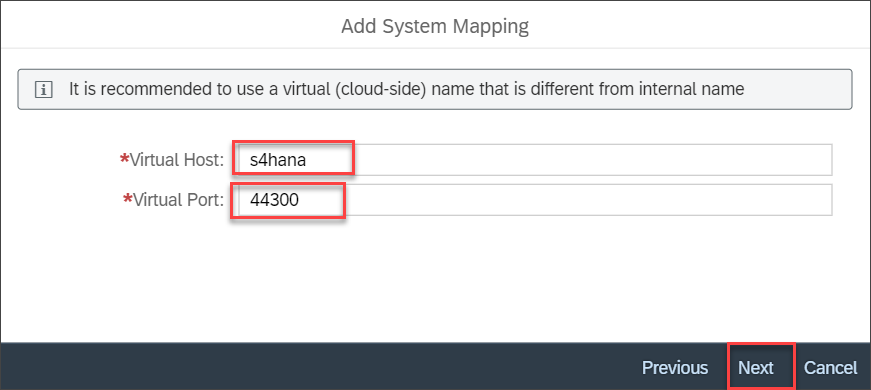
Enter virtual host In the next screen, deselect the checkbox next to Allow Principal Propagation, then click Next.
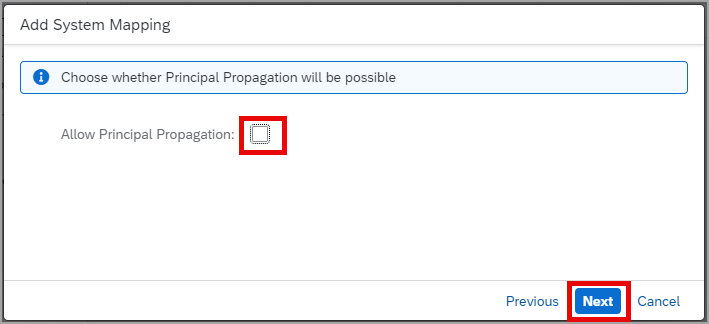
Deselect principal propagation In a productive environment, we highly recommend that you use Principal Propagation or some other more advanced authentication concepts. In this tutorial, we just use the quickest and simplest approach for the sake of time.
Just keep the default and click Next.

Keep default Click Next.

Keep default If you want, enter a description. Then click Next.
In the summary, check the Check Internal Host checkbox and click Finish.
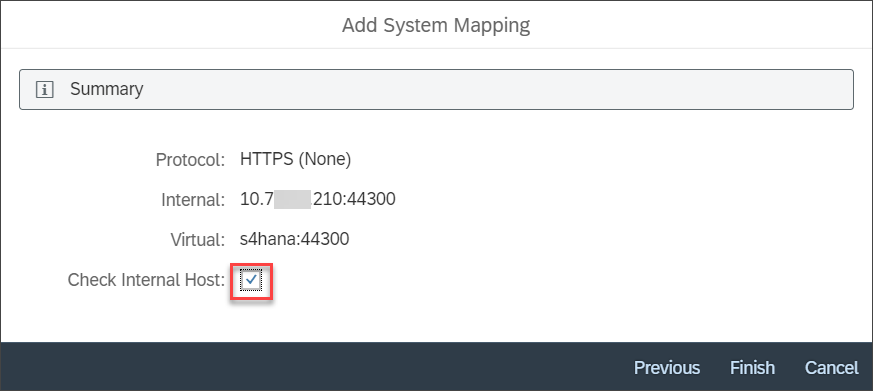
Summary screen
You now see a new entry in the mappings table. The icon in the Check Result column should be green, but the status is still grey, as no accessible resources have been defined yet.
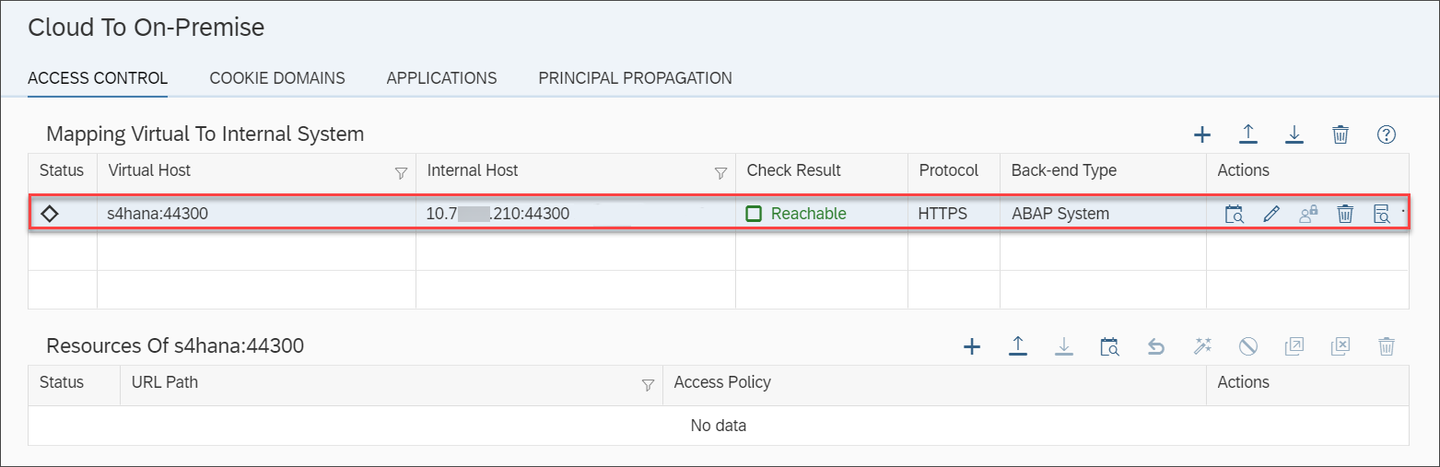
In the lower table Resources of s4hana:44300 click the plus icon.

Add icon Enter
/in URL Path.
Enter URL Usually you would define this in a more fine granular way, but since this is just a demo system, we will keep it simple. Below you can find the default pathes which you should restrict even further according to your usage.
Path to fetch… Value Card manifests and i18n files /sap/bc/lrep/The UI5 App Index /sap/bc/ui2/app_index/CDM3 content /sap/bc/ui2/cdm3/Data from OData services /sap/opu/odata/Data from OData V4 services /sap/opu/odata4/Select
Path And All Sub-Pathsin Access Policy.Click Save.
You now see a new entry in the lower table and the status of the entries in both tables should be green. SAP Cloud Connector configuration is now finished. You can leave the SAP Cloud Connector now.

The design-time destination is used to fetch the federated content from the content provider system during design-time.
Go back to the browser tab with your SAP BTP trial subaccount Overview page.
In the menu, navigate to Connectivity > Destinations.

Go to Destinations Click Create Destination.
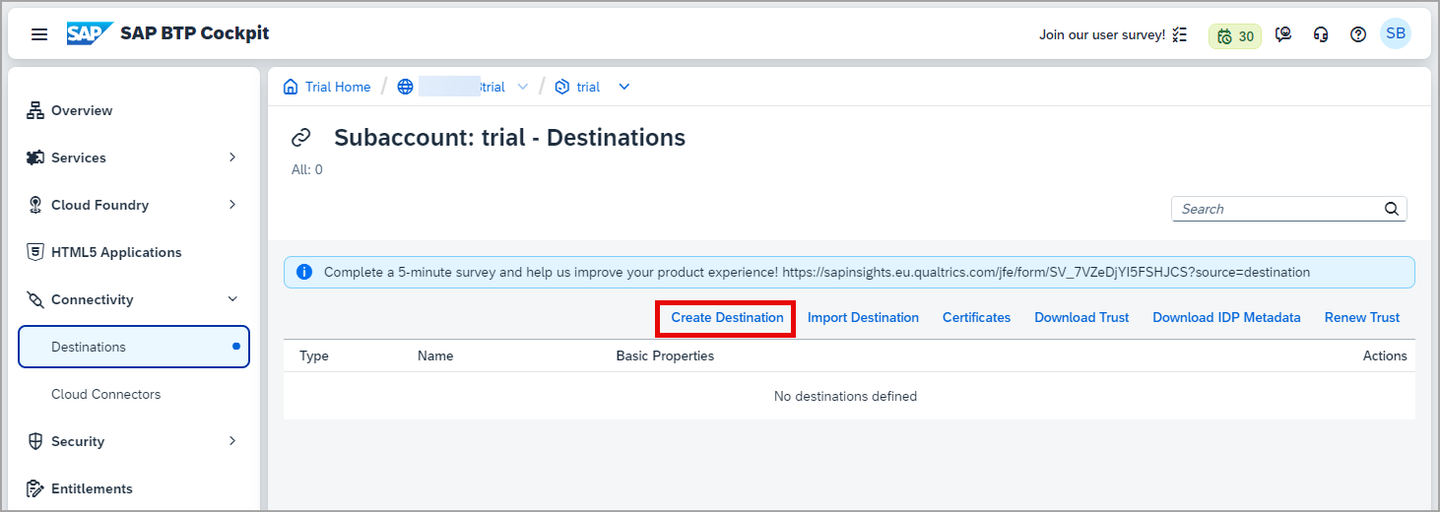
Destination screen Fill in the form:
Field Name Value Name s4hanadtType HTTPDescription SAP S/4HANA systemURL http://s4hana:44300/sap/bc/ui2/cdm3/entitiesProxy Type OnPremiseAuthentication BasicAuthenticationUser <User ID on your SAP S/4HANA system>Password <Password of the user>If you entered a Location ID in SAP Cloud Connector, enter the same value here in Location ID as well.
Click New Property to add an additional property to your destination.

Design-time Destination Enter
sap-clientand the client of your SAP S/4HANA system, e.g. 100 for SAP S/4HANA trial (CAL) systems, as property name and value.Click Save.

Additional property
The runtime destination is used to launch federated applications at runtime.
Below the destination that you just created, click Clone.

Clone Destination Change the Name of the new destination to
s4hanart.Change the URL to
http://s4hana:44300.Enter the password again.
Click New Property to add the following properties to your destination. You can type in the property name, if it is not available in the dropdown list.
Property Name Value HTML5.DynamicDestination truesap-platform ABAP(type the property name)sap-service A string that consists of the first two characters 32 and the instance number of the ABAP application server, 3200 for your CAL system (type the property name) sap-sysid <System ID of your SAP S/4HANA system>- S4H for your CAL system (type the property name)Click Save.

Runtime Destination
Resources
Discussion
Share feedback on this tutorial or join the conversation in SAP Community.