
Overview
You will learn
- How to deploy a microservice using Kyma dashboard
- How to deploy Functions using Kyma dashboard
- How to create APIRules
- How APIs and Events are used.


Prerequisites
Prerequisites
- Kyma provisioned
- Deploy Commerce Mock Application in SAP BTP, Kyma Runtime tutorial completed
Steps
Intro
This sample provides a Redis deployment and two Serverless Functions that interact with it. The cache-order Function is set to subscribe to the order.created event provided by the commerce mock application. Once triggered, the Function performs an API call to the commerce mock to obtain additional details regarding the order and then cache the information into Redis. The get-order Function, exposed as an API, is used to retrieve the order details from the Redis cache.
Go to the kyma-runtime-extension-samples repository. This repository contains a collection of Kyma sample applications which will be used during the tutorial.
Use the green Code button to choose one of the options to download the code locally, or simply run the following command using your CLI at your desired folder location:
Shell/Bashgit clone https://github.com/SAP-samples/kyma-runtime-extension-samples
Open Kyma dashboard using the Dashboard URL link in SAP BTP cockpit.
Choose Modify Modules, and select Add.
In the Add Modules section, check
eventing,nats, andserverless, and select Add.
You can find more info in Add and Delete a Kyma Module.
When you add the Eventing module, you must configure a backened for it. Follow these steps:
In your Modules section, go to eventing, and choose Edit.
In Backend Type, choose NATS from the dropdown, and select Save.
You can find more info in Choose a Backend for Kyma Eventing.
In this step, you will deploy the Redis resources, obtained in Step 1, into SAP BTP, Kyma runtime. These resources include:
redis.yaml: The deployment defining the Redis cache configuration.redis-service.yaml: The Kubernetes Service which exposes the Redis instance to the two Serverless Functions.redis-secret.yaml: The Kubernetes Secret which defines the Redis password.
In the
devnamespace, choose Upload YAML and upload or copy the contents of theredis-function/k8s/redis.yamlfile, and click Upload.Perform the same procedure to upload the contents of the
redis-function/k8s/redis-service.yamlfile.Go to Configuration > Secrets, and choose Create.
Switch to the YAML tab, and copy the contents of the
redis-function/k8s/redis-secret.yamlfile over-writing the preexisting content found within the pane, and then choose Create.
In this step, you will deploy two Functions into SAP BTP, Kyma runtime that were obtained in Step 1. These resources include:
cache-order-function.yaml: This Function subscribes to an event published by the commerce mock application. Once triggered, it calls back to the commerce mock application to obtain thetotalPriceWithTaxand then cache the information into Redis.get-order-function.yaml: This Function is exposed as an API allowing retrieval of data stored within the Redis cache.
In the
devnamespace, choose Upload YAML, and upload or copy the contents of theredis-function/k8s/cache-order-function.yamlfile.Change the Node.js version to
nodejs20by adjusting the value ofspec.runtime, and click Upload.Repeat the steps to create the
get-orderFunction using the fileredis-function/k8s/get-order-function.yaml.
- To expose the
get-orderFunction as an API, choose the menu option Discovery and Network > API Rules, and click Create. - Provide the value
get-orderfor Name, Service Name and Host. - Select
No Authfor Access Strategy, and choose Create.
In this step, you will configure the cache-order Function, deployed in the previous step, to run when the order.created event is fired from the commerce mock application.
In the
devnamespace, choose Configuration > Subscriptions.Choose Create, and use the following values:
- Name: order-created
- Types: order.created.v1
- Service: cache-order
- Source: mp-commerce-mock
In this step, you will copy the URL to the commerce web services API which will be used by the cache-order Function.
Choose the menu option Back to Cluster Details to go back to the Kyma home workspace.
In the Kyma home workspace, choose Integration > Applications.
Choose the mp-commerce-mock application.
Choose SAP Commerce Cloud - Commerce Webservices.
Choose the Copy to Clipboard option to get the Central Gateway URL of the SAP Commerce Cloud - Commerce Webservices. This will be used in the
cache-orderFunction.
In this step, the URL copied in the previous step will be assigned to an environment variable of the cache-order Function. This allows the Function to call the SAP Commerce Cloud - Commerce Webservices of the commerce mock application.
Go to the
devnamespace, and choose Workloads > Functions.Choose the cache-order Function to open it.
Choose Edit, scroll down to Environment Variables and find the Environment Variable with the Variable Name
CENTRAL_GATEWAY_URL.Paste the value copied in the previous step into the Value field. Make sure that the value begins with
http://central-application...and choose Save.Choosing Save will cause the Function to be rebuilt and deployed. The Status field will indicate that the Function is Deploying and will change to Running once this process completes.
With the configuration steps completed, you can now test the scenario to validate that it is working as intended.
Open the mock application in the browser by choosing Discovery and Network > API Rules from the menu.
Paste the Hosts entry for the commerce-mock APIRule to your browser and press Enter. This URL should be similar to:
https://commerce.*******.kyma.ondemand.comChoose the Remote APIs tab.

Test the Scenario Choose the SAP Commerce Cloud - Events option.
For the Event Topics, choose order.created.v1.
Modify the
orderCodevalue as desired and choose Send Event. Make sure to remember theorderCodevalue, it will be used in a later step.
Test the Scenario
In this step, we will view the logs outputted by the Function to verify that the scenario is working.
In the
devnamespace, choose Workload > Functions.Choose the cache-order Function.
Scroll to the bottom of the pane to find the option Replicas of the Function and choose the value found in the table.

Replicas of the Function Under Containers, choose View Logs for the function container.
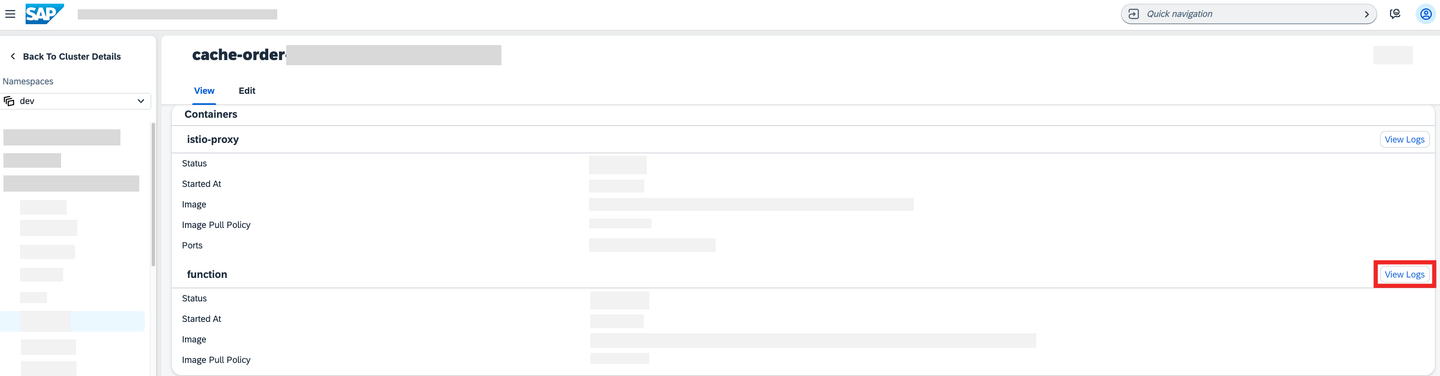
Function Logs Location The output should be similar to:

Function Log
In this step, we use the get-order Function to perform a read request of the data cached in the Redis database.
Choose Discovery and Network > API Rules from the menu.
Paste the Hosts entry for the
get-orderAPIRule to your browser and press Enter. When opened for the first time, you will receive the message:{"error":"No orderCode received!"}Append the value
?orderCode={YOUR_ORDER_CODE}to the URL where the value is the same as used when sending the event, for example:https://get-order.*********.kyma.ondemand.com/?orderCode=1231231
This should output the value saved when the event was submitted.
`{"orderCode":"1231231","Date":"Tue Nov 17 2020 19:28:42 GMT+0000 (Coordinated Universal Time)","Value":"100"}`
Congratulations! You have successfully completed the mission.
Resources
Discussion
Share feedback on this tutorial or join the conversation in SAP Community.