
Overview
You will learn
- How to configure an auto approval policy for a decision


Prerequisites
Prerequisites
Steps
Intro
You can view, edit, author, and activate your business decisions using Manage Decisions.
A decision consists of one or more policies, and each policy consists of a collection of rules. It is a part of the live process package and is used to automate decision making of a business process.
You configure the auto approval policy using this tutorial. This policy is used to determine if an approval is required or not, based on the total investment cost. In this scenario, auto approval is enabled if the investment cost is less than 5000.
Choose the Process Flexibility Cockpit. Then navigate to My Live Processes section and choose Sample Capital Expenditure Approval Process tile.
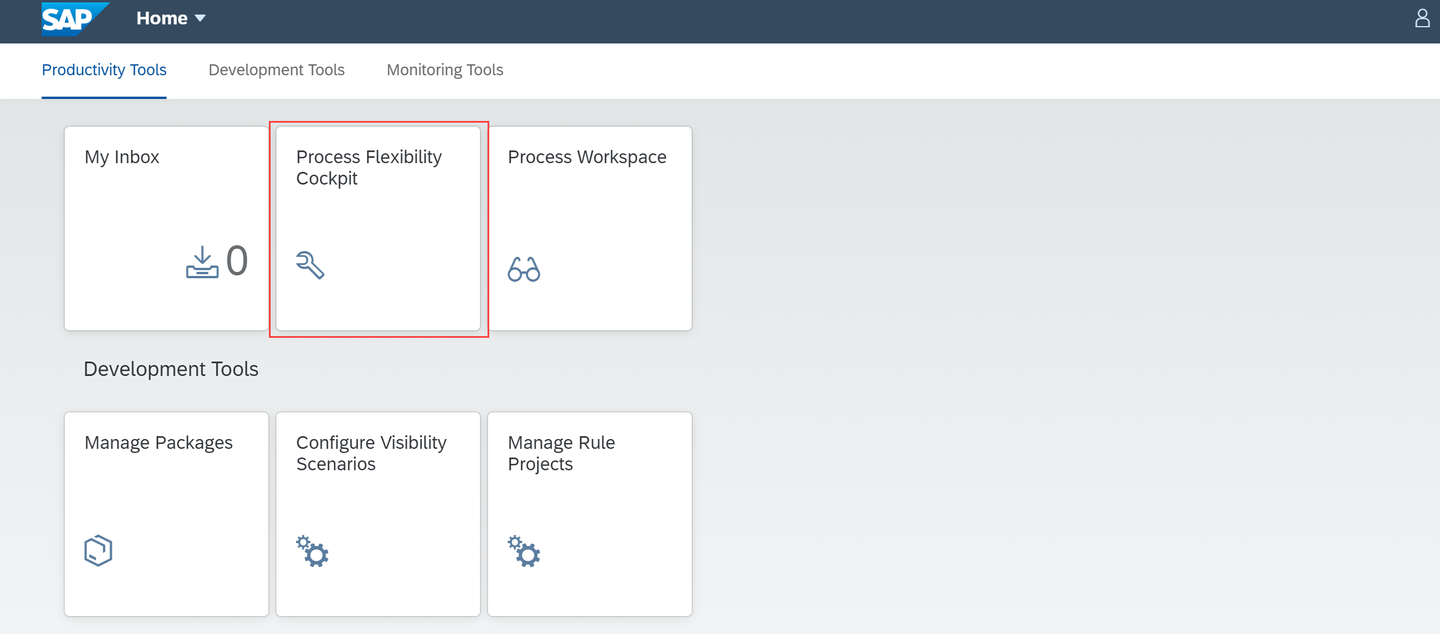
PFC 
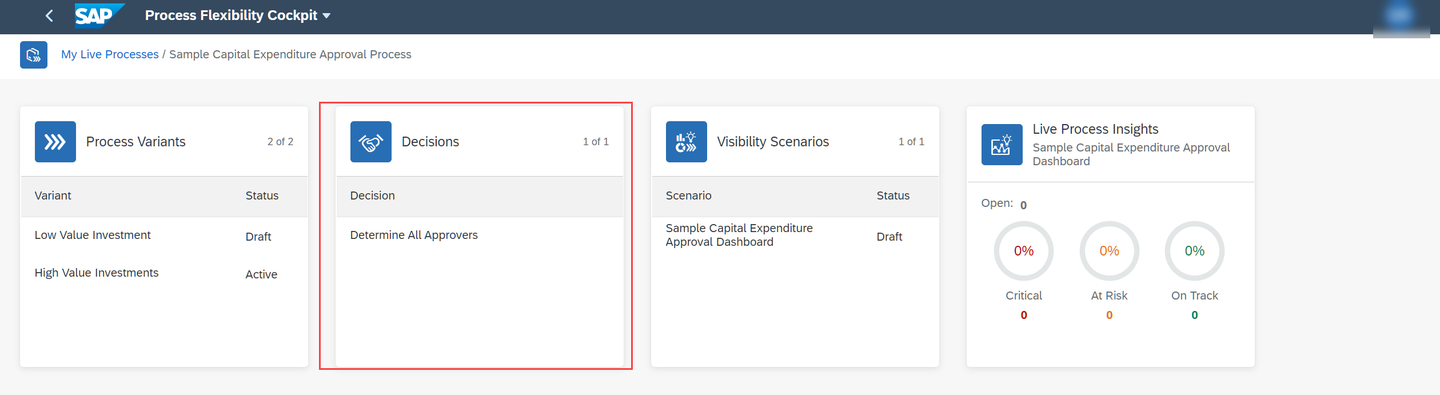
Capital Expenditure Choose the Determine All Approvers decision.
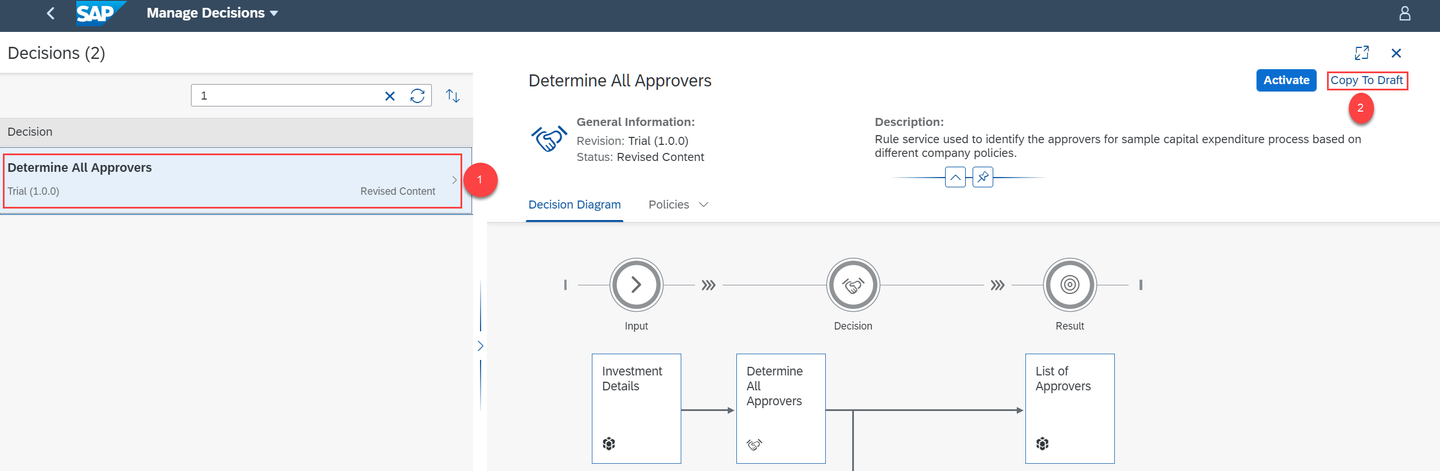
Manage decisions You are now in the Manage Decisions view.
Choose the Determine All Approvers decision, then choose Copy to Draft to create a draft version of the decision.
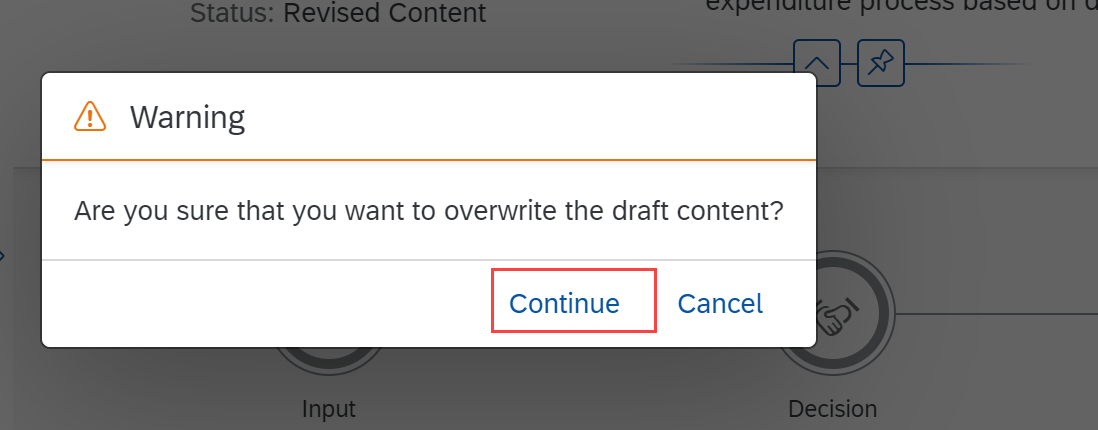
Copy to Draft In the warning dialog, choose Continue.
Copy Confirm Choose the draft version of the decision, and then choose Policies > Auto Approval Policy.
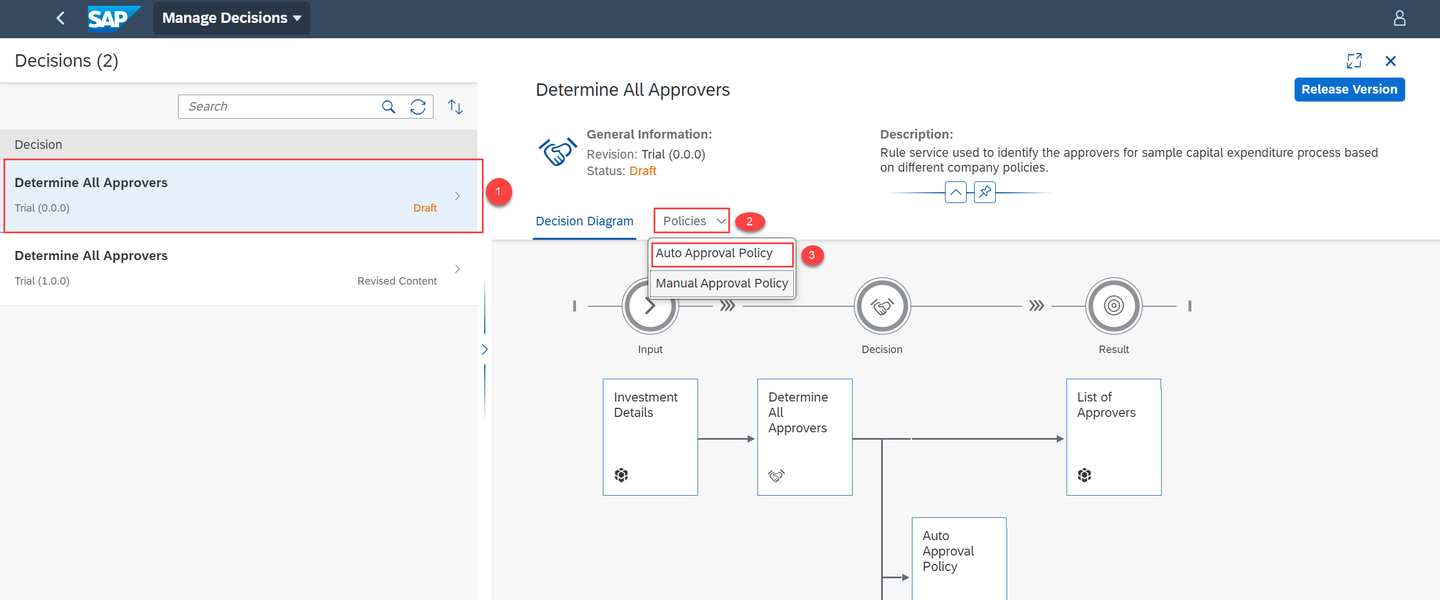
Auto app Choose the Auto Approval rule.
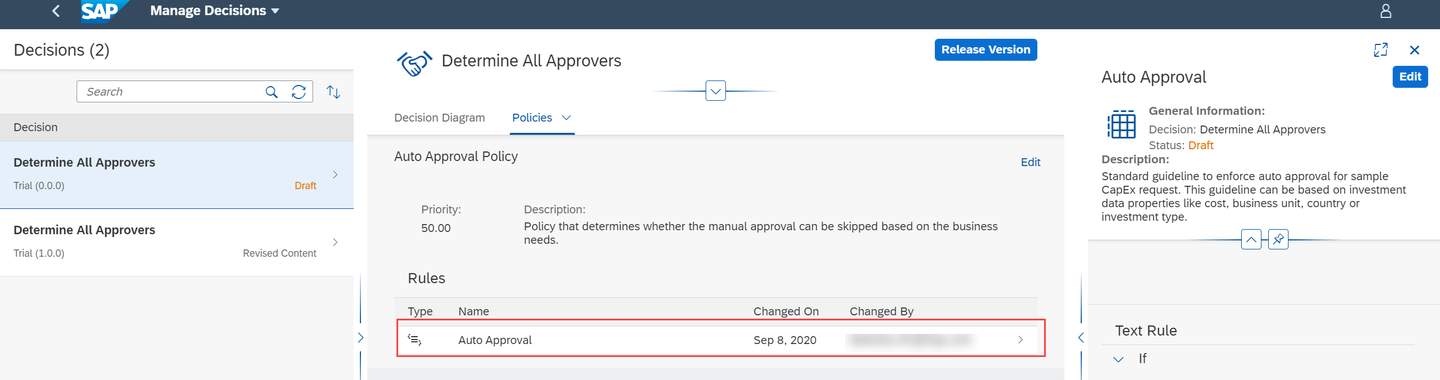
Auto App Rule Choose Edit.
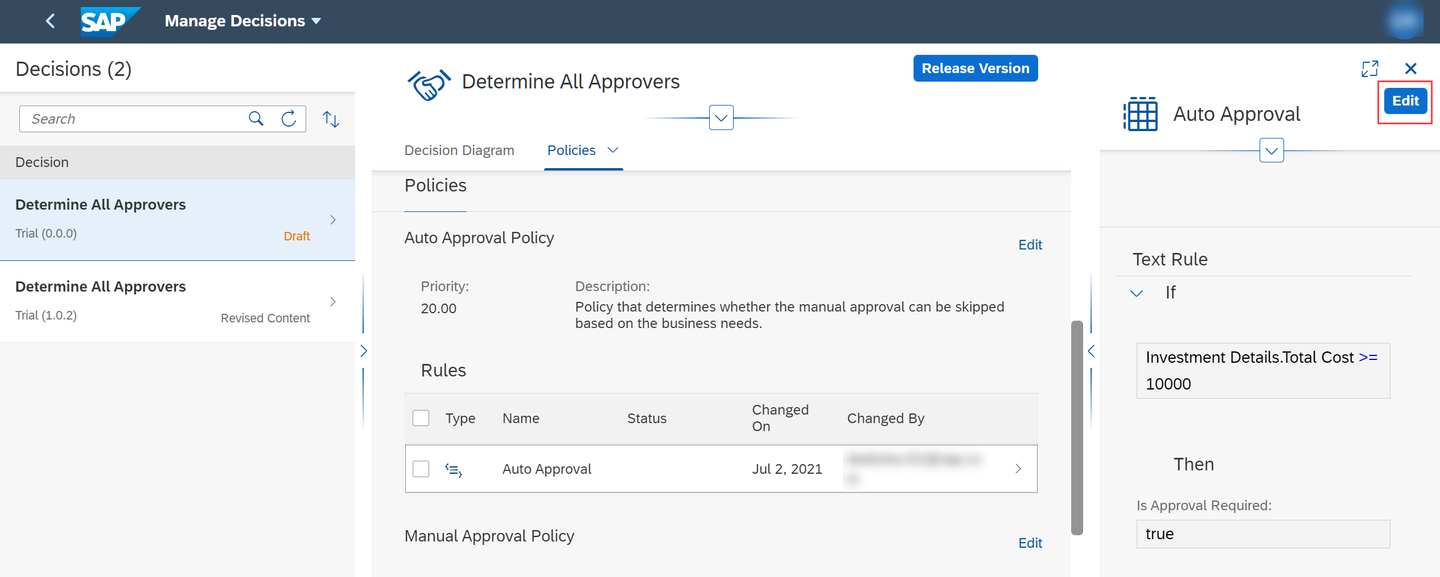
Edit Rule Modify the text rule value to
5000and Save the changes.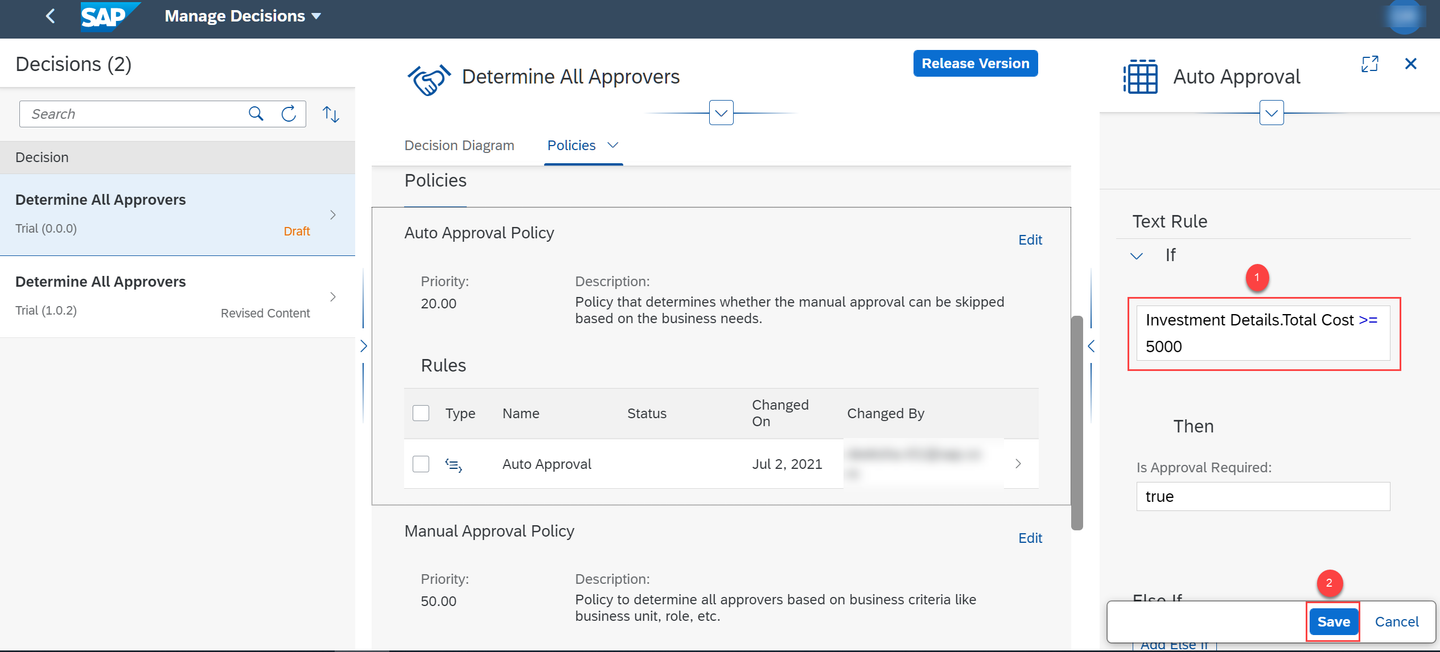
Text Rule Value
Choose Release Version.
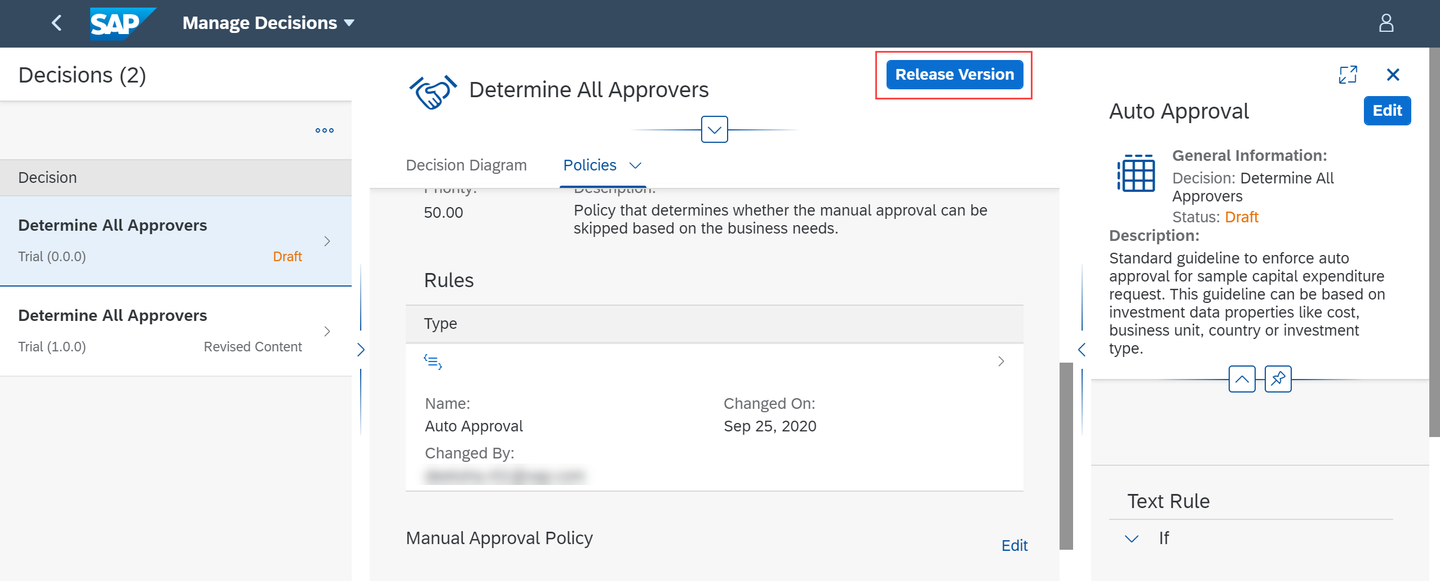
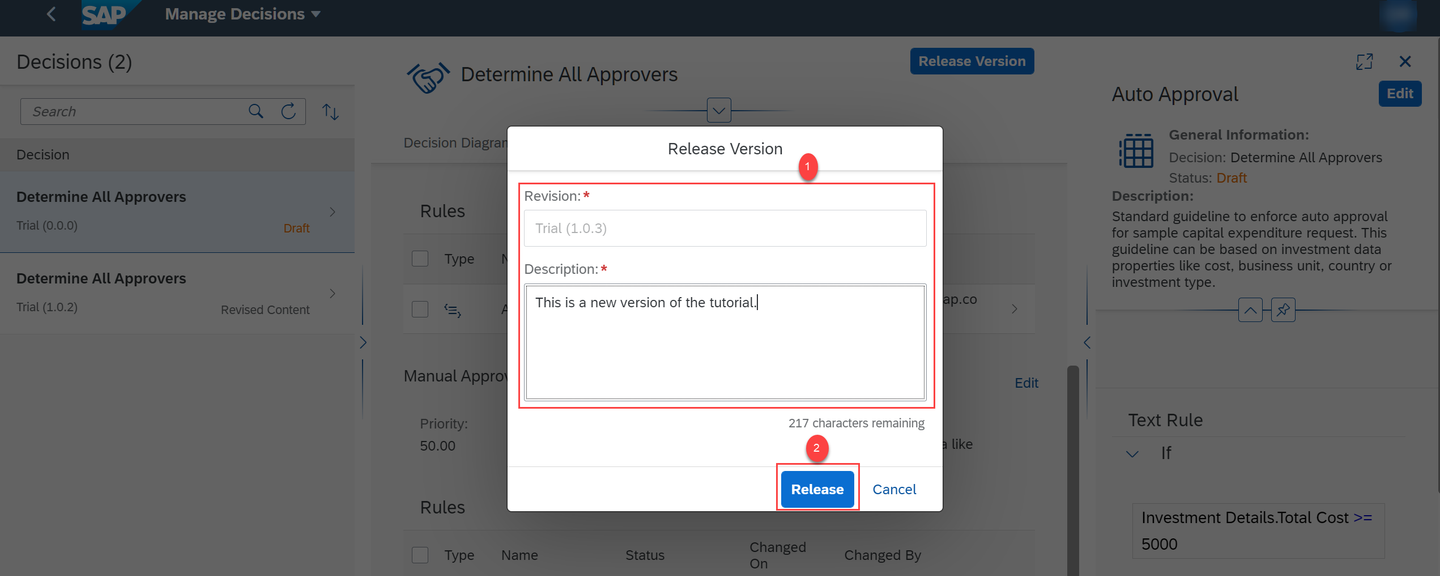
Release Version In the Release Version dialog, provide the revision number and description. Then choose Release.
Release Choose the decision with the version number from the previous step and then choose Activate.
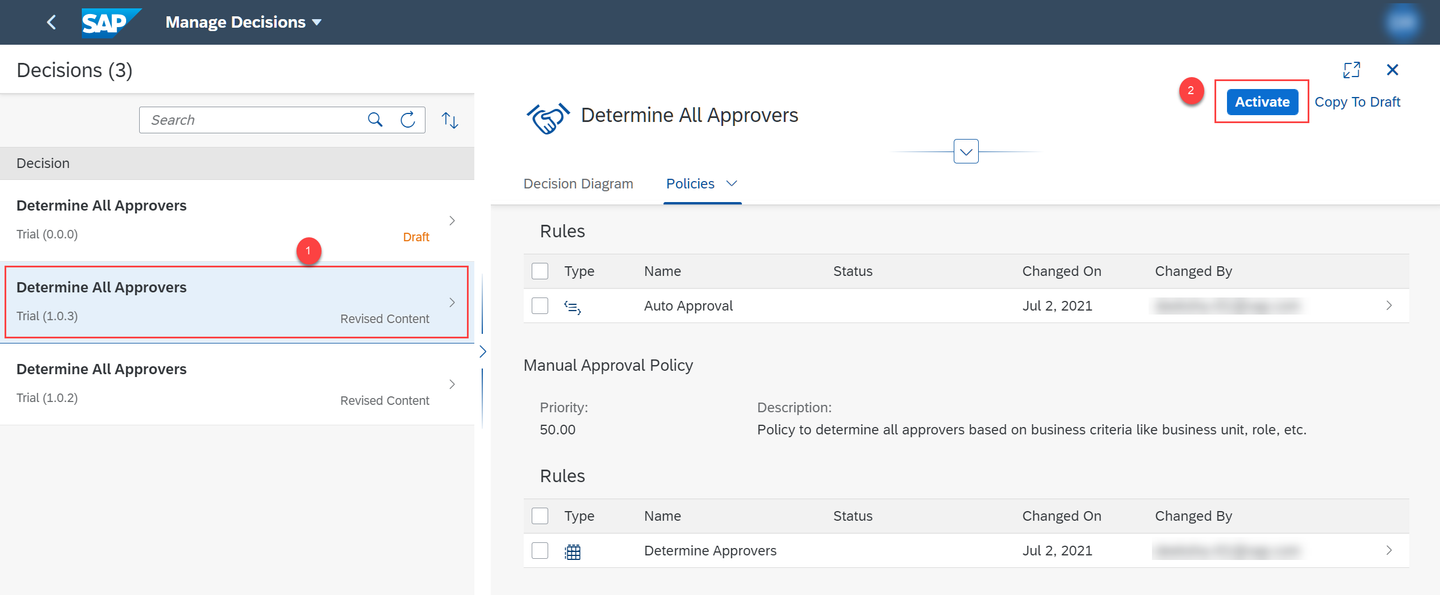
Activate Decision You have now modified the decision for your package.
s
Resources
Discussion
Share feedback on this tutorial or join the conversation in SAP Community.