
Overview
You will learn
- How to start a workflow instance for a visibility scenario


Prerequisites
Prerequisites
- You have set up SAP Workflow Management service. For more information, see the Set Up Workflow Management in Cloud Cockpit tutorial.
- You have created a visibility scenario named Employee Onboarding Process with onboard workflow as a process Participant. For more information, see Create a Visibility Scenario for a Deployed Workflow tutorial.
- You have set up business rules for determining equipment. To setup business rules, see steps 1 to 4 in Configure Business Rules, Workflow and Process Visibility tutorial.
Steps
Intro
Once you have modelled and activated your visibility scenario, navigate to the Monitor Workflows application to start a new instance of the workflow. Once the workflow has started, you will see the start events and other events being received in the Event Acquisition application. You can process them using the Monitor Visibility Scenarios application.
Open the Workflow Management dashboard and choose the Monitor Workflows tile under Monitoring Tools.
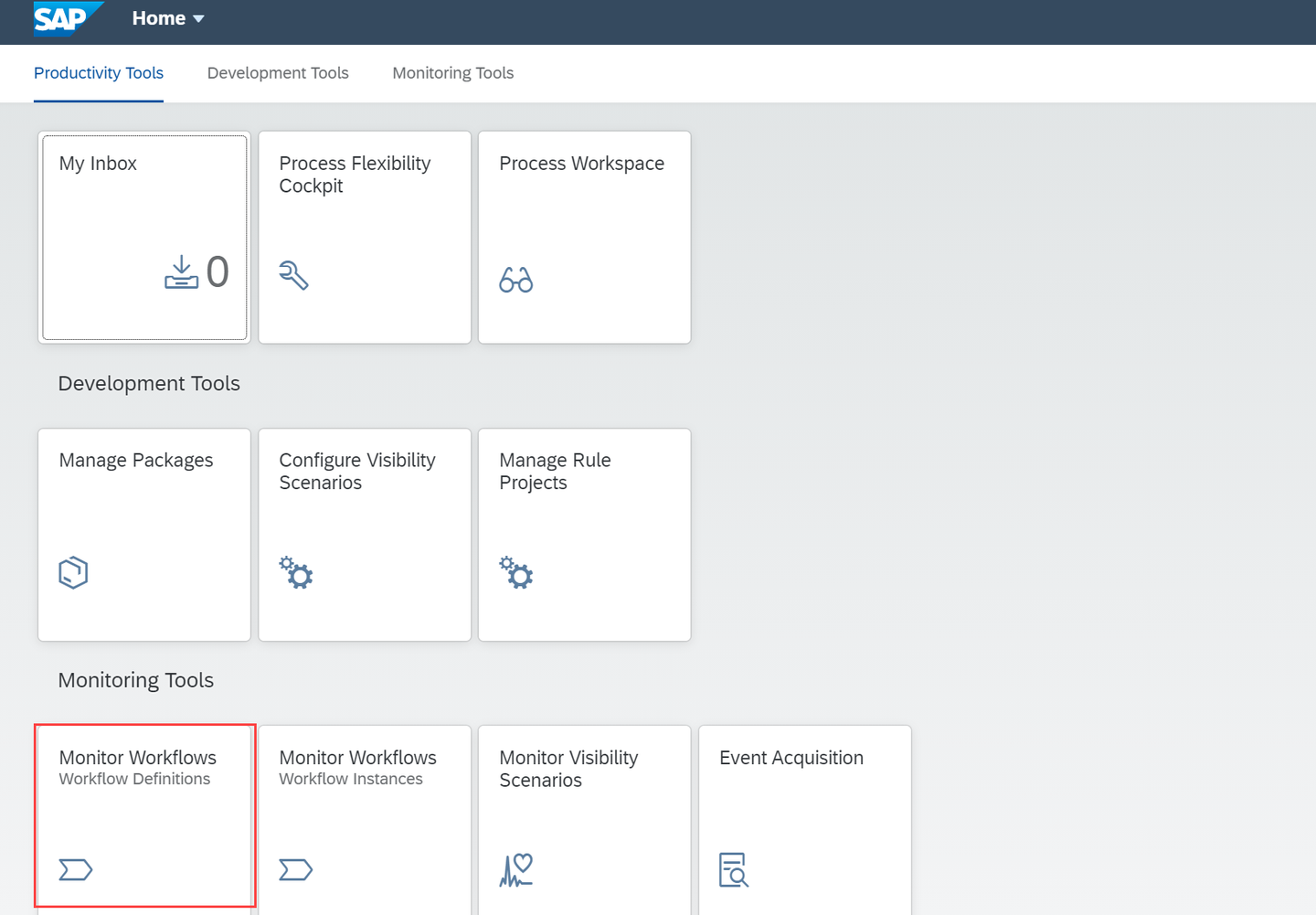
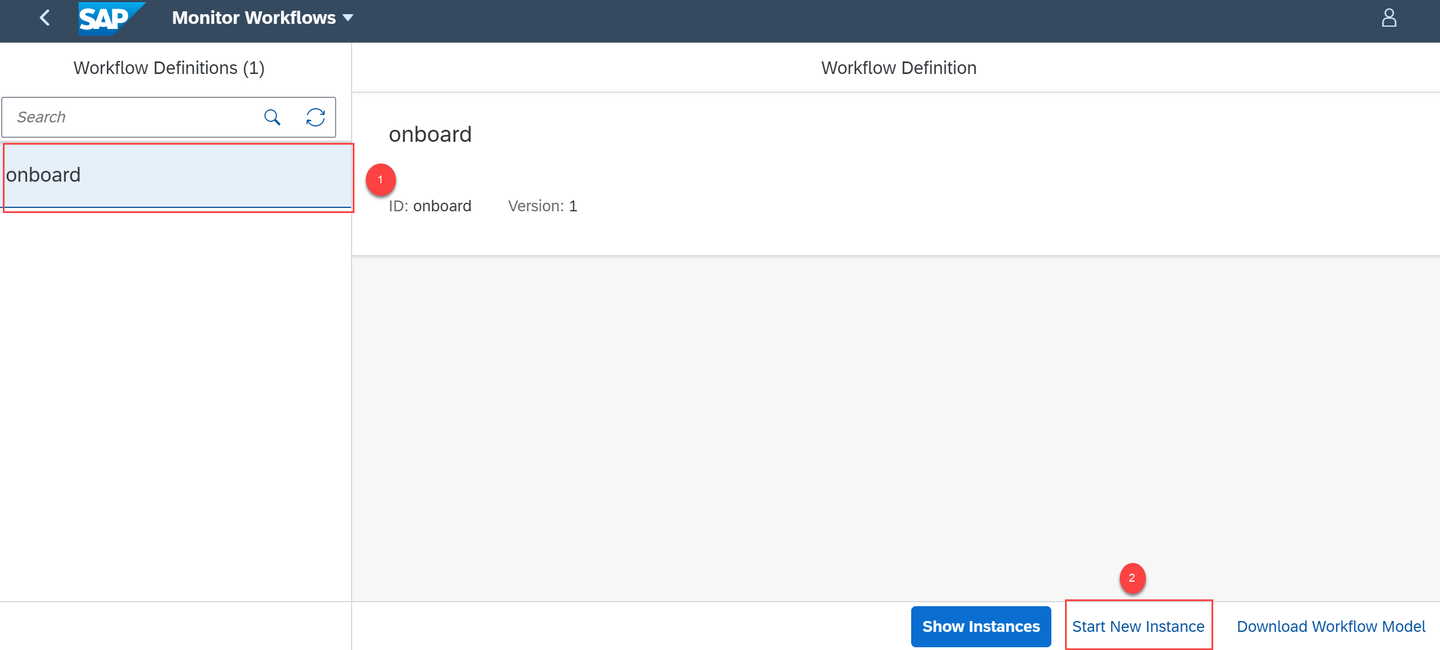
Home screen Search for the workflow using the workflow definition ID as the keyword. In this tutorial, we search for the onboard workflow definition ID for which we need to start the instance. Now, choose Start New Instance to start a new instance for the workflow.
New instance creation In the available payload, provide your trial email ID in the highlighted snippet and then choose Start New Instance and Close.

Payload Choose Show Instances to view the created instance.
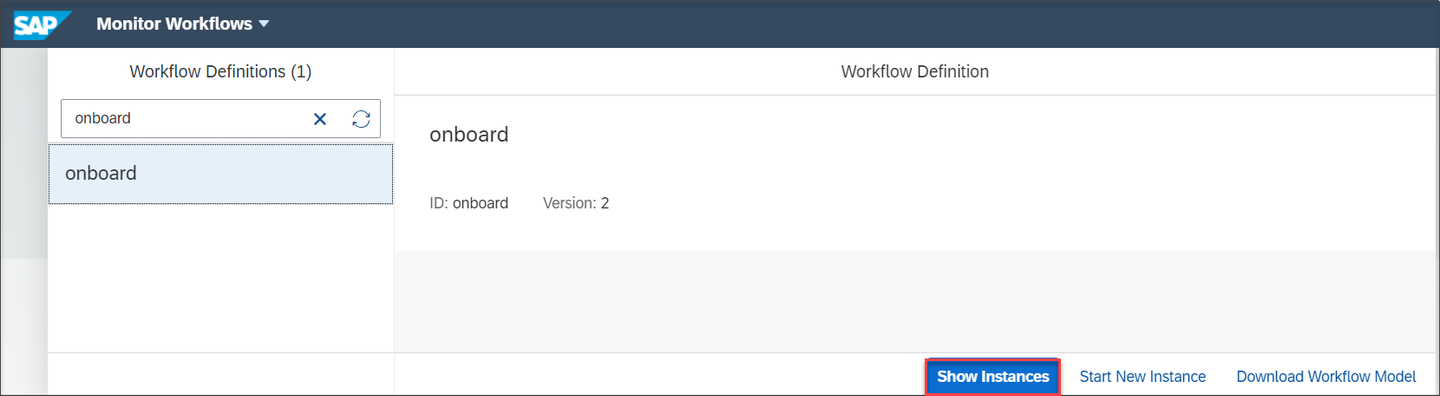
Show instances You should be able to see the newly created workflow instance.
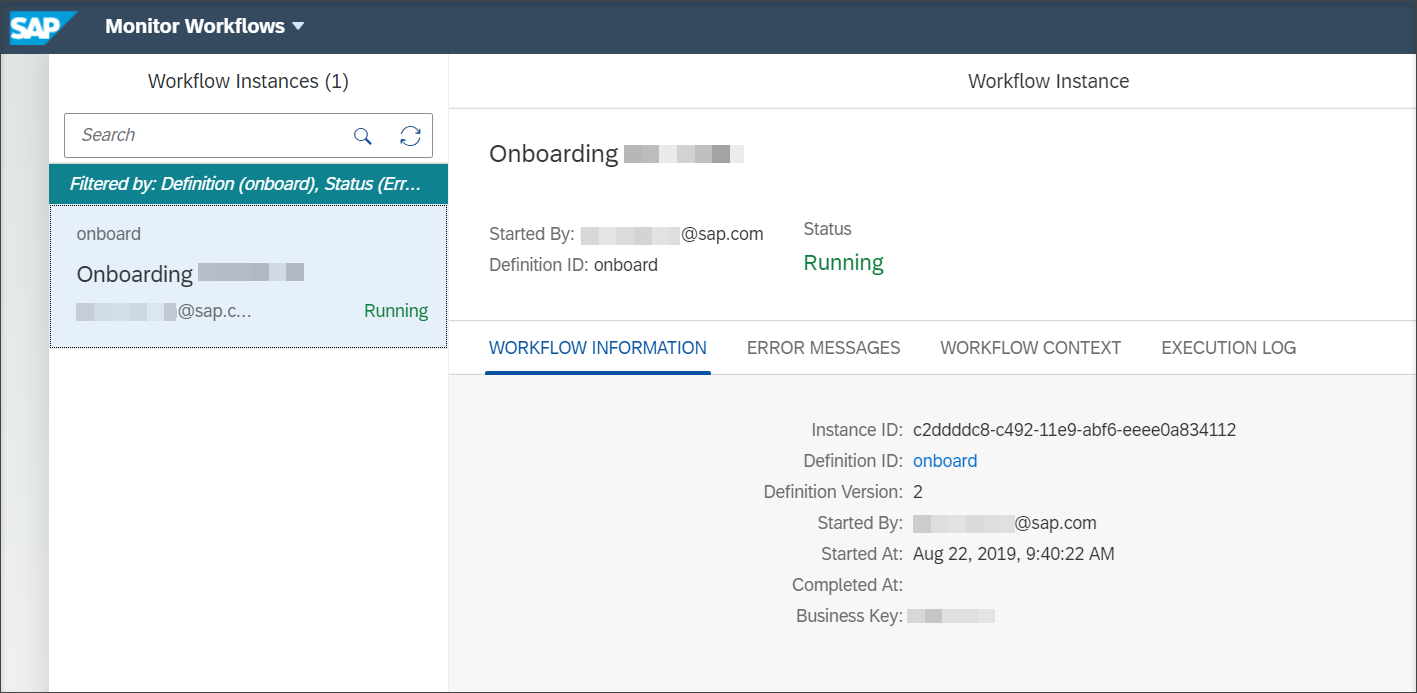
Show instance details
Choose Home to navigate to the Workflow Management dashboard.
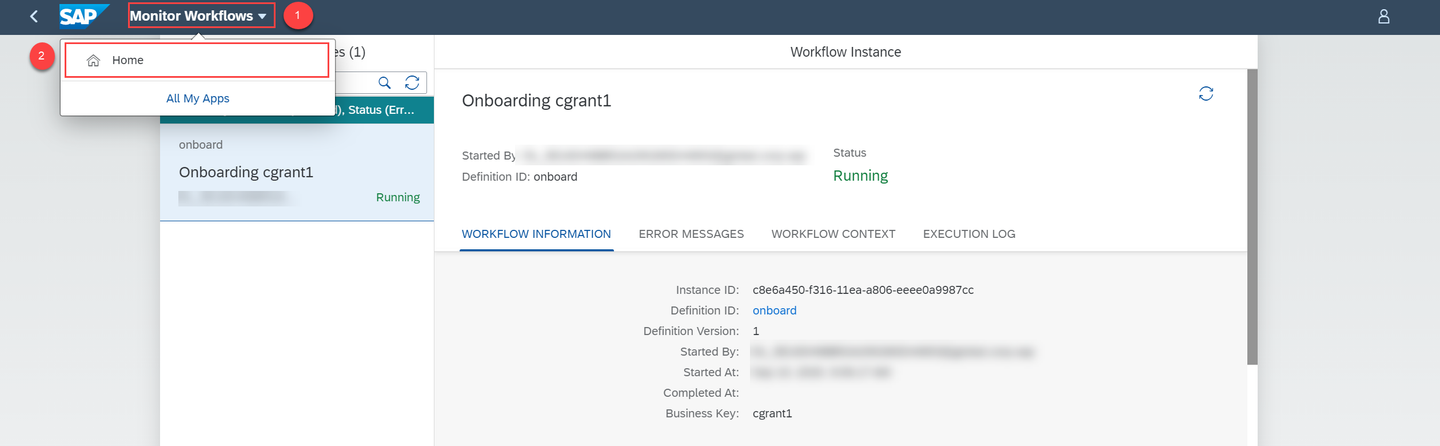
Home You can see a new task created in the My Inbox tile in the running state.
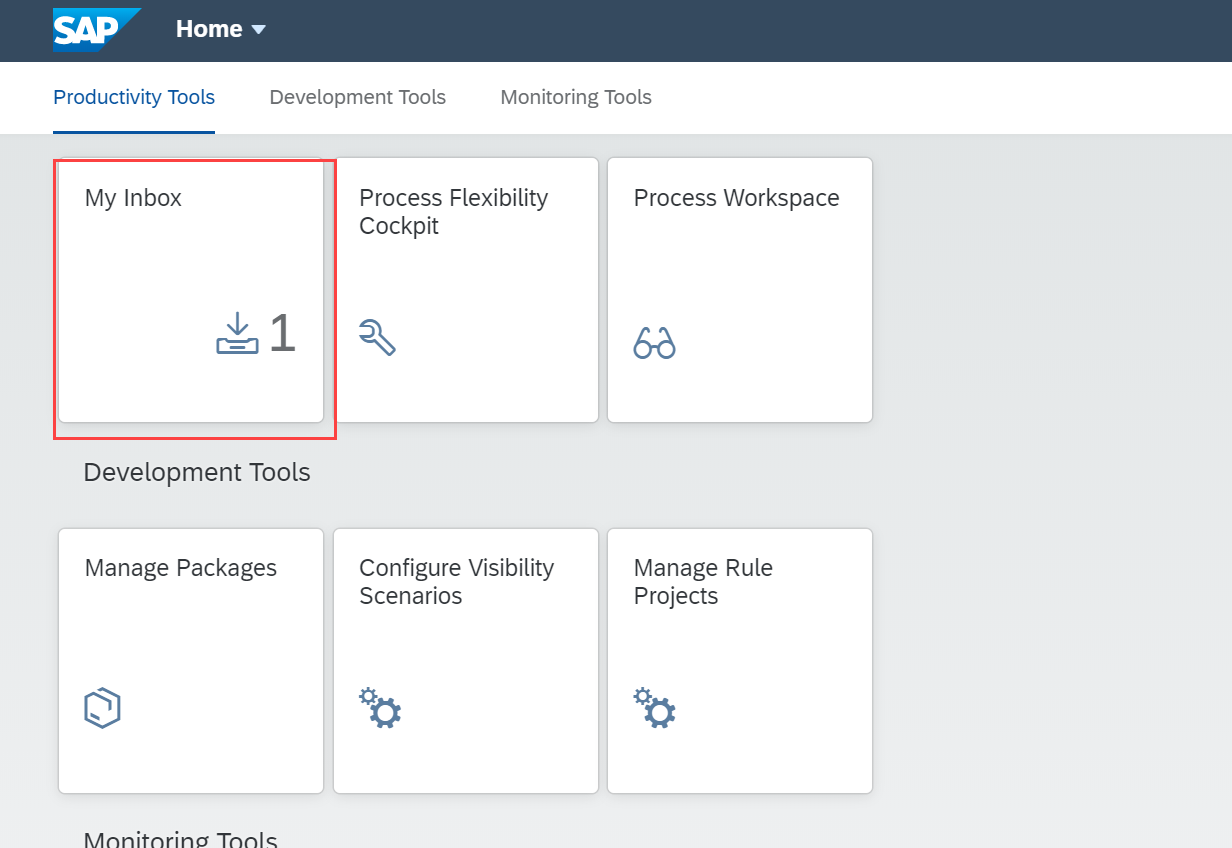
My Inbox Open the My Inbox application. You can see the new task in the list.
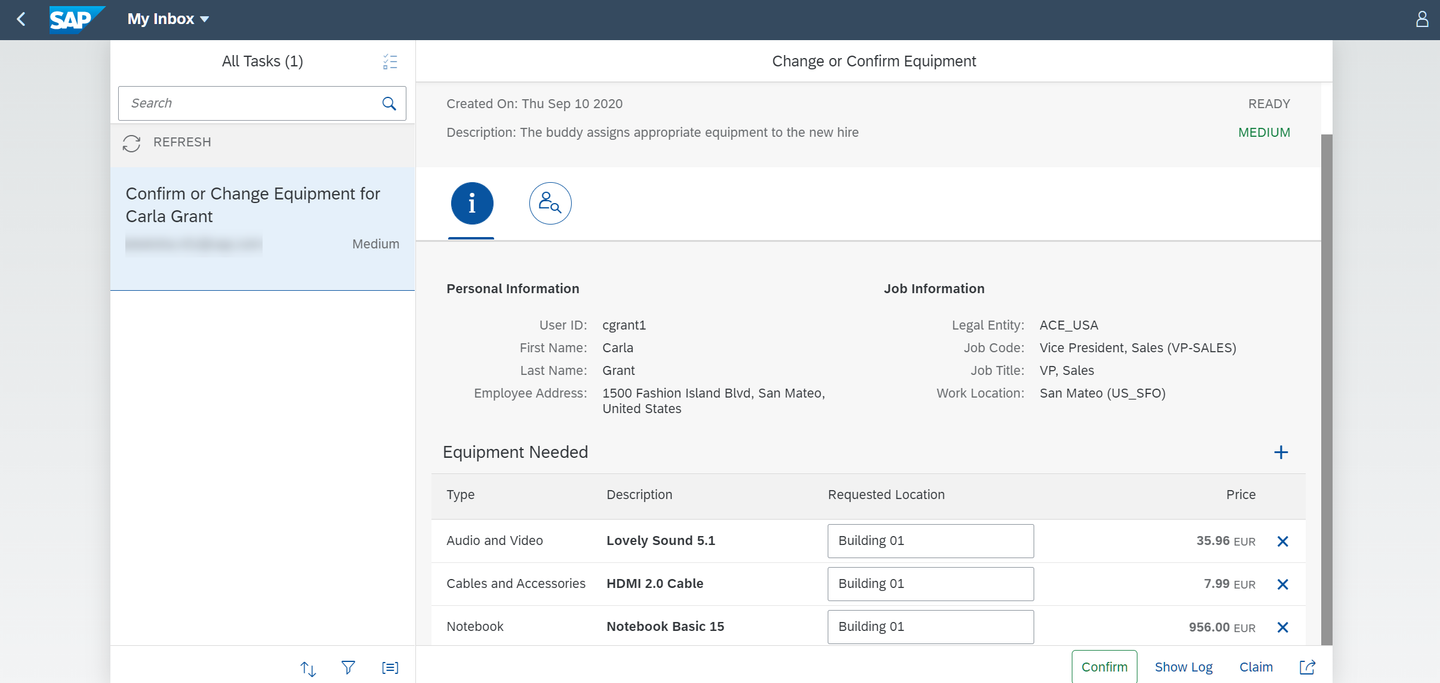
approve Before you Confirm the task, access the Event Acquisition application to familiarize yourself with the acquired events. For more information on Event Acquisition application, refer to Monitor Events Acquired Using the Event Acquisition Application.
You can move forward in the workflow by choosing the Confirm button.
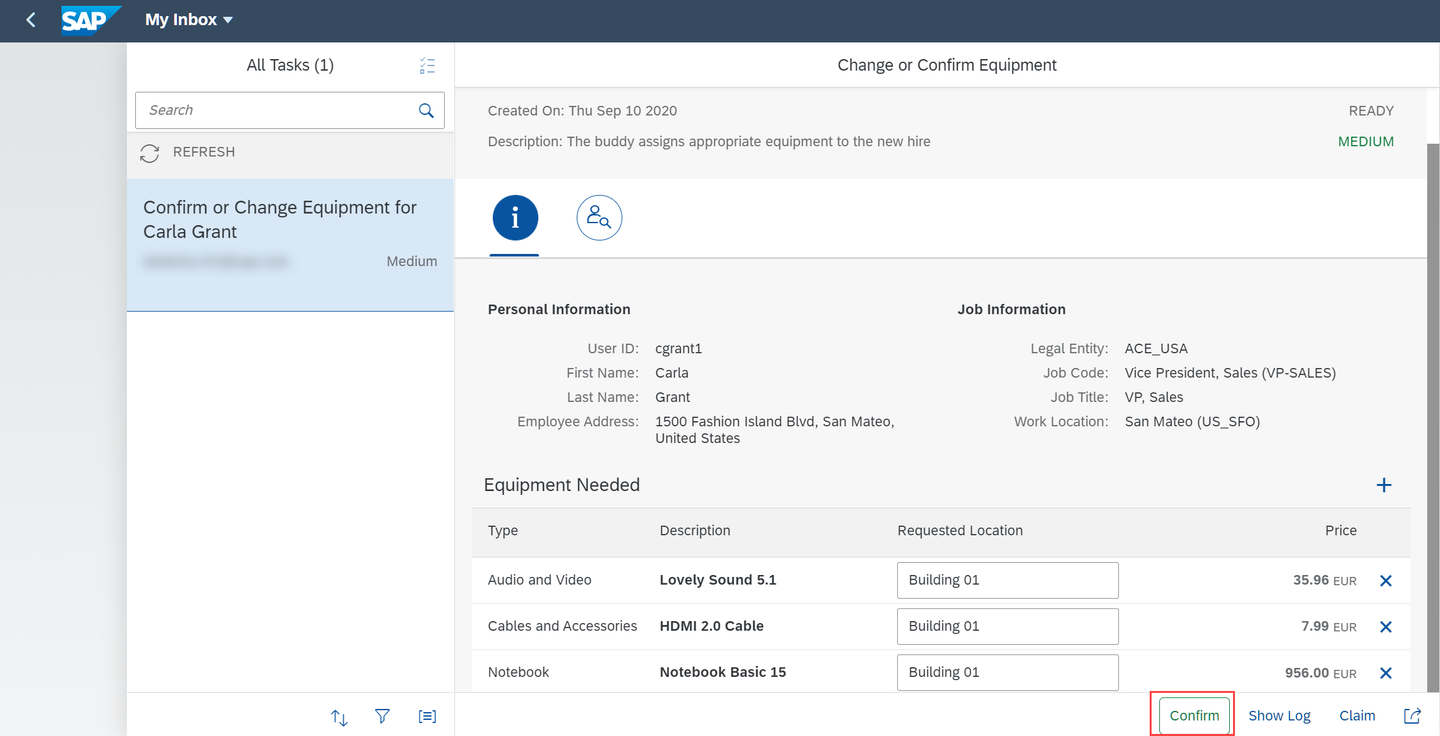
Approve equipment
Resources
Discussion
Share feedback on this tutorial or join the conversation in SAP Community.