
Overview
You will learn
- How to use the Configure Visibility Scenarios application
- How to create a visibility scenario by adding workflows
- How to activate a visibility scenario


Prerequisites
Prerequisites
- You have set up SAP Workflow Management service. For more information, see the Set Up Workflow Management in Cloud Cockpit tutorial.
- You have a deployed workflow. If you do not have a workflow deployed, then refer to steps 5 and 6 in Configure Business Rules, Workflow and Process Visibility tutorial.
- You have set up business rules for determining equipment. To set up the business rules, see steps 1 to 4 in Configure Business Rules, Workflow and Process Visibility tutorial.
Steps
Intro
Visibility scenarios allow you to track the performance of end-to-end processes. You can configure the aspects of a scenario such as events and context of the processes, correlation conditions, status, attributes, and performance indicators for the end-to-end processes of a scenario.
In this tutorial, you will learn how to add a workflow to your visibility scenario to gain visibility on the workflow. In this tutorial we create a visibility scenario named Employee Onboarding Process and then add the onboard workflow from workflow capability as a process participant to the visibility scenario. For more information, see Creating a Scenario.
Open the Workflow Management dashboard and choose the Configure Visibility Scenarios tile present under Development Tools.
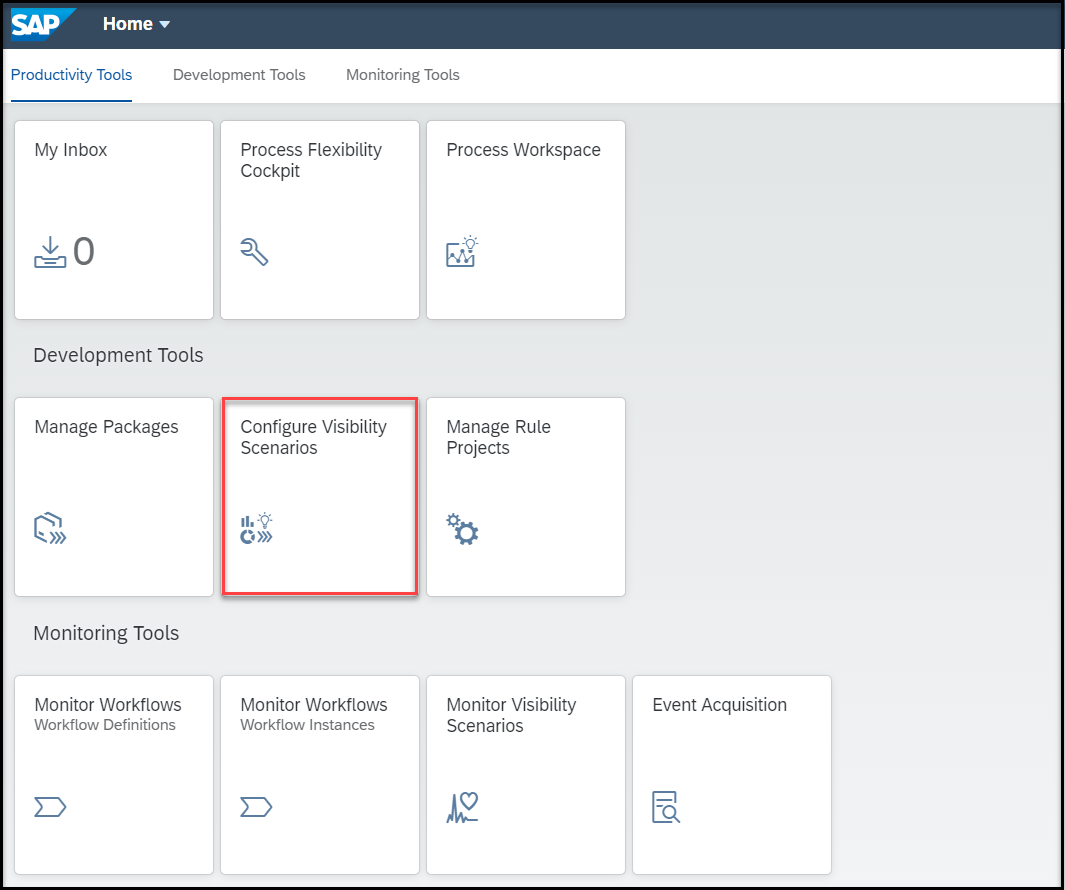
Home screen Create a visibility scenario by choosing the + icon.
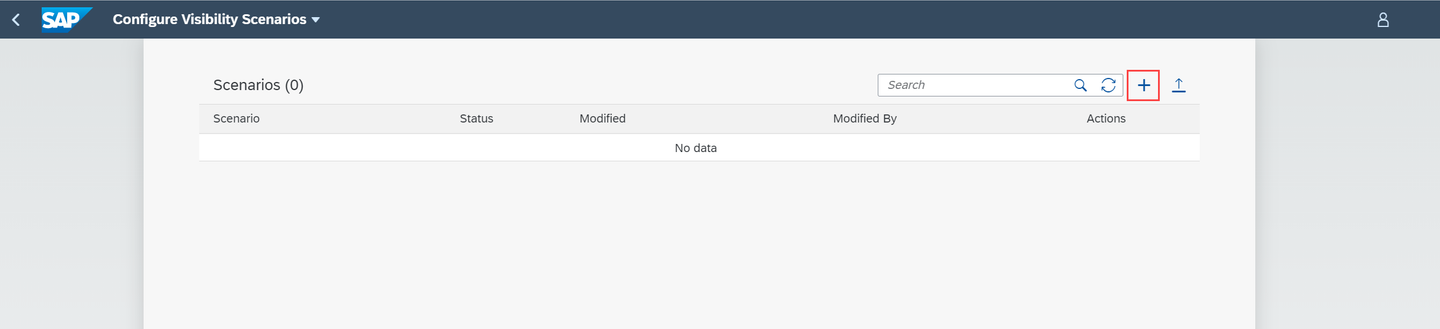
Add scenario In the New Scenario dialog, provide Namespace and Name for your scenario. On providing these values, the ID field gets populated automatically. You can choose to edit the ID if required. Optionally provide a Description to the scenario and choose Create.

scenario name You can see the Employee Onboarding Process scenario listed in the Scenarios table in the Draft state.
Now, select the Employee Onboarding Process scenario in the Draft state to edit it.

Draft
In this step, you will add the onboard workflow to your Employee Onboarding Process scenario.
Under the Processes tab, choose the + icon and then choose Add Workflow from SAP Workflow Service to add a workflow to the visibility scenario.
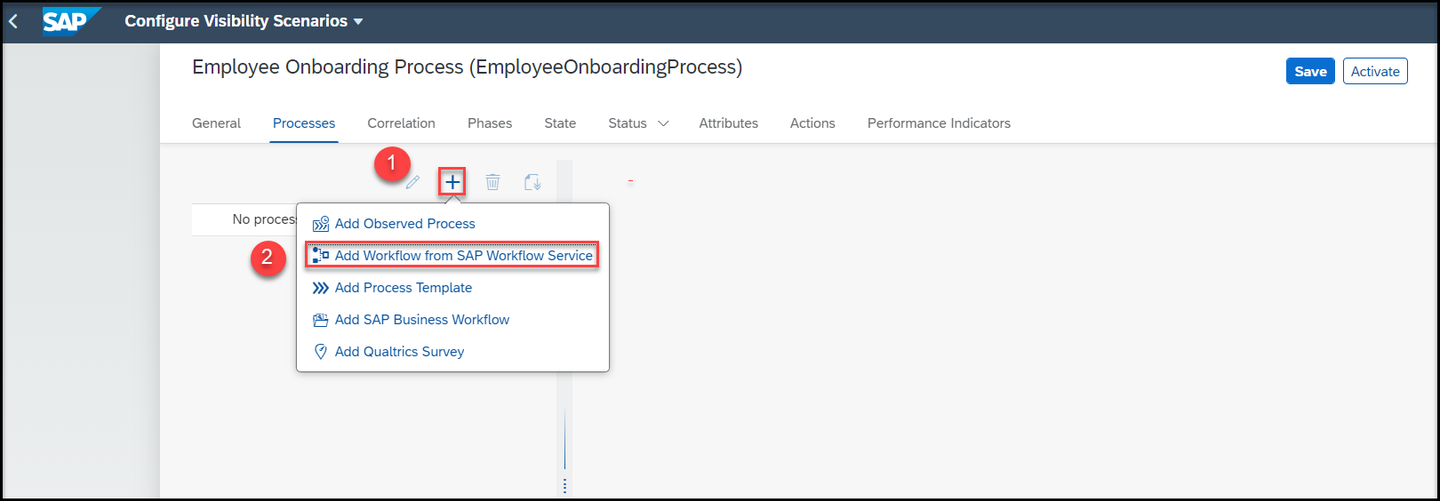
import workflow In the Add Workflow from SAP Workflow Service dialog, choose the workflow named onboard.
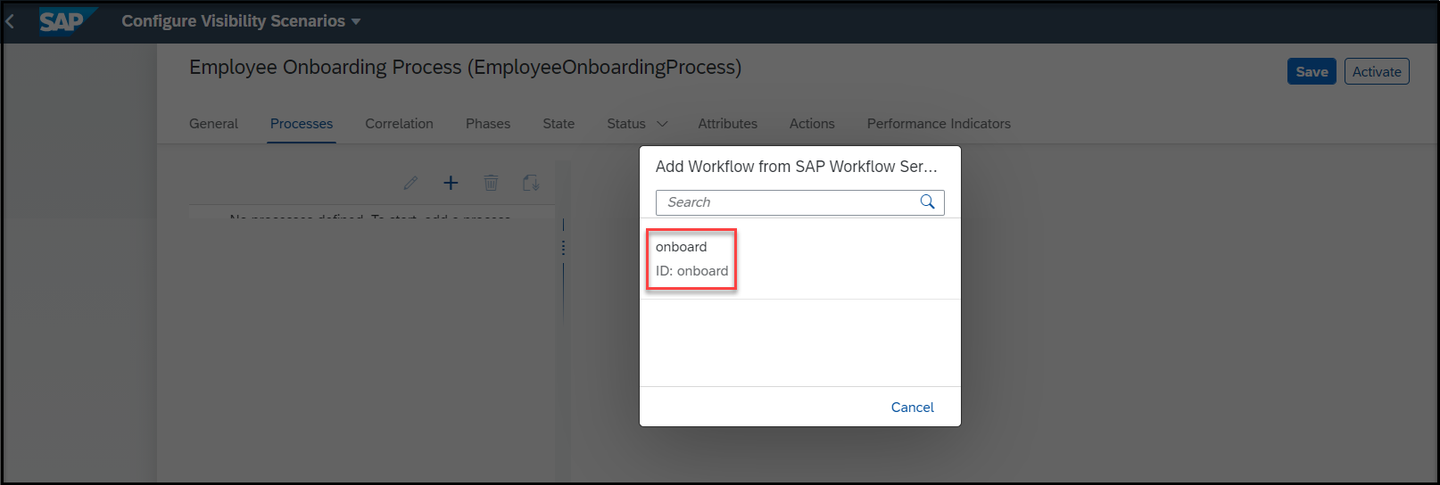
Choose workflow Now, the workflow is added as a process participant to your visibility scenario. By default all the events provisioned by the workflow along with the corresponding context of is added into the visibility scenario.
Check the default State, Status, Attributes, and Performance Indicators that are pre-created for the given workflow.
Save the changes.
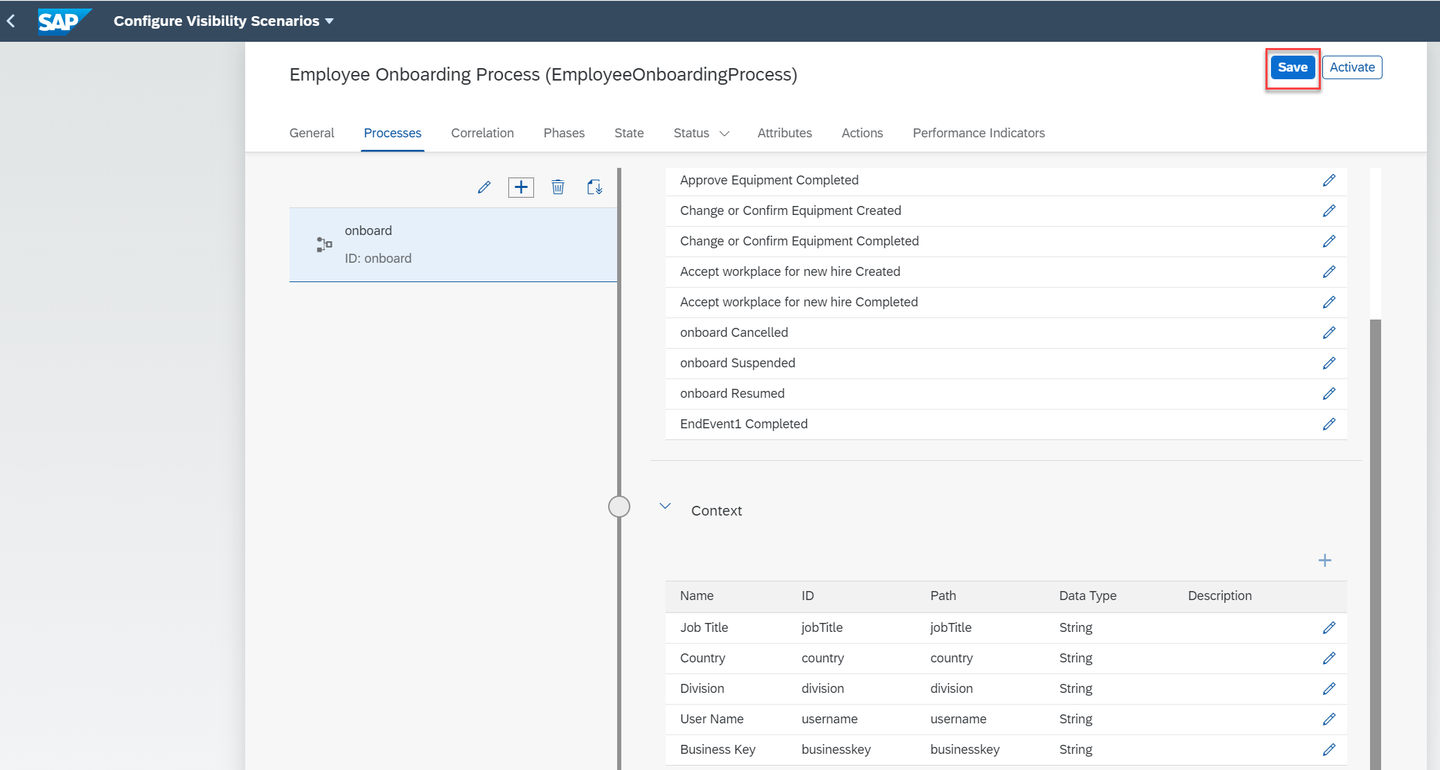
After import
You have now created an Employee Onboarding Process visibility scenario with an onboard workflow as a process participant.
Resources
Discussion
Share feedback on this tutorial or join the conversation in SAP Community.