
Overview
You will learn
- How to install a Cloud Foundry CLI plugin
- How to use the MTA (aka MultiApps) plugin


Prerequisites
Steps
Step 1
Verify that the Cloud Foundry CLI is installed
Make sure you installed the Cloud Foundry CLI successfully:
Shell
cf --versionNow you should see the release number of the CLI you are using.
You can go to this tutorial to install the Cloud Foundry CLI if necessary
Step 2
Install the plugin
Install the plugin from the OS-specific binary, using the following command:
Shell
cf install-plugin -f https://github.com/cloudfoundry-incubator/multiapps-cli-plugin/releases/latest/download/multiapps-plugin.osxShell
cf install-plugin -f https://github.com/cloudfoundry-incubator/multiapps-cli-plugin/releases/latest/download/multiapps-plugin.win64.exeShell
cf install-plugin -f https://github.com/cloudfoundry-incubator/multiapps-cli-plugin/releases/latest/download/multiapps-plugin.linux64Shell
cf install-plugin -f https://github.com/cloudfoundry-incubator/multiapps-cli-plugin/releases/latest/download/multiapps-plugin.win32.exeShell
cf install-plugin -f https://github.com/cloudfoundry-incubator/multiapps-cli-plugin/releases/latest/download/multiapps-plugin.linux32Step 3
Verify the installation of the plugin
List all Cloud Foundry CLI plugins to see whether the installation worked.
You should now see the following output:
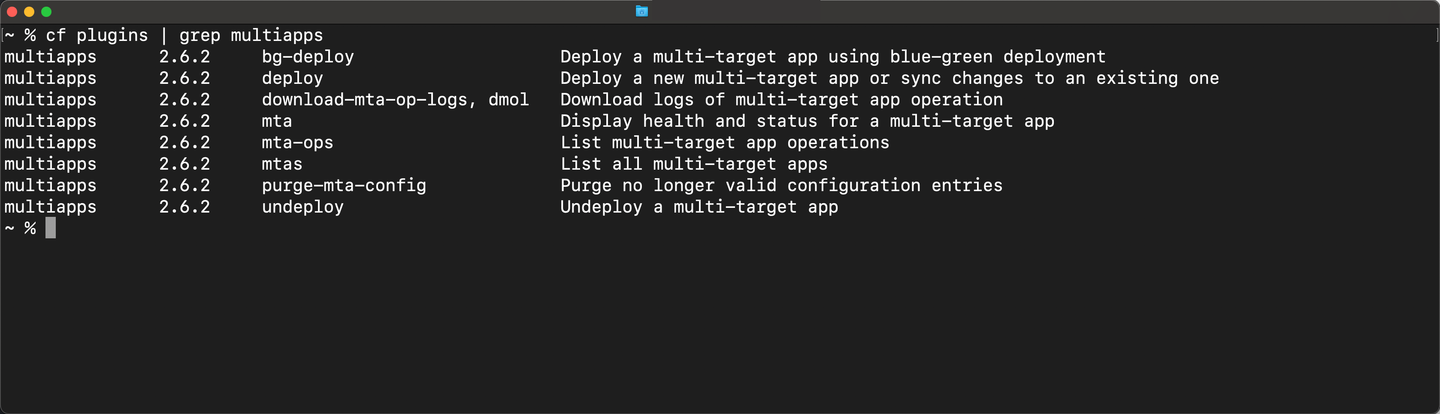
This list shows you all the new commands you added to the CLI. E.g., now you can run
cf deployandcf mtafrom the command line.
Step 4
Inspect the deploy command options
Run the following command to inspect all options for the cf deploy command:
Shell
cf deploy --helpResources
Discussion
Share feedback on this tutorial or join the conversation in SAP Community.