
Overview
You will learn
- How to configure a basic destination.
- What some of the additional properties are for.
- How to specify the SAP Business Application Studio usage parameter for a generic OData service.


Prerequisites
Prerequisites
- You have one of the following:
- SAP BTP free tier or trial account: You have previously Set Up a BTP Account for Tutorials.
- SAP BTP enterprise account: You have a subaccount for which you can manage entitlements. If you need help setting up your subaccount, have a look at Managing Subaccounts Using the Cockpit.
Steps
Intro
Destinations are key building blocks on SAP BTP, as they are used to define connections for outbound communication from your application to remote systems. These remote systems can be on-premises or in the cloud.
A destination has a name, a URL, authentication details, and other optional configuration details.
The destination you will create in this tutorial connects to a set of OData services known as the “Northwind” services, which are publicly available and hosted by OASIS at https://services.odata.org. These services are frequently used for tutorials and testing purposes, as they require no authentication and contain realistic mock data.
The Northwind OData services are available in several versions. Most tutorials currently use either V2 (https://services.odata.org/V2/Northwind/Northwind.svc/) or V4 (https://services.odata.org/V4/Northwind/Northwind.svc/). To support both versions, and other versions that may be added later, you will create a generic connection to the Northwind service. The exact path and exact version will be configured in later tutorials.
- For (free) Trial Accounts: https://account.hanatrial.ondemand.com
- For Free Tier and Enterprise Accounts: https://cockpit.btp.cloud.sap
Click on the tile of your Cloud Foundry subaccount:

Click on the Destinations button on the left panel and click Create Destination to open a new destination configuration form:

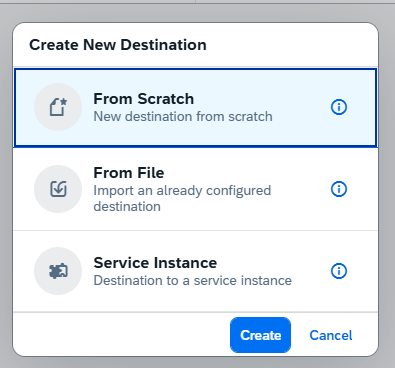
Select From Scratch when prompted:
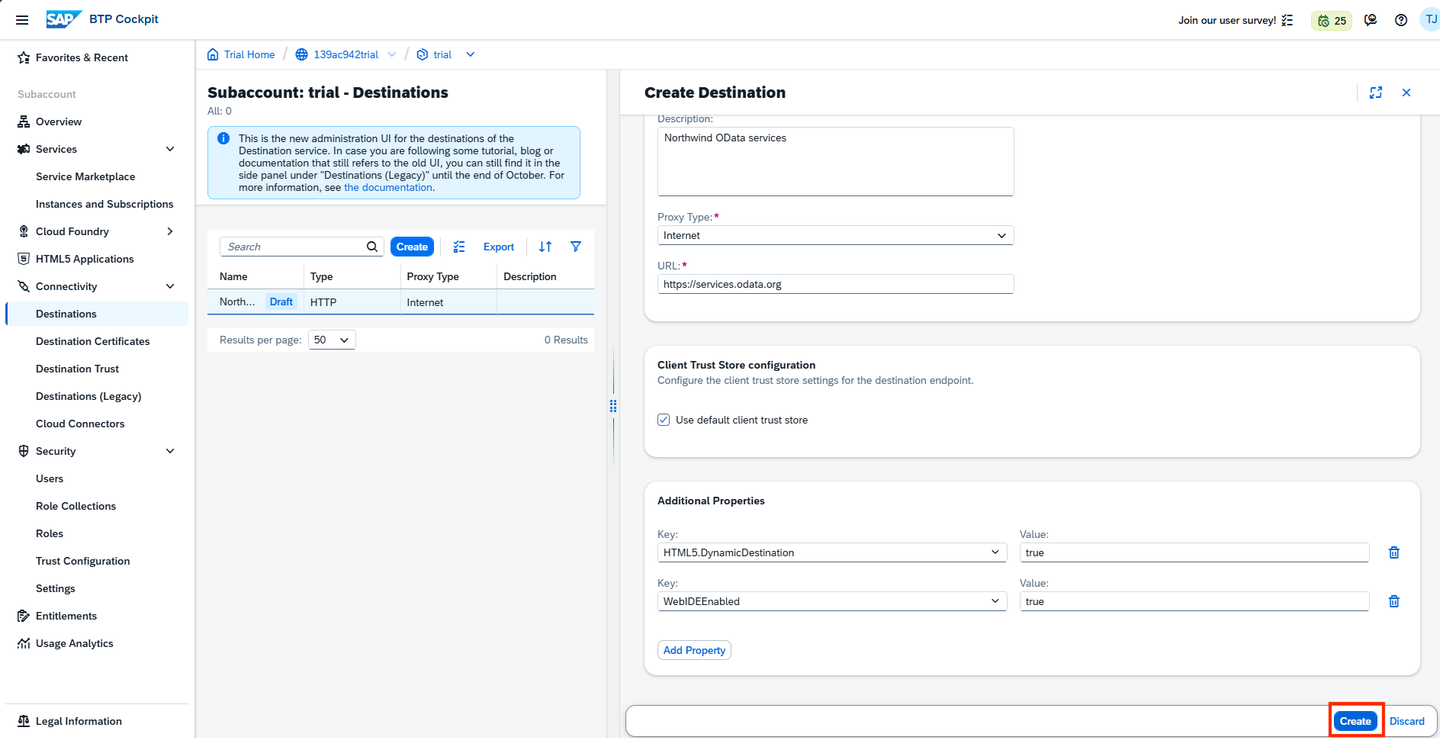
Enter/confirm all fields in the destination configuration section with the information below and confirm with Save:
| Field Name | Value |
|---|---|
| Name | Northwind |
| Type | HTTP |
| Description | Northwind OData services |
| URL | https://services.odata.org |
| Proxy Type | Internet |
| Authentication | NoAuthentication |
Add the following Additional Properties:
| Property Name | Value |
|---|---|
HTML5.DynamicDestination | true |
WebIDEEnabled | true |
Do not use the entire path for the URL. The URL should only be
https://services.odata.org. You can find more information on the used properties in the documentation.
When specifying a URL with the HTTPS scheme, a checkbox Use default JDK truststore will appear. Ensure that this is checked.
Click on the Check Connection button for the newly created destination to see if everything works as expected:

Resources
Discussion
Share feedback on this tutorial or join the conversation in SAP Community.