
Use SAP HANA as the Database for a CAP Java Application
Use SAP HANA in SAP Business Technology Platform from your local CAP Java application.
Overview
You will learn
- How to use the CDS CLI to do deployments to SAP HANA
- How to use SAP HANA for your local running application


Prerequisites
Steps
Intro
In the previous tutorial, you have deployed bookstore application to SAP BTP. In this tutorial, you will connect from your locally running application to your SAP HANA Cloud on SAP BTP. This hybrid setups let’s you develop your service locally while being connected to your SAP HANA Cloud database and reduces turnaround times.
In SAP Business Application Studio, open a terminal by choosing Terminal → New Terminal from the main menu.
Authenticate using your login credentials using the following command in the terminal:
Shell/Bashcf login
Should you need to specify the
<CF_API_ENDPOINT>again, use the actual value you obtained in the previous tutorial.
Add an additional Maven dependency to your project. The dependency brings the ability to read SAP HANA service bindings and configure the SAP HANA connectivity.
In a previous tutorial, you already added the
cds-starter-cloudfoundrydependency in yoursrv/pom.xml. In this case you can skip the following and go to the next step.
Navigate back to the File Explorer by clicking on the corresponding icon.
Edit the
pom.xmlin thesrvdirectory (not thepom.xmlfile located in the root project folder) and add the following dependency under the<dependencies>tag and make sure you Save the file:XML<dependency> <groupId>com.sap.cds</groupId> <artifactId>cds-feature-hana</artifactId> </dependency>
Assuming you don’t want to use the same service instance as you created during your deployment, you’re creating a new service instance with the same data for your hybrid test cycles here. If you want to use the recently deployed one, use bookstore-db instead of bookstore-hana in the following.
Go back to the terminal of SAP Business Application Studio and make sure that you are in the root of the bookstore project:
Shell/Bashcd ~/projects/bookstoreAdd the following configuration in the file
.cdsrc.jsonin the root folder of yourbookstoreproject:JSON{ "hana" : { "deploy-format": "hdbtable" } }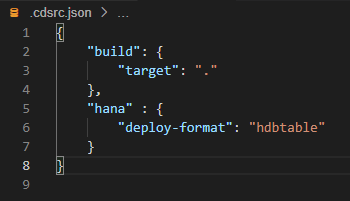
.cdsrc.json content Ensure your SAP HANA Cloud instance is started.
Create an SAP HANA service instance and implicitly push all artifacts to the database using:
Shell/Bashcds deploy --to hana:bookstore-hana --store-credentialsAs an effect,
.hdbtableand.hdbviewfiles are generated in the(gen/)db/src/gen/folder.In addition, the command initialized the database schemas inside the SAP HANA HDI container.
Aside from initializing the SAP HANA database, the cds deploy command created a file with the name default-env.json in your bookstore root folder. This file contains a set of credentials to connect to the SAP HANA HDI container, that was created by the command. CAP Java is able to automatically pick up the SAP HANA credentials from this file and configure the application running locally to use the SAP HANA HDI container as the database.
When deploying the application to the cloud, Cloud Foundry will provide the credentials as a service binding to the application through the Open Service Broker API. Also in this case, CAP Java will automatically pick up the SAP HANA credentials and configures the application for you as you will see in the next tutorial.
Before starting your application, make sure that you stop any running instances in the terminal or debug side panel.
Let’s test the SAP HANA connectivity. Start your application by running:
Shell/Bashmvn spring-boot:run -Dspring-boot.run.profiles=cloudThe Java system property
-Dspring-boot.run.profiles=cloudensures that the default configuration using H2 as the database, which is still defined in theapplication.yaml, doesn’t get activated.You can observe the log line
Registered DataSource 'ds-bookstore-hana', which indicate that the SAP HANA configuration was picked up.Open the file
requests.httpand execute one of the requests that create an order, by choosing Send Request above it.Restart your application with the same command and browse to the
Ordersentity on the Welcome Page. You can see that the entries are persisted.
Congratulations!
You have successfully deployed your database schema to SAP HANA and connected your application, which is running locally. In the following tutorial, you will run the application on the SAP BTP, Cloud Foundry environment, using the SAP HANA service instance that was created in this tutorial.
Resources
Discussion
Share feedback on this tutorial or join the conversation in SAP Community.