
Overview
You will learn
- How to upload training data and train a machine learning model to get solution recommendations for new service requests.
- How to get solution recommendations for new service requests.


Prerequisites
Steps
Intro
Service Ticket Intelligence provides machine learning functionalities to effectively deal with service requests. Thereby, the service offers two main functionalities:
The service is able to analyze the unstructured information in service requests and classify the requests into categories.
The service is able to recommend solutions for service requests based on historical data.
Find more details on the Service Ticket Intelligence concepts here.
Select the request Upload Recommendation Training File (random Q&A - small). The training data is already included in the Body of the request. Click Send to upload the training data. The dataset contains question-article related data and has the following information: subject, datasource and article_id. If you would like to use your own set of training data, please ensure that the data is in CSV file format and encoded in Base64.

The service now automatically creates a new model and sets its status to NEW. That indicates that the model was just created and has not been trained yet. Both the ID of the new model, as well as its status, can be found in the response of the request.

Next, you can start training the model based on the data that was uploaded in the previous step.
Therefore, select the request Start model training and click Send. This will trigger the model training process.

To observe the current status of your model, select the request Get model status and click Send.

The response of the request includes all the details of your model along with its current status. When training is triggered, the status is PENDING_TRAINING which indicates that the model is queued for training. Once training has started, the status changes to IN_TRAINING. When training is done, the status changes to READY. Make sure to send the request Get model status every couple of minutes until training is completed. Training time varies depending on data size and infrastructure resource utilizations. In this example, it should take approximately 10 to 20 minutes to complete.

To actually get solution recommendations for new service requests using the trained machine learning model, it is necessary to activate (deploy) the model.
Select the request Activate model and click Send. This will start the activation process of the model.

Use the request Get model status from the previous step again to observe the process. The model status will change from READY to LOADING as the model is being loaded and deployed. This process may take up to 15 minutes on the first activation of your subaccount. Once the status of the model changes to ACTIVE, the model is ready and activated.

Finally, the model can be used to get solution recommendations for new service requests.
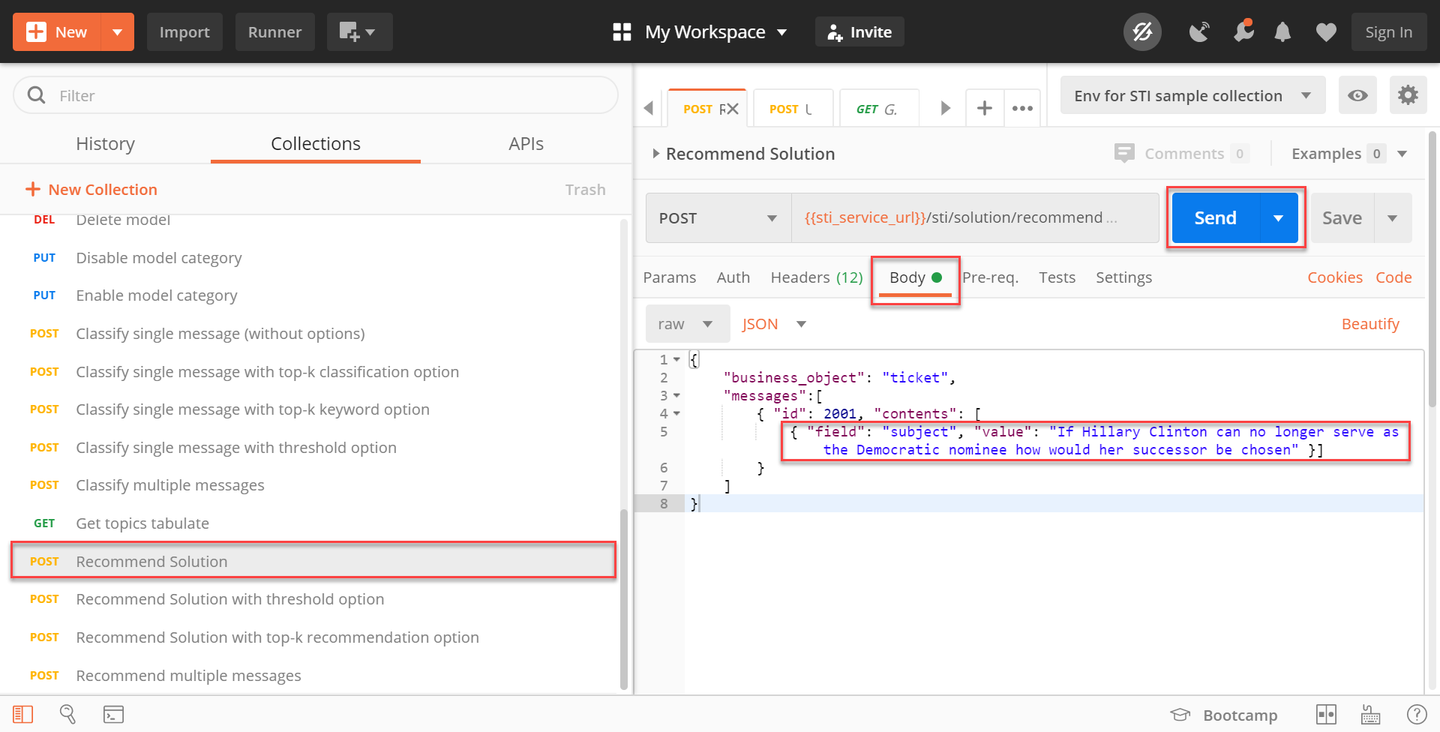
Select the request Recommend Solution. Open the Body tab to see the service request message that will be sent to the service. Click Send to get solution recommendations for this service request. The prediction results contain similar historical article recommendations and the details datasource and article_id. You can map article_id back to the content of the historical data that you have parsed in for the training process.
The request and response look as follows:

This is the full prediction:
{
   "results": [
      {
         "detected_language": "en",
         "id": 2001,
         "recommendation": [
            {
               "score": 1.0,
               "solutions": [
                  {
                     "field": "datasource",
                     "value": "jam"
                  },
                  {
                     "field": "article_id",
                     "value": "405639"
                  }
               ]
            },
            {
               "score": 1.0,
               "solutions": [
                  {
                     "field": "datasource",
                     "value": "jam"
                  },
                  {
                     "field": "article_id",
                     "value": "405352"
                  }
               ]
            },
            {
               "score": 1.0,
               "solutions": [
                  {
                     "field": "datasource",
                     "value": "mindtouch"
                  },
                  {
                     "field": "article_id",
                     "value": "406961"
                  }
               ]
            },
            {
               "score": 1.0,
               "solutions": [
                  {
                     "field": "datasource",
                     "value": "mindtouch"
                  },
                  {
                     "field": "article_id",
                     "value": "405980"
                  }
               ]
            },
            {
               "score": 1.0,
               "solutions":[
                  {
                     "field": "datasource",
                     "value": "jam"
                  },
                  {
                     "field": "article_id",
                     "value": "407027"
                  }
               ]
            },
            {
               "score": 0.5,
               "solutions": [
                  {
                     "field": "datasource",
                     "value": "jam"
                  },
                  {
                     "field": "article_id",
                     "value": "406000"
                  }
               ]
            },
            {
               "score": 0.5,
               "solutions":[
                  {
                     "field": "datasource",
                     "value": "mindtouch"
                  },
                  {
                     "field": "article_id",
                     "value": "405727"
                  }
               ]
            },
            {
               "score": 0.5,
               "solutions": [
                  {
                     "field": "datasource",
                     "value": "jam"
                  },
                  {
                     "field": "article_id",
                     "value": "407386"
                  }
               ]
            },
            {
               "score": 0.5,
               "solutions": [
                  {
                     "field": "datasource",
                     "value": "jam"
                  },
                  {
                     "field": "article_id",
                     "value": "407725"
                  }
               ]
            },
            {
               "score": 0.5,
               "solutions": [
                  {
                     "field": "datasource",
                     "value": "jam"
                  },
                  {
                     "field": "article_id",
                     "value": "405552"
                  }
               ]
            }
         ],
         "status": 0,
         "status_message": "ok"
      }
   ]
} You can also try out the other POST /Recommend requests.

You have now successfully used Service Ticket Intelligence to get solution recommendations for new service requests.
Resources
Discussion
Share feedback on this tutorial or join the conversation in SAP Community.